
Docs · guide
How to add a page in Google Docs: the page break, and its limits
By Alberto Gulotta · Updated · 9 min read
How to add a page in Google Docs means inserting a page break: Insert, Break, Page break, or Ctrl + Enter. Google’s help names two other breaks, a section break and a break before a paragraph, and says none of them work in a pageless document. This page sets out the steps and what a forum thread adds.
| Question | Answer | Where it comes from |
|---|---|---|
| How do I start a new page? | Select the content, then Insert, Break, Page break | Google Docs Editors Help |
| Is there a shortcut? | Ctrl + Enter on Windows and Chrome OS; ⌘ + Enter on a Mac | Google’s shortcut list |
| And on a phone? | Tap Edit, Insert, Page break | Google Docs Editors Help |
| How do I remove one? | Click under the page break and press Backspace or Delete | Google Docs Editors Help |
| Does it work in a pageless document? | No: the document has to be in pages format | Google Docs Editors Help |
Google’s steps: a page break
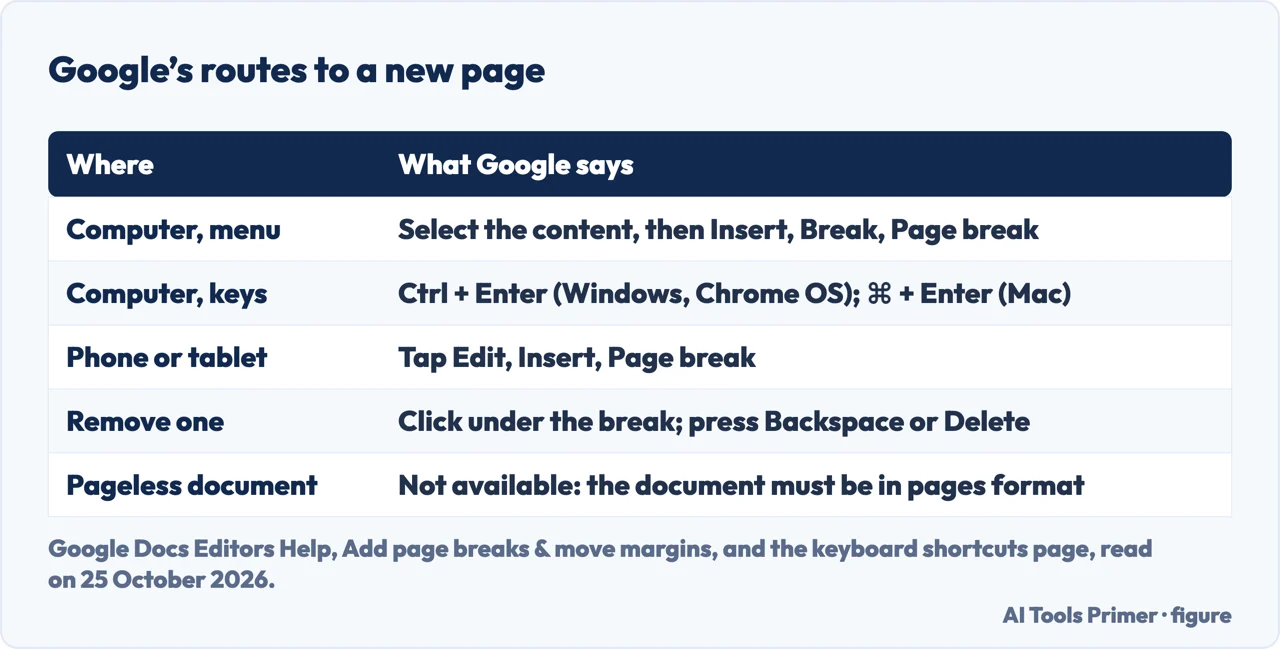
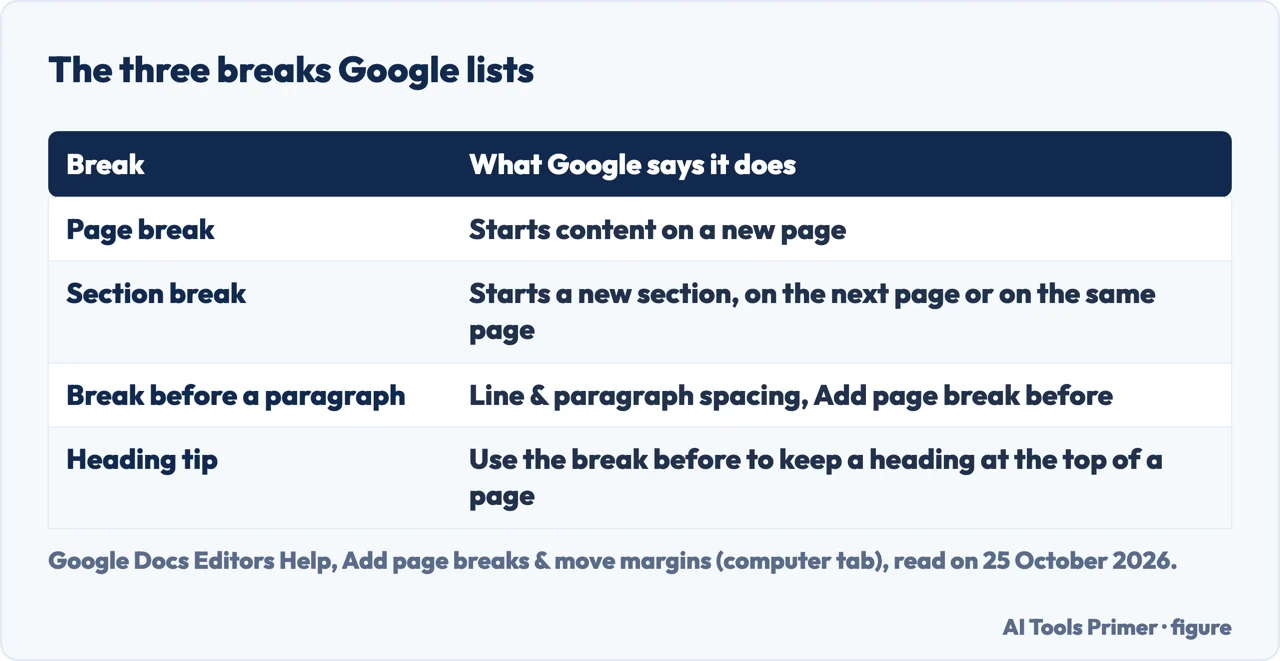
Google’s page on page breaks and margins lists three types of break you can add: a page break, a section break within a page, and a page break before a selected paragraph. To add one on a computer, open a Google Doc, select a section of your content, click Insert, Break at the top and choose a break type. To start on a new page, click Page break; to start a new section on the same page, click Section break (next page or continuous). On an Android phone or tablet, or an iPhone or iPad, open the file in the Google Docs app, tap Edit, tap Insert and tap Page break: a page break is added to the document.
Google’s list of keyboard shortcuts gives Insert page break as Ctrl + Enter on Windows and Chrome OS, and ⌘ + Enter on a Mac. The help page states plainly that these features are not available in documents that are in pageless format, so the document has to be in pages format first. The existing page on page numbers in Google Docs has the same limit.
A break before a paragraph, and a break you can undo
For a heading that should start a page, Google offers the third type: select the whole paragraph or click anywhere in it, then in the toolbar go to Line & paragraph spacing and choose Add page break before, or use Format, Line & paragraph spacing, Add page break before. Its tip says that to have a heading stay at the top of a new page, you can select it and use this option. On a phone the route is longer: tap Edit, then More at the top right and turn on Print layout, double-tap the paragraph, tap Format, then Paragraph, and turn on Add page break before.
To remove a page break on a computer, open the document, click under the page break and press Backspace or Delete on your keyboard until it is removed. On a phone, tap below the page break and delete the break. Section breaks are hidden by default; View, Show section breaks displays them, and Google says that setting then applies to all the documents you open until you change it. For Word, the site has its own pages on inserting a page break, removing one and deleting a page.
When the new page lands at the end
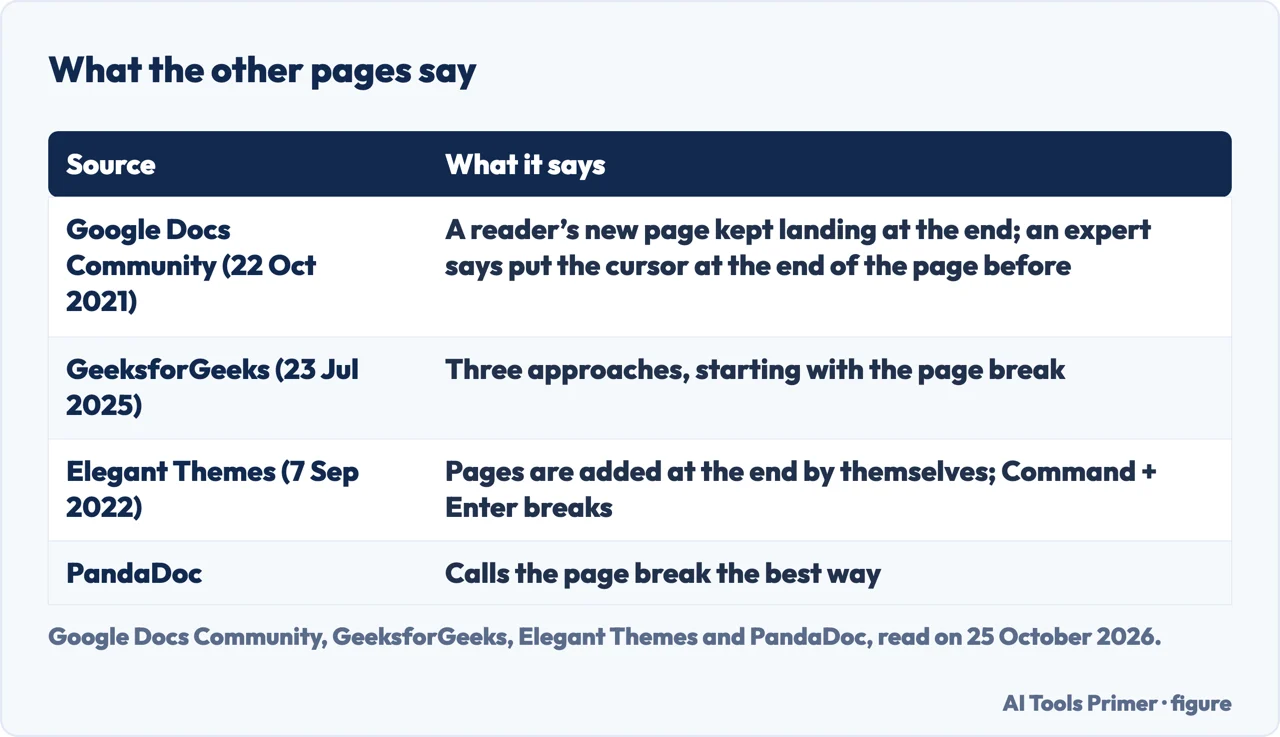
A locked thread in Google’s own Docs community, dated 22 October 2021, covers this case. A reader wrote that they could not add a page within a document: it kept adding the page to the end. A Diamond Product Expert answered that the best way is to go to the end of the page before the one you want to add, put the cursor there and use Insert, Break, Page break or Ctrl + Enter. The reader replied that this was what they were doing and that it still went to the end of the document; the expert said they had just tested the feature and it was working as intended, and asked for a screenshot or a shared copy of the file. The thread does not say how it ended. Community content may not be verified or up to date.
What the guides add
GeeksforGeeks, updated on 23 July 2025, describes three approaches: the page break, which it calls the better known and most used and for which you put the cursor at the end of the page after which you want a new one; a less known approach for when the new page breaks a specific section; and the format option for a page break before a paragraph. Elegant Themes, updated on 7 September 2022, says pages are added to the end automatically as you write and, to insert one within the document, to place the cursor, open Insert, Break, Page break, or press Command + Enter. PandaDoc calls inserting a page break the best way to create a new page.
The people-also-ask box asks about a blank page, pages side by side and page 2. For page 2, the thread’s answer applies: put the cursor at the end of page 1 and insert a page break. The Google pages we read describe a page break that starts content on a new page, and say nothing about viewing pages side by side.
Where to start
Four ways in.
- “Just the steps.”
- The page break — steps
- “A heading on a new page.”
- Break before — before
- “It went to the end.”
- A forum case — thread
- “What do the guides say?”
- The three approaches — guides
More Google Docs formatting
The same menus, other parts of a document.
Questions people also ask
How do I insert a blank page?
Google’s page describes a page break that starts content on a new page: Insert, Break, Page break. It does not describe a blank page as a separate step.
Can I put pages side by side in Google Docs?
The Google pages we read do not cover viewing pages side by side, so we do not answer that.
How do I add page 2 in Docs?
Put the cursor at the end of page 1 and use Insert, Break, Page break or Ctrl + Enter, as the expert in the Google community thread says.
How do I put blank in Google Docs?
The pages we read cover page breaks, not blank space. For more space between lines, see the page on double spacing in Google Docs.
Not covered here. We did not insert a page in a document. The statements come from Google Docs Editors Help (the page on page breaks and margins, read on its computer, Android and iPhone & iPad tabs, and the keyboard shortcut list), a Google Docs Community thread dated 22 October 2021, and guides by GeeksforGeeks (updated 23 July 2025), Elegant Themes (updated 7 September 2022) and PandaDoc, used for what they claim. Menus and shortcuts change with the Docs version.
The Reddit page and the videos in the results were not read. Word, Google Slides, margins and deleting a page in Google Docs are not covered here.
The search volume and difficulty behind this page were read in Semrush on 29 August 2026.
Sources
- Google Docs Editors Help — Add page breaks & move margins — support.google.com, read 25 October 2026.
- Google Docs Editors Help — Keyboard shortcuts for Google Docs — support.google.com, read 25 October 2026.
- Google Docs Community — How do I add a page within a Google document (22 October 2021) — support.google.com, read 25 October 2026.
- GeeksforGeeks — How to Add a Page in Google Docs (updated 23 July 2025) — www.geeksforgeeks.org, read 25 October 2026.
- Elegant Themes — How to Add a Page in Google Docs and 9 Other Great Tips (updated 7 September 2022) — www.elegantthemes.com, read 25 October 2026.
- PandaDoc — How to Add a Page on Google Docs: Desktop, Mobile or Tablet — www.pandadoc.com, read 25 October 2026.
Written by Alberto Gulotta
Founder and editor of AI Tools Primer, writing from Palermo, Italy. Thirty-five years of taking computers apart, starting with a Commodore 64 — the long version is on the about page.
Something wrong on this page? Write to aitoolsprimer@gmail.com and it gets fixed.
Written on 25 October 2026.
Independence and limits
No affiliate links and no paid placements anywhere on this site. Nobody pays to appear here, and no company has seen this page before you did.
This is general information, not professional advice. Where a page touches money, health, safety or the law, it names its source and the date it was read — and your situation may still differ. See the privacy page and the cookie policy.