
Docs · guide
How to add page numbers in Google Docs: steps, and starting later
By Alberto Gulotta · Updated · 8 min read
How to add page numbers in Google Docs starts at Insert, Page elements, Page number, and works only in a document set to pages format. Google’s help also covers skipping the first page and starting the count later with a section break. This page sets out the steps, the phone route and what Google’s pages leave out.
| Question | Answer | Where it comes from |
|---|---|---|
| How do I add them? | Insert, Page elements, Page number; choose where they go | Google Docs Editors Help |
| Can I skip the first page? | Yes: the phone steps offer it, and the computer has a Different first page box for headers and footers | Google Docs Editors Help |
| How do I start at page 3? | Page number, More options, Apply to; if the option is missing, add a section break | Google Docs Editors Help; Google blog, November 2019 |
| Does a pageless document have them? | No: the document must be in pages format | Google Docs Editors Help |
| Roman numerals? | Not named on Google’s pages we read; a 2017 comment said they were not possible | Stack Exchange comment, 28 July 2017 |
Google’s steps, on a computer and a phone
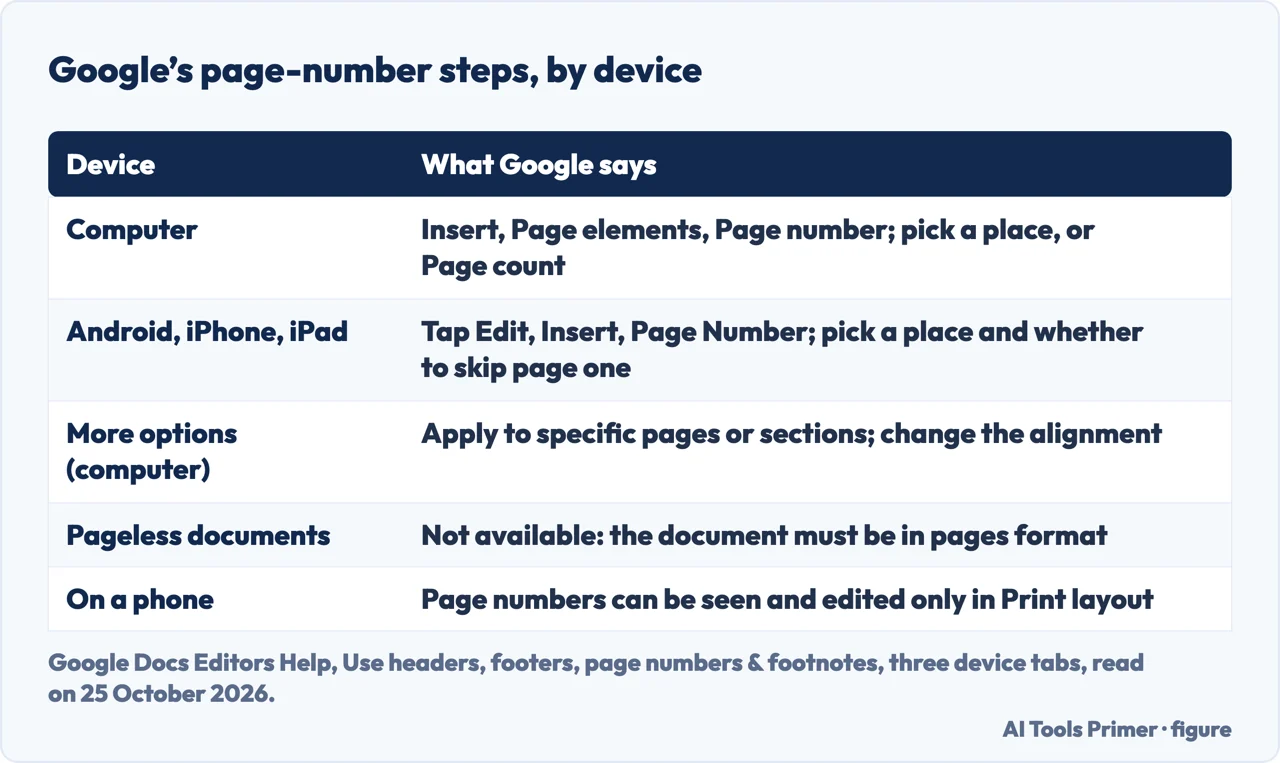
Google’s page on headers, footers, page numbers and footnotes says page numbers can be added in documents that are in pages format. On a computer: open a Google Doc, click Insert, Page elements, Page number, and then click either Page number, to choose where the numbers go, or Page count, which is added wherever your cursor is. The numbers or the count are then added automatically. A More options entry lets you apply page numbers to specific pages or sections, or change their alignment.
On an Android phone or tablet and on an iPhone or iPad, the steps are the same in the Google Docs app: tap Edit, tap Insert, tap Page Number, and choose where the numbers go and whether the first page is skipped. Google adds a note for the phone tabs: you can only see and edit page numbers, headers and footers when the document is in Print layout mode. The same limit appears for the computer: the feature is not available in a document that is in pageless format, so you must make sure it is in pages format.
Starting at page 3, or skipping the cover
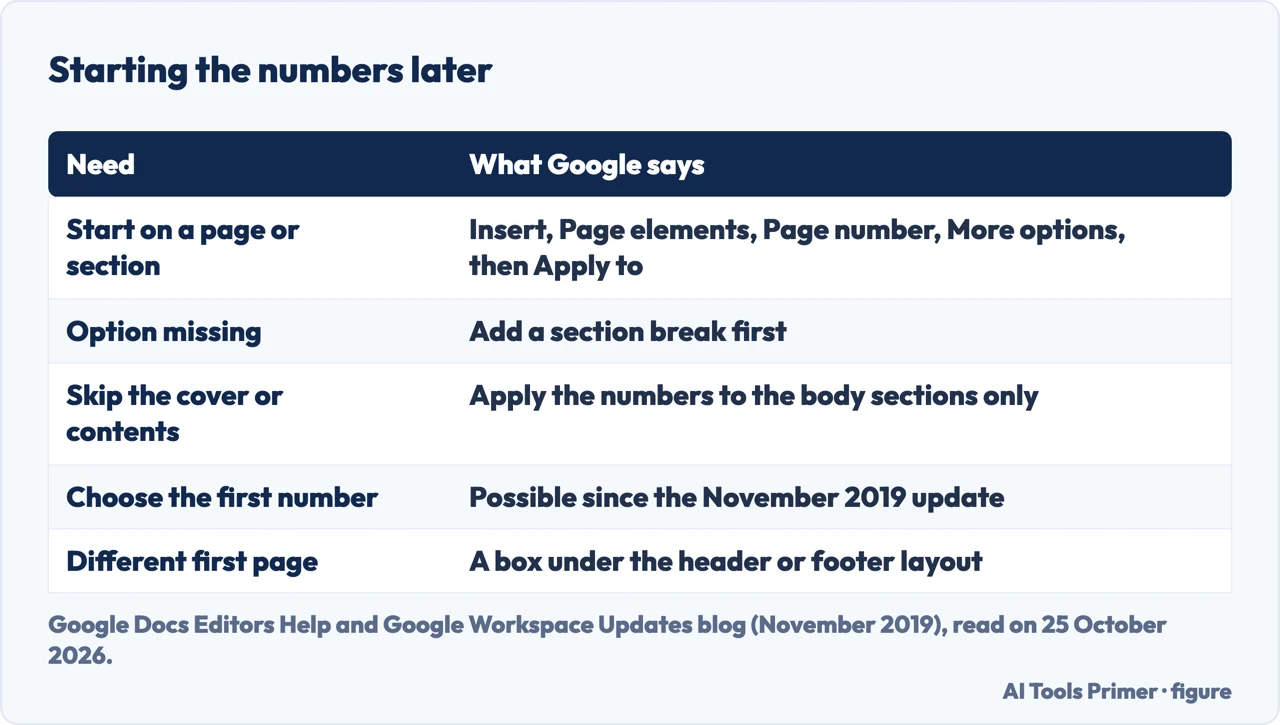
For a count that does not begin on the first page, Google’s page gives a separate heading: open a Google Doc, click Insert, Page elements, Page number, More options, and under “Apply to” choose where you want the change to apply, then click Apply. Its tip says that if you do not find the option, you should add a section break. Google’s November 2019 post on the Workspace Updates blog introduced the feature: after creating sections, you can specify which sections get page numbers and which number to start counting from. Its example is a document with cover pages and a table of contents, where you choose to number the body only.
For the first page alone, Google’s page on headers and footers has a Different first page box, which uses different headers and footers on the first page of the document or section, and a Link to previous box to turn off for a different header or footer in a later section. It also describes different headers on odd and even pages, under Options, Apply to Whole document, Different odd and even. Headers and footers are removed by double-clicking them, then Options, Remove header or Remove footer.
What changed, and the Roman numeral question
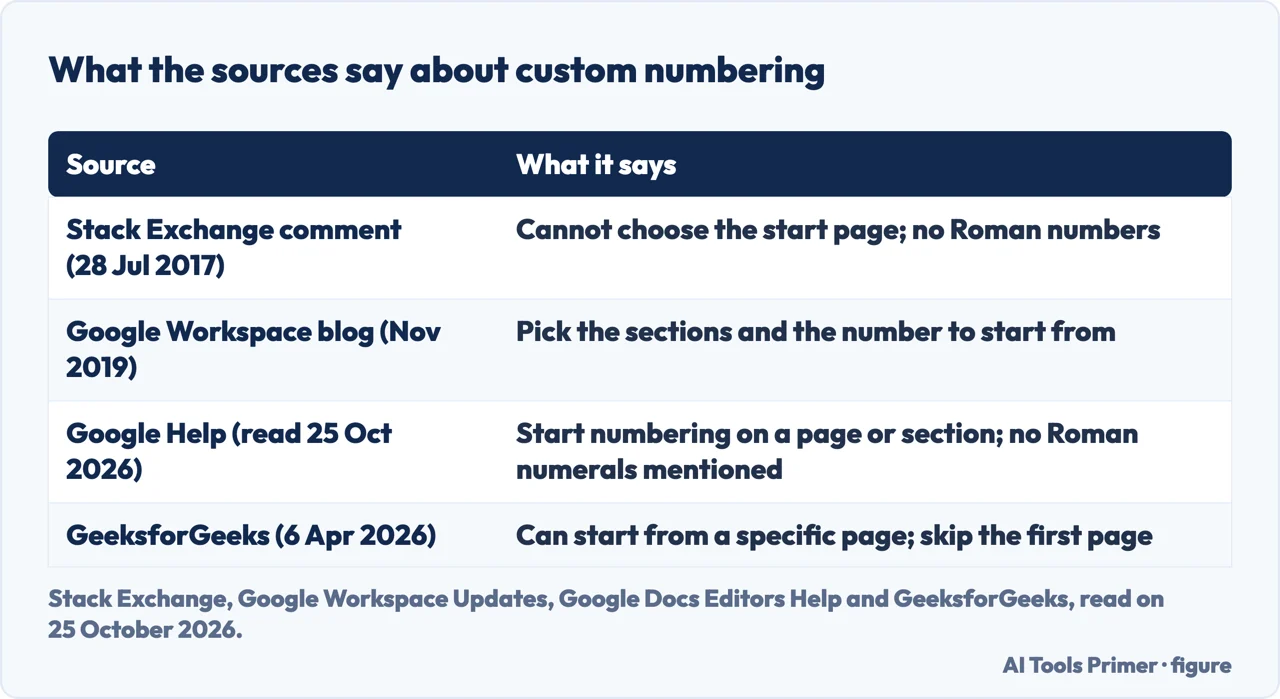
Stack Exchange has a question, asked on 11 May 2011, about inserting page numbers in a Google Docs document. A comment dated 28 July 2017 on it says that you still could not set custom numbering, meaning from which page the count should start, and that there were no Roman numbers. Google’s 2019 post then added numbers by section and the starting number, which fits the answer above about Apply to. The Google help pages we read do not mention Roman numerals, so we cannot say how to get them; we have not tested it. The 2017 comment is community content and is older than the Google post.
GeeksforGeeks, updated on 6 April 2026, gives the menu route, the choice of header or footer, skipping the first page and starting the numbers from a specific page; it does not explain sections. The people-also-ask box also asks about Ctrl+K, which Google’s shortcut list gives as Insert or edit link, and about automatic numbering, which is a different feature from page numbers and which the pages we read do not cover. For the footnotes that sit on the same Google help page, see how to add footnotes in Google Docs; for Word, the page on page numbers in Word.
Where to start
Four ways in.
- “Just the steps.”
- Computer and phone — steps
- “Not on page one.”
- Apply to — later
- “Roman numerals?”
- What changed — history
More Google Docs formatting
The same menus, other parts of a document.
Questions people also ask
How do I start page number 1 on page 3?
Google’s page says to open Insert, Page elements, Page number, More options, choose under “Apply to” where the change applies, and click Apply; if you do not find the option, add a section break. Google’s 2019 post says you can also choose which number to start counting from.
What does Ctrl+K do in Google Docs?
Google’s shortcut list gives Ctrl + k as Insert or edit link. It is not a page-number shortcut.
How to do automatic numbering in Google Docs?
The pages we read are about page numbers and do not cover numbered lists, so we do not answer that.
How to add roman numerals and page numbers in docs?
Google’s pages that we read do not mention Roman numerals. A 2017 Stack Exchange comment said they were not possible; we have not tested whether that has changed.
Not covered here. We did not number a document. The statements come from Google Docs Editors Help (the page on headers, footers, page numbers and footnotes, read on its computer, Android and iPhone & iPad tabs, and the keyboard shortcut list), the Google Workspace Updates post of November 2019, GeeksforGeeks (updated 6 April 2026) and a Web Applications Stack Exchange question of 11 May 2011 with a comment of 28 July 2017. Menus change with the Docs version.
The Reddit, Quora and library-guide pages in the results were not read, and neither was the video. Word, Google Slides and Roman numerals are not covered here.
The search volume and difficulty behind this page were read in Semrush on 29 August 2026.
Sources
- Google Docs Editors Help — Use headers, footers, page numbers & footnotes — support.google.com, read 25 October 2026.
- Google Docs Editors Help — Keyboard shortcuts for Google Docs — support.google.com, read 25 October 2026.
- Google Workspace Updates — Add different page numbers to different sections in Google Docs (November 2019) — workspaceupdates.googleblog.com, read 25 October 2026.
- GeeksforGeeks — Adding Page Numbers in Google Docs (updated 6 April 2026) — www.geeksforgeeks.org, read 25 October 2026.
- Web Applications Stack Exchange — Inserting page numbers in a Google Docs document (11 May 2011) — webapps.stackexchange.com, read 25 October 2026.
Written by Alberto Gulotta
Founder and editor of AI Tools Primer, writing from Palermo, Italy. Thirty-five years of taking computers apart, starting with a Commodore 64 — the long version is on the about page.
Something wrong on this page? Write to aitoolsprimer@gmail.com and it gets fixed.
Written on 25 October 2026.
Independence and limits
No affiliate links and no paid placements anywhere on this site. Nobody pays to appear here, and no company has seen this page before you did.
This is general information, not professional advice. Where a page touches money, health, safety or the law, it names its source and the date it was read — and your situation may still differ. See the privacy page and the cookie policy.