
Docs · guide
How to add footnotes in Google Docs: Google’s steps and shortcut
By Alberto Gulotta · Updated · 8 min read
How to add footnotes in Google Docs takes one menu path on a computer, Insert, Page elements, Footnote, and a shortcut, Ctrl + Alt + f. Google’s phone steps differ, and to view footnotes on a phone you turn on Print Layout. This page sets out the steps, the shortcuts and what Google’s help pages do not say.
| Question | Answer | Where it comes from |
|---|---|---|
| How do I add one on a computer? | Click where it goes; Insert, Page elements, Footnote; type the note | Google Docs Editors Help |
| What is the shortcut? | Ctrl + Alt + f on Windows and Chrome OS; ⌘ + Option + f on a Mac | Google’s shortcut list |
| And on a phone? | Tap Edit, tap where it goes, then Insert, Footnote | Google Docs Editors Help |
| How do I see them on a phone? | More, then turn on Print Layout | Google Docs Editors Help |
| What about a pageless document? | The footnotes all appear together at the end | Google Docs Editors Help |
Google’s steps, on a computer and on a phone
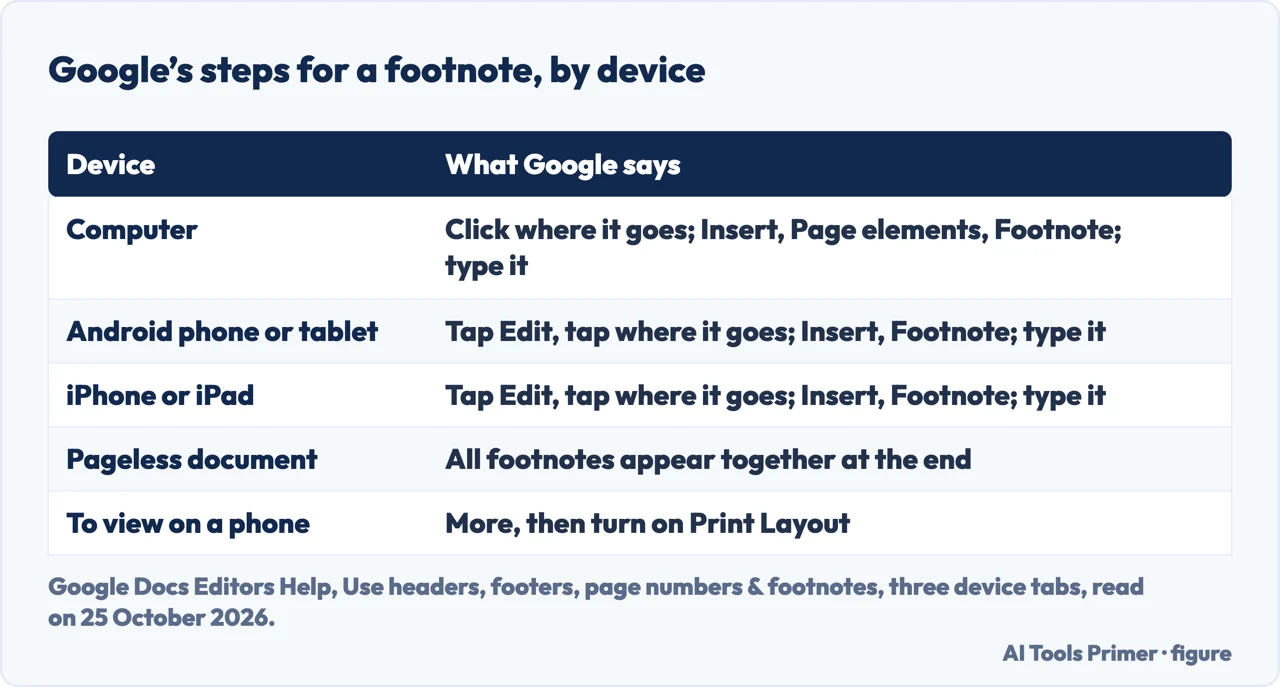
Google puts footnotes on the same help page as headers, footers and page numbers. On a computer the steps are: open a document in Google Docs, click where you want to insert a footnote, in the top left click Insert, Page elements, Footnote, and type your footnote. On an Android phone or tablet and on an iPhone or iPad, open the document in the Google Docs app, tap Edit, tap where you want the footnote, and in the menu at the top tap Insert, Footnote, then type it.
Google adds a tip: if the document is in pageless format, footnotes will all appear together at the end of the document. For viewing, the phone tabs say that in the app you tap More and turn on Print Layout. The page does not say what the footnote number looks like or how to format it. Searches such as how to insert footnote in google docs end at this same menu path or at the shortcut below. The related resources that Google lists at the end of the page are adding numbers to a slide in Google Slides, changing your margin size in Google Docs, which the site covers in its page on margins, and adding citations and a bibliography.
The shortcut, and moving between footnotes
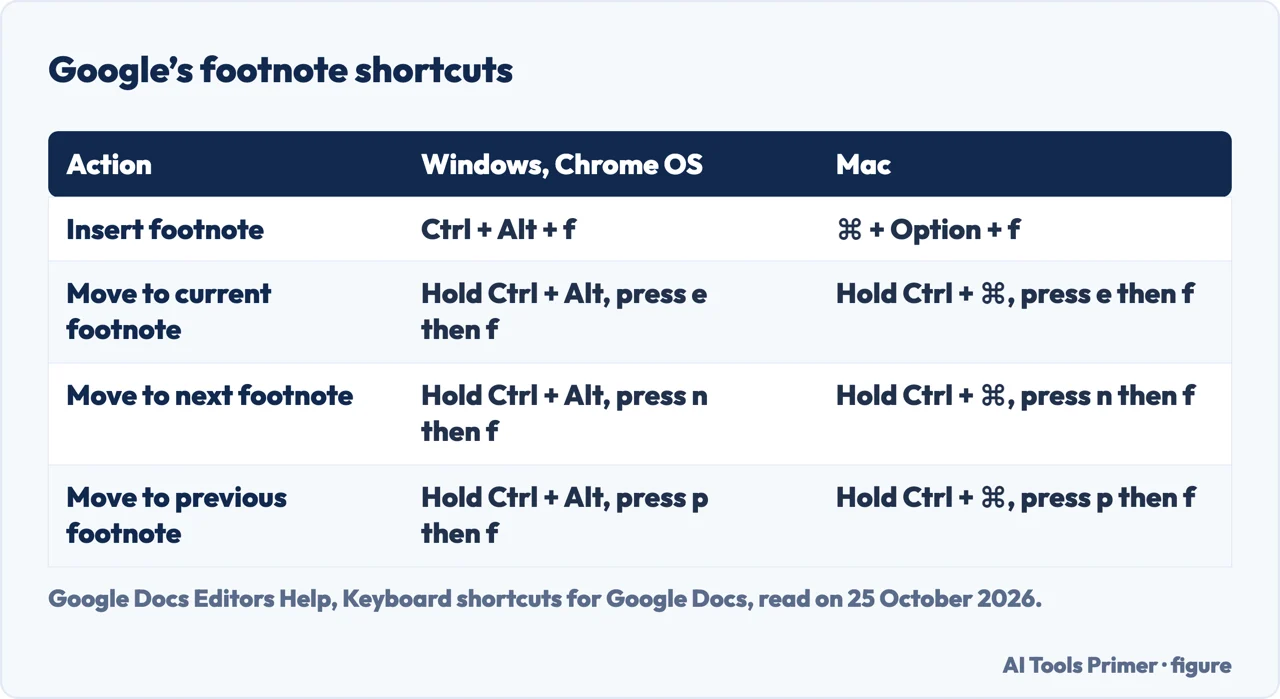
Google’s list of keyboard shortcuts for Google Docs has a section called “Comments and footnotes”. Insert footnote is Ctrl + Alt + f on Windows and Chrome OS and ⌘ + Option + f on a Mac. To move between footnotes, you hold Ctrl + Alt on Windows (Ctrl + ⌘ on a Mac) and press a letter and then f: e for the current footnote, n for the next and p for the previous. The Android tab of the same shortcut page prints the Ctrl + Alt + f key and the movement keys too, and the iPhone & iPad tab has no footnote rows. The shortcut is the quicker route if you add many notes in a long paper; the menu is the route the guides we read give.
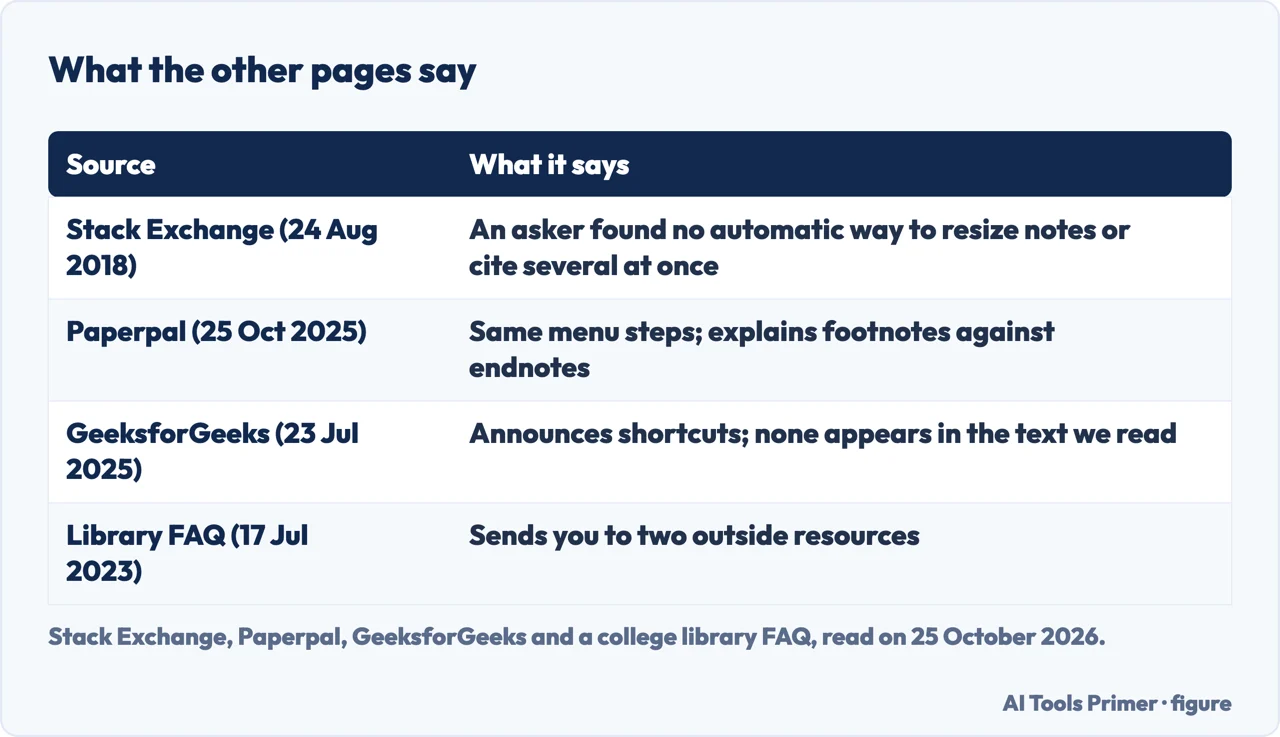
GeeksforGeeks, updated on 23 July 2025, says in its introduction that it will cover “the Google Docs footnote shortcut”, but the text we read gives no key. Paperpal, dated 25 October 2025, gives the menu path only.
What Google’s page does not say
Two questions are left open by Google’s page. A question on Web Applications Stack Exchange, asked on 24 August 2018, says the inserted footnote has size 10, that the asker could not find an automatic way to change it to 8, and that citing several new sources at once was awkward because the later footnotes did not yet exist. A comment on that question points to an add-on for styling footnote text. That thread is from 2018, community content, and we have not tested whether it still holds; Google’s help page does not describe either point.
How to repeat a footnote in the same document is the second: a Quora question on it exists, which we did not read, and Google’s page does not cover it. For citations, Google’s page links to a separate page on adding citations and a bibliography, which we did not read either; the existing page on footnotes in Word and the citation styles covers the style questions.
What Paperpal and the library add
Paperpal explains the difference between footnotes and endnotes: a footnote appears at the bottom of the page where its reference marker is placed, separated from the body text by a short horizontal line, while endnotes are gathered in a separate section at the end of the document, chapter or article. Its trade-off is that footnotes let readers glance down without losing their place, but the space at the bottom of each page is limited, while endnotes remove the space limit and make readers flip to the end. Paperpal also says a footnote typically holds citation details or additional commentary, such as full bibliographic details on first mention, supplementary explanations or translations of foreign terms. Google’s pages that we read do not mention endnotes. A college library FAQ, last updated on 17 July 2023, sends readers to two outside resources, one of them a video tutorial. Paperpal also treats Chicago style, where footnotes are the main citation form; that is a style question rather than a how-to, and it is covered on the page about footnotes in Word.
Where to start
Four ways in.
- “Just the steps.”
- Computer and phone — steps
- “Is there a shortcut?”
- Google’s keys — keys
- “Can I resize or repeat them?”
- What Google leaves out — limits
- “What do the other pages say?”
- Endnotes and more — others
More Google Docs formatting
The same menus, other parts of a document.
Not covered here. We did not add a footnote in a document. The statements come from Google Docs Editors Help (the page on headers, footers, page numbers and footnotes, read on its computer, Android and iPhone & iPad tabs, and the keyboard shortcut list), a Web Applications Stack Exchange question of 24 August 2018, and pages by Paperpal (25 October 2025), GeeksforGeeks (23 July 2025) and a college library (17 July 2023), used for what they claim. Menus and shortcuts change with the Docs version.
The Quora and Paperpile pages in the results were not read, and neither were the videos. Footnotes in Word, endnotes, and citation styles are not covered here.
The search volume and difficulty behind this page were read in Semrush on 29 August 2026.
Sources
- Google Docs Editors Help — Use headers, footers, page numbers & footnotes — support.google.com, read 25 October 2026.
- Google Docs Editors Help — Keyboard shortcuts for Google Docs — support.google.com, read 25 October 2026.
- Web Applications Stack Exchange — Footnotes in Google Docs (24 August 2018) — webapps.stackexchange.com, read 25 October 2026.
- Paperpal — What are Footnotes? How to Insert Footnotes in Word and Google Docs (25 October 2025) — paperpal.com, read 25 October 2026.
- GeeksforGeeks — How to Add Footnotes in Google Docs (updated 23 July 2025) — www.geeksforgeeks.org, read 25 October 2026.
- Learning Commons Help FAQs — How do I insert footnotes into Google Docs? (17 July 2023) — dccc.libanswers.com, read 25 October 2026.
Written by Alberto Gulotta
Founder and editor of AI Tools Primer, writing from Palermo, Italy. Thirty-five years of taking computers apart, starting with a Commodore 64 — the long version is on the about page.
Something wrong on this page? Write to aitoolsprimer@gmail.com and it gets fixed.
Written on 25 October 2026.
Independence and limits
No affiliate links and no paid placements anywhere on this site. Nobody pays to appear here, and no company has seen this page before you did.
This is general information, not professional advice. Where a page touches money, health, safety or the law, it names its source and the date it was read — and your situation may still differ. See the privacy page and the cookie policy.