
Docs · guide
How to divide in Excel: the / sign, QUOTIENT and #DIV/0!
By Alberto Gulotta · Updated · 15 min read
To divide in Excel, type an equal sign, then the numbers or cells with a / between them. Microsoft, Spreadsheeto and Excel Easy each say there is no DIVIDE function. Without the equal sign Excel reads a date, and Microsoft’s two Paste Special pages describe Divide in opposite directions.
| Question | Answer | Where it comes from |
|---|---|---|
| Is there a DIVIDE function? | No: the forward slash is the operator, typed after an equal sign | Microsoft, Spreadsheeto, Excel Easy |
| What if I leave out the equal sign? | Excel reads a date: 7/30 can show as 30-Jul | Microsoft, Spreadsheeto |
| How do I divide a column by one number? | Put the divisor in a cell and lock it with $, as in =A2/$C$2, then drag down | Microsoft, Excel Easy, W3Schools |
| Whole part or remainder? | QUOTIENT keeps the whole part, MOD gives the remainder | Microsoft, Excel Easy |
| What causes #DIV/0!? | A divisor of zero or an empty cell | Microsoft, Excel Easy, Spreadsheeto |
| Which way does Paste Special divide? | Microsoft’s Windows and Mac pages word it in opposite directions | Microsoft |
The / sign after an equal sign, and the order Excel works in
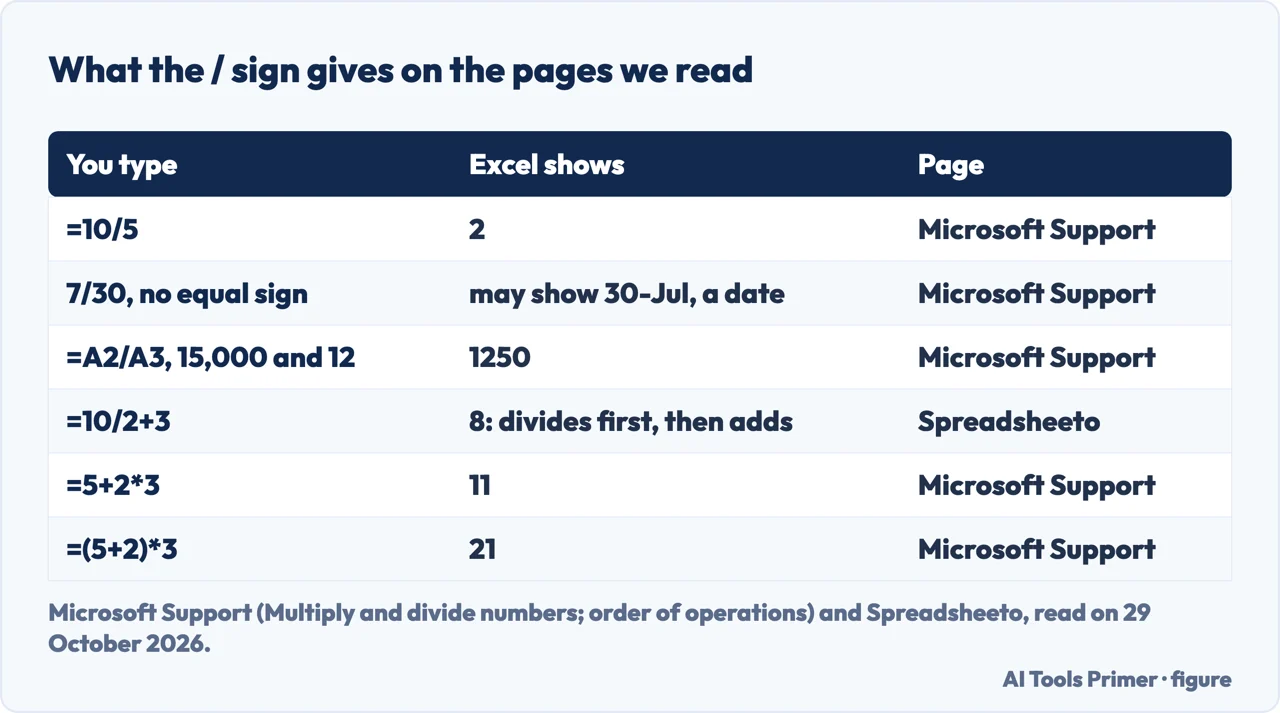
Microsoft’s page on multiplying and dividing numbers starts from the rule that every formula in Excel begins with an equal sign. For division the operator is the forward slash, and its example is =10/5, which displays 2. A note on the same page reads “There is no DIVIDE function in Excel.” Microsoft’s page on the QUOTIENT function repeats it in a tip, Spreadsheeto’s page has the same sentence, and Excel Easy words it as “There’s no DIVIDE function in Excel.” W3Schools, which also teaches the slash, opens its division section by saying that division uses the / symbol in Excel and gives 4/2 as its first example.
The equal sign is not a formality. Microsoft marks it as important: without it, Excel interprets what you type as a date. Typing 7/30 may display 30-Jul in the cell, and typing 12/36 makes Excel first convert the value to 12/1/1936 and display 1-Dec. Spreadsheeto says the same thing in a shorter form, that without the equal sign Excel will read the entry as a date.
The numbers can come from cells. Microsoft suggests cell references such as A2 and A3 instead of typing the numbers, and its table puts 15,000 in A2 and 12 in A3, with =A2/A3 in the next column and the description that it divides 15,000 by 12 and gives 1250. Spreadsheeto describes the same idea as a click: start with the equal sign, click the cell that holds the 10, type the slash, click the cell that holds the 2, press Enter and read 5. It writes the pattern as a/b, with a the dividend and b the divisor. W3Schools does it with two cells as well, selecting A1, typing the slash and selecting A2 in A3, and adds that more cells can join the formula by typing another slash between them.
When a formula mixes division with other operators, the order matters. Microsoft’s page on the order of operations says multiplication and division have the same precedence and, when both appear, Excel evaluates them from left to right, with addition and subtraction after them. To change the order, put the part to be calculated first in parentheses. Its example is that =5+2*3 produces 11 and =(5+2)*3 produces 21, and its example with a division is =(B4+25)/SUM(D5:F5), where the parentheses force B4+25 to be calculated first and the result to be divided by the sum of D5, E5 and F5. Spreadsheeto reaches the same place with the acronym PEMDAS: in =10/2+3 Excel divides 10 by 2 first and then adds 3, so the cell shows 8.
A whole column divided by one number
Microsoft’s layout is a column of seven numbers, 15,000, 12, 48, 729, 1534, 288 and 4306, in A2 to A8, and the number to divide by, 3, in C2. You type =A2/$C$2 in B2, make sure there is a $ before the C and before the 2, and drag the formula in B2 down the rest of column B. Its table then lists =A3/$C$2 down to =A8/$C$2. The note explains the dollar signs: they make the reference to C2 “absolute”, so when the formula is copied the reference is always to C2. Without them, dragging the formula down to B3 would make Excel change it to =A3/C3, which Microsoft says would not work, because there is no value in C3.
Excel Easy teaches the same move with the divisor at the bottom of the column. It divides A1 by A8, locks A8 as $A$8 by putting a $ in front of the column letter and the row number, then selects B1 and drags the lower right corner down to B6. Its explanation is that when the formula is dragged down, the absolute reference stays the same while A1 changes to A2, A3, A4 and so on. W3Schools puts a 5 in B1 and the numbers in A1 to A10, writes the formula in C1 with the divisor locked as $B$1, and fills C1 to C10. The pages place the constant in different cells, C2, A8 and B1, and the rule is the same on each of them: lock the divisor, leave the dividend free.
To divide one column by another, Excel Easy needs no lock. It divides A1 by B1 in C1 (steps 7a and 7b on its page), then selects C1, clicks the lower right corner and drags down to C6. How a copied formula changes its references, and what cutting does differently, is the subject of our page on copying a formula in Excel.
QUOTIENT and MOD: the whole part and the remainder
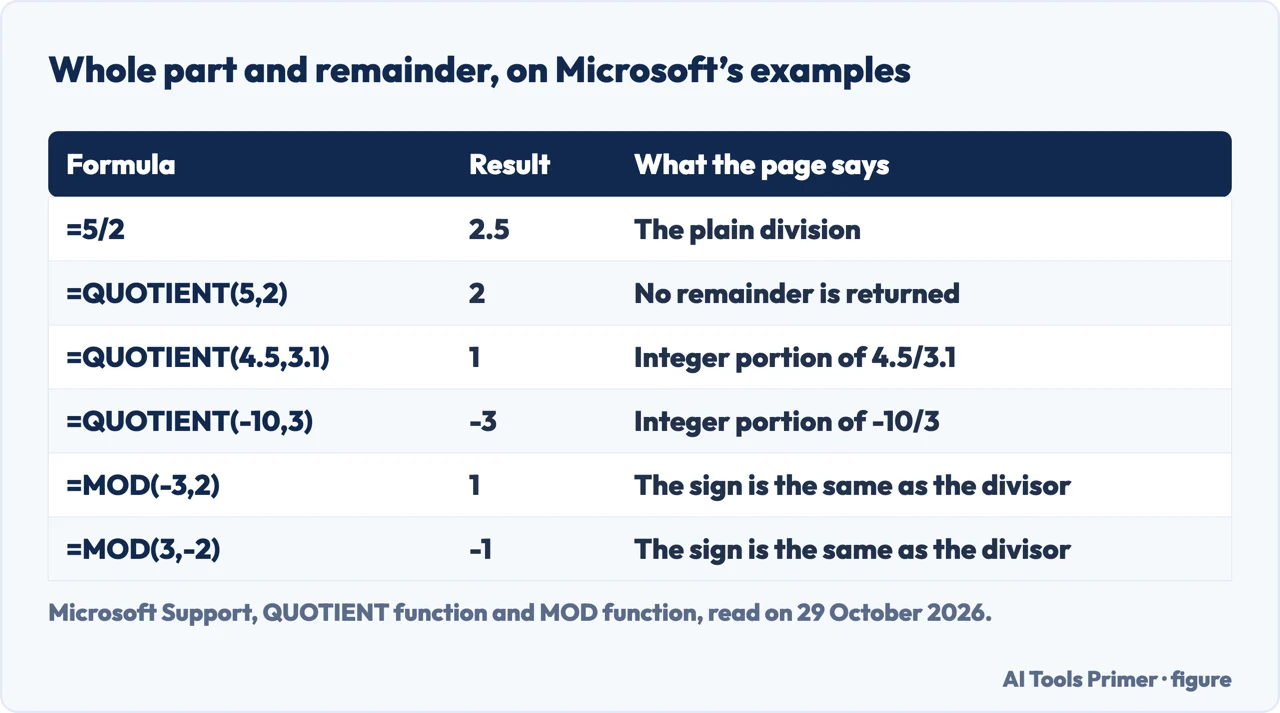
The slash returns the whole result, decimals included. Two functions split it. Microsoft’s page describes QUOTIENT as returning the integer portion of a division, for when you want to discard the remainder, with the syntax QUOTIENT(numerator, denominator). Its tip sets the two side by side: =5/2 returns 2.5, and =QUOTIENT(5,2) returns 2, since QUOTIENT does not return a remainder. The page’s other examples are QUOTIENT(4.5,3.1), which gives 1, and QUOTIENT(-10,3), which gives -3. Dividing -10 by 3 gives about -3.33, so the page’s -3 is the whole part with the decimals dropped rather than a rounding down to -4; that reading of the number is ours, and the page does not state a rule for negatives. If either argument is nonnumeric, QUOTIENT returns the #VALUE! error. Excel Easy and Spreadsheeto both describe QUOTIENT as returning only the integer portion and discarding the remainder. Spreadsheeto says its example displays 3, but the numbers it divides are in an image that we did not read.
MOD is the other half. Microsoft’s page says it returns the remainder after a number is divided by a divisor, with the syntax MOD(number, divisor), and that the result has the same sign as the divisor. The four examples show it: MOD(3,2) is 1, MOD(-3,2) is 1, MOD(3,-2) is -1 and MOD(-3,-2) is -1. The page also gives the function in terms of INT, as MOD(n, d) = n - d*INT(n/d), and says that a divisor of 0 makes MOD return #DIV/0!. Excel Easy’s description is shorter, that MOD returns the remainder of a division.
#DIV/0!: what causes it and the fixes Microsoft gives
Microsoft’s page on the error says Excel shows #DIV/0! when a number is divided by zero. It happens with a simple formula such as =5/0, or when a formula refers to a cell that has 0 or is blank. Excel Easy describes it as a formula that tries to divide a number by 0 or an empty cell, and Spreadsheeto says the same about a zero or an empty cell reference, adding that you should make sure you click the right cells. The page applies to Excel 365, 2024, 2021, 2019 and 2016, and also to Excel for iPad, the web, iPhone and Android.
Microsoft gives three ways to correct it: make sure the divisor is not zero or a blank cell, change the reference to another cell that has a value, or enter #N/A in the cell used as the divisor, which turns the result into #N/A to show that the divisor value is not available. Often the error cannot be avoided because a formula is waiting for someone to enter data, and for that case the page shows how to hide it. The simplest is IF, which checks whether the denominator exists. For =A2/A3 you write =IF(A3,A2/A3,0) to return 0, =IF(A3,A2/A3,"") to return an empty string, or =IF(A3,A2/A3,"Input Needed") for a message. With QUOTIENT it is =IF(A3,QUOTIENT(A2,A3),0). The second way is IFERROR: =IFERROR(A2/A3,0) returns 0 if the formula evaluates to an error.
The page attaches a warning to the second way. IFERROR and IF(ISERROR()) are blanket error handlers that suppress all errors, not just #DIV/0!, so Microsoft says to make sure the formula works properly before applying any error handling, otherwise you might not realize that it is not working as you expect. Its last tip is for a workbook with error checking turned on: select the button next to the cell that shows the error, choose Show Calculation Steps if it is available, and pick the resolution that works for the data. Excel Easy and Spreadsheeto name the error; the pages we read from them do not give these cures, and Spreadsheeto points to a separate article on it.
Paste Special, Divide: where Microsoft’s two pages part
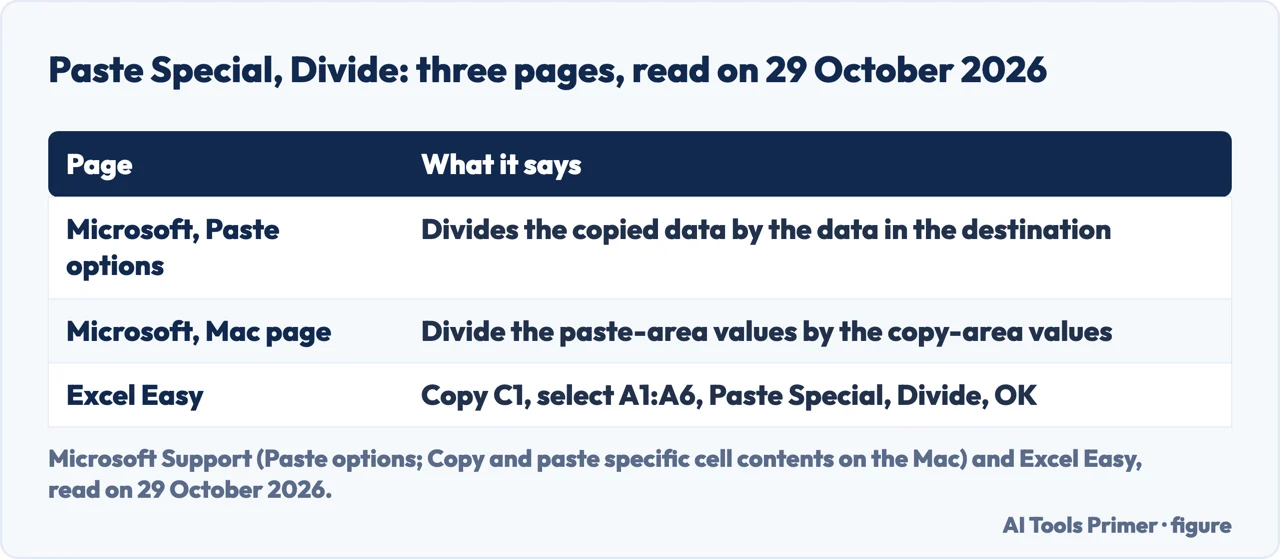
Excel Easy offers a way to divide without a formula. It copies C1 with a right click and Copy, or Ctrl+C, selects A1 to A6, right-clicks, chooses Paste Special, clicks Divide and clicks OK. Its note says that to divide the numbers in one column by those in another column, you select a range instead of a cell at the copying step. The results on its page are in images, which we did not read.
Microsoft has two pages that describe the Divide option, and they word it in opposite directions. The page on paste options, which applies to Excel 365, 2024, 2021, 2019 and 2016, reaches Paste Special from the Home tab and the clipboard icon, gives Ctrl+Alt+V as the keyboard shortcut, and says in its Operation table that Divide divides the copied data by the data in the destination cell or range. The page on copying and pasting specific cell contents, for Excel 365 for Mac, 2024 for Mac and 2021 for Mac, says that Divide divides the values in the paste area by the values in the copy area. The first reads copied over destination; the second reads destination over copied.
On the Windows page, the Subtract row of the same table says it subtracts the copied data from the data in the destination. That is destination minus copied, the order the Mac page gives for Divide. Taken at their words, a 2 copied and pasted with Divide over a 10 would give 0.2 on the Windows wording and 5 on the Mac wording. The page for Excel Easy copies one cell and divides a range by it, but its text does not say which way Divide works and its results are in images, so it does not settle the question for us. We did not run Excel. The Windows page also describes a Skip blanks check box, which avoids replacing values in the paste area when blank cells occur in the copy area. Our page on subtracting in Excel covers the same Paste Special table for its Subtract row.
What we did not use
We ran nothing in Excel; every result on this page is the one a page prints. We did not open the SimpleSheets, Business Insider or Indeed guides, or a YouTube Short on the same question. In the Spreadsheeto and Excel Easy pages the results of the examples are pictures, and we did not read the pictures. The pages we read do not mention what the slash does with a cell that holds text, or the rounding of decimals. Microsoft’s page on dividing points to a page on multiplying by a percentage but does not explain dividing by one; our page on percentages in Excel covers percentages.
Where to start
Four ways in.
- “What do I type?”
- The / sign after an equal sign — slash
- “A whole column by one number.”
- Lock the divisor with $ — column
- “It shows #DIV/0!.”
- What causes it and the fixes Microsoft gives — error
- “Divide without a formula.”
- Where Microsoft’s two pages part — paste
Formulas that work on the same cells
Subtracting, percentages and copying a formula down a column each have a guide of their own.
Averages, sums and formulas that will not calculate
Averaging, summing a column and a sheet that shows formulas instead of results each have a guide of their own.
Questions people also ask
How do I divide by 2 in Excel?
Several pages we read divide by 2: Spreadsheeto’s =10/2 gives 5, W3Schools types 4/2, and Microsoft’s QUOTIENT tip uses =5/2, which returns 2.5. Microsoft’s pattern is the equal sign, the number, a slash and the divisor, as in =10/5; for a column, the divisor goes in a cell and is locked, as in =A2/$C$2.
How do you divide cells in Excel?
Microsoft uses cell references in place of numbers, =A2/A3. Spreadsheeto clicks the dividend cell, types the slash and clicks the divisor cell; W3Schools selects A1, types the slash and selects A2.
What’s the formula for dividing in Excel?
Spreadsheeto writes it as = a/b, a being the dividend and b the divisor. There is no DIVIDE function; QUOTIENT(numerator, denominator) returns only the integer portion and MOD(number, divisor) returns the remainder.
How do I divide in Excel?
Start with an equal sign, then the numbers or cell references with a slash between them, and press Enter. Microsoft says that without the equal sign Excel may read 7/30 as a date and show 30-Jul.
Not covered here. We ran nothing in Excel. The statements come from seven Microsoft Support pages, Spreadsheeto, Excel Easy and W3Schools, all read on 29 October 2026.
The search volume and difficulty behind this page come from a reading of 29 August 2026, older than the 60 days the site normally allows.
Sources
- Microsoft Support — Multiply and divide numbers in Excel — support.microsoft.com, read 29 October 2026.
- Microsoft Support — QUOTIENT function — support.microsoft.com, read 29 October 2026.
- Microsoft Support — MOD function — support.microsoft.com, read 29 October 2026.
- Microsoft Support — How to correct a #DIV/0! error — support.microsoft.com, read 29 October 2026.
- Microsoft Support — The order in which Excel performs operations in formulas — support.microsoft.com, read 29 October 2026.
- Microsoft Support — Paste options — support.microsoft.com, read 29 October 2026.
- Microsoft Support — Copy and paste specific cell contents (Excel for Mac) — support.microsoft.com, read 29 October 2026.
- Spreadsheeto — How to Divide in Excel: Division Formula and Examples — spreadsheeto.com, read 29 October 2026.
- Excel Easy — Divide in Excel — www.excel-easy.com, read 29 October 2026.
- W3Schools — Excel Division Operator — www.w3schools.com, read 29 October 2026.
Written by Alberto Gulotta
Founder and editor of AI Tools Primer, writing from Palermo, Italy. Thirty-five years of taking computers apart, starting with a Commodore 64 — the long version is on the about page.
Something wrong on this page? Write to aitoolsprimer@gmail.com and it gets fixed.
Written on 29 October 2026.
Independence and limits
No affiliate links and no paid placements anywhere on this site. Nobody pays to appear here, and no company has seen this page before you did.
This is general information, not professional advice. Where a page touches money, health, safety or the law, it names its source and the date it was read — and your situation may still differ. See the privacy page and the cookie policy.