
Docs · guide
How to make an email group in Outlook: contact list or Group
By Alberto Gulotta · Updated · 9 min read
How to make an email group in Outlook starts with a choice Microsoft treats as two things. A contact list, called a contact group in classic Outlook, is a collection of email addresses for sending to a group of people. A Microsoft 365 Group also shares an inbox, a calendar and files. Deleting a list never deletes the contacts.
| Question | Answer | Where it comes from |
|---|---|---|
| What is a contact list? | A collection of email addresses, useful for sending email to a group of people | Microsoft Support |
| What do the versions call it? | New Outlook says contact list; classic Outlook says contact group | Microsoft Support |
| How do I make one in new Outlook? | People, the chevron next to New contact, New contact list, then a name and recipients | Microsoft Support |
| What does a Microsoft 365 Group add? | A group calendar, shared files and a shared inbox, not just addresses | Microsoft Support |
| Does deleting a list delete the contacts? | No, only the list | Microsoft Support |
Two things are called a group
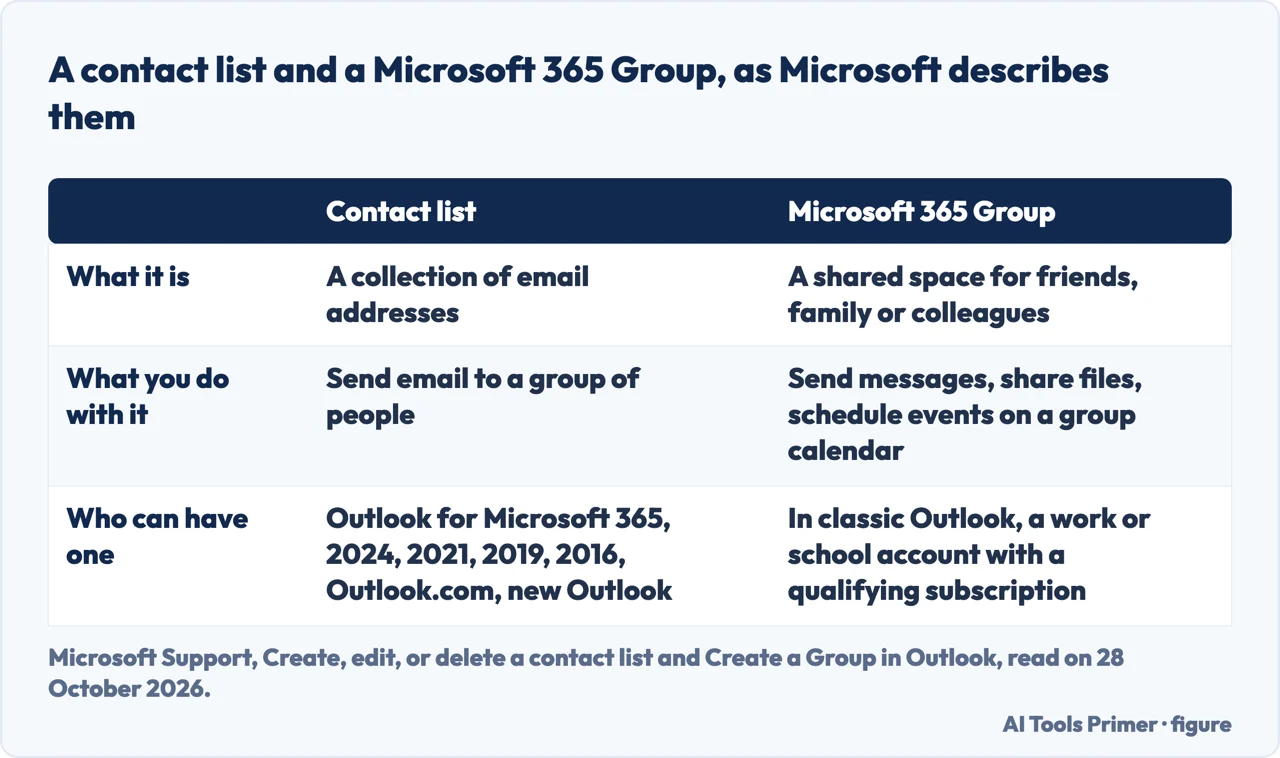
Microsoft Support has two pages that Google puts side by side for this question, and they are about different things. One is a contact list, which Microsoft describes as a collection of email addresses that is useful for sending email to a group of people. The other is a Microsoft 365 Group, which it says lets you work with friends, family or colleagues on a common goal: you can send messages to the group, share files and schedule events on a group calendar. The contact list page itself tells you to consider a Group if you want more robust functionality, to share an inbox, a calendar and files.
The names also change with the version. Microsoft says that in new Outlook the contact lists are formerly referred to as contact groups in classic Outlook. A third page, a Microsoft training card, covers creating a contact group. HelpDesk, a blog on a help-desk software company’s site, calls the same thing an email group and says it can be used for a project, a department or regular updates to a recurring group. If you are unsure which kind of group you have, Microsoft points to its page on Microsoft 365 Groups.
Making a contact list
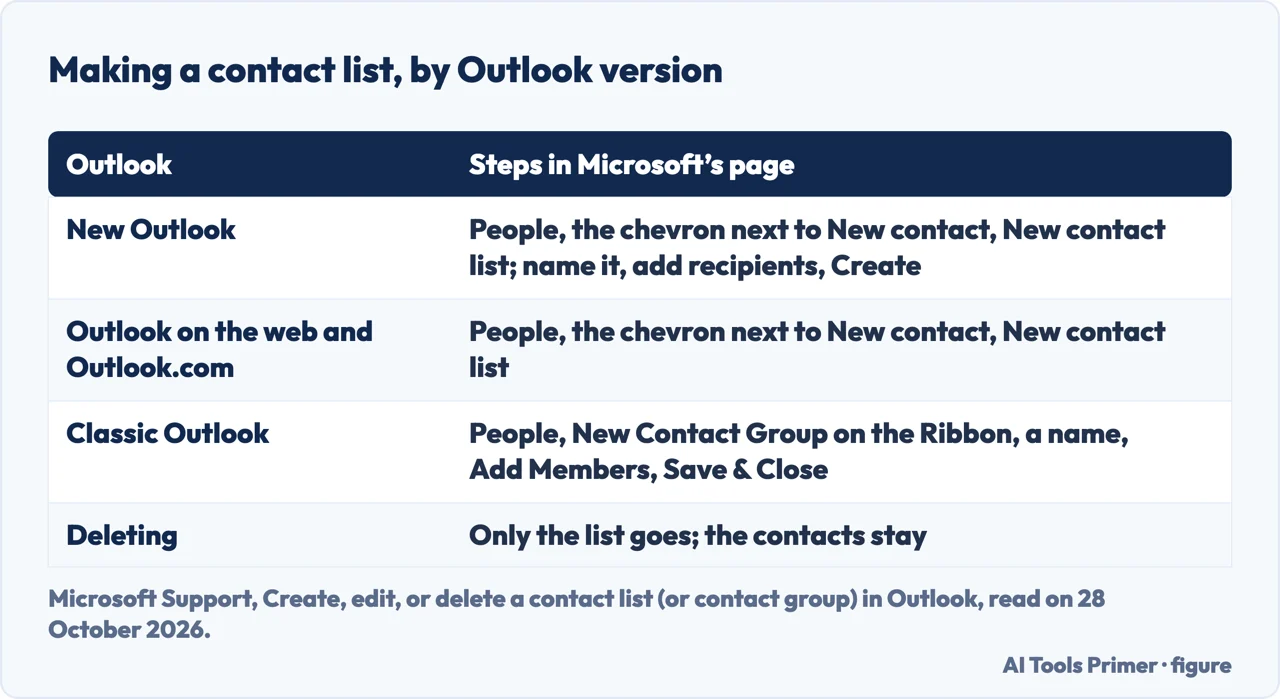
In new Outlook, Microsoft says to open People from the side panel, select the dropdown chevron next to New contact and then New contact list. In the New contact list window you enter a name, add recipients by name or email address, and may add a description; you then create the list. The same steps apply in Outlook on the web and Outlook.com, which the page covers together. In classic Outlook, the steps are to open People from the side panel, select New Contact Group on the Ribbon, enter a name, select Add Members and then Save & Close. Microsoft’s training page for Outlook for Microsoft 365, 2024 and 2021 adds that you can add people from your address book or contacts list, and hold down the Ctrl key to select several.
HelpDesk gives the classic steps with the same shape: the Home tab, New Contact Group, a name, then Add Members, where it lists three choices, From Outlook Contacts, From Address Book or New E-Mail Contact, and finally Save & Close. Its closing step is that when you write a new email you can type the group name in the To field. Microsoft’s training page puts it differently: to send, you type the name of the contact group in the search box, double-click the name to add it to the To box and select OK.
Changing or deleting a list
To add contacts in new Outlook, select Your contact lists, find the list, hover over it, select Edit, enter names or email addresses, and Save. To remove one, select the X next to the contact and Save. In the same editor you can rename the list or add a description. To delete, hover over the list, select Delete and confirm; you can tick several lists and delete them from the ribbon. Microsoft says deleting a contact list deletes only the list, and the contacts are not deleted. In classic Outlook you open the group in your Contacts by double-clicking it, choose Add or Remove Members and Save & Close, and you delete it by right-clicking and choosing Delete or using the Ribbon, with the same note that only the list goes.
If you want a Microsoft 365 Group instead
Microsoft’s page on Groups says that you can find your groups on the App bar at the side of the window or, in the mailbox folder list, under Go to Groups. In new Outlook and Outlook on the web you select New Group on the ribbon, choose New Group, enter the name and description and select Create; the page adds that you will be asked to add members, which you can also do later or skip with Not now. The video it shows is for new Outlook with a work or school account and Outlook on the web. If you do not see Groups, Microsoft says your organization may not have turned them on, and for classic Outlook it says the feature is available only to people with a work or school account with a qualifying Microsoft 365 subscription, and that a missing New Group button can mean your account is not tied to such a subscription or your IT department has not enabled it.
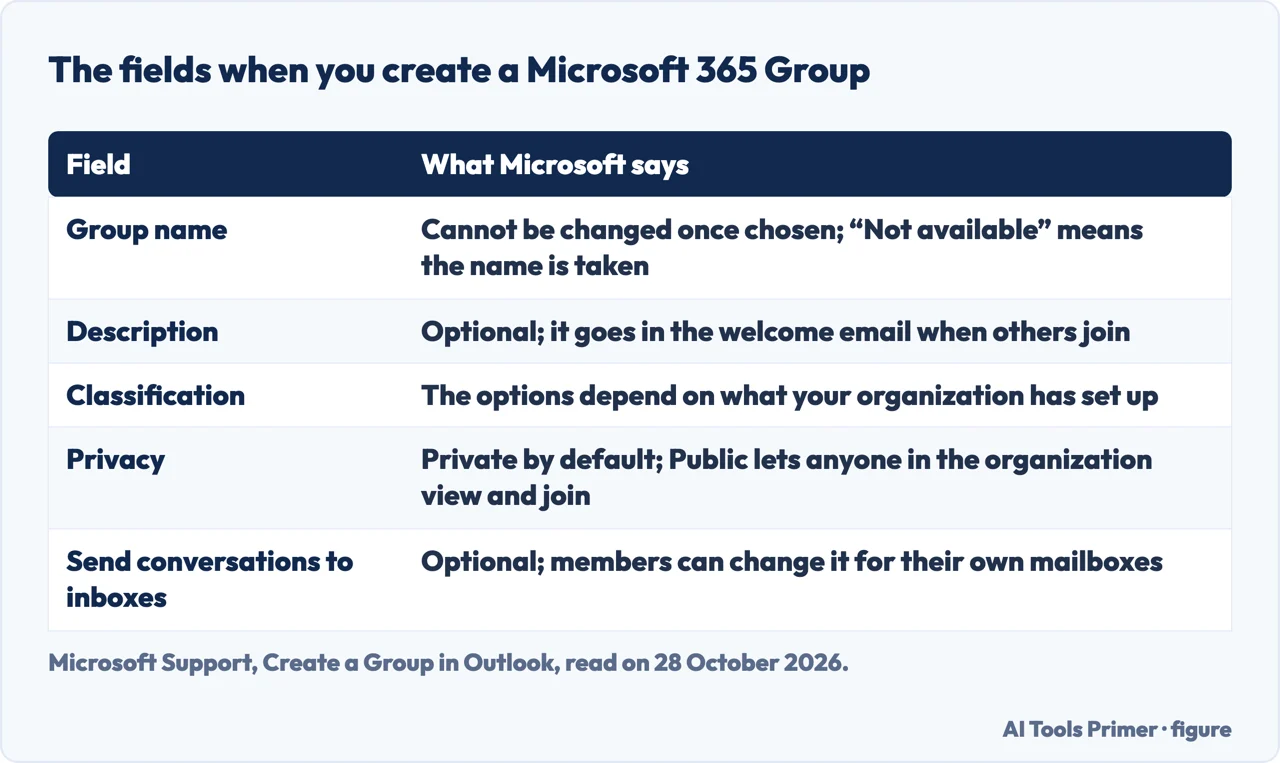
The fields Microsoft lists for a Group are the name, a description, a classification, privacy and an option to send all group conversations and events to members’ inboxes. The name cannot be changed after you choose it, and a suggested email address appears, with Not available meaning the name is taken. By default a Group is Private, so that only approved members in your organization can view what is inside; Public lets anyone in the organization view the content and join. The description is included in the welcome email that people receive when they join.
What we did not use
We made no group in Outlook. We did not read the Microsoft Q&A questions, the Cirasync post or the university IT article that Google listed, and the HelpDesk post is a software company’s blog that we used only for its classic Outlook steps. The Outlook for Mac page for contact lists and distribution lists exists on Microsoft’s site, and we did not open it. Distribution lists managed by an administrator, shared mailboxes and Teams are not covered. The Google AI box was not read.
Where to start
Four ways in.
- “Which kind do I need?”
- Two things are called a group — two
- “How do I make the list?”
- Making a contact list — list
- “How do I change or delete it?”
- Changing or deleting a list — manage
- “What about a Group?”
- If you want a Microsoft 365 Group instead — group
Sending from Outlook
Scheduling, recalling and encrypting what you send.
Setting Outlook up
Signature, font and spelling.
Questions people also ask
How do I create a group email list in Outlook?
Microsoft calls it a contact list in new Outlook: People, the chevron next to New contact, New contact list, then a name and recipients. In classic Outlook it is New Contact Group, then Add Members and Save & Close.
How do I create a group in Outlook?
For a Microsoft 365 Group, Microsoft says to select New Group on the ribbon, choose New Group, enter a name and description and select Create. Groups need a work or school account in classic Outlook and may be turned off by your organization.
How do I create a new email group?
Microsoft’s training page gives these steps for a contact group: choose People, Home, New Contact Group, type a name, then Add Members and OK.
How do I create a group in my contacts list?
In new Outlook, open People and use New contact list; in classic Outlook, open People and use New Contact Group. Microsoft says deleting the list later does not delete the contacts.
Not covered here. We made no group in Outlook. The statements come from three Microsoft Support pages and one HelpDesk blog post, all read on 28 October 2026.
The search volume and difficulty behind this page come from a Semrush reading of 29 August 2026, older than the 60 days the site normally allows.
Sources
- Microsoft Support — Create, edit, or delete a contact list (or contact group) in Outlook — support.microsoft.com, read 28 October 2026.
- Microsoft Support — Create a Group in Outlook — support.microsoft.com, read 28 October 2026.
- Microsoft Support — Create a contact group in Outlook — support.microsoft.com, read 28 October 2026.
- HelpDesk — How to create an email group in Outlook in 2025 — www.helpdesk.com, read 28 October 2026.
Written by Alberto Gulotta
Founder and editor of AI Tools Primer, writing from Palermo, Italy. Thirty-five years of taking computers apart, starting with a Commodore 64 — the long version is on the about page.
Something wrong on this page? Write to aitoolsprimer@gmail.com and it gets fixed.
Written on 28 October 2026.
Independence and limits
No affiliate links and no paid placements anywhere on this site. Nobody pays to appear here, and no company has seen this page before you did.
This is general information, not professional advice. Where a page touches money, health, safety or the law, it names its source and the date it was read — and your situation may still differ. See the privacy page and the cookie policy.