
Docs · guide
Emojis in Outlook: how to add them in each version
By Alberto Gulotta · Updated · 8 min read
Emojis in Outlook come from several routes that depend on the version: Microsoft's Windows emoji picker, text codes such as :-), an icon in Outlook on the web, and routes through the Symbol and AutoCorrect boxes that IONOS describes. This page sets them out by version, with what Laptop Mag adds for a Mac.
| Question | Answer | Where it comes from |
|---|---|---|
| What is the shortcut on Windows? | Windows key + period opens the Windows emoji picker | Microsoft Support |
| Can I just type a smiley? | Type the text code, for example :-) for a smiley face | Microsoft Support |
| And in Outlook on the web? | The Insert emojis and GIFs icon at the bottom of the message, then Popular emojis | Microsoft Support |
| On a Mac? | Control + Command + Space opens the Character Viewer | Laptop Mag |
| Is there more choice? | Home, Get Add-ins, search for Emoji, choose an add-in, Add | Microsoft Support |
The Windows picker
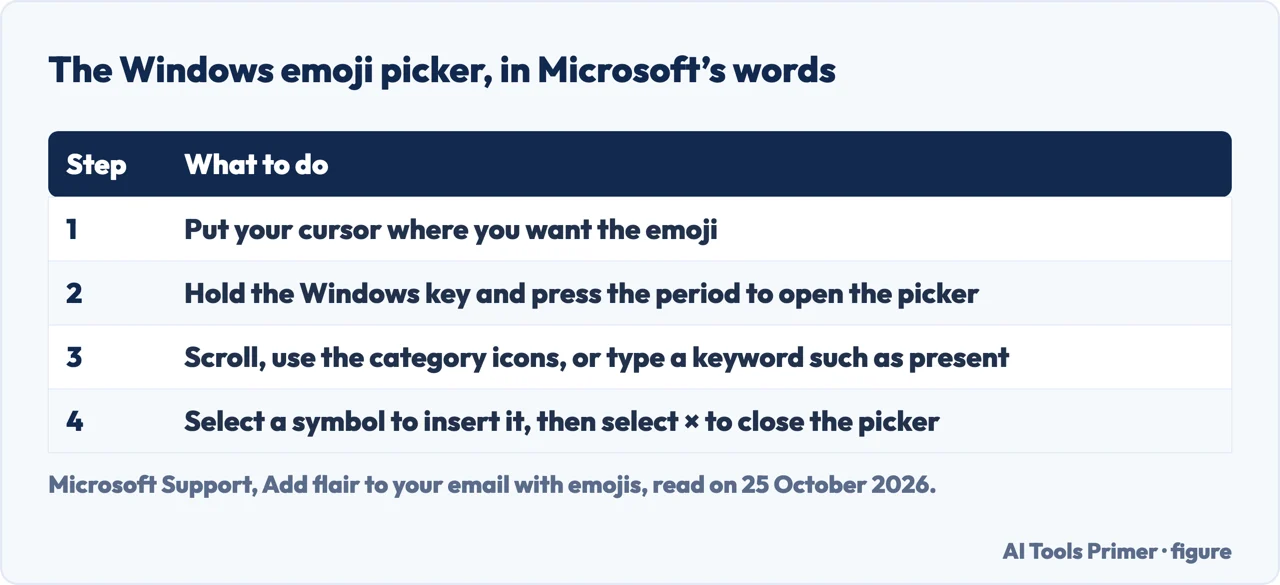
Microsoft Support’s article, which says it applies to Outlook for Microsoft 365, Outlook 2024, 2021, 2019 and 2016, begins from the fact that Windows 10 and 11 contain a large set of emojis. Put your cursor where you want the emoji, then hold the Windows key and press the period to open the Windows emoji picker. Select a symbol to insert it in your email message, and when you are done select × to close the picker. In the picker you can scroll the list, use the category icons at the top or bottom, or type a keyword to search; Microsoft’s example is that typing the word present filters the emoji for you. Laptop Mag gives the same shortcut and says the picker works in most input boxes, so it also serves for a calendar entry or a signature; for the signature steps see email signatures in Outlook.
Typing a text code
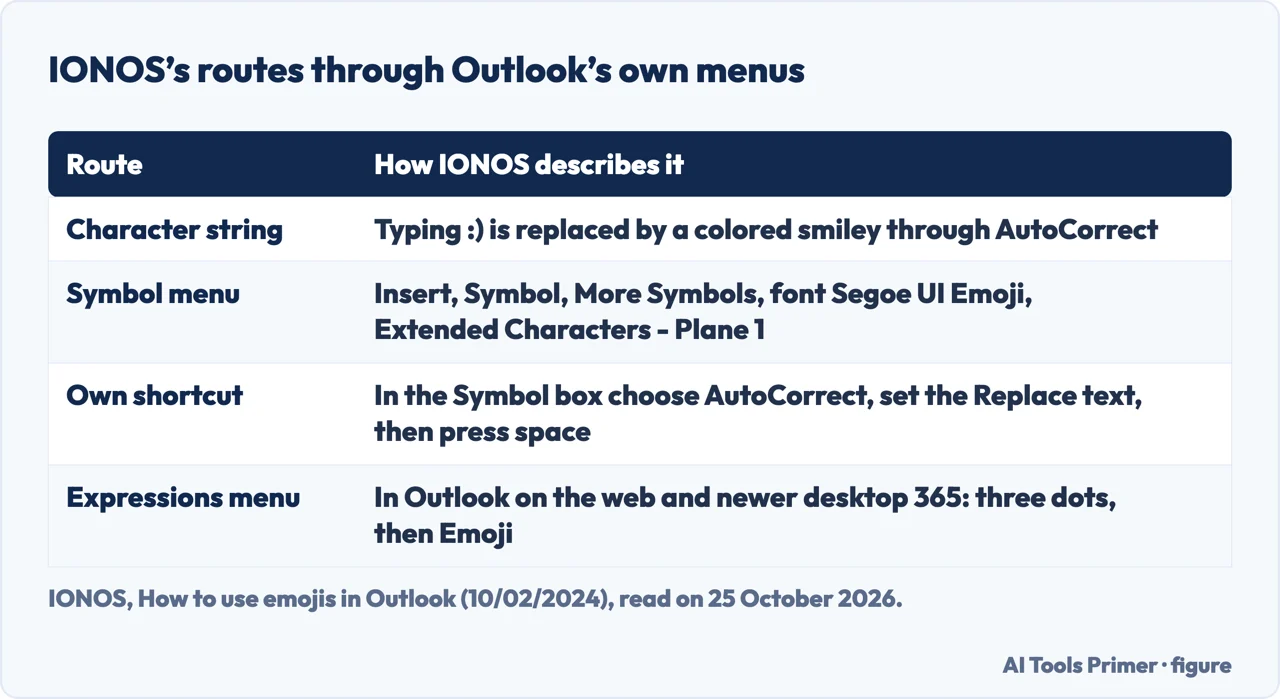
Microsoft’s article lists, under other options, typing the text code if you know it: for a smiley face, type :-) . It does not explain how the code becomes a picture. IONOS does: its guide, dated 10/02/2024 on the page, says Outlook automatically replaces a typed character combination with a modern, colorful smiley image through Outlook’s AutoCorrect, so entering :) anywhere in a message makes the smiley appear. It adds that AutoCorrect usually replaces the characters when they are entered or when you press the space bar, and lists more examples: ;) for a winking emoji, :( sad, :O surprised, :D laughing and <3 a heart. We did not test which Outlook versions do this.
Outlook on the web
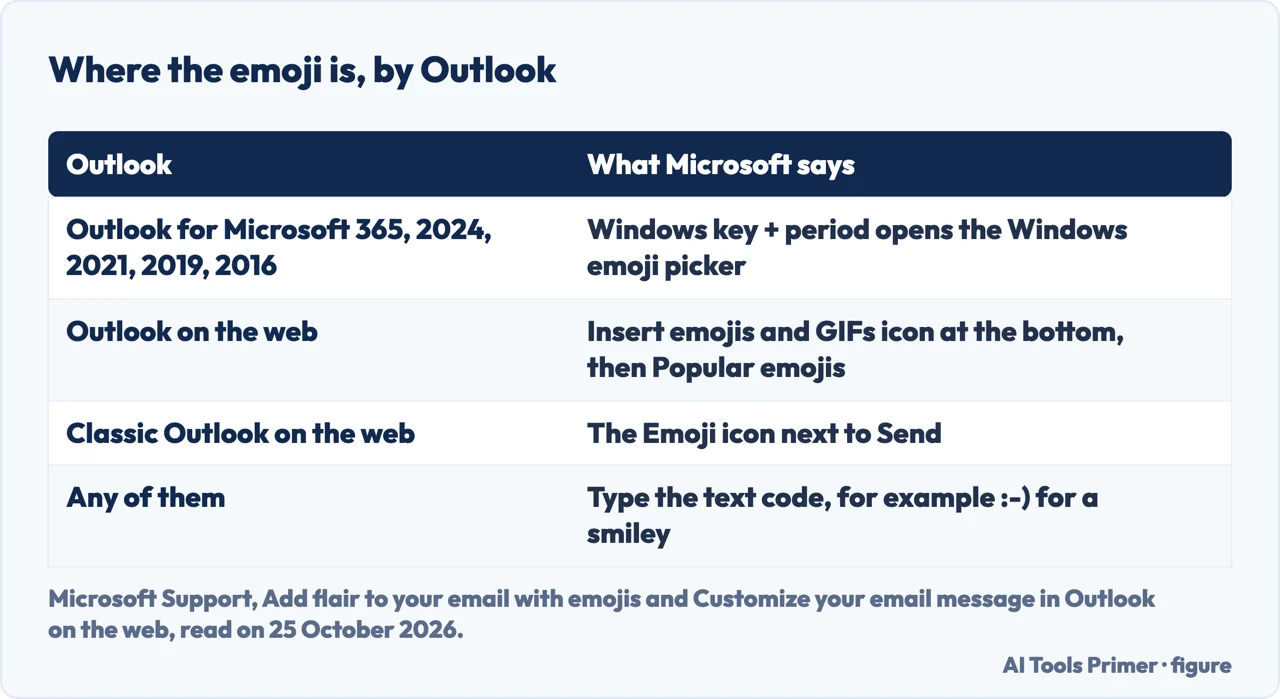
Microsoft Support’s article on customizing an email in Outlook on the web gives two sets of steps. In the current version, to insert an emoji, select the Insert emojis and GIFs icon at the bottom of the email message, scroll to Popular emojis, and choose an emoticon; the same icon, with Popular GIFs, inserts a GIF. In the classic version, which the article keeps in a separate section, you choose the Emoji icon next to Send at the bottom of the message and then select an emoji. The article says that if the instructions do not match what you see, you might be using an older version of Outlook on the web. IONOS describes a third path for Outlook on the web and newer desktop versions of Outlook 365: click the three-dot button for the advanced options and select Emoji, which it calls the Expressions menu.
The Symbol box and your own shortcut
In desktop Outlook, IONOS describes two more routes. For the first, switch to the Insert tab, click Symbol, then More Symbols; select Segoe UI Emoji as the font and the Extended Characters - Plane 1 subset to reach the emoji symbols, click the one you want and click Insert. IONOS says such symbols may show in black and white in the box and change into the colored version when inserted. For the second, which combines AutoCorrect and the Symbol box, select the emoji, click the AutoCorrect button, enter the shortcut you want in the Replace field, press Add and then OK; typing the saved shortcut in an email and pressing the space bar then makes the emoji appear. IONOS gives 123 and LOL as example shortcuts. Add-ins are Microsoft’s other route: select Home, then Get Add-ins, search for Emoji, choose an add-in and select Add.
On a Mac, and how they look
Laptop Mag says that on a Mac you press the Control and Command keys together with the space bar, which shows the Character Viewer with emojis and symbols to choose from. Apple’s own pages have a different route, which our guide on emojis on a Mac sets out. Laptop Mag also notes that these pictures typically look different depending on the platform they are viewed on, so a Windows emoji can look different on the recipient’s screen. That is Laptop Mag’s statement and we did not compare platforms.
What we did not use
Microsoft Q&A answers in the results are written by other users and some of them are marked as AI answers, so we did not use them; the remaining guides from MyExcelOnline, Haiku and GeeksforGeeks were not read. We did not run any of these routes in Outlook, so a menu on your version may be labelled differently.
Where to start
Four ways in.
- “What is the shortcut?”
- The Windows picker — windows
- “Can I just type one?”
- Text codes — codes
- “I use Outlook in a browser.”
- Outlook on the web — web
- “I have a Mac.”
- On a Mac — mac
Writing in Outlook
The other settings in the same message window.
Sending and leaving
Recalling, replying and the Mac.
Questions people also ask
How to do a 😂 in an email?
Put the cursor in the message, press the Windows key and the period, and search for the emoji; in Outlook on the web use the Insert emojis and GIFs icon.
What is the shortcut key for emojis?
Windows key + period on Windows, Microsoft says; Control + Command + Space on a Mac, Laptop Mag says.
How do you type 😊 in Outlook?
Microsoft says to type the text code, for example :-); IONOS says AutoCorrect replaces :) with a colored smiley.
How do I insert a 👍 emoji?
Open the Windows picker or the web icon and pick it; the pages we read give no separate step for it.
Not covered here. We ran no route in Outlook. The statements come from two Microsoft Support articles (Add flair to your email with emojis, and Customize your email message in Outlook on the web), a guide from IONOS dated 10/02/2024 on the page, which sells hosted Exchange and says so, and a Laptop Mag guide with no date, all read on 25 October 2026.
The Microsoft Q&A answers and the remaining results were not used. The search volume and difficulty behind this page were read in Semrush on 29 August 2026.
Sources
- Microsoft Support — Add flair to your email with emojis — support.microsoft.com, read 25 October 2026.
- Microsoft Support — Customize your email message in Outlook on the web — support.microsoft.com, read 25 October 2026.
- IONOS — How to use emojis in Outlook (10/02/2024) — www.ionos.com, read 25 October 2026.
- Laptop Mag — How to add emojis in Outlook (no date read) — www.laptopmag.com, read 25 October 2026.
Written by Alberto Gulotta
Founder and editor of AI Tools Primer, writing from Palermo, Italy. Thirty-five years of taking computers apart, starting with a Commodore 64 — the long version is on the about page.
Something wrong on this page? Write to aitoolsprimer@gmail.com and it gets fixed.
Written on 25 October 2026.
Independence and limits
No affiliate links and no paid placements anywhere on this site. Nobody pays to appear here, and no company has seen this page before you did.
This is general information, not professional advice. Where a page touches money, health, safety or the law, it names its source and the date it was read — and your situation may still differ. See the privacy page and the cookie policy.