
Docs · guide
How to enter in a cell in Excel: confirm it or break the line
By Alberto Gulotta · Updated · 18 min read
How to enter in a cell in Excel has two answers. Pressing Enter completes the entry and, by default, selects the cell below, says Microsoft. A new line inside the same cell takes Alt+Enter on Windows and the web, while the pages we read give different Mac keys.
| Question | Answer | Where it comes from |
|---|---|---|
| What does Enter do? | Completes the entry and selects the cell below, by default | Microsoft Support |
| Can the selection stay put? | Yes: clear After pressing Enter, move selection under File > Options > Advanced | Microsoft Support |
| How do I start a new line in a cell? | Alt+Enter on Windows and in Excel for the web; Control+Option+Return on a Mac | Microsoft Support |
| Is the Mac key the same everywhere? | No: Microsoft, Ablebits and DataCamp list different extra combinations | All three |
| Why do I still see one line? | Wrap Text is off, or the row height is fixed | Ablebits, DataCamp, Microsoft |
Enter finishes the entry, and the selection moves
Microsoft’s keyboard shortcuts page lists Enter as the key that completes a cell entry, from the cell or from the formula bar, and selects the cell below, by default. Its page on editing cell contents puts the same thing as a way out of Edit mode: Excel exits Edit mode and selects the cell directly below. Ablebits describes it in its own words, saying that in Excel pressing the Enter key completes the entry and moves the cursor to the next cell, where in most Office applications it starts a new paragraph. DataCamp opens on the same contrast and says Excel treats Enter as a way to move, not as a way to break a line.
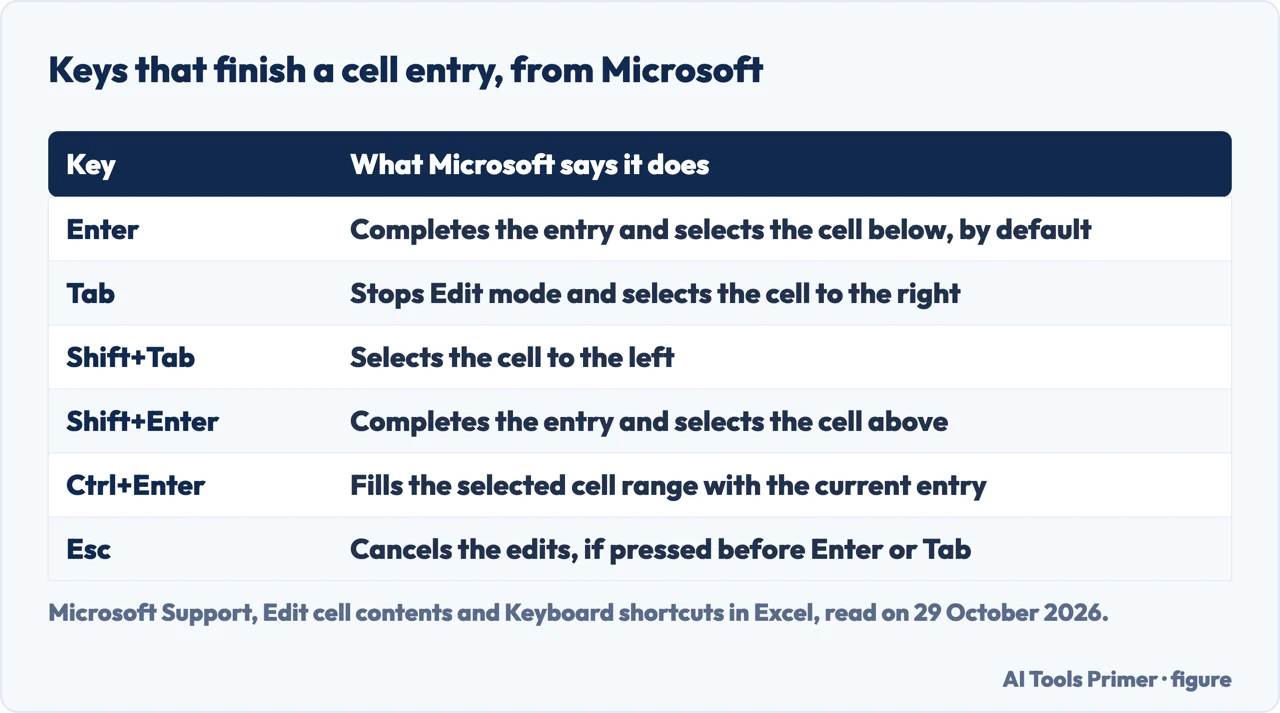
The other keys that finish an entry send the selection somewhere else, as the table shows. Tab moves it one cell to the right and Shift+Tab one cell to the left, both on the editing page. Shift+Enter completes the entry and selects the cell above: that is on Microsoft’s shortcuts page, and Intellisoft, a training centre, describes it the same way in an article on four uses of the Enter key. Its example types “Marketing Budget” and finds the cursor in the cell above; it calls this helpful for entering data upwards, especially corrections or additions to previously entered data in a column.
Where Enter goes is a setting. Microsoft’s editing page says to choose File > Options > Advanced and, under Editing options, clear After pressing Enter, move selection if you want the selection to remain in the cell you were editing, or keep it ticked and pick a direction from the list. Another Microsoft page, on entering data manually, gives the same route and adds two details: you cannot change the direction of the move for Tab, only for Enter, and the setting applies to the whole worksheet, any other open worksheets and workbooks, and all new workbooks. For a Mac, the shortcuts page has a note, attached to its Return and Shift+Return shortcuts for moving within a selection, that these might move in another direction than down or up; it points to Excel > Preferences > Edit and an option called After pressing Return, move selection. That page does not tie the option to the Enter that completes an entry. The new-line page, Ablebits, DataCamp, Computer Hope and Intellisoft do not mention this option.
Ctrl+Enter is a different case. Microsoft’s shortcuts page says it fills the selected cell range with the current entry. The page on entering data manually gives the steps: select the cells, which do not have to be adjacent, type the data in the active cell and press Ctrl+Enter. Intellisoft types “Approved” in a selection and presses Ctrl+Enter to put the same text in every selected cell. Neither of these two pages describes Ctrl+Enter as a way to confirm an entry and stay on the same cell. Computer Hope, updated 06/01/2025, gives Ctrl+Enter for a new line in Google Sheets and OpenOffice Calc, and Alt+Enter for Excel.
Getting into the cell to type
Microsoft’s editing page, written for Excel for Microsoft 365, Excel 2024 and Excel 2021, names three ways to start Edit mode. Double-click the cell, which puts the cursor where you clicked while the formula bar shows the contents. Select the cell and click anywhere in the formula bar, which puts the cursor there. Or select the cell and press F2, which puts the cursor at the end of the contents. While the mode is on, the word Edit appears in the lower-left corner of the Excel window.
Edit mode changes what the keys do. Microsoft says many commands are unavailable, for example you cannot apply conditional formatting or change the alignment of the contents, and the arrow keys move the cursor around inside the cell instead of from cell to cell. It also says you cannot change the way text wraps while in Edit mode, a point that returns below. To delete characters it names Backspace and Delete, and the Insert key turns Overtype mode on or off, which it allows only while editing.
If a double-click does nothing, Microsoft says editing may be disabled: under File > Options > Advanced, in Editing options, the Allow editing directly in cells check box has to be ticked. To back out, press Esc before Enter or Tab and the edits are cancelled. After Enter or Tab, Microsoft says to press Ctrl+Z or use Undo on the Quick Access Toolbar. Pressing F2 again exits Edit mode and leaves the cursor where it is, which is another of the exits the page lists, next to Enter, Tab and selecting a different cell.
A new line inside the cell: Windows and the web
The Microsoft page on starting a new line of text inside a cell, gives the Windows steps in three lines: double-click the cell in which you want to insert a line break, select the location inside the cell where you want to break the line, and press Alt+Enter. The tab for Excel for the web adds that you can select the cell and press F2 instead of double-clicking. The wrap-text page gives the same F2 tip, and the shortcuts page lists Alt+Enter as the key for a new line in the same cell on its Windows and web sections. The page on entering data manually says the same in one sentence for typing on a new line within a cell. A second Microsoft page, on inserting a line break in a cell, gives the same three Windows steps and Alt+Enter only, with no Mac combination.
Computer Hope says you can create many new lines in a cell by repeatedly pressing Alt+Enter. Ablebits says pressing it twice or more leaves a gap of two or more lines between the parts of the text, and DataCamp says each extra press adds vertical space. Intellisoft shows the order of keys: type the first line, press Alt+Enter, type the next line, then press Enter to finalise the entry. Ablebits ends its steps the same way, with Enter to finish up and exit Edit mode. Intellisoft suggests addresses or notes as the use, and Ablebits mentions mailing labels or personal details in one cell.
The break is stored in the cell, but you only see it as a break when the cell wraps. Ablebits says that if the text still shows up in one line you should make sure Wrap Text is turned on, and DataCamp calls Wrap Text the thing that will trip you up first. Microsoft treats the two as separate: its wrap-text page says Excel can wrap text so it appears on several lines, either by formatting the cell to wrap automatically or by entering a manual line break. The button is on the Home tab, in the Alignment group. Because Edit mode blocks that change, set it outside the cell. Our page on wrapping text in Excel covers the button and the reasons wrapped text stays hidden. One reader’s comment on the Ablebits page says Alt+Enter turns Wrap Text on by itself; that is the reader’s report, not a statement from Ablebits or Microsoft, so we did not rely on it.
On a Mac, and on a phone or tablet
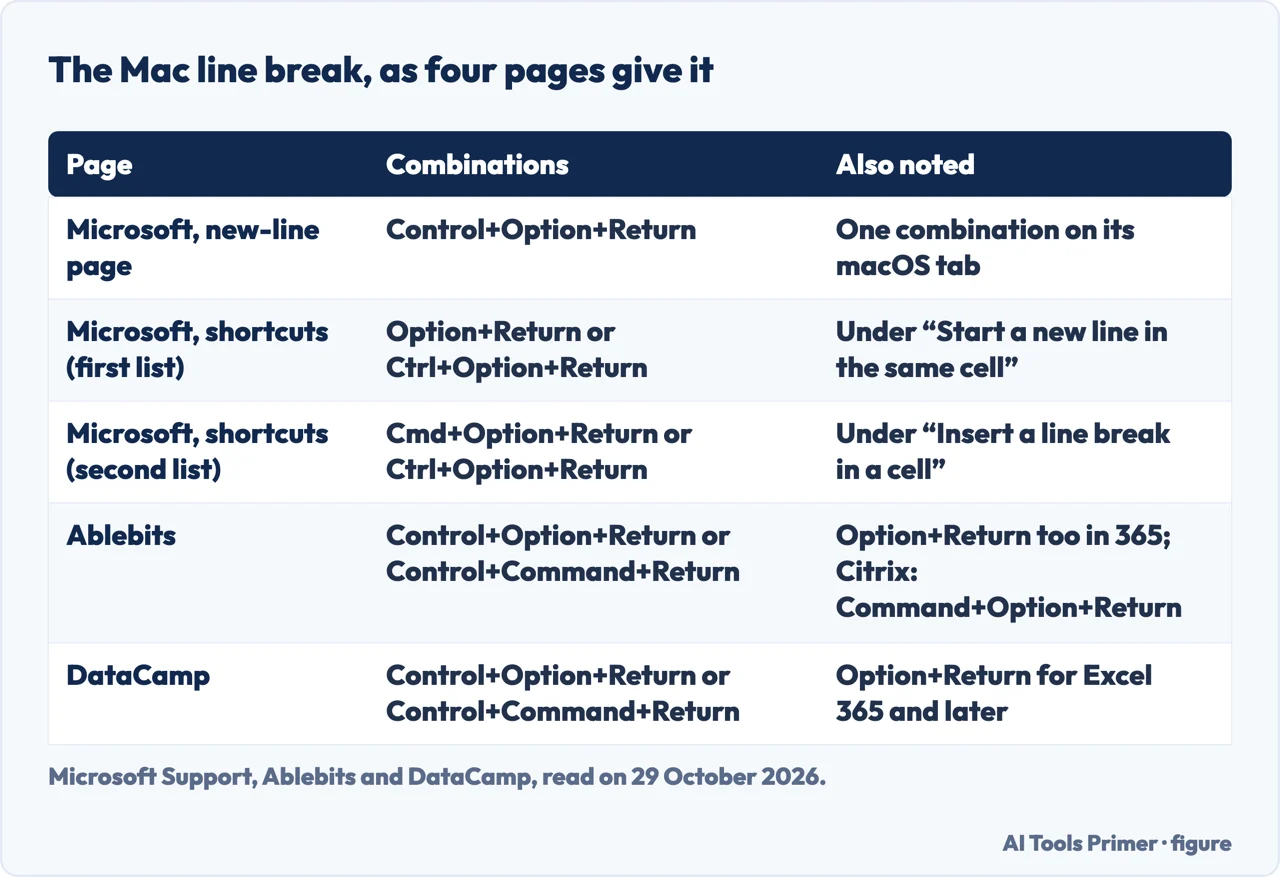
The Mac pages give different answers, and Microsoft’s own pages do not agree with each other. The new-line page, on its macOS tab, gives the same three steps as Windows but with Control+Option+Return. The shortcuts page, in one Mac list, gives Option+Return or Ctrl+Option+Return for starting a new line in the same cell, and in another Mac list gives Cmd+Option+Return or Ctrl+Option+Return for a line break in a cell. Ablebits gives Control+Option+Return or Control+Command+Return, adds Option+Return for Excel 365 for Mac, and for Excel for Mac reached through Citrix gives Command+Option+Return. DataCamp lists Control+Option+Return first, Control+Command+Return as an alternative, and Option+Return as supported on Excel 365 and later.
Reading across the five, Control+Option+Return is the one combination that appears in all five rows. Control+Command+Return appears on Ablebits and DataCamp and not on either Microsoft page we read, and Cmd+Option+Return appears on Microsoft’s shortcuts page but on Ablebits only for Citrix. The pages we read do not say with certainty which combination belongs to which version of Excel for Mac. DataCamp says to try Option+Return or Control+Command+Return if Control+Option+Return does not work; Ablebits instead gives Option+Return for Excel 365 for Mac and says that if it does not work you should try the traditional combinations, so the two pages do not give the same order. Comments under the Ablebits page add reports: one reader on Citrix says Command+Option+Return worked, another says only Option+Return worked and notes that Option is the Alt key on a Mac, and a third, using Excel for the web on a Mac, said the combinations did not work, to which the Ablebits reply was to try Option+Enter in Mac Excel 365.
For phones and tablets, the new-line page has two more tabs, Office for Android and Office for iOS. The text of each block does not carry its tab name, so we assign them by the order of the tabs. In the fourth block you double-tap within the cell, tap and hold where you want a line break and tap New Line in the contextual menu. The fifth block has no double-tap step: you tap the keyboard toggle button to open the numeric keyboard, tap and hold where you want a line break, and tap New Line in the contextual menu. With an external keyboard, the shortcuts page lists Alt+Enter in its Excel for Android section. DataCamp says touch-screen versions often do not support the shortcuts and suggests tapping into the formula bar and pressing Return, or pasting a line break copied from Notes or Word into the cell with Wrap Text on.
Many cells at once, or by formula
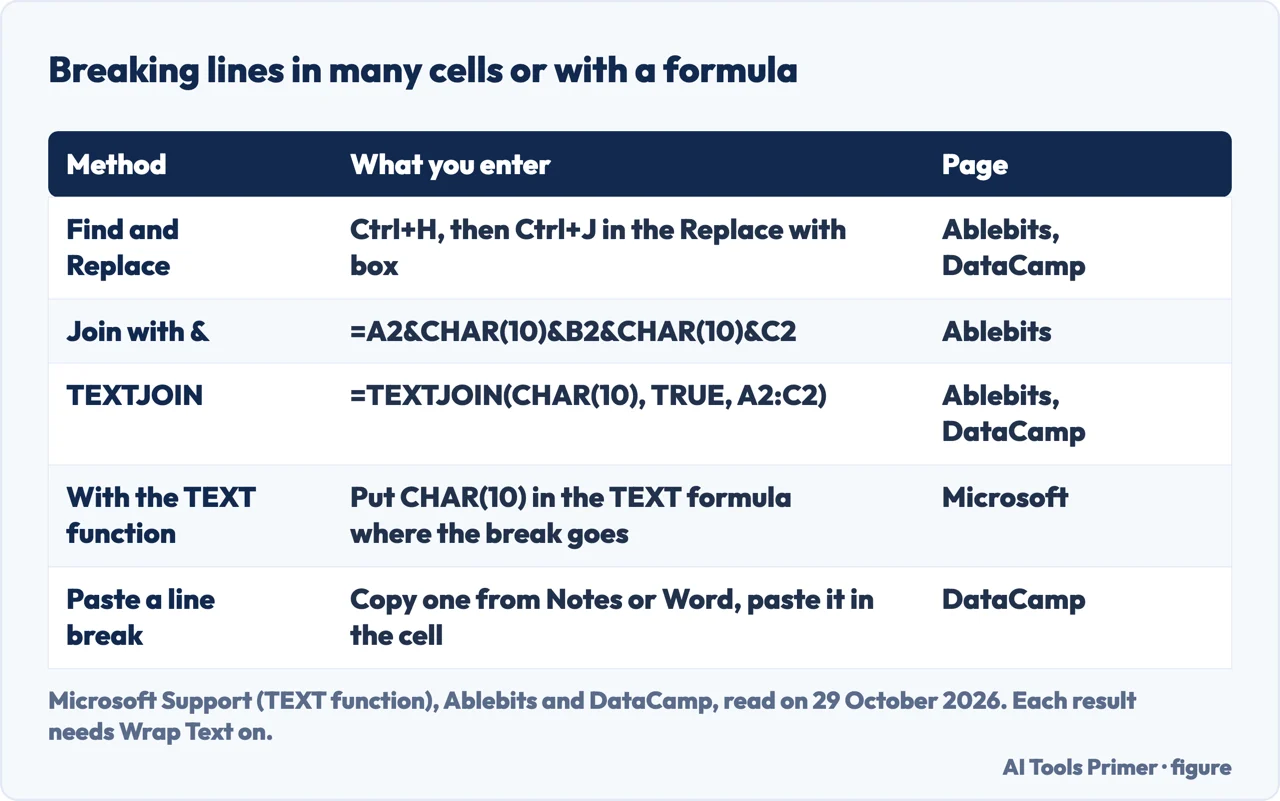
Ablebits and DataCamp give the same route for adding line breaks to many cells: select them, press Ctrl+H to open Find and Replace, type the character to break at in the Find what box, and in Replace with press Ctrl+J, then choose Replace All. Ablebits uses a comma and a space as the example and says that typing a comma and then Ctrl+J keeps the commas. DataCamp says the box looks empty but holds a hidden line break, ASCII character 10. Microsoft’s pages that we searched for it, the new-line, wrap-text, editing, manual-entry and TEXT-function pages, do not mention Ctrl+J.
A formula can also put the break in. Ablebits says that on Windows the character code for the line break is 10, so you join pieces with CHAR(10) between them, using the & operator or CONCATENATE, and adds TEXTJOIN for Excel for Office 365 and Excel 2019, with CHAR(10) as the delimiter and TRUE to skip empty cells. DataCamp gives the same TEXTJOIN formula for Excel 365 or 2019 and later, and adds labels, such as a name and an email address, to build small contact cards. Microsoft’s TEXT function page answers the question in its own words: yes, with a few steps, which are to turn on Wrap Text in the Format Cells dialog and to put CHAR(10) in the formula where the break goes. Ablebits, DataCamp and Microsoft’s TEXT page each say the result needs Wrap Text on.
Microsoft’s CHAR page defines the function as returning the character for a number between 1 and 255, taken from the character set your computer uses, and says Excel for the web supports only CHAR(9), CHAR(10), CHAR(13) and CHAR(32) and above. What it does not say is which number a Mac wants. Ablebits says that on Mac the code is 13, so you use CHAR(13). DataCamp says CHAR(10) is the line feed, with CHAR(13), the carriage return, to try on macOS in some formula contexts, especially when importing or copying. One says the Mac needs 13; the other says to try it if 10 fails. DataCamp adds one more limit: custom number or date formats do not give a visible line break, and its workaround is a formula with CHAR(10).
When the new line does not show or the key does nothing
- The text is on one line. Wrap Text is off. Ablebits and DataCamp both name this; the button is on the Home tab, in the Alignment group.
- Wrap Text is on and lines are still cut off. Microsoft’s wrap-text page says the row may be set to a specific height or the text may be in merged cells. The fix it gives is Format under Cell Size, then AutoFit Row Height, and on the Mac page the Format menu, Row, AutoFit. DataCamp adds that line breaks do not resize the cell for you.
- A single long word. Microsoft says the characters do not wrap, and you can widen the column or decrease the font size.
- A double-click does nothing. Check that Allow editing directly in cells is ticked: Microsoft says that if you try to use Edit mode and nothing happens, it might be disabled.
- You cannot type in the cell at all. Microsoft’s page on entering data manually says the worksheet may be protected: on a protected sheet you can select cells to view the data but cannot type in cells that are locked, and the fix is Unprotect Sheet in the Changes group on the Review tab, with the password if one was set, and only with permission from whoever protected it. Our page on locking cells in Excel covers the other side.
- Enter moved on instead of breaking the line. That is what Enter does by default; use Alt+Enter, or the Mac combination from the table above.
- Ctrl+Enter filled a range. That is its job in Excel, as Microsoft and Intellisoft describe it.
- Citrix or another virtual desktop. DataCamp says shortcuts such as Alt+Enter may not register, and suggests formulas with CHAR(10), and checking whether the session intercepts keys.
What we did not use
We tested nothing in Excel. Microsoft’s pages do not agree on every Mac key, and the pages we read do not say which version of Excel for Mac takes which. We did not open the Quora question, the Reddit thread or the GeeksforGeeks page on starting a new line in a cell. Ablebits has a tip for splitting a long formula over several lines that names the keys Ctrl + Alt and then Enter, which does not match the Alt+Enter it gives everywhere else on the page, so we left it out. The pages we read do not say what happens to the line breaks when the file is saved or exported.
Where to start
Four ways in.
- “Which key finishes the entry?”
- Enter finishes the entry, and the selection moves — confirm
- “How do I start a new line in the cell?”
- A new line inside the cell: Windows and the web — newline
- “What is the Mac key?”
- On a Mac, and on a phone or tablet — mac
- “Why does it show one line?”
- When the new line does not show or the key does nothing — fails
Moving around the sheet
Keys that move the selection, and what Ctrl does to it.
Text inside a cell
Wrapping, joining and removing characters.
Questions people also ask
How do you press enter in Excel and stay in the same cell?
Microsoft’s editing page says to clear the After pressing Enter, move selection check box under File > Options > Advanced, so the selection remains in the cell you were editing. The setting covers every open workbook and new ones. Ctrl+Enter is not the answer in the pages we read: Microsoft says it fills the selected range.
How do I put enter in a cell of Excel?
It depends on what is meant. To finish an entry, press Enter, which selects the cell below by default. To put a line break inside the cell, double-click it (or select it and press F2), choose the spot and press Alt+Enter on Windows. Microsoft gives Control+Option+Return for a Mac.
How do I enter multiple lines in an Excel cell?
Press Alt+Enter at each spot where a line should start, and again to leave a gap; Computer Hope and Ablebits both say it can be repeated. Press Enter to finish, and turn on Wrap Text if the lines show as one. For many cells, Ablebits and DataCamp use Ctrl+H with Ctrl+J, or a CHAR(10) formula.
How do I enter to a new line in an Excel cell?
Microsoft’s new-line page says to double-click the cell, select the location inside it and press Alt+Enter. On a Mac its page gives Control+Option+Return, other Microsoft and Ablebits pages list more, and on a phone you tap and hold and choose New Line.
Not covered here. We tested nothing in Excel. The statements come from nine Microsoft Support pages, Ablebits (updated on 30 August 2023), DataCamp, Computer Hope (updated 06/01/2025) and Intellisoft, all read on 29 October 2026.
The search volume and difficulty behind this page come from a Semrush reading of 29 August 2026, older than the 60 days the site normally allows.
Sources
- Microsoft Support — Start a new line of text inside a cell in Excel — support.microsoft.com, read 29 October 2026.
- Microsoft Support — Insert a line break in a cell — support.microsoft.com, read 29 October 2026.
- Microsoft Support — Edit cell contents — support.microsoft.com, read 29 October 2026.
- Microsoft Support — Enter data manually in worksheet cells — support.microsoft.com, read 29 October 2026.
- Microsoft Support — Keyboard shortcuts in Excel — support.microsoft.com, read 29 October 2026.
- Microsoft Support — Wrap text in a cell in Excel — support.microsoft.com, read 29 October 2026.
- Microsoft Support — Wrap text in a cell in Excel for Mac — support.microsoft.com, read 29 October 2026.
- Microsoft Support — TEXT function — support.microsoft.com, read 29 October 2026.
- Microsoft Support — CHAR function — support.microsoft.com, read 29 October 2026.
- Ablebits — Start new line in Excel cell: 3 ways to add carriage return — www.ablebits.com, read 29 October 2026.
- DataCamp — Excel New Line in Cell: Easy Ways to Insert Line Breaks — www.datacamp.com, read 29 October 2026.
- Computer Hope — How to start a new line in a spreadsheet cell — www.computerhope.com, read 29 October 2026.
- Intellisoft — Do You Know the 4 Ways to Use the Enter key in Excel? — www.intellisoft.com.sg, read 29 October 2026.
Written by Alberto Gulotta
Founder and editor of AI Tools Primer, writing from Palermo, Italy. Thirty-five years of taking computers apart, starting with a Commodore 64 — the long version is on the about page.
Something wrong on this page? Write to aitoolsprimer@gmail.com and it gets fixed.
Written on 29 October 2026.
Independence and limits
No affiliate links and no paid placements anywhere on this site. Nobody pays to appear here, and no company has seen this page before you did.
This is general information, not professional advice. Where a page touches money, health, safety or the law, it names its source and the date it was read — and your situation may still differ. See the privacy page and the cookie policy.