
Docs · guide
How to strip characters Excel cells don’t need, by name or position
By Alberto Gulotta · Updated · 12 min read
To strip characters Excel cells don’t need, name them or count them. =SUBSTITUTE(A2,"-","") removes every hyphen; =LEFT(A2,LEN(A2)-4) keeps all but the last four characters. REPLACE cuts at a position, TEXTBEFORE and TEXTAFTER at a delimiter, and REGEXREPLACE strips a pattern; its page applies to Microsoft 365. Unless a page is named, the formulas are ours, built on Microsoft’s function pages.
| Route | What it takes out | Applies To, on its page |
|---|---|---|
| SUBSTITUTE | Text you name; every occurrence, or only the one you number | Excel for Microsoft 365, 365 for Mac, 2024, 2024 for Mac, 2021, 2021 for Mac, 2019, 2016 |
| Find and Replace | What you type in Find what, with the wildcards ?, * and ~ | The same eight; the page also has a Web tab |
| LEFT, RIGHT | Everything but the first, or the last, characters you keep | The same eight |
| REPLACE | A number of characters from a position you give | The same eight |
| TEXTBEFORE, TEXTAFTER | Everything after, or before, a delimiter | Excel for Microsoft 365, 365 for Mac, 2024, 2024 for Mac |
| REGEXREPLACE | Every match of a pattern, by default | Excel for Microsoft 365, 365 for Mac |
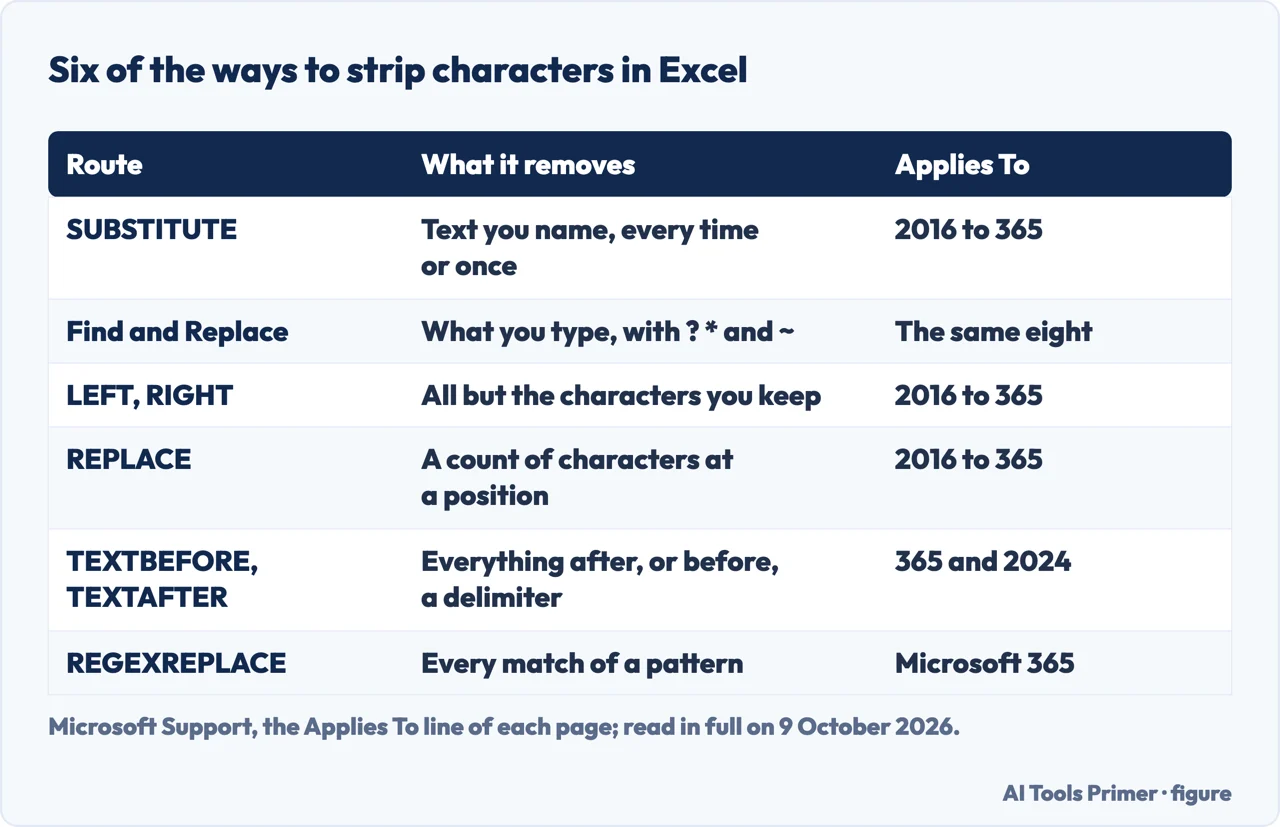
Which one. If you know the character, SUBSTITUTE or Find and Replace. If you know how many, LEFT, RIGHT or REPLACE. If the cut falls at a comma, a colon or a word, TEXTBEFORE or TEXTAFTER. If it is a kind of character — every digit, everything that isn’t one — REGEXREPLACE. Each route below gives a formula and the page it is built on; joining text is the opposite job, in combining text in Excel, and capitals are in changing case in Excel.
By name: SUBSTITUTE, or Find and Replace
The formula. Microsoft’s page gives the syntax as SUBSTITUTE(text, old_text, new_text,
[instance_num]) and says to use it for specific text, and REPLACE for text in a specific location. Without
instance_num every occurrence is changed; with it, only that one. In Microsoft’s own example,
=SUBSTITUTE(A4,"1","2",3) turns Quarter 1, 2011 into Quarter 1, 2012: the third 1, not the first.
To remove rather than change, the new text is an empty string. Exceljet says that replacing a character with
"" effectively removes it completely, and that SUBSTITUTE is case-sensitive and does not support
wildcards.
Two characters at once. One SUBSTITUTE goes inside another:
=SUBSTITUTE(SUBSTITUTE(A2,"(",""),")","") takes out both brackets. The nesting is ours; neither
the SUBSTITUTE page nor Exceljet shows it.
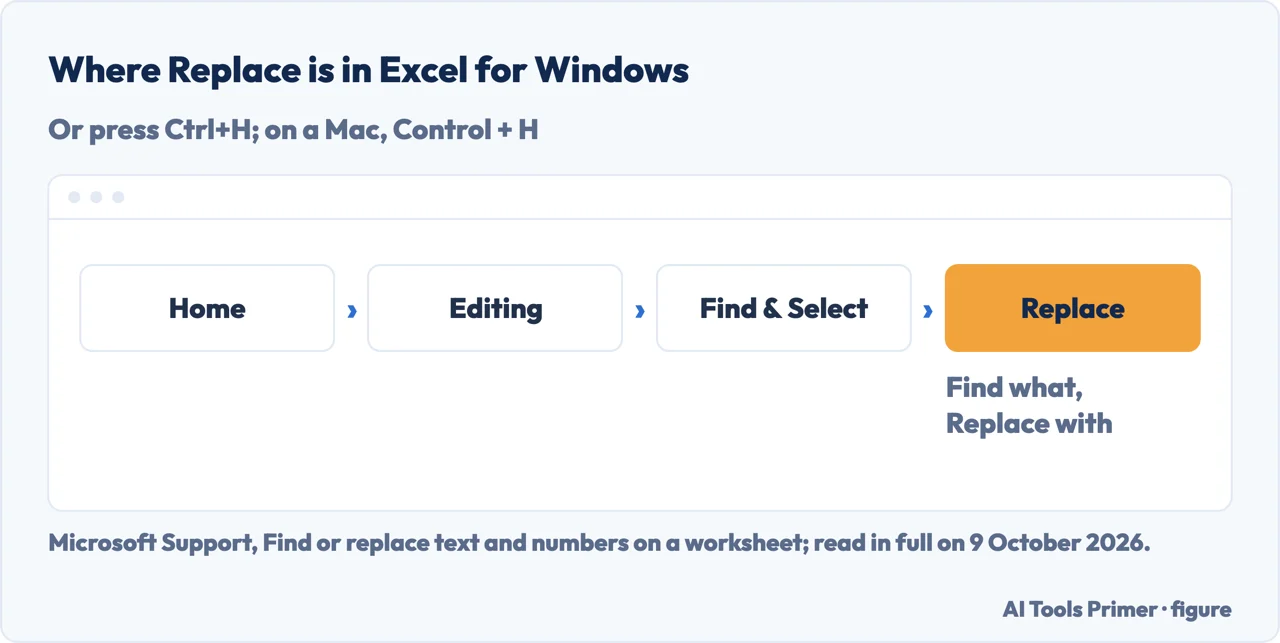
In place, without a formula. Microsoft’s Top ten ways to clean your data says a leading label or an obsolete suffix can go by finding it and replacing it with no text. Microsoft’s Find and Replace page gives Ctrl+H on Windows, or Home > Editing > Find & Select > Replace; on a Mac, Control + H, or Home > Find & Select > Replace. Replace All changes every occurrence; Replace changes one at a time. This overwrites the cells; the same Top ten page lists a backup copy of the original data, in a separate workbook, among its basic steps for cleaning.
Wildcards. In Find what, ? stands for any single character and * for any number of them, so
(*) with an empty Replace with takes out a bracketed phrase, in a cell that has one. To find a real question mark,
asterisk or tilde, put a tilde in front: Microsoft’s example is fy91~? for “fy91?”. The bracket
example is ours, built on those two rules.
A character you can’t see. If a cell starts with characters
you can’t see, Exceljet’s answer is to ask Excel for its code first, with
=CODE(LEFT(B4)) — LEFT without a count returns the first character — and then to remove that
character by its code: =SUBSTITUTE(B4,CHAR(CODE(LEFT(B4))),""). In Exceljet’s example the code is
202. Microsoft’s Top ten page lists spaces at values 32 and 160 and nonprinting characters at 0 to 31, 127,
129, 141, 143, 144 and 157, and says these can sometimes cause unexpected results when you sort, filter or search.
For those it pairs SUBSTITUTE with
TRIM and CLEAN, and the spaces have their own page here: removing spaces
in Excel.
By position: LEFT, RIGHT and REPLACE
Keep what you count. LEFT returns the first characters of a string and RIGHT the last, as many as num_chars says. Both pages give the same three rules: num_chars must be greater than or equal to zero; if it is greater than the length of the text, the whole text comes back; if it is left out, it is 1.
Remove a number from one end. LEN returns the number of characters, and Microsoft’s page says
spaces count. So =LEFT(A2,LEN(A2)-4) drops the last four characters and
=RIGHT(A2,LEN(A2)-3) drops the first three. The combinations are ours. A cell shorter than the count
gives LEFT or RIGHT a number below zero, which their pages rule out without saying what Excel then returns.
Remove from the middle. REPLACE(old_text, start_num, num_chars, new_text) swaps num_chars characters,
starting at start_num, for new_text. Microsoft’s example =REPLACE(A2,6,5,"*") turns abcdefghijk
into abcde*k. With "" as new_text the characters go and nothing takes their place:
=REPLACE(A2,1,3,"") removes the first three. The empty string is our use of the function.
Emoji and other long characters. The REPLACE and LEN pages say that in workbooks set to Compatibility Version 2 they count a surrogate pair as one character instead of two, while variation selectors, common with emoji, are still counted separately. LEFT and RIGHT say they support surrogates through the same Version 2. A count that is off by one on a cell with an emoji may come from this; that reading is ours.
At a delimiter: TEXTBEFORE and TEXTAFTER
What they do. TEXTBEFORE returns the text before a character or string, and TEXTAFTER the text after
it; Microsoft calls each the opposite of the other. =TEXTBEFORE(A2,",") strips everything from the
first comma on, and =TEXTAFTER(A2,":") everything up to the first colon. Those two are ours; the
page’s own example, =TEXTBEFORE("Red riding hood's, red hood","hood"), returns Red riding.
The arguments that change the answer. instance_num picks which delimiter, and a negative number counts from the end. The match is case-sensitive unless match_mode is 1. If the delimiter isn’t in the text, Excel returns #N/A, unless if_not_found gives something else; match_end set to 1 treats the end of the text as a delimiter, which in Microsoft’s example returns Socrates instead of #N/A for a cell with no space.
Where they exist. Both pages apply to Excel for Microsoft 365, its Mac version, Excel 2024 and Excel 2024 for Mac. In 2021, 2019 and 2016 the route is ours: LEFT, RIGHT and LEN for the cutting, FIND or SEARCH for the position. Microsoft’s Top ten page lists these among the functions for string manipulation, such as extracting portions of a string.
By pattern: REGEXREPLACE
The function. REGEXREPLACE(text, pattern, replacement, [occurrence], [case_sensitivity]) replaces the text that matches a regular expression. By default occurrence is 0, which replaces all instances; a negative number counts from the end. Microsoft says the regex flavour is PCRE2, and lists a few tokens: [0-9] for any digit, [a-z] for a letter from a to z, . for any character.
Strip everything that isn’t a digit. Exceljet’s formula is
=REGEXREPLACE(B5,"[^0-9]","")+0: the caret inside the brackets means “NOT”, so every
character that isn’t 0 to 9 is replaced with nothing, and adding zero turns the text that REGEXREPLACE
always returns into a number. To keep a decimal point, Exceljet adds it to the class: [^0-9.]. Turned around,
=REGEXREPLACE(A2,"[0-9]","") strips the digits and keeps the rest; that one is ours.
Where it exists. Its Applies To line lists Excel for Microsoft 365 and Excel for Microsoft 365 for Mac. Exceljet dates regular expressions in Excel to late 2024 and documents a longer route for older versions, built on MID, SEQUENCE, IFERROR and TEXTJOIN, with ROW and INDIRECT in place of SEQUENCE in Excel 2019.
Keeping the result, not the formula
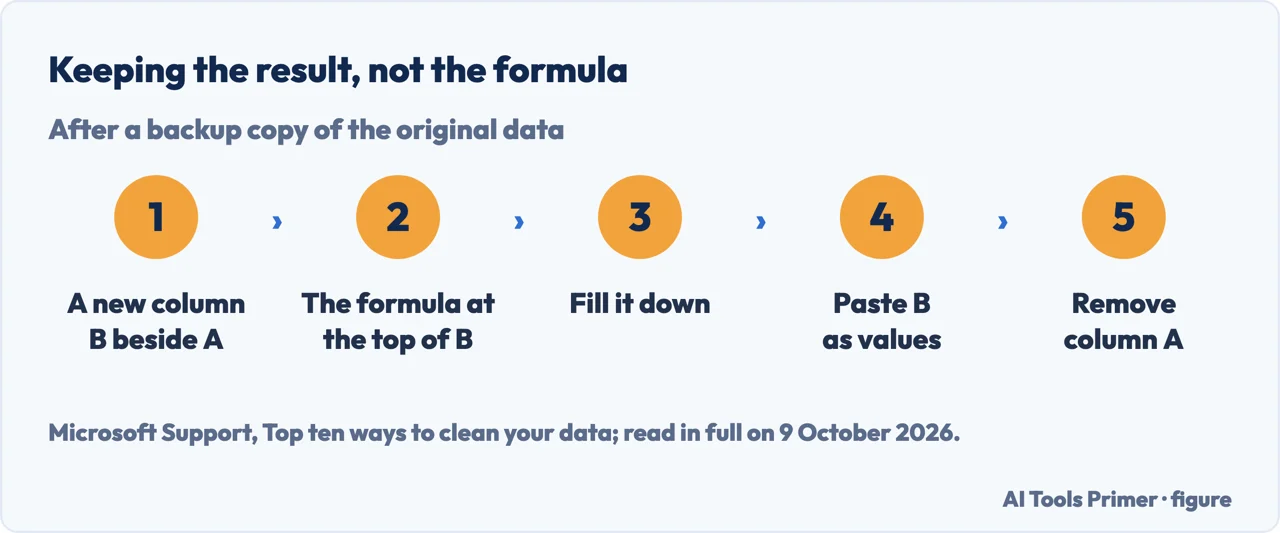
A formula in column B still reads column A, so deleting A first would break it; that reading is ours. Microsoft’s Top ten ways to clean your data gives the general steps for manipulating a column with a formula, with trailing spaces as its example.
- Make a backup copy. Microsoft’s Top ten page lists a backup copy of the original data, in a separate workbook, among its basic steps for cleaning.
- Insert a column beside the data. A new column B next to column A, the one to clean.
- Write the formula at the top of column B. Any of the formulas on this page, pointing at A2.
- Fill it down. In an Excel table, Microsoft says a calculated column fills itself.
- Paste column B over itself as values. Select it, copy it, paste as values: the formulas become values that no longer depend on column A.
- Remove column A. The cleaned column moves into its place. Microsoft’s page describes this as the general way to manipulate a column; Find and Replace, which needs no new column, goes first.
Before you start. To see which cells hold the character at all, searching in Excel has Find All, which lists every cell; to strip whole rows rather than characters, removing duplicates in Excel and removing blank rows in Excel. The Applies To lines in the table are the ones printed on each Microsoft page on 9 October 2026; none lists Excel for the web, and the Find and Replace page is the only one with a Web tab.
Where to start
Five ways in.
- “I know the character.”
- By name — by name
- “I know how many.”
- By position — by position
- “It’s after a comma.”
- At a delimiter — at a delimiter
- “Every digit, or every letter.”
- By pattern — by pattern
- “The formula works. Now what?”
- Keeping the result — keeping the result
Around the same column
Spaces, joined text, capitals and blank rows.
Questions people also ask
How do I exclude certain text from a cell in Excel?
Substitute it with nothing: =SUBSTITUTE(A2,"draft ","") returns the cell without that text. Exceljet says replacing with an empty string effectively removes it completely, and Microsoft’s Top ten page does the same in place, with Find and Replace and no replacement text. To cut at a delimiter instead, use TEXTBEFORE or TEXTAFTER.
How do I remove (-) in Excel?
=SUBSTITUTE(A2,"-","") removes every hyphen in A2; a fourth argument removes only the one you number. In place, press Ctrl+H on Windows or Control + H on a Mac, type - in Find what, leave Replace with empty and select Replace All. Microsoft’s wildcards are ?, * and ~, so a hyphen needs no tilde, in our reading.
How do I remove 4 characters from the right in Excel?
=LEFT(A2,LEN(A2)-4). LEN counts the characters, spaces included, and LEFT keeps that many minus four from the start. The combination is ours, from Microsoft’s LEFT and LEN pages; LEFT’s page says the count must be zero or more, so a cell shorter than four characters is outside it.
How do I trim the text in Excel?
=TRIM(A2). Microsoft’s Top ten page says TRIM removes the 7-bit ASCII space, value 32, and names SUBSTITUTE for the space at 160, which TRIM was not designed for; CLEAN takes out the nonprinting characters 0 to 31. Spaces have a page of their own here: removing spaces in Excel.
Not covered here. It does not cover Power Query, macros or third-party add-ins, and it does not cover Google Sheets.
Sources
- Microsoft Support — SUBSTITUTE function — support.microsoft.com, read 9 October 2026.
- Microsoft Support — REPLACE function — support.microsoft.com, read 9 October 2026.
- Microsoft Support — LEFT function — support.microsoft.com, read 9 October 2026.
- Microsoft Support — RIGHT function — support.microsoft.com, read 9 October 2026.
- Microsoft Support — LEN function — support.microsoft.com, read 9 October 2026.
- Microsoft Support — TEXTBEFORE function — support.microsoft.com, read 9 October 2026.
- Microsoft Support — TEXTAFTER function — support.microsoft.com, read 9 October 2026.
- Microsoft Support — REGEXREPLACE function — support.microsoft.com, read 9 October 2026.
- Microsoft Support — Find or replace text and numbers on a worksheet — support.microsoft.com, read 9 October 2026.
- Microsoft Support — Top ten ways to clean your data — support.microsoft.com, read 9 October 2026.
- Exceljet — Remove unwanted characters (Dave Bruns) — exceljet.net, read 9 October 2026.
- Exceljet — Strip non-numeric characters — exceljet.net, read 9 October 2026.
Written by Alberto Gulotta
Founder and editor of AI Tools Primer, writing from Palermo, Italy. Thirty-five years of taking computers apart, starting with a Commodore 64 — the long version is on the about page.
Something wrong on this page? Write to aitoolsprimer@gmail.com and it gets fixed.
Written on 9 October 2026.
Independence and limits
No affiliate links and no paid placements anywhere on this site. Nobody pays to appear here, and no company has seen this page before you did.
This is general information, not professional advice. Where a page touches money, health, safety or the law, it names its source and the date it was read — and your situation may still differ. See the privacy page and the cookie policy.