
Docs · guide
How to add error bars in Excel, and how to type your own values
By Alberto Gulotta · Updated · 9 min read
How to add error bars in Excel starts with the chart. Microsoft says to click it, press the Chart Elements button and tick Error Bars, then pick Standard Error, Percentage or Standard Deviation. More Options opens the custom values, typed with commas or taken from cells. They work on area, bar, column, line, scatter and bubble charts.
| Question | Answer | Where it comes from |
|---|---|---|
| What is the quickest route? | Click the chart, press the Chart Elements button and tick Error Bars | Microsoft Support |
| Which kinds are predefined? | Standard Error, Percentage and Standard Deviation | Microsoft Support |
| How do I type my own values? | More Options, Error Amount: Custom, Specify Value, then comma-separated numbers or a cell range | Microsoft Support |
| Which charts take them? | 2-D area, bar, column, line, XY scatter and bubble charts | Microsoft Support |
| How do I remove them? | Untick the box, or press Delete on a selected bar, or Undo | Microsoft Support |
What error bars show and the kinds Excel offers
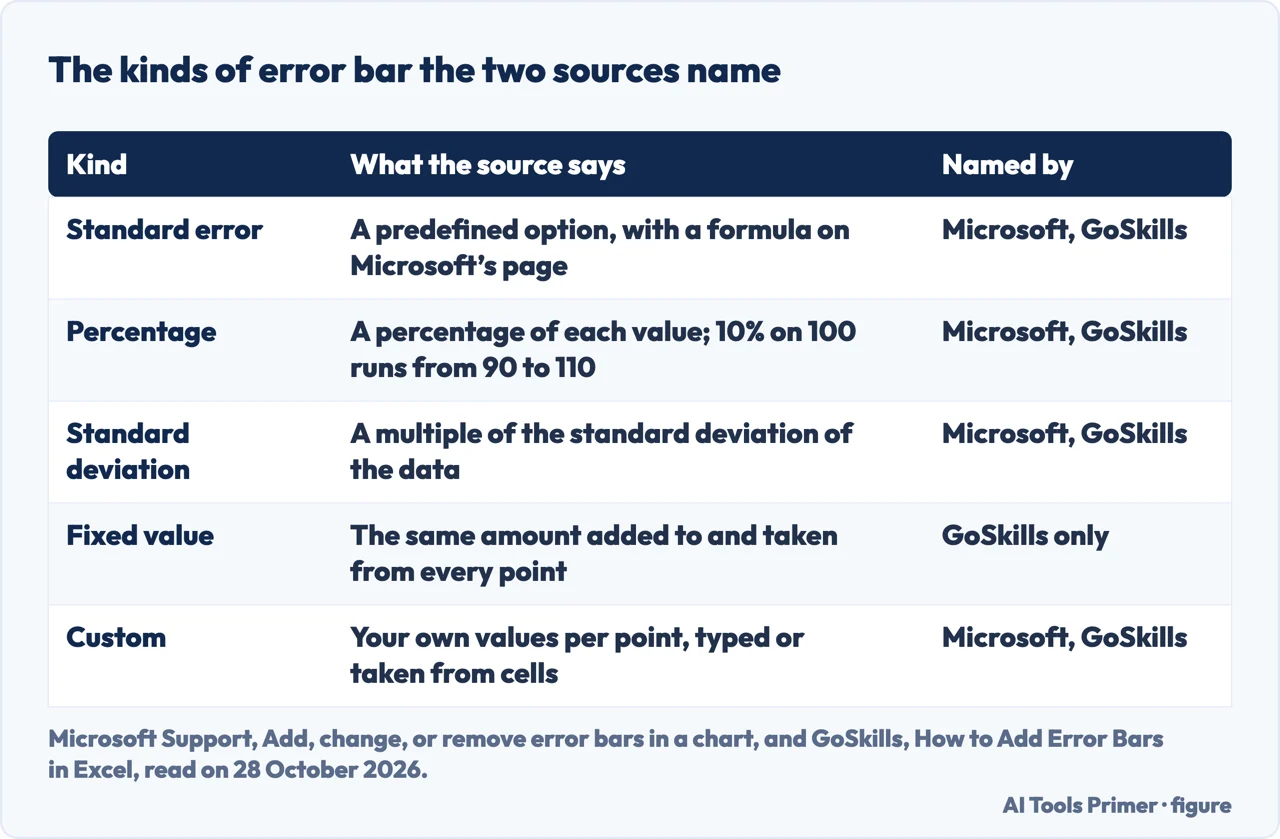
Microsoft Support says error bars help you see margins of error and standard deviations at a glance. They can be shown on all data points or markers in a series as a standard error amount, a percentage or a standard deviation, or with values you set yourself. The page applies to Excel for Microsoft 365, Excel 2024 and Excel 2021, among other Office apps. GoSkills, a training site, describes five kinds. Standard error is the standard error of the mean of the values. A percentage error bar shows variability as a fixed percentage of each value, so that 10% on a value of 100 runs from 90 to 110. A standard deviation bar shows the spread of the data around the mean. A fixed value bar adds and subtracts the same amount at every point, and a custom bar takes specific values for each point, typed in or read from cells.
Microsoft’s page names the first three, the custom option and a way to type values, but not a fixed-value kind; GoSkills does. Microsoft also gives the equations Excel uses for standard error and standard deviation, under a heading about how Excel calculates error amounts, which we do not reproduce.
The steps for a chart you already have
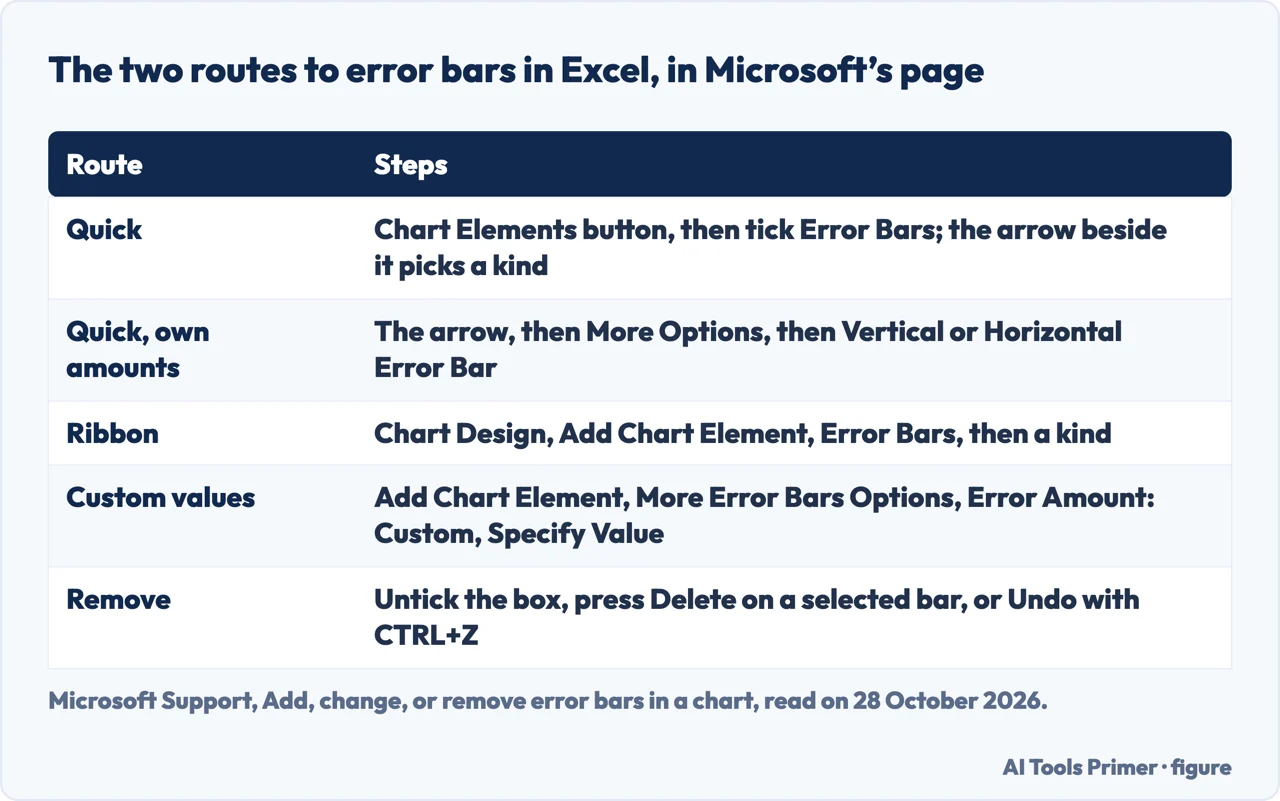
Microsoft gives a quick route and a ribbon route. In the quick route you click the Chart Elements button next to the chart and check the Error Bars box; clearing the box removes them. To change the amount, click the arrow next to Error Bars and pick Standard Error, Percentage or Standard Deviation, or pick More Options to set your own amounts, where under Vertical Error Bar or Horizontal Error Bar you can also change the direction and end style and create custom error bars. In the ribbon route you select the data series first, for example by clicking one line in a line chart so that all its markers are selected, then on the Chart Design tab click Add Chart Element, point to Error Bars and choose a kind. You can remove them straight after adding them with Undo on the Quick Access Toolbar or CTRL+Z.
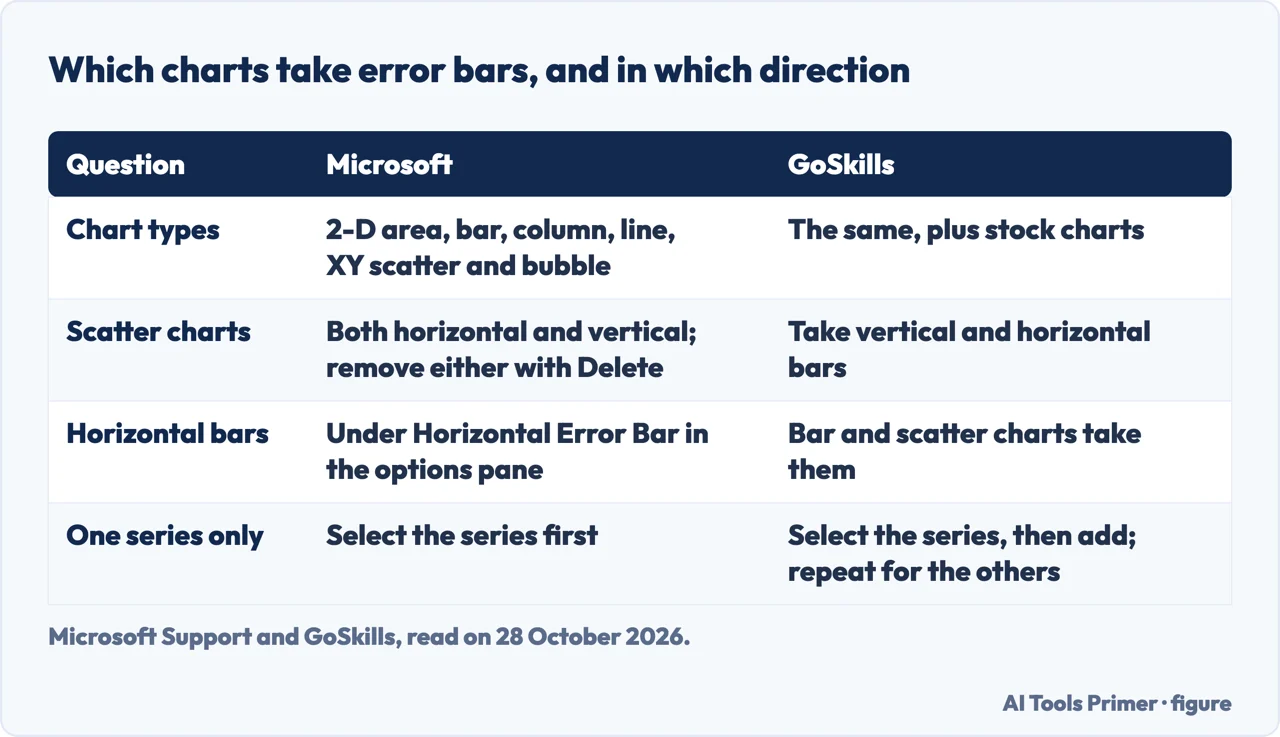
GoSkills uses the same path on Windows: click the chart, click the Chart Elements plus icon, hover over Error Bars, click the black triangle beside it and choose Standard Error, Percentage or Standard Deviation, or More Options. It says Mac works similarly through the Chart Design tab and Add Chart Element, with the formatting pane possibly appearing in a smaller pane or in the Format sidebar depending on the version, and it gives an older alternative on Windows, the Chart Tools ribbon, the Layout tab and Error Bars in the Analysis group. To put error bars on one series only, GoSkills says to select that series first and repeat for others if you want them too.
Typing your own error values
For custom values, Microsoft says to go to the Chart Design tab, click Add Chart Element and then More Error Bars Options. In the Format Error Bars pane, on the Error Bar Options tab under Error Amount, click Custom and then Specify Value. In the Positive Error Value and Negative Error Value boxes you type the values for each data point, separated by commas, with 0.4, 0.3, 0.8 as its example, and click OK. You can instead use a range of cells from the same workbook: in the Custom Error Bars dialog box, clear the contents of the Positive Error Value or Negative Error Value box and then select the range. GoSkills describes the same dialog, with two fields called Positive Error Value and Negative Error Value, and gives a range such as C2:C7 for error margins in its example. It adds that you can show bars on both sides of a point or only the positive or negative side with the Direction option, and change colour and width under Fill & Line.
Which charts, which direction, and what up/down bars are
Microsoft says you can use error bars in 2-D area, bar, column, line, XY (scatter) and bubble charts, and that in scatter and bubble charts you can show error bars for x and y values. The direction depends on the chart type; a scatter chart can show both horizontal and vertical error bars, and you can remove either by selecting it and pressing Delete. GoSkills lists the same chart types and adds stock charts, which Microsoft’s page does not name. It calls vertical bars the most common, for column, line, area and scatter charts, and says horizontal bars are available for bar charts and scatter charts with the same steps.
Microsoft’s page also covers something that sounds close and is not the same: up/down bars. For those you select the series, then on the Chart Design tab click Add Chart Element, point to Up/Down Bars and click Up/down Bars. It warns that, depending on the chart type, some options may not be available. Our pages on line graphs and bar graphs in Excel cover the charts these bars sit on.
What we did not use
We added no error bar in Excel. We did not read the Reddit thread, the Super User question, the Excel Forum thread or the video, and we downloaded the GeeksforGeeks article without using it. The Microsoft page includes the equations behind the standard error and the standard deviation, which we left out. Google Sheets, which one of the questions people ask mentions, is not covered here, and neither source we read covers it. The Google AI box was only partly read.
Where to start
Four ways in.
- “Which kind do I pick?”
- What error bars show and the kinds Excel offers — kinds
- “Where do I click?”
- The steps for a chart you already have — steps
- “Can I type the values?”
- Typing your own error values — custom
- “Does my chart take them?”
- Which charts, which direction — which
Charts in Excel
The chart these bars go on.
Numbers behind the chart
Pies, means and Google Sheets.
Questions people also ask
How do I add error bars in a bar chart?
Microsoft lists bar charts among those that take error bars. Click the chart, press the Chart Elements button, tick Error Bars and pick a kind; GoSkills says bar charts take horizontal bars, with the same steps.
How do I insert error bars in sheets?
Neither source we read covers Google Sheets; both are about Excel.
How do I add vertical error bars in Excel?
Microsoft says that under Vertical Error Bar or Horizontal Error Bar in More Options you choose the direction, end style and custom amounts. GoSkills calls vertical bars the most common, for column, line, area and scatter charts.
How can I add error bars to individual points in a graph?
Microsoft says to use custom values: Add Chart Element, More Error Bars Options, Error Amount: Custom, Specify Value, then type one value per point separated by commas, or select a cell range.
Not covered here. We added no error bar in Excel. The statements come from Microsoft Support and GoSkills, both read on 28 October 2026.
The search volume and difficulty behind this page come from a Semrush reading of 29 August 2026, older than the 60 days the site normally allows.
Sources
- Microsoft Support — Add, change, or remove error bars in a chart — support.microsoft.com, read 28 October 2026.
- GoSkills — How to Add Error Bars in Excel — www.goskills.com, read 28 October 2026.
Written by Alberto Gulotta
Founder and editor of AI Tools Primer, writing from Palermo, Italy. Thirty-five years of taking computers apart, starting with a Commodore 64 — the long version is on the about page.
Something wrong on this page? Write to aitoolsprimer@gmail.com and it gets fixed.
Written on 28 October 2026.
Independence and limits
No affiliate links and no paid placements anywhere on this site. Nobody pays to appear here, and no company has seen this page before you did.
This is general information, not professional advice. Where a page touches money, health, safety or the law, it names its source and the date it was read — and your situation may still differ. See the privacy page and the cookie policy.