
Docs · guide
How to split cells in Excel: what Microsoft and four guides say
By Alberto Gulotta · Updated · 17 min read
How to split cells in Excel depends on what you mean. Microsoft says Excel cannot split a single cell the way Word splits a table cell. It can spread the contents across neighbouring cells with Text to Columns, Flash Fill or a formula such as TEXTSPLIT, and that overwrites the cell to the right.
| Question | Answer | Where it comes from |
|---|---|---|
| Can Excel split one cell in two? | Not the way Word splits a table cell; it splits the contents into neighbouring cells, or you insert rows or columns | Microsoft Support |
| Where is Text to Columns? | On the Data tab, in the Data Tools group | Microsoft Support, Excel Easy, Ablebits |
| What does it overwrite? | The cell to the right, so keep it empty | Microsoft Support |
| How much can I select? | Any number of rows, but no more than one column | Microsoft Support |
| Does the result update? | Not with Text to Columns or Flash Fill; formulas do | Excel Easy, WallStreetMojo |
| Which versions have TEXTSPLIT? | Its own page lists Microsoft 365 and Excel 2024 | Microsoft Support |
Two meanings of “split”, and the limit Microsoft states
Microsoft’s page “Split a cell in Excel” opens with the limit: Excel does not support splitting a single cell like Word tables do. It gives a reason. In Word, it says, a table is a layout tool for arranging text on a page, so cells can be split or merged freely because they do not represent structured data. In Excel a cell is the smallest unit of data and sits at one row and column intersection. The page compares a worksheet to graph paper, where you add more squares instead of cutting one in half.
What Excel offers instead, on that page, is two things: split the contents of a cell into adjacent cells, in columns or rows, or insert new rows or columns to hold more data. Excel Easy puts the same fork in its opening lines. To split a cell, it says, add a new column, change the column widths and merge cells; to split the contents of a cell into multiple cells, use the Text to Columns wizard, Flash Fill or formulas. So “split” can mean making a cell look divided or separating what it holds, and the rest of this page follows the second meaning.
The first meaning is covered by a second Microsoft page, on merging and unmerging cells. It says an individual cell cannot be split, but can be made to appear split by merging the cells above it. Excel Easy shows how with a schedule. Task B starts at 13:00 and takes two hours, and the aim is a cell that appears split because task B starts at 13:30. You insert a column next to the cell, change the width of both columns from the default 64 pixels to 32, select each pair of cells above and below it, and on the Home tab choose the down arrow next to Merge & Center and then Merge Cells. Last, you change the background of the cell that is to look split to No Fill. That trick does not separate any text: the data stays where it was.
Microsoft’s merge page also says “You cannot split an unmerged cell” and sends anyone who wants to split the contents to its page on distributing the contents of a cell into adjacent columns. Merging has its own risk, because Microsoft says the contents of the other merged cells are deleted. We cover that on our page about merging cells in Excel.
Before you start: room on the right, one column, merged cells
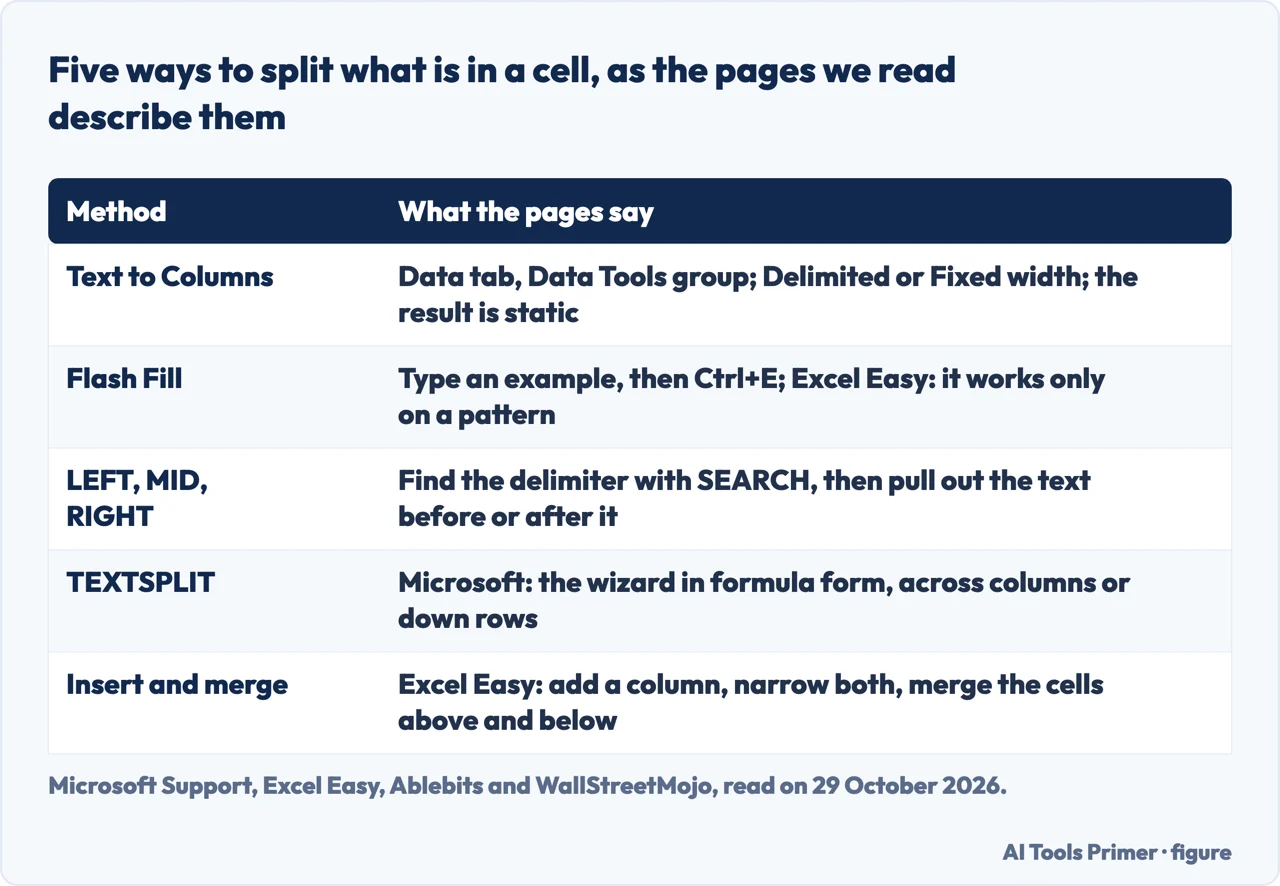
Several pages give the same warning in different words. Microsoft’s “Split a cell in Excel” marks it Important: when you split the contents, they overwrite the contents of the next cell to the right, so the space there has to be empty. The page on distributing the contents of a cell asks you to keep enough blank columns to the right of the selected column, so that data in adjacent columns is not overwritten, and to insert empty columns if necessary. The merge and unmerge page asks for sufficient empty columns to the right, and WallStreetMojo does the same for the destination cell. IONOS says the number of free columns has to be at least equal to the number of values to separate, and Ablebits tells you to insert new columns first if the results go in the middle of a table.
Microsoft also limits what you select. The range can include any number of rows, but no more than one column. A column of full names can therefore be split in one pass, and two columns need two passes.
If the cell you want to split was merged, undo that first. Microsoft says to select the Merge & Center down arrow on the Home tab and choose Unmerge Cells, and that the Find command can locate merged cells if you do not remember where they are. IONOS gives a second route, through Format Cells and clearing the Merge cells box. It adds that unmerging puts the contents back into a single cell, which you can then split with the wizard.
Text to Columns, step by step
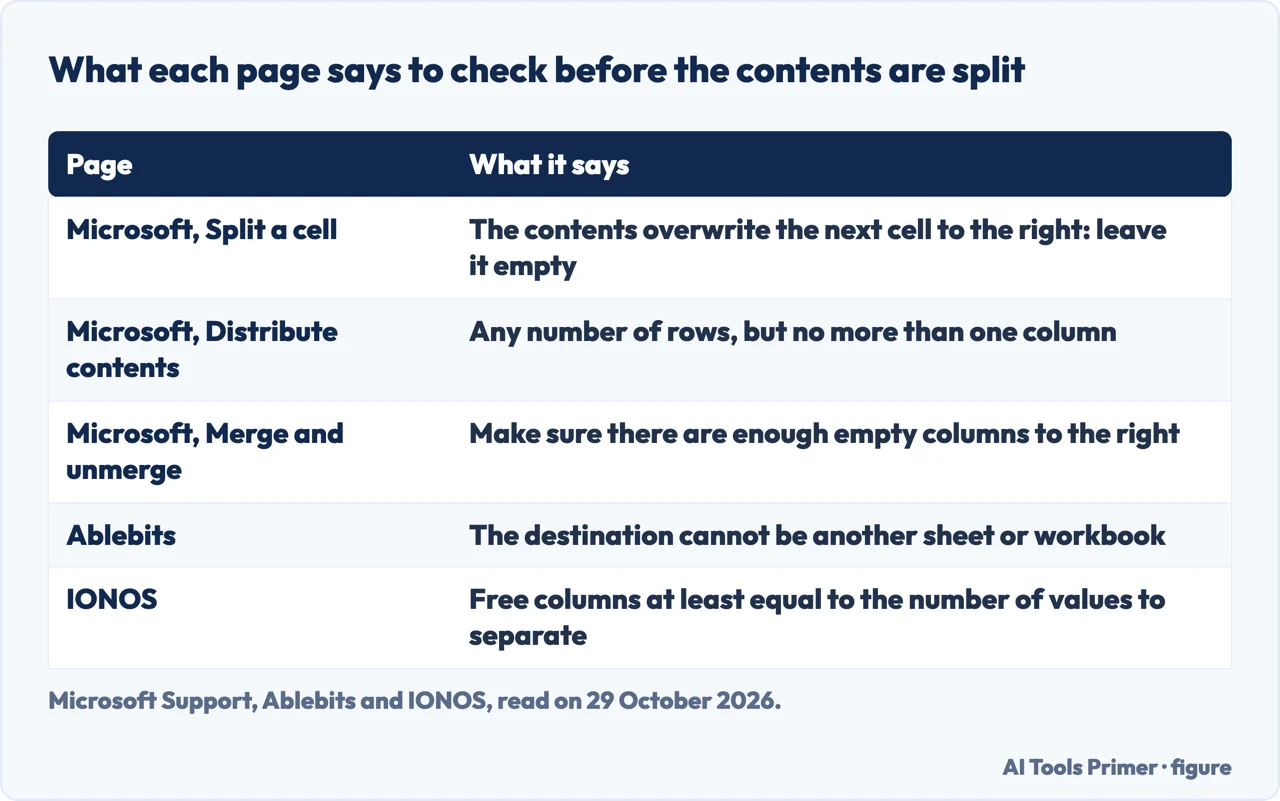
Microsoft describes the Convert Text to Columns Wizard as taking text in one or more cells and splitting it into multiple cells. Its steps are:
- Select the cell or column that contains the text you want to split.
- Select Data, then Text to Columns. Microsoft, Excel Easy and Ablebits all place the button in the Data Tools group of the Data tab.
- In the wizard, select Delimited, then Next.
- Select the delimiters for your data, for example Comma and Space. The Data preview window shows the result.
- Select Next, then the Destination in your worksheet, which is where the split data will appear.
- Select Finish.
The delimiters carry the weight. Excel Easy splits a list of full names into last and first names by clearing every box except Comma and Space, and tells you to experiment with the other boxes because the preview updates live. WallStreetMojo starts from entries like “Jack Adams, Chicago, USA, 2016”, ticks Comma, Space and “treat consecutive delimiters as one”, types $B$1 as the destination, and gets five columns, B to F, holding the first name, last name, city, country and year. Ablebits explains that option too: it is for data with two or more delimiters in a row, as with a comma and a space in “Smith, John”. It also explains the text qualifier. With a comma as the delimiter and a quotation mark as the qualifier, a phrase such as “California, USA” in quotes stays in one cell. IONOS lists tabs, spaces, commas and semicolons as separators, and Ablebits has an Other box for any character you type.
The last wizard screen sets the format. Ablebits says every column starts as General, which it says works in most cases, and shows how to pick another format for one column, such as a date. It also describes a Do not import column (skip) option. Microsoft’s merge page says that if you do not want the default, you choose a format such as Text, then select the second column in the Data preview window and choose the same format again, repeating for every column.
Fixed width. When the pieces have a set length, Ablebits says to choose Fixed width on the first screen. In Data preview a vertical line is a column break: click to create one, double-click to remove it, drag to move it. Its example has product IDs that are nine characters long. WallStreetMojo uses the same option to separate a date from a time and sets the column format to Date.
The destination. Microsoft’s merge page has you select the Collapse button next to the Destination box and then select the cells anywhere in your workbook that should hold the data. Ablebits says the split data cannot be sent to another spreadsheet or workbook, and that trying gives an invalid destination error. We did not try either, and the pages we read do not say how the two statements fit together.
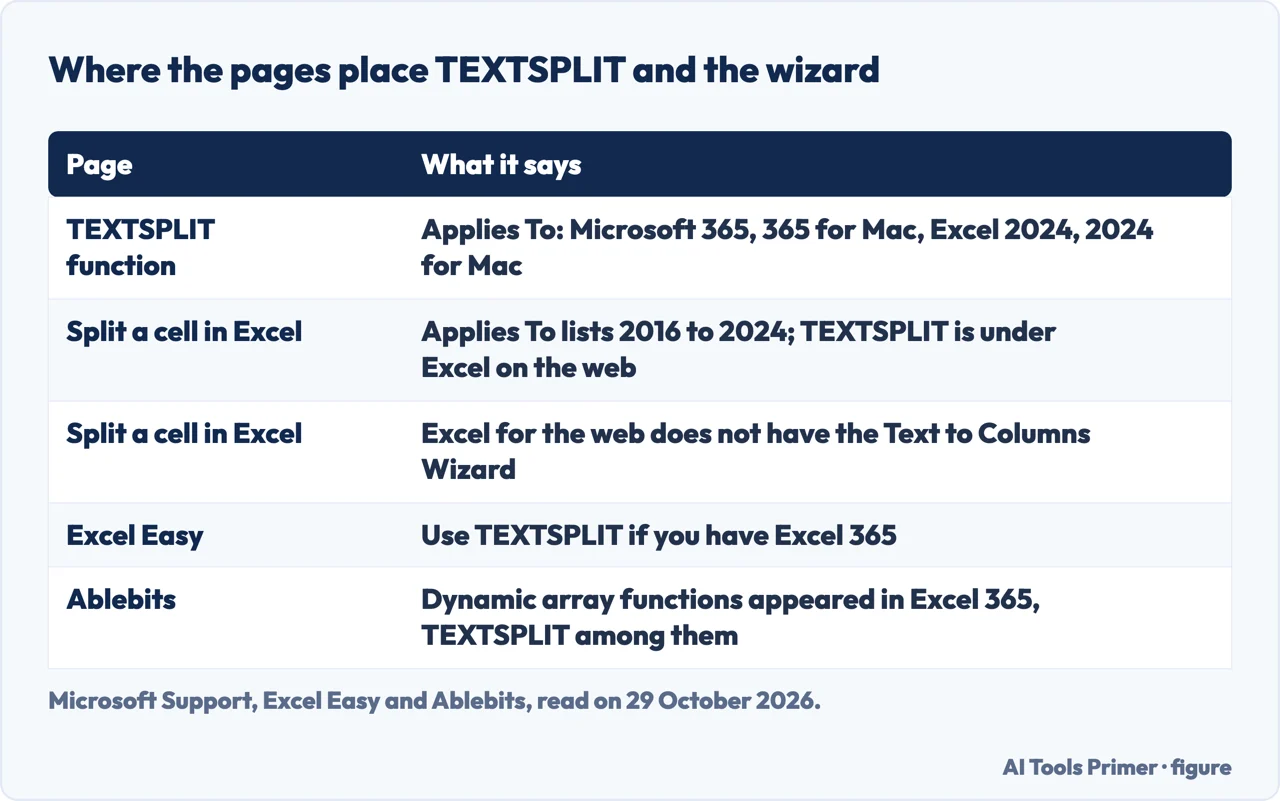
Excel for the web. Microsoft says Excel for the web does not have the Text to Columns Wizard and points to functions instead. Its page on distributing the contents of a cell has a Web tab with a different button: on the Data tab, in Data Tools, select Split Text to Columns, choose the delimiters and select Apply.
The result stays still. WallStreetMojo calls the results of Text to Columns static: a change to the source data is not reflected, and the process has to be repeated. Excel Easy says the same of Text to Columns and Flash Fill together, and offers formulas as the answer.
Flash Fill: type an example and let Excel copy the pattern
Microsoft describes Flash Fill as filling your data automatically when it senses a pattern, for example to separate first and last names from a single column or to combine them from two columns. On its “Split a cell” page it recommends Flash Fill when the text split is not consistent or when you want Excel to “figure it out”.
Microsoft’s own walkthrough goes in the combining direction: type the full name in C2 and press Enter, start typing the next one in C3, and Excel shows a preview of the rest of the column, which Enter accepts. If no preview appears, the page says Flash Fill might not be turned on. You can run it by hand with Data, then Flash Fill, or press Ctrl+E, and to turn it on the page gives the route Tools, Options, Advanced, Editing Options and the box Automatically Flash Fill. We did not try that setting.
Excel Easy applies the same idea to splitting. After splitting one cell by hand, you select B1 and press Ctrl+E, then do the same in C1 and D1 for the other columns, and it adds that Flash Fill only works when it recognizes a pattern. Ablebits says the feature arrived with Excel 2013. In its example it took three typed cells before Excel worked out the pattern, and Enter then copies the names to the whole column. WallStreetMojo needs two: it types a first name in B1, another in B2, and Excel displays the rest. It says to type the names without quotation marks, and gives the Flash Fill button in the Data Tools group as an alternative after the first entry. The count differs between the pages, and we do not treat either number as a rule.
Formulas and TEXTSPLIT, when the result has to update
Excel Easy names the drawback of the two tools above: the output does not update when the source data changes. Formulas overcome that, it says. Ablebits explains the logic of the classic ones: find the position of the delimiter with SEARCH or FIND, then pull out the text before, after or between with LEFT, RIGHT or MID. For a cell holding a name, a comma and a country, it gives =LEFT(A2, SEARCH(",",A2)-1) for the part before the comma, and for the part after it =RIGHT(A2, LEN(A2)-SEARCH(",", A2)-1), where the last 1 removes the space. If the comma may or may not be followed by a space, it suggests =TRIM(MID(A2, SEARCH(",", A2)+1, 1000)). Its summary is that “There is no universal formula”. It adds that the dynamic array functions that appeared in Excel 365 make many old formulas unnecessary, and names three: TEXTSPLIT, TEXTBEFORE (text before a given character or substring) and TEXTAFTER (text after it).
Microsoft’s page on splitting text with functions uses a single space instead. For a first and last name separated by one space it gives =LEFT(A2, SEARCH(" ",A2,1)) for the first name and =RIGHT(A2,LEN(A2)-SEARCH(" ",A2,1)) for the last, and uses nested SEARCH calls when a middle name is added. The page lists Excel 2016 to 2024 and Excel Web App in its Applies To line. The two pages treat the delimiter differently: Microsoft’s own explanation says the first name “ends at the fifth character (the space)”, so the first-name formula as printed counts the space, while Ablebits subtracts 1 to leave the comma out. We did not run either.
The newer route is TEXTSPLIT. Microsoft says it works the same as the Text to Columns wizard, in formula form, and can split across columns or down rows. The syntax is =TEXTSPLIT(text,col_delimiter,[row_delimiter],[ignore_empty],[match_mode],[pad_with]). Its argument list labels text as Required and the row delimiter, ignore_empty and match_mode as Optional. The syntax line leaves col_delimiter without brackets, yet an example on the same page, =TEXTSPLIT(A2,,"."), leaves the column delimiter empty, so we do not call it optional. Setting ignore_empty to TRUE ignores consecutive delimiters, where the default FALSE creates an empty cell. Setting match_mode to 1 makes the match case-insensitive, the default 0 being case-sensitive. The pad_with value defaults to #N/A, and the page tips you to use IFNA or pad_with to remove that error.
Its examples include =TEXTSPLIT(A2, " ") on “Dakota Lennon Sanchez” and =TEXTSPLIT(A2,",",";") on 1,2,3;4,5,6, which gives a two-row, three-column array. With more than one delimiter, an array constant is required, as in =TEXTSPLIT(A1,{",","."}). Microsoft’s “Split a cell” page shows the row direction with “Apple, Banana, Cherry” in A1 and =TEXTSPLIT(A1,,", ") in the next cell, which gives three rows. Excel Easy shows the result filling B2 and C2 from a formula in B2, and calls that spilling.
If you split with the wizard and want rows, Microsoft notes that you can copy the results and use Paste Special, then Transpose Rows and Columns.
Which one to use, and where the pages differ
The pages we read do not set out one rule for choosing. The pairings below are ours, built from what each page says above.
- The text follows one separator and you only need it once: Text to Columns, the method Microsoft gives step by step.
- The split is not consistent, or you want Excel to work it out: Flash Fill, which Microsoft recommends for that case.
- The result has to change when the source changes: a formula, since Excel Easy says the two tools above do not update.
- You want the pieces in rows: TEXTSPLIT with a row delimiter, or Paste Special with Transpose, both from Microsoft.
- You only want the cell to look divided: Excel Easy’s inserted column and merged cells.
The pages disagree or differ in four places. Flash Fill examples: Ablebits needed three, WallStreetMojo two, and Microsoft gives no number. The destination: see the wizard section above, where Microsoft and Ablebits word it differently. The first-name formula: Microsoft’s counts the space and Ablebits’s removes it. Versions: the TEXTSPLIT function page lists Microsoft 365 and Excel 2024, the “Split a cell” page presents it under Excel on the web, Excel Easy says to use it if you have Excel 365, and Ablebits places it among the dynamic array functions that appeared in Excel 365.
Ablebits also describes a Split Text tool in its own Ultimate Suite, with a 14-day version for download. We did not try it. The pages we read do not give a row limit for the wizard or a maximum number of resulting columns, and they do not say how the wizard treats numbers with a leading zero when the format stays General. We tested nothing in Excel, so everything above is what the pages say, not what we measured.
Where to start
Four ways in.
- “Can I split one cell in two?”
- Two meanings of “split” — meaning
- “Will it erase my data?”
- Room on the right, one column, merged cells — before
- “Split a column at a comma.”
- Text to Columns, step by step — wizard
- “It has to update by itself.”
- Formulas and TEXTSPLIT — formulas
Cells that merge and join
The other half of the question: what merging deletes, how text is combined, and how comma-separated text reaches Excel.
Tidying text in a cell
Spaces, case and stray characters in the text you just split.
Questions people also ask
How to split cells in Excel into rows?
Microsoft’s “Split a cell” page does it with TEXTSPLIT and a row delimiter: with “Apple, Banana, Cherry” in A1, =TEXTSPLIT(A1,,", ") in the next cell gives three rows. After a wizard split, it says to copy the results and use Paste Special, then Transpose Rows and Columns.
How do I split 1 column to 2 in Excel?
Select the column, choose Data, then Text to Columns, pick Delimited and the delimiters, such as Comma and Space, and select a Destination and Finish. Microsoft says to leave empty columns to the right so nothing is overwritten.
How to split text in 2 cells in Excel?
The pages we read give three routes: the Text to Columns wizard, Flash Fill, and formulas. For two names separated by one space, Microsoft’s functions page uses LEFT, RIGHT, SEARCH and LEN.
How do I divide two cells in Excel?
The pages we read are about splitting the contents of a cell, not dividing one number by another, so they do not answer that question.
Not covered here. We tested nothing in Excel. The statements come from Microsoft Support, Excel Easy, Ablebits, IONOS (page dated 14 November 2024) and WallStreetMojo, all read on 29 October 2026.
The search volume and difficulty behind this page come from a Semrush reading of 29 August 2026, older than the 60 days the site normally allows.
Sources
- Microsoft Support — Split a cell in Excel — support.microsoft.com, read 29 October 2026.
- Microsoft Support — Split text into different columns with the Convert Text to Columns Wizard — support.microsoft.com, read 29 October 2026.
- Microsoft Support — Distribute the contents of a cell into adjacent columns — support.microsoft.com, read 29 October 2026.
- Microsoft Support — Using Flash Fill in Excel — support.microsoft.com, read 29 October 2026.
- Microsoft Support — TEXTSPLIT function — support.microsoft.com, read 29 October 2026.
- Microsoft Support — Merge and unmerge cells in Excel — support.microsoft.com, read 29 October 2026.
- Microsoft Support — Split text into different columns with functions — support.microsoft.com, read 29 October 2026.
- Excel Easy — Split Cells in Excel — www.excel-easy.com, read 29 October 2026.
- Ablebits — How to split cells in Excel — www.ablebits.com, read 29 October 2026.
- WallStreetMojo — Split Cells in Excel — www.wallstreetmojo.com, read 29 October 2026.
- IONOS — How to split cells in Excel — www.ionos.com, read 29 October 2026.
Written by Alberto Gulotta
Founder and editor of AI Tools Primer, writing from Palermo, Italy. Thirty-five years of taking computers apart, starting with a Commodore 64 — the long version is on the about page.
Something wrong on this page? Write to aitoolsprimer@gmail.com and it gets fixed.
Written on 29 October 2026.
Independence and limits
No affiliate links and no paid placements anywhere on this site. Nobody pays to appear here, and no company has seen this page before you did.
This is general information, not professional advice. Where a page touches money, health, safety or the law, it names its source and the date it was read — and your situation may still differ. See the privacy page and the cookie policy.