
Docs · guide
Standard error Excel: STDEV.S over the square root of COUNT
By Alberto Gulotta · Updated · 14 min read
The standard error Excel formula is STDEV.S divided by the square root of COUNT of the same cells. Simple Sheets says Excel has no built-in function for it. Microsoft documents each piece, but the pages we read for those pieces do not name the standard error of the mean, and the chart equation it prints has no mean.
| Question | Answer | Where it comes from |
|---|---|---|
| Is there a function for it? | Simple Sheets says Excel has no built-in standard error function | Simple Sheets |
| What is the formula? | =STDEV.S(range)/SQRT(COUNT(range)) | Ablebits, Simple Sheets, Dummies |
| Which standard deviation? | STDEV.S, which uses the n-1 method; STDEV.P is for a whole population | Microsoft Support |
| Is it the standard deviation? | No: the deviation describes the spread of the data, the standard error the precision of the mean | Simple Sheets, Ablebits |
| Does the chart option do the same? | Dummies says to avoid it and Simple Sheets says to be careful with it, because it is not the error of each group | Dummies, Simple Sheets |
The formula and its three pieces
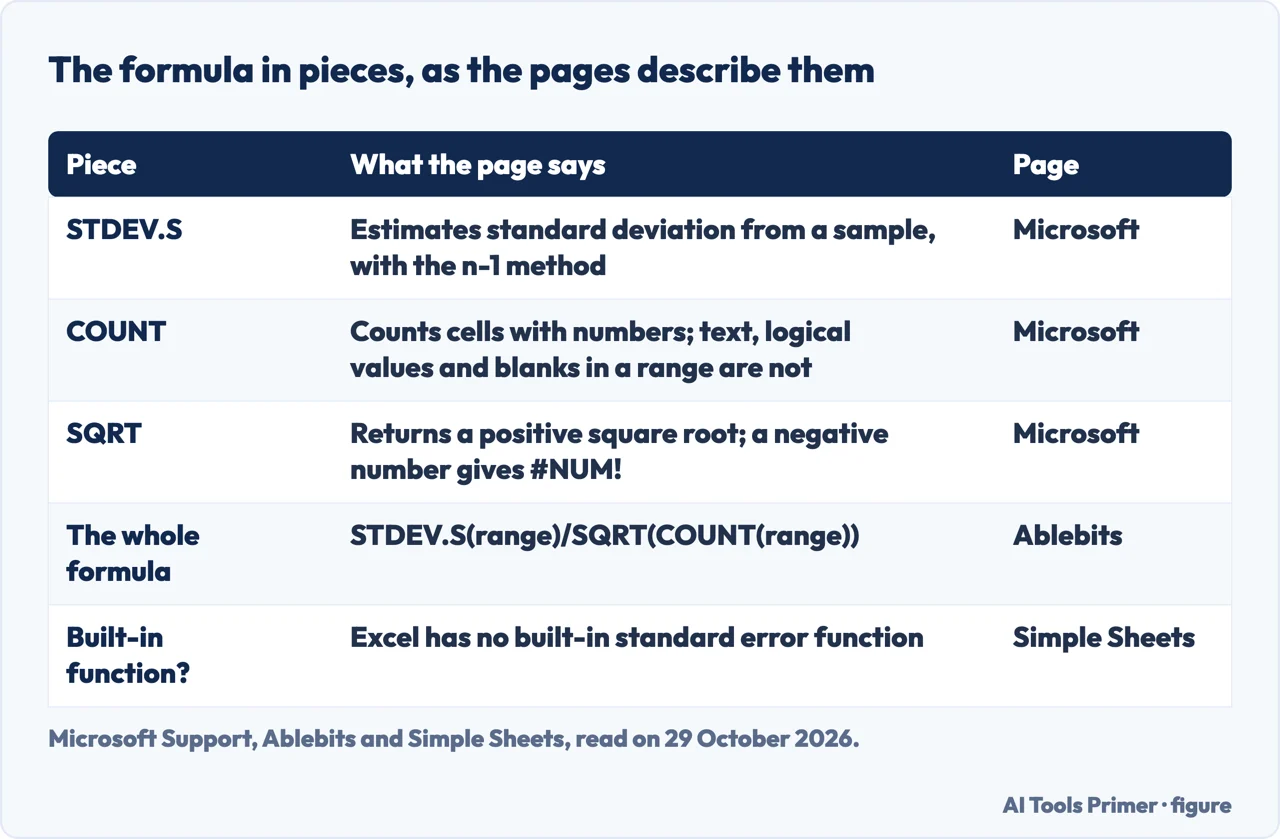
Simple Sheets says in its quick answer that Excel has no built-in standard error function and that one formula does the job: =STDEV.S(range)/SQRT(COUNT(range)), the sample standard deviation divided by the square root of the sample size. Ablebits writes the same formula as STDEV.S( range )/SQRT(COUNT( range )) and says Excel offers a way to get it by combining three different functions. Statology and GeeksforGeeks give it with the older STDEV in place of STDEV.S, and Dummies divides a cell that holds STDEV.S by the square root of COUNT. The result goes by two names: Ablebits calls the standard error of the mean, SEM, a measure of how the sample mean varies from the population mean, and Simple Sheets says SEM is the same figure as the standard error and writes it as s divided by the square root of n.
Microsoft documents the pieces one at a time. Its STDEV.S page says the function estimates standard deviation based on a sample, uses the n-1 method, assumes its arguments are a sample, and points to STDEV.P for data that is the entire population. In a range or reference only numbers are counted there: empty cells, logical values, text and error values are ignored. The COUNT page says the function counts cells that contain numbers, and that empty cells, logical values, text and error values in a reference are not counted; COUNTA is the function it names for those. SQRT returns a positive square root, and a negative number gives #NUM!. COUNT cannot return a negative number, so in our reading that error is not one this formula raises by itself.
The Microsoft pages we read for those three functions do not mention the standard error or this formula. The STDEV.S page does not contain the words. The formula therefore comes from Statology, Ablebits, Simple Sheets and Dummies, and the pieces from Microsoft. For the difference between n and n-1 on its own, our page on standard deviation in Excel has the details, and the one on calculating the mean in Excel covers AVERAGE.
A worked example, checked by hand
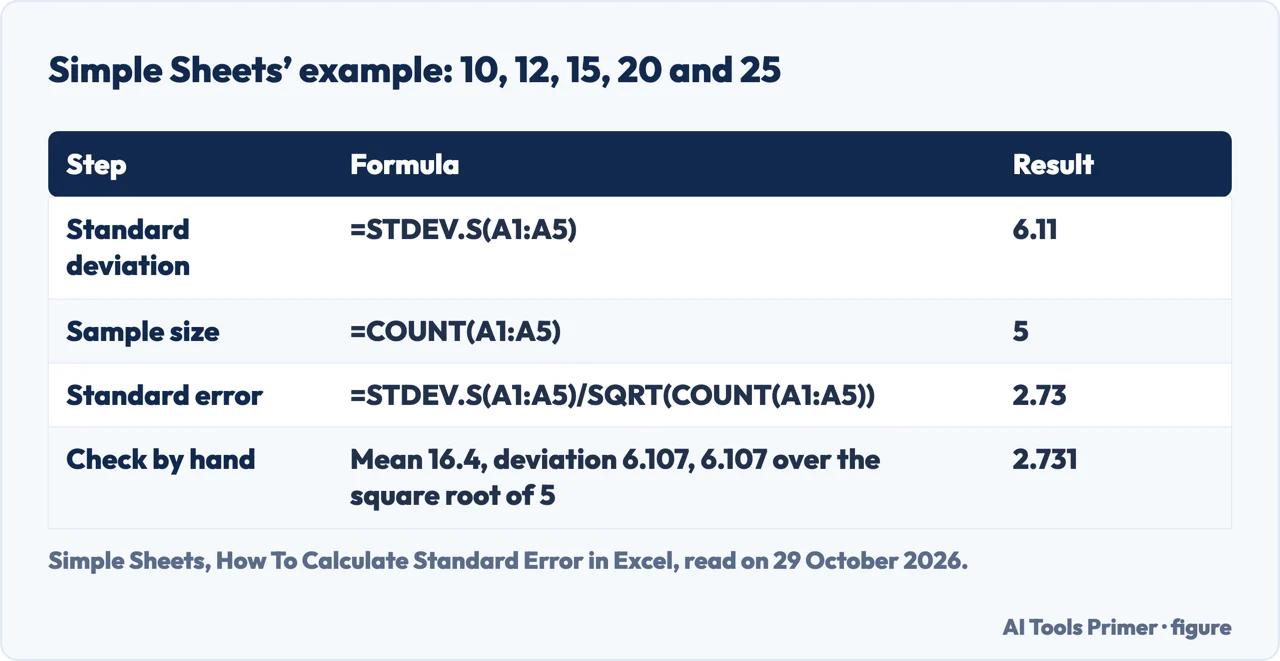
Simple Sheets uses the numbers 10, 12, 15, 20 and 25 in cells A1 to A5. =STDEV.S(A1:A5) returns 6.11, =COUNT(A1:A5) returns 5, and the combined formula returns 2.73. The page then checks the arithmetic by hand: the mean is 16.4, the sample standard deviation is 6.11, and dividing it by the square root of 5 gives the same 2.73. We recomputed it with the statistics module in Python and got the same. The squared distances from the mean add up to 149.2, divided by 4 and square-rooted that is 6.11, the square root of 5 is 2.24, and the quotient is 2.73.
The choice between STDEV.S and STDEV.P shows on the same numbers. Simple Sheets says STDEV.P on sample data returns a number slightly too small, that the gap widens the smaller the sample is, and that on five data points it is around 11 percent. Our calculation agrees: STDEV.P on those five numbers gives 5.46 and a standard error of 2.44, which is 10.6 percent below 2.73.
Microsoft’s STDEV.S page has an example of its own: ten breaking-strength values, 1345, 1301, 1368, 1322, 1310, 1370, 1318, 1350, 1303 and 1299 in A2 to A11, where =STDEV.S(A2:A11) gives 27.46. Microsoft stops at the deviation. Dividing it by the square root of 10 is our own arithmetic and gives 8.68; with STDEV.P the deviation would be 26.05 and the quotient 8.24, about 5 percent less. We ran none of this in Excel.
When the formula returns an error or a wrong number
Simple Sheets lists the usual symptoms in a table. A #DIV/0! error means COUNT returned 0: if the cells look full but COUNT says 0, the values are stored as text. A #DIV/0! error with exactly one data point comes from STDEV.S dividing by n-1, which is zero; the page says you need at least two values. Numbers stored as text are skipped without a warning by both STDEV.S and COUNT, and the page says to compare =COUNT(range) with =COUNTA(range): if the two differ, some cells are text. A range that stops above new rows will not update, and Simple Sheets suggests Ctrl+T to make an Excel table. GeeksforGeeks suggests the other way round, extending the ranges past the last data point because the functions ignore blank cells.
The pages differ on one more case. Simple Sheets lists #VALUE! when a cell inside the range holds an error value, and says to fix that cell at its source rather than hide it with IFERROR, which would change n. Microsoft’s STDEV.S and COUNT pages say that in a reference, error values are ignored, and that error values typed directly as arguments cause errors in STDEV.S. We did not test which happens in Excel.
On the older function, Simple Sheets says STDEV still works, behaves like STDEV.S and is “kept for backwards compatibility”. Statology says the same equivalence, and its formula uses STDEV.
Standard error or standard deviation
Simple Sheets puts the difference in one line: mean ± SD describes how spread out your data is, and mean ± SEM describes how confident you are about where the mean sits. Ablebits draws the same line, with the deviation measuring the dispersion of the data from its mean and the SEM measuring how the sample mean varies from the population mean. It adds that the SEM is always smaller than the standard deviation, because the deviation is divided by the square root of the sample size. Simple Sheets says the SEM keeps shrinking as you collect more data, and that quadrupling the sample size halves the standard error. It adds that results are written as “mean ± SEM” in lab reports, dissertations and journal figure captions.
Statology shows both effects with two small datasets. It reports that changing the last value of its first dataset to a much larger number makes the standard error jump from 2.00 to 6.98 (rounded here), and that a second dataset, the first one repeated twice, has the same mean and a smaller standard error. The values are in images on that page, which we did not read, so those figures are Statology’s. We repeated Simple Sheets’ five numbers ourselves:
| Values | Standard deviation | Standard error |
|---|---|---|
| 5 (10, 12, 15, 20, 25) | 6.11 | 2.73 |
| 10 (the five, twice) | 5.76 | 1.82 |
| 20 (four times) | 5.60 | 1.25 |
| 100 (twenty times) | 5.49 | 0.55 |
The deviation settles near 5.5 while the standard error keeps falling. Repeating the data is a teaching device, not a new sample, and Statology does the same; real new observations would change the numbers. A third statistic shares the name: Microsoft’s STEYX returns the standard error of the predicted y-value for each x in a regression, with the syntax STEYX(known_y’s, known_x’s), and Simple Sheets lists it in its table as a different statistic from the standard error of the mean. Microsoft’s own example gives 3.31.
Putting it on a chart, and the Analysis ToolPak
Microsoft’s error bars page says bars can show a standard error amount, a percentage or a standard deviation, or values you set yourself, in 2-D area, bar, column, line, xy (scatter) and bubble charts. The Chart Elements route to the Standard Error, Percentage and Standard Deviation choices is described step by step on our error bars page. For custom values, Error Amount, Custom, Specify Value takes numbers separated by commas, such as 0.4, 0.3, 0.8, or a range of cells from the same workbook, after you clear the box first. Ctrl+Z removes bars you have just added. The details of the chart types are on our page about error bars in Excel.
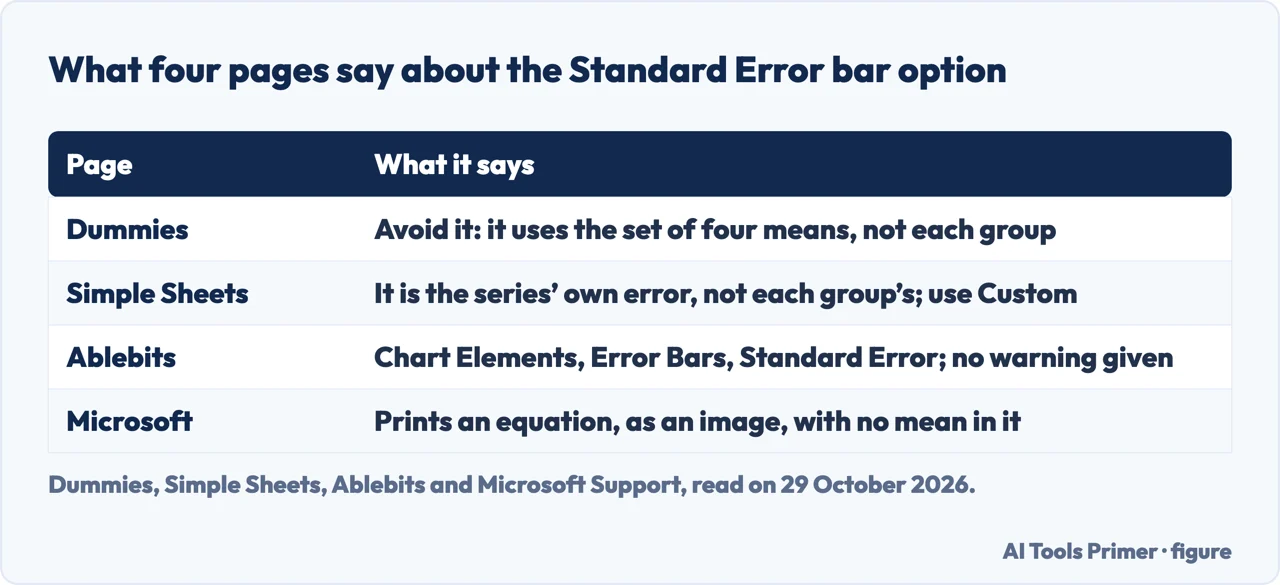
The pages part on the Standard Error option. Dummies says of it “Avoid it”: Excel calculates the standard error of the set of four means, not the standard error within each group. Its route is More Error Bar Options, Custom, Specify Value, with the cells that hold the standard errors ($B$12:$E$12), Direction Both, End Style Cap, and a cleared Negative Error Value box before choosing the range. Its example has four groups of eight people, each with AVERAGE, STDEV.S and =B11/SQRT(COUNT(B2:B9)) in B12. Simple Sheets gives the same warning, saying the option calculates the standard error of the plotted series itself, and recommends Custom for captions that read mean ± SEM. Ablebits points to Chart Elements, Error Bars, Standard Error, with no warning on its page.
Microsoft says only that Excel uses equations for the Standard Error and Standard Deviation amounts, and prints them as images. We read them: the Standard Error equation is the square root of the sum of the squared y values over every series and point, divided by (ny - 1) times ny, where ny is the total number of data values in all series. The Standard Deviation equation subtracts M, the arithmetic mean, and has no mean in the other. The printed equation is not written as STDEV.S over the square root of n. On 10, 12, 15, 20 and 25, our arithmetic on the printed equation gives the square root of 1494 divided by 20, 8.64, against 2.73 for the tutorial formula. We did not try the option in Excel, so we do not say what it shows; we say only that the printed equation differs from the formula.
The Analysis ToolPak is the other route in two pages. Ablebits and Simple Sheets both say to use Data, Data Analysis, Descriptive Statistics, select the input range and tick Summary Statistics; the table that results includes the standard error. Ablebits says it matches the formula. Simple Sheets says the ToolPak writes a static value that does not recalculate, and that it is enabled under File, Options, Add-Ins. We did not run it.
What we did not use
We ran nothing in Excel: the formulas, the ToolPak and the chart option are reported as the pages describe them, and the extra numbers are our own arithmetic. The Statology and GeeksforGeeks examples keep their data in images, which we did not read. We did not open a careerkarma.com guide and left out a uvm.edu page about error bars, because our reader returned only a short shell of it. No text from an AI answer box was read or used. The pages are from different years: Dummies is from 2016, Ablebits from 18 May 2023, Statology from 15 September 2023, GeeksforGeeks from 23 July 2025, and Simple Sheets says it was updated on 20 August 2026.
Where to start
Four ways in.
- “What is the formula?”
- The formula and its three pieces — formula
- “Show me the numbers.”
- A worked example, checked by hand — example
- “Is it the standard deviation?”
- Standard error or standard deviation — versus
- “Put it on a chart.”
- Putting it on a chart, and the Analysis ToolPak — chart
Spread, averages and chart bars
The measures that sit next to the standard error.
Counting, dividing and summing
The arithmetic and the errors inside the formula.
Questions people also ask
When should I use STDEV p or STDEV s?
Microsoft says STDEV.S assumes its arguments are a sample and points to STDEV.P when the data is the entire population. Simple Sheets answers STDEV.S for the standard error, since it treats the numbers as a sample drawn from a larger population; STDEV.P returns a slightly smaller figure.
How to calculate standard error?
Statology writes it as the sample standard deviation divided by the square root of the sample size. On five numbers, 10, 12, 15, 20 and 25, Simple Sheets gets 6.11 divided by the square root of 5, which is 2.73.
Is it better to use SD or SE?
The pages we read do not rank them. Simple Sheets says mean ± SD describes how spread out your data is, and mean ± SEM describes how confident you are about where the mean sits.
How to calculate standard error of the mean in Excel?
Ablebits and Simple Sheets give =STDEV.S(range)/SQRT(COUNT(range)). Dummies does it per group, with the deviation in one cell and =B11/SQRT(COUNT(B2:B9)) in another.
Not covered here. We ran nothing in Excel. The statements come from five Microsoft Support pages, Statology, Ablebits, Simple Sheets, Dummies and GeeksforGeeks, all read on 29 October 2026.
The search volume and difficulty behind this page come from a Semrush reading of 29 August 2026, older than the 60 days the site normally allows.
Sources
- Microsoft Support — STDEV.S function — support.microsoft.com, read 29 October 2026.
- Microsoft Support — COUNT function — support.microsoft.com, read 29 October 2026.
- Microsoft Support — SQRT function — support.microsoft.com, read 29 October 2026.
- Microsoft Support — Add, change, or remove error bars in a chart — support.microsoft.com, read 29 October 2026.
- Microsoft Support — STEYX function — support.microsoft.com, read 29 October 2026.
- Statology — How to Calculate the Standard Error of the Mean in Excel — www.statology.org, read 29 October 2026.
- Ablebits — How to calculate standard error of the mean in Excel — www.ablebits.com, read 29 October 2026.
- Simple Sheets — How To Calculate Standard Error in Excel — www.simplesheets.co, read 29 October 2026.
- Dummies — Graphing the Standard Error of the Mean in Excel — www.dummies.com, read 29 October 2026.
- GeeksforGeeks — How to Calculate Standard Error in Excel — www.geeksforgeeks.org, read 29 October 2026.
Written by Alberto Gulotta
Founder and editor of AI Tools Primer, writing from Palermo, Italy. Thirty-five years of taking computers apart, starting with a Commodore 64 — the long version is on the about page.
Something wrong on this page? Write to aitoolsprimer@gmail.com and it gets fixed.
Written on 29 October 2026.
Independence and limits
No affiliate links and no paid placements anywhere on this site. Nobody pays to appear here, and no company has seen this page before you did.
This is general information, not professional advice. Where a page touches money, health, safety or the law, it names its source and the date it was read — and your situation may still differ. See the privacy page and the cookie policy.