
Video · guide
“Can’t play this video”: start with where it plays
By Alberto Gulotta · Updated · 18 min read
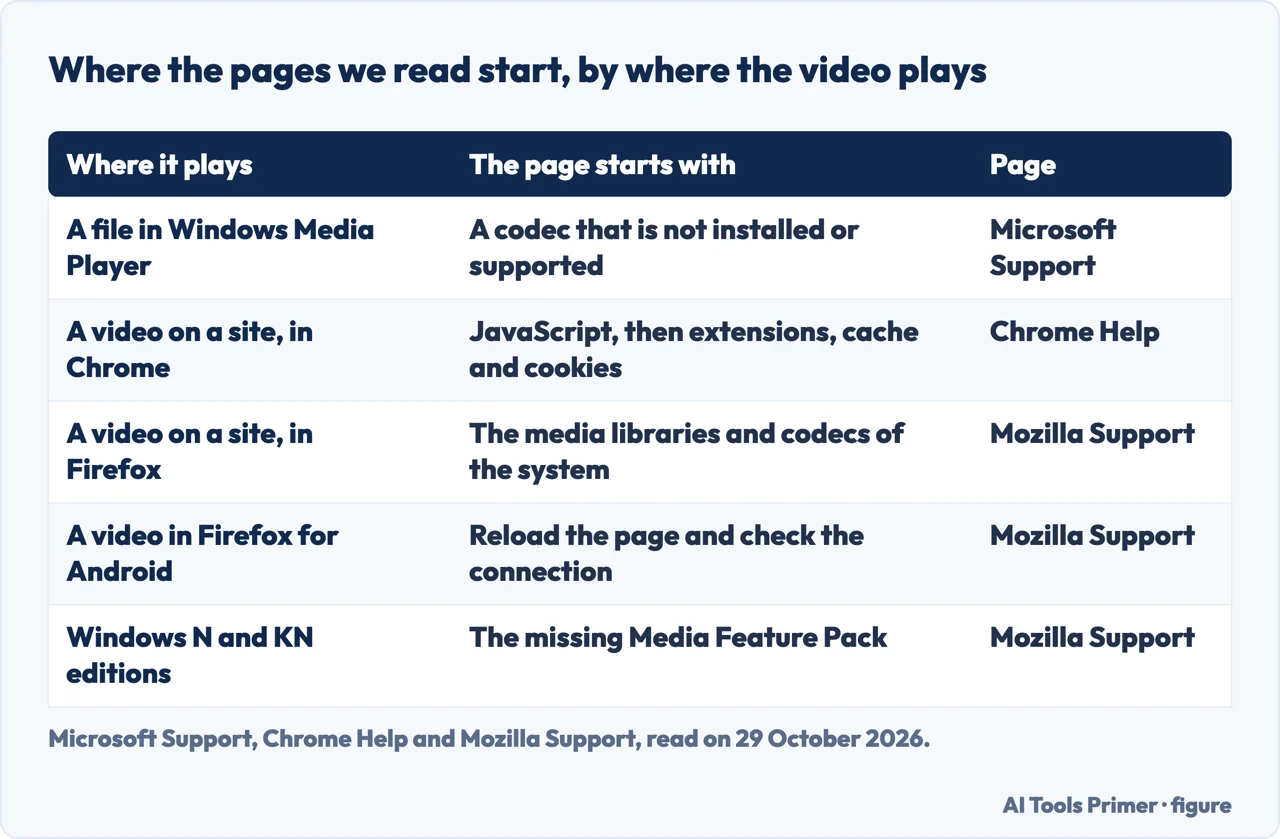
The words “can’t play this video” fit a file, a website or a phone, and the pages we read start in different places. Microsoft starts with a codec that is not installed, Chrome Help with JavaScript and extensions, Mozilla with the system’s codecs. So the first question is where the video plays.
| Question | Answer | Where it comes from |
|---|---|---|
| Is it one error with one cause? | The pages we read document different messages and start in different places | Microsoft, Google, Mozilla |
| A file in Windows Media Player? | Microsoft starts with a codec that is not installed or not supported | Microsoft Support |
| A video on a website, in Chrome? | Chrome Help starts with JavaScript, then extensions, cache and cookies | Chrome Help |
| Does Firefox bring its own codecs? | Mozilla says it uses the media libraries and codecs of the operating system | Mozilla Support |
| Should I install a codec pack? | The Microsoft Learn page on Windows Media Player 11 says Microsoft does not specifically recommend any third-party provider; the Microsoft Support page on errors names K-Lite and the Combined Community Codec Pack as popular codec packs; we recommend none | Microsoft Learn, Microsoft Support |
The words fit several messages, so start with where the video plays
The exact words “can’t play this video” do not appear in the Microsoft, Google or Mozilla pages we read. They document messages of their own. Microsoft’s page on Windows Media Player 11 lists four, YouTube Help lists six for YouTube, and Chrome Help describes symptoms instead of a message: a video that won’t load, a blank one, a gray box in its place, or Chrome freezing or crashing while it loads. Windows Report, an article site, does use close wording in two titles, “Your browser can’t play this video” and “To play this video you need a new codec”. The pages we read do not say that one cause sits behind all of these messages, so this page does not say it either.
What the pages do show is that the advice splits by where the video is. We sort it into three cases, and the sorting is ours rather than any one page’s: a file you open on the computer, a video on a website in a browser, and a Windows N edition or a phone. The first figure shows where each page we read begins.
A file on the computer: the codec
Microsoft’s page on Windows Media Player 11, last updated on 12 February 2026, describes a video that does not play while the audio does. It adds that an audio or video file may bring up one of four messages. Two say that Windows Media Player cannot play the file because a required video or audio codec is not installed on the computer. The third reads “A codec is required to play this file”, and the fourth is “Invalid File Format”. The cause Microsoft gives is a codec that is not installed. Windows Report describes a video codec as what encodes digital signals so that media players can play videos.
The fix on that page is for Windows Media Player 11 only. Open Tools, then Options, choose the Player tab, tick Download codecs automatically and select OK. Then try the file again and, if the player offers to install the codec, select Install. If the file still fails, Microsoft marks the next steps as advanced. Right-click the file in the Now Playing area, choose Properties and read the audio and video codecs on the File tab. Then open Help, About Windows Media Player and the Technical Support Information link to see which codecs are installed. If the one you noted is missing, Web Help leads to a download site, and the last step is a codec from a third-party vendor. On a computer managed by a network administrator, Microsoft says you may have to ask that administrator. The page also says that Microsoft does not specifically recommend any third-party provider or solution.
Windows Report’s article on the codec message agrees that the tick box belongs to Windows Media Player 11 and adds that version 12 does not have it. For version 12 it points to the update setting and the Once a day option. It also says a missing HEVC codec brings up a similar message, and it suggests a different media player, a codec pack and a free tool that reports whether a codec is installed. We do not recommend a codec pack or that tool. The same page carries an advertisement for a repair program and says Windows Report may get a commission on purchases through its links. Microsoft’s page on Windows Media Player 11 does not recommend a pack either, although its page on Windows Media Player errors names K-Lite and the Combined Community Codec Pack as popular ones.
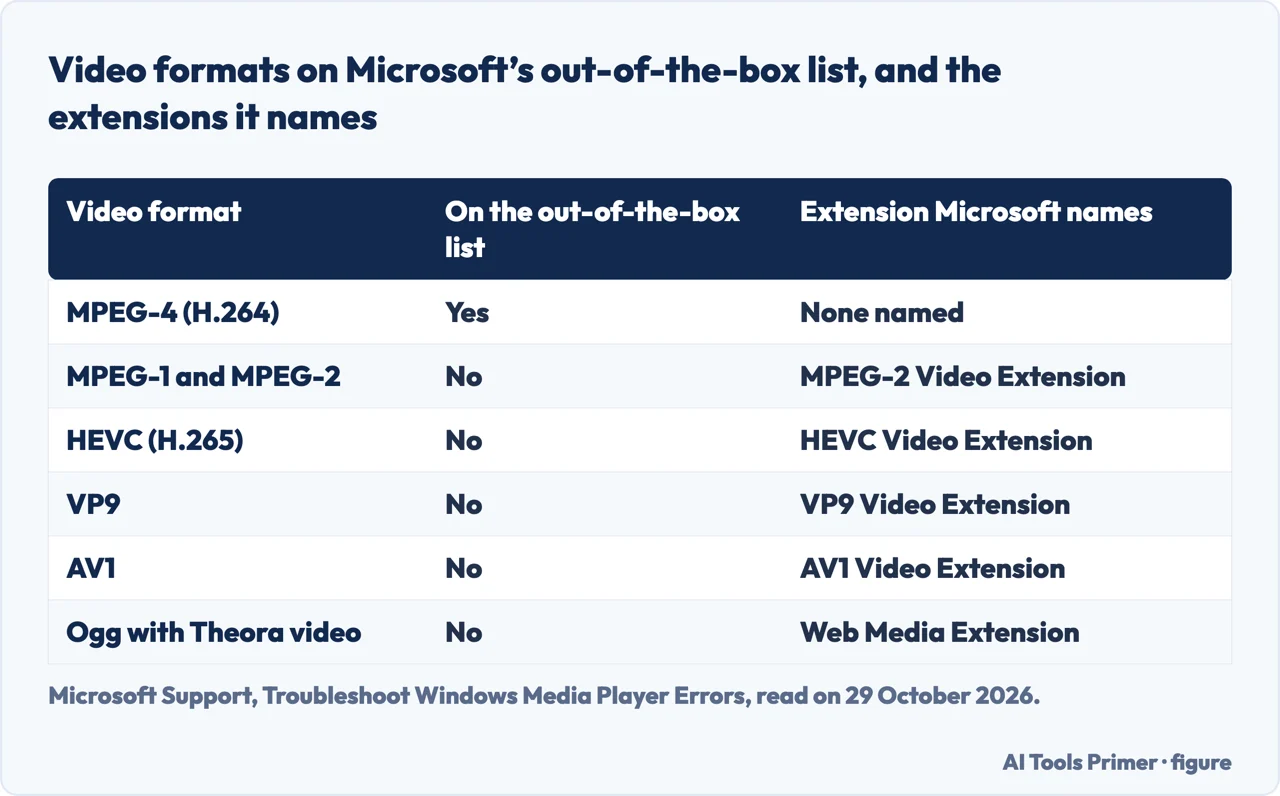
Microsoft’s page on Windows Media Player errors, written for Windows 10 and 11, ties the 0xC00D11xx errors to audio or video codecs and gives C00D11B1 as a common example. It says that if the player can’t play a file or shows an error, the required codec might not be installed or supported. Windows includes support for many common formats, and the page lists them. For audio it names MP3, MP2, AAC, M4A, FLAC, ALAC, WAV, WMA, 3GP, 3G2 and AMR. For video it names MPEG-4 (H.264), H.263, VC-1, WMV, DV, VP8 and Motion JPEG. If your file uses a different format, the page says, it might need an additional codec.
For formats outside that list Microsoft names five add-ons in the Microsoft Store: the MPEG-2 Video Extension for MPEG-1 and MPEG-2, the HEVC Video Extension for H.265, the VP9 Video Extension, the AV1 Video Extension and the Web Media Extension for Ogg, Vorbis and Theora. The second figure sets the video ones next to Microsoft’s out-of-the-box list. The page adds a note on AC-3, also called Dolby Digital, an audio codec for surround sound. It was included in versions of Windows before Windows 11, version 24H2, and it is no longer included from 24H2 on. The page says many device makers pre-install it, and that a computer upgraded to 24H2 from an earlier version keeps it, so those files still play.
It opens, but stutters, freezes or has no sound
Microsoft’s page ties the codes 0xC00D0BC2, 0xC00D36FA, 0xC00D10B3 and 0xC00D1059 to playback problems, and codecs are only one of the things it asks you to check: stuttering, freezing, skipping, lagging or no sound, on the whole file or only on parts of it. The steps come in a set order. First check that the file is compatible with Windows Media Player, where the page lists MP3, WAV, WMA, AVI and WMV as commonly supported. Then check for outdated or corrupted codecs, get the latest Windows updates, reset the Windows Media Player library and clear its history. For the library, open the player, press Ctrl+M and choose Tools, Advanced, Restore Media Library. For the history, choose Tools, Options, Privacy, then Clear History and OK.
If that does not help, the page continues with additional steps. They are the latest graphics drivers from the manufacturer’s website, the System File Checker (sfc /scannow in a Command Prompt opened as administrator), and a temporary pause of third-party media software that may conflict with the player. They also include a stable connection when you are streaming, the Windows Media Player troubleshooter under Settings, System, Troubleshoot, Other troubleshooters, and the Repair or Reset button under the app’s Advanced options. Microsoft says Reset deletes your custom settings and preferences but not your media files or library. The last step is to switch Media Features off in Windows features, restart, switch it back on and restart again.
Other codes on the same page point away from codecs. 0xC00D0FEA is described as a problem playing or downloading the file, often network connectivity or the server hosting the media, and 0xC00D1163 as a digital rights management problem with protected content. 0xC00D11CD is described in two ways on the page: in its table as tied to installing or updating the player, and in its own section as a problem with the media file or the player. For that one Microsoft lists updating Windows, checking for missing or incompatible codecs, deleting the files (not the folder) in %LOCALAPPDATA%\Microsoft\Media Player\, updating audio drivers and running a malware scan. The page also notes that Windows 10 support ended on 14 October 2025, with no more free updates from Windows Update.
A video on a website, in the browser
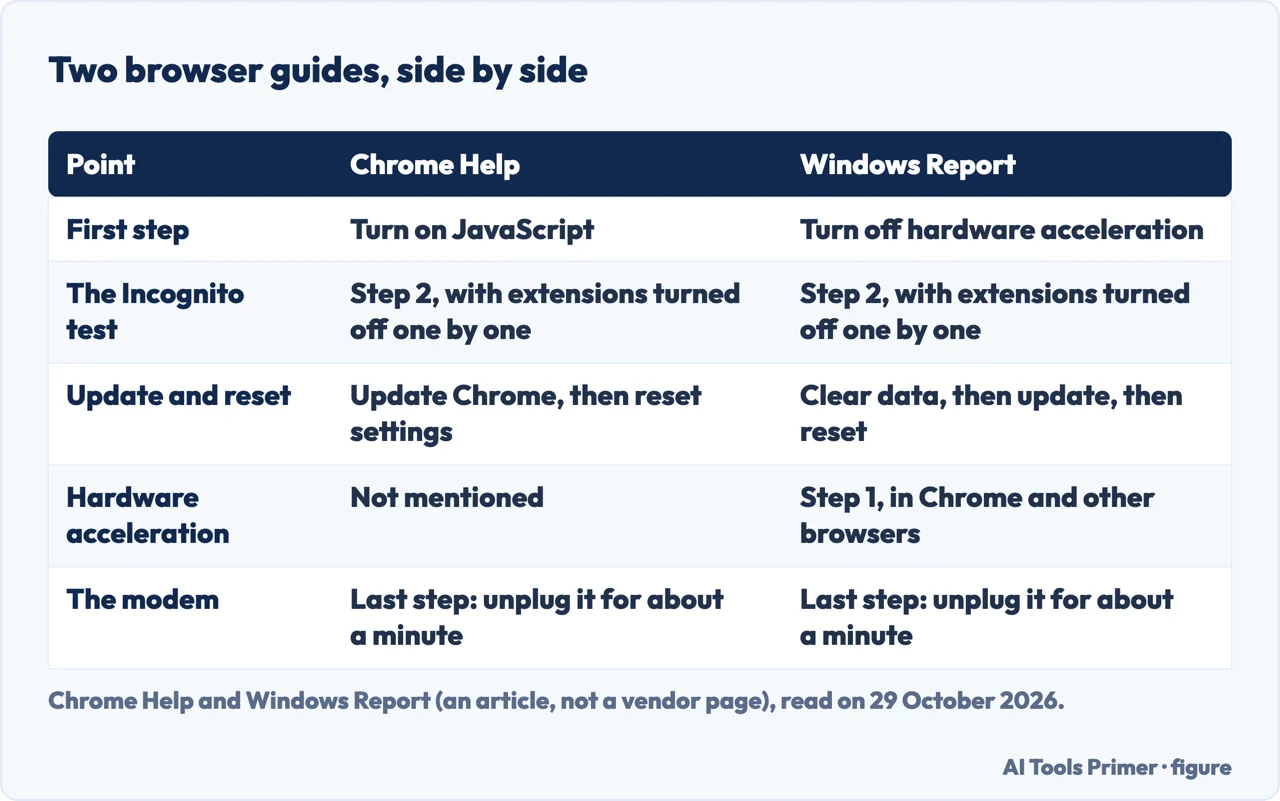
Chrome Help’s page on videos and games that won’t play is for Chrome on a computer, and it does not mention codecs. It gives five steps. The first is to turn on JavaScript under Privacy and security, Site settings, because some media needs it and YouTube videos, for example, won’t run without it. The second opens an Incognito window and tries the video there. If it plays there, close the window, turn off all extensions, reload, and turn them back on one at a time until the culprit shows up, then remove it. If it still fails with every extension off, the page says to turn them back on and delete browsing data, choosing cached images and files and cookies and other site data, and warns that this erases some of your settings for websites. The step ends with a settings reset for a video that still doesn’t work. The third step updates Chrome and relaunches it, and the page says that if you do not see the Update Google Chrome button, you are on the latest version. The fourth resets Chrome’s settings, and the fifth turns off the computer, unplugs the modem and a separate router for about a minute and waits for the lights to stop blinking. The page adds that as of 2021 Adobe has ended support for Flash Player, so Flash content no longer plays in any version of Chrome.
Windows Report’s article on “Your browser can’t play this video”, updated on 24 October 2024, gives five fixes in a different order, and says they were tested on all major browsers. That is the article’s own claim, which we could not check. Its first fix is to turn off hardware acceleration: open chrome://settings/system and switch off Use hardware acceleration when available. It says the same can be done in Opera, Safari, Firefox and Edge. Chrome Help does not mention hardware acceleration, and neither do the Microsoft and Mozilla pages we read, so Windows Report is the one page here that names it. The rest of the article covers the same ground as Chrome Help: the Incognito test, clearing data, updating, resetting and the modem. It then adds short sections on JavaScript in Chrome, resetting Opera, force-quitting Safari and the Firefox autoplay permission. Our page on hardware acceleration in Chrome covers the setting itself, and the one on cookies in Chrome covers the cookie step.
The third figure puts the two guides side by side. On the order of the numbered steps they agree: both put the update before the reset, although Chrome Help’s second step already ends with a settings reset for a video that still fails in Incognito. On where to begin they do not, which is why this page keeps them apart and names the source of each step.
Mozilla’s page on audio and video files says Firefox uses the operating system’s built-in media libraries and codecs to play supported formats. It adds that some codecs, such as MP3 and WebM, are available for free, while those restricted by patents, like AAC or H.264, require a fee to be installed. Firefox supports WebM/VP9 video on systems that don’t support MP4/H.264. For H.265 (HEVC) in an MP4 file the page says support is limited from Firefox 120 on Windows 10 and later. Some Windows systems play it natively, and Windows 10 versions 1507 to 1709 are listed as supporting it automatically. For Windows 10 versions 1803 to 22H2 the page says to install, from the Microsoft Store, either HEVC Video Extensions from Device Manufacturer (free) or HEVC Video Extensions (not available for free). It adds that Firefox supports 10-bit HDR HEVC video but currently won’t render it properly.
Mozilla and Microsoft both name an HEVC extension from the Microsoft Store. The pages we read do not say how to tell whether the fault is in the file or in the browser. Chrome Help uses an Incognito window as its test, and Windows Report suggests playing a file in another media player; we did not test either on a computer. For YouTube’s own list of messages, see our page on YouTube’s “Something went wrong”, which covers YouTube Help, and for a picture that plays but looks blocky, pixelated video.
Windows N editions and Firefox for Android
Mozilla’s page for Firefox on Windows N and KN editions says those versions of Windows are missing Windows Media Player and the related technologies needed to decode and play videos and music. Microsoft offers a Media Feature Pack to add them. Problems people have reported when the pack is missing include a YouTube video that is blurry, low resolution or black, and a Netflix error saying Microsoft Silverlight is required. On Windows 11 the pack is added from Settings, Apps, Optional features, View features. On Windows 10 version 1903 and later it is Settings, Apps, Apps and Features, Optional features, Add a feature. After updating Windows to a newer version, Mozilla says, install the pack for the newer version, even though you installed one for the previous version.
The only page we read written for a phone browser is Mozilla’s for Firefox for Android, which was last updated on 15 September 2026, and it covers one browser, not every phone. For a video or audio file that does not play it lists these checks: reload the page, check the internet connection, check that autoplay and other permissions are not blocked, update Firefox for Android, and, for DRM-protected content, make sure Firefox and the website support it. It adds that DRM services may have their own device, account, subscription or regional requirements. If the problem happens on only one site, the page says the cause may be that site’s player or content rather than Firefox.
Autoplay sits under the three-dot menu, then Settings, Privacy & security, Site settings and Autoplay. The options are to block audio and video on cellular data only, to block audio only, or to block both, with exceptions per site that can override the general choice. Some sites need a tap before media starts, and the page says changing the permission does not guarantee a site will autoplay. Playback that stops in the background may come from Android battery saver or data restrictions, and a site can open a video in another app, which is an Android link setting rather than a Firefox one.
What we did not use, and what the pages leave out
We tested nothing on a computer or a phone. None of the pages we read is written for a Mac or an iPhone, and none covers the numbered error code that one of the questions Google shows asks about. Windows Report’s browser article has a short Safari section, which we did not use, so this page has nothing on them. Google’s results also listed pages from sellers of video repair software, a Firefox forum thread, a Quora question, a video and Prime Video help; we did not read them. The Google AI box was not used as a source. The pages we read do not say which format most failing videos have, or how many people meet the problem. They also do not cover converting a file that never opens; our pages on MOV to MP4 and on MP4 conversion are a separate route from adding a codec.
Where to start
Four ways in.
- “The sound plays, the picture does not.”
- A file on the computer: the codec — file
- “It stutters or freezes.”
- It opens, but stutters, freezes or has no sound — stutter
- “It fails on a website.”
- A video on a website, in the browser — site
- “I am on a Windows N edition or a phone.”
- Windows N editions and Firefox for Android — nphone
Files that will not open or look right
Converting a file, and a picture that plays but is blocky.
Video that fails in the browser
YouTube messages, a Chrome setting and cookies.
Questions people also ask
Why is my phone saying can't play video?
The only page we read written for a phone browser is Mozilla’s for Firefox for Android: reload the page, check the connection and the autoplay and other permissions, support for protected content, and the Firefox version. The pages we read do not cover an iPhone.
How to play can't play video?
For a file in Windows Media Player 11, Microsoft says to tick Download codecs automatically, try the file again and select Install if asked. For a video on a site, Chrome Help’s five steps begin with JavaScript.
How to fix YouTube can't play video?
YouTube Help lists the connection, signing in, restarting the app or device, updating the browser, clearing cache and cookies, and checking ad blockers or trying Incognito with extensions off. On a TV it says to unplug the device for at least 30 seconds.
Not covered here. We tested nothing on a computer or a phone. The statements come from Microsoft Learn and Microsoft Support, Chrome Help, YouTube Help, three Mozilla Support pages and two Windows Report articles, all read on 29 October 2026.
The search volume and difficulty behind this page come from a Semrush reading of 29 August 2026. That measure expired on 28 October 2026 and was not read again; it is used with the owner’s permission and should be re-measured.
Sources
- Microsoft Learn — Video doesn’t play in Windows Media Player 11 — support.microsoft.com, read 29 October 2026.
- Microsoft Support — Troubleshoot Windows Media Player Errors — support.microsoft.com, read 29 October 2026.
- Chrome Help — Fix videos & games that won’t play — support.google.com, read 29 October 2026.
- YouTube Help — Troubleshoot YouTube video errors — support.google.com, read 29 October 2026.
- Mozilla Support — Audio and video files in Firefox — support.mozilla.org, read 29 October 2026.
- Mozilla Support — Fix video and audio problems on Firefox for Windows N editions — support.mozilla.org, read 29 October 2026.
- Mozilla Support — Playing videos in Firefox for Android — support.mozilla.org, read 29 October 2026.
- Windows Report — 5 Ways to Get Past your Browser Can’t Play this Video Pop Up — windowsreport.com, read 29 October 2026.
- Windows Report — To Play This Video, You Need a New Codec: 4 Ways to Fix it — windowsreport.com, read 29 October 2026.
Written by Alberto Gulotta
Founder and editor of AI Tools Primer, writing from Palermo, Italy. Thirty-five years of taking computers apart, starting with a Commodore 64 — the long version is on the about page.
Something wrong on this page? Write to aitoolsprimer@gmail.com and it gets fixed.
Written on 29 October 2026.
Independence and limits
No affiliate links and no paid placements anywhere on this site. Nobody pays to appear here, and no company has seen this page before you did.
This is general information, not professional advice. Where a page touches money, health, safety or the law, it names its source and the date it was read — and your situation may still differ. See the privacy page and the cookie policy.