
Software · guide
YouTube something went wrong: read which message it is first
By Alberto Gulotta · Updated · 15 min read
If YouTube says something went wrong, the end of the sentence matters. YouTube’s help page treats “Tap to retry” as one of its video errors and “Refresh or try again later” as a separate message with a separate list, and it describes a third screen it shows when the fault is its own.
Below are YouTube’s steps for each, on a phone, in a browser and on a TV, what YouTube says about ad blockers, how to tell an outage from a fault at your end, and what to send when you report it, with who says what.
| What the screen says | What YouTube Help gives | What only that list has |
|---|---|---|
| Something went wrong. Tap to retry. | The list for video errors | A speed table by resolution, and data usage for the app |
| Something went wrong. Refresh or try again later. | A separate list under its own heading | Allow ads, and check that no app changed your DNS servers |
| Error loading the page, please try again. | A note on the minimal watch page | Reload or try later; most of these issues are temporary |
| An error has occurred. Playback error. Tap to retry. | The list for video errors | The same as the first row |
Two messages that look alike, with two different lists
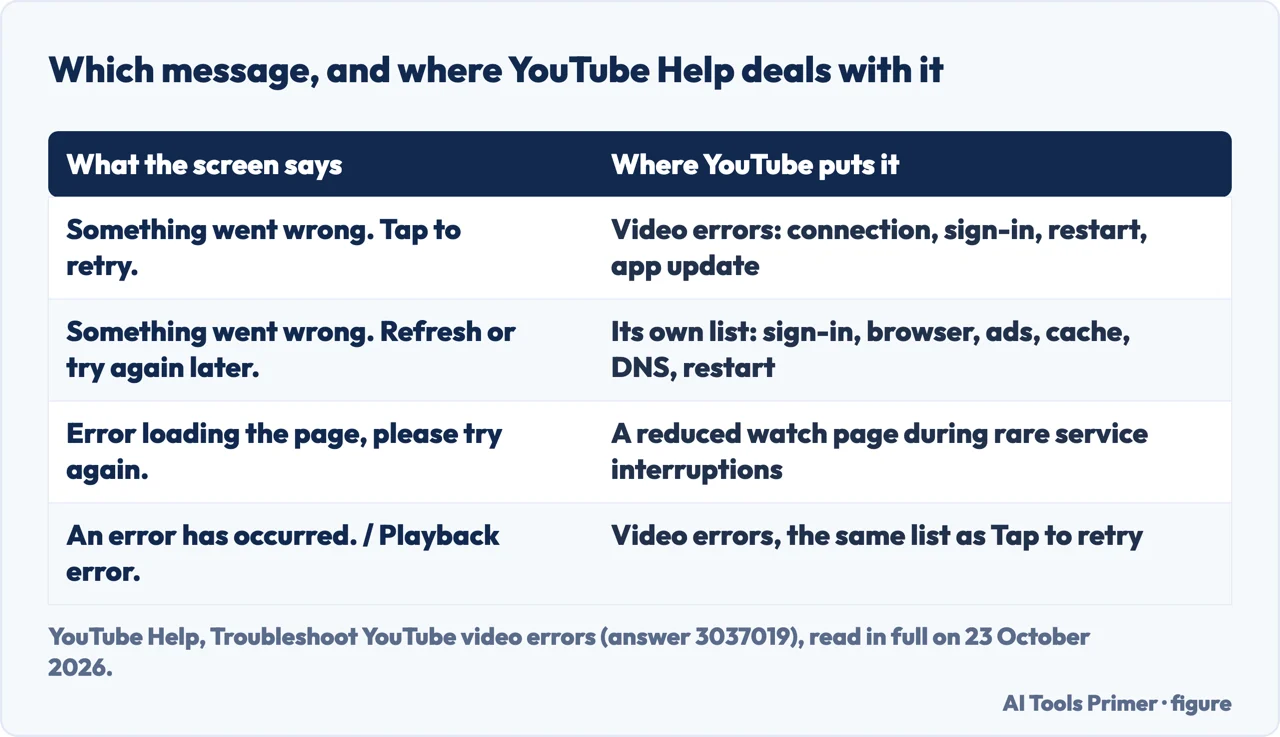
YouTube’s help page on video errors names six of the commonest messages, and “Something went wrong. Tap to retry.” is one of them, next to “An error has occurred” and “Playback error. Tap to retry.” For all of these it gives one list: check the connection, sign in, restart the app or the device, update the browser or the app, and check extensions.
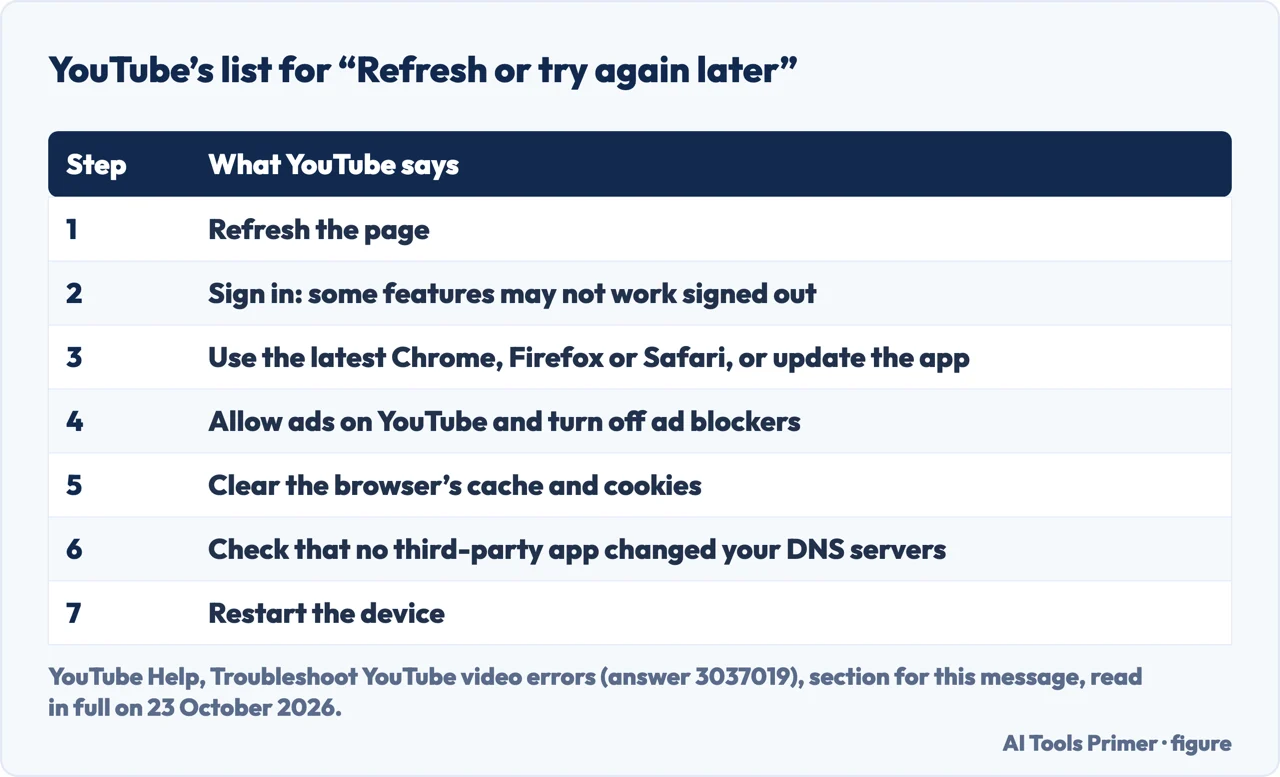
Further down the same page there is a second message with its own heading and its own steps: “Something went wrong. Refresh or try again later.” Its list overlaps with the first one and goes further in two places. Where the first asks you to check whether ad-blocking extensions affect playback, this one asks you to allow ads on YouTube and turn ad blockers off; and it asks you to confirm that your DNS servers are the ones you chose and that no third-party app has modified them.
A third case looks like an error and is something else. During rare service interruptions, YouTube says, it may load a minimal version of the watch page so that the video still plays: the title, channel, view count and date stay, while the Like, Share and Download buttons, the description and the comments may be missing, and the page may say “Error loading the page, please try again.” YouTube calls most of these issues temporary.
So the first useful step is to read the words on the screen to the end, because the list depends on them, and to notice whether the video plays on a page that has lost its comments and buttons.
In the app on a phone or tablet
These are YouTube’s steps for video errors, in the order its help page gives them:
- The connection. Restart it, and run a speed test. YouTube publishes the sustained speed it recommends for each resolution: about 20 Mbps for 4K, 5 Mbps for 1080p, 2.5 Mbps for 720p, 1.1 Mbps for 480p and 0.7 Mbps for 360p. Other devices on the same network may reduce the speed yours gets, and you can lower the video quality. It also asks you to check that data usage is turned on for YouTube in the device settings.
- Signed in. YouTube says it may stop signed-out users from reaching videos when they try to download material for offline use or to view certain content featuring minors.
- Restart the app or the device, and if that fails, uninstall and reinstall the app.
- Update the app, and the device’s system software. On Android, YouTube’s steps are the Play Store, your profile picture, Manage apps & device, then Updates available. On an iPhone or iPad, the App Store, your profile picture, and the pending updates further down, where YouTube appears with an Update button if it is behind.
The guides in the results add steps YouTube’s pages do not list. wikiHow, updated in June 2026, gives the Android path for the app’s cache, Settings › Apps › YouTube › Storage › Clear Cache, and says an iPhone has no such button, so the way there is to reinstall. iGeeksBlog adds that offloading the app, from Settings › General › iPhone Storage, clears the cache without deleting your documents and data. Both, and Online Tech Tips, suggest turning airplane mode on and off, and, as a last resort, resetting the network settings, which wikiHow warns will make you reconnect to every Wi-Fi network with its password.
The same three guides tell you to turn off a VPN. None of the eight YouTube Help articles we read mentions VPNs; the community thread further down does. videoregioncheck.com, which sells a check of where videos are available, gives its reason: a VPN can make YouTube think you are somewhere else.
In a browser on a computer
If the words are “Refresh or try again later”, YouTube says to refresh the page first, and then, if the error comes back, to work through its list: sign in, because some features may not work signed out; use the latest version of a compatible browser, and it names Chrome, Firefox and Safari; allow ads and turn off ad blockers; clear the browser’s cache and cookies; check that your DNS servers are the ones you chose; and restart the device.
Two of those steps need more than the list gives:
- Extensions. YouTube’s quickest test is to open YouTube in an incognito window with all extensions disabled and see whether the issue continues. iGeeksBlog notes that incognito mode disables extensions and uses no cache, so a video that plays there points at one of those two.
- Cache and cookies. YouTube’s page for Chrome is More › Delete browsing data, a time range, then Cookies and other site data, then Delete data. It also says what that costs: you are signed out of sites, some settings on them are deleted, and some sites seem slower while images load again. wikiHow adds the opposite case: a browser that blocks YouTube’s cookies can show the error when you sign in.
The DNS step is where the guides and YouTube part ways. YouTube asks you to confirm, in your network settings, that you are using your preferred DNS servers and that no third-party application has modified them; it does not say why. Kinsta, a web-hosting company, suggests the opposite move on an iPhone: Configure DNS, then add a public server such as Google’s or Cloudflare’s. iGeeksBlog lists custom DNS settings among the things that may disrupt the connection. If you never chose your DNS servers, the YouTube check is the one that fits: find out whether an app chose them for you.
Ads and ad blockers: what YouTube says
Both of YouTube’s lists mention ad blockers, and its page on allowing ads says more. It says that blocking YouTube ads violates its Terms of Service, that it will ask people using ad blockers to allow ads or sign up for YouTube Premium, and: “If you continue to use ad blockers, we may block your video playback.”
The same page gives the steps to let YouTube through in three extensions: in AdBlock, Don’t run on pages on this site, then Exclude; in Adblock Plus and uBlock Origin, the power button. Then reload YouTube. If the message about ad blockers appears when you have none, or it is already off, YouTube asks you to use Report issue at the bottom left of the message.
In a YouTube Community thread from 27 September 2026, an iPhone user found that videos without ads seemed to play, videos with ads stopped on “Something went wrong, tap to retry”, and the same account worked in Safari. The recommended answer, written by a community member rather than by YouTube, suggested looking under Settings › General › VPN & Device Management for DNS or content-filtering profiles, turning iCloud Private Relay off for a test, signing out and back in, and resetting the network settings. Its reason, in its words: “anything that filters ad requests at that level can break ad playback even when no ad blocker is installed.” It also said plainly that it could not confirm a known issue.
On a TV or a streaming stick
YouTube’s help page has a short section for the app on a TV, and its first step is the one it calls often the most effective: unplug the device’s power cable from the outlet, wait at least 30 seconds, and plug it back in.
The second step is the app. YouTube says most smart TVs and streaming devices update apps on their own, and gives the manual route for two of them: on Apple TV, the App Store, search for YouTube, select it, and choose Update if it is offered; on Android TV, the Play Store’s Auto-update apps setting, which it says should be on by default.
On smart TVs and streaming devices, YouTube says its app is delivered on a platform called Cobalt, and that knowing whether your device runs it, and which version, can help troubleshoot common issues. Older devices with older versions of Cobalt, or without it, may have issues with some features, such as 5.1 sound or multiview. The version is in the YouTube app under your profile picture, About, App Version, in brackets after the word Cobalt.
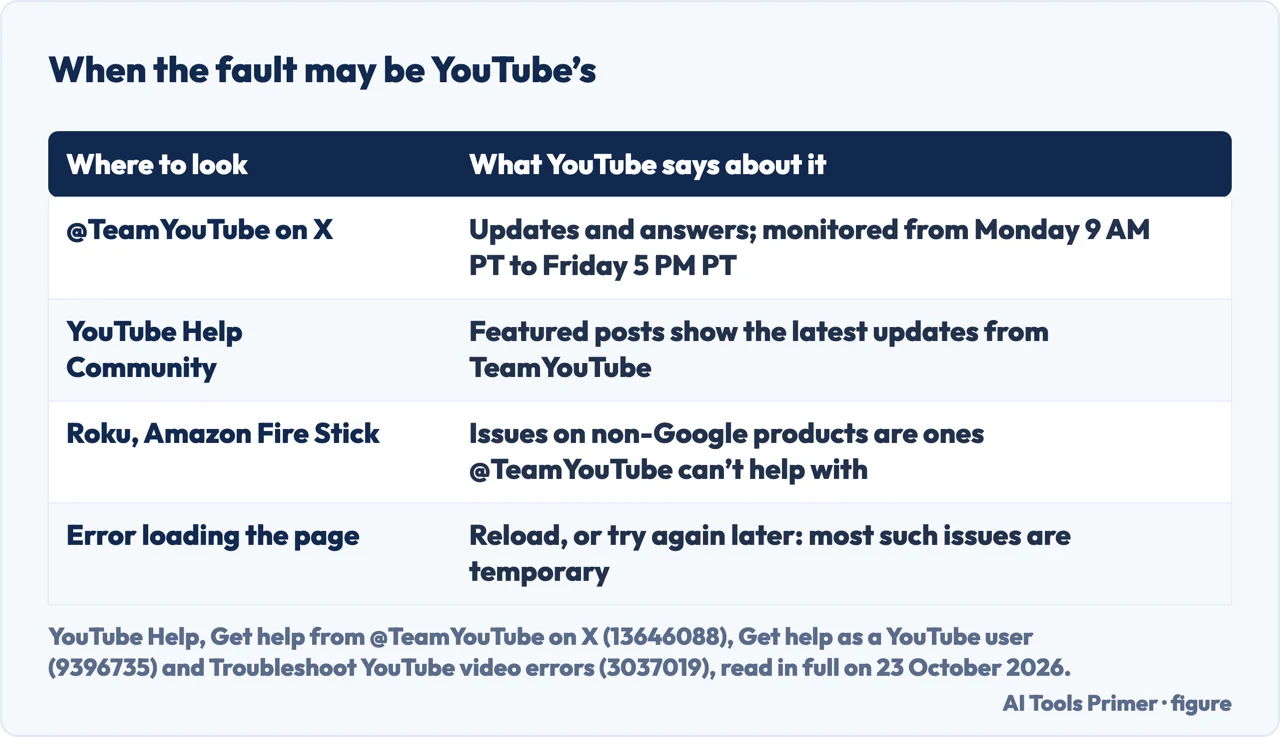
One limit matters on a TV. YouTube’s page on @TeamYouTube lists issues happening on a non-Google product, like Amazon Fire Stick or Roku, among the situations its team cannot help with.
When it is YouTube, not you
Four of the guides in the results send you to Downdetector, a third-party site that, in Online Tech Tips’ words, tells you whether users are experiencing issues. YouTube names its own places instead. Its page on getting help says the @TeamYouTube account on X gives real-time updates and troubleshooting tips, and that featured posts in the YouTube Help Community show the latest updates from TeamYouTube. Its page on the account adds two details: the handle is monitored around the clock from Monday at 9 AM PT until Friday at 5 PM PT, and the team answers in English, French, Japanese, Korean, Portuguese and Spanish.
The minimal watch page is the other sign. If the video plays but the comments, description and buttons are gone, YouTube’s advice is to reload, and if that does not work, to wait and try again later, because most of these issues are temporary.
Reporting it with what YouTube asks for
If the error stays, YouTube may ask for your debug info or “Stats for nerds”. On a computer, both are on the player: right-click it while a video is playing and choose Copy debug info, then paste it into your message, or choose Stats for nerds and take a screenshot. On a TV, Stats for nerds is in the player’s Settings. YouTube says neither contains personally identifiable information, but both show your device, the video ID, a playback identifier and bandwidth details.
Its page on @TeamYouTube lists what to include when you ask there: the video or channel URL, screenshots of the problem, and the device you are using. It also warns not to post personal details such as your email address or phone number in a public message. The two community members in the September 2026 thread suggested sending feedback from the app, through your profile picture and Help & feedback, with the app version, the phone model and the detail that narrows it down, such as only videos with ads failing.
Where to start
Five ways in.
- “It says tap to retry.”
- On a phone — phone
- “It says refresh or try again later.”
- In a browser — browser
- “I use an ad blocker.”
- Ads — ads
- “It is on my TV.”
- TV — tv
- “Is YouTube down?”
- Outages — outage
When a page or an app will not load
The same symptom from other directions: the connection, the browser, and the phone’s own network settings.
Other fixes that start with one app
Clearing what an app stored, finding why it closes, and what to do when the picture plays but looks wrong.
Questions people also ask
Is YouTube having a problem today?
YouTube says it posts real-time updates on its @TeamYouTube account on X and in featured posts in the YouTube Help Community. A watch page that plays the video without comments or buttons is also a sign of a service interruption.
Why does YouTube keep saying something went wrong?
YouTube Help does not name one cause. Its steps cover the connection, being signed out, an outdated app or browser, and browser extensions including ad blockers; for the “Refresh or try again later” message it adds DNS servers changed by another app.
How do I fix "Something went wrong. Tap to retry"?
YouTube’s order is: check the connection and its speed, sign in, restart the app or the device, reinstall the app if needed, and update the app and the system software.
Can an ad blocker cause the error?
YouTube says that if you continue to use ad blockers it may block your video playback, and its list for “Refresh or try again later” asks you to allow ads and turn ad blockers off.
Not covered here. We did not reproduce the error on a phone, a computer or a TV for this page. The steps credited to YouTube come from eight YouTube Help articles read on 23 October 2026; where a guide adds a step YouTube does not give, the guide is named.
wikiHow, Online Tech Tips and iGeeksBlog are independent how-to sites; Kinsta sells web hosting and videoregioncheck.com sells a service, and the YouTube Community thread is answered by volunteers, not by YouTube. The Reddit thread in the results could not be read, and the videos were not watched.
The search volume and difficulty behind this page were read in Semrush on 29 August 2026.
Sources
- YouTube Help — Troubleshoot YouTube video errors — support.google.com, read 23 October 2026.
- YouTube Help — Allow ads on videos that you watch — support.google.com, read 23 October 2026.
- YouTube Help — Update the YouTube and YouTube Studio app (Android) — support.google.com, read 23 October 2026.
- YouTube Help — Update the YouTube and YouTube Studio app (iPhone & iPad) — support.google.com, read 23 October 2026.
- YouTube Help — Clear cache & cookies — support.google.com, read 23 October 2026.
- YouTube Help — Send YouTube debug info — support.google.com, read 23 October 2026.
- YouTube Help — Find Cobalt info on your device — support.google.com, read 23 October 2026.
- YouTube Help — Get help from @TeamYouTube on X — support.google.com, read 23 October 2026.
- YouTube Help — Get help as a YouTube user — support.google.com, read 23 October 2026.
- YouTube Community — Something went wrong, tap to retry (thread, September 2026; answers by volunteers) — support.google.com, read 23 October 2026.
- wikiHow — 14 Easy Ways to Fix “Something Went Wrong” on YouTube (June 2026) — www.wikihow.com, read 23 October 2026.
- Online Tech Tips — How to Fix YouTube’s “Something went wrong” Error (February 2024) — www.online-tech-tips.com, read 23 October 2026.
- iGeeksBlog — YouTube Showing “Something Went Wrong”? 11 Quick Fixes That Work (April 2026) — www.igeeksblog.com, read 23 October 2026.
- Kinsta — Fixing the “Something Went Wrong” YouTube Error (iOS and Mac) (updated June 2026) — kinsta.com, read 23 October 2026.
- videoregioncheck.com — 13 Ways to Fix “Something Went Wrong YouTube” (March 2026) — videoregioncheck.com, read 23 October 2026.
Written by Alberto Gulotta
Founder and editor of AI Tools Primer, writing from Palermo, Italy. Thirty-five years of taking computers apart, starting with a Commodore 64 — the long version is on the about page.
Something wrong on this page? Write to aitoolsprimer@gmail.com and it gets fixed.
Written on 23 October 2026.
Independence and limits
No affiliate links and no paid placements anywhere on this site. Nobody pays to appear here, and no company has seen this page before you did.
This is general information, not professional advice. Where a page touches money, health, safety or the law, it names its source and the date it was read — and your situation may still differ. See the privacy page and the cookie policy.