
iPhone · guide
How to change wallpaper on iPhone, and only the Home Screen one
By Alberto Gulotta · Updated · 9 min read
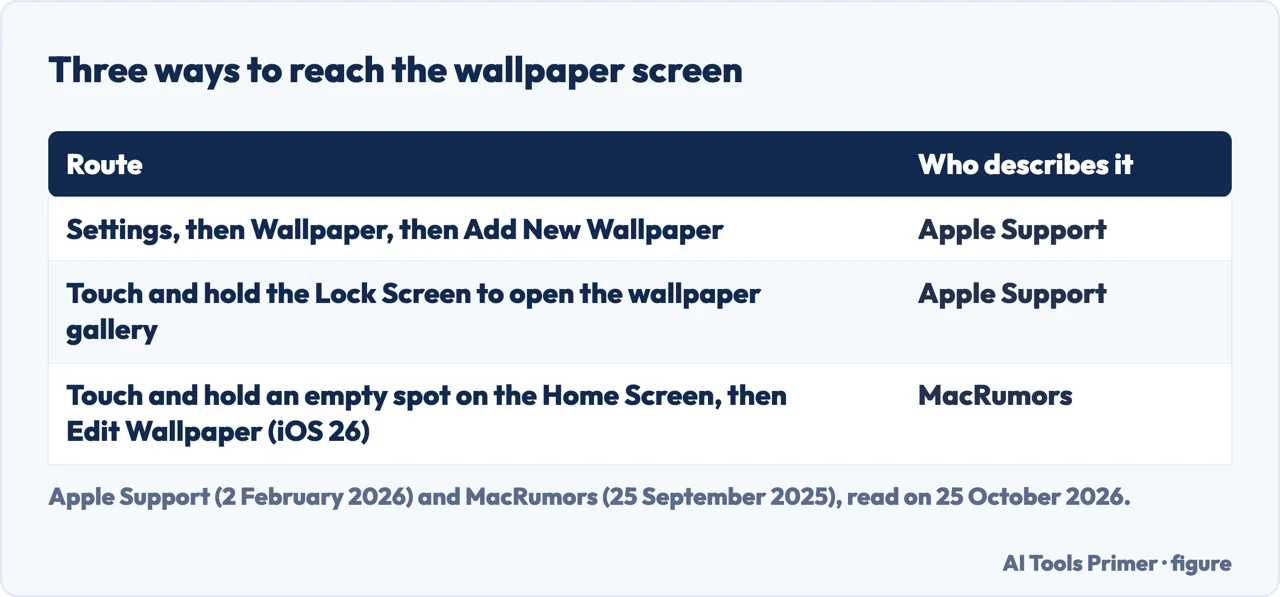
How to change wallpaper on iPhone has two Apple routes: Settings, then Wallpaper, or a touch and hold on the Lock Screen. This page sets out both, how to change only the Home Screen wallpaper, Photo Shuffle and 3D scenes, and the Home Screen route that a MacRumors guide gives for iOS 26.
| Question | Answer | Where it comes from |
|---|---|---|
| Where do I start? | Settings, then Wallpaper, then Add New Wallpaper | Apple Support |
| Is there a faster way? | Touch and hold the Lock Screen to open the wallpaper gallery | Apple Support |
| Only the Home Screen? | Tap Customize Home Screen instead of Set as Wallpaper Pair | Apple Support |
| From the Home Screen itself? | On iOS 26, touch and hold an empty spot and tap Edit Wallpaper | MacRumors |
| Change it automatically? | Photo Shuffle, with On Tap, On Lock, Hourly or Daily | Apple Support |
From Settings
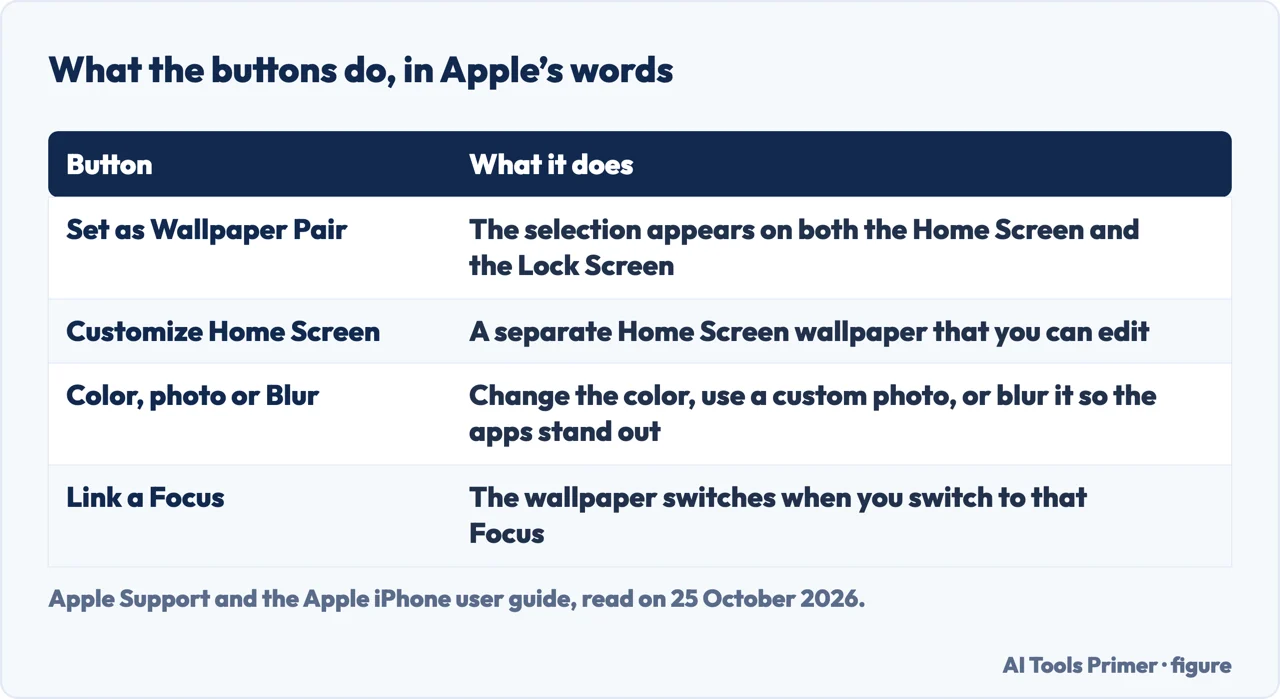
Apple Support’s article, published on 2 February 2026, starts in the Settings app. Tap Wallpaper, then Add New Wallpaper. Tap Photos or Photo Shuffle to choose your own photo, or select a wallpaper from categories such as Weather & Astronomy, Emoji or Color. If you want, customize it further, then tap Add. Apple’s iPhone user guide adds that if you do not see the options you want, such as Weather or Astronomy, you scroll down and tap Get below the one you like. Then you choose where it goes: tap Set as Wallpaper Pair and the selection appears on both the Home Screen and the Lock Screen.
From the Lock Screen
On the Lock Screen, Apple says to touch and hold your screen to open the wallpaper gallery. To use a wallpaper you already made, swipe left or right and tap it; to add a new one, tap the Add button. From the gallery you can also tap the Focus button on a wallpaper to link a Focus, tap Customize below an existing wallpaper to edit it, or swipe up on a wallpaper and tap the trash icon to delete it. If you cannot get into the gallery with Face ID, touch and hold the Lock Screen again and enter your passcode. Apple’s guide says that linking a Focus makes the wallpaper switch when you switch to that Focus; for the Focus side see Personal Focus and Do Not Disturb that comes back.
Only the Home Screen
After you choose a wallpaper, Apple’s article says Set as Wallpaper Pair puts it on both screens, while Customize Home Screen creates a separate Home Screen wallpaper that you can edit. The user guide says that under Customize Home Screen you can tap a color to change the wallpaper color, use a custom photo, or select Blur so the apps stand out. MacRumors, in an article from 23 April 2024, explains why the suggestion to pair appears: Apple applies dynamic transitions to some wallpapers when switching from the Lock Screen to the Home Screen if the backgrounds are the same. If you took the suggestion and want a different Home Screen later, MacRumors says to open the wallpaper gallery with a touch and hold on the Lock Screen, swipe to the wallpaper, tap Customize, and then change the color, gradient or photo.
For iOS 26, a MacRumors article from 25 September 2025 gives a third route that Apple’s pages as we read them do not mention: touch and hold any empty space on the Home Screen and tap Edit Wallpaper in the popup menu. It says that Home Screen wallpaper changes will not affect the Lock Screen, because the two are customized independently, and that Pair matches the wallpaper with the Lock Screen. It also says that the Liquid Glass design means the wallpaper you choose influences how your dock, folders and app icons look. That route comes from one MacRumors article and we did not test it on a phone.
Changing it by itself
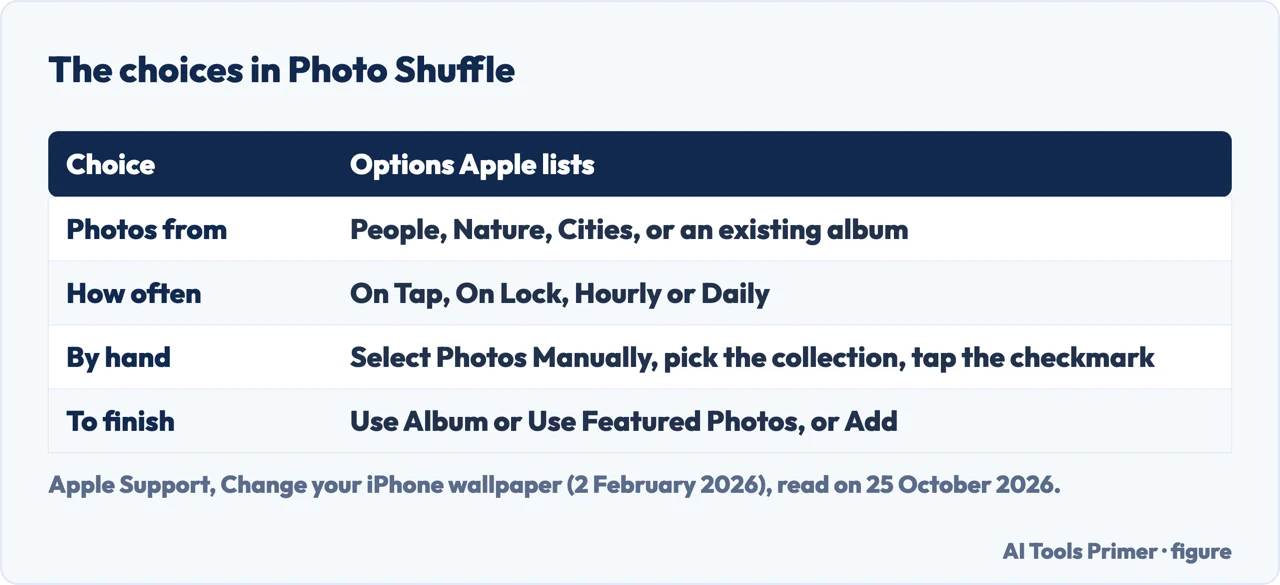
For a Lock Screen that changes, Apple Support describes Photo Shuffle: in Settings tap Wallpaper, tap Add New Wallpaper and select Photo Shuffle from the top row. Choose one or more categories such as People, Nature or Cities, or an existing album, then choose a shuffle frequency: On Tap, On Lock, Hourly or Daily. You finish with the Use Album or Use Featured Photos button, whichever your Photo Shuffle shows. To pick photos yourself, tap Select Photos Manually, choose the collection, tap the checkmark, tap the ellipsis button for the frequency, and tap Add when done.
The 3D effect
Apple Support says that on an iPhone 12 or later with iOS 26 you can turn certain photos into 3D spatial wallpapers: in Settings tap Wallpaper, tap Add New Wallpaper, scroll to the right in the top bar and tap the Spatial Scene tab, then select a photo. A message, Generating Spatial Scene, appears and disappears when the effect is ready. Tap Add and then Set as Wallpaper Pair or Customize Home Screen; with either, Apple says only your Lock Screen displays the 3D effect. Photos outside the Spatial Scene category can be selected, but only certain photos are eligible: Apple says eligible ones typically have high-quality lighting, a clear separation between the subject and the background, or a landscape orientation. For a photo that is eligible, a Spatial Scene button turns the effect on and off.
Versions, and what we did not use
Menus change with the iOS version. Apple’s support article mentions iOS 16 and iOS 26, and the user-guide page we read is the edition for iOS 27, so a step on your phone may be labelled a little differently. The forum, Reddit thread and short video in the results were not used: the forum page gave our reader only a few words, and the others were not read. We tested nothing on a phone. For taking a picture of the result see taking a screenshot.
Where to start
Four ways in.
- “Where do I start?”
- From Settings — settings
- “Just the Home Screen.”
- Only the Home Screen — home
- “Change it by itself.”
- Photo Shuffle — shuffle
- “The 3D one.”
- The 3D effect — spatial
The Lock Screen and Focus
Where a wallpaper starts to do something.
Other things on the phone
Screenshots, apps and space.
Questions people also ask
How do I change just my home screen wallpaper on my iPhone?
After choosing a wallpaper, tap Customize Home Screen instead of Set as Wallpaper Pair, Apple says. On iOS 26 MacRumors adds a touch and hold on an empty spot of the Home Screen, then Edit Wallpaper.
How to instantly change wallpaper on iPhone?
Touch and hold the Lock Screen to open the gallery, swipe to a wallpaper you made earlier and tap it, Apple says. Photo Shuffle can change the photo On Tap, On Lock, Hourly or Daily.
How do I just change my home screen wallpaper?
Tap Customize Home Screen, then a color, a custom photo or Blur, as Apple’s user guide puts it.
What is the shortcut to change your wallpaper on iPhone?
Apple names the touch and hold on the Lock Screen, which opens the gallery. The iOS 26 touch and hold on the Home Screen comes from MacRumors.
Not covered here. We tested nothing on a phone. The statements come from Apple Support (Change your iPhone wallpaper, published 2 February 2026), the Apple iPhone user guide (the edition for iOS 27) and two MacRumors how-to articles dated 25 September 2025 and 23 April 2024, all read on 25 October 2026.
The forum, the Reddit thread and the short video in the results were not used. The search volume and difficulty behind this page were read in Semrush on 29 August 2026.
Sources
- Apple Support — Change your iPhone wallpaper (published 2 February 2026) — support.apple.com, read 25 October 2026.
- Apple — Change the wallpaper on iPhone (iPhone User Guide, edition for iOS 27) — support.apple.com, read 25 October 2026.
- MacRumors — iOS 26: Customize Your iPhone Home Screen Wallpaper (25 September 2025) — www.macrumors.com, read 25 October 2026.
- MacRumors — Set Different Wallpapers on iPhone Lock Screen and Home Screen (23 April 2024) — www.macrumors.com, read 25 October 2026.
Written by Alberto Gulotta
Founder and editor of AI Tools Primer, writing from Palermo, Italy. Thirty-five years of taking computers apart, starting with a Commodore 64 — the long version is on the about page.
Something wrong on this page? Write to aitoolsprimer@gmail.com and it gets fixed.
Written on 25 October 2026.
Independence and limits
No affiliate links and no paid placements anywhere on this site. Nobody pays to appear here, and no company has seen this page before you did.
This is general information, not professional advice. Where a page touches money, health, safety or the law, it names its source and the date it was read — and your situation may still differ. See the privacy page and the cookie policy.