
Software · guide
What is Personal Focus on iPhone? A Focus you fill in yourself
By Alberto Gulotta · Updated · 14 min read
If you searched what is Personal Focus on iPhone, the short answer is a name on a set of switches. Personal is one of the Focus options Apple provides, alongside Do Not Disturb, Work, Sleep, Reduce Interruptions and Driving, and like them it can silence calls and notifications.
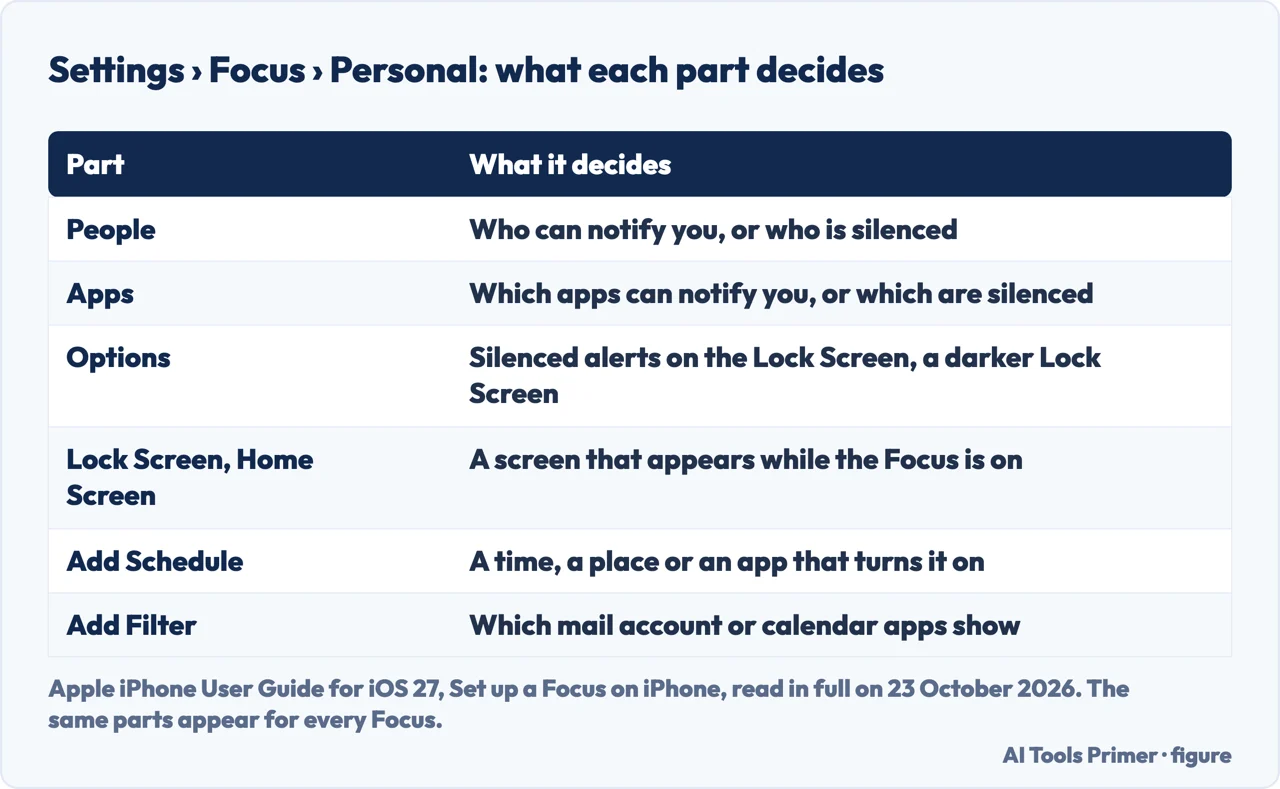
What it lets through is not built in. It is set on its People and Apps screens, the same screens every Focus has, and none of the six Apple pages we read on 23 October 2026 says what a fresh Personal allows. Here is what those settings do, what other people see, why it turns on by itself, how it differs from Do Not Disturb, and how to remove it, with who says so.
| Setting | What it decides | Where Apple puts it |
|---|---|---|
| People | Whose notifications get through, or whose are silenced, and which calls ring | Settings › Focus › Personal › People |
| Apps | Which apps can notify you, or which are silenced; time-sensitive notifications | Settings › Focus › Personal › Apps |
| Options | Silenced notifications on the Lock Screen, a darker Lock Screen, and more | Settings › Focus › Personal › Options |
| Screens | A Lock Screen or Home Screen page that appears while Personal is on | Settings › Focus › Personal |
| Schedule | A time, a location or an app that turns Personal on | Settings › Focus › Personal › Add Schedule |
| Filters | What apps show, such as which mail account or calendar | Settings › Focus › Personal › Add Filter |
A Focus Apple provides, with nothing of its own
Apple’s iPhone User Guide describes Focus as a feature that helps you concentrate on a task by minimizing distractions, and lists Personal as one of the provided options you can customize, next to Work and Sleep. Apple’s support article on Do Not Disturb names the full set the Focus button can show: Do Not Disturb, Personal, Work, Sleep, Reduce Interruptions and Driving. It adds a sentence worth keeping in mind: “Other Focus options can also prevent you from receiving calls, alerts, and notifications.”
None of the six Apple pages we read on 23 October 2026 lists what Personal allows the moment you switch it on. The guide gives Personal the same screens as Work or Do Not Disturb, with the same People, Apps, Options, screens, schedule and filters, and nothing that only Personal has. MacRumors, in a March 2025 guide by Juli Clover, describes the defaults of some of the others: Do Not Disturb silences all apps and people, and the pre-configured Reading and Work options have no apps or people allowed, so until you set them up they work like Do Not Disturb. It does not say the same of Personal, and we have not found a source that does.
So the honest answer to what Personal does is: what its People and Apps screens say. The guides in the results describe it by intention instead. Orchard, which sells refurbished phones, calls it a mode for your personal time; The Mobile Base, a phone shop, calls it the opposite of Work, with friends and family let through and work apps muted. That is a good way to set it up, and nothing more: the phone does not know what personal time is until you tell it who and what belongs in it.
Does Personal let calls through?
Only the ones you choose, and Apple lists the choices on the People screen of any Focus:
- Allow Notifications From a list of contacts, and, with it, options to allow calls from certain groups of people and to allow repeated calls, which Apple defines as two or more calls from the same person within 3 minutes.
- Silence Notifications From a list of contacts instead, with an option to Allow Calls From Silenced People.
- Emergency Bypass, set on a contact’s Ringtone or Text Tone in Contacts, lets that person’s sounds and vibrations through even when the iPhone or its notifications are silenced. Apple notes that, regardless of your Focus settings, you can allow calls from your emergency contacts to come through.
Apps work the same way, with one switch worth knowing: Time Sensitive Notifications, on the Apps screen, lets all apps send time-sensitive notifications immediately. On iPhone models with Apple Intelligence, Apple adds Intelligent Breakthrough & Silencing, which lets notifications it judges important interrupt you; anything you have allowed or silenced by name is always allowed or silenced.
MacRumors adds what silencing means in practice: a silenced person’s message still arrives, tucked away on the Lock Screen, without a sound or a vibration.
What other people see when Personal is on
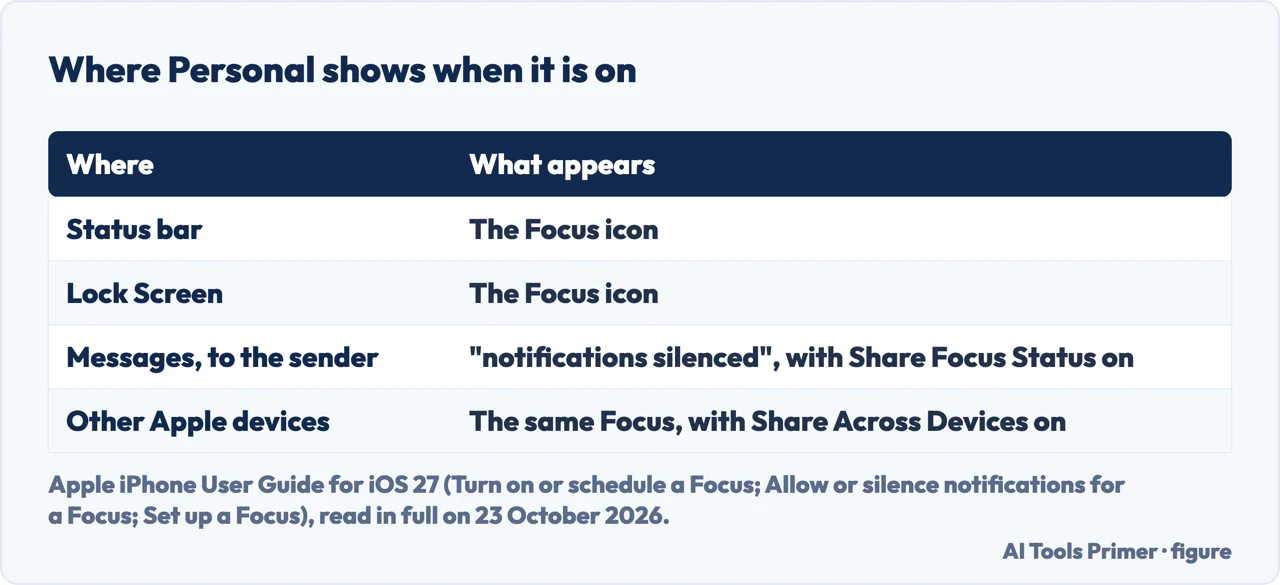
On your phone, Apple says the Focus icon appears in the status bar and on the Lock Screen. For people who message you, Apple’s guide says your status is shown in Messages automatically: “People who try to send you a message will see that you’ve silenced notifications, but they can still notify you if something is urgent.”
That message is about silenced notifications, and Apple describes it the same way for every Focus. Its guide does not say that the name Personal is shown to anyone. Whether the message appears at all is a setting:
- Settings › Focus › Focus Status, then Share Focus Status on or off. With it on, Apple lets you choose which Focus profiles can share that you have notifications silenced, so Personal can share it while Work does not.
- Apple’s note on Share Across Devices adds that, with both on, people who text you will see that your notifications are silenced, and that you can change the setting for specific people on their contact card.
Screens and filters: what Personal changes besides notifications
A Focus can change what the phone looks like, not only what it lets through. Apple’s guide lists three ways:
- A Lock Screen. You can link a Lock Screen to a Focus so that your Focus settings apply whenever you use that Lock Screen and that Lock Screen appears whenever the Focus is on. You set it from the Lock Screen itself: touch and hold it, then tap Focus near the bottom of the wallpaper and choose Personal.
- A Home Screen page. Chosen on the Personal screen in Settings, which Apple says helps limit distractions; MacRumors describes it as a page with only the apps you pick, and notes that the Dock stays available and the App Library still opens other apps.
- Focus filters. Add Filter decides what apps show during the Focus, and Apple’s example is which mail account or calendar to use. MacRumors adds filters for Safari tab groups and Messages conversations, and system filters such as Dark Mode and Low Power Mode. Apple notes that Focus filters do not sync across devices when Share Across Devices is on.
Why Personal keeps turning on by itself
It is one of the searches Google suggests next, and every cause Apple documents is a setting you, or someone with your phone, made:
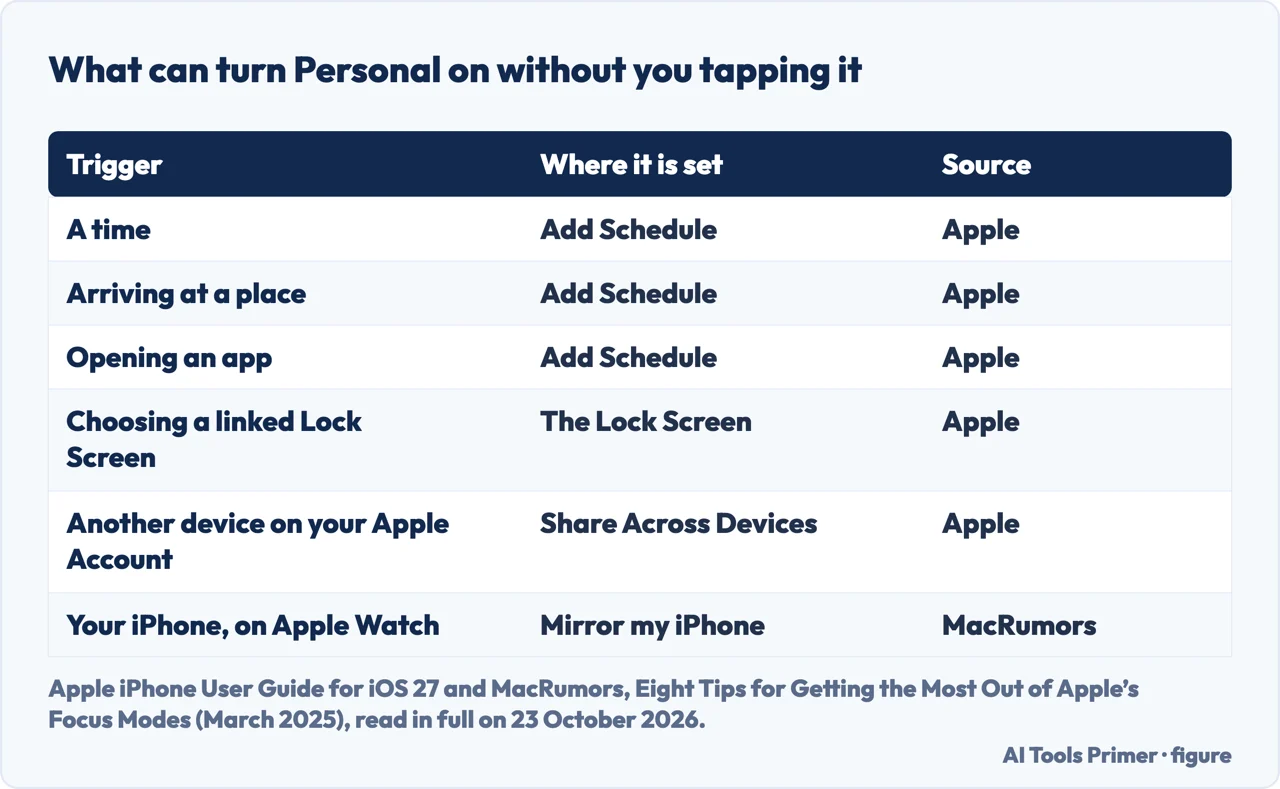
- A schedule. Apple’s Add Schedule turns a Focus on at certain times, when you are at a particular location, or when you open a specific app. Check Settings › Focus › Personal.
- A linked Lock Screen. Apple writes that if a Lock Screen links to a specific Focus, switching from that Lock Screen to another also switches your Focus. Swiping to a favourite wallpaper can turn Personal on.
- Another device. With Share Across Devices on, Apple says you use the same Focus settings on all your Apple devices signed in to the same Apple Account. MacRumors writes that Focus is shared this way by default, so Personal switched on at a Mac or an iPad is on at the iPhone too.
- An Apple Watch mirrors the iPhone’s Focus unless you turn off Mirror my iPhone on the watch, per MacRumors.
Orchard and The Mobile Base also name Smart Activation, which turns a Focus on from how you use the phone. The five pages of Apple’s iOS 27 guide we read do not mention it; MacRumors describes it for the Reading and Work options. If none of the above explains what you see, that is the setting to look for on the Personal screen.
Personal and Do Not Disturb
Orchard draws the line this way: Do Not Disturb blocks most notifications, Personal filters them. Apple’s guide shows no difference in kind. It offers the same People and Apps screens for Do Not Disturb, Personal, Sleep and Work, and its own example of allowing notifications names all four. Since iOS 15, Apple’s support article says, Do Not Disturb has been one Focus option among the others.
The differences that do exist are of starting point and of name. Per MacRumors, Do Not Disturb starts by silencing all apps and people. Sleep follows the sleep schedule set in the Health app, in Apple’s words, and Reduce Interruptions uses Apple Intelligence to let through only what might need attention. Personal has a name, an icon, and whatever you put in it. Two practical consequences follow. Only one Focus is on at a time, because Apple says turning on a new one turns the other off; and if you leave Personal empty and set Do Not Disturb to let your family through, the one called Personal is the stricter of the two.
Turning Personal off, deleting it, and getting it back
Apple gives three ways to turn a Focus off: touch and hold the Focus icon on the Lock Screen; open Control Center and tap Focus, then tap the Focus that is on; or go to Settings › Focus › Personal. Siri works too, and Apple’s example request is to turn on the Work Focus. Turned off, Apple says, it stays in Control Center to be used again.
If you never want it, Apple’s guide has a Delete Focus button at the bottom of Settings › Focus › Personal. It also says how to undo that: a provided Focus you delete has to be set up again from Settings › Focus and the add button, and MacRumors writes that the same button is where custom options start, as a blank slate with your own name and icon.
Where to start
Five ways in.
- “What is it, exactly?”
- What it is — what it is
- “Will calls still ring?”
- Calls — calls
- “Can people see it?”
- What others see — others
- “It keeps turning on.”
- The triggers — turns on
- “I want it gone.”
- Off and deleted — off
Other ways an iPhone goes quiet
Personal is one Focus among six; these pages cover Do Not Disturb and the settings that silence a phone without a Focus.
Other iPhone settings worth knowing
Switches that change what other people see, or what your phone does, from one screen in Settings.
Questions people also ask
What happens when you turn on Personal Focus?
Notifications and calls are silenced except for the people and apps you allowed on its People and Apps screens, its icon appears in the status bar and on the Lock Screen, and, with Share Focus Status on, people who message you see that your notifications are silenced.
What do others see when Personal Focus is on?
Apple describes a status in Messages saying you have silenced notifications, with a way to notify you anyway if it is urgent. Apple’s guide does not say the name Personal is shown, and Share Focus Status can turn the message off.
Does Personal Focus allow calls?
Only from the people and groups you allow, plus repeated calls if you turn that on: Apple defines them as two or more calls from the same person within 3 minutes. Emergency Bypass on a contact lets that person through regardless.
What is the difference between Do Not Disturb and Personal Focus?
The name and the starting point. Apple gives both the same People and Apps settings; MacRumors writes that Do Not Disturb starts by silencing all apps and people. Only one Focus can be on at a time.
Not covered here. We did not set up a Focus on an iPhone for this page. The settings credited to Apple come from five pages of Apple’s iPhone User Guide for iOS 27 and Apple’s support article on Do Not Disturb, read on 23 October 2026; what a fresh Personal allows is not written in any of them, and we do not guess it.
MacRumors is a news site; Orchard and The Mobile Base sell phones, and their descriptions of Personal are their own. The Reddit and MPU Talk threads in the results could not be read, and the videos were not watched.
The search volume and difficulty behind this page were read in Semrush on 29 August 2026.
Sources
- Apple — iPhone User Guide, Set up a Focus on iPhone (iOS 27) — support.apple.com, read 23 October 2026.
- Apple — iPhone User Guide, Allow or silence notifications for a Focus on iPhone (iOS 27) — support.apple.com, read 23 October 2026.
- Apple — iPhone User Guide, Turn on or schedule a Focus on iPhone (iOS 27) — support.apple.com, read 23 October 2026.
- Apple — iPhone User Guide, Create a custom iPhone Lock Screen (iOS 27) — support.apple.com, read 23 October 2026.
- Apple — iPhone User Guide, Summarize notifications and reduce interruptions with Apple Intelligence (iOS 27) — support.apple.com, read 23 October 2026.
- Apple Support — How to turn Do Not Disturb on or off on your iPhone — support.apple.com, read 23 October 2026.
- MacRumors — Eight Tips for Getting the Most Out of Apple’s Focus Modes (Juli Clover, March 2025) — www.macrumors.com, read 23 October 2026.
- Orchard — What Is Personal Focus on iPhone? (And How to Use It) (April 2026) — www.getorchard.com, read 23 October 2026.
- The Mobile Base — Mastering iPhone Focus Modes: How to Customize Them for Your Life (March 2025) — www.themobilebase.ca, read 23 October 2026.
Written by Alberto Gulotta
Founder and editor of AI Tools Primer, writing from Palermo, Italy. Thirty-five years of taking computers apart, starting with a Commodore 64 — the long version is on the about page.
Something wrong on this page? Write to aitoolsprimer@gmail.com and it gets fixed.
Written on 23 October 2026.
Independence and limits
No affiliate links and no paid placements anywhere on this site. Nobody pays to appear here, and no company has seen this page before you did.
This is general information, not professional advice. Where a page touches money, health, safety or the law, it names its source and the date it was read — and your situation may still differ. See the privacy page and the cookie policy.