
Software · guide
How to change wallpaper on Mac, and what each kind of wallpaper does
By Alberto Gulotta · Updated · 9 min read
How to change wallpaper on Mac: open System Settings, click Wallpaper in the sidebar and pick one. Apple lists dynamic, aerial, still, color and your own photos, and says Add Photo takes a file, a folder or a Photos album. Control-click gives Safari and Finder shortcuts, and Photos has Set Wallpaper. Show on all Spaces keeps one picture.
| Question | Answer | Where it comes from |
|---|---|---|
| Where is the setting? | System Settings, then Wallpaper in the sidebar, which you may need to scroll to | Apple Support |
| How do I use my own picture? | Under Your Photos, Add Photo, then choose from Photos, a file or a folder | Apple Support |
| Is there a shortcut? | Yes, from Safari, the Finder or Photos, without opening Wallpaper settings | Apple Support |
| Can it change by itself? | Dynamic Wallpapers follow the time of day, and aerials and colors can shuffle | Apple Support |
| Same picture on every screen? | Turn on Show on all Spaces | Apple Support |
The route through System Settings
Apple’s macOS User Guide says you can change the picture on your desktop by choosing from pictures or colors provided by Apple or by using your own images. For a built-in wallpaper, go to the System Settings app, click Wallpaper in the sidebar, which you may need to scroll down to, and select one from the available categories. The second Apple page gives the other way in, Apple menu, System Settings, then Wallpaper. Options appear next to the wallpaper name at the top of the screen and vary with the wallpaper you choose; Apple’s examples are turning on a slow-motion aerial as a screen saver, choosing how often to shuffle through aerials, and choosing light or dark still versions of a Dynamic Wallpaper. If a download icon appears next to an image, Apple says you need to click it to download and use it.
What each kind of wallpaper does
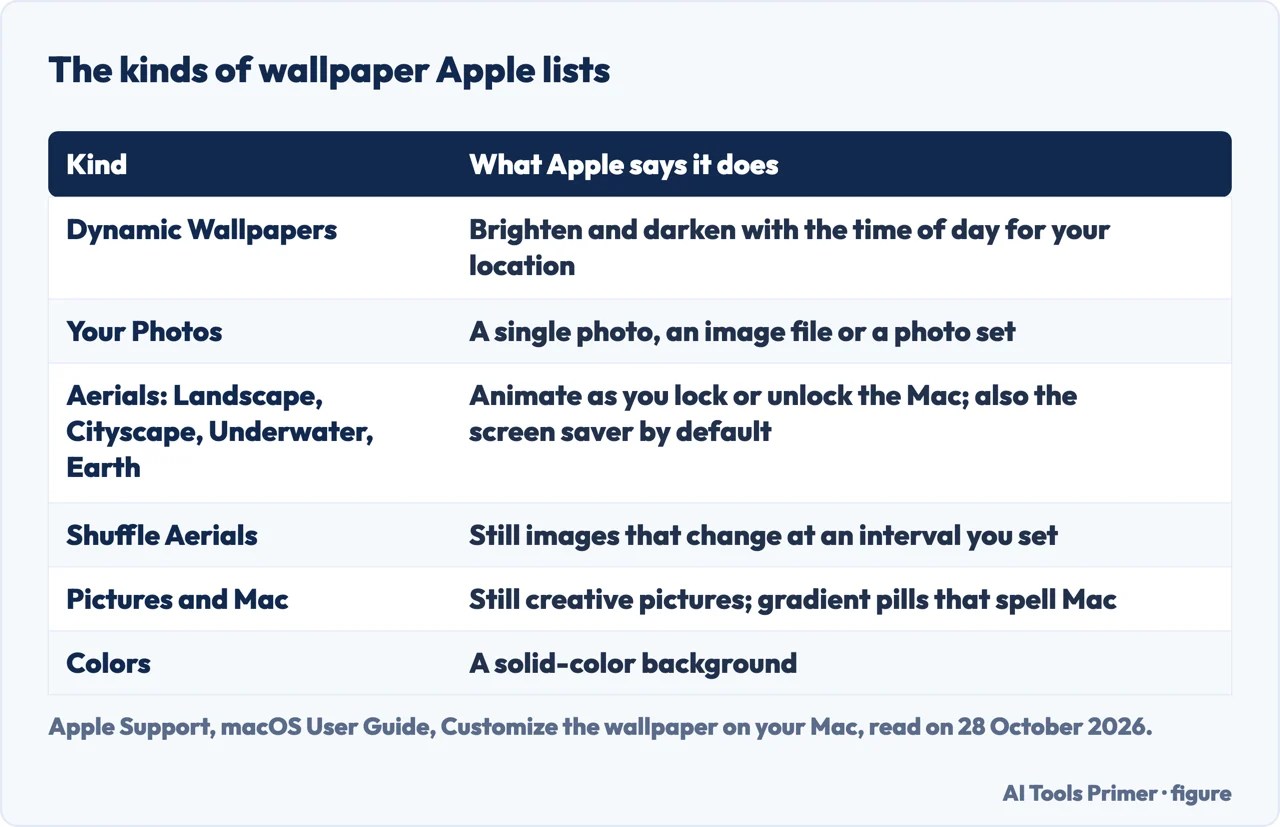
Apple lists the kinds this way. Dynamic Wallpapers brighten and darken with the time of day for your current location. Your Photos holds a single photo, an image file or a photo set. The aerial categories, Landscape, Cityscape, Underwater and Earth, animate as you lock or unlock the Mac, and by default the aerial you pick is also used as your screen saver. Mac shows gradient pill shapes that form the word Mac. Shuffle Aerials are still images that change at an interval you set. Pictures are still creative pictures, and Colors are swatches that give a solid-color background. On the settings page, Apple says a pop-up menu next to the thumbnail can set the appearance: Automatic switches from light to dark at sunset when Appearance is set to Auto, Dynamic gradually brightens and darkens, and Light and Dark Still show a static version.
Setapp, the maker of a subscription to Mac apps that uses its page to promote them, draws a line Apple’s two pages do not draw: a wallpaper is the image on your desktop and a screen saver is what appears after the Mac has been idle for a while. It also describes Live Wallpapers as short videos marked with a Play icon, which appear as a still on the desktop but play as video on the Lock Screen and keep playing for a few seconds when you unlock. We did not see that wording on Apple’s pages.
Using your own picture, and the shortcuts
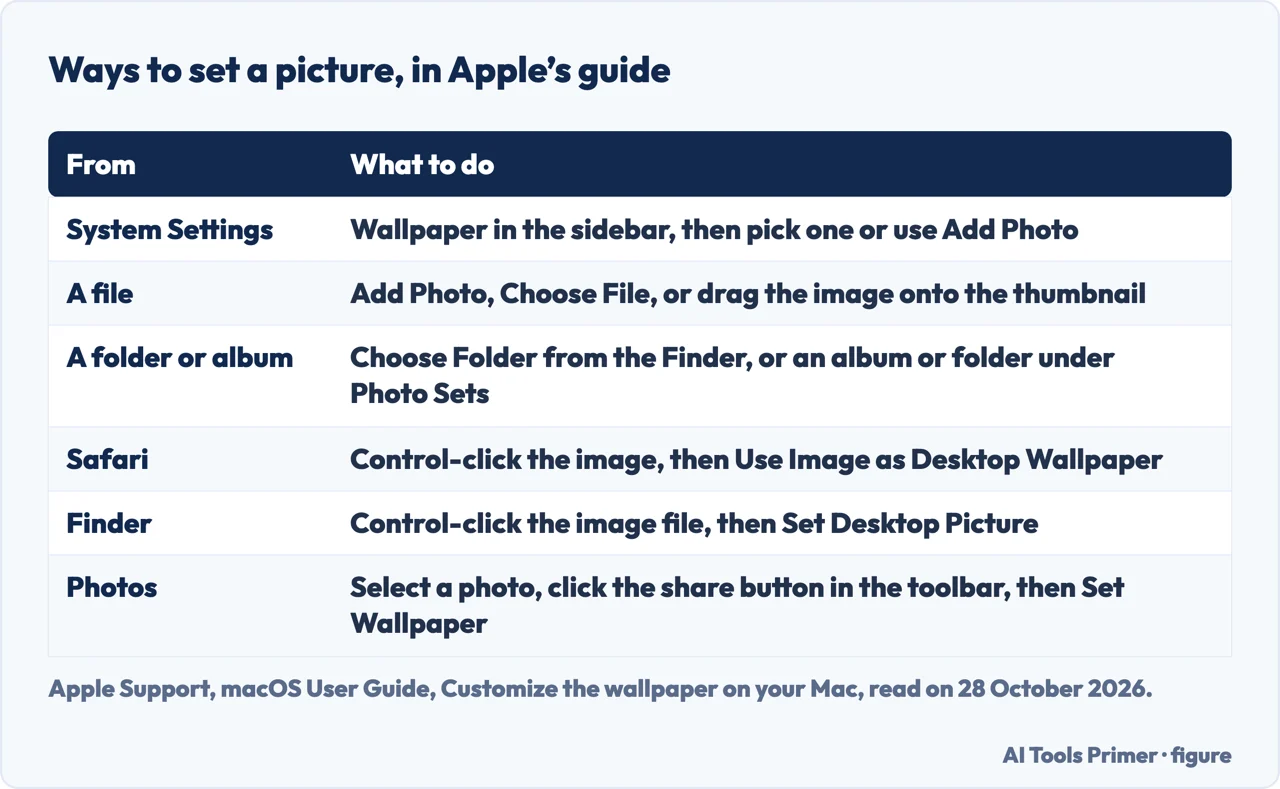
In Wallpaper settings, Apple says to scroll down to Your Photos, click the Add Photo button and then do one of four things: choose from Photos and select a photo; choose File, select a file and click Open, or drag an image from the desktop or a folder onto the thumbnail at the top of Wallpaper settings; choose Folder, select a folder from the Finder and click Open; or select an album or folder under Photo Sets. Apple notes you can choose the size and position of the image and shuffle images in the settings page. Setapp says that if you pick a folder, the images rotate on a schedule that runs from every 5 seconds to once a day, and that to change the fit you pick Fill Screen, Fit to Screen or Center under Desktop & Screen Saver in System Preferences, the older name of the pane.
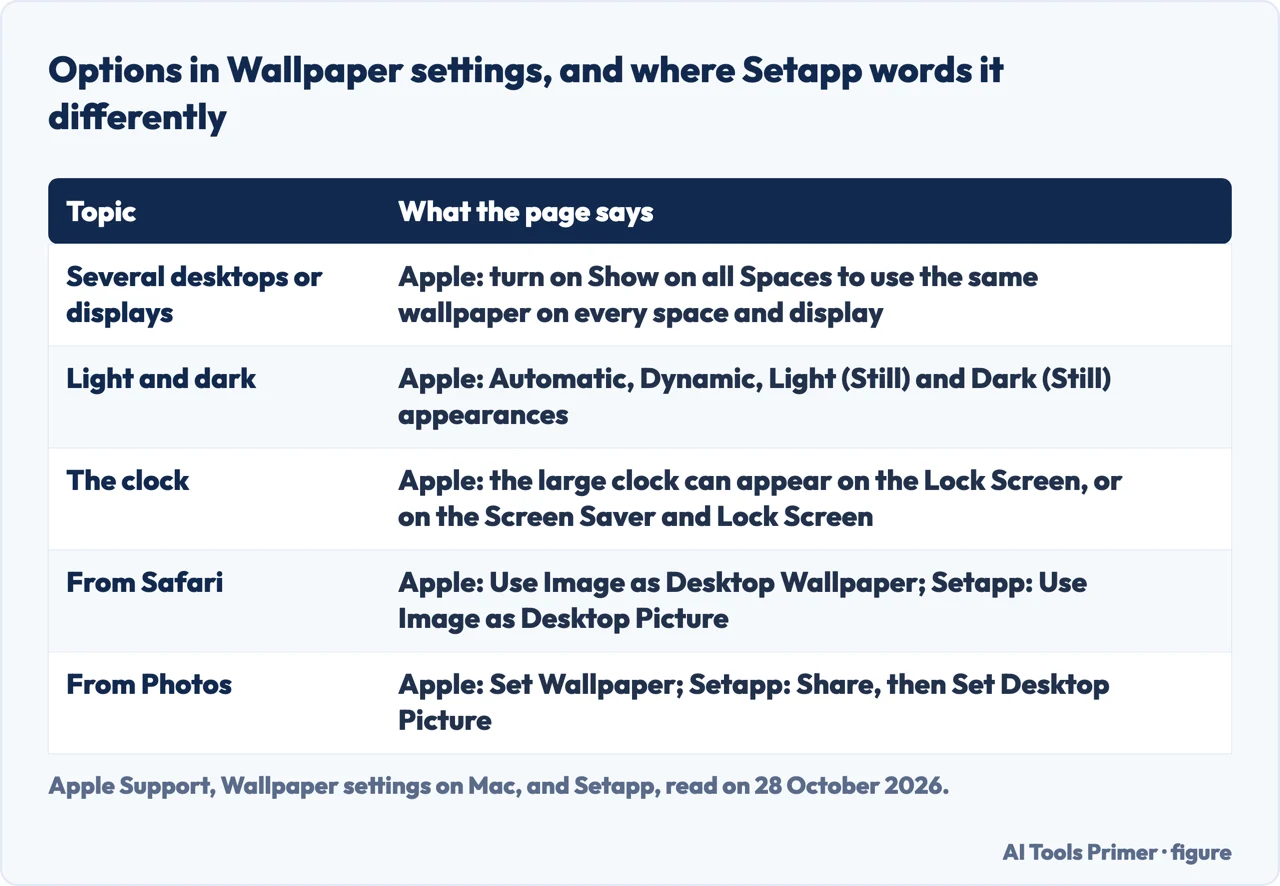
Apple also gives three ways that skip Wallpaper settings. In Safari, Control-click an image on the web and choose Use Image as Desktop Wallpaper. In the Finder, Control-click an image file and click Set Desktop Picture. In Photos, select a photo, click the share button in the toolbar and click Set Wallpaper. Setapp words two of them differently, Use Image as Desktop Picture in Safari and Share, then Set Desktop Picture in Photos, which suggests menu names that change with the version of macOS; we did not check which macOS each page was written for. To remove a picture from Your Photos, Apple says to hold the pointer over it and click the remove button, and that a photo cannot be removed while it is the wallpaper in use.
Several screens, the Lock Screen and changing it by itself
For more than one desktop or display, Apple says to turn on Show on all Spaces to use the same wallpaper on every desktop space and display. It also says you can choose whether the large clock appears and where, on the Lock Screen or on both the Screen Saver and the Lock Screen, and pick its font and weight. The pages we read do not describe choosing a different picture for the Lock Screen. For a wallpaper that changes without you, Apple lists Dynamic Wallpapers, which follow the time of day, Shuffle Aerials at an interval you choose, and a button that shuffles through the Colors. Our page on the iPhone wallpaper covers the phone.
What we did not use
We changed no wallpaper on a Mac. We did not watch the three videos or read the Reddit thread that Google listed, and the Google AI box was not detected in our read. The two Apple pages do not say which version of macOS they describe, and the pages in the Apple guide change with each release, so the names above are the ones we saw on 28 October 2026. We left out Setapp’s advice on its own apps for dynamic wallpapers, screen savers and photo editing. Screen savers are covered only where they touch the wallpaper settings.
Where to start
Four ways in.
- “Where is the setting?”
- The route through System Settings — steps
- “What are the kinds?”
- What each kind of wallpaper does — kinds
- “Can I use my own picture?”
- Using your own picture, and the shortcuts — own
- “What about several screens?”
- Several screens, the Lock Screen and changing it by itself — more
On the Mac screen
Wallpaper on the other system, and the screen itself.
Other things on a Mac
Screenshots, restarts and resets.
Questions people also ask
How do I customize my Mac home screen?
Apple’s guide covers the wallpaper, the screen saver, the Lock Screen clock and whether a wallpaper is shared across spaces and displays, all in System Settings under Wallpaper. It does not use the words home screen.
How do I change my desktop background?
System Settings, then Wallpaper in the sidebar, and select a wallpaper from the categories Apple lists. Or Control-click an image in Safari and choose Use Image as Desktop Wallpaper.
How can I make my Wallpaper change automatically on my Mac?
Apple says Dynamic Wallpapers brighten and darken with the time of day, Shuffle Aerials change at an interval you set, and Colors can be shuffled. Setapp says a folder of your own images rotates from every 5 seconds to once a day.
Can you set a different Wallpaper for home and lock screen on Mac?
The pages we read do not describe choosing a different picture for the Lock Screen. Apple does describe where the large clock appears, and Setapp says Live Wallpapers play as video on the Lock Screen.
Not covered here. We changed no wallpaper on a Mac. The statements come from two Apple Support pages from the macOS User Guide and a Setapp article, all read on 28 October 2026.
The search volume and difficulty behind this page come from a Semrush reading of 29 August 2026, older than the 60 days the site normally allows.
Sources
- Apple Support — Customize the wallpaper on your Mac — support.apple.com, read 28 October 2026.
- Apple Support — Wallpaper settings on Mac — support.apple.com, read 28 October 2026.
- Setapp — How to change desktop background and screensaver on Mac — setapp.com, read 28 October 2026.
Written by Alberto Gulotta
Founder and editor of AI Tools Primer, writing from Palermo, Italy. Thirty-five years of taking computers apart, starting with a Commodore 64 — the long version is on the about page.
Something wrong on this page? Write to aitoolsprimer@gmail.com and it gets fixed.
Written on 28 October 2026.
Independence and limits
No affiliate links and no paid placements anywhere on this site. Nobody pays to appear here, and no company has seen this page before you did.
This is general information, not professional advice. Where a page touches money, health, safety or the law, it names its source and the date it was read — and your situation may still differ. See the privacy page and the cookie policy.