
Software · guide
Debloat Windows 11: what Settings does and what scripts add
By Alberto Gulotta · Updated · 10 min read
Debloat Windows 11 from Settings first. Microsoft's own pages cover removing apps, stopping startup apps, switching off personalized ads and making a restore point. PCMag tested four debloat tools in a virtual machine and found they saved at most 100MB or 200MB of RAM, and Win11Debloat's own README lists changes well beyond apps.
| Question | Answer | Where it comes from |
|---|---|---|
| Where do I remove apps? | Settings > Apps > Installed apps, then More > Uninstall; some apps are built into Windows and cannot be uninstalled | Microsoft Support |
| Where do I stop apps starting at sign-in? | Settings > Apps > Startup, or the Startup apps tab in Task Manager | Microsoft Support |
| Where are the ads and suggestions? | Settings > Privacy & security > Personalized offers, and Recommendations & offers | Microsoft Support |
| How much memory does a debloat tool save? | At most 100MB or 200MB in PCMag’s test of four tools | PCMag |
| Is there a way back? | A restore point, but System Protection is not enabled by default | Microsoft Support |
Removing the apps
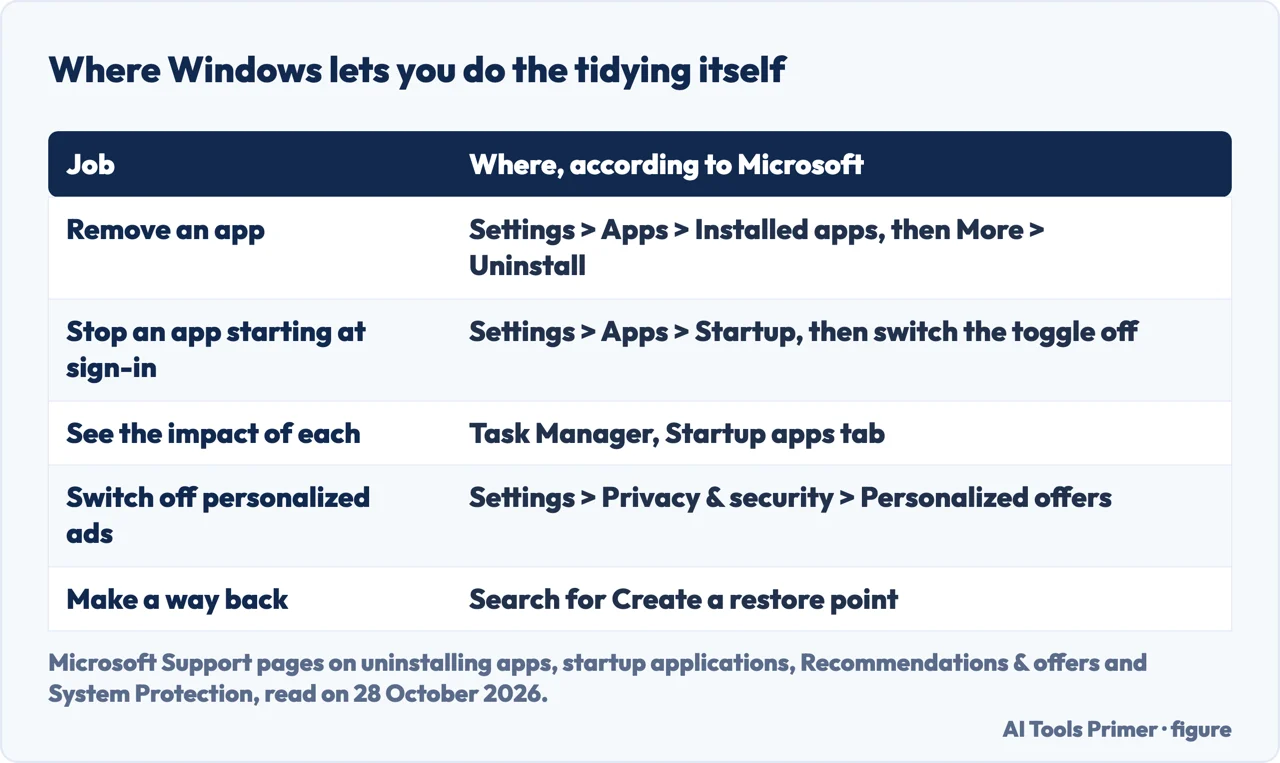
Microsoft Support’s page on uninstalling apps, which applies to Windows 10 and 11, gives three routes: Start > All apps, then press and hold or right-click the app and select Uninstall; Start > Settings > Apps > Installed apps, then More > Uninstall; and Control Panel > Programs and Features for the apps Settings cannot remove. It also says some apps and programs are built into Windows and can’t be uninstalled, and points to a Program Install and Uninstall troubleshooter when removal gives an error. Engadget, in an article dated 28 September 2026, says it is difficult to break Windows beyond repair by uninstalling apps, because Microsoft generally prevents crucial parts from being easily removed, but that you can go overboard: the Windows Runtime programs are necessary for running software. It suggests starting with the most obvious bloatware, such as casual games and third-party security tools, and names the Xbox app as one to remove if you do not play video games. PCMag says the same can be done from the Start menu by right-clicking an app and choosing Uninstall, and that OneDrive can be uninstalled if you do not like how it backs up your folders.
What starts with Windows
Microsoft Support’s page on startup applications covers Windows 11 and Windows 10. In Settings > Apps > Startup each listed app has a toggle: On starts it when you sign in, Off stops it. The Startup apps tab of Task Manager gives the same list with Enable and Disable, and adds the impact each app has on startup. Microsoft defines the ratings: Low is under 300 milliseconds of CPU and under 292 kilobytes of disk; Medium is under 1 second but over 300 milliseconds, or under 3 megabytes but over 292 kilobytes; High is more than 1 second of CPU or more than 3 megabytes of disk. Apps that are not registered with a startup task are handled in File Explorer, through the shell:startup folder for the current user or shell:common startup for all users.
Ads, suggestions and tracking
Microsoft Support’s page on Recommendations & offers in Windows 11 covers five switches. Under Settings > Privacy & security > Personalized offers you choose whether to get personalized tips, ads and recommendations based on your Windows activity. Under Privacy & security > Recommendations & offers you choose whether apps may show personalized ads by using your advertising ID, whether websites can access your language list, whether Windows tracks app launches to improve Start and search results, and whether to show suggested content in the Settings app. Microsoft adds that turning the advertising ID off will not reduce the number of ads you see, only make them less relevant, and that turning it back on resets the ID. PCMag adds a limit: Home and Professional editions of Windows 11 always send required diagnostic data, and a debloat tool that flips a Group Policy or Registry setting for it is ignored by Windows unless you use the LTSC version, which is intended for businesses.
Before you change anything
Microsoft Support’s page on System Protection, which covers Windows 11 and 10, says it safeguards system settings by creating restore points, snapshots of system files, installed applications, the Windows Registry and system settings, and that you can go back to one without affecting personal data. It says the feature is not enabled by default and recommends turning it on. To do that, search for Create a restore point, or press Windows and R and enter systempropertiesprotection.exe; on the System Protection tab select Configure, choose Turn on system protection and set the maximum disk space with the slider. To make one by hand, select Create, give it a description and select Create again; System Restore takes you back to it. Engadget also advises creating a restore point before running its tweak tool.
What the scripts do beyond the apps
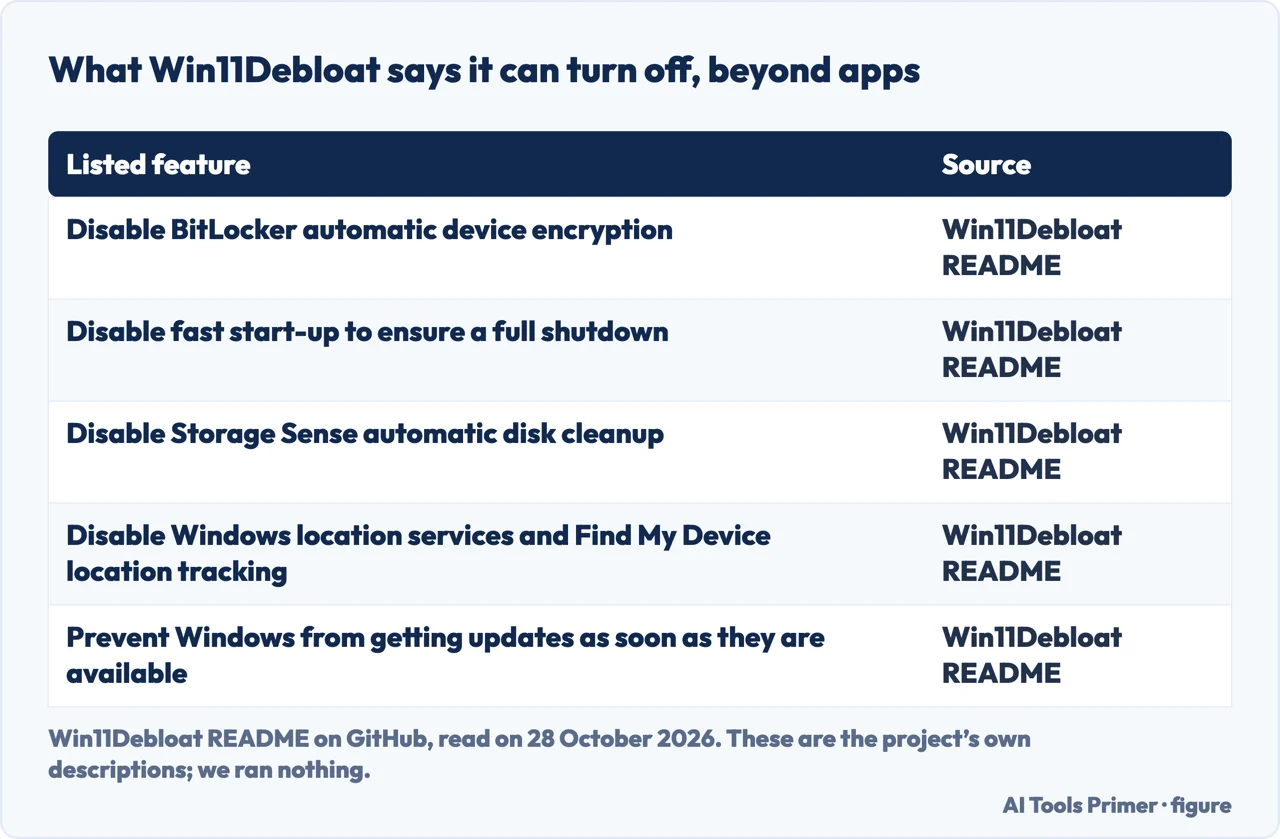
A Windows 11 debloat script does more than remove apps. Win11Debloat, one of the four tools PCMag tested, describes itself in its GitHub README as a PowerShell script that removes pre-installed apps, disables telemetry and removes intrusive interface elements, and it carries a warning to use it at your own risk. Its feature list also includes disabling BitLocker automatic device encryption, disabling fast start-up, disabling Storage Sense automatic disk cleanup, disabling Windows location services and Find My Device location tracking, and preventing Windows from getting updates as soon as they are available. PCMag says Win11Debloat’s default settings disable Fast Startup, which makes Windows shut down fully and boot a bit slower, and that Chris Titus Tech’s Windows Utility sets many background services to start manually, which might introduce delays. It calls Tiny11 Core Builder dangerous, because the image it makes has no working Windows Update and so no security fixes, and says Windows Update may reinstall parts you removed. Engadget, which recommends Chris Titus Tech’s WinUtil, still cautions against one-click tools and says you should never run a command from the internet without being certain what it does. The Win11Debloat README says its changes can be reverted and almost all removed apps reinstalled through the Microsoft Store; we did not test that.
What a debloat saves
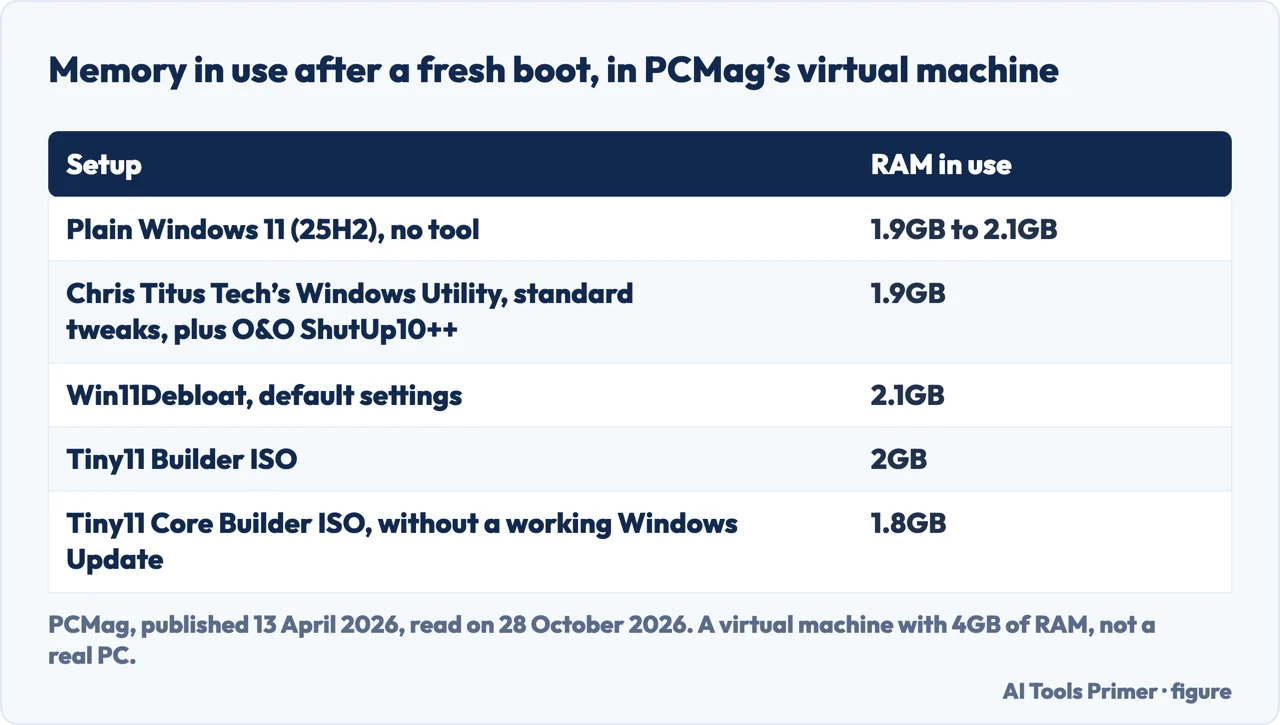
PCMag installed Windows 11 version 25H2 in a virtual machine with 4GB of RAM and found the plain install used between 1.9GB and 2.1GB on a fresh boot. After Chris Titus Tech’s Windows Utility with its standard tweaks, plus O&O ShutUp10++, the figure was 1.9GB; after Win11Debloat with default settings, 2.1GB; an ISO built with Tiny11 Builder used 2GB, and one built with Tiny11 Core Builder, which has no working Windows Update, used 1.8GB. PCMag’s summary is that none of the four tools made much of a dent in memory use, saving at most 100MB or 200MB. The article was published on 13 April 2026 and the test ran in a virtual machine; we measured no machine ourselves.
What we did not use
We did not use the Reddit thread, the Level1Techs forum thread, the Chris Titus Tech page or the Atera blog post; the Atera page gave us only a contact form when we fetched it. We ran no tool and no step on a PC. The startup and uninstall pages from Microsoft cover Windows 10 as well as 11, and PCMag’s test used version 25H2 only.
Where to start
Four ways in.
- “Which apps can I remove?”
- Removing the apps — apps
- “It starts too slowly.”
- What starts with Windows — startup
- “Is a script worth it?”
- What the scripts do — scripts
- “How much does it save?”
- What a debloat saves — measured
Cleaning up Windows
Slowness, leftovers and the diagnostic mode.
If a change goes wrong
Resets, encryption keys and updates.
Questions people also ask
Can you fully debloat Windows 11?
Microsoft says some apps are built into Windows and cannot be uninstalled, PCMag says Home and Professional always send required diagnostic data, and PCMag adds that Windows Update may reinstall parts you removed.
Is it a good idea to debloat Windows 11?
PCMag recommends doing it yourself in Settings rather than trusting third-party tools. Engadget recommends manual removal plus one carefully used utility, with a restore point first. PCMag measured at most 100MB or 200MB of RAM saved.
Does Windows 11 have bloat?
Engadget says it ships with pre-installed third-party apps, adware and data collection. PCMag says it comes with bundled apps, advertisements and features that send data to Microsoft, yet a fresh install used 1.9GB to 2.1GB of RAM.
How can I manually debloat Windows 11?
Remove apps in Settings > Apps > Installed apps, switch off startup apps in Settings > Apps > Startup, turn off personalized offers and the advertising ID under Privacy & security, and make a restore point first. Microsoft’s pages describe each step.
Not covered here. We ran no tool and no step on a PC. The statements come from four Microsoft Support pages, PCMag (published 13 April 2026), Engadget (28 September 2026) and the Win11Debloat README on GitHub, all read on 28 October 2026.
The search volume and difficulty behind this page were read in Semrush on 28 October 2026.
Sources
- Microsoft Support — Uninstall or remove apps and programs in Windows — support.microsoft.com, read 28 October 2026.
- Microsoft Support — Configure Startup applications in Windows — support.microsoft.com, read 28 October 2026.
- Microsoft Support — Privacy settings for Recommendations & offers in Windows 11 — support.microsoft.com, read 28 October 2026.
- Microsoft Support — System Protection — support.microsoft.com, read 28 October 2026.
- PCMag — I Put 4 Windows Debloating Tools to the Test. The Results Were Embarrassing (13 April 2026) — www.pcmag.com, read 28 October 2026.
- Engadget — The safest and easiest way to debloat Windows 11 (28 September 2026) — www.engadget.com, read 28 October 2026.
- GitHub — Win11Debloat README — github.com, read 28 October 2026.
Written by Alberto Gulotta
Founder and editor of AI Tools Primer, writing from Palermo, Italy. Thirty-five years of taking computers apart, starting with a Commodore 64 — the long version is on the about page.
Something wrong on this page? Write to aitoolsprimer@gmail.com and it gets fixed.
Written on 28 October 2026.
Independence and limits
No affiliate links and no paid placements anywhere on this site. Nobody pays to appear here, and no company has seen this page before you did.
This is general information, not professional advice. Where a page touches money, health, safety or the law, it names its source and the date it was read — and your situation may still differ. See the privacy page and the cookie policy.