
Software · guide
Hard drive repair with the tools Windows and macOS ship
By Alberto Gulotta · Updated · 9 min read
Hard drive repair with what Windows and macOS include: chkdsk checks a volume for logical and physical errors, /f fixes them, /r also locates bad sectors; on a Mac, First Aid in Disk Utility fixes formatting and directory errors. If Disk Utility says the disk is about to fail, Apple says it can’t be repaired: back up, then replace it.
| What | What its maker says |
|---|---|
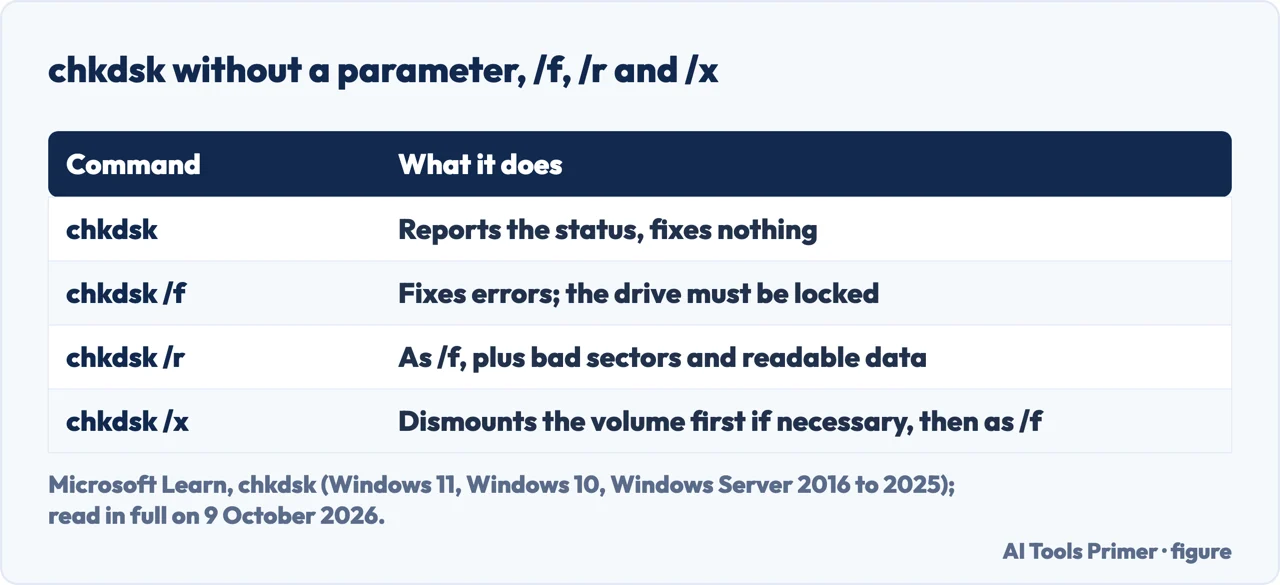
| chkdsk, no parameters | Shows the status of the volume and fixes nothing |
| chkdsk /f | Fixes errors; the drive must be locked, or chkdsk asks whether to check it at the next restart |
| chkdsk /r | Does what /f does, and also locates bad sectors and recovers readable information |
| Where chkdsk applies | Windows 11, Windows 10 and Windows Server 2016 to 2025, local disks only |
| First Aid in Disk Utility | Fixes errors in the formatting and directory structure of a Mac storage device, but not every problem a disk may have |
| A disk “about to fail” | Apple says to back up and replace it: it can’t be repaired |
Before any repair. Apple says to have a current backup before running First Aid, and Microsoft says that repairs on FAT file systems usually change the file allocation table and sometimes cause a loss of data. What Windows and a Mac already include for that is in backing up a computer, and on a laptop from Apple in backing up a MacBook. The drive’s health is in how to check hard drive health.
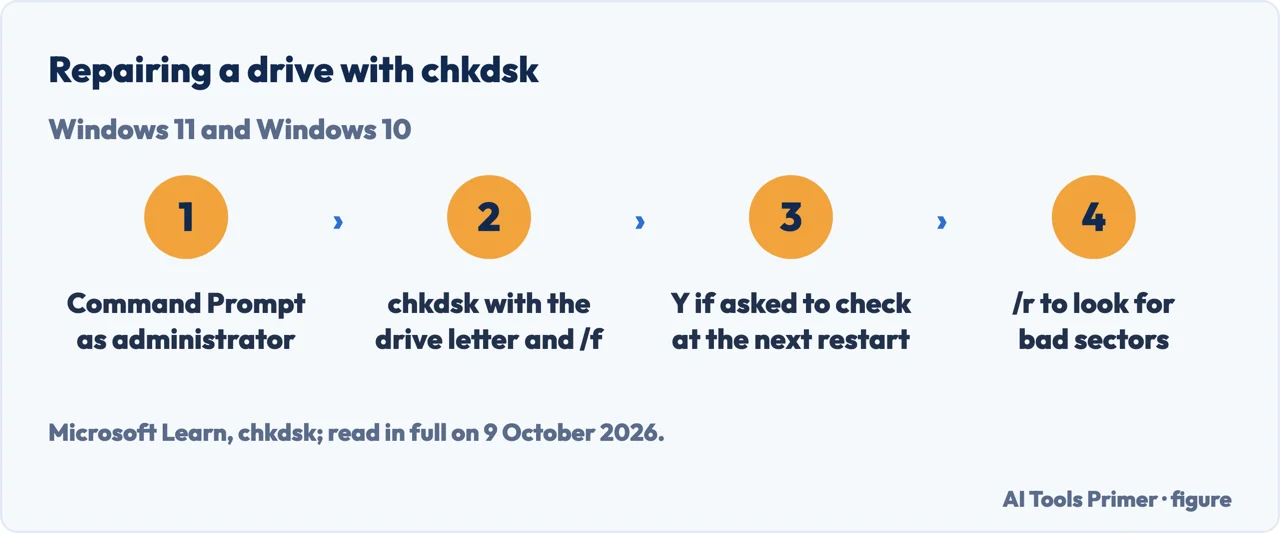
- Open Command Prompt as an administrator. Microsoft says membership in the local Administrators group, or equivalent, is the minimum to run chkdsk: right-click Command prompt in the Start menu and select Run as administrator.
- Run chkdsk with the drive letter and /f. Microsoft’s own example is
chkdsk d: /f, which checks drive D and has Windows fix the errors it finds. Without a parameter, chkdsk only reports. - Answer Y if the drive is in use. Microsoft says chkdsk can’t correct errors while files are open on the drive, and then offers to check it at the next restart; on the boot partition it restarts the computer itself after the check.
- Use /r to locate bad sectors. Microsoft says /r includes /f and adds the analysis of physical disk errors, and that on large hard disks it normally takes a considerable time, as it reads every sector; runs of many hours aren’t uncommon for large drives.
- Let it finish. Microsoft says interrupting chkdsk isn’t recommended, though it shouldn’t leave the volume more corrupt than before; running it again checks and should repair what is left.
On a Mac: First Aid in Disk Utility
Before you start. Apple says to have a current backup, in case you need to recover damaged files or Disk Utility finds errors it can’t repair. For the startup disk, or a Mac that doesn’t start up all the way, open Disk Utility from macOS Recovery; Disk Utility is also in the Utilities folder of Applications.
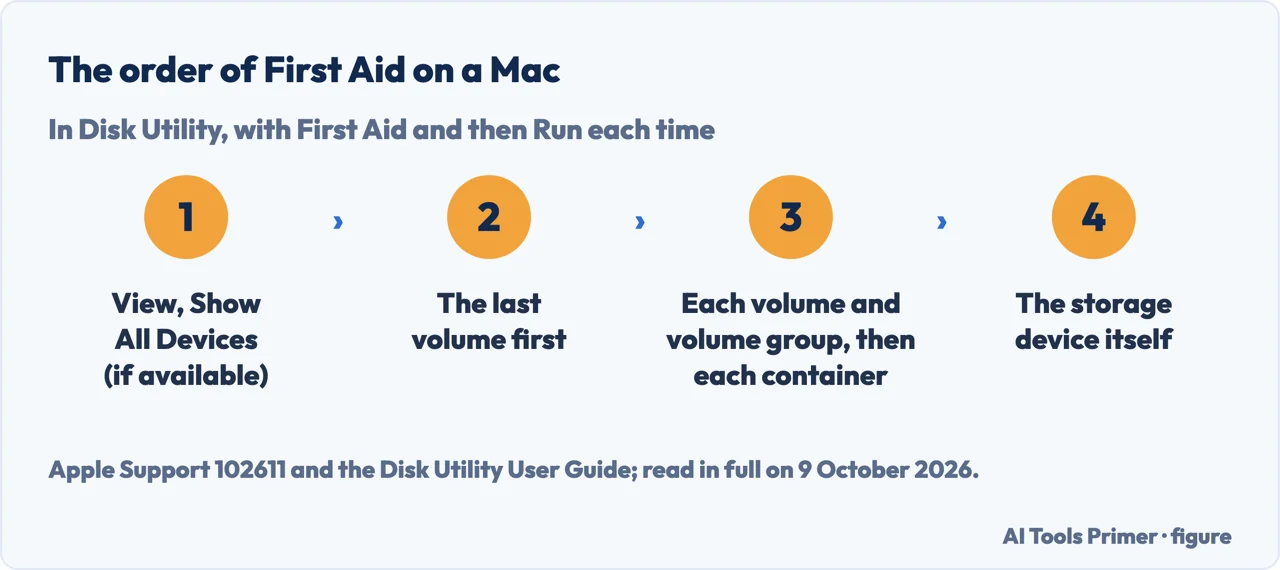
The order. Choose View, then Show All Devices, if available. Start with the last volume of the device, click First Aid, then Run, and work up the list: each volume and volume group, then each container, then the storage device itself. Apple says that if you check the startup volume, Macintosh HD, you should also check the data volume, Macintosh HD - Data.
When it can’t fix it. Apple says to try again; if that fails, to back up as much as you can, erase (reformat) the disk, reinstall macOS and restore the backup. An “overlapped extent allocation” error means two or more files occupy the same space and at least one is likely to be corrupted; most of the files listed have aliases in a DamagedFiles folder at the top level of the disk.
Reading the result. On a FAT disk chkdsk may report lost allocation units and ask whether to save them: Microsoft says Y saves each lost chain in the root directory as a file named File<nnnn>.chk, and N fixes the disk without keeping their contents. Event Viewer keeps the log: filter the Application log by the sources Chkdsk and Wininit. On a Mac, when First Aid reports the disk OK or repaired, Show Details gives more information about the repairs.
What these tools can’t do
Physical damage. Apple’s guide says Disk Utility can’t detect or repair all problems a disk may have, that a disk Disk Utility reports as about to fail should be backed up and replaced, and that a disk which keeps having problems, or can’t be repaired, may be physically damaged and need replacing.
A check that ends too quickly. On a large hard disk, Microsoft lists four possible reasons, one of them a failing read head or other hardware issue that makes chkdsk behave unpredictably; another is that it ran only an online scan. Microsoft says the chkdsk logs, in Event Viewer under the sources Chkdsk and Wininit, might point to the issue.
Solid-state drives. Microsoft says chkdsk on an SSD isn’t dangerous, but repeated full-surface scans, especially with /r, could unnecessarily add write and erase cycles and slightly shorten the drive’s life; an occasional check is not a significant concern.
A drive Disk Utility doesn’t show. Apple says that if a device doesn’t appear in the Disk Utility sidebar, the Mac or the device might need service; its steps are to shut down, unplug nonessential devices and try again, and to check an external drive’s cable, connections and power. An external drive that Windows doesn’t recognise over USB is in USB device not recognized.
Which versions. Microsoft’s chkdsk page applies to Windows 11, Windows 10, Windows Server 2016 to 2025 and Azure Local 2311.2 and later. Apple’s support article gives no macOS version, and the text of its Disk Utility guide read here doesn’t say which version it is for; the support article says to click Run, or Repair Disk. Files deleted rather than damaged are a different problem, in recovering deleted files, and a Windows that stops at boot on a disk error is in inaccessible boot device.
Where to start
Five ways in.
- “Where do I start?”
- Before any repair — first
- “I’m on Windows.”
- chkdsk — on windows
- “I’m on a Mac.”
- First Aid — on a mac
- “What did it do?”
- Reading the result — reading the result
- “It keeps failing.”
- When to stop — when to stop
Around the drive
Checking it first, backing it up, and the files that go missing.
Questions people also ask
Can a hard drive be repaired?
Errors on it can be: Microsoft says chkdsk with /f fixes errors on the volume, and Apple says First Aid fixes formatting and directory errors. Apple says Disk Utility can’t detect or repair every problem a disk may have, and that a disk it reports as about to fail can’t be repaired: back up the data and replace the disk.
Is it worth repairing a hard drive?
For a disk that Disk Utility says is about to fail, Apple says you can’t repair it: back up and replace it. For errors chkdsk or First Aid can fix, the tools come with Windows and macOS. This page doesn’t price professional repair or data recovery.
How can I repair a corrupted hard drive?
On Windows, open Command Prompt as an administrator and run chkdsk with the drive letter and /f; add /r to look for bad sectors. On a Mac, run First Aid in Disk Utility on each volume, then each container, then the device, from macOS Recovery for the startup disk.
Not covered here. It does not cover opening a drive, replacing its parts, third-party repair software or professional data recovery.
Sources
- Microsoft Learn — chkdsk (applies to Windows 11, Windows 10, Windows Server 2016 to 2025): parameters, locking, interruption, hard disks and SSDs, logs — learn.microsoft.com, read 9 October 2026.
- Apple, Disk Utility User Guide — Repair a storage device in Disk Utility on Mac — support.apple.com, read 9 October 2026.
- Apple Support — How to repair a Mac storage device with Disk Utility (article 102611) — support.apple.com, read 9 October 2026.
Written by Alberto Gulotta
Founder and editor of AI Tools Primer, writing from Palermo, Italy. Thirty-five years of taking computers apart, starting with a Commodore 64 — the long version is on the about page.
Something wrong on this page? Write to aitoolsprimer@gmail.com and it gets fixed.
Written on 9 October 2026.
Independence and limits
No affiliate links and no paid placements anywhere on this site. Nobody pays to appear here, and no company has seen this page before you did.
This is general information, not professional advice. Where a page touches money, health, safety or the law, it names its source and the date it was read — and your situation may still differ. See the privacy page and the cookie policy.