
Software · guide
HP laptop not turning on: what five pages say to try first
By Alberto Gulotta · Updated · 18 min read
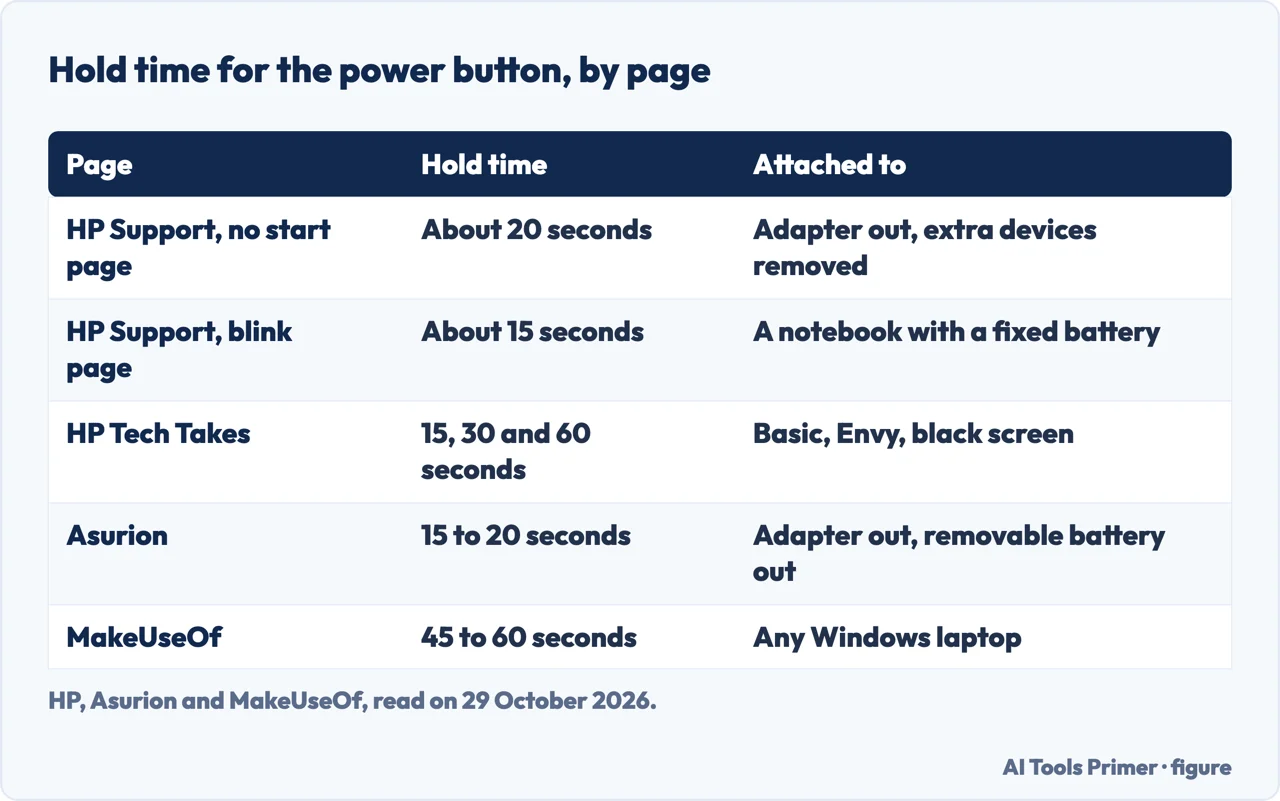
An HP laptop that is not turning on gets the same first move from the pages we read, a forced reset, but the hold time differs: about 20 seconds from HP Support, 15 from HP Tech Takes, 15 to 20 from Asurion and 45 to 60 from MakeUseOf. HP Support also says to wait 5 minutes before anything else.
| Question | Answer | Where it comes from |
|---|---|---|
| What comes before anything else? | HP Support says to wait at least 5 minutes, because the laptop might be installing an update and the screen can stay blank | HP Support |
| What is the first step? | A hard reset: HP Support unplugs the adapter, removes cards and extra devices, and holds the power button for about 20 seconds | HP Support |
| Do the pages agree on the hold time? | No: HP gives about 20, about 15 and more than 12 seconds on two pages, HP Tech Takes 15 to 60, Asurion 15 to 20, MakeUseOf 45 to 60 | All five pages |
| What do blinking lights mean? | HP Support ties red-and-white blink counts to a cause and a step for each | HP Support |
| When is it a repair? | HP Support says that with no noise, no lights and no video signal the laptop might not be receiving power, and points to an online repair | HP Support |
Wait before you press anything
HP Support’s document for a computer that does not turn on, start or boot opens with a caution: if the computer does not turn on, wait at least 5 minutes before troubleshooting. HP gives the reason as an update, since the computer might be installing an update for Windows or the BIOS, or detecting new hardware. During that process HP says to expect a blank screen for several minutes, that interrupting it might damage the computer, and that the computer should not be turned off or unplugged while it runs.
HP also says what it means by a computer that is not receiving power: no noise from the case or the fans, no lights on the computer, the keyboard lights included, and a screen with no video signal. For that case HP points to setting up a repair online with HP Virtual Assistant, and to contacting HP if that service is not available where you are. HP says to do a hard reset first in order to decide whether to contact HP or keep troubleshooting startup, and adds that a hard reset does not affect the data saved on the computer.
The hard reset, and the hold times the pages give
HP Support’s steps are these. Turn off the computer and disconnect the AC adapter. Remove the memory cards from the card reader and disconnect nonessential devices such as printers, scanners, external hard drives and USB flash drives, but leave the mouse, keyboard and monitor connected. With the adapter unplugged, press and hold the power button for approximately 20 seconds, then reconnect the adapter and turn the computer on. HP adds two notes: use the adapter that was shipped with the computer, and on a business laptop, hold the Windows key and v while pressing the power button to turn it on.
The same number is not used everywhere. HP’s page on lights and beeps repeats the procedure for a notebook whose battery cannot be removed and says approximately 15 seconds. For three of its blink codes, that page has a different reset of the embedded controller: disconnect the AC power, hold the power button for more than 12 seconds, release, and wait for the computer to turn on before reconnecting the power. HP Tech Takes, a page that carries a date of 29 August 2024 and reads as an article rather than a support document, gives 15 seconds as its basic step and removes the battery too if that is possible. Elsewhere on the same page it says 15 to 30 seconds in its answer on forcing a restart, 30 seconds for an Envy followed by a 10-minute wait before reconnecting power, and 60 seconds, with the battery and adapter removed, for a black screen with the power lights on. For a battery that cannot be removed, Tech Takes says 15 seconds and then charging for at least 30 minutes.
Outside HP’s own site, Asurion, a company that sells protection plans and repairs, says to hold the button for 15 to 20 seconds after unplugging the adapter and removing the battery if it can be removed, then to put both back. MakeUseOf, whose article is a general guide to a Windows laptop that will not boot and not an HP page, says a full 45 to 60 seconds and calls it a critical step to ensure complete discharge. The writer adds that almost half the time one of the simple fixes in the article is the cause, without a source for that share in the sentence. The pages we read do not say which of these hold times to choose, or whether a longer hold does any harm. Our page on a computer that will not turn on sets HP’s 20 and 15 seconds beside Apple, Microsoft and Dell; this one adds the Tech Takes, Asurion and MakeUseOf figures and the 12-second controller reset.
Three resets that use the Windows key
Beyond the hard reset, HP Support describes a CMOS reset for consumer notebooks. Plug in the adapter, turn off the computer and wait at least five seconds. Press and hold the Windows key and v, and while holding them press and hold the power button for at least two seconds but no more than three. Release the power button but keep holding Windows and v until the CMOS Reset screen appears or you hear beeping. If the unit restarts, HP says you can then open the BIOS and UEFI Diagnostics, and that an error about an invalid checksum means the reset was not successful. For consumer All-in-Ones and desktops HP gives a different method, which holds the power button for more than 20 seconds with the adapter connected, and the CMOS method varies by computer type.
HP’s page on lights and beeps has a third procedure, for recovering the BIOS from a USB drive. With the power cord connected and the drive inserted, HP says to turn off the notebook, wait 5 to 10 seconds, hold the Windows key and b, then hold the power button for 2 to 3 seconds, and on some models to use Windows and v instead. HP Tech Takes describes a BIOS reset with Windows and B too, but with the power button pressed for 1 second, the keys held for 15 seconds and a screen that may stay black for up to 40 seconds. The pages disagree on the timing and, in part, on the key, and the Tech Takes version does not match HP Support’s CMOS or recovery steps.
The charger, the outlet and the battery
If the notebook does not turn on with the AC adapter connected, HP Support says there might be an issue with the adapter and sends the reader to its page on using and troubleshooting the adapter. HP Tech Takes, which includes the transcript of an HP video guide, adds the checks: connect the adapter straight to a wall outlet and not to a surge protector, check that the cord is firmly seated, look at the adapter brick for a light, and try another outlet if the light is off. It says to feel along the cable for kinks or breaks, and that an adapter brick that is discolored or warped is a reason to contact HP for a replacement. Where the laptop does start, Tech Takes names a test in HP PC Hardware Diagnostics for Windows, under Device Check and Power, which runs an AC adapter test and a battery check. Asurion gives the shorter version: a secure plug, a different outlet, and a look at the cord for damage or fraying.
For the battery, Asurion says that on a laptop with a removable battery you should take it out, look for damage or swelling, and try the laptop on the adapter alone: if it turns on, Asurion says the battery is the likely cause. The HP Tech Takes page gives the same test, plus a look at the battery contacts, and for a removable battery it says to charge 15 to 30 minutes with the adapter connected, then unplug and start on battery alone. It also says that a deeply discharged battery may need 15 to 30 minutes of charging before any light comes on, and that a laptop that works on the adapter but not on battery may need 2 to 3 hours more. MakeUseOf adds that a laptop with a completely drained battery can take several minutes on the charger before it shows a charging light.
Two other power notes sit on one page each. HP Support says that if a white AC adapter light blinks when a new notebook is used for the first time, the battery is still in Shipping Mode: turn the notebook off, connect it to AC power, let it charge for at least 30 minutes, and then start it. Asurion says some HP laptops have a small reset hole, usually near the power button, where a straightened paperclip held for 3 to 5 seconds forces a restart. The HP pages we read do not mention that hole. For Pavilions, HP Tech Takes says some power on by themselves when the lid is opened with AC connected, which the HP Support documents we read do not mention.
What the blinking lights mean
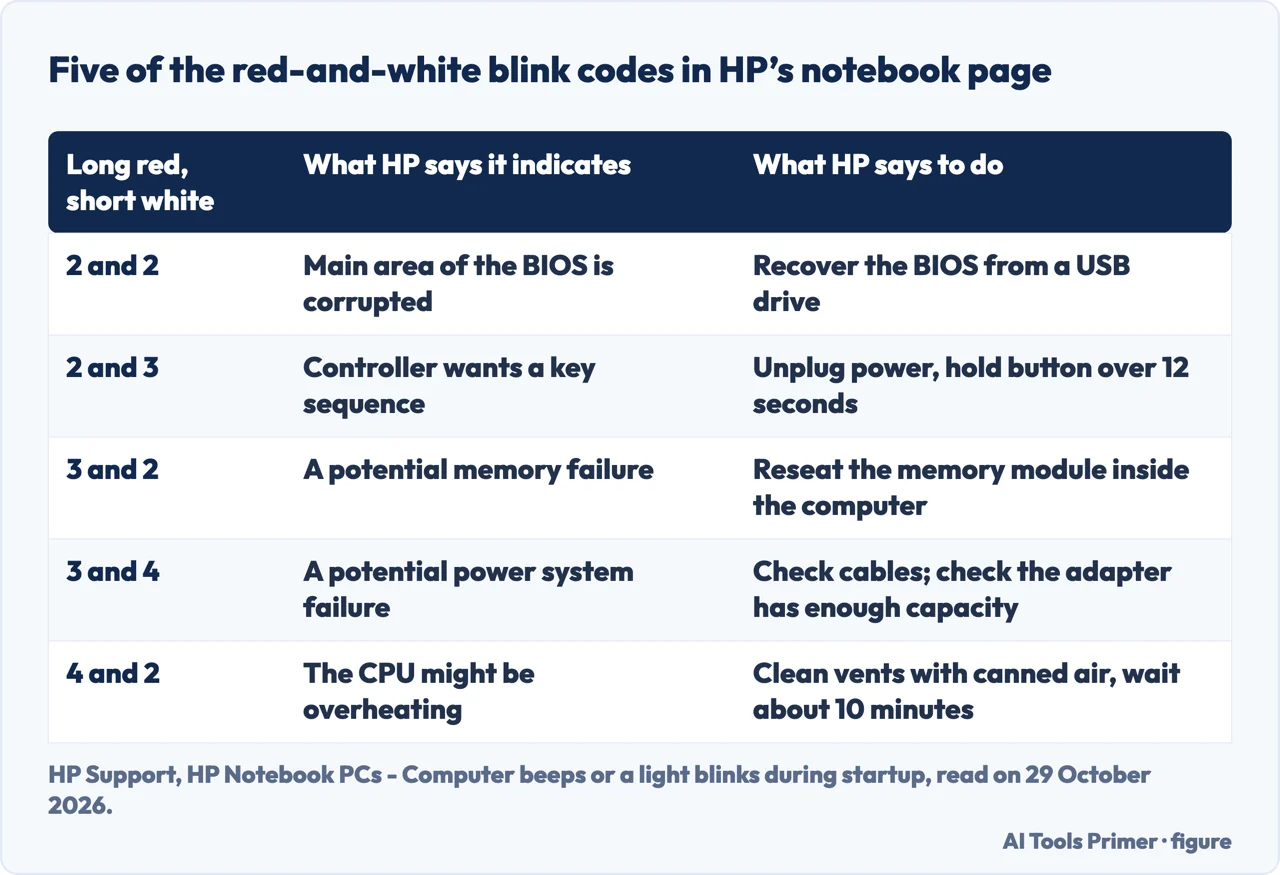
HP Support says HP computers use blinking LEDs to identify startup errors. If the lights near the caps lock or num lock keys blink, usually 1 to 8 blinks in a series, when you try to start the computer, HP sends you to its page on lights and beeps. That page says the red caps lock blinks are the major error category, long blinks, and the white ones the minor category, short blinks. On a system without a two-color light, both are white, and the page says audible beep codes are not supported on all models. A code is read as red first, then white, so 3 long red and 2 short white is a different fault from 2 and 3.
The table gives five of the fourteen codes on that page, each with the cause HP states and the step it names. Others on the page include 3 and 3, a potential graphics chip failure for which HP says to contact HP Customer Support for repair, 3 and 5, a processor the computer does not detect, with the same advice, and 3 and 6, a processor that does not support an enabled feature, for which HP says to clear the CMOS. For 4 and 2, 4 and 3 and 4 and 4, HP says the processor, the room or the graphics processor might be too hot, and gives the same vent-cleaning steps: turn off the computer, disconnect power, clean the vents with canned air, and wait approximately 10 minutes.
Two of the steps need the case opened. For 3 and 2 HP says to reseat the memory module, warns about static electricity, and says to have the computer serviced if the memory cannot be reached. For the BIOS recovery code, 2 and 2, HP says to create a recovery USB drive on a second working computer, and cautions that installing the wrong BIOS could cause the computer to stop working. HP Tech Takes lists beep patterns, among them one long and two short beeps for a video card problem and continuous beeping for memory, which do not match HP Support’s page, where the codes are blinks of the caps lock light. We used HP Support’s codes only.
When it turns on but will not start
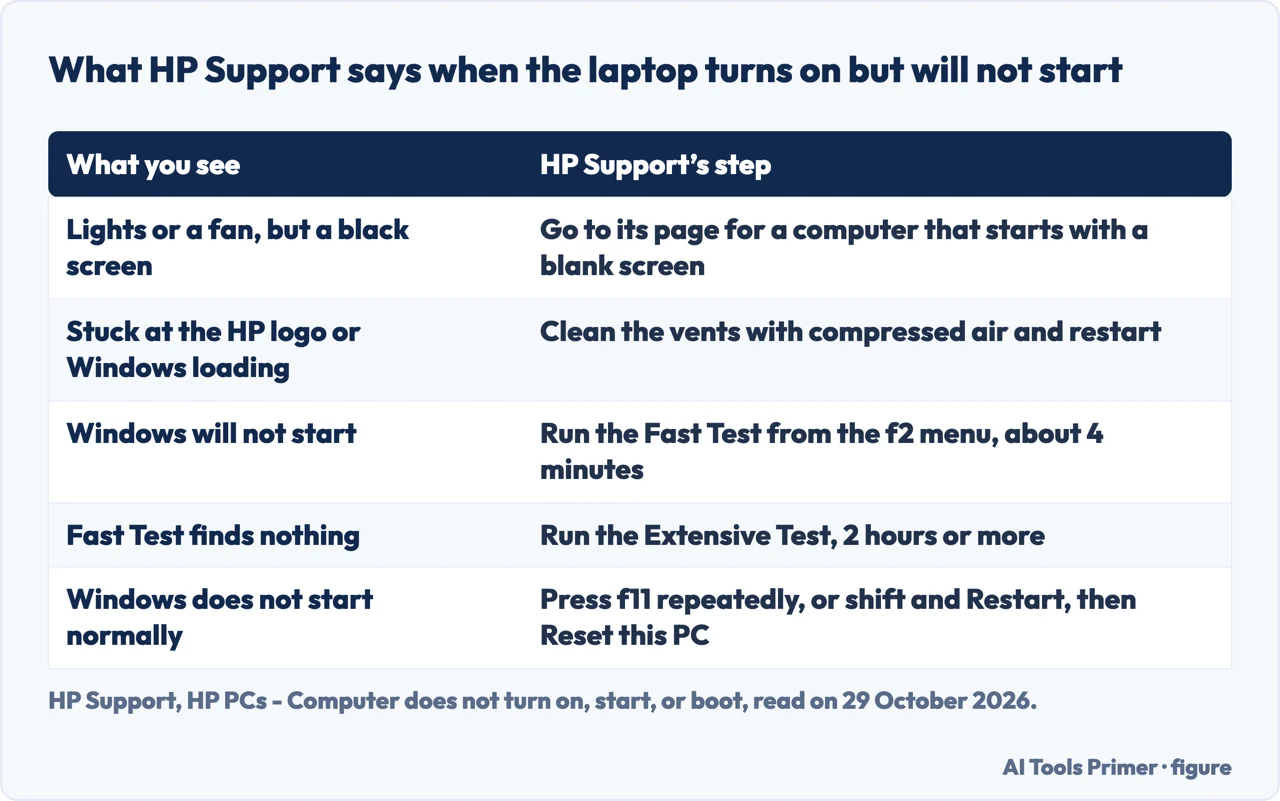
HP Support separates a laptop that is dark from one that shows signs of life. If you press the power button and lights blink or turn on, or a fan spins, but the screen stays black, HP sends the reader to its page for a computer that starts with a blank screen. Asurion and HP Tech Takes give checks of their own for that case. Asurion says to shine a bright light on the screen and look for a faint image or cursor, to raise the brightness with the function keys, usually F2 or F3 on HP laptops, and to connect an external monitor with an HDMI or VGA cable: if that display works, Asurion says the problem is with the laptop’s screen. Tech Takes says to listen for fans or drive activity, try the brightness keys and an external monitor, and says that if neither display works the fault may be graphics or the motherboard. Our page on HP laptop monitor issues reads HP’s steps for the screen itself.
If the computer locks up at the HP logo or the Windows loading screen, HP Support says to try cleaning the vents with compressed air and restarting. If Windows still does not start, it sends the reader to the hardware tests. To run them, hold the power button for at least five seconds to turn the computer off, turn it on, press esc about once a second, and press f2 when the menu appears. In HP PC Hardware Diagnostics (UEFI), HP says to click System Tests, then Fast Test, which takes about 4 minutes in two passes. If a component fails, write down the 24-digit failure ID for HP Customer Support. If nothing fails, HP says to run the Extensive Test, which takes 2 hours or more.
For Windows that does not start normally, HP Support describes the Windows Recovery Environment for Windows 11: restart and press f11 repeatedly, or hold shift while choosing Restart, then pick Troubleshoot and Reset this PC. MakeUseOf describes another way in: turn the laptop on, hold the power button as soon as the Windows logo appears until the fans go silent, repeat that twice more, and on the fourth start Windows loads the Automatic Repair screen, where System Restore and Startup Repair are among the options it lists. That is a general Windows method and not an HP one. MakeUseOf also says that a laptop clock that keeps resetting to a date far in the past, such as the year 2000, makes a failed CMOS cell highly likely. HP Tech Takes says the cell is usually a CR2032 and should be replaced if the laptop is more than 3 years old. Asurion tells readers to press F8 for Safe Mode, and its page does not say which versions of Windows that applies to, so we do not repeat those steps.
When the pages say to stop
HP Support’s point to stop is the unpowered laptop described above, with no noise, no lights and no video signal, which it sends to an online repair. Asurion says that if the laptop still will not turn on after checking power, doing a hard reset and testing the charger, it is likely a hardware issue such as the motherboard or the power port that needs professional repair, and it directs readers to its uBreakiFix stores. HP Tech Takes lists signs that favor professional repair or replacement: several components failing in the diagnostics, visible damage such as a burnt smell, melted plastic or liquid damage, and grinding, clicking or unusual electronic sounds.
Some things the pages do not settle. The pages we read do not give a verified share of cases for each cause: HP Tech Takes and MakeUseOf both state percentages without a source on the page, so we did not use them. HP Tech Takes also gives repair costs and a success rate for the reset without a source, and we left those out too.
What we did not use
We tested nothing on a laptop. We did not read two threads on the HP Support Community, an answer on iFixit about an HP 15-D076NR or a Singapore edition of the HP Tech Takes article. HP’s page on lights and beeps was read in its Great Britain English edition, and we did not open the United States edition of the same document. The HP Support entry page for power and boot problems has little text of its own and says that a hard reset is the first step, so we took the detail from the document it points to.
Where to start
Four ways in.
- “Should I wait first?”
- Wait before you press anything — wait
- “How long do I hold the button?”
- The hard reset, and the hold times the pages give — reset
- “What are the blinking lights?”
- What the blinking lights mean — lights
- “It turns on but will not start.”
- When it turns on but will not start — startup
Laptops that stay dark
The same question asked of a computer, a Dell and a Lenovo.
After it turns on
A black screen, a MacBook that charges, and a desktop that stops partway.
Questions people also ask
Why is my laptop all of a sudden not turning on?
Asurion lists power source problems, battery issues, display problems and hardware failures. HP Tech Takes names a depleted battery, loose power connections or a system that needs a hard reset as the common three. HP Support adds that the laptop might be installing an update, and says to wait at least 5 minutes.
How to force start a dead laptop?
HP Support’s hard reset unplugs the adapter, removes cards and extra devices, holds the power button for about 20 seconds with the adapter unplugged, then reconnects the adapter and turns it on. HP Tech Takes adds charging for 15 to 30 minutes even if no light comes on at first. The pages give other hold times.
How do I force my HP laptop to restart when the screen is black?
HP Support sends a laptop with lights or a fan running but a black screen to its blank-screen page; its five-second power button hold is only how to switch off before the hardware tests. HP Tech Takes gives a 60-second reset with the battery and adapter removed, and Asurion suggests brightness keys and an external monitor.
What is HP Black screen of Death?
The pages we read do not use that term or define it. What they cover is a black screen with lights or a fan running: HP Support sends it to a page for a computer that starts with a blank screen, and Asurion and HP Tech Takes list brightness and external monitor checks.
Not covered here. We tested nothing on an HP laptop. The statements come from two HP Support documents, an HP Tech Takes article, an Asurion article and a MakeUseOf article, all read on 29 October 2026.
The search volume and difficulty behind this page come from a Semrush reading of 29 August 2026, older than the 60 days the site normally allows.
Sources
- HP Support — HP PCs - Computer does not turn on, start, or boot — support.hp.com, read 29 October 2026.
- HP Support — HP Notebook PCs - Computer beeps or a light blinks during startup (Great Britain English edition) — support.hp.com, read 29 October 2026.
- HP Tech Takes — How to Fix an HP Laptop That Won’t Turn On — www.hp.com, read 29 October 2026.
- Asurion — What to do when your HP laptop is not turning on — www.asurion.com, read 29 October 2026.
- MakeUseOf — My Windows laptop refused to boot, and this is what actually fixed it — www.makeuseof.com, read 29 October 2026.
Written by Alberto Gulotta
Founder and editor of AI Tools Primer, writing from Palermo, Italy. Thirty-five years of taking computers apart, starting with a Commodore 64 — the long version is on the about page.
Something wrong on this page? Write to aitoolsprimer@gmail.com and it gets fixed.
Written on 29 October 2026.
Independence and limits
No affiliate links and no paid placements anywhere on this site. Nobody pays to appear here, and no company has seen this page before you did.
This is general information, not professional advice. Where a page touches money, health, safety or the law, it names its source and the date it was read — and your situation may still differ. See the privacy page and the cookie policy.