
Software · guide
Lenovo Chromebook won't turn on: the order each page gives
By Alberto Gulotta · Updated · 17 min read
Lenovo Chromebook won't turn on gets one list from Lenovo and another order from Google. The Lenovo page we read covers only the N21 and asks for a hard reboot with Refresh and Power. Google says to charge for 30 minutes then recover if it charges, or reset the hardware if not. The pages differ on what a reset deletes.
| Question | Answer | Where it comes from |
|---|---|---|
| Which Chromebook does Lenovo’s startup page cover? | One model, the Lenovo N21, with three lists and one limit | Lenovo Support |
| How is a reboot forced? | Lenovo’s N21 page says to press Refresh and Power at the same time; Google says to hold Refresh and tap Power | Lenovo Support, Google |
| How long should it charge? | Google says at least 30 minutes, Make Tech Easier 30 minutes to an hour, and Lenovo’s glossary a few minutes | Google, Make Tech Easier, Lenovo |
| Does a hard reset delete files? | Google says it might delete some files in Downloads; Make Tech Easier says it will not delete any data | Google, Make Tech Easier |
| Which Lenovo page is written for Windows? | HT510410, a Lenovo page, lists ThinkPad and ideapad and is filed under a Chromebook model | Lenovo Support |
| When does Google send you to recovery? | For the “ChromeOS is missing or damaged” message, or when other steps have not worked; it erases everything |
Three situations in Lenovo’s list
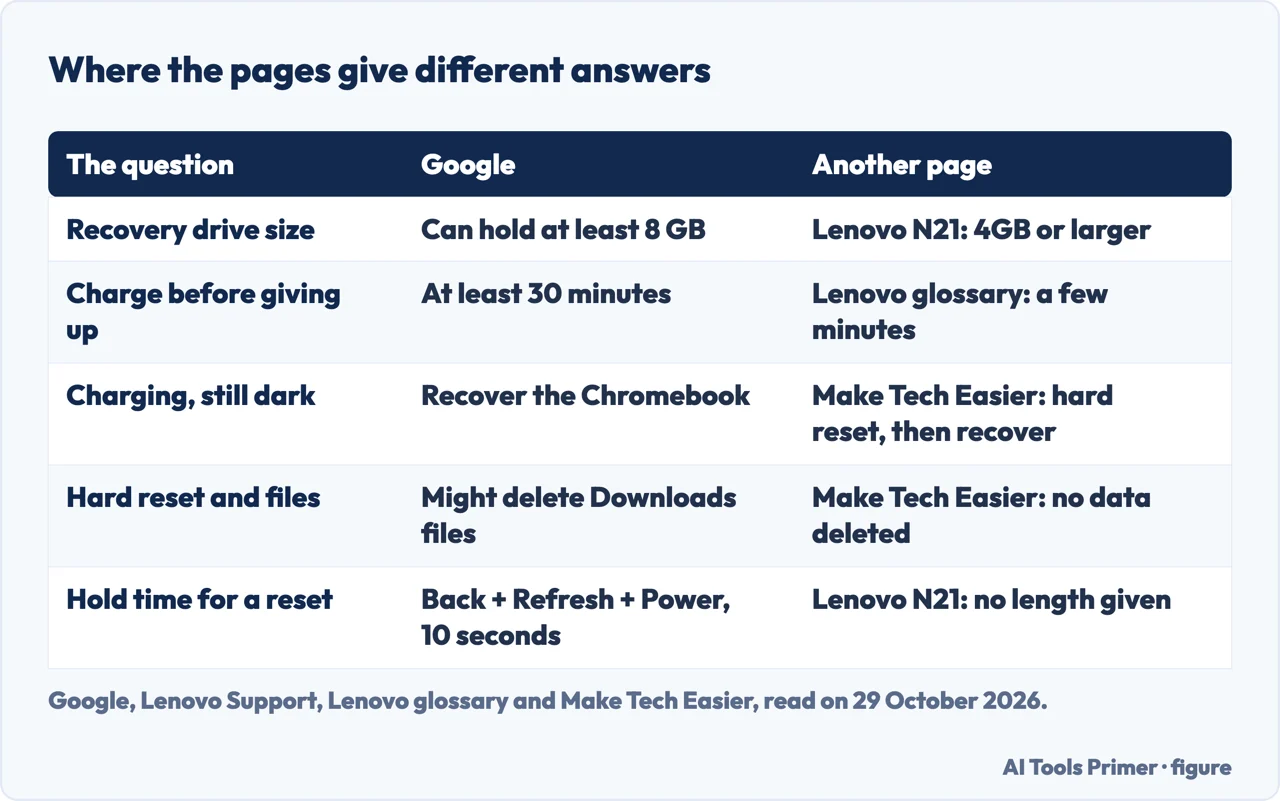
Lenovo’s support page on a Chromebook that fails to start is document HT102989, and it is written for one model, the Lenovo N21 Chromebook. Its operating system field says Chrome OS. The page was first published on 13 April 2015 and last modified on 27 May 2025, and it does not name another model, so what follows is the list for the N21 and not a list for every Lenovo Chromebook. The two Lenovo Support documents we read (HT102989 and HT510410) do not mention the 100e, the 300e, the Flex or the Duet in their instructions.
The page sorts the problem into three, each with its own tips:
- The Chromebook fails to start. Remove all external devices. Do a hard reboot by pressing the Refresh and Power key at the same time. Verify the adapter is plugged into an electrical outlet and the power cable into the device. Plug another device into the outlet to check that it can supply power. Check the cord for damage; if there is damage, Lenovo says to unplug it immediately and contact Lenovo Service. Remove the adapter and try booting on battery power only, and if possible try another Chromebook adapter.
- It powers on but the display stays blank. Remove external devices and do the same hard reboot. Then check the LED for blinking after start up. Lenovo says the blinking is a code that helps Lenovo support the Chromebook; if you see it, note the pattern and contact Lenovo Service.
- An error says Chrome OS is missing or damaged. Lenovo says Chrome OS may need to be reinstalled, using an SD card or a USB device of 4GB size or larger. Press Refresh and Power together after inserting the recovery media, and the Chromebook boots to the media and loads the new image.
Under Limitations the page says Chrome OS does not support powering up a Chromebook when the lid is closed. The page does not say how long to hold Refresh and Power, and it does not say what any blink pattern means; it sends you to Lenovo Service for that.
Two of our pages pick up where this list stops. A Chromebook that shows nothing on the screen but seems to be running is the subject of our page on a Chromebook black screen, which covers charging, the hard reset, Google’s bypass sequence and recovery. The charging side, including the order of Google’s checks and what each maker’s charging light means, is in our page on a Chromebook that won’t charge.
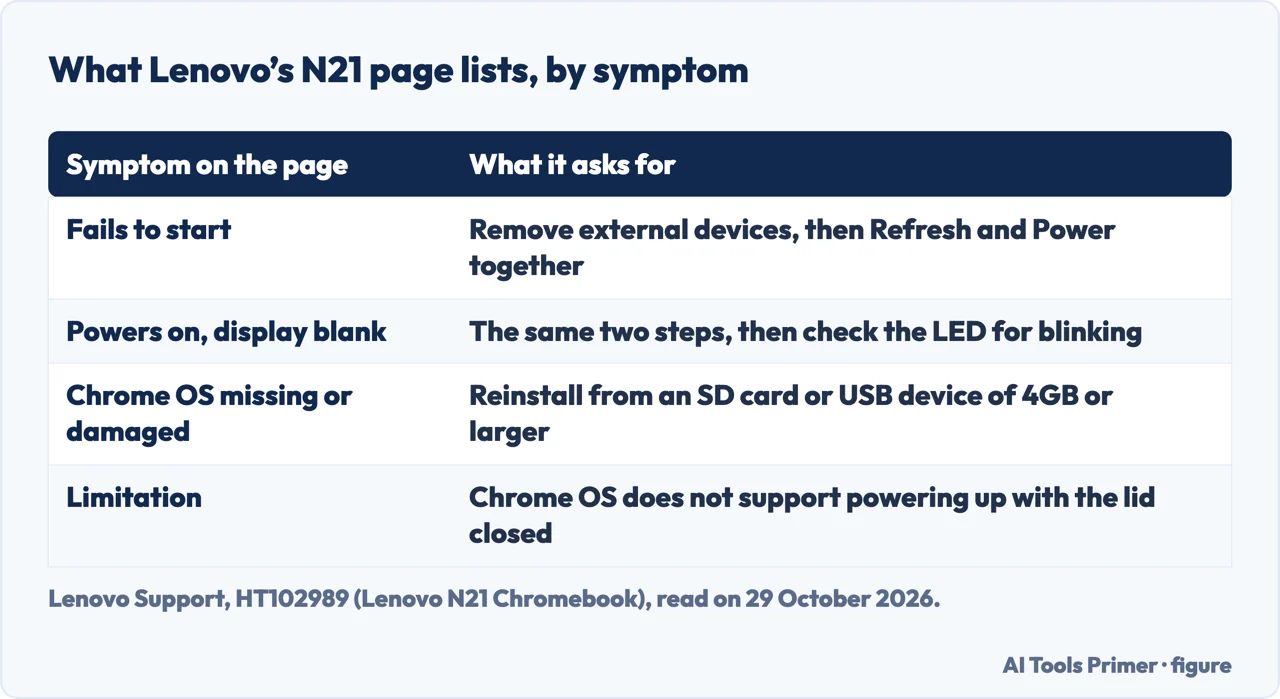
Four pages, and what each calls a hard reset
The pages above lean on a hard reset, and they do not describe the same thing. Google’s page, Reset your Chromebook hardware, calls it a hard reset and gives these steps for most Chromebooks: turn the Chromebook off, press and hold Refresh and tap Power, and release Refresh when the Chromebook starts up. A tip adds that you can instead press and hold Back, Refresh and Power together for at least 10 seconds, and that on tablets the Volume Up and Power buttons are held for at least 10 seconds. Google says to try it only after other fixes have failed, and adds that it restarts the hardware, such as the keyboard and touchpad, and might delete some files in the Downloads folder.
Lenovo’s N21 page calls it a hard reboot, pressing the Refresh and Power key at the same time, and gives no hold time. Lenovo’s glossary page on restarting a Chromebook splits the idea in two. It describes a shortcut in which you press and hold the refresh key and tap the power button, and it says that when a Chromebook freezes and does not respond, a hard reset means holding the power button until the screen goes black, releasing it and pressing it again. For a Chromebook that is not turning on, the glossary says to check the battery, connect the charger and wait a few minutes, and then to do that hard reset with the power button alone.
Make Tech Easier, in an article published on 21 March 2023 and updated on 23 August 2023, keeps two procedures apart. Its force restart holds Power for 10 seconds, closes the lid for 3 seconds, reopens it, and keeps holding Power until the Chromebook turns on, which it says can take 15 to 20 seconds. Its hard reset is step 7 of 10: if the screen shows nothing, hold Power for at least 10 seconds to turn the Chromebook off, then hold Refresh and press Power once, and release Refresh when the Chromebook boots up. The article carries a note that it was published before the site changed ownership in April 2026.
The pages also differ on what the reset costs. Google says it might delete some Downloads files; Make Tech Easier says it will not delete any data and only restarts the hardware; Lenovo’s N21 page does not mention files. The glossary says a restart does not affect downloaded files, but it gives no such line for its hard reset. The pages do not say how the statements fit together.
Google’s page also lists devices that reset another way. Lenovo appears once on that list, for the ThinkPad X131e: turn the Chromebook off, remove the power adapter, remove the battery and put it back, reconnect the adapter and turn the Chromebook on. The only paperclip hole on the list belongs to two Samsung models, the Series 5 and the Series 5 550.
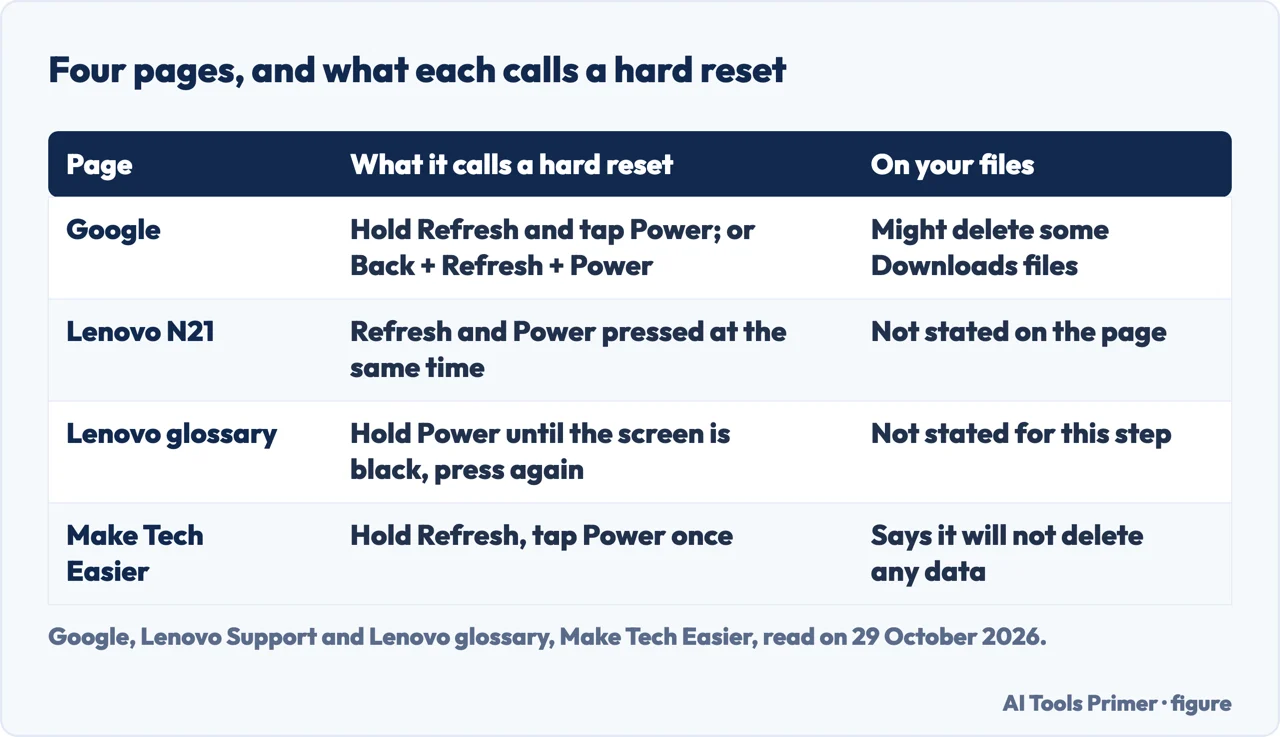
Where Google’s order flips
Google’s page, Fix hardware and system problems, has a section called Chromebook won’t turn on or won’t charge. It starts by asking whether the battery is charging when the Chromebook is plugged into a power outlet, and says you will usually see a light come on. If it is charging, Google says to let it charge for at least 30 minutes and, if it still will not turn on, to recover the Chromebook. If it is not charging, the order is different: check that the charger or adapter cables are completely plugged in at both ends, make sure the outlet works, unplug the charger from the wall and the Chromebook, plug it back into the Chromebook and then the wall, and charge for at least 30 minutes. If that does not fix it, Google says to reset the Chromebook hardware. A tip suggests Diagnostics for the battery, and that section ends by telling you to contact your Chromebook manufacturer.
That puts recovery ahead of the reset for a Chromebook that charges. Lenovo’s N21 list puts a hard reboot in its second step. Make Tech Easier puts the hard reset at step 7 and recovery at step 8, and says recovery should come only after the earlier solutions have been tried. The pages do not say which order is better, and Google’s own page puts the reset after charging fails, not after charging works.
The waiting time differs as well. Google says 30 minutes. Make Tech Easier says 30 minutes to an hour and tells you to look at the small LED near the charging port, which should be glowing. Lenovo’s glossary says to connect the charger and wait a few minutes. The pages we read do not say whether the wait changes for a particular Lenovo model.
One community thread sits next to these pages. On Google’s Chromebook Community, a locked question from 13 November 2025 describes a Lenovo Chromebook with a black screen and a charging light that stays off after about an hour on the charger. A Diamond Product Expert suggests a method that sometimes works on devices that will not turn on: connect the charger, hold the power button and the Refresh key, remove the power adapter while still holding them, wait for 1 minute, press the power button, then connect the adapter and watch the LED, which should blink or show a solid colour. Another expert asks the poster to check the charger and the wall outlet, try a different charger, try slow charging from a USB-C cable, and report the LED colour. The page itself says community content may not be verified or up to date, and this method is not on Google’s reset page.
The Lenovo page that looks right and is for Windows
Lenovo has a support page called Troubleshooting No Power Issues, document HT510410, last modified on 18 September 2026. It sits in Lenovo’s product tree under Chromebook Laptops and the 14e Chromebook. Its Applicable Brands field lists ThinkPad and ideapad, and the text of the page does not mention Chrome OS.
Its steps are written for a laptop that runs Windows. Charge directly from a wall outlet for at least 5 to 10 minutes, without power strips, surge protectors or docking stations. Check the label on the AC adapter for the correct model. Then comes a power drain: unplug the power, disconnect external devices, remove the battery if it is removable, and on a system with an internal battery use the emergency-reset hole with a straightened paper clip. The page adds that some systems do not have this reset, and that some ideapads have a Novo button for the BIOS or recovery mode. On other systems it says to hold the power button for at least 10 seconds. The later steps cover waking from sleep, the brightness keys, a dock, an external monitor and Windows Safe Mode with the Task Manager Startup tab.
A Lenovo forum thread on the 300e shows the same gap. In it, a Lenovo Support Specialist pointed the original poster to a link for more troubleshooting; the saved text does not show what the link was, so we cannot say it was this page. The original poster answered that the Chromebooks have no reset button on the bottom and no Novo button, and that the rest of the troubleshooting found on the link does not apply to a Chromebook.
If the hole and the Novo button are what you were looking for, they belong to the ThinkPad and ideapad page. Our page on a Lenovo laptop that won’t turn on covers the emergency-reset hole and the Novo button.
Recovery, the school forum and the repair question
Google describes recovery as removing and reinstalling the operating system, and says it permanently erases everything on the Chromebook’s hard drive, even downloaded files. It suggests recovering when the “ChromeOS is missing or damaged” message appears, when other troubleshooting has not fixed the problem, or when experts in its help forum recommend it. For a work or school Chromebook the page says to ask the administrator. If you can sign in, Google says to try turning the Chromebook off and on and then a factory reset first.
To enter recovery mode, Google says to remove anything connected, press and hold Esc and Refresh, then press Power, and on some models hold Esc and Maximize instead. A tablet uses Volume Up, Volume Down and Power for at least 10 seconds. The first option is recovery over the internet. The second is a USB flash drive and a working computer with Chrome and the Chromebook Recovery Utility extension; Google asks for a drive that can hold at least 8 GB, while Lenovo’s N21 page says 4GB or larger. Google adds that not all Chromebooks have a recovery button.
For a screen that stays completely blank after a hard reset, Google also describes a verification bypass key sequence. It says an administrator can block it, and that if it reboots the device the user data is erased. Our black screen page goes through it.
The Lenovo forum thread on the 300e, from March and April 2021, shows what happens when those steps do not work. The original poster, who runs Chromebooks at a school, wrote that dozens would not power on or charge, and listed what had failed: holding Power for 10 seconds, a recovery USB drive, a recovery SD card, changing or unplugging the battery, and holding Power and Refresh for a minute. A Lenovo Support Specialist suggested local service providers and then third-party repair shops, warning to check their policies and charges because it looked like a possible hardware concern. The original poster later wrote that batteries charged and swapped with the motherboard being revived had not brought success with recovery.
Another poster, a school IT administrator, described a remedy said to work 75-100% of the time: open the Chromebook, detach the battery cable, plug in the charger, treat a blinking LED as a sign there is hope, then attach the battery cable again. The original poster replied that detaching the battery usually loses whatever life a unit still has. Both are reports from users on a Lenovo forum in 2021. We did not open a Chromebook, and the Lenovo and Google pages we read do not describe this step, so we are not recommending it.
Where the pages end, they say the same thing: Google tells you to contact your Chromebook manufacturer, Make Tech Easier says the cause could be a hardware issue or battery damage, and Lenovo’s N21 page sends a damaged cord or a blinking LED to Lenovo Service. The pages we read do not give repair costs.
What we did not use
We tested nothing on a Chromebook. We read the Lenovo forum thread and the Google community thread only as accounts from users, not as instructions from either company. The Make Tech Easier article is from 2023, so we used it as one author’s list and not as a statement about current models.
Where to start
Four ways in.
- “Which list is mine?”
- Three situations in Lenovo’s list — start
- “What is a hard reset?”
- Four pages, and what each calls a hard reset — terms
- “Which page is for Windows?”
- The Lenovo page that looks right and is for Windows — wrongpage
- “Is it the hardware?”
- Recovery, the school forum and the repair question — hardware
Chromebooks that will not wake
A black screen, a battery and a charger.
Lenovo and other machines
The laptop page, a charger and a computer.
Questions people also ask
How do I force a Chromebook to turn on?
Lenovo’s N21 page says to press the Refresh and Power key at the same time. Google says to turn the Chromebook off, hold Refresh and tap Power. Make Tech Easier holds Power for 10 seconds, closes the lid for 3 seconds and reopens it, and Lenovo’s glossary holds Power until the screen is black.
What do I do if my Chromebook is on but the screen is black?
Lenovo’s N21 page says to remove external devices, do the hard reboot and check the LED for blinking. Make Tech Easier says to raise the brightness, which can turn the screen black at its lowest on some models. Google describes a bypass key sequence that an administrator can block.
How do I bring my dead Chromebook back to life?
Google says to charge for at least 30 minutes and recover the Chromebook if it charges, or to check the cables and outlet and then reset the hardware if it does not. Lenovo’s N21 page adds a power adapter check and a battery-only start. Recovery erases everything, Google says.
How to force reboot a Lenovo Chromebook?
Lenovo’s N21 page says to press Refresh and Power at the same time and gives no hold time. Google gives Back, Refresh and Power for at least 10 seconds as another way. Lenovo’s glossary uses the power button alone for its hard reset.
Not covered here. We tested nothing on a Chromebook. The statements come from two Lenovo Support pages, Lenovo’s glossary, a Lenovo forum thread, three Google Chromebook Help pages, a Google community thread and an article from Make Tech Easier, all read on 29 October 2026.
The search volume and difficulty behind this page come from a Semrush reading of 29 August 2026, older than the 60 days the site normally allows.
Sources
- Lenovo Support — Troubleshoot system boot or startup issues of Lenovo N21 Chromebook (HT102989) — support.lenovo.com, read 29 October 2026.
- Lenovo Support — Troubleshooting No Power Issues (HT510410) — support.lenovo.com, read 29 October 2026.
- Lenovo — Restart Chromebook (glossary) — www.lenovo.com, read 29 October 2026.
- Lenovo Community — Lenovo 300e Chromebook won’t power on or charge (thread of March 2021) — forums.lenovo.com, read 29 October 2026.
- Google Chromebook Help — Reset your Chromebook hardware — support.google.com, read 29 October 2026.
- Google Chromebook Help — Fix hardware and system problems — support.google.com, read 29 October 2026.
- Google Chromebook Help — Recover your Chromebook — support.google.com, read 29 October 2026.
- Google Chromebook Community — My lenovo chromebook wont turn on and the battery light is off (thread of 13 November 2025) — support.google.com, read 29 October 2026.
- Make Tech Easier — Chromebook Won’t Turn On? Here’s How to Troubleshoot — maketecheasier.com, read 29 October 2026.
Written by Alberto Gulotta
Founder and editor of AI Tools Primer, writing from Palermo, Italy. Thirty-five years of taking computers apart, starting with a Commodore 64 — the long version is on the about page.
Something wrong on this page? Write to aitoolsprimer@gmail.com and it gets fixed.
Written on 29 October 2026.
Independence and limits
No affiliate links and no paid placements anywhere on this site. Nobody pays to appear here, and no company has seen this page before you did.
This is general information, not professional advice. Where a page touches money, health, safety or the law, it names its source and the date it was read — and your situation may still differ. See the privacy page and the cookie policy.