
Audio · guide
Text to speech iPhone: where Apple put it and what it reads
By Alberto Gulotta · Updated · 15 min read
Text to speech iPhone settings are built in: Apple puts them under Settings, Accessibility, Read & Speak, where Speak Selection reads the text you select and Speak Screen reads the whole screen after a two-finger swipe down, while some guides still call that menu Spoken Content.
| Question | Answer | Where it comes from |
|---|---|---|
| Where is it? | Settings, Accessibility, Read & Speak | Apple Support |
| What reads a selection? | Speak Selection: turn it on, select the text, tap Speak | Apple Support |
| What reads the whole screen? | Speak Screen: swipe down with two fingers from the top of the screen | Apple Support |
| Why do some pages say Spoken Content? | iDownloadBlog writes that Read & Speak was formerly Spoken Content; CALL Scotland and AI Dictation still use the old name | iDownloadBlog, CALL Scotland, AI Dictation |
| Can Siri start it? | Apple suggests asking Siri something like “Speak screen” | Apple Support |
| What if you cannot speak? | Live Speech speaks what you type | Apple Support |
Where it lives: Read & Speak, once called Spoken Content
Apple’s iPhone guide says that even with VoiceOver turned off, the iPhone can read text on the screen out loud, either the entire screen or a selection. The route it gives is Settings, then Accessibility, then Read & Speak. On that screen Apple lists Accessibility Reader, Speak Screen and Speak Selection, and you turn on the ones you want. For the two that read what is already on the screen, the steps below are the ones Apple gives.
Speak Selection works the way a copy does: Apple says to turn it on, select the text you want spoken, and tap Speak. iDownloadBlog, whose post was updated on 5 August 2026, adds that it works in Mail, Messages, Notes and Safari, among other apps where you can select text, and that the Speak command can sit behind an arrow icon in the floating menu. It also says a selection can be a single word or an entire long article. CALL Scotland describes how to select everything: tap a word, hold it for a second, release, choose Select All and then Speak. For a short piece it says to double-tap a word and drag the handles. If nothing is heard, CALL Scotland says to make sure the volume is turned up.
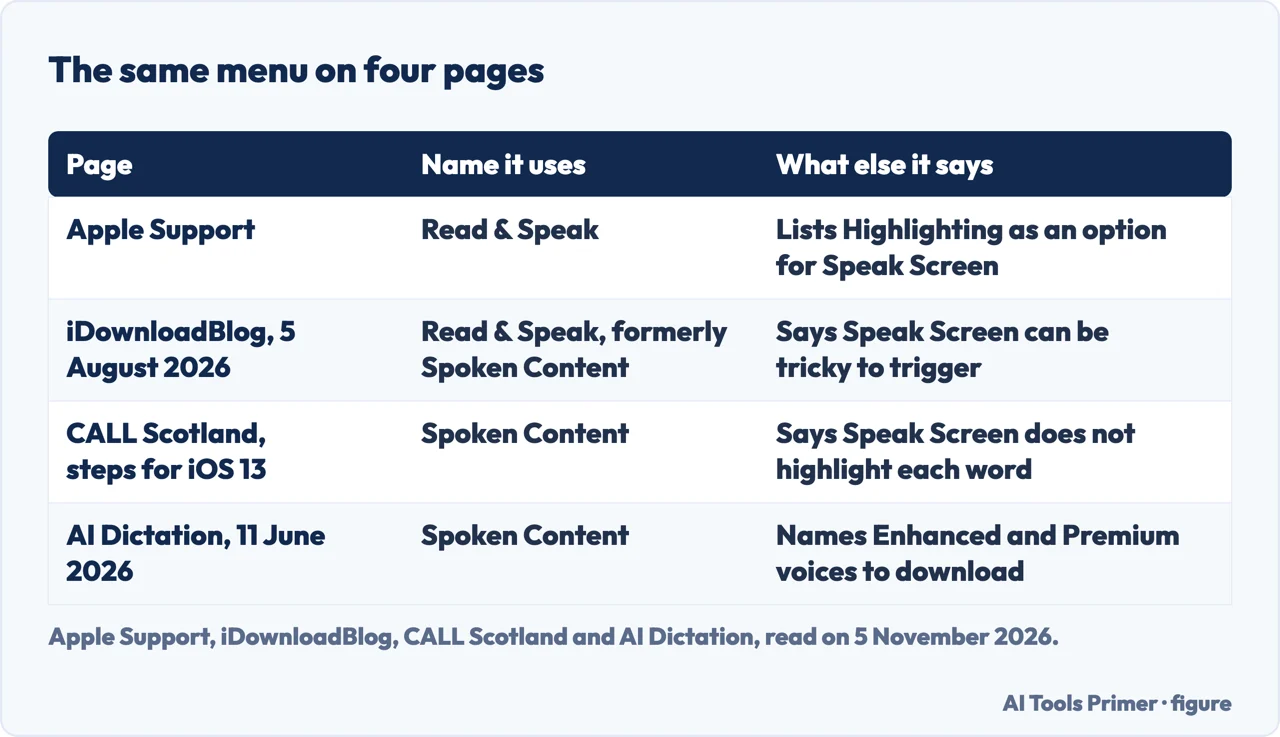
The name is where the pages part. iDownloadBlog writes “Read & Speak (formerly Spoken Content)”. CALL Scotland, whose steps are written for iOS 13, tells you to scroll down and tap Spoken Content, and AI Dictation, a blog from a company that sells a dictation app, dated 11 June 2026 and written for iOS 18, uses Spoken Content as its heading. The pages we read do not say when the menu was renamed, so if a guide sends you to a menu that is not on your phone, the other name is the first thing to look for.
Speak Screen: the swipe, the controller and the case
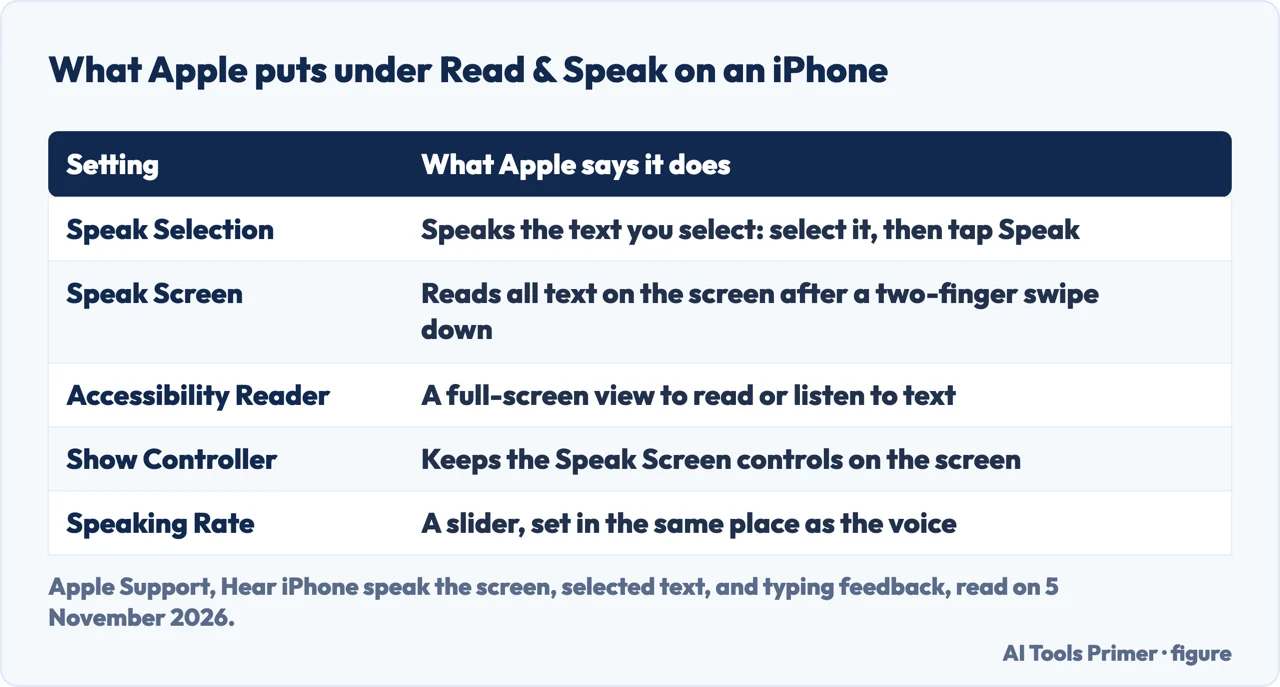
Speak Screen is the one that reads everything. Apple says to turn it on under Read & Speak, then swipe down with two fingers from the top of the screen. Controls then appear to pause the speech, change the rate, move forward or back to the part you want, or use Speak on Touch, where you tap the text you want read. Apple lists three more options on the Speak Screen page: Highlighting, which sets the style, the color and the selection for the text that is spoken; Show Controller, which keeps the Speak Screen controls on the screen; and Controller Actions, which sets what happens on a long press or a double tap. Apple also says you can make the controller smaller when you are not using it, and that you can ask Siri something like “Speak screen.”
The two-finger swipe is where iDownloadBlog and CALL Scotland add something. iDownloadBlog says Speak Screen can be tricky to trigger, and that swiping down with two spread fingers from the notch where the Face ID sensors sit works most of the time; turning on Show Controller, it says, gives you onscreen controls instead. CALL Scotland calls the start tricky too and says to use a two-fingered flick down from the top. It adds that a case which extends over the edge of the display may have to come off so the fingers can get near enough to the edge. As a way round the gesture, CALL Scotland describes the Speech Controller: switch it on, expand the controller bar and press the finger icon, and you can tap or drag anywhere on the screen to hear the content under your finger.
On highlighting the sources disagree. CALL Scotland says Speak Screen does not highlight each word as it is spoken, while Apple’s current guide lists Highlighting as an option for Speak Screen. CALL Scotland’s page is written for iOS 13 and Apple’s guide is the one served on 5 November 2026, and neither says when the option was added. CALL Scotland also notes that in apps such as Kindle, Speak Screen moves on to the next screen by itself and keeps reading until you press the stop button.
Voice, rate and pronunciation
Apple puts the sound of the voice on the same Read & Speak screen, in a part it calls changing how spoken content sounds. Voices lets you choose a voice and a dialect. Default Language sets the language the iPhone speaks, and Detect Languages lets it detect and speak several automatically. Speaking Rate is a slider you drag. Pronunciations lets you dictate or spell out how certain phrases should be spoken. iDownloadBlog says the same Voices options change the computer voice for both Speak Selection and Speak Screen.
How many voices you see differs by phone. CALL Scotland says the number varies with the iPad or iPhone and its operating system, suggests trying another if you dislike the default, and calls the English (Ireland) voice Moira a popular one. Apple’s page says only to choose a voice and a dialect, and the pages we read do not say how many English voices there are.
Better voices are where one page goes further, and it is the seller’s. AI Dictation writes that Enhanced and Premium voices can be downloaded under Voices, then English, with download icons beside names such as Evan, Nathan and Zoe, and that each is roughly 100 to 150 MB. It also says these sound noticeably more natural than the compact default. That is the blog of a company that sells a dictation app, and Apple’s guide does not mention the downloads or their size, so treat the sizes as one source’s statement and check the Voices screen on your own phone.
For one word, iDownloadBlog points somewhere else: search the word on Google, adding “meaning” or “define”, and tap the small speaker icon under the definition to hear the pronunciation.
Other ways to listen: Accessibility Reader, Safari and Shortcuts
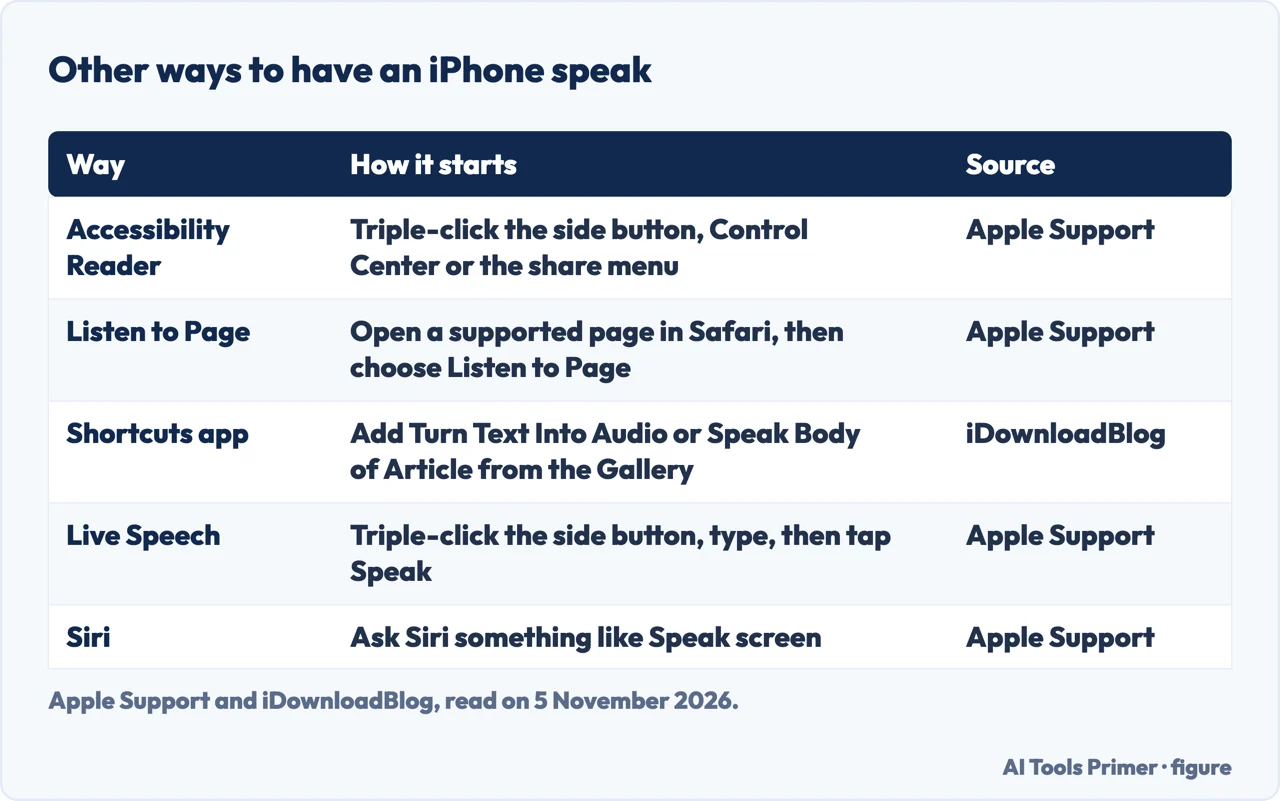
Accessibility Reader sits on the same Read & Speak screen. Apple describes a full-screen view in which you can read or listen to text, in any app, with fonts, layouts and background colors you can change. You turn it on in Settings, then start it with the Accessibility Shortcut (a triple-click of the side button), from Control Center, or from the share menu. Autoplay makes it read aloud on its own. While it plays, Apple lists controls to listen, pause, skip backward or forward, pick a speed and drag a slider to a point in time, and a Highlighting switch under its text themes. With Apple Intelligence it can also summarize, translate and clean up a page; Apple says that on iOS 27 or later this needs an iPhone 15 Pro, 15 Pro Max or an iPhone 16 or later, and is not available in all languages or regions. Apple adds that the reader is also built into Magnifier.
Safari has its own route. Apple says supported webpages can be read aloud in the Safari app: open the page, tap the button Apple shows in its steps, then tap Listen to Page, with steps for pausing and starting again. iDownloadBlog describes it as Siri reading web articles in Safari and warns that some websites block the feature. The two pages word it differently, Apple writing only “supported webpages”, and neither names which pages are supported.
The Shortcuts app is a third route. iDownloadBlog says two Apple-curated shortcuts in the Gallery do the job. Turn Text Into Audio speaks whatever you type or paste. Speak Body of Article reads the main content of the article you have open, started from the Share menu in Safari or Chrome. It has no onscreen playback controls: to stop it, touch and hold the shortcut indicator in the Dynamic Island and tap the stop button, or force close the browser.
Live Speech: when you type and the phone talks
Live Speech is for a different case. Apple says it is for someone who is unable to speak or has lost their speech over time, and that it speaks what you type during in-person conversations and in apps like FaceTime. You can choose from dozens of system voices or use a Personal Voice you create. Apple notes that Live Speech is not available in all languages.
The setup is in Settings, Accessibility, Live Speech. To use it, triple-click the side button on an iPhone with Face ID or iPhone Duo, or the Home button on an iPhone SE, then tap Live Speech if the shortcut holds more than one feature. Tap the Live Speech window, type, and tap Speak. Apple adds that you can paste copied text or tap suggested words above the keyboard. On a FaceTime call the speech comes out at the other end; otherwise it comes from the iPhone’s speaker. iDownloadBlog says it also works on cellular calls.
Apple describes saved phrases too: you can add your own to categories such as school or work and speak one with a tap, or pick a recently used one. Separately, Apple says that allowing apps to add audio in calls, under Accessibility, Audio & Visual, Add Audio in Calls, puts both audio and microphone input into the call, and that muting the microphone silences all audio during the call.
On a Mac, and what the pages leave out
Apple’s Mac pages use the same name. In System Settings, Accessibility, Read & Speak, you turn on Speak selection and press a shortcut, Option-Esc by default; pressing it again stops the speech. If no text is selected, Apple says the available text items in the current window are spoken, and says the Edit menu, then Speech, then Start Speaking can also begin it. The controller changes the rate, moves forward or back one sentence, pauses and resumes, or stops. The Mac settings page also lists options the iPhone steps do not: speaking the item under the pointer, speaking announcements, and typing feedback that echoes characters or words. If a Mac talks without being asked, Apple says VoiceOver may have been turned on, and Command-F5 turns it off. Our page on text to speech covers the wider subject.
Some things the pages we read leave open. Apple’s iPhone guide opens by mentioning hearing what you type spoken character by character or word by word, yet the steps we read set out no options for it, which the Mac page does. Apple’s iPhone pages that we read do not describe reading PDFs aloud or using the Books or Messages apps (the Accessibility Reader page only says Magnifier can customize text in “restaurant menus or books”). AI Dictation, the seller, writes that Speak Screen reads PDFs opened in Books or Files but that scanned PDFs need OCR, and that third-party apps such as Speechify and NaturalReader are worth it when you want better voices, audio export or document handling; iDownloadBlog lists free and paid apps too. CALL Scotland names ClaroSpeak UK, NaturalReader, Speak It! and Voice Dream Reader. We did not try any of them.
We did not test any of this on an iPhone. We did not read the App Store listings of reading apps or any forum thread, so nothing here rests on them. The Apple pages we read are the ones served on 5 November 2026, and we did not compare Apple’s regional pages or other iOS versions.
Where to start
Four ways in.
- “Where do I turn it on?”
- Read & Speak, once called Spoken Content — switches
- “How do I make it read the screen?”
- Speak Screen: the swipe, the controller and the case — screen
- “Can I change the voice?”
- Voice, rate and pronunciation — voice
- “What if I need to type and be heard?”
- Live Speech: when you type and the phone talks — live
Settings that change what you see and hear
Other iPhone settings that change how the phone looks, feels and answers.
Voices and speech
Turning speech into text, and text or scripts into voices.
Questions people also ask
How do I turn on text to speech on my iPhone?
Apple says to open Settings, tap Accessibility, then Read & Speak, and turn on Speak Screen to read all the text on the screen, Speak Selection to speak the text you select, or both. Some pages still call the menu Spoken Content.
Is there OCR on iPhone?
The pages we read describe no OCR setting for reading aloud. Apple says Accessibility Reader is also built into Magnifier, whose “See also” list links a page titled “Detect text around you and have it read out loud using Magnifier on iPhone”, which we did not read. AI Dictation, a seller, says scanned PDFs need OCR.
How do I activate text to speech?
Once Speak Screen is on, Apple says to swipe down with two fingers from the top of the screen. For a selection, select the text and tap Speak. Apple also suggests asking Siri something like “Speak screen.”
Can Siri do text to speech?
Apple says you can ask Siri something like “Speak screen.” iDownloadBlog says Siri can read articles in Safari, and that some websites block this; Apple’s Safari page names the command Listen to Page.
Not covered here. We tested nothing on an iPhone. The statements come from Apple Support pages for the iPhone and the Mac, an iDownloadBlog post updated on 5 August 2026, a CALL Scotland page written for iOS 13, and the blog of AI Dictation, a seller, all read on 5 November 2026.
The search volume and difficulty behind this page come from an Ubersuggest reading of 5 November 2026, not from Semrush, and the difficulty is still to be confirmed with Semrush.
Sources
- Apple Support — Hear iPhone speak the screen, selected text, and typing feedback — support.apple.com, read 5 November 2026.
- Apple Support — Type to speak using Live Speech on iPhone — support.apple.com, read 5 November 2026.
- Apple Support — Read or listen to text in apps with Accessibility Reader on iPhone — support.apple.com, read 5 November 2026.
- Apple Support — Listen to a webpage in Safari on iPhone — support.apple.com, read 5 November 2026.
- Apple Support — Have your Mac speak text that’s on the screen — support.apple.com, read 5 November 2026.
- Apple Support — Change Read & Speak settings for accessibility on Mac — support.apple.com, read 5 November 2026.
- iDownloadBlog — How to use text-to-speech on iPhone or iPad — www.idownloadblog.com, read 5 November 2026.
- CALL Scotland — Text to Speech on iPads and iPhones — www.callscotland.org.uk, read 5 November 2026.
- AI Dictation — Text to Speech on iPhone & iPad: Built-In Tools & AI Voices — aidictation.com, read 5 November 2026.
Written by Alberto Gulotta
Founder and editor of AI Tools Primer, writing from Palermo, Italy. Thirty-five years of taking computers apart, starting with a Commodore 64 — the long version is on the about page.
Something wrong on this page? Write to aitoolsprimer@gmail.com and it gets fixed.
Written on 5 November 2026.
Independence and limits
No affiliate links and no paid placements anywhere on this site. Nobody pays to appear here, and no company has seen this page before you did.
This is general information, not professional advice. Where a page touches money, health, safety or the law, it names its source and the date it was read — and your situation may still differ. See the privacy page and the cookie policy.