
Software · guide
Touchpad not working on laptop: what five pages say
By Alberto Gulotta · Updated · 17 min read
Touchpad not working on laptop: five pages give different steps. Computer Hope starts by checking the computer is not frozen, LG names the Fn key and a startup app, Microsoft stops at drivers, Dell warns of a swollen battery, and SlashGear resets the BIOS.
| Question | Answer | Where it comes from |
|---|---|---|
| What do I check first? | Whether the computer is frozen: press the Windows key and see if the Start menu opens | Computer Hope |
| Which key switches the touchpad? | It differs: F4 on 2025 gram models and F5 on 2024 or earlier laptops, or often F5 or F7, together with Fn | LG, SlashGear |
| Can a mouse switch it off? | Yes: LG and Computer Hope describe a touchpad that turns off when a mouse is connected; LG and SlashGear name a setting for it | LG, Computer Hope, SlashGear |
| Where does the driver come in? | Microsoft names a missing or out-of-date driver and recommends Windows Update; the touchpad sits in Device Manager | Microsoft, Dell |
| When is it hardware? | Dell lists five signs of a swollen battery; LG, Computer Hope and SlashGear send readers to inspection or repair when the steps fail | Dell, LG, Computer Hope, SlashGear |
Frozen, switched off or set to step aside
Computer Hope begins with a check that has nothing to do with the touchpad: whether the computer is frozen. Its test is to press the Windows key and see whether the Start menu opens, because when a computer is frozen the cursor is too. Several of the pages ask for a mouse as a helper. SlashGear says to connect one before starting, Computer Hope says many of its suggestions need a separate USB mouse, or the laptop’s TrackPoint if it has one, and Dell says to restart with a wired USB or Bluetooth mouse if one is available. Without a mouse, Dell says to hold the power button for at least 15 seconds to power off, and that unsaved data will be lost.
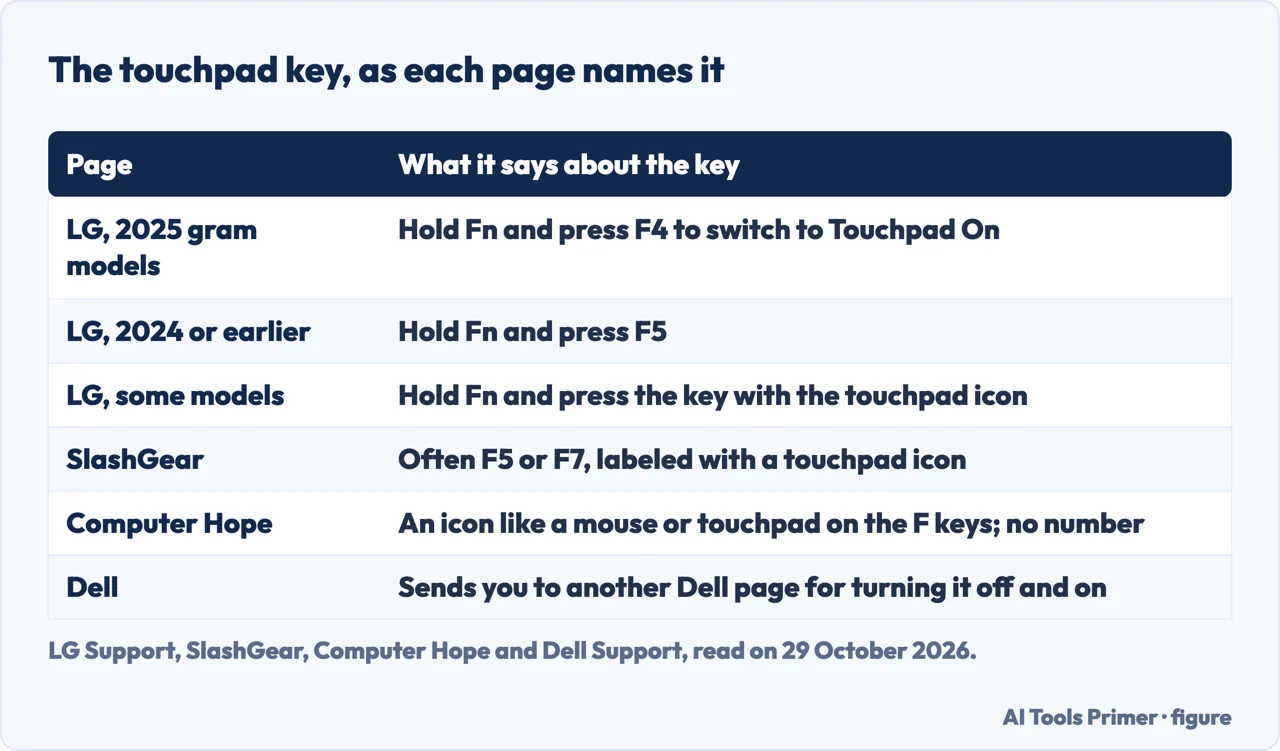
Next comes the key that switches the touchpad off. Computer Hope says many laptops use Fn plus a function key for this, and to look along the F keys for an icon that resembles a mouse or touchpad. The pages name different keys. LG says to hold Fn and press F4 on 2025 gram models, F5 on laptops from 2024 or earlier, and on some models the key with the touchpad icon. SlashGear says the icon is often on F5 or F7. Dell sends readers to another Dell page for turning the touchpad off and on, and the page we read does not give the key.
LG adds a condition that the Dell, Microsoft, Computer Hope and SlashGear pages we read do not mention. Its page says the touchpad works only if HotKeyManager is enabled in the startup programs and a compatible driver is installed, and that when HotKeyManager is set to Disabled on the Startup tab of Task Manager, the keyboard shortcut will not work. LG’s steps are to right-click the Start button, choose Task Manager, go to Startup Apps and enable HotKeyManager, clicking More details if Task Manager opens in its simplified view.
Then the settings. Computer Hope’s route is the Windows key plus I, then Devices and Touchpad, where an On/Off toggle should be set to On. Dell and SlashGear give Settings, then Bluetooth & devices, then Touchpad, and LG names both Devices and Bluetooth & devices. Computer Hope has a second route through the Control Panel: Hardware and Sound, then Mouse, then the touchpad tab, whose name it says varies between manufacturers, where a box labeled Enable touchpad should be checked. It also describes a Reset button: in the same Touchpad settings, scroll to “Reset your touchpad” and click Reset.
Three pages cover a touchpad that steps aside when a mouse is plugged in. Computer Hope says some input devices, a mouse among them, disable the touchpad automatically when connected; its test is to turn the computer off, disconnect every peripheral and start again. SlashGear says to open the Touchpad settings and make sure the checkbox that begins “Leave touchpad on” is checked. LG explains what the box does to its shortcut: with it checked, the shortcut shows “Touchpad On” and “Touchpad Off”; with it unchecked, it shows “Touchpad Auto” and “Touchpad Off”, and with Touchpad Auto the touchpad does not work while a mouse is connected. LG words the option two ways, once as the same “Leave touchpad on” box and once, in its questions, as a “Disable touchpad” option to uncheck, and the page does not say how the two fit together. We did not test which box a given laptop shows.
Dirt, devices and a restart
Dell’s quick fixes are three: make sure the touchpad is turned on, make sure the touchpad and your finger are free of dirt, grease, liquids or food, because the touchpad needs good contact with the finger, and save work, close programs and restart. Its note adds that the touchpad should not be touched until the computer has fully booted, as it goes through a calibration process during startup. SlashGear’s cleaning advice is to power off, wipe the surface gently with a microfiber cloth and avoid water and harsh chemicals; for stubborn grime it allows isopropyl alcohol, with the laptop off and the surface fully dry before the laptop is turned back on.
On peripherals the pages agree. Dell says to unplug everything except the power cable: speakers, printers, scanners, USB devices, flash drives and other external storage, an external monitor, keyboard and mouse, and to undock the computer if it sits in a docking station. After turning the computer back on and retesting, Dell says that if the cursor works, you reattach one device at a time to find the one that caused the problem. SlashGear lists USB mice, keyboards and game controllers, wired and wireless, and says to restart the laptop. Computer Hope says the same in fewer words.
The order is where they differ. Dell goes from cleaning and a restart to peripherals, then to updating the BIOS and chipset drivers, gestures and a hardware test. SlashGear goes from the touchpad key and settings to cleaning, peripherals, drivers, the BIOS and a Windows reset. Computer Hope starts with the frozen-computer check, then the Fn key, peripherals, settings, a reset of those settings, Device Manager, the BIOS, corrupt system files and defective hardware. The pages we read do not say how to tell a touchpad that has been switched off from one that has failed, or which symptom to start from. Laid side by side, they do agree on a rough direction, which is our arrangement and not a rule any of them states: first the checks that cost nothing (is the computer frozen, the Fn key, the On/Off toggle, a connected mouse; Computer Hope, LG, SlashGear), then cleaning, a restart and unplugging peripherals (Dell, SlashGear), then the driver in Device Manager (Microsoft, SlashGear), then the BIOS, a restore point or a Windows reset (Dell, Computer Hope, SlashGear), and hardware or a swollen battery last (Dell, Computer Hope, SlashGear). Dell alone sorts by symptom, with separate steps for a jumping, slow, wobbling or sleep-related touchpad, and its quick fixes start with a restart.
The driver, and where Device Manager keeps the touchpad
Microsoft’s page, which applies to Windows 11 and 10, names one possible cause: a missing or out-of-date driver. It says updating can be done through Windows Update or Device Manager and calls Windows Update the recommended method. If updating does not help, or no newer driver exists, it says reinstalling the touchpad through Device Manager might help, and that doing so forces the latest driver to download from Windows Update. If neither works, it says to contact the manufacturer of the Windows device. The page does not mention the Fn key, the touchpad settings or the BIOS.
Dell and LG say where drivers come from on their own laptops. Dell says that when its website lists no touchpad driver, Microsoft provides it through Windows Update and Dell has none to offer, and that some newer laptops use a Dell Precision Touchpad with a driver built into Windows. LG says to install drivers with an LG Update program, which comes in four forms depending on the laptop: LG Update & Renew, LG Update & Recovery, LG Update Center and LG DnA Center Plus. It says LG Update Center is only for products bought with Windows and LG DnA Center Plus only for products bought without it.
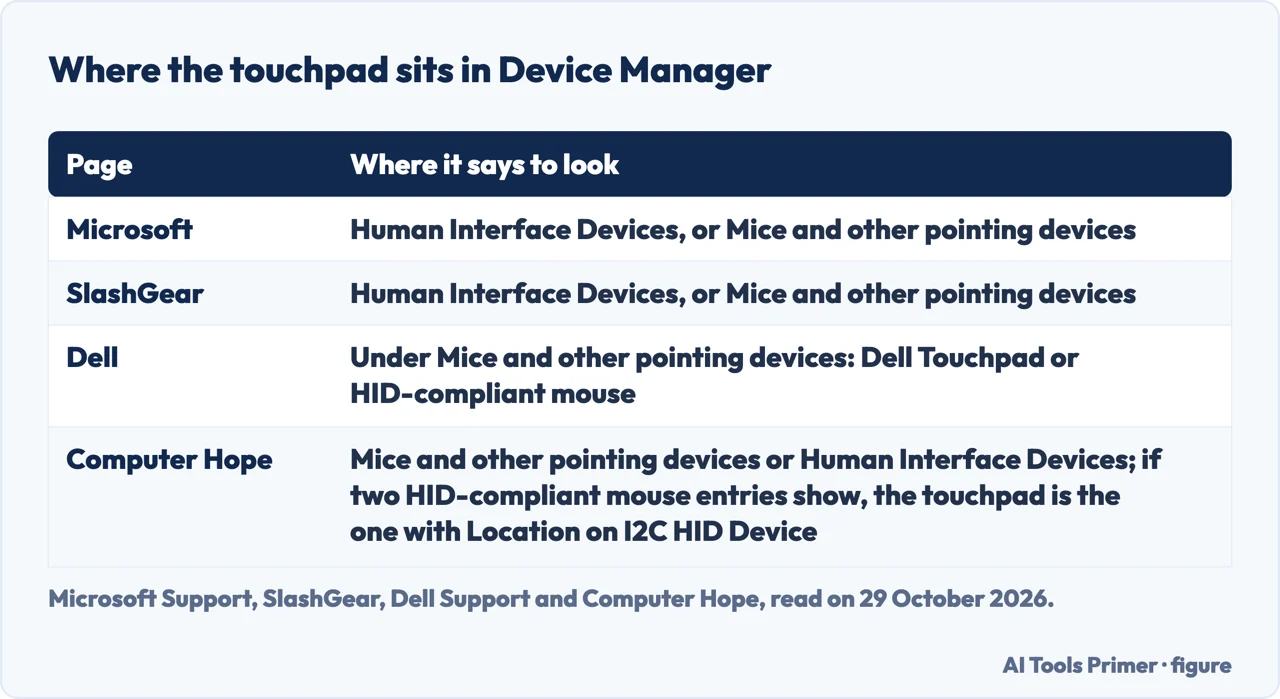
Finding the touchpad in Device Manager is where the pages read differently, as the table below shows. Computer Hope adds a test for the case of two entries named HID-compliant mouse, which in its Mouse Properties steps it says you may see when a USB mouse is connected: on the General tab of each entry’s Properties, the one whose Location says “on I2C HID Device” is the touchpad. In Mouse Properties it gives a second route to the same entry, the one without USB in its Location, whose Device status should read “This device is working properly”; anything else, it says, means the touchpad has a problem.
Once found, the pages give four actions. Computer Hope says a yellow exclamation mark or a red X next to an entry marks a problem, and that right-clicking the entry lets you disable it and then enable it again, which it says sometimes resets the touchpad. SlashGear says to right-click the touchpad, choose Update driver, then Search automatically for drivers and the Windows Update option; if the driver is corrupted, it says to choose Uninstall device, confirm, restart, and Windows will try to reinstall the driver during startup. Dell gives a keyboard-only version of the uninstall for a cursor that has disappeared: Windows key plus Q, type device manager, Tab and arrow keys to Mice and other pointing devices, select Dell Touchpad or HID-compliant mouse, press Shift and F10 (Shift, Fn and F10 on some laptops), choose Uninstall device and restart. Before that, Dell suggests running the Full system scan in SupportAssist.
Computer Hope also says that if the touchpad entry does not appear in Device Manager or in the Hardware tab of Mouse Properties, the touchpad may be disabled in the BIOS.
A cursor that jumps, crawls or clicks the wrong way
Dell’s page is organized by symptom. For a cursor that jumps while typing, it says to update the BIOS and notes that the settings which prevent this are sometimes called “Touch Guard” or “palm check”. Its steps are to open Settings, Bluetooth & devices, Touchpad, More touchpad settings, then the Pointer Options tab, check “Hide pointer while typing” and select OK; then to expand the Taps section and choose “Low sensitivity”, which it says can be adjusted back later.
For erratic movement, Dell adds that some laptops have gesture features switched on by default, among them two- and three-finger scrolling, pinch zoom, circle zoom, rotate and swiping, and that these can be adjusted in the “Gestures & interaction” section of the Touchpad settings. It says not all gestures exist on all computers. For a slow cursor, Dell says to check the driver and move the Cursor Speed slider in the same settings, and LG points to the Touchpad menu under Devices or Bluetooth & devices for the speed.
For the buttons, Dell says nothing should be blocking them and that most make a clicking sound or give a tactile response. Its steps are to clean, power the computer off and on, check the BIOS version, and run the SupportAssist hardware test; if that does not help, it says a restore point or a reinstall of Windows is the next step. To swap the left and right buttons, it says to check “Switch Primary and secondary buttons” on the Buttons tab under More touchpad settings. For a touchpad that stops after sleep, Dell says to restart, update the BIOS and make sure Windows has the latest updates.
The BIOS, Windows and the hardware
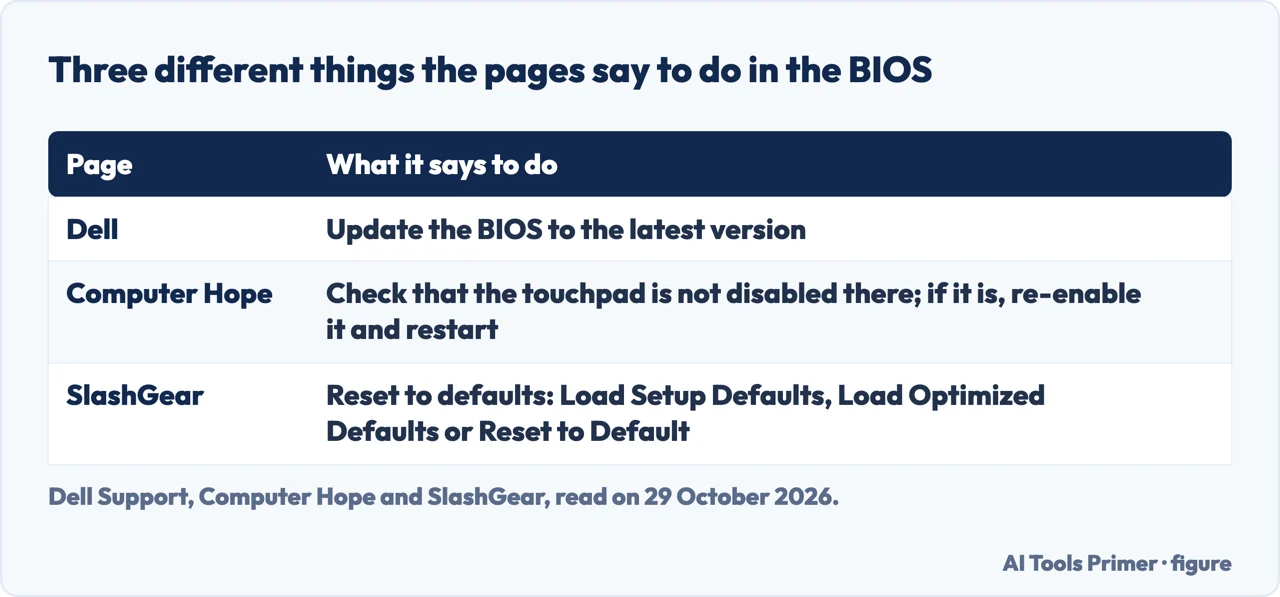
The BIOS is where the pages disagree most, and the five pages we read do not set one advice against another. Dell says to update it, and brings the BIOS up for erratic movement, a jumping cursor, button problems and trouble after sleep. Computer Hope says to enter the BIOS setup, check the hardware device settings and, if the touchpad is disabled, re-enable it and restart. SlashGear says to find the option that resets the settings to default, often labeled “Load Setup Defaults”, Load Optimized Defaults or Reset to Default, then save and exit. Those are three different actions under one name.
Dell has a hardware test for the touchpad. In SupportAssist it says to select Support, then Get started on the Test my hardware card, scroll to “HID-compliant touch pad”, select Run Test and follow the prompts. The page also lists a video on testing the touchpad, which we did not watch.
If the settings and drivers do not fix it, Windows itself is next. Computer Hope says corrupt operating system files can cause a malfunctioning touchpad, though it says you would likely notice other issues first, and that the cure is a restore point from before the touchpad stopped working or a repair installation. Dell mentions a restore point or a reinstall. SlashGear calls resetting Windows a last resort, through Settings, Recovery and the Reset PC button, choosing Keep my files; it says that if the touchpad still fails, the issue may be hardware-related and a service center should check it.
Dell raises the battery. When the touchpad appears distorted or is not working correctly, it says, this could indicate a swollen battery, and it lists five signs: bulging or swelling of the battery compartment, gaps or separations in the laptop’s case, a trackpad or keyboard that does not click properly or feels raised, a laptop that wobbles on a flat surface, and a screen that does not close completely or looks misaligned. For a suspected swollen battery Dell sends readers to its own page on handling swollen lithium-ion batteries, which we did not read. The Microsoft, LG, Computer Hope and SlashGear pages we read do not mention the battery.
At the end of the line the pages say the same thing in different words. LG says the laptop may require inspection and to contact LG Customer Support, Computer Hope says to contact the computer manufacturer or take the laptop to a repair shop, and to keep using a USB mouse meanwhile, and Microsoft says to contact the device’s manufacturer.
What we did not use
We tested nothing on a laptop, and every menu path above is as the pages give it, not as we saw it on a screen. The oldest dated page is SlashGear’s, from 27 September 2024; Computer Hope’s is dated 6 January 2025, LG’s 22 September 2025 and Dell’s article was last modified on 29 July 2026. We did not read forum or community threads about touchpads. We did not read the Dell pages that its article links to, or its videos, and Computer Hope’s steps for a Mac trackpad are left out because this page is about Windows.
Where to start
Four ways in.
- “Is it just switched off?”
- Frozen, switched off or set to step aside — switch
- “Is it the driver?”
- The driver, and where Device Manager keeps the touchpad — driver
- “The cursor jumps or crawls.”
- A cursor that jumps, crawls or clicks the wrong way — jumping
- “Could it be the hardware?”
- The BIOS, Windows and the hardware — hardware
Input that stops answering
The mouse, the keyboard and the Windows key.
Around the laptop
A freeze, a camera and a USB port.
Questions people also ask
How do I turn my touchpad back on?
The pages give the Fn key with the touchpad icon first (LG names F4 or F5 by model year, SlashGear F5 or F7), then the On/Off toggle in the Touchpad settings. Computer Hope also gives a box labeled Enable touchpad in Mouse Properties, and a disable-then-enable of the entry in Device Manager.
How do I unfreeze my laptop touchpad?
Computer Hope first presses the Windows key to see if Start opens. Dell says to restart with a wired USB or Bluetooth mouse if one is available, otherwise to hold the power button for at least 15 seconds to power off, and to unplug every peripheral. Computer Hope adds the Reset button in the Touchpad settings.
My Thinkpad 2 finger scroll isn’t working. How can I fix this?
The pages we read do not mention ThinkPad or Lenovo. Dell says some laptops have two- and three-finger scrolling switched on by default and that these are adjusted in the Gestures & interaction section of the Touchpad settings, though not every gesture exists on every computer.
Which function key turns off the touchpad?
It depends on the laptop. LG says F4 on 2025 gram models and F5 on laptops from 2024 or earlier, SlashGear says often F5 or F7, and Computer Hope says to look for a mouse or touchpad icon on the F keys. All three use it together with Fn.
Not covered here. We tested nothing on a laptop. The statements come from pages by Dell, Microsoft, LG, Computer Hope and SlashGear, all read on 29 October 2026.
The search volume and difficulty behind this page come from a Semrush reading of 29 August 2026, older than the 60 days the site normally allows.
Sources
- Dell Support — Fixing Your Laptop Touchpad not Working in Windows (article 000123353) — www.dell.com, read 29 October 2026.
- Microsoft Support — Fix touchpad problems in Windows — support.microsoft.com, read 29 October 2026.
- LG Support — [LG Laptop] Troubleshooting TouchPad Not Working — www.lg.com, read 29 October 2026.
- Computer Hope — Why is my laptop mouse touchpad not working? — www.computerhope.com, read 29 October 2026.
- SlashGear — Touchpad Not Working On Your Windows Laptop? Here’s How To Fix It — www.slashgear.com, read 29 October 2026.
Written by Alberto Gulotta
Founder and editor of AI Tools Primer, writing from Palermo, Italy. Thirty-five years of taking computers apart, starting with a Commodore 64 — the long version is on the about page.
Something wrong on this page? Write to aitoolsprimer@gmail.com and it gets fixed.
Written on 29 October 2026.
Independence and limits
No affiliate links and no paid placements anywhere on this site. Nobody pays to appear here, and no company has seen this page before you did.
This is general information, not professional advice. Where a page touches money, health, safety or the law, it names its source and the date it was read — and your situation may still differ. See the privacy page and the cookie policy.