
Software · guide
Windows 11 ISO: where Microsoft gives it and how to check it
By Alberto Gulotta · Updated · 10 min read
Windows 11 ISO comes from the third option on Microsoft's Download Windows 11 page. You pick the multi-edition ISO for x64 devices, choose a language, press the 64-bit Download button, and the link works for 24 hours. Microsoft then shows how to check the file with Get-FileHash, and its support page says what a USB drive needs.
| Question | Answer | Where it comes from |
|---|---|---|
| Where does Microsoft give the ISO? | On its Download Windows 11 page, in the section Download Windows 11 Disk Image (ISO) for x64 devices | Microsoft |
| Is there one file per edition? | No: it is a multi-edition ISO which uses your product key to unlock the correct edition | Microsoft |
| How long does the download link last? | Links are valid for 24 hours from time of creation | Microsoft |
| How do I check the file? | Run Get-FileHash in PowerShell and compare the SHA256 with Microsoft’s table for your language | Microsoft |
| What does a USB drive need? | To be blank and at least 8 GB, because anything on it is deleted | Microsoft Support |
Which of the three buttons gives you the ISO
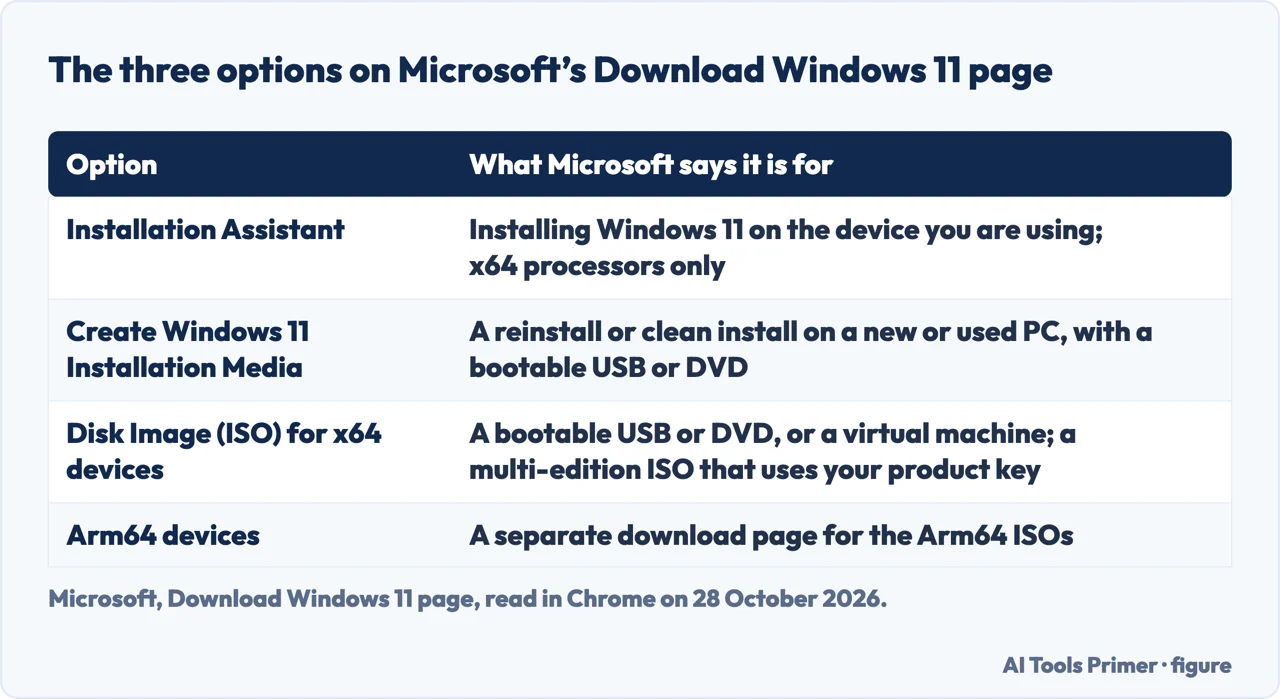
Microsoft’s Download Windows 11 page, which named version 26H2 as the current release when we read it, has three options. The Windows 11 Installation Assistant is described as the best option for installing Windows 11 on the device you are using; it needs a Windows 10 or 11 license, Windows 10 version 2004 or higher and 9 GB of free disk space, and it only works for x64 processors. Create Windows 11 Installation Media downloads the media creation tool, for a reinstall or clean install on a new or used PC with a bootable USB or DVD. The third, Download Windows 11 Disk Image (ISO) for x64 devices, is the one that hands you the file itself. Microsoft says it is for people who want to create bootable installation media, on a USB flash drive or DVD, or create a virtual machine. Microsoft Support adds that an ISO file can be created, for use in virtual machines or for burning to a DVD, from the Create Windows 11 Installation Media route. Our page on the Installation Assistant and our page on the media creation tool cover the other two.
The steps on Microsoft’s page
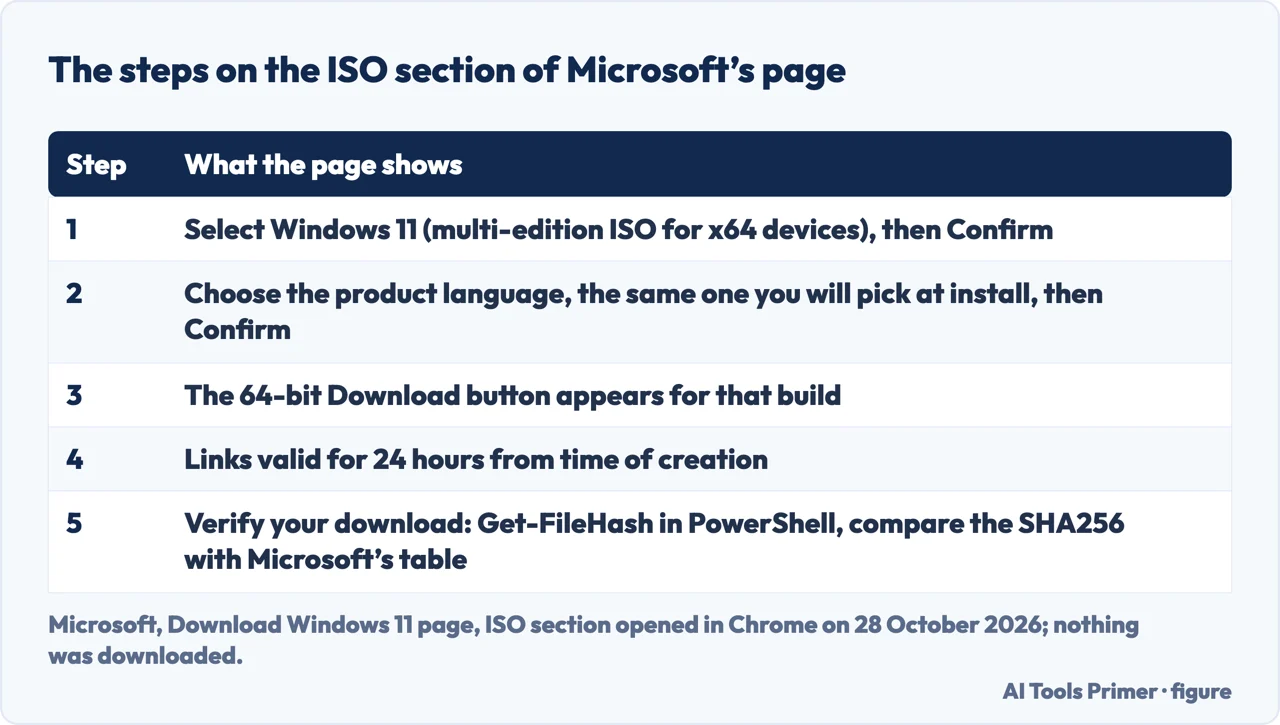
We opened the ISO section of the page in Chrome on 28 October 2026 and went as far as the download button, without downloading anything. First choose Windows 11 (multi-edition ISO for x64 devices) under Select Download and press Confirm. Then choose the product language; the page says you will need to choose the same language when you install Windows, and points to Time and language in PC settings or Region in Control Panel to see what you are using now. After Confirm, a 64-bit Download button appears, headed with the build it offers and the language you chose, for that day. Under it the page says links are valid for 24 hours from the time they were created, and gave an expiry timestamp the next day. Pureinfotech, in a guide published on 29 September 2026 and updated on 1 October 2026, describes the same steps and names the file for that first rollout as Windows11_Client_x64_en-us_26300_9457.iso.
Arm64 PCs
The x64 section says Windows 11 ISOs for Arm64 devices are available on a separate page. Microsoft also says the Installation Assistant doesn’t run on Arm-based PCs and that the media creation tool can’t create installation media for them; both work only for x64 processors. Pureinfotech’s guide to building an ISO with the UUP Dump tool tells you to choose the arm64 architecture if you have a Copilot+ PC or a device using an Arm processor. We opened none of those pages.
Checking the file
Under Verify your download, Microsoft gives a way to check the integrity and authenticity of the ISO. After downloading it, open Windows PowerShell and compute the hash with the Get-FileHash cmdlet, giving it the path of the file; Microsoft’s example is Get-FileHash C:\Users\user1\Downloads\Contoso8_1_ENT.iso. If the SHA256 output matches the value in Microsoft’s table for the product you downloaded, Microsoft says that confirms the file has not been corrupted, tampered with or altered from the original. The table lists a hash code for each language, so compare against the row for the language you chose. We did not copy the table.
What to do with the file
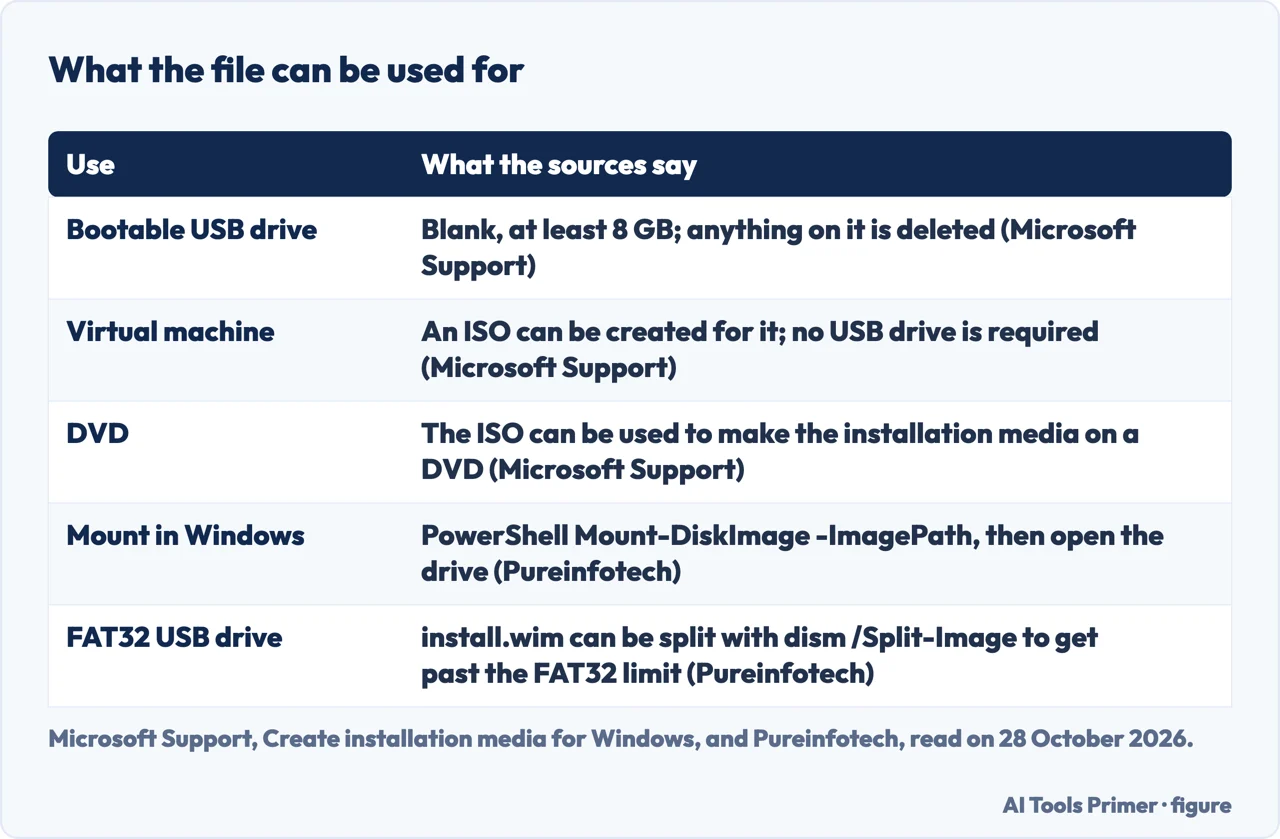
Microsoft Support’s page on installation media says a USB flash drive can be used to install a new copy of Windows, perform a clean installation or reinstall it. You need a PC with a reliable internet connection and a blank USB flash drive with at least 8 GB of space; because any content on the drive is deleted, Microsoft recommends a blank one, and asks you to back up your files before you install or reinstall Windows. For virtual machines a USB drive isn’t required, since an ISO can be created for them, and an ISO can also be used to make the installation media on a DVD. A 25-character product key might be needed, but not for digital licenses, and many modern devices carry the key in firmware, which is applied automatically if it matches the version and edition being installed.
Pureinfotech, whose guide to bootable USB drives was revised in July 2026, lists four ways to turn the ISO into a USB drive: the media creation tool, Rufus, Ventoy and Command Prompt. It says that while setup can be started from the media creation tool or by mounting an ISO file, booting from a USB drive remains the most reliable and flexible approach. Ventoy is installed on the USB drive and makes any ISO bootable: you copy the ISO onto it. The Command Prompt route mounts the ISO with the PowerShell command Mount-DiskImage -ImagePath, followed by the path of the file, and for a drive formatted FAT32 it splits install.wim into chunks with dism /Split-Image to get past the FAT32 limitation. For how to mount iso windows 11, that command is the only one the sources we read give; we did not mount a file ourselves.
Other places the file comes from
Pureinfotech names two more. One is the Windows Insider Program download page, where you sign in with a Microsoft account if applicable and choose a Release Preview option. The other is UUP Dump, a utility that, in Pureinfotech’s words, creates a custom Windows 11 ISO from publicly available preview builds by downloading the required files directly from Microsoft’s update servers. It calls the resulting ISO unofficial, though the files come from Microsoft, and recommends the official Microsoft download page as the first place to look.
What we did not use
We downloaded no ISO and ran nothing on a PC. We did not use the Reddit thread, the TechSpot download page, the Tom’s Hardware article on a small Tiny11 image, the Microsoft Community Hub post, the ManageEngine guide or the Microsoft Learn answer that Google listed for the key. The Google AI box says the file is about 8.4 GB; the Microsoft page we read does not give a size, so we do not repeat it. We did not check which editions the multi-edition ISO unlocks, so we make no claim about Windows 11 Pro or Home. Windows 10 ISOs, Insider builds beyond the pages named above, and bypassing hardware checks are not covered.
Where to start
Four ways in.
- “Which button do I press?”
- Which of the three buttons — buttons
- “What are the steps?”
- The steps on Microsoft’s page — steps
- “Is the file genuine?”
- Checking the file — verify
- “What do I do with it?”
- What to do with the file — use
Installing Windows 11
The tools, the checks and the upgrade.
Before and after the file
Editions, requirements and a clean start.
Questions people also ask
Is there a free Windows 11 ISO?
The ISO section of Microsoft’s page asks only for an edition and a language before it gives the download button. Microsoft says the file uses your product key to unlock the correct edition, and Microsoft Support says a 25-character key might be needed, but not for digital licenses.
How to Windows 11 ISO file?
Open Microsoft’s Download Windows 11 page, choose Windows 11 (multi-edition ISO for x64 devices), Confirm, choose the language, Confirm, then press 64-bit Download. The link is valid for 24 hours.
How to get Windows 11 Pro ISO?
Microsoft’s page offers one multi-edition ISO for x64 devices rather than a separate Pro file. We did not test which editions it unlocks.
What is Windows 11 ISO?
Microsoft describes it as a disk image for people who want to create bootable installation media, on a USB flash drive or DVD, or create a virtual machine.
Not covered here. We downloaded no ISO and ran nothing on a PC. The statements come from Microsoft’s Download Windows 11 page (ISO section opened in Chrome), Microsoft Support’s page on installation media and two Pureinfotech guides, all read on 28 October 2026.
The search volume and difficulty behind this page were read in Semrush on 28 October 2026.
Sources
- Microsoft — Download Windows 11 — www.microsoft.com, read 28 October 2026.
- Microsoft Support — Create installation media for Windows — support.microsoft.com, read 28 October 2026.
- Pureinfotech — How to download Windows 11 26H2 ISO file (29 September 2026, updated 1 October 2026) — pureinfotech.com, read 28 October 2026.
- Pureinfotech — How to create bootable Windows 11 USB install media — pureinfotech.com, read 28 October 2026.
Written by Alberto Gulotta
Founder and editor of AI Tools Primer, writing from Palermo, Italy. Thirty-five years of taking computers apart, starting with a Commodore 64 — the long version is on the about page.
Something wrong on this page? Write to aitoolsprimer@gmail.com and it gets fixed.
Written on 28 October 2026.
Independence and limits
No affiliate links and no paid placements anywhere on this site. Nobody pays to appear here, and no company has seen this page before you did.
This is general information, not professional advice. Where a page touches money, health, safety or the law, it names its source and the date it was read — and your situation may still differ. See the privacy page and the cookie policy.