
Software · guide
Windows 11 Update Assistant: Microsoft's two names and when to use it
By Alberto Gulotta · Updated · 10 min read
The Windows 11 Update Assistant is the name people search, and Microsoft's download page calls the tool the Windows 11 Installation Assistant. This page sets out Microsoft's two names for it, the three download options, the conditions and steps it gives, and what Windows Central adds about versions and files.
| Question | Answer | Where it comes from |
|---|---|---|
| What is it called? | Windows Update Assistant in one Microsoft article; Windows 11 Installation Assistant on the download page | Microsoft Support; Download Windows 11 |
| What is it for? | Installing the latest feature update, or Windows 11, on the PC you are using | Both pages |
| What does it need? | A license, Windows 10 version 2004 or higher, and 9 GB of free disk space | Download Windows 11 |
| Where does it not run? | On Arm-based PCs | Both pages |
| When is Windows Update enough? | For quality updates: Microsoft says to use Windows Update in Settings | Microsoft Support |
One tool, two names
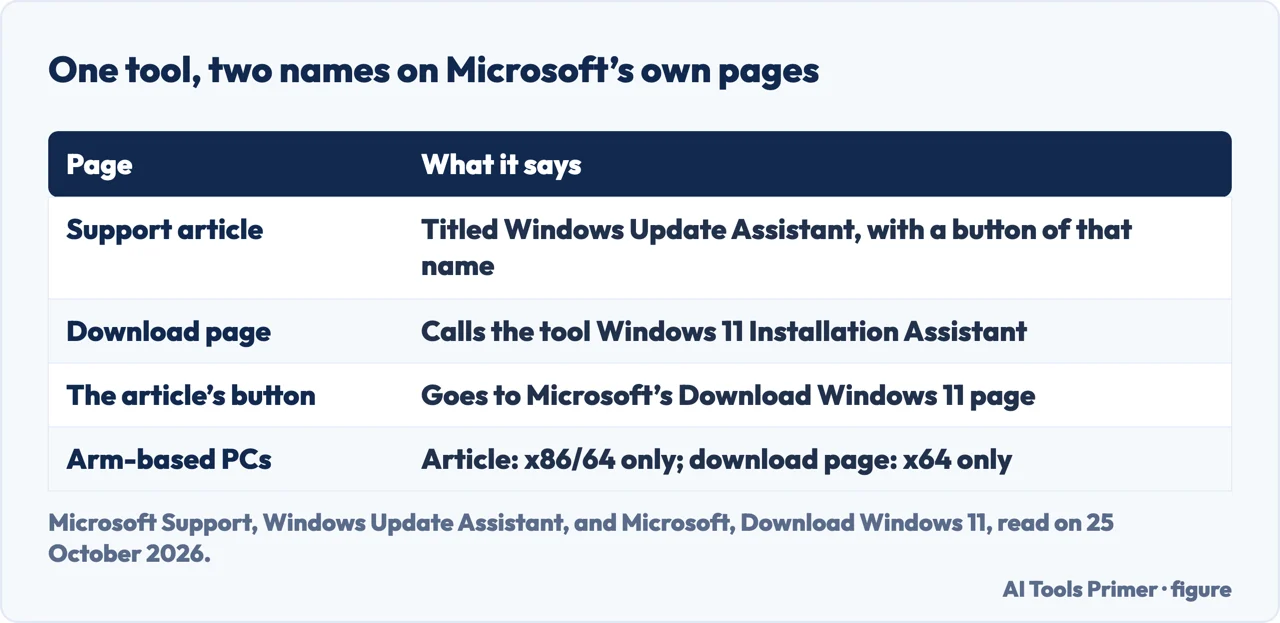
Microsoft Support has an article titled Windows Update Assistant, which says it applies to Windows 11 and Windows 10. It describes the tool as helping you manually download and install the latest Windows feature update on a compatible PC, to be used if your device has not received a feature update automatically through Windows Update. The article carries a button labelled Download the Windows Update Assistant; in the page we read it appears twice, and one button leads to Microsoft’s Download Windows 11 page and the other to its Windows 10 download page.
On the Download Windows 11 page the tool has another name: Windows 11 Installation Assistant. The article does not use that name, and the download page does not use the article’s. The two are linked by the button, which is how we know they belong together; the search term “Windows 11 Update Assistant” matches neither page’s title exactly. The download page also shows the current release, Windows 11 2026 Update, version 26H2, on the day we read it.
Three ways to get Windows 11
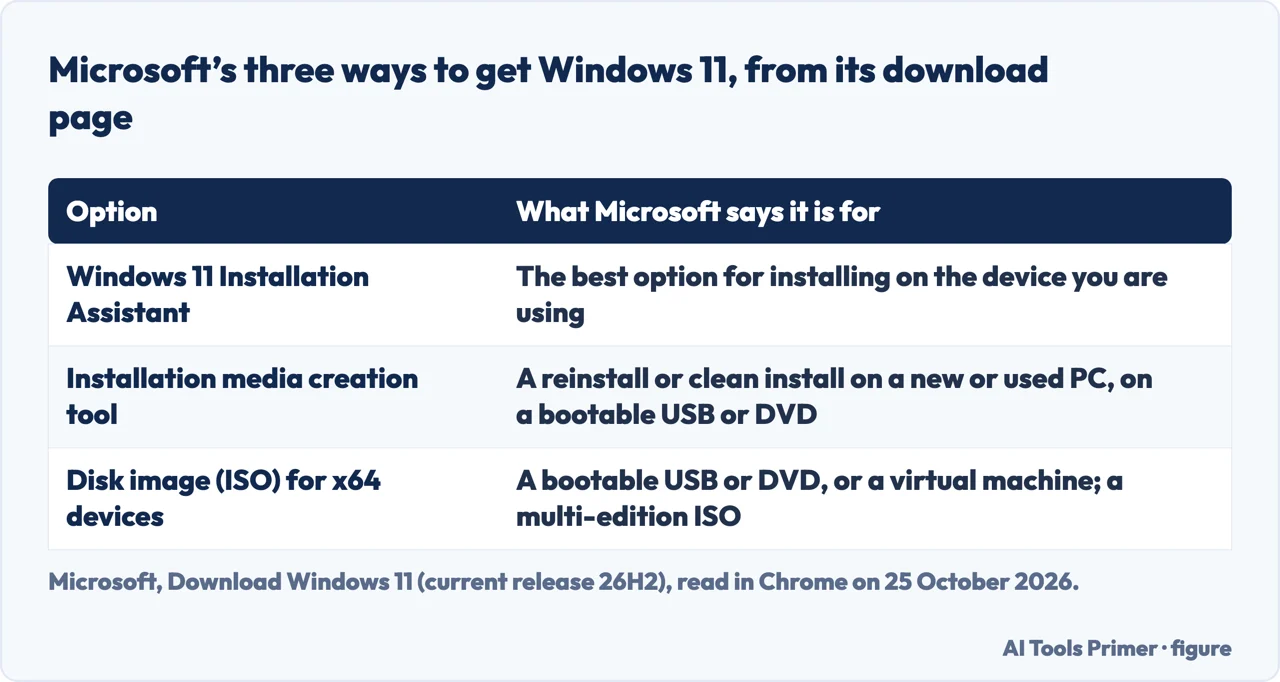
The Download Windows 11 page lists three options. The Installation Assistant is, in Microsoft’s words, the best option for installing Windows 11 on the device you are currently using. The second option downloads the media creation tool, which Microsoft says is for a reinstall or clean install on a new or used PC, making a bootable USB or DVD. The third is a disk image (ISO) for x64 devices, for a bootable USB or DVD or a virtual machine; it is a multi-edition ISO that uses your product key to unlock the correct edition. Microsoft notes that the media creation tool cannot create installation media for Arm-based PCs. If you need installation media for a different PC, the Installation Assistant section points you to the second option.
What it needs, and what it does
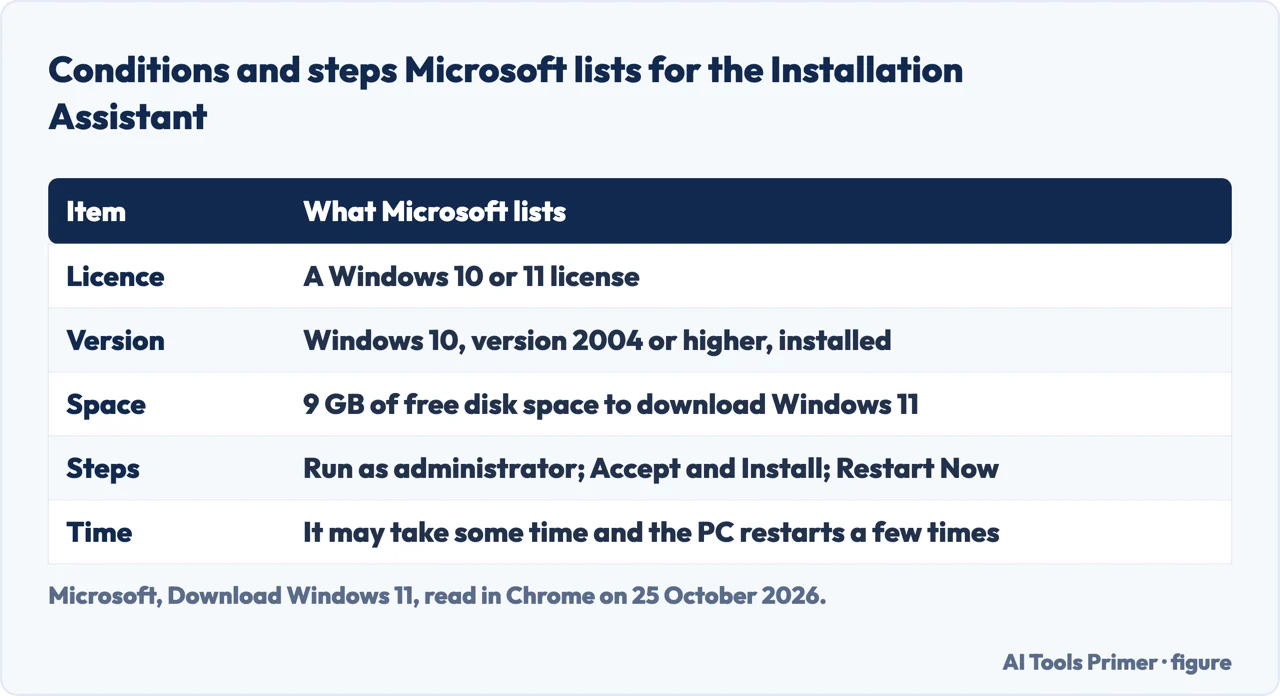
Under “Before you begin using Installation Assistant” Microsoft lists three conditions: a Windows 10 or 11 license, Windows 10 version 2004 or higher installed to run the tool, and 9 GB of free disk space to download Windows 11. It adds that your PC must meet the Windows 11 device specifications, and recommends visiting the PC maker’s website for updated drivers and hardware compatibility. The 9 GB is for the download; Microsoft Learn’s Windows 11 requirements article, last updated on 14 July 2026, lists 64 GB or more of available disk space among the minimum hardware requirements, a separate figure. Our page on whether a PC can run Windows 11 goes through those.
The steps are short. After you download the tool, select Run; you need to be an administrator. Once the tool confirms the device hardware is compatible, it shows the license terms and you select Accept and Install. When it is ready, click Restart Now to complete the installation. Microsoft says it might take some time and your PC will restart a few times, and tells you not to turn it off. Both pages say the tool does not run on Arm-based PCs: the article puts it as supported only on x86/64-based devices and the download page as x64 processors only. Windows Central’s walkthrough, dated 11 October 2026, adds detail the Microsoft pages do not give: the file is named Windows11InstallationAssistant.exe, the tool may offer a “Get PC Health Check app” option, and if it reports that the latest version is already installed you probably downloaded an older copy of the tool.
When Windows Update is enough
The article says to use the Assistant if your device has not received the latest feature update, or if you want to install a feature update manually instead of waiting for automatic updates. For quality updates, the smaller, more frequent fixes and security updates, it says to use Windows Update in Settings instead. It also tells you to check your Windows version by typing winver in the taskbar Search box. That answers the question of whether a PC that already runs Windows 11 needs the tool only in part: the article describes it for a device waiting on a feature update, and the download page for installing Windows 11 on the device you use.
Windows Central’s guide to the 26H2 rollout, dated 11 October 2026 and credited to Mauro Huculak, says 26H2 is a small update that needs no full reinstall on a device running version 25H2 or 24H2, while a device still on 23H2 or older, or on Windows 10, goes through the full upgrade process. It lists four manual routes: Windows Update, the Installation Assistant, the Media Creation Tool and an ISO file. Its advice is that the Installation Assistant should only be used on a device running 23H2 or Windows 10, because on 25H2 or 24H2 it triggers an unnecessary in-place upgrade; for those it points to Windows Update: Settings, Windows Update, turn on “Get the latest updates as soon as they’re available”, Check for updates, Download and install now, Restart now. That is Windows Central’s advice, not Microsoft’s, and it answers the question about a PC that already runs Windows 11 more directly than either Microsoft page does.
Microsoft’s Get Windows 11 page gives the other route for a Windows 10 PC: select Start, then Settings, then Check for updates to see whether the PC can run Windows 11 or the upgrade is ready. It says the device must run Windows 10 version 2004 or later, and it words the Windows Update path two ways: Settings > Update and Security in one note and Settings > Privacy and Security > Windows Update in another. The same page says support for Windows 10 ended on October 14, 2025, and that Extended Security Updates run through October 12, 2027 on eligible Windows 10 PCs. See upgrading to Windows 11 and Windows 10 after support.
What happens to your files
Windows Central says that once its steps are complete the tool will download the necessary files and install the new version of Windows 11, preserving your files, settings and apps. The same guide calls the process non-destructive, adds that something can still go wrong during and after the upgrade, and suggests a temporary backup before you begin. Google’s answer box for the term carries the claim about files, apps and settings too, attributed to Microsoft Support and a YouTube channel; in the three Microsoft pages we read, the words personal files, apps and settings, and back up do not appear, so we could not confirm the sentence on Microsoft’s own pages, and we did not run the tool. Backups, properly covers what Windows ships for a copy, and a Windows update that failed covers undoing one.
What we did not use
Two blogs in the results, from Action1 and Atera, sit behind a bot wall that our reader could not pass, so nothing from them is used. A Microsoft Q&A answer about the Installation Assistant carries Microsoft’s own label that AI-generated content may be incorrect, so we did not quote it either. The other results were not read.
Where to start
Four ways in.
- “Is that the same thing?”
- Two names — names
- “What does it need?”
- Conditions and steps — conditions
- “Do I need it?”
- When Windows Update is enough — when
- “Will I lose files?”
- Files — files
Getting to Windows 11
The requirements, the route and the date.
When the update goes wrong
Errors, a failed update and the reset.
Questions people also ask
How do I manually update Windows 11?
Microsoft’s article says the Assistant manually installs the latest feature update; for quality updates it says to use Windows Update in Settings.
How to install Windows Update Assistant?
Download it from Microsoft’s Download Windows 11 page, select Run as an administrator, then Accept and Install, and Restart Now.
Do I need Windows Update Assistant?
Microsoft says to use it if your device has not received the latest feature update or you want to install one manually rather than wait.
Do I need Windows 11 installation assistant if I have Windows 11?
Windows Central says no for a PC on 25H2 or 24H2: the tool would trigger an unnecessary in-place upgrade, and Windows Update is the route. Microsoft’s article describes it for a device waiting on a feature update.
Not covered here. We did not run the tool or upgrade a PC. The statements come from the Microsoft Support article Windows Update Assistant (no date read), the Download Windows 11 page (current release 26H2, read in Chrome with its sections expanded), the Get Windows 11 page and Microsoft Learn’s Windows 11 requirements (last updated 14 July 2026), plus a Windows Central guide dated 11 October 2026 for what Microsoft’s pages leave out; all read on 25 October 2026.
The two blogs behind a bot wall and the Q&A answer labelled as AI-generated were not used. The search volume and difficulty behind this page were read in Semrush on 29 August 2026.
Sources
- Microsoft Support — Windows Update Assistant (no date read) — support.microsoft.com, read 25 October 2026.
- Microsoft — Download Windows 11 (current release 26H2) — www.microsoft.com, read 25 October 2026.
- Microsoft — How to Get Windows 11 for Your Compatible PC — www.microsoft.com, read 25 October 2026.
- Windows Central — Windows 11 version 26H2 is rolling out now: how to get the update (11 October 2026) — www.windowscentral.com, read 25 October 2026.
- Microsoft Learn — Windows 11 requirements (last updated 14 July 2026) — learn.microsoft.com, read 25 October 2026.
Written by Alberto Gulotta
Founder and editor of AI Tools Primer, writing from Palermo, Italy. Thirty-five years of taking computers apart, starting with a Commodore 64 — the long version is on the about page.
Something wrong on this page? Write to aitoolsprimer@gmail.com and it gets fixed.
Written on 25 October 2026.
Independence and limits
No affiliate links and no paid placements anywhere on this site. Nobody pays to appear here, and no company has seen this page before you did.
This is general information, not professional advice. Where a page touches money, health, safety or the law, it names its source and the date it was read — and your situation may still differ. See the privacy page and the cookie policy.