
Video · guide
Best video editor for beginners: what four sets of pages say
By Alberto Gulotta · Updated
Best video editor for beginners: the pages from Blackmagic, Microsoft, Apple and CapCut that we read do not say which editor is easiest, but they do state where DaVinci Resolve, Clipchamp, iMovie and CapCut run, what each exports without paying, when a watermark appears and what it costs.
| Question | Answer | Where it comes from |
|---|---|---|
| Which editor is easiest? | The pages we read do not say; each describes only its own product | All four |
| Which ones run on Windows? | DaVinci Resolve (Mac, Windows and Linux), Clipchamp (the Windows app, or Edge or Chrome on a desktop or laptop), CapCut desktop (macOS and Windows) plus CapCut online and mobile; iMovie is listed only for Mac, though its listing says you can start a movie on an iPhone or iPad | Blackmagic, Microsoft Support, CapCut, Apple |
| Which export 4K without paying? | Resolve, to Ultra HD in 8-bit; iMovie, in the clip’s native resolution; Clipchamp stops at 1080p; CapCut’s own pages disagree | Blackmagic, Apple Support, Microsoft Support, CapCut |
| Which add a watermark? | Clipchamp says it adds none; CapCut says some templates and assets do; the Blackmagic and Apple pages we read do not mention one | Microsoft Support, CapCut Help Center |
| What does each cost? | Resolve is free, with Studio shown at a sale price; Clipchamp has a free plan and premium features inside Microsoft 365; iMovie is listed as Free; CapCut is free with a Pro plan | Blackmagic, Microsoft, Apple, CapCut |
What the question is really asking
The phrase asks for a ranking, and the pages we read from Blackmagic, Microsoft, Apple and CapCut do not give one. Blackmagic describes the interface of DaVinci Resolve as fast to learn and easy for new users, and Microsoft describes Clipchamp as a video editor designed to make video creation easy even with no prior editing experience. Apple’s App Store page says iMovie has “intuitive editing features” and ends on “Moviemaking Made Easy”, and CapCut’s page on the PC version says the desktop app has the accessibility of software designed for beginners. Each page is describing its own product and stays with it. What they do state, in terms that can be read off the page and dated, is where the editor runs, what it exports, when a watermark appears and what it costs.
This page turns the question into checks that a page can answer. The editors are DaVinci Resolve, from Blackmagic; Clipchamp, from Microsoft; iMovie, from Apple; and CapCut. We read each one’s own pages on November 6, 2026, and put the statements side by side, with the places where they differ marked as differences between pages and not settled by us. We do not rank the four editors.
What you can run it on
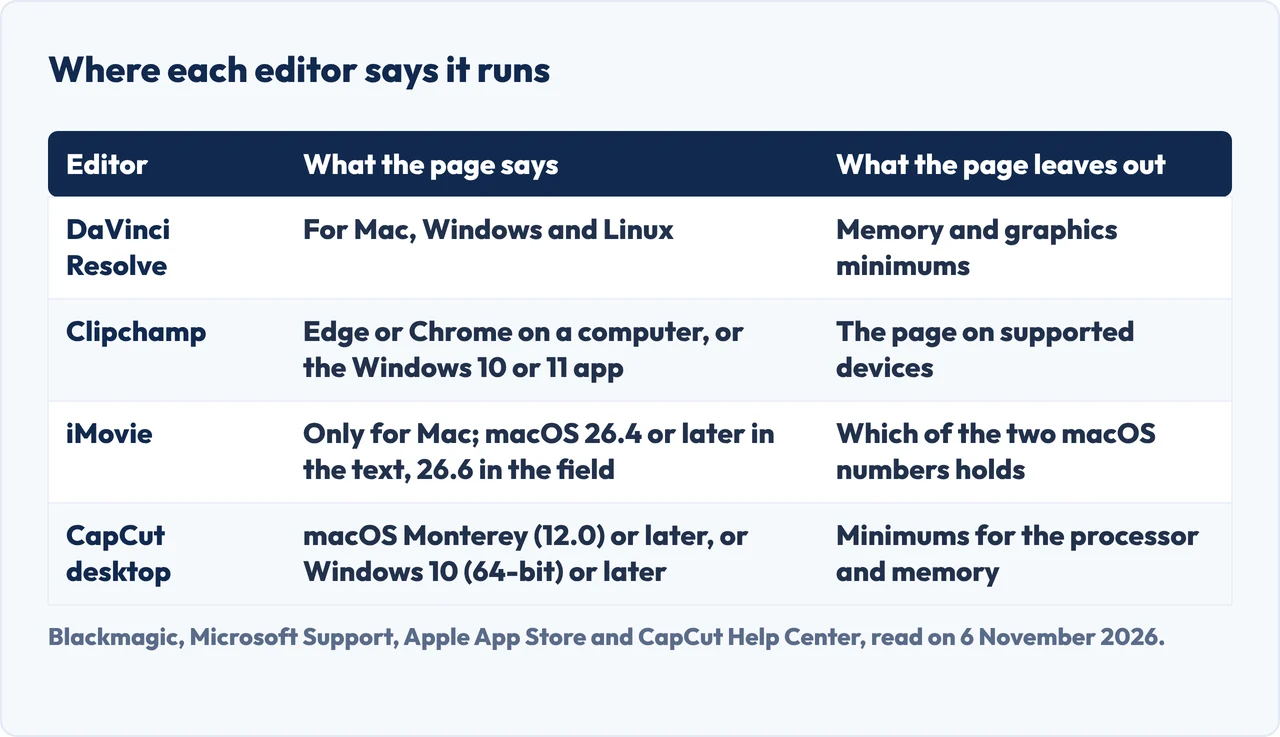
DaVinci Resolve. Blackmagic’s page describes it as software for Mac, Windows and Linux. The pages we read do not give minimums for memory, graphics card or operating system: the technical specifications page we read covers panels and keyboards, not the software.
Clipchamp. Microsoft’s support page says that with a personal Microsoft account you use Microsoft Edge or Google Chrome on a desktop or laptop computer, or the Clipchamp app for Windows 10 or Windows 11. You need an internet connection to sign in, save changes to the cloud and use online features. A separate version for work or school accounts needs a license that includes Clipchamp. Microsoft says Clipchamp runs in the browser and uses your computer to preview and export videos, and sends readers who want supported computers and browsers to a page called Which devices does Clipchamp work on.
iMovie. The App Store listing we read says “Only for Mac”, with the price Free, a size of 3.6 GB and Apple as the developer. The description says you can edit movies at up to 4K resolution with video from iPhone 6s or later, GoPro and other Ultra HD cameras on compatible Macs. The same listing gives two versions of macOS. The description says “macOS 26.4 or later”, with 4GB of memory and 3.5GB of available disk space, while the Compatibility field says “Requires macOS 26.6 or later”. We cannot tell from the listing which one holds, so both are reported, as read on November 6, 2026. The listing is for the Mac app; the iPhone app has a separate listing.
CapCut. CapCut’s help page on 2K and 4K export, dated January 14, 2026, says the desktop app needs macOS Monterey (12.0) or later on a Mac, or Windows 10 (64-bit) or later. It describes three places to edit: online in Chrome, Edge or Safari, on the desktop, and in the mobile app. For mobile it says iPhone 8 and newer generally support 4K export if the source footage is 4K, and that on Android only high-end models display the 4K option. A separate CapCut page on the PC version recommends an Intel Core i5 or AMD Ryzen 5 processor and 8GB to 16GB of memory for real-time previews and quick exporting, and says the program works best on Windows 10 and 11 (64-bit). That is a recommendation on the page, not a minimum.
For the hardware side of the question see What your computer needs, and for phones Editing on a phone.
What it exports
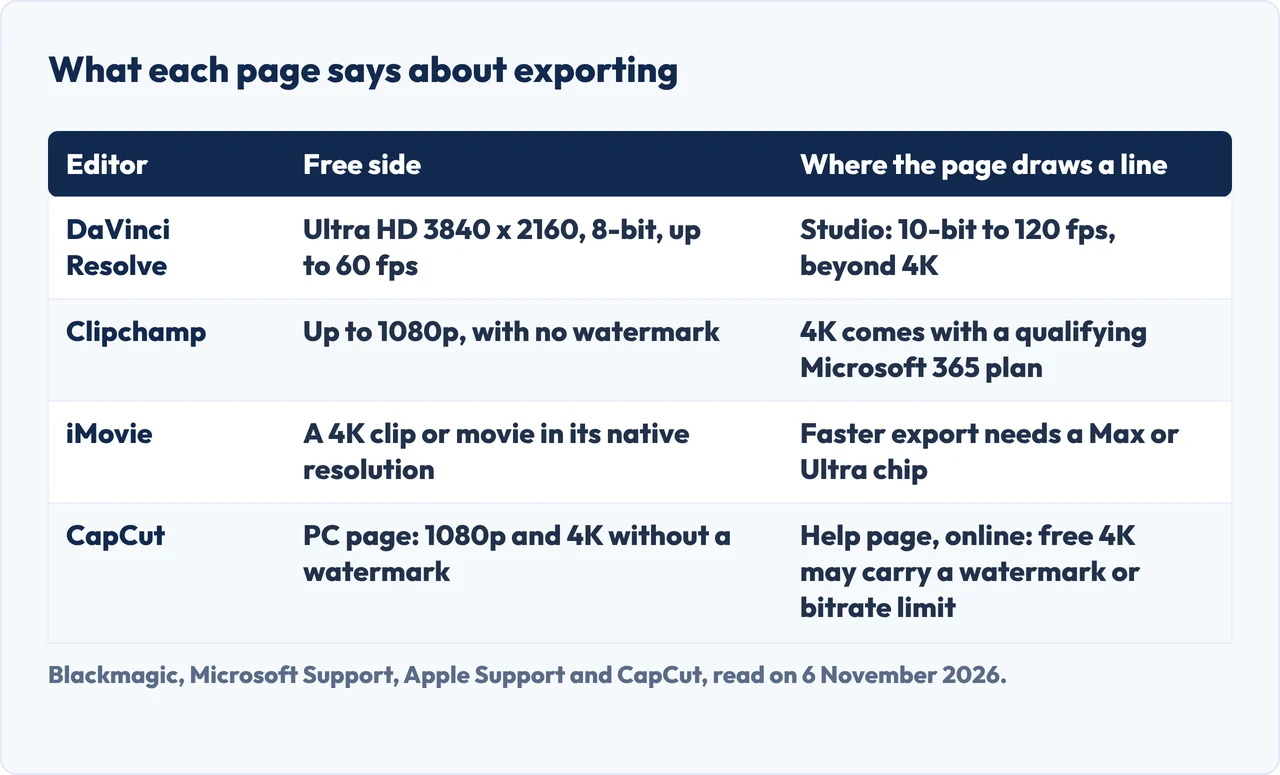
DaVinci Resolve. Blackmagic says the free version works with virtually all 8-bit video formats at up to 60fps in resolutions as high as Ultra HD 3840 x 2160. Its Studio page says the free version can edit and finish up to 60 fps in the same resolution and lets several people work on the same project at the same time. The Studio version is described as adding 10-bit video up to 120 frames per second and resolutions beyond 4K.
Clipchamp. Microsoft’s plans page says the free plan includes core editing tools, free stock media and watermark-free exports up to 1080p (full HD). Premium features, among them 4K exports, premium stock media, premium filters and effects and the brand kit, come through qualifying Microsoft 365 subscriptions. Clipchamp’s pricing page shows the same split in a table: “Up to 1080p HD video resolution” on Free and up to 4K UHD on Premium. Microsoft adds that the work and school version differs: its Standard plan includes 4K exports and brand kits, which are premium features in the personal version.
iMovie. Apple’s guide says you can export a 4K clip or movie in its native resolution, and lets you choose the format, the resolution and the quality, with a custom setting for the target bit rate. It also describes an option that speeds up exports of projects of about three minutes or longer by sending segments of the video to the Mac’s media engines. That option requires macOS Sonoma or later and a Mac with an Apple M1 Max, M1 Ultra, M2 Max, M2 Ultra or M3 Max.
CapCut. The help page says the ability to export in 2K (1440p) or 4K (2160p) depends on the device, the operating system and the platform. On the desktop you choose 2K (2560×1440) or 4K (3840×2160) in the export panel and can set the frame rate up to 60fps depending on the source. Online, the page lists 1080p, 2K and 4K only if the browser and device support hardware-accelerated encoding, the connection is stable and the project contains media at least at the target resolution. On the phone the available resolutions depend on the hardware, the resolution of the original clips, and the region and app version. The page also says that you cannot export 4K if all clips are 1080p or lower.
The limits are stated in different units. Blackmagic gives bit depth and frame rate, Microsoft gives a ceiling in lines, Apple speaks of native resolution and CapCut lists conditions. The pages we read do not put them on one scale, and we do not either.
Watermark and the paid line
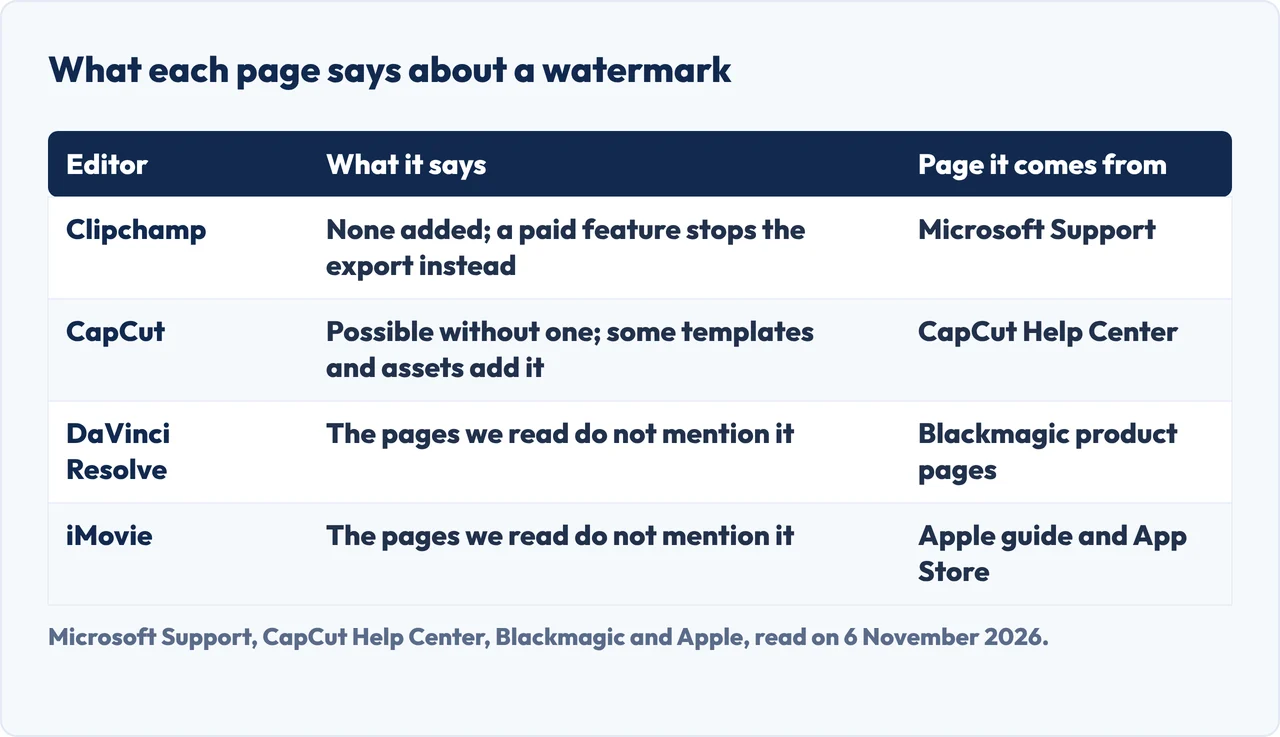
Clipchamp. Microsoft’s support page says the editor does not add a visual, audio or any other kind of watermark to your projects or exported videos. For personal accounts it adds a condition: if a project uses premium stock media or a feature that is not in your plan, no watermark is added, but you cannot export and save the video until you upgrade to the plan that includes it. The editor shows small visual hints on the paid features that are not in your plan. For work and school accounts the page says you can use the features and stock media included in your organization’s license, and that a feature you lack is a matter for your Microsoft 365 administrator. The page also says you can add a watermark of your own.
CapCut. CapCut’s Help Center page of March 18, 2026, says it is possible to export without a watermark, depending on the editing features you use and the version of the app, and that some templates and assets add one. It says templates often include a small CapCut watermark at the end of the video, that an ending clip with the CapCut logo can be deleted from the timeline before export, and that CapCut Pro unlocks premium assets so that those features no longer carry a watermark. It also says that replacing premium stickers, transitions or filters with free ones can remove the restriction.
Where CapCut’s pages differ. CapCut’s page on the PC version says its basic level lets you export at 1080p and even 4K without a watermark. Its January 2026 export page, in the notes on exporting online, says free accounts may face watermarks or bitrate limits on 4K exports, and that Pro subscribers get unrestricted 4K. These are two statements from CapCut that do not agree, and one is written about the PC version and the other about the online editor. We report both and do not decide between them. For more on CapCut’s free level and Pro, see Is CapCut free.
DaVinci Resolve and iMovie. The pages we read from Blackmagic and Apple do not mention a watermark. The line Blackmagic draws is a different one: Studio adds the DaVinci AI Neural Engine, dozens of additional Resolve FX, temporal and AI spatial noise reduction, text based editing, magic mask, film grain and optical blur. Apple’s guide ties the faster export option to the chips listed above. For Resolve in detail, see Is DaVinci Resolve free.
What it costs, as stated
DaVinci Resolve. Blackmagic’s page shows a free version with a Free Download Now button. Studio 21 appears as “Was $295 Now $236”, with a Save 20% label, on the day we read it, November 6, 2026, so that is a sale price and not a fixed one. The page says that once you learn the software and start using it for more work, you can purchase Studio.
Clipchamp. Microsoft says the personal version includes a free plan, and that qualifying Microsoft 365 subscriptions provide additional features. Clipchamp’s pricing page says premium features are included with Microsoft 365 Personal and Family, and its table shows the brand kit as Not included on Free and as a single brand on Premium. AI video editing tools, a screen, camera and voice recorder and watermark-free exports are marked Included on both. Microsoft’s own advice, before you buy, is to check whether your subscription already includes the Clipchamp features you need.
iMovie. The App Store listing gives the price as Free for the Mac app.
CapCut. The pages we read say that CapCut has a free level and a Pro membership, and that Pro unlocks premium assets, with unrestricted 4K online. They do not give the price of Pro, so this page gives none. For Pro, see Is CapCut free.
For the first edit itself, see First video edit, which covers importing, cutting, sound, titles and export with Clipchamp and iMovie steps.
About the sources
The Blackmagic pages we read do not give the software’s requirements, and the Blackmagic and Apple pages we read do not mention a watermark, so for those points we give no answer.
Where to start
Five ways in.
- “Which one is easiest?”
- What the question is really asking — question
- “Will it run on my computer?”
- What you can run it on — runs
- “Can I export in 4K?”
- What it exports — exports
- “Will it put a watermark on my video?”
- Watermark and the paid line — watermark
- “Is it really free?”
- What it costs, as stated — cost
Free versions and what they cost
What each page says is free, what is paid and where the prices differ.
Before and after you choose
The computer, the phone and the first edit.
Questions people also ask
What is the easiest video editor for beginners?
The pages we read do not say which editor is easiest. Blackmagic describes Resolve’s interface as fast to learn and easy for new users, and Microsoft describes Clipchamp as designed to make video creation easy; each is describing its own product.
What is the 80/20 rule in video editing?
The pages we read do not mention an 80/20 rule in video editing, so we cannot say what it covers. What they state is the four checks on this page: where each editor runs, what it exports, when a watermark appears and what it costs.
Is CapCut beginner friendly?
CapCut’s page on the PC version describes the desktop editor as combining professional capability with the accessibility of software designed for beginners; that is CapCut describing itself, not a comparison. The pages also state a free level and a Pro membership, and they disagree on watermarks at 4K. See Is CapCut free.
The statements come from pages of Blackmagic, Microsoft, Apple and CapCut, read on November 6, 2026.
Sources
- Blackmagic Design — DaVinci Resolve — www.blackmagicdesign.com, read November 6, 2026.
- Blackmagic Design — DaVinci Resolve Studio — www.blackmagicdesign.com, read November 6, 2026.
- Blackmagic Design — DaVinci Resolve technical specifications — www.blackmagicdesign.com, read November 6, 2026.
- Microsoft Support — What is Clipchamp? — support.microsoft.com, read November 6, 2026.
- Microsoft Support — What are the Clipchamp paid plans and how do they work? — support.microsoft.com, read November 6, 2026.
- Microsoft Support — What Clipchamp products are there and what’s their cost? — support.microsoft.com, read November 6, 2026.
- Microsoft Support — Does Clipchamp add a watermark to videos? — support.microsoft.com, read November 6, 2026.
- Clipchamp — Pricing — clipchamp.com, read November 6, 2026.
- Apple — iMovie on the App Store (United States) — apps.apple.com, read November 6, 2026.
- Apple Support — Export a movie, trailer, or clip as a file in iMovie on Mac — support.apple.com, read November 6, 2026.
- CapCut Help Center — How Do I Export 2K/4K Videos in CapCut? — www.capcut.com, read November 6, 2026.
- CapCut Help Center — Is it Possible to Export Videos from CapCut without a Watermark? — www.capcut.com, read November 6, 2026.
- CapCut — CapCut PC Version: Free and Professional PC Video Editor — www.capcut.com, read November 6, 2026.
Written by Alberto Gulotta
Founder and editor of AI Tools Primer, writing from Palermo, Italy. Thirty-five years of taking computers apart, starting with a Commodore 64 — the long version is on the about page.
Something wrong on this page? Write to aitoolsprimer@gmail.com and it gets fixed.
Independence and limits
No affiliate links and no paid placements anywhere on this site. Nobody pays to appear here, and no company has seen this page before you did.
This is general information, not professional advice. Where a page touches money, health, safety or the law, it names its source and the date it was read — and your situation may still differ. See the privacy page and the cookie policy.