
Video · guide
How to record a Zoom call: Zoom, Teams and Meet side by side
By Alberto Gulotta · Updated · 16 min read
How to record a Zoom call: click Record in the meeting controls, then choose the computer or, on a paid account, the cloud. On the computer the host must record or give a participant the ability to. Teams and Google Meet each set their own rules for who can start it, who is told and where the file goes.
| Question | Answer | Where it comes from |
|---|---|---|
| Which Zoom accounts can record? | Computer recording is available with all accounts; cloud recording with paid ones | Zoom Support |
| Who can start it on Zoom? | For a computer recording, the host or a participant the host allows; for the cloud, hosts and co-hosts | Zoom Support |
| Who can start it on Teams? | People with a listed license and recording enabled by an IT admin, if the organizer’s policy is on | Microsoft Support |
| Who can start it on Meet? | The host; a person from outside the host’s organization only if promoted to co-host; other participants only when the host has permission to record (Google lists more cases) | Google Meet Help |
| Does anyone else get told? | Zoom shows an indicator; Teams notifies everyone; Meet notifies participants | All three |
Before you click: who can record, and who is told
The pages we read all begin with permission, and each puts it somewhere different. Zoom’s page for computer recording says the host must record the meeting or give a participant the ability to record. Microsoft’s page for Teams says a person can start or stop a recording if the organizer has the cloud recording policy turned on, the person holds one of the licenses it lists, an IT admin has enabled recording, and the person is not a guest or from another organization. Google’s page for Meet says participants can record only if the host has permission to record, and it lists who can: the host, a person from outside the host’s organization who has been promoted to co-host, a person from the host’s organization when Host Management is off, and a teacher or co-teacher in meetings created through Google Classroom.
Telling the others is built in on all three, in different words. Zoom shows an indicator in the top-left corner while a computer recording is active, and its page says to click Participants to see who is recording; people who dial in hear a message that the meeting is being recorded, unless the host has disabled it. Microsoft says everyone is notified automatically when a Teams recording starts, in the desktop, web or mobile app. Google says participants get a notification when a Meet recording starts or stops, and that people outside the organization and people on the mobile app are told but cannot control the recording.
Consent is a separate matter, and the pages treat it unevenly. Microsoft says that, depending on your region, you may need the permission of everyone you record, and points to its privacy statement. Google describes a setting that is off by default and that an administrator can turn on, which asks all participants for explicit consent before Record, Transcribe or “take notes for me” is used; you give it by clicking Start, or Join when a feature is already active. The four Zoom Support pages we read do not mention laws or the consent of the people being recorded, and the pages we read do not say which laws apply where. For recording a call on a phone, where consent is the main question, our page on recording a phone call goes through it.
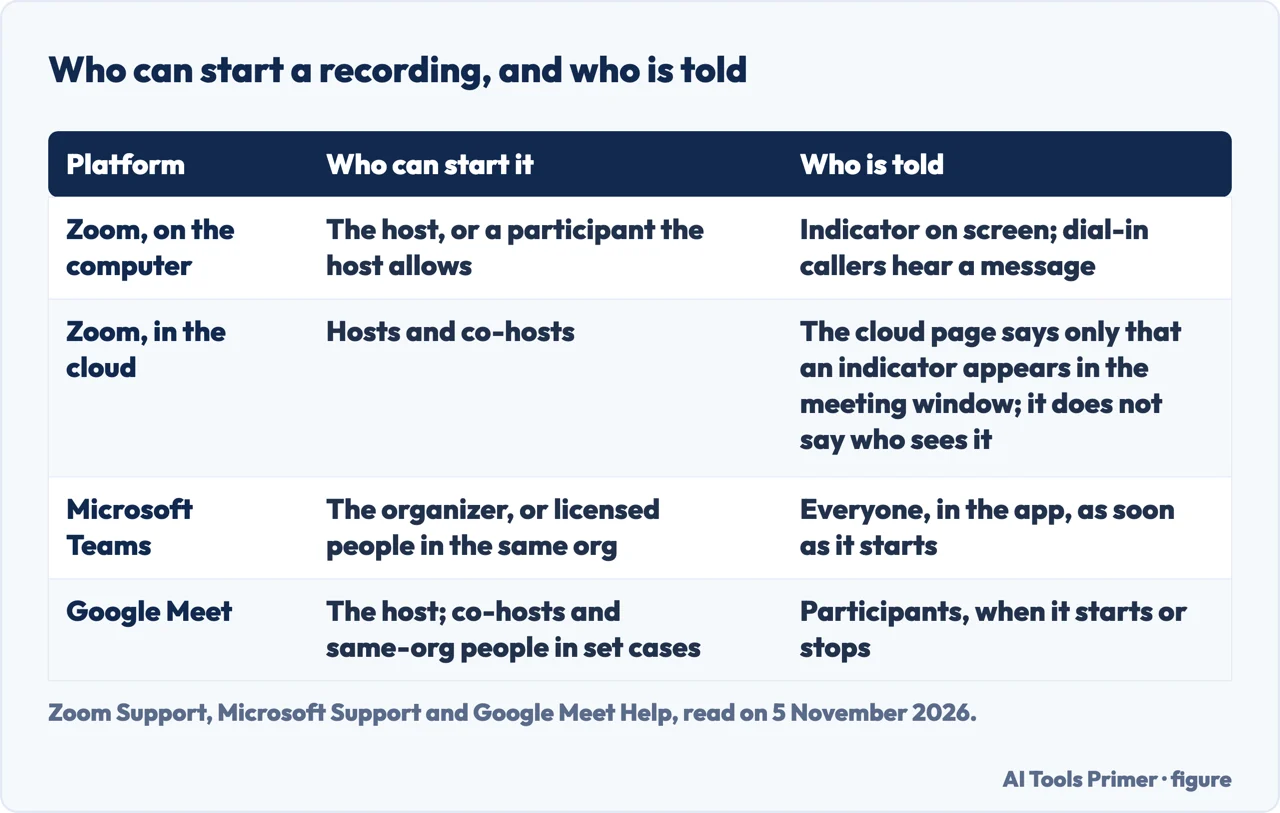
Zoom: on the computer, or in the cloud
Zoom’s getting-started page says it offers two types of recording. Computer recordings are saved directly to your computer, and Zoom says they are available with all accounts. Cloud recordings are stored on the Zoom Cloud and are available with paid accounts. This page puts the two side by side; our page on recording a Zoom meeting goes further into the host, participant and phone cases.
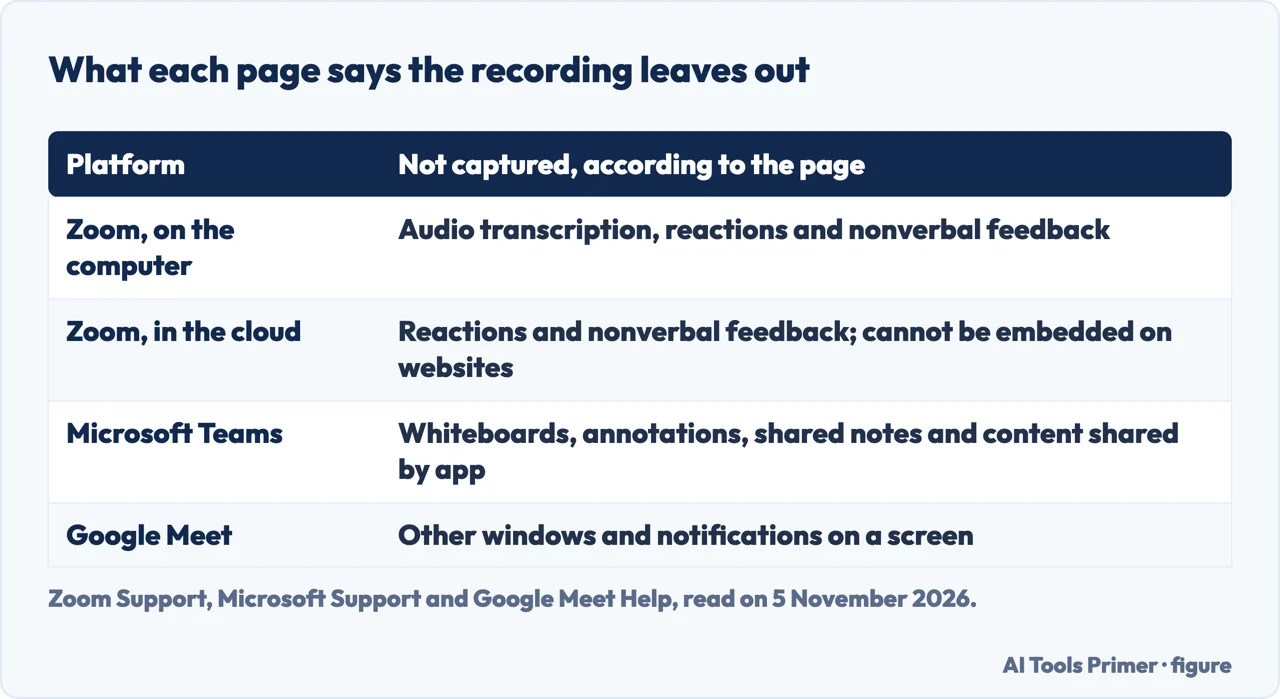
On the computer. Zoom lists a Basic (Free) account or above and the desktop app for Windows, macOS or Linux, and its page on enabling the setting says computer recording is not supported on iOS, iPad or Android devices. To start, begin the meeting as the host, click Record in the meeting controls and, if a menu appears, choose Record on this Computer. To let a participant record, open the Participants menu, click More next to the name and choose Allow Record; the participant receives a notification, and Forbid Record takes the ability away. The recording captures the meeting as the person recording sees it, so a speaker view stays a speaker view. Zoom lists what a computer recording does not support: recording Active Speaker, Gallery View and the shared screen separately, and audio transcription. It also says these recordings do not capture nonverbal feedback or meeting reactions, and that if you need those features you should use cloud recording.
If a participant stops a computer recording and starts it again, Zoom creates a new video file; if a participant pauses and resumes, it records to the same file. After the meeting Zoom converts the recording and opens the folder. Zoom adds that a meeting that shuts down unexpectedly, or an interrupted conversion, can leave the files corrupted and not recoverable, and that restarting or shutting down the computer, putting the hard disk to sleep or closing a laptop interrupts the conversion. An administrator can turn Record to computer files on or off for an account, a group or a user; Zoom says that if the option is grayed out, it has been locked at a higher level.
In the cloud. Zoom’s page on starting a cloud recording lists a licensed user on a Pro, Business or Enterprise account with cloud recording enabled; the getting-started page lists Pro, Business, Education and Enterprise. The desktop app, the mobile app for Android or iOS and the Web App can all start it. Only hosts and co-hosts can: Zoom says that if you want a participant to start a recording you can make them a co-host or use computer recording, and that a recording started by a co-host appears only in the host’s list in the web portal. To start, click the More icon, then the Record icon, then Record to the cloud; Zoom says an indicator appears in the top-right corner of the meeting window. The recording holds video, audio and chat text, in several layouts including active speaker, gallery view and shared screen. Cloud recordings do not capture reactions, cannot be embedded on websites and are limited to 150 files from a live session.
Microsoft Teams: one recording at a time
Microsoft’s page says that in a Teams meeting one person can record at a time. To start, join the meeting, select More actions in the meeting controls, then Record, state your spoken language and what you want to record, and select Confirm. For audio only, the Choose what to record menu has an Audio only option. On the mobile app the page says to select More options, then Start recording.
The page lists what a Teams recording does not capture: more than four people’s video streams at once, whiteboards and annotations, shared notes, content shared by an app, and videos or animations embedded in PowerPoint Live presentations. On who can start, Microsoft gives a table: the meeting organizer and a person from the same organization can start and stop, while a person from another organization or company, a guest and an anonymous participant cannot. The licenses it lists are Office 365 Enterprise E1, E3, E5, F3, A1, A3 and A5, and Microsoft 365 Business, Business Premium and Business Essentials. The page also says guests cannot record meetings, and federated users can record calls but not meetings. It adds that an IT admin must provide a recording license to both the meeting organizer and the person recording.
With Teams Premium or a Copilot license, Microsoft says organizers can manage who can record and transcribe when they schedule a meeting, with three options, two of which name roles: organizers and co-organizers, or those plus presenters. A recording continues even if the person who started it leaves, and it stops when everyone has left. If someone forgets to leave, Microsoft says it ends and restarts every four hours until the last participant leaves. If one of the participants has a compliance recording policy, the meeting is recorded under that policy even if the participant is from another organization.
The meeting organizer owns the recording, and Microsoft says that by default only organizers and co-organizers can download or delete it. Guests and external attendees can view it only if it is explicitly shared with them. Expiry follows the settings an admin chooses: when a recording expires the owner gets an email and has up to 90 days to recover it from the recycle bin.
Google Meet: a computer or an Android device
Google’s page says you can record a Meet meeting only on a computer or an Android device. It lists the editions that include recording, among them Google Workspace Business Standard, Business Plus, Essentials and the Enterprise editions, and Google One with 2 TB or more, and it says an administrator must turn recording on. For education accounts the page gives separate rules: on Education Fundamentals or Education Standard, teachers, staff and students cannot record meetings they organize, while on Education Plus they can record meetings they organize and meetings organized by someone in their organization. It also says you cannot record a meeting if you join only to present; join first, start the presentation, then record.
On a computer, the steps are to click Meeting tools at the bottom right, then Recording, optionally pick a language for the captions, click Start recording and confirm in the pop-up window by clicking Start. Stopping goes through the same menu. A host can also set a meeting to record automatically when creating it, through Video call options, Meeting records and Record the meeting.
Google says a recording includes the active speaker and anything presented, and can save captions. Other windows and notifications are not saved, and pinning a participant on your screen does not change who appears in the recording. If a screen is shared, the video resolution depends on the largest screen shared, up to 1080p, and Google says admins can opt out of 1080p for their organizations. Chats are saved as .SBV files in the organizer’s Drive, but the page says no such file is generated when continuous meeting chat is active.
Meetings can be recorded for a total of 8 hours, then the recording stops automatically, and it also stops when everyone leaves. The recording uploads to the organizer’s Google Drive, so Google says there must be enough space: if the organization has run out of Drive space, you cannot record even when your own Drive has room.
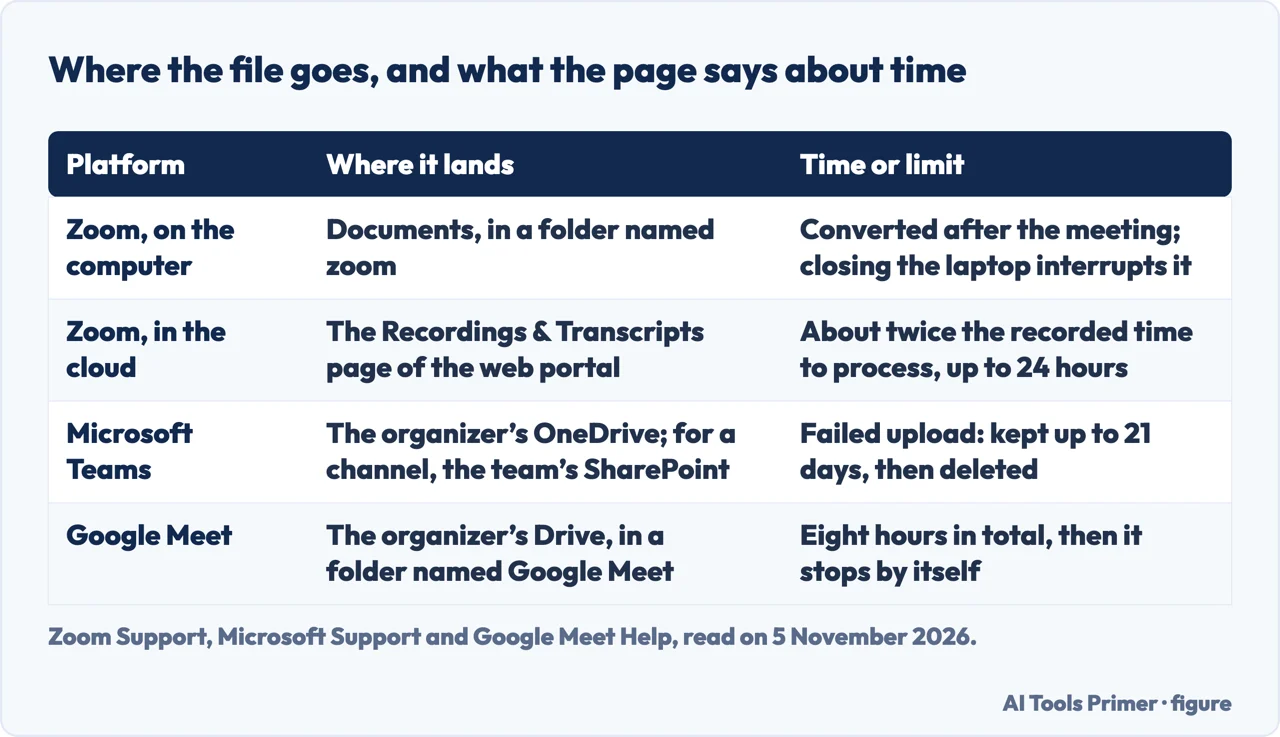
Where the file ends up, and how long you wait
A Zoom computer recording lands in the Documents folder, in a folder named zoom, by default. Zoom warns that setting the location to a cloud syncing folder such as Dropbox, Google Drive or OneDrive, an external drive or network storage may cause issues with saving and converting, and strongly recommends a local drive. The Penn Carey Law IT page we also read says the files sit in Documents, then Zoom, with a folder for each date and time. A Zoom cloud recording is found under Recordings & Transcripts in the web portal and in Zoom Hub. Zoom says you do not need to stay in the meeting for it to process; cloud recordings generally take about twice the duration recorded, and occasionally up to 24 hours. If enabled in the email settings, the host gets an email when it is ready.
A Teams recording goes to the organizer’s OneDrive for non-channel meetings and to the team’s SharePoint site for channel meetings. If the upload fails, Microsoft says the recording may be kept in temporary storage for up to 21 days and is permanently deleted after that, unless you download it or fix the storage problem first. A Meet recording goes to the organizer’s Drive, in a folder named Google Meet with a sub-folder for each meeting. Google says an email with the link goes to the organizer and to the person who started the recording, and the link is added to the Calendar event. It also notes that from July 2026 the older “Meet Recordings” folder is renamed Legacy Meet Recordings and moved inside the new folder, and that old links keep working.
Penn Carey Law IT, a university help page, says only hosts and co-hosts can start a Zoom recording. Zoom’s own page for computer recording lets the host give the ability to a participant, so the university page reads as a simplification; we followed Zoom. Zoom can also record a separate audio file for each participant when recording locally (Settings, Recording tab); Zoom Support, Starting a computer recording, read 5 November 2026.
What we did not use
We recorded no call and tested nothing. We did not read community discussions, forum threads, short video tutorials or vendor pages about AI recorders. We used the Vanderbilt page only to confirm the Record icon and the cloud option, and the Penn Carey Law page only for the folder where a computer recording is saved; on who can start a recording it differs from Zoom, as set out above. The pages we read cover Zoom meetings, not Zoom Phone calls, and the Teams and Meet pages carry no update date, so we give the day we read them.
Where to start
Four ways in.
- “Who is allowed to record?”
- Before you click: who can record, and who is told — who
- “How do I do it on Zoom?”
- Zoom: on the computer, or in the cloud — zoom
- “What about Teams or Meet?”
- Microsoft Teams: one recording at a time — teams
- “Where does the file go?”
- Where the file ends up, and how long you wait — where
Recording what is said
Zoom in depth, phones and notes.
Recording the screen, and Teams
Other recorders and the meeting app.
Questions people also ask
Can I record a Zoom phone call?
The pages we read cover Zoom meetings, not Zoom Phone calls, so we cannot say. For recording a call on a phone, with the question of consent, see our page on recording a phone call.
Why is Zoom not giving me the option to record?
Zoom’s pages give reasons: computer recording needs the desktop app, the host must record or allow you, an admin can turn Record to computer files off or lock it, and cloud recording needs a licensed paid account with cloud recording enabled.
Can I record a Zoom call without being the host?
Zoom’s page says the host can give a participant the ability to record on the computer: in the Participants menu, More, then Allow Record. For the cloud, Zoom says only hosts and co-hosts can start it, so a participant would need to be made co-host.
Can we record a video call on Zoom?
Yes. Zoom says computer recording is available with all accounts and cloud recording with paid ones. Click Record in the meeting controls and choose where. Teams and Meet have their own steps and permissions, set out above.
Not covered here. We recorded no call. The statements come from four Zoom Support pages, Microsoft Support on Teams and Google Meet Help, with a university page used only to confirm, all read on 5 November 2026.
The search volume and difficulty behind this page come from an Ubersuggest reading of 5 November 2026, an SEO difficulty and not the Semrush KD, which is still to be checked. The Semrush KD for this key has not been read yet.
Sources
- Zoom Support — Starting a computer recording — support.zoom.com, read 5 November 2026.
- Zoom Support — Starting a cloud recording — support.zoom.com, read 5 November 2026.
- Zoom Support — Getting started with computer and cloud recording — support.zoom.com, read 5 November 2026.
- Zoom Support — Enabling or disabling computer recording — support.zoom.com, read 5 November 2026.
- Microsoft Support — Start, stop, and find meeting recordings in Microsoft Teams — support.microsoft.com, read 5 November 2026.
- Google Meet Help — Record a video meeting — support.google.com, read 5 November 2026.
- Penn Carey Law IT — Recording a Zoom Call for Meetings and Interviews — www.law.upenn.edu, read 5 November 2026.
Written by Alberto Gulotta
Founder and editor of AI Tools Primer, writing from Palermo, Italy. Thirty-five years of taking computers apart, starting with a Commodore 64 — the long version is on the about page.
Something wrong on this page? Write to aitoolsprimer@gmail.com and it gets fixed.
Written on 6 November 2026.
Independence and limits
No affiliate links and no paid placements anywhere on this site. Nobody pays to appear here, and no company has seen this page before you did.
This is general information, not professional advice. Where a page touches money, health, safety or the law, it names its source and the date it was read — and your situation may still differ. See the privacy page and the cookie policy.