
Video · guide
Audio video out of sync: TV, player, file or recording
By Alberto Gulotta · Updated · 18 min read
Audio video out of sync starts in one of four places: the TV, the media player, the file, or the recording and editing stage. Samsung and LG give TV menus, SolveigMM and the VideoLAN wiki cover players and files, TechSmith and Adobe cover recordings, and none of the pages we read covers all four places.
| Question | Answer | Where it comes from |
|---|---|---|
| Where do I start? | With where it happens: one channel, one app, one player, or a recording | LG, Samsung, SolveigMM, TechSmith |
| Which way do I move a TV slider? | Samsung says to the right when the audio is faster than the picture | Samsung Support |
| Is there a setting for Bluetooth speakers? | Samsung’s Australian page says no setting resolves Bluetooth or wireless speaker sync | Samsung Support (Australia) |
| Does a player fix change the file? | SolveigMM says a player adjustment does not permanently alter it; re-encoding makes a new file | SolveigMM |
| Is one fix right for every case? | The pages we read give a different menu or step for each place it happens | All eleven pages |
Start with where it happens
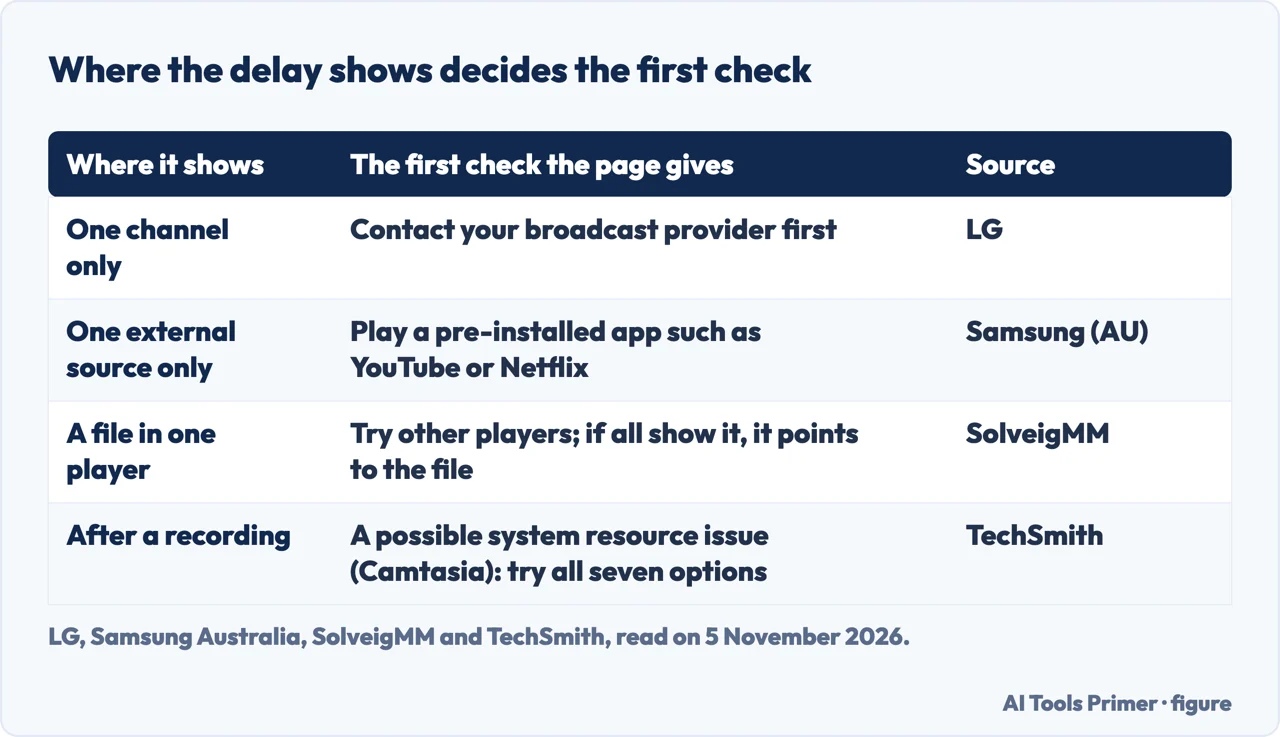
The pages we read ask the same question in different words: which part of the chain shows the delay? LG’s page for its TVs splits it by channel. If the mismatch shows on one channel only, LG says the broadcast signal of that channel is highly likely to be the cause, and that the first step is to contact your broadcast service provider. If it happens on all channels, LG says to try the TV speaker together with an additional external speaker and, if the sound is out of sync, to adjust the sync in Match Screen and Sound.
Samsung’s Australian page splits it by source. It says to see whether the delay occurs with a pre-installed app such as YouTube or Netflix. If there is no delay there, Samsung says the issue lies with the content or source you are trying to play. SolveigMM, a company that sells video software, splits it by player. Its blog post of 17 October 2024 says to check the source file first, by playing it in different players such as VLC, Windows Media Player or a web-based player. If the lag persists across several players and devices, the post calls that a strong indication that the file itself is faulty.
TechSmith starts somewhere else again: a recording just made with Camtasia Editor on Windows. Its support article, updated on 5 November 2025, says the video and audio seem out of sync after the recording and names a system resource issue as a possible cause. The Samsung app test and the SolveigMM player test are two ways of shrinking the problem to one place, and the logic is the same. That is why we put the places in this order: the TV, the media player, the file, and the recording or editing stage.
On a TV or a soundbar
Samsung’s pages for the United Kingdom (updated 24 May 2022) and Australia give the same account of why a delay occurs. Depending on the broadcasting signal, an audio delay may occur in some or all of a station’s programs, because there is a slight difference in processing speed between video and audio signals. Samsung says the difference is usually not notable, but sometimes it is. If it is not the broadcaster, Samsung writes that another reason an audio delay often occurs is a bad connection to an external device, and that a set-top box can produce a slight difference because of the transmission speed of the signal from the box to the TV. Both pages open by calling the problem a common one when a TV is connected to a soundbar or another external device.
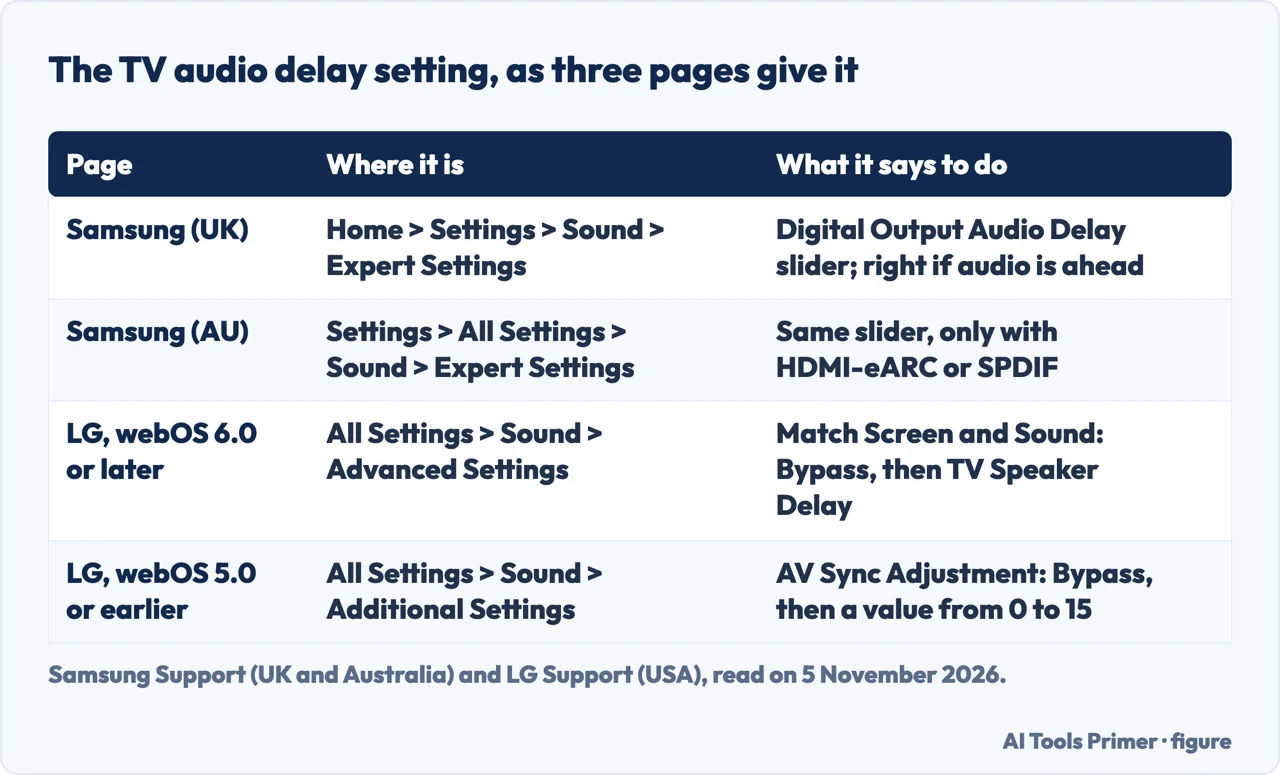
The adjustment is a slider. On the United Kingdom page you press Home, go to Settings, choose Sound, then Expert Settings, then Digital Output Audio Delay. If the audio is faster than what is shown on the screen, Samsung says to move the slider to the right to increase the number. The Australian page gives the same slider under Settings, All Settings, Sound, Expert Settings, and adds two conditions that the United Kingdom page does not state: it is for a delay across all sources and channels with a home theatre system or other speakers connected, and the function is only available when the device is connected via HDMI-eARC or SPDIF. Samsung adds that the images came from a 2025 model and that steps may differ by model.
Wireless audio is the case Samsung separates out. The United Kingdom page notes that streaming audio and video wirelessly may transmit data slower and can cause audio sync delays. The Australian page is blunter: there are no settings that will resolve Bluetooth or wireless speaker audio sync issues. For files you downloaded and play on the TV, both pages say the audio may not be synced correctly and tell you to check the supported video codecs in the user manual of your model. The United Kingdom page also lists Reset Sound (Home, Settings, Sound, Expert Settings, Reset Sound) and a software update (Support, Software Update, Update Now).
LG’s page, dated 17 July 2026, gives two sets of steps by software version. For webOS 6.0 or later, the page goes to All Settings, Sound, Advanced Settings, Match Screen and Sound. LG says this applies only to the TV speaker or to devices that support its Sound Share feature and are connected to the HDMI (eARC/ARC) port. Selecting Bypass makes the sound from the broadcast signal or an external device come out without delay. If the problem persists, LG says to turn Bypass off and adjust TV Speaker Delay carefully, and that the closer the value is to 60, the slower the voice output gets. For webOS 5.0 or earlier, the path is Sound, Additional Settings, AV Sync Adjustment: set Bypass on and check, and if the picture and sound are still out of step, set it off and adjust by selecting from 0 to 15 (the page words this as adjusting the video and speech volume). LG warns that the guide covers all models, so the images or content may differ from yours.
The two brands differ in the details. Samsung’s slider has no range stated on the pages we read, LG gives a scale that runs toward 60 on newer sets and 0 to 15 on older ones, and the Samsung condition about HDMI-eARC or SPDIF appears on the Australian page only. The pages we read do not say which value is the right one for a given TV; both tell you to adjust the setting.
Apple has a related tool that is easy to confuse with these. Apple’s Apple TV 4K guide describes Settings, Video and Audio, Calibration, Wireless Audio Sync, which uses a nearby iPhone and tones played through the wired speakers. It is meant for the audio latency, a delay that sounds like an echo, when an Apple TV 4K plays through a receiver or TV speakers and a wireless speaker together. The page describes it as matching those speakers, and the pages we read do not present it as a lip sync setting for the TV speaker alone.
In a media player
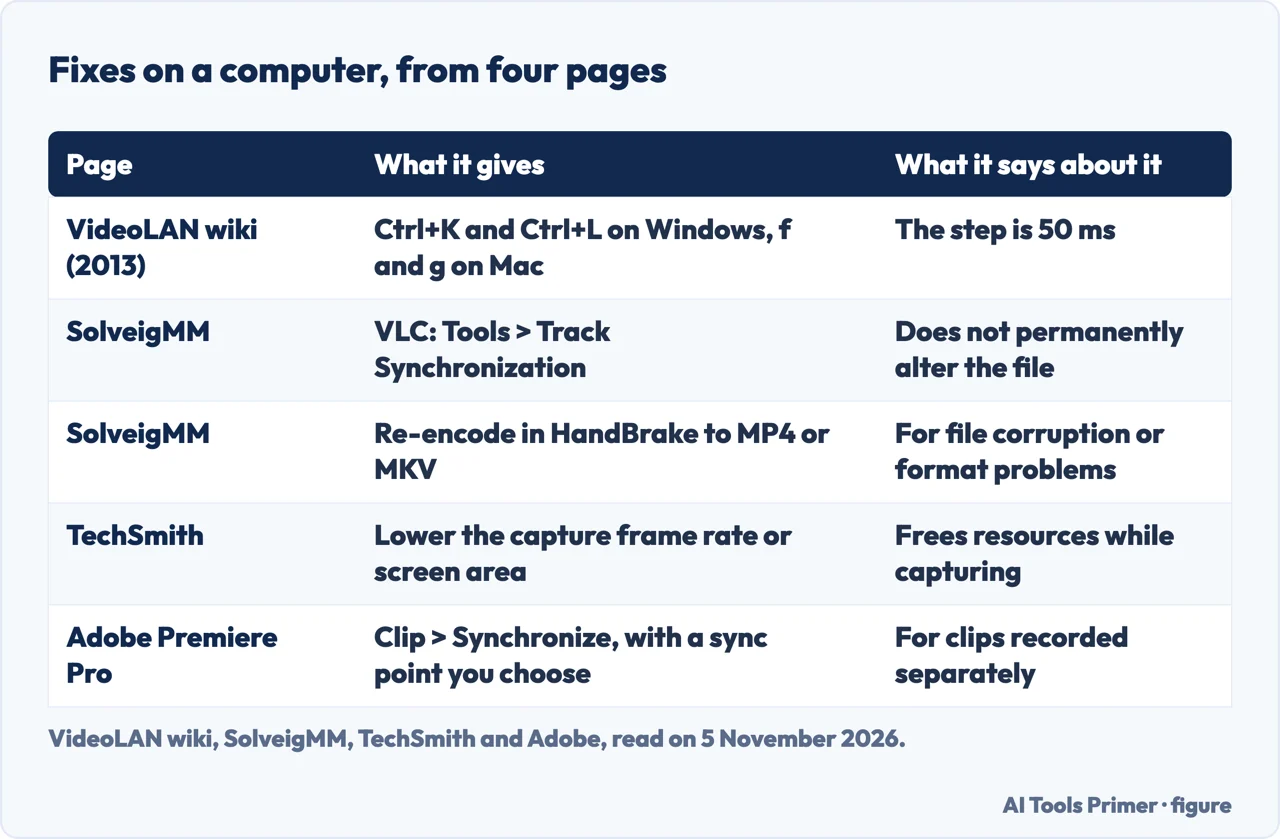
When the delay shows in a player on a computer, two pages give a manual offset in VLC. The VideoLAN wiki page, last edited on 5 September 2013, says you can set the audio offset while playing to put the audio back in sync. Its default keys to increase or decrease the offset are Ctrl+K and Ctrl+L on Windows and f and g on a Mac, with an adjust step of 50 ms. If the problem is due to the input file, the wiki says to adjust the track with Tools, Track Synchronisation. Because the page is from 2013, the pages we read do not tell you whether those keys are the same in current versions of VLC.
SolveigMM’s post names the same menu, Tools then Track Synchronization, and says to increase or decrease the Audio Track Synchronization delay until the audio matches the video. It adds that MPC-HC, another player, offers similar adjustments through keyboard shortcuts or menu options, and calls the player method a temporary fix that does not permanently alter the file. The wiki adds two other cases: an audio-sync option when you are transcoding a file, and, on Linux or Unix, trying another audio output plugin.
Some delays are not a fixed offset. A Microsoft Q&A question from October 2017, about a Windows 10 computer, describes audio that goes out of step after almost one hour, by 3 or 4 seconds, in YouTube, in movies and in games. The page is a locked question with five replies from the community, not a Microsoft statement. One reply suggests choosing DVD Quality on the Advanced tab of the audio device’s properties; another suggests updating the video card drivers. We cite it only as an example of a delay that grows over time, which a single offset in a player would not obviously cover, and the pages we read do not say whether the suggestions worked.
In the file itself
SolveigMM says audio lag can occur during the recording or encoding process, which would mean the file was created with the sync problem already in it. Its test is the one in the first section: if the lag persists across several players and devices, the post treats the file as faulty. It then lists four routes. You can re-download or re-record the file if that is possible; look for repair tools made for audio-video sync problems in files with faulty encoding; or move the audio in an editor, by importing the video, placing video and audio on the timeline, selecting the audio track and shifting it slightly left or right until it lines up, then previewing the result. The post calls this a more permanent solution than adjusting playback settings in a player, especially when the issue is consistent throughout the file.
The fourth route is to re-encode. SolveigMM says re-encoding can often fix audio sync issues caused by file corruption or format problems, and uses HandBrake, an open source program, as its example. You load the video into HandBrake, choose an output format such as MP4 or MKV, adjust settings like resolution or bitrate if needed, and click Start Encode. The post says it may take longer than the other solutions, that the new file should be played to check the result, and that the new version is a fresh, stable one. We did not run HandBrake, and the blog is a vendor’s, so we treat the steps as SolveigMM’s description of the method.
On a TV, the file question comes up through codecs. Samsung’s codec check, described in the TV section above, is the same file question seen from the TV: the supported video codecs are listed in the user manual. Separately, the VideoLAN wiki names an audio-sync option for when you are transcoding a file, without saying what value to set.
After recording or while editing
TechSmith’s article says the cause can be a system resource issue: the computer’s processor or hardware cannot process video and audio fast enough to keep them in sync. It gives seven options and asks you to try all of them. They are updating to the latest drivers; reducing the screen area and capture frame rate, which it says can free up resources; checking Windows recording and playback settings; using Microsoft Basic Render mode; updating the webcam driver; setting Camtasia to use High Performance Graphics; and changing the recording mode, which for Camtasia 2021, 2022 and 2023 means editing the system registry. In the Windows settings it turns off audio enhancements on the recording device and sets the sample rate to 16-bit, 44.1 kHz. The article adds a tip: if you are recording a webcam and audio without the screen, try recording the screen as well, then delete the screen video from the timeline.
Adobe’s Premiere Pro help page covers another case, clips that were recorded separately, such as video and audio clips, or clips from different cameras. You can drag the clips into alignment by hand on the Timeline, or select them and choose Clip, Synchronize. The dialog box offers a point of synchronization: Clip Start, based on the In point (the clap of a slate, for example); Clip end, based on the Out point; Timecode, a timecode the clips share; Clip Marker, a numbered marker in the middle of the shot, which is disabled unless every clip has at least one; and Audio track channel, which names the audio track used as the reference when there are several. After synchronizing, the page says you can create a merged clip.
For live streams, Resi, which sells streaming encoders, published a guide on 7 October 2025 on why audio and video drift apart. Its guide says the human brain notices timing differences as small as 40 milliseconds. Four of the causes it names are these: audio is lighter than video and processes faster, so it can race ahead; dropped frames (its section is headed Variable Frame Rate Issues) create timing gaps that audio does not share, and the gap widens over time; audio and video buffers of different sizes; and network latency that varies. Its remedy for a steady offset is an audio delay setting in the streaming software: it says to add 50-300 ms of audio delay and to start with 100 ms steps and test, and it suggests a fixed frame rate over a variable one. Resi’s guide is about live streaming only, and we did not test any of it.
A forum thread for OBS, from April 2023, gives a community reply to a similar problem: if the offset is constant, use the Sync Delay in the Advanced Audio Properties and the delay in the Filters of each video source, and find the value by recording a test, separating the tracks in an editor and seeing what it takes to line them up. This is a forum member’s advice, not OBS documentation, so we give it as an example and not as a rule.
The sources also differ on direction. Samsung speaks of audio that is faster than the picture, and Resi says audio tends to arrive ahead of the video in a stream. TechSmith says only that the two are out of sync, without saying which one leads, and the pages we read do not say how to tell which one it is on a recording.
What the pages we read do not say
We tested nothing on a TV, in a player or on a recording. The pages we read do not order the causes by how often they happen; the only cause that carries a frequency word is Samsung’s “often” for a bad connection to an external device. They do not say by how much the audio typically moves on a TV or in a file. They give no steps for Windows Media Player settings, QuickTime, an iPhone or Chrome, and the pages we read from Apple and Microsoft do not cover lip sync for a video file. We could not read Sony’s support page for a TV audio delay, because only a short shell of it loaded, so nothing from it is used here. We did not read a Reddit thread or a Super User question on this problem, and the forum thread and the Microsoft Q&A question are community posts that we use only as labelled examples.
The VideoLAN wiki page dates from 2013 and the Samsung Australian page shows no date in the text we read. A variable frame rate is named by Resi for live streams, but the pages we read for recordings and files do not give a fix for it.
Where to start
Four ways in.
- “It happens on my TV.”
- On a TV or a soundbar — tv
- “It happens in VLC or another player.”
- In a media player — player
- “The file itself seems wrong.”
- In the file itself — file
- “It went wrong after I recorded.”
- After recording or while editing — making
Export problems
The pages that solve the actual complaint. Short, precise, and free of products wherever the job can be done with a single free tool.
Recording
Capturing rather than filming: screens, calls, lessons and demonstrations. One page here is about permission rather than software, and it is not optional reading.
Questions people also ask
How can I fix audio and video that are out of sync?
The pages we read start by asking where it happens: one channel, one app, one player or a recording. LG and Samsung give TV menus, SolveigMM gives a file test in several players and then a VLC offset or re-encoding, and TechSmith gives seven options for a Camtasia recording.
How can I fix audio delay?
On a Samsung TV, Samsung says to use the Digital Output Audio Delay slider and move it right if the audio is faster than the picture; the Australian page limits it to HDMI-eARC or SPDIF. LG uses Match Screen and Sound. In VLC, the 2013 wiki gives Ctrl+K and Ctrl+L on Windows, in 50 ms steps.
Why are my video and audio lagging?
Samsung names the broadcast signal, a difference in processing speed between video and audio, and a bad connection to an external device, and says wireless streaming can add delay. Resi, about live streams, names processing speed, dropped frames, buffers and the network. The pages we read do not rank the causes by how often they happen.
How to sync audio and video perfectly?
The pages we read do not promise a perfect result. For clips recorded separately, Adobe’s Premiere Pro page uses Clip, Synchronize with a sync point you choose, then a merged clip. SolveigMM says to shift the audio track in an editor until it lines up.
Not covered here. We tested nothing on a TV, in a player or on a recording. The statements come from Samsung Support (United Kingdom and Australia), LG Support (United States), Apple Support, the VideoLAN wiki, SolveigMM, TechSmith, Adobe, Resi, a Microsoft Q&A question and an OBS forum thread, all read on 5 November 2026.
The search volume and SEO difficulty behind this page are an Ubersuggest reading of 5 November 2026 (not the Semrush KD), and a Semrush check is still to be made.
Sources
- Samsung Support — How to troubleshoot an audio delay (United Kingdom) — www.samsung.com, read 5 November 2026.
- Samsung Support — Audio Delays on your TV (Australia) — www.samsung.com, read 5 November 2026.
- LG Support — LG TV: Audio and Video Out of Sync (United States) — www.lg.com, read 5 November 2026.
- Apple Support — Calibrate video and audio on Apple TV 4K — support.apple.com, read 5 November 2026.
- VideoLAN Wiki — VSG:Audio:Out of Sync — wiki.videolan.org, read 5 November 2026.
- SolveigMM — Audio Out of Sync? No Problem! Easy Fixes for Perfect Audio and Video Harmony — www.solveigmm.com, read 5 November 2026.
- TechSmith Support — Video and Audio Are Out-Of-Sync After Recording With Camtasia Editor on Windows — support.techsmith.com, read 5 November 2026.
- Adobe Premiere Pro — Synchronize clips in the Timeline panel — helpx.adobe.com, read 5 November 2026.
- Resi — Why Audio Desync Happens During Live Streaming — resi.io, read 5 November 2026.
- Microsoft Q&A — Audio / Video out of sync — learn.microsoft.com, read 5 November 2026.
- OBS Forum — Video / audio not in sync problem (thread of April 2023) — obsproject.com, read 5 November 2026.
Written by Alberto Gulotta
Founder and editor of AI Tools Primer, writing from Palermo, Italy. Thirty-five years of taking computers apart, starting with a Commodore 64 — the long version is on the about page.
Something wrong on this page? Write to aitoolsprimer@gmail.com and it gets fixed.
Written on 6 November 2026.
Independence and limits
No affiliate links and no paid placements anywhere on this site. Nobody pays to appear here, and no company has seen this page before you did.
This is general information, not professional advice. Where a page touches money, health, safety or the law, it names its source and the date it was read — and your situation may still differ. See the privacy page and the cookie policy.