
Software · guide
Why is my computer fan so loud, and which fan is it?
By Alberto Gulotta · Updated · 15 min read
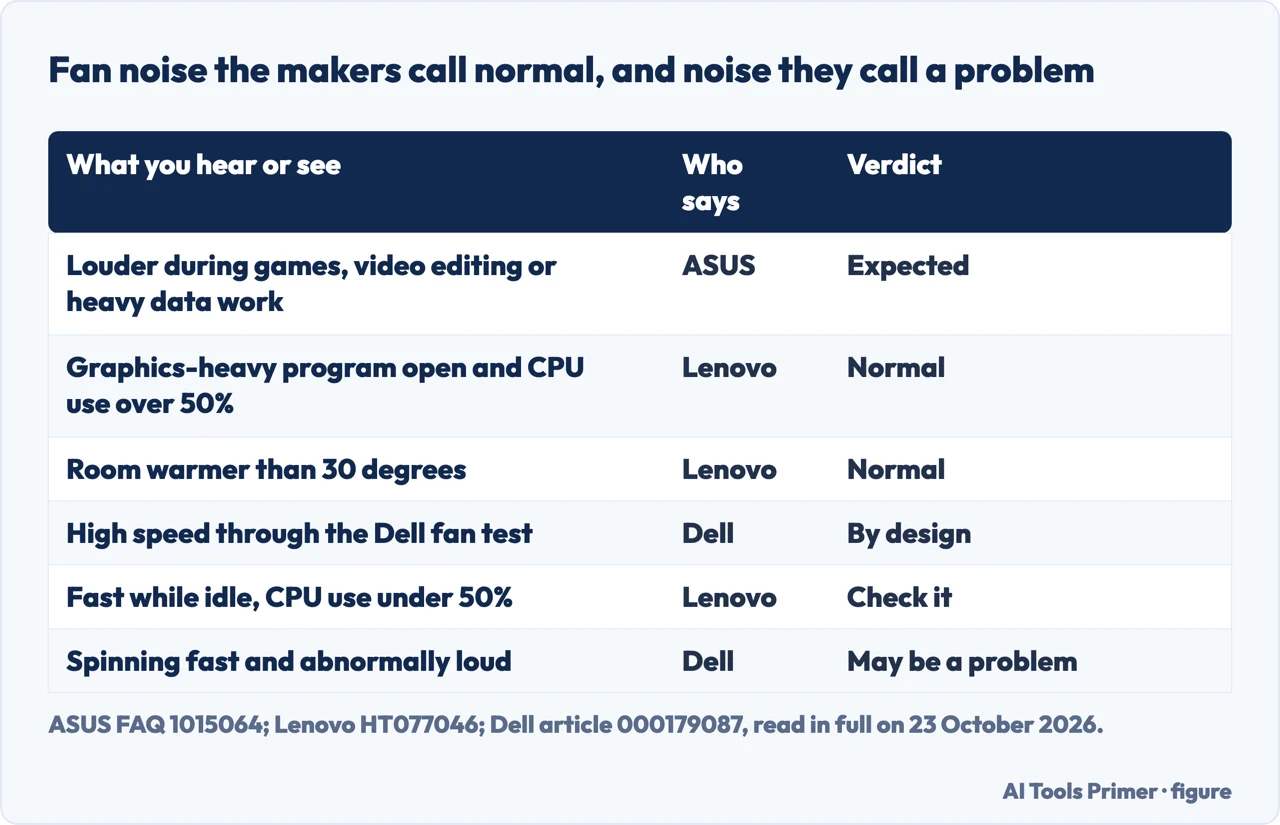
Why is my computer fan so loud? Under a heavy load the fans speed up to carry the heat away, and ASUS and Lenovo call that normal. Loud while idle points to a hidden load, dust, or a fan curve set too high in the BIOS, and some noises are not the fan at all.
The table sorts what ASUS, Lenovo and Dell call normal from what they call a problem. The sections follow this order: which fan it is, what is keeping the processor busy, the fan curve on the motherboard, dust and air, and the signs that the fan itself is wearing out.
| What you notice | Who says | Their verdict |
|---|---|---|
| Louder fans while gaming, editing video or processing heavy data | ASUS | Expected: the fans speed up to push air through the heat sink |
| A graphics-intensive program is running and CPU use is over 50% | Lenovo | Normal for the fan to produce noise |
| The room is warmer than 30 degrees | Lenovo | Normal for the fan to produce noise |
| The fans run at high speed during Dell’s preboot diagnostic | Dell | By design: the processor runs at full speed during the test |
| Fast or cycling while CPU use is below 50%, with no graphics program | Lenovo | Worth checking: dust, open applications, BIOS |
| Fans that keep spinning quickly and are abnormally loud | Dell | Might indicate a problem |
Which fan is it, and is it a fan at all?
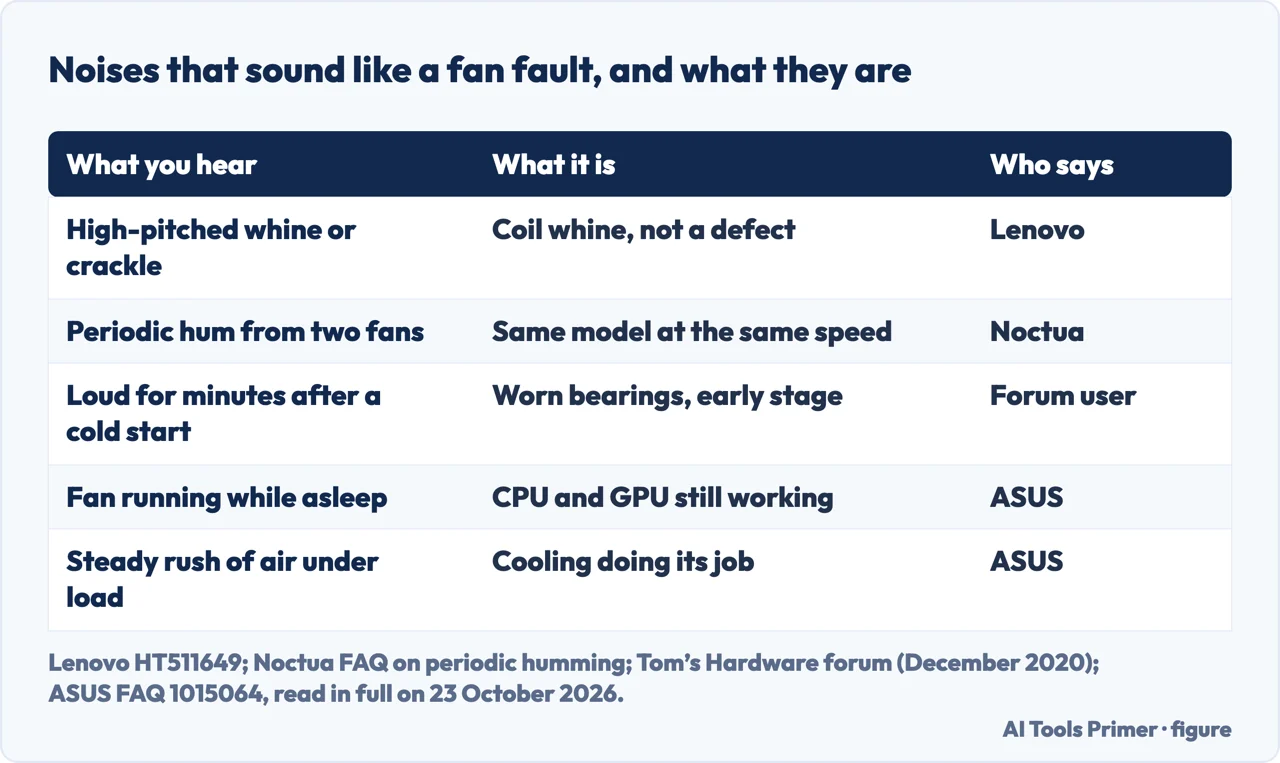
On a desktop the noise can come from more than one place. Dell says its desktops have more than one fan: a processor (CPU) fan and a fan on the dedicated graphics card. ASUS adds a third: “The power supply unit of desktop computers also has a fan.” On a desktop, ASUS says, the exhaust vents are typically on the front panel, rear panel, top and sides, so listen at each of them before deciding which one is loud.
Two noises are not a failing fan. Lenovo describes electrical crackling or a high-pitched whine, called coil whine, as components vibrating when current flows through them; it is more noticeable with high-end graphics chips, and Lenovo says it is “not a hardware defect”. For a desktop, its suggestions are a noise-isolating case or headphones. Noctua, which makes fans, explains a periodic hum: two fans of the same type running at almost the same speed side by side interact acoustically. Its fix is to run them 50 to 100 rpm apart, which a fan curve can do.
What is keeping the processor busy?
ASUS explains the ordinary cause: when the computer runs games, video editing, conversion or heavy data work, the CPU and graphics temperatures rise and the fans speed up. “Thus, you may notice louder fan noise.” If it is loud while you are doing very little, look for the work you cannot see.
Lenovo’s check uses a number: press Ctrl+Shift+Esc to open Task Manager and look at CPU usage. With a graphics-intensive program open and CPU use over 50%, Lenovo calls the noise normal. Below 50%, with no such program running, open the Processes tab, sort by the CPU column, and find what keeps using the most. Lenovo advises closing it from the program’s own window, because closing it from Task Manager may cause unexpected issues.
Dell adds the programs that start with Windows: in Task Manager, the Startup apps tab, right-click what you do not need and choose Disable, then restart. Dell says fewer background programs also let the fans run slower, and warns not to disable the antivirus or anti-malware program. Dell traces a fan that runs constantly but passes its diagnostics to a heavy workload, and names Windows updates as one. The two Task Manager shortcuts are compared on how to open task manager, and a load nobody started is one of the signs on how to tell if a computer is infected.
The fan curve in the BIOS
This is where a desktop differs from a laptop: the fans plug into the motherboard, and the motherboard decides how fast they spin at each temperature. Noctua’s guide says it plainly: “The default fan curves can be set too aggressively”, meaning too fast at low temperatures. It recommends setting the curve in the BIOS or UEFI rather than in a program, to avoid software issues.
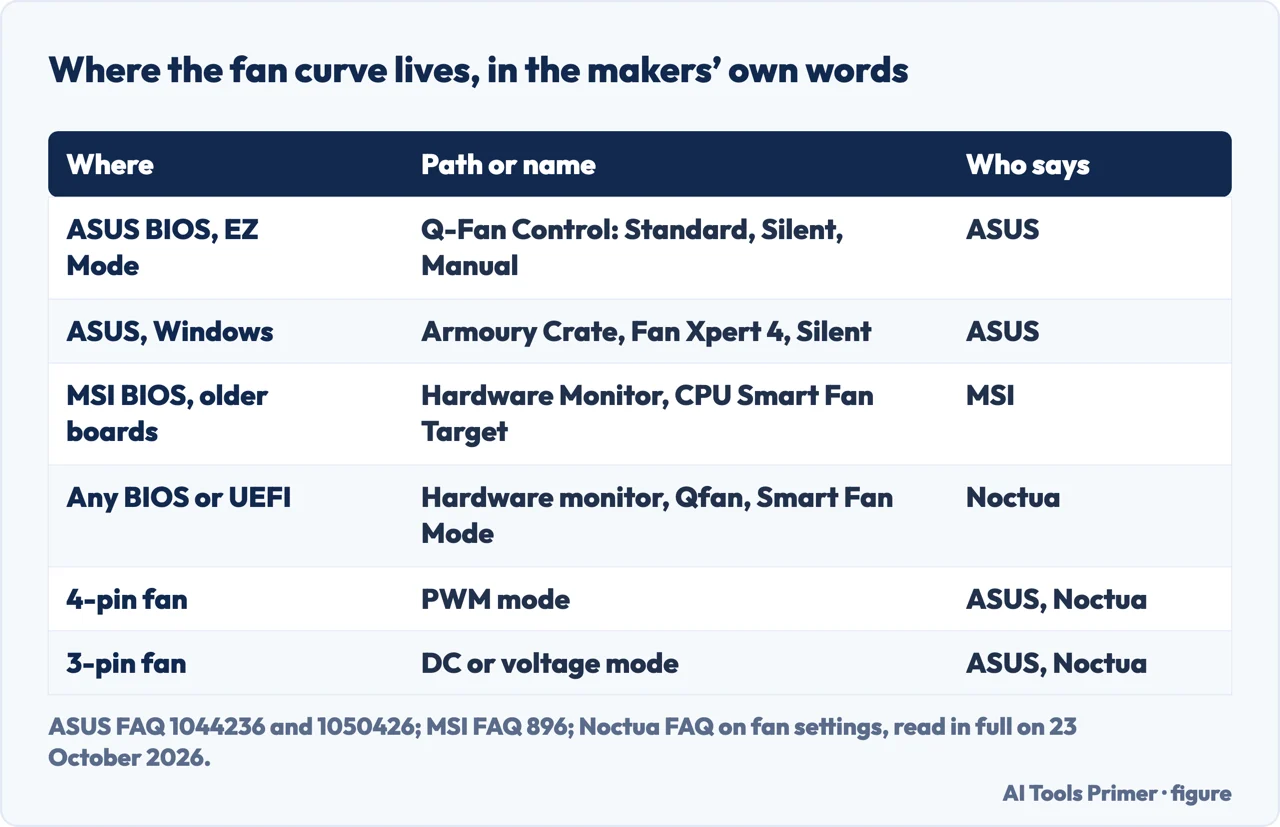
Getting there. Press Delete as the computer starts, or the key the start-up screen names, such as F2. Noctua says the fan settings sit under a name that changes with the maker: hardware monitor, Qfan control, the system tab, Smart Fan Mode or something similar. On some boards a test called Tuning has to run first, to learn each fan’s lowest speed.
ASUS. In the BIOS EZ Mode, Q-Fan Control lists each header (CPU fan, chassis fans, pump) with the modes Standard, Silent, Turbo and Full Speed, plus Manual for a custom curve; Optimize All adjusts every fan automatically and takes two to five minutes, during which ASUS says not to turn the computer off. In Windows, Fan Xpert 4 inside Armoury Crate does the same after its Auto Tuning, and adds acceleration and deceleration times so the speed does not jump in short bursts. ASUS says Fan Xpert in Armoury Crate needs an Intel 600 series or AMD AM5 board or newer; older boards use AI Suite 3.
MSI. An MSI answer for older boards, last updated in 2014, gives the path: BIOS setup, Settings, Advanced, Hardware Monitor, set CPU Smart Fan Target to Enabled and choose a CPU minimum fan speed.
PWM or DC. A 4-pin fan is controlled by a PWM signal, a 3-pin fan by its voltage, and ASUS and Noctua both say to match the header to the fan. Noctua adds that the Auto setting at times fails to recognise a PWM fan and falls back to voltage control, so choose PWM by hand for a 4-pin fan.
A starting curve. Noctua will not give one universal curve, but shows a gradual example for case fans: 20% at 20°C, 40% at 40°C, 60% at 55°C, 70% at 70°C and full speed at 90°C, with about 10% more for the CPU cooler’s fans. It also notes that speed changes can be more distracting than a steady speed, which is the case for a flatter curve.
Do not turn it down too far
A quieter curve has a limit. ASUS’s warning in Fan Xpert: “Do not set the fan speed too high or too low, as this may affect performance or cause overheating”. Noctua lists what a low setting can do: a fan that does not start because the motherboard gives it too little voltage while the CPU is cool, and a CPU fan error at start-up when the speed falls below the board’s threshold, for example 900 rpm. Its fixes are a higher profile, such as normal instead of silent, or a lower error threshold in the BIOS.
Pre-built computers are a separate case. Noctua says the 3-pin and 4-pin rule has exceptions in systems from makers such as Acer, Apple, Dell, HP and Lenovo. There, the maker’s own steps come first: Lenovo’s fourth method is to update the BIOS from its support site, then press F9 in the BIOS to restore the defaults and F10 to save.
Dust, and room to breathe
Dell’s placement rule for a desktop: upright, on a flat and hard surface, with clearance at the front and back, and on all sides if the case has vents there. ASUS gives the room temperature it was designed for, 5°C to 35°C (41°F to 95°F), and Lenovo’s 30-degree note above is the same idea from the other side.
Dust makes the fans work harder, and the makers disagree with a garage habit. ASUS says not to clean with an air compressor, because excessive pressure has damaged fan blades; use a can of compressed air at a distance, not upside down, with the computer off and the power cord out. Dell says not to use a vacuum cleaner, because of static electricity. ASUS also notes that tar from cigarette smoke on the blades and heat sinks makes dust stick. The laptop version of the cleaning, with the same disagreements, is on cleaning a laptop fan.
When the fan itself is wearing out
ASUS lists a fan slowing down from long use and wear among the causes of overheating. Dell’s test comes first: restart, press F12 at the Dell logo, choose Diagnostics, then in the advanced test select only the fans and run the thorough test, noting any error code. During the test the fans go to high speed by design, so the noise there proves nothing. On an ASUS computer, MyASUS has a fan check under System Diagnosis on supported models.
One pattern comes from users rather than makers. In a December 2020 Tom’s Hardware forum thread, the accepted answer describes a fan that is loud for a few minutes after a cold start and quiet once warm as the first stage of worn bearings, and says to plan a replacement. A 2009 Super User answer for a hot Core 2 Duo suggested renewing the thermal paste under the CPU cooler and improving airflow in the case. Neither is a maker’s instruction; Lenovo and Dell both end their own steps with their support if the symptom persists.
If the noise rises with heat, the processor’s own reading tells you how hot it is running: see how to check CPU temperature, and normal CPU temperature for what the number means.
What not to do
- Do not starve the fan. ASUS warns against speeds set too low, and Noctua describes the CPU fan error and the fan that will not start.
- Do not use an air compressor or a vacuum. ASUS has seen compressors damage blades; Dell rules out vacuums because of static.
- Do not switch off the antivirus at startup to save a few percent of processor, which Dell advises against.
- Do not end processes blindly. Lenovo says to close a program from its own window rather than from Task Manager.
- Prefer the BIOS to fan programs. Noctua recommends setting the fan speed in the BIOS or UEFI to avoid software issues, and says changes made with third-party tools on some server boards are at the user’s own risk.
Where to start
Five ways in.
- “It whines, it does not roar.”
- Maybe not a fan — which fan
- “It is loud doing nothing.”
- Find the load — load
- “It was loud from day one.”
- The fan curve — fan curve
- “It roars on a cold start.”
- A worn fan — worn
- “The CPU fan errors now.”
- Too low — too quiet
More on heat and fans
The pages next to this one: the laptop version of the noise, the dust behind it, and the temperature a processor reports.
When the load is the problem
A busy processor makes a fan loud too, and these pages find out what is keeping it busy.
Questions people also ask
How do I stop my computer fan from being so loud?
Find the load in Task Manager first, then lower the fan curve in the BIOS: Noctua says default curves can be set too aggressively. Clean the dust with a can of compressed air, not a compressor or a vacuum, and leave space at the front and back of the case.
Is it bad if my PC fans are loud?
Not under load: ASUS and Lenovo say louder fans during games or heavy work are expected. Dell says fans that keep spinning quickly and are abnormally loud might indicate a problem, and its fan test is the way to check.
Why is my computer whirring so loud?
A steady whir that rises with work is the cooling responding to heat, as ASUS describes it. A high-pitched whine can be coil whine, which Lenovo says is not a hardware defect, and a periodic hum can be two identical fans at the same speed.
Why are my PC fans loud even though it’s not hot?
A fan curve that is too steep can do it, which Noctua says is common with default curves; so can a background process. A fan that is loud only for a few minutes after a cold start was described by a forum user as early bearing wear.
Not covered here. We did not test a computer for this page. The thresholds and settings credited to Dell, Lenovo, ASUS, MSI and Noctua are from their support pages and FAQs, read on 23 October 2026; the answers from Super User (2009) and the Tom’s Hardware forum (2020) are attributed to the users who wrote them.
The iBuyPower and Reddit results could not be read, PCMag was read in a browser but is not cited because its text could not be stored for checking, Avast was read and not used, and the video in Google’s answer was not watched. MSI’s path dates from 2014 and covers older boards; newer MSI BIOS screens may name it differently.
The search volume and difficulty behind this page were read in Semrush on 29 August 2026.
Sources
- Dell Support — How to Troubleshoot and Fix Computer Fan Issues (article 000179087) — www.dell.com, read 23 October 2026.
- Lenovo Support — Fan runs at a higher than expected speed, Windows (modified 13 October 2026) — support.lenovo.com, read 23 October 2026.
- Lenovo Support — What is coil whine and why does it occur? (modified 17 June 2025) — support.lenovo.com, read 23 October 2026.
- ASUS Support — Troubleshooting: Overheating and Fan issues, Windows 11/10 (updated 8 September 2026) — www.asus.com, read 23 October 2026.
- ASUS Support — UEFI BIOS EZ Mode GUI Introduction (updated 5 December 2024) — www.asus.com, read 23 October 2026.
- ASUS Support — Introduction to Fan Xpert 4 in Armoury Crate (updated 1 August 2025) — www.asus.com, read 23 October 2026.
- MSI — My CPU fan is too noisy, is there a way to lower down the CPU fan RPM? (FAQ 896, updated 2 October 2014) — us.msi.com, read 23 October 2026.
- Noctua — FAQ: How do I optimise my fan settings? — www.noctua.at, read 23 October 2026.
- Noctua — FAQ: My fan is not working as intended, is it faulty? — www.noctua.at, read 23 October 2026.
- Noctua — FAQ: How do I avoid periodic humming noises when running fans side-by-side or in push-pull? — www.noctua.at, read 23 October 2026.
- Tom’s Hardware forum — Extremely loud fans (December 2020, accepted answer from a user) — forums.tomshardware.com, read 23 October 2026.
- Super User — CPU Fan is Loud, but the Temperature is OK (December 2009, answers from users) — superuser.com, read 23 October 2026.
Written by Alberto Gulotta
Founder and editor of AI Tools Primer, writing from Palermo, Italy. Thirty-five years of taking computers apart, starting with a Commodore 64 — the long version is on the about page.
Something wrong on this page? Write to aitoolsprimer@gmail.com and it gets fixed.
Written on 23 October 2026.
Independence and limits
No affiliate links and no paid placements anywhere on this site. Nobody pays to appear here, and no company has seen this page before you did.
This is general information, not professional advice. Where a page touches money, health, safety or the law, it names its source and the date it was read — and your situation may still differ. See the privacy page and the cookie policy.