
Software · guide
How to stop laptop fan noise, and when the noise is a fault
By Alberto Gulotta · Updated · 16 min read
How to stop laptop fan noise depends on which noise it is. A steady rush of air while the laptop works hard is the cooling doing its job, and Apple calls it normal: lower the load or pick the quiet mode your maker ships. Grinding, rattling or growling points to a failing part, which a setting will not fix.
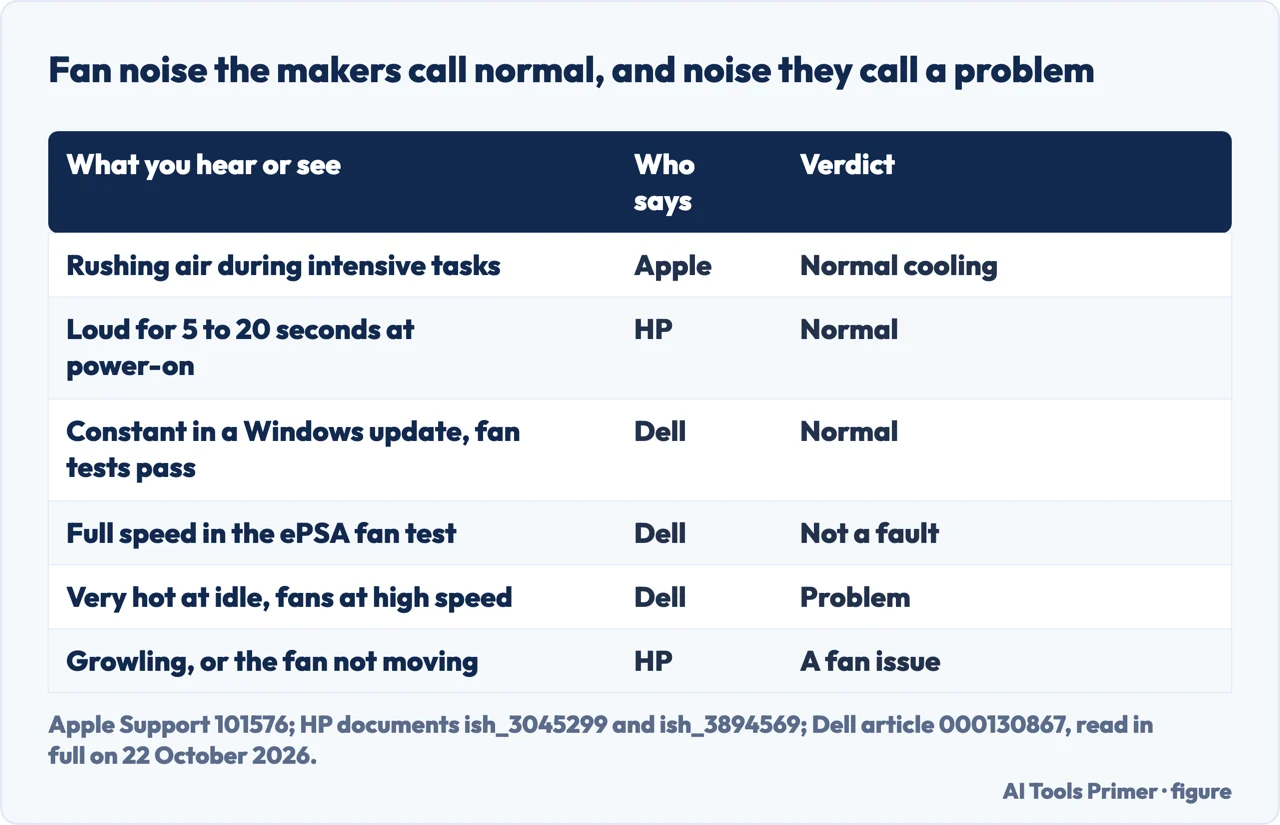
The table sorts what Apple, HP and Dell call normal from what they call a problem. The sections below follow the same order: what is keeping the processor busy, the quieter setting each maker puts in its own place, the air around the laptop, and the point where the fan needs a repair rather than a setting.
| What you notice | Who says | Their verdict |
|---|---|---|
| A rushing-air sound while the processor works on intensive tasks | Apple | A normal part of cooling |
| Loud for five to twenty seconds when the computer turns on | HP | Normal |
| Running constantly during a Windows update, and the fan passes diagnostics | Dell | Usually normal |
| Very hot while idle, with the fans at high speed continuously | Dell | A problem |
| A loud growling noise, or a fan that is not moving | HP | An issue with the fan |
Which noise is it?
Start with the sound, because two different things make it. Apple explains the ordinary one: sensors notice the temperature rising inside and turn the fans on, and when the processor works on something intensive, such as compressing HD video, a graphics-heavy game or Spotlight indexing after you migrate data, the fans run faster. “This rushing-air sound is a normal part of the cooling process.” Apple adds that a hot room makes the fans turn on sooner and run faster.
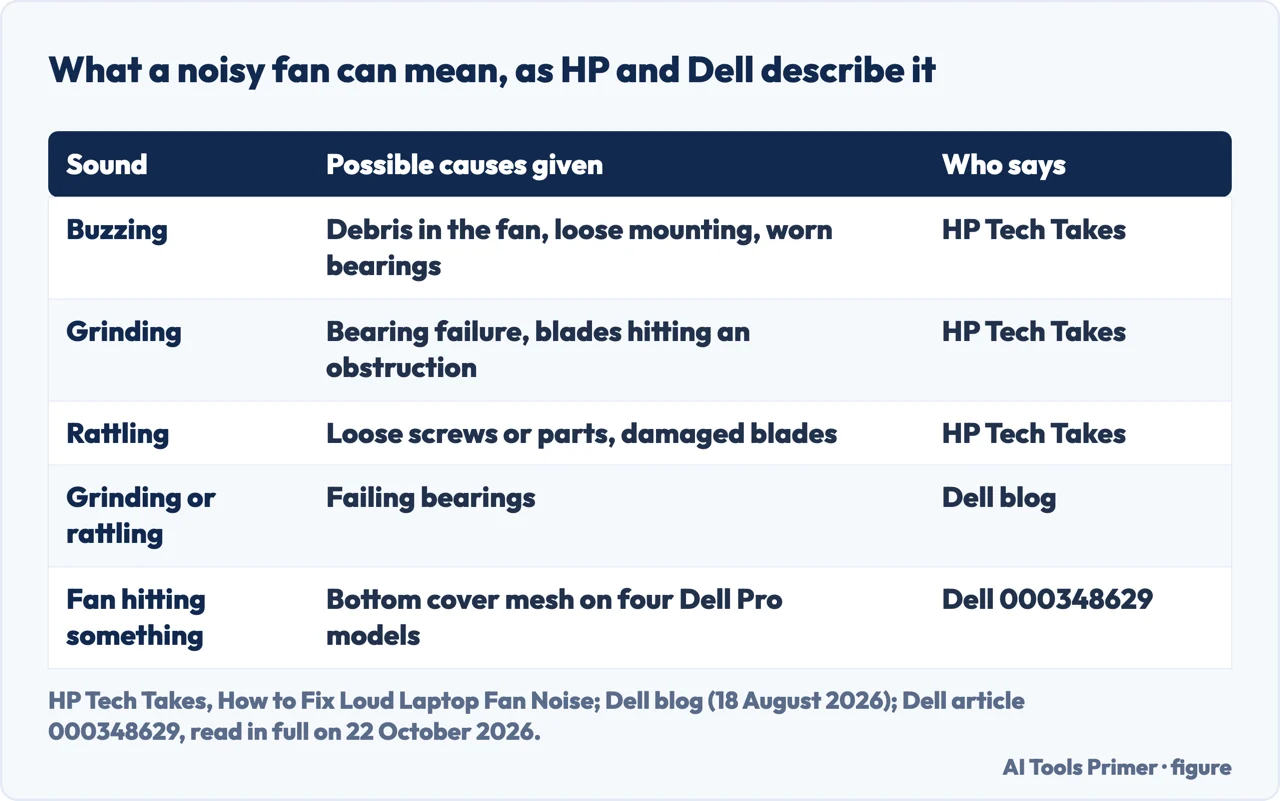
The other kind is mechanical. HP’s Tech Takes article sorts it by sound: buzzing can mean debris in the fan, a loose mounting or worn bearings; grinding, a failing bearing or blades hitting something; rattling, loose screws or damaged blades. Dell’s blog says grinding or rattling suggests failing bearings, and HP’s support document on overheating says a fan making a loud growling noise, or not moving, has an issue of its own. The settings below do not fix those; the last section is about them.
Sometimes the noise is the design. A Dell article for four Dell Pro 14 and 16 models describes a sound as if the fan were hitting something, and gives two causes: louder noise under heavy loads, and the bottom cover mesh interfering with the fan. Its fix is not a repair: run Dell’s ePSA diagnostic, then set Thermal Management to Quiet mode in Dell Optimizer.
What is keeping it busy?
A fan that is loud while you only browse may be answering a load you cannot see. Dell’s procedure for a fan that runs fast but passes diagnostics: close the windows you do not need, right-click the Windows icon, open Task Manager, select the Processes tab and click the CPU column heading to sort by CPU use. Note anything that stays near the top while the computer is otherwise idle, and close it; if it is a Windows or Dell component, restart and check again. Then, on the Startup apps tab, right-click programs you do not need at startup and choose Disable, with one caution from Dell: do not disable your antivirus or anti-malware program.
The load does not have to be large. HP’s document on a noisy fan says that an unnecessary or corrupt process can take anywhere from 1% to 100% of the processor, and that “Even a low but constant 3% to 4% load can cause the fans to spin faster.” HP suggests looking up a process you do not recognise before ending it.
On a Mac the tool is Activity Monitor: Apple says that if the laptop is warm when it is not doing intensive work, or its fans run for a long time, check CPU activity there and look for a malfunctioning process. The two tools are compared on how to open task manager. HP’s Tech Takes article counts malware among the software causes of a loud fan, and GEEKOM, which sells mini PCs, names cryptomining malware for a fan that turns loud for no clear reason; the other signs are on how to tell if a computer is infected.
The quiet setting your maker already ships
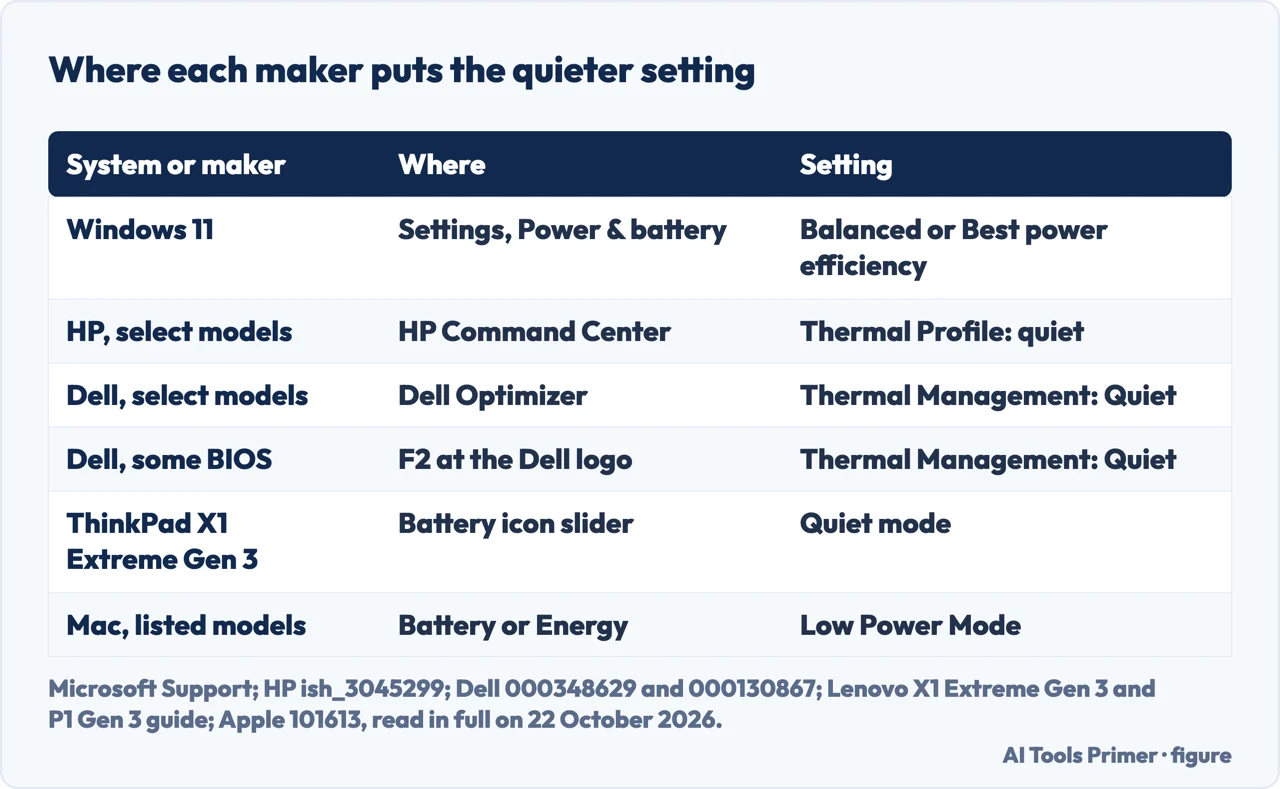
Windows. Microsoft’s steps: Start, Settings, System, Power & battery, then under Power mode choose Best power efficiency, Balanced or Best performance, separately for Plugged in and On battery. If the power mode cannot be changed, Microsoft says a custom power plan may be selected: open Control Panel, System and Security, Power Options, and select Balanced. HP’s noisy-fan document recommends Balanced or Best power efficiency, and PCWorld’s reviewer suggests dropping the mode one level.
HP. On select HP notebooks, the HP Command Center app controls the thermal profile: open it, go to the Thermal Profile tab and select the quiet mode. HP says you might need to install the app from the Microsoft Store. HP’s document on overheating uses the same tab for its Cool mode, which is about temperature rather than noise.
Dell. Dell’s overheating article lists checking the thermal profile in Dell Optimizer or Dell Power Manager among its first fixes. Some Dell laptops also have a Thermal Management option in the BIOS: press F2 repeatedly at the Dell logo and choose Balanced, Quiet, Optimized or Cool if they are offered. Dell warns that the BIOS setting can override the software profile, so a quieter profile in Windows may change nothing until the BIOS agrees.
Lenovo. Lenovo’s user guide for the ThinkPad X1 Extreme Gen 3 and P1 Gen 3 describes Intelligent Cooling with four modes, from Quiet mode, the quietest fan noise, to Ultra-performance mode with louder fan noise. You choose by clicking the battery status icon in the notification area and moving the slider. The guide is from 2022 and covers those two models; other Lenovo laptops may put it elsewhere.
Mac. Apple says that in macOS Sequoia 15.1 or later, Low Power Mode also helps reduce fan noise on models with an active cooling system, including MacBook Air and MacBook Pro introduced in 2024 or later and MacBook Pro from 2021 to 2023 with a Max chip. Choose Apple menu, System Settings, then Battery (Energy on desktops), and pick Low Power Mode for On battery or On power adapter. The opposite setting, High Power Mode, lets the fans run faster, and Apple warns you may hear additional fan noise.
Give the air somewhere to go
Apple, Dell and HP say the same about surfaces. Apple: a hard, flat surface such as a table or desk, because on a couch, pillow, bed or your lap the fans might run more. Dell: a hard, flat, non-cloth surface, and it does not recommend a laptop directly on the lap. HP asks for at least 15.25 cm (6 in) of clearance around each vent.
Dust in the vents is the other half, and it has its own page: cleaning a laptop fan covers the compressed air, the vacuum question on which Dell and HP disagree, and when to open the case. Cooling pads are less certain than they look: Dell’s blog says they can lower temperatures but don’t always reduce fan noise, because some active pads with built-in fans add noise of their own.
Capping the processor, and what it costs
Google’s AI answer and several videos in the results go further: Control Panel, Power Options, advanced power settings, Processor power management, and a lower Maximum processor state. HP’s community moderator and HP’s Tech Takes article suggest the same. It works by limiting how hard the processor may run, which is also its price: heavy work takes longer. Dell’s blog describes balanced and power-saving modes the same way, as limiting peak performance when you don’t need it.
Try the power mode first, since it is the switch Microsoft documents and it is easy to undo. PCWorld’s reviewer draws the line at heavy loads: preventing the fan from doing its job there will throttle performance and could even damage the hardware. HP’s article and Lenovo’s glossary also mention undervolting the processor, which HP marks as for advanced users only; this page gives no procedure for it.
Loud while doing nothing, or with the lid shut
Microsoft’s guidance to PC designers lists “Quiet while idle” among its principles: in a low-power state such as Modern Standby, “users should not see the fan turn on under any circumstances.” A fan that spins up in a bag is therefore not how Windows is meant to behave, and it is worth checking that the laptop is really asleep.
For a fan that runs fast without heavy use and with clear vents, Apple’s steps depend on the processor: on a Mac with Apple silicon, close and open the lid or restart; on an Intel-based Mac, reset the System Management Controller. HP’s community moderator suggests a soft reset on a Windows laptop: shut it down, then hold the power button for 10 to 15 seconds. Dell’s blog adds a cause the others skip: a failing thermal sensor can report heat that is not there and run the fan at full speed on a cool machine, which Dell’s diagnostics can test.
It happens to people: in a 2022 Microsoft Q&A thread, the owner of an HP laptop described a fan that sounded like a vacuum cleaner while Task Manager showed low use. The advisor who answered asked for the Balanced plan first, then a look at which column, CPU, GPU, disk or memory, rose with the noise. Heat that comes with slowness is a separate story, told on laptop overheating.
What not to do
- Do not stop the fan. HP’s Tech Takes article says it is “not recommended to completely stop your laptop fan”, because it is crucial for cooling.
- Do not trust a third-party app as a diagnosis. Apple says never to use third-party apps to diagnose possible hardware issues, and that temperature apps do not measure the case, which is much cooler. Reading the processor’s own figure is covered on how to check CPU temperature, and what the number means on normal CPU temperature.
- Watch the performance apps. PCWorld notes that companion apps such as Armoury Crate and MSI Afterburner can override the BIOS fan control and make the fans work harder, and so can modes like Turbo.
- Take drivers from the maker. HP does not recommend installing drivers from third-party websites.
- Mind the warranty. Dell’s blog says opening the device may affect coverage, and to contact an authorised service provider first.
When the fan needs a repair
Dell’s overheating article lists when to contact support: the fan test fails; the fan does not spin, or stays abnormally loud after the diagnostic and the load check; the fan makes a grinding or rattling noise; or it runs at maximum speed constantly with no load. HP and Apple both end their own steps the same way, with their support.
Dell also lists three signs to stop using the laptop at once, turn it off and disconnect the adapter: the case, keyboard or trackpad is swollen, lifting or deformed; there is a burning or chemical smell; or it is too hot to touch after shutting down. Dell says not to open it or remove a swollen battery yourself.
Where to start
Five ways in.
- “It roars when I work.”
- That can be normal — which noise
- “It is loud doing nothing.”
- Find the load — load
- “I just want it quieter.”
- The quiet mode — quiet mode
- “It runs with the lid shut.”
- While idle — idle
- “It grinds or rattles.”
- A repair — repair
More on heat
The pages next to this one: the slowdown heat causes, the dust behind it, and the temperature a processor reports.
When the load is the problem
A busy processor makes a fan loud too, and these pages find out what is keeping it busy.
Questions people also ask
Why is my laptop fan noise so loud?
The makers name two causes, a busy processor and air that cannot get out: Apple, HP and Dell all name intensive tasks and blocked vents, and HP and Dell add dust. If it is loud while idle, look for a busy process; if it grinds or rattles, the fan itself is failing.
How to fix laptop fan buzzing noise?
HP links buzzing to debris in the fan, a loose mounting or worn bearings. Its advice is to clean the fan and check for loose parts, and to replace the fan if the buzzing persists.
Why is my laptop fan constantly running?
Dell calls a fan running constantly during heavy work, such as a Windows update, usually normal if the fan passes its diagnostics. Constant and very hot while idle is a problem. HP says even a steady 3% to 4% processor load can speed it up.
How do I turn off fan sound?
You can lower it, not switch it off: HP says completely stopping the fan is not recommended. Choose the quiet mode in your maker’s app or a lower Windows power mode, or Low Power Mode on a recent Mac.
Not covered here. We did not test a laptop for this page. The settings credited to Apple, Microsoft, HP, Dell and Lenovo are from their support pages and user guide, read on 22 October 2026; the advice from HP’s community moderator, PCWorld, Microsoft Q&A and Dell’s blog is attributed where it is used, and Dell’s blog says its content may have been created with the help of generative AI.
The Reddit and Super User results could not be read, the videos in the results were not watched, and the Quora answers were read but not used. Lenovo’s steps come from the guide for two ThinkPad models and may differ on others.
The search volume and difficulty behind this page were read in Semrush on 29 August 2026.
Sources
- Apple Support — About fans and fan noise in your Apple product (published 27 May 2026) — support.apple.com, read 22 October 2026.
- Apple Support — About Power Modes on your Mac (published 21 September 2026) — support.apple.com, read 22 October 2026.
- Apple Support — Keep your Mac laptop within acceptable operating temperatures (published 2 April 2026) — support.apple.com, read 22 October 2026.
- Microsoft Support — Change the power mode for your Windows PC — support.microsoft.com, read 22 October 2026.
- Microsoft Learn — Thermal management in Windows (guidance for PC designers, updated 5 November 2020) — learn.microsoft.com, read 22 October 2026.
- Dell Support — How to Stop Computer and Laptop Overheating and Shut Down Issues (article 000130867) — www.dell.com, read 22 October 2026.
- Dell Support — Dell Pro Laptop Grinding Fan Noise (article 000348629, modified 23 May 2026) — www.dell.com, read 22 October 2026.
- HP Support — HP Notebook PCs: Fan is noisy and spins constantly (Windows) — support.hp.com, read 22 October 2026.
- HP Support — HP Notebook PCs: Reduce heat inside the laptop to prevent overheating in Windows — support.hp.com, read 22 October 2026.
- HP Tech Takes — How to Fix Loud Laptop Fan Noise: Expert Tips for a Quieter PC (Daniel Horowitz) — www.hp.com, read 22 October 2026.
- HP Support Community — Noisy fan (November 2024, accepted answer from an HP moderator) — h30434.www3.hp.com, read 22 October 2026.
- Lenovo user guide, ThinkPad X1 Extreme Gen 3 and P1 Gen 3 — Use the Intelligent Cooling feature (2022) — download.lenovo.com, read 22 October 2026.
- Lenovo glossary — Why is my laptop fan making noise and how can I silence it? — www.lenovo.com, read 22 October 2026.
- Dell blog — How to Stop Laptop Fan Noise: Practical Fixes That Work (18 August 2026) — www.dell.com, read 22 October 2026.
- PCWorld — I hate loud laptops. These 5 tweaks drastically reduce fan noise (Dominic Bayley, 22 July 2025) — www.pcworld.com, read 22 October 2026.
- GEEKOM blog — Why Is My Laptop Fan So Loud? 6 Ways To Stop Fan Noise (3 April 2026; GEEKOM sells mini PCs) — www.geekompc.com, read 22 October 2026.
- Microsoft Q&A — Laptop Fan Running Constantly Loud (July 2022, answers from an independent advisor and users) — learn.microsoft.com, read 22 October 2026.
Written by Alberto Gulotta
Founder and editor of AI Tools Primer, writing from Palermo, Italy. Thirty-five years of taking computers apart, starting with a Commodore 64 — the long version is on the about page.
Something wrong on this page? Write to aitoolsprimer@gmail.com and it gets fixed.
Written on 22 October 2026.
Independence and limits
No affiliate links and no paid placements anywhere on this site. Nobody pays to appear here, and no company has seen this page before you did.
This is general information, not professional advice. Where a page touches money, health, safety or the law, it names its source and the date it was read — and your situation may still differ. See the privacy page and the cookie policy.