
Software · guide
Dell Inspiron 15 3000 series wifi switch: which models have the key
By Alberto Gulotta · Updated · 14 min read
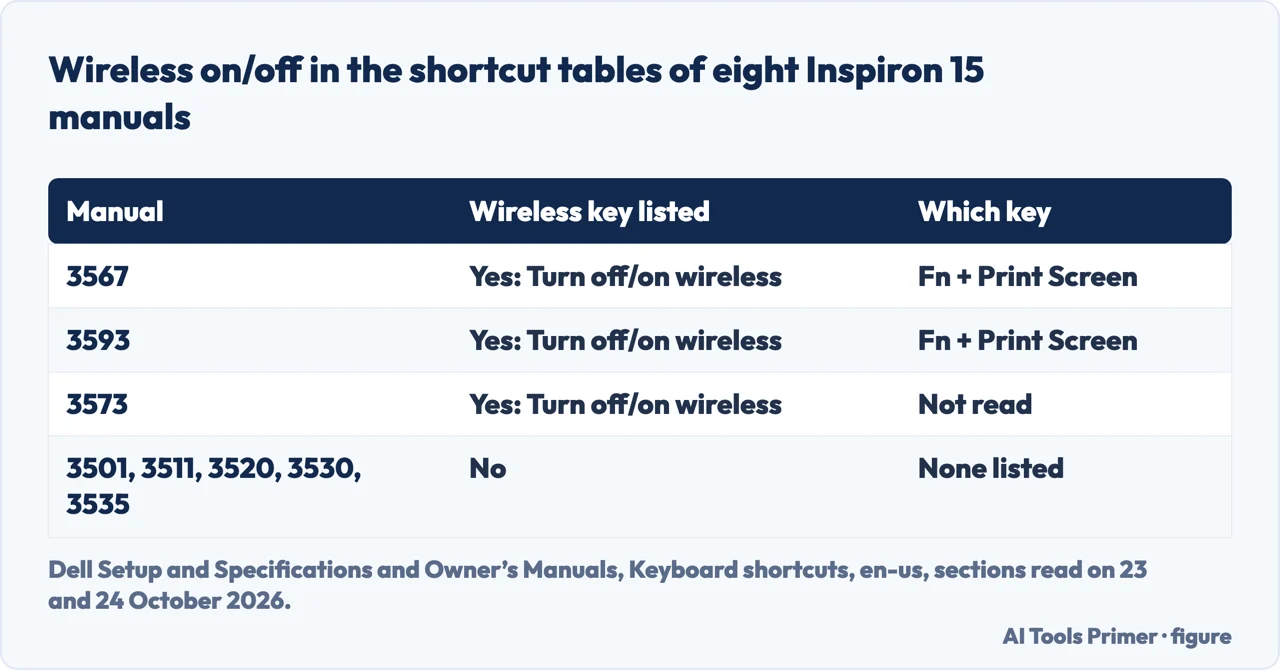
In Dell’s manuals the Dell Inspiron 15 3000 series wifi switch is a key, not a switch: Fn + Print Screen turns wireless off and on on the 3567 and the 3593. The 3501, 3511, 3520, 3530 and 3535 manuals list no wireless key, so on those use Windows: the Wi-Fi tile in Quick Settings, or Settings.
Dell’s general article covers every Dell laptop and says a physical switch matters only if the laptop has one. It does not say which Inspiron 15 models have a key, a switch or neither. The manuals do, one model at a time, and the table below sets eight of them side by side before the page turns to what to do when Wi-Fi stays off.
| Manual | In the shortcut table | The key | What else the manual shows |
|---|---|---|---|
| 3567 | Turn off/on wireless | Fn + Print Screen | Fn + Insert is Sleep; four wireless modules, one of them listing only 2.4 GHz |
| 3593 | Turn off/on wireless | Fn + Print Screen | Fn + Insert is Sleep |
| 3573 | Turn off/on wireless | Not read: the key images did not display | — |
| 3501, 3511, 3520, 3530, 3535 | No wireless row | None listed | Volume, brightness and other keys; use Windows |
Is there a switch on the side?
Dell’s article on turning wireless on and off covers every Dell laptop and talks about a physical switch only conditionally. It says that physical wireless switches, if the laptop has them, override the software controls, and it tells you to check for one when the Wi-Fi tile will not change colour or Airplane mode will not turn off. It names no model. Asurion says some Dell laptops have a dedicated Wi-Fi button on the sides, marked with the Wi-Fi icon, and others a keyboard shortcut.
For the Inspiron 15 3000 we have one thing to go on. We opened the Front, Left, Right, Base and Display sections of the 3567 manual and searched each for the words wireless, wifi, WLAN and switch. None of them has a match. That is what the manual does not say, not proof about every model, and looking at the sides of your own laptop for a button or slider with the icon is the direct test.
The key: Fn + Print Screen on the 3567 and the 3593
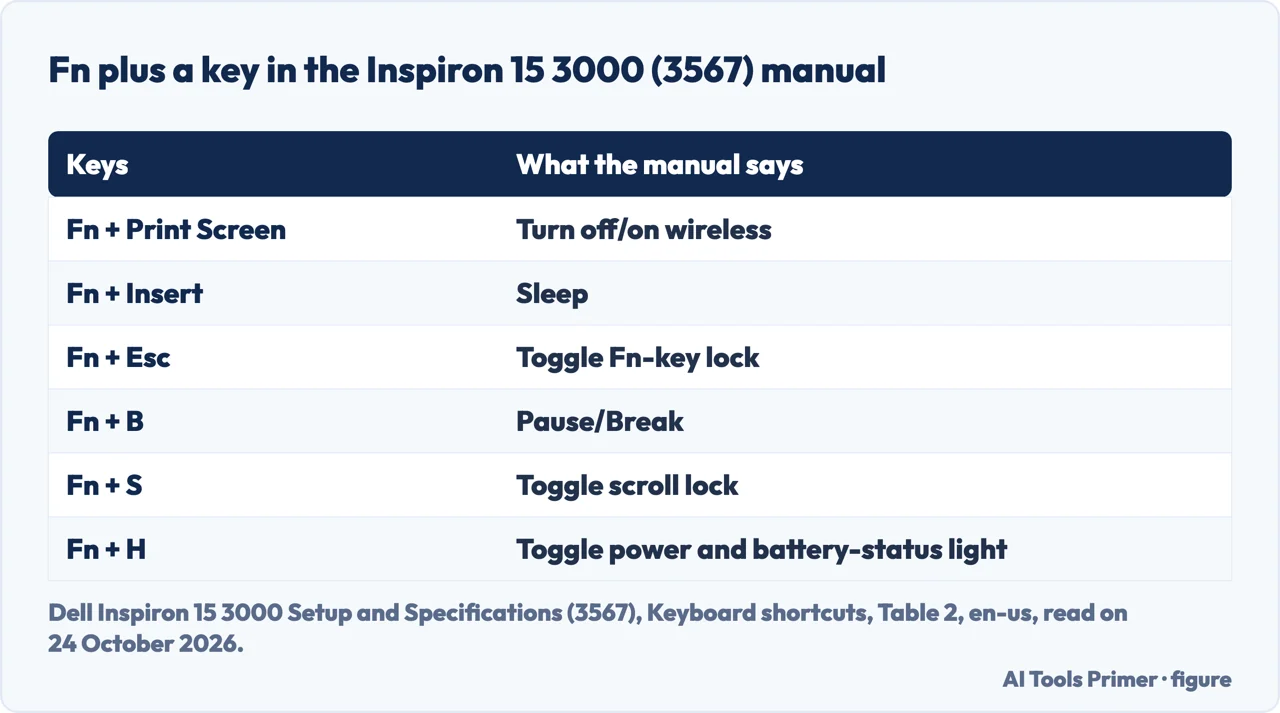
The second shortcut table in the 3567 manual and in the 3593 manual lists Fn with Print Screen as “Turn off/on wireless”. The same table gives Fn + Insert as Sleep, and the 3567 table gives Fn + Esc as the Fn-key lock. The 3573 manual has a “Turn off/on wireless” row too, but its column of keys is made of images that did not display when we read it, so we cannot name its key.
The manual’s wording is the whole entry: it does not say whether the key switches only the Wi-Fi radio or also Bluetooth, as Airplane mode does.
Guides and forum answers name other keys. Asurion gives F2 as an example of the Wi-Fi key. A thread starter on Tom’s Guide in 2015 had already tried Fn with F12 and F2, and wrote that the switch did not stay on. One answer there says Fn + Insert. In the 3567 and 3593 tables F2 is decrease volume and Fn + Insert is Sleep, so Fn + Insert puts the laptop to sleep rather than turning Wi-Fi on. Another answer, from January 2017, matches the manuals: “Try FN+Prt screen. I was facing a similar issue and this worked for me!”
The newer manuals list no wireless key
The 3501, 3511, 3520, 3530 and 3535 manuals list shortcuts for volume, brightness, the keyboard light and other functions, and none of the shortcut tables we read has a wireless row. In the 3501 manual the word does not appear on the shortcuts page at all. On those models the way is Windows, below. The keyboard light has its own page for the same five models, the backlit keyboard on a Dell Inspiron 15.
The way that works on every model: Windows
On Windows 11, Dell says to click the network icon in the lower-right corner of the taskbar to open Quick Settings and find the Wi-Fi tile, which changes from grey to blue when it turns on; then pick your network and enter the password. If the Wi-Fi option is missing, click the gear icon, then Network & Internet, Advanced network settings, and Enable next to Wi-Fi. Dell adds that you should unplug any Ethernet cable before checking the wireless settings.
On Windows 10 the icon may be among the hidden icons, behind the upward arrow, and the same Wi-Fi tile does the job; Dell says that if the tile does not change colour, you should check for a physical wireless switch. Asurion gives a second way: press the Windows key, open Settings, then Network & Internet, then Wi-Fi, and set Wi-Fi to On.
When Airplane mode is the reason
Dell says Airplane mode “disables ALL wireless communications simultaneously”: Wi-Fi, Bluetooth, mobile broadband, GPS and NFC. You turn it off with its own tile, and Dell notes that turning it off does not turn Wi-Fi on, which needs its own tile.
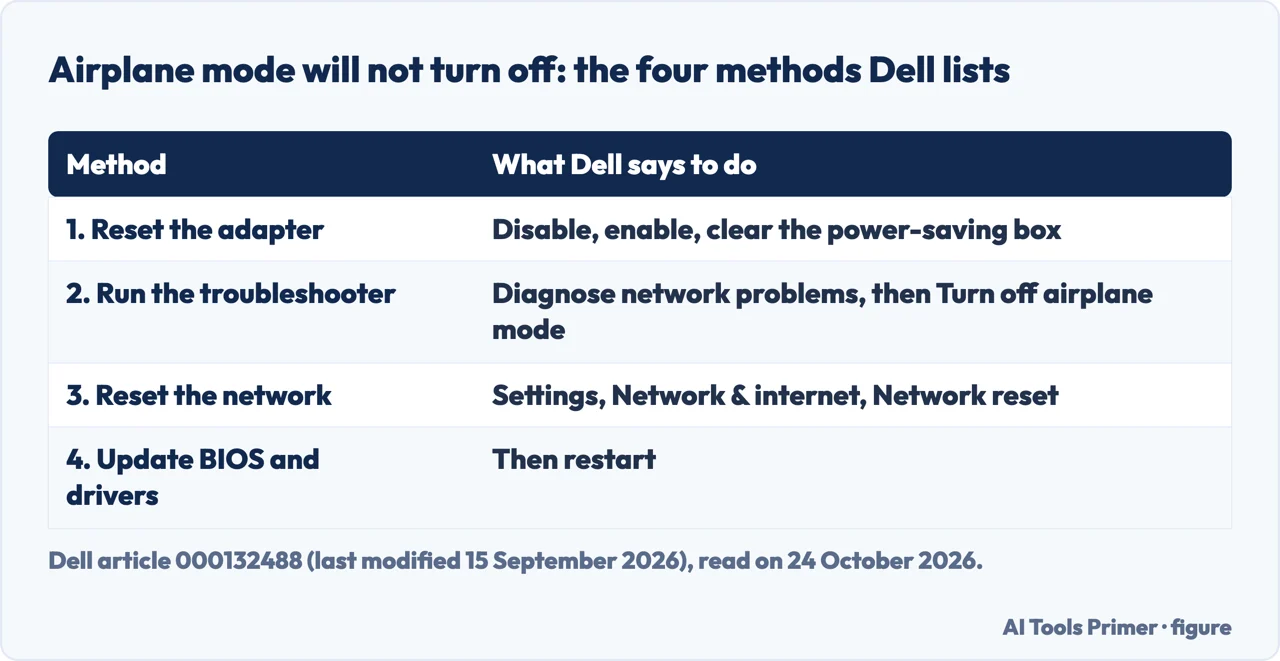
For Airplane mode that will not turn off, a second Dell article lists four methods, in the figure below. First, in Device Manager, disable and enable the wireless adapter under Network adapters, open its Properties and, on the Power Management tab, clear the box that lets the computer turn the device off to save power, then restart. Second, right-click the Wi-Fi icon, choose Diagnose network problems and take the offered option to turn off Airplane mode. Third, in Settings, Network & internet, Advanced network settings, use Network reset, then Reset now, and restart. Fourth, update the BIOS and the wireless drivers; with no way online, Dell says to connect a network cable or download the files on another device and move them with a USB drive.
If none of that works and you cannot download a driver, Dell’s last resort is to uninstall the wireless adapter in Device Manager without ticking the box that removes the driver, and restart so that Windows reinstalls the one it has. Dell warns that this may remove your saved Wi-Fi networks.
A 2019 thread on Dell’s community shows the limits of these steps. The person asking found the Wi-Fi button inactive even with Airplane mode off; one later answer says resetting the network adapter fixed it, while another user wrote that they had reset it and it still did not work, and a third that changing the network adapter did not help either.
When Wi-Fi is not listed at all
Dell’s troubleshooting article starts at the BIOS: restart, press F2 at the Dell logo, open Connection settings and check that the WLAN box is ticked. It also gives a hardware test: restart, press F12 at the logo, open Diagnostics and, under Advanced test, run only the Network test. If the test fails, Dell says the wireless adapter may need replacing.
A 2021 thread on Dell’s community, about an Inspiron 15 3000, describes the adapter vanishing from Device Manager after updates from SupportAssist. A community member answered with the Windows network adapter troubleshooter, then with Device Manager’s View, Show hidden devices: if the wireless driver appears, uninstall it without ticking the box that deletes the driver and restart; if it does not, use System Restore. A user wrote a year later that updating the BIOS and the Ethernet and Wi-Fi driver from SupportAssist fixed it for them. On Tom’s Guide in 2016 another user, whose Wi-Fi stayed off after turning flight mode on and off, wrote that disabling Intel SpeedStep in the BIOS fixed it. These are users’ reports, and no Dell page we read says the same.
Which wireless card the 3567 has
The 3567 manual lists four wireless modules: the Intel 3165 (up to 433 Mbps), the Intel 7265 (up to 867 Mbps), the Qualcomm QCA9377 (up to 433 Mbps) and the Qualcomm QCA9565 (up to 150 Mbps). The first three are dual band, 2.4 and 5 GHz; the QCA9565 lists a single band, 2.4 GHz, although the manual calls it dual band. All four are listed as Wi-Fi 802.11b/g/n. To see which one yours is, Dell says to type change wifi settings in the search box, open Change WiFi settings, then Hardware properties, and note the manufacturer and the description.
Where to start
Five ways in.
- “Is there a switch on the side?”
- What the manuals show — switch
- “Which key is it?”
- Fn + Print Screen — key
- “My manual lists no wireless key.”
- The Windows way — windows
- “It says Airplane mode.”
- Four methods from Dell — airplane
- “There is no Wi-Fi at all.”
- BIOS and adapter — missing
Getting on the network
The pages next to this one: connecting, a connection that has stopped, one that keeps dropping, and a weak signal.
Dell keys and the other radio
The same five Inspiron manuals on the keyboard light, the key by maker, and Bluetooth.
Questions people also ask
Where is the Wi-Fi switch on my Dell laptop?
On the Inspiron 15 3000 manuals we read it is not on the sides: the 3567 manual’s views mention no switch. Where a manual lists a wireless control it is a key, Fn + Print Screen on the 3567 and 3593. Dell’s general article says a physical switch, if the laptop has one, must be on.
Does my Dell laptop have a physical Wi-Fi switch?
Dell’s article mentions physical switches only “if present” and names no model. Asurion says some Dell laptops have a button on the sides marked with the Wi-Fi icon. Look at the sides of your laptop for a button or slider with the icon.
Which F key turns on Wi-Fi?
None, in the Inspiron 15 manuals we read. Where a manual lists a wireless key it is Fn + Print Screen (3567, 3593). Asurion gives F2 as an example, but in the 3567 and 3593 tables F2 is decrease volume.
How do I disable the Wi-Fi switch on my Dell laptop?
Press the same key again where there is one, or click the Wi-Fi tile in Quick Settings, which Dell says changes from blue to grey. Airplane mode turns off Wi-Fi, Bluetooth, mobile broadband, GPS and NFC together.
What does Fn + Insert do on an Inspiron 15 3000?
In the 3567 and 3593 manuals it puts the computer to sleep. A forum answer names it for Wi-Fi; no Dell manual we read does.
Not covered here. We did not test these keys or settings on an Inspiron for this page. The keys come from the shortcut tables of Dell’s manuals for the Inspiron 15 3567, 3593, 3573, 3501, 3511, 3520, 3530 and 3535, sections read on 23 and 24 October 2026, and the Windows steps from Dell’s articles 000124366 and 000132488 and from Asurion. The key image of the 3573 row did not display and is not named. The threads on Tom’s Guide and Dell Community are answers from forum members, from 2015 to 2022.
Only the 3567 manual carries “3000” in its title, and the 3573 and 3593 manuals are named by model number; models outside these eight, such as the 3576 and the 3583, were not read. Videos in the results were not watched, and the JustAnswer page was not readable. Laptops with other keyboards, other Dell series and other makers are not covered: for the keyboard light see the backlit keyboard on a Dell Inspiron 15.
The search volume and difficulty behind this page were read in Semrush on 29 August 2026.
Sources
- Dell — How to Turn Wi-Fi and Bluetooth On and Off on a Dell Laptop (article 000124366, last modified 30 September 2026) — www.dell.com, read 24 October 2026.
- Dell — Troubleshoot Wi-Fi Not Working Issues and Connect to Your Wi-Fi Network (article 000132488, last modified 15 September 2026) — www.dell.com, read 24 October 2026.
- Dell — Inspiron 15 3000 Setup and Specifications (3567), Keyboard shortcuts — www.dell.com, read 24 October 2026.
- Dell — Inspiron 15 3000 Setup and Specifications (3567), Communications — www.dell.com, read 24 October 2026.
- Dell — Inspiron 3593 Setup and Specifications, Keyboard shortcuts — www.dell.com, read 24 October 2026.
- Dell — Inspiron 15 3000 Setup and Specifications (3573), Keyboard shortcuts — www.dell.com, read 24 October 2026.
- Dell — Inspiron 3501 Setup and Specifications, Keyboard shortcuts — www.dell.com, read 24 October 2026.
- Dell — Inspiron 15 3511 Setup and Specifications, Keyboard shortcuts — www.dell.com, read 23 October 2026.
- Dell — Inspiron 15 3520 Setup and Specifications, Keyboard shortcuts — www.dell.com, read 23 October 2026.
- Dell — Inspiron 15 3530 Owner’s Manual, Keyboard shortcuts — www.dell.com, read 23 October 2026.
- Dell — Inspiron 15 3535 Owner’s Manual, Keyboard function keys — www.dell.com, read 23 October 2026.
- Asurion — How to turn on Wi-Fi on your Dell laptop (undated) — www.asurion.com, read 24 October 2026.
- Tom’s Guide Forum — I can not turn my wifi on my dell Inspiron 15 3000 series (November 2015 to January 2017, users’ answers) — forums.tomsguide.com, read 24 October 2026.
- Dell Community — Dell Inspiron 15 3000 - Wireless Adapter gone (April 2021 to April 2022, community members’ answers) — www.dell.com, read 24 October 2026.
- Dell Community — Wifi Turned Off (July 2019 to September 2020, community members’ answers) — www.dell.com, read 24 October 2026.
Written by Alberto Gulotta
Founder and editor of AI Tools Primer, writing from Palermo, Italy. Thirty-five years of taking computers apart, starting with a Commodore 64 — the long version is on the about page.
Something wrong on this page? Write to aitoolsprimer@gmail.com and it gets fixed.
Written on 24 October 2026.
Independence and limits
No affiliate links and no paid placements anywhere on this site. Nobody pays to appear here, and no company has seen this page before you did.
This is general information, not professional advice. Where a page touches money, health, safety or the law, it names its source and the date it was read — and your situation may still differ. See the privacy page and the cookie policy.