
Software · guide
iPad won't charge: power source, heat, port and restart
By Alberto Gulotta · Updated · 17 min read
Apple's page for an iPad that won't charge starts with the lightning bolt icon, then a different cable or adapter, the temperature and a force restart. Apple's heat and turn-on pages add a Charging On Hold message and up to an hour of charging. Back Market, SimplyMac and Asurion differ on computers, ports and waits.
| Question | Answer | Where it comes from |
|---|---|---|
| How do I know it is charging? | A lightning bolt on the battery icon in the status bar, or a large battery icon on the Lock screen | Apple Support |
| What does Apple try first? | A USB charging cable, preferably the one that came with the iPad, in one of four power sources | Apple Support |
| What does Charging On Hold mean? | The iPad is temporarily too hot or too cold to charge, and charging resumes by itself | Apple Support |
| How do I force a restart? | Two volume buttons then the top button, or the top and Home buttons together, depending on the model | Apple Support |
| How long on the charger if it will not turn on? | Apple says up to an hour; SimplyMac says 1 to 2 hours | Apple Support, SimplyMac |
What “not charging” looks like on the screen
Apple’s page for an iPad that won’t charge, published on 9 December 2025, is short: about 370 words by our count. It says the battery might not charge or might charge slowly, and it starts from the screen. When the iPad is charging you see a lightning bolt on the battery icon in the status bar, or a large battery icon on the Lock screen. The checks on the page are for the case where you do not see those icons.
Two other screens appear in the pages we read. Apple’s page on heat and cold says that a Lock screen message beginning Charging On Hold means the device is temporarily too hot or too cold to charge. Back Market describes a Not Charging label next to the battery icon, which it ties to a computer USB port that cannot give the iPad enough current, and says nothing is damaged by it. A third case is an iPad that shows no sign of life, which Apple covers on a separate page and which we take up in the last section.
Cable, adapter and power source: change one piece at a time
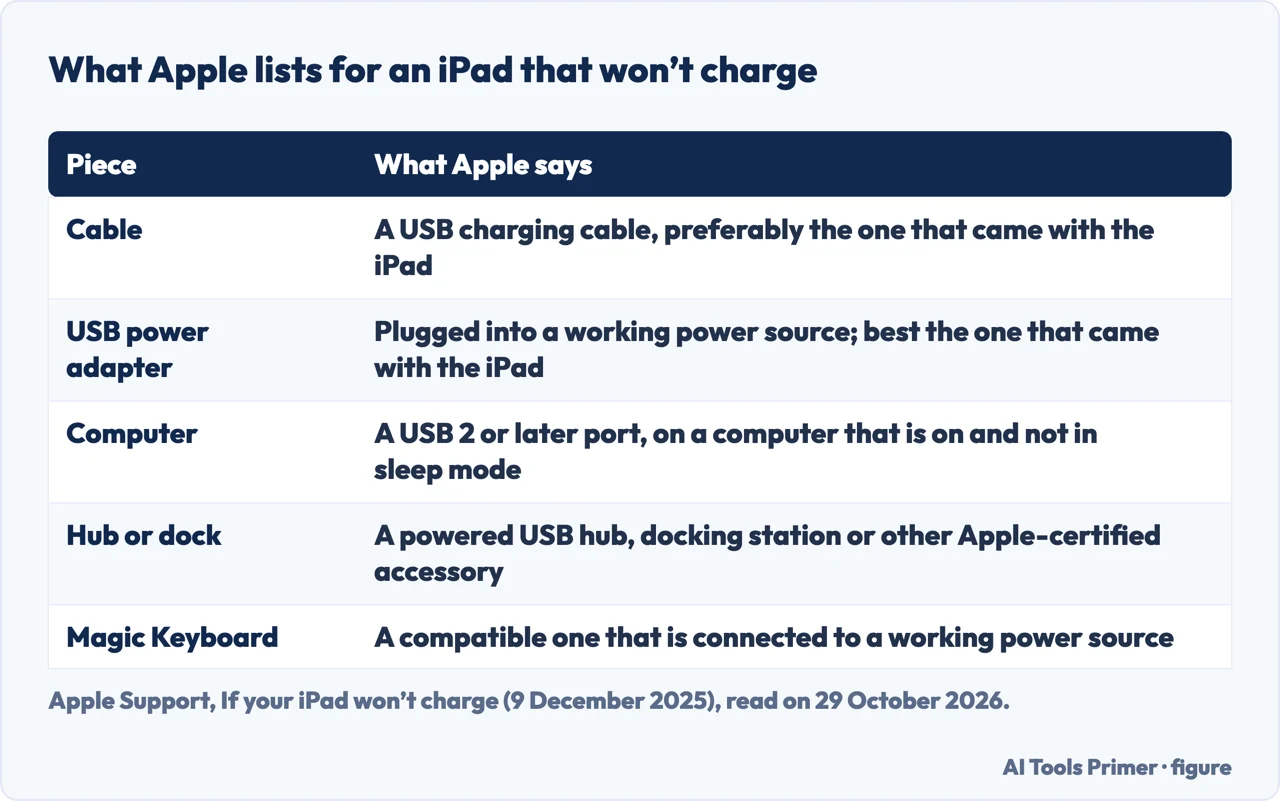
Apple’s first step is to connect the iPad to a USB charging cable, preferably the cable that came with it, and plug the cable into one of four things. The first is a USB power adapter that is plugged into a working power source, and Apple says it is best to use the adapter that came with the iPad. The others are a USB port that supports USB 2 or later on a computer that is on and not in sleep mode, a powered USB hub, docking station or other Apple-certified accessory, and a compatible Magic Keyboard connected to a working power source. If the iPad still won’t charge, Apple says to use a different power adapter or a different charging cable.
Asurion and Back Market describe the same test in their own words. Asurion says to look for wear and tear on the cable, such as bends or fraying, and to try a different cable even when no damage shows, then to plug the iPad into another charging block or a computer USB port. Back Market adds discoloration to its list of cable signs and says that if the iPad charges, or charges faster, with a different cable, the cable was at fault. The same goes for the adapter: if the iPad charges from another power source, Back Market says the adapter is the problem. Apple’s handling information for the iPad says to aim for gentle curves instead of angles in a cable, to inspect the cable and connector for kinks, breaks and bends, and to stop using a damaged cable.
For an adapter that did not come with the iPad, Apple’s iPad User Guide gives recommended specifications: 50 to 60 Hz single phase, a line voltage of 100 to 240 VAC, an output of 5 to 15 V at 3 A, a minimum of 15 W and a USB-C output port. It adds that the size and type of adapter depend on the model and the country, and that the cable depends on the model, either USB-C or Lightning to USB-C. SimplyMac recommends Apple’s 20 W adapter for modern iPads. The two figures are stated for different things, a minimum in Apple’s guide and a recommendation on SimplyMac, and the pages we read do not list which watt figure belongs to which model.
The computer, the hub and the wait: where the pages split
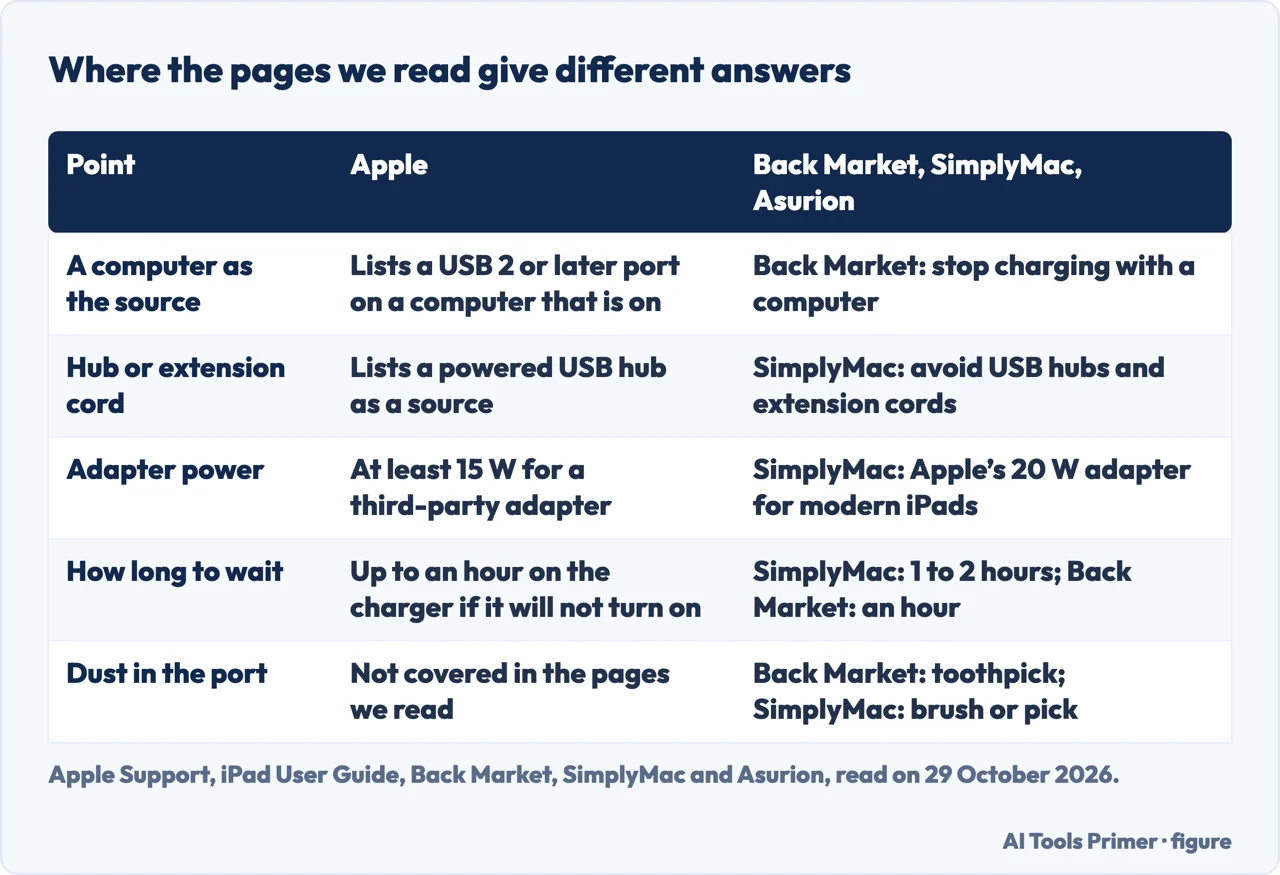
The clearest split is the computer. Apple lists a USB 2 or later port on a computer that is on and awake among the valid power sources, and Asurion offers a computer USB port as an alternative to the charging block. Back Market goes the other way under the heading “Stop charging your iPad with a computer”. It says iPads need more current than iPhones, that most computers lack high-power USB ports, and that an iPad on one will charge more slowly or not at all, with the Not Charging label as the sign. It also says there is no harm in doing so. SimplyMac’s table keeps the computer, with a condition that it is on and not in sleep mode, and tells readers to avoid USB hubs and extension cords, while Apple lists a powered USB hub as a valid source.
The wait differs too. Apple’s page on an iPad that won’t turn on says it might need up to an hour of charging. SimplyMac opens by saying to let the iPad sit on the charger for 1 to 2 hours, especially if the battery is completely depleted. Back Market says to look for the Apple logo after a few minutes or even hours with the original cable, and to try another cable or power source if it has not appeared within an hour. Asurion’s page, as we read it, gives no waiting time. The pages do not explain why the figures differ, so we report them side by side.
Heat, cold and the Charging On Hold message
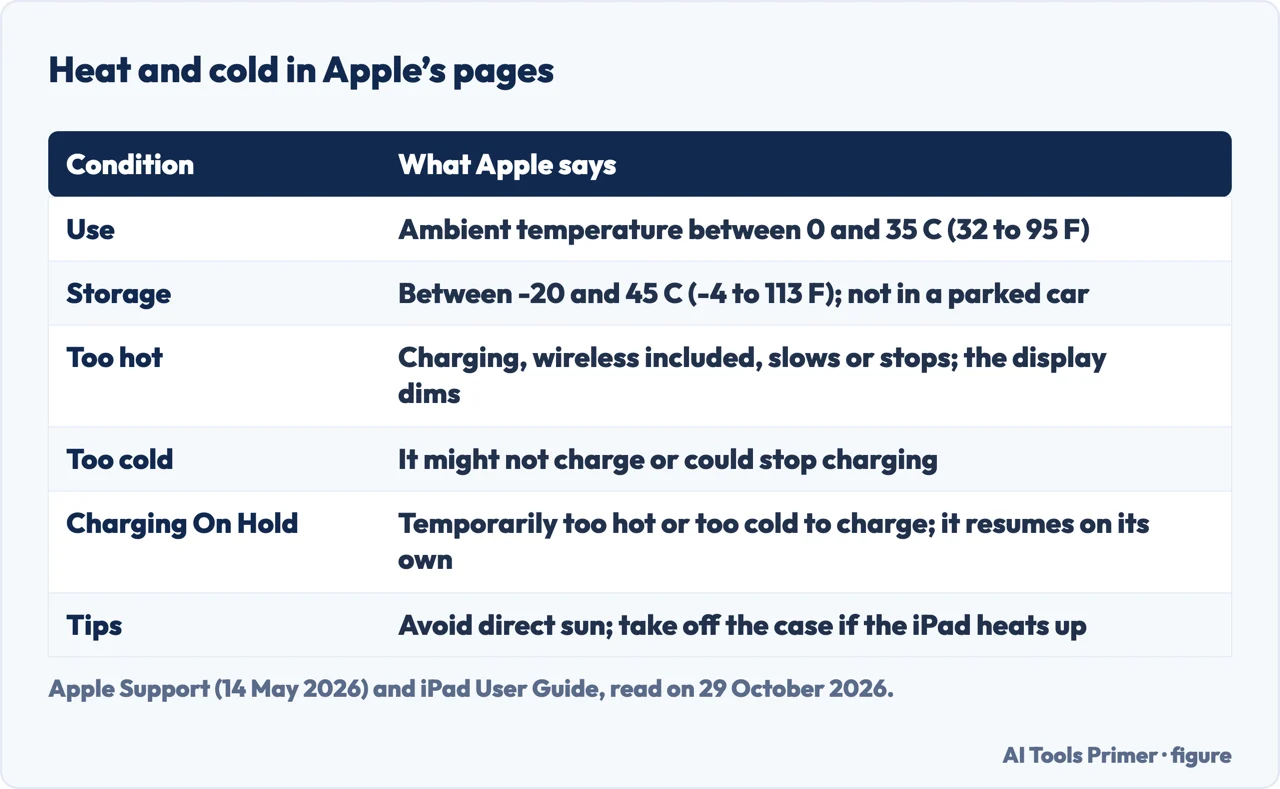
Apple’s page on temperature says iPhone and iPad are designed for use where the ambient temperature is between 0 and 35 degrees Celsius (32 to 95 degrees Fahrenheit), and for storage between -20 and 45 degrees Celsius (-4 to 113 Fahrenheit). It adds that using an iOS or iPadOS device in very hot conditions can permanently shorten battery life. Back Market gives the same 32 to 95 degree range and credits Apple for it. SimplyMac writes 50 to 95 degrees in the table row about heat and cold, and 32 to 95 in its own temperature paragraph, so the page disagrees with itself.
On the effects, Apple lists several for a device that is too hot: charging, including wireless charging, slows or stops, and the display dims or goes black. For cold, it says the device might not charge or could stop charging. Apple also lists things that make a device feel warm and that it calls normal: setting up for the first time, restoring from a backup, completing a software update, wireless charging, graphics-intensive or processor-intensive apps and streaming high-quality video. Apple’s handling information for the iPad says it is normal for the iPad to get warm when you use it or charge the battery.
Apple has a page on thermally limited charging for the iPad. It says iPadOS may automatically slow down or pause charging when the iPad is too warm or too cold, that a Lock screen message such as Charging On Hold can appear, and that charging resumes automatically when the battery returns to a safe temperature range. The protections work on their own, cannot be turned off, and are available on iPadOS 18 or later. Its tips are to charge between 32 and 95 degrees Fahrenheit, to avoid direct sunlight and hot spaces such as a car on a sunny day, to charge indoors or warm the iPad gradually before plugging it in when the climate is cold, and to remove the case if the iPad tends to heat up while charging. If a temperature warning screen appears, Apple’s page on heat and cold says to turn the device off, move it somewhere cooler and away from direct sunlight, and let it cool down.
The port, moisture and what the pages say about cleaning
Apple’s page for an iPad that won’t charge does not mention the port. The nearest Apple lines are in the handling information for the iPad, and they are written for other situations. For an iPad with a Lightning connector, it says that if the cable or connector gets warm, or the iPad won’t charge or sync, you should disconnect it and clean the Lightning connector with a soft, dry, lint-free cloth, without liquids or cleaning products. For an iPad exposed to liquid, it says to unplug all cables, not to charge until the iPad is completely dry, and to allow at least 5 hours before charging or connecting a USB-C accessory such as an Apple Pencil. In that same drying step it says not to use an external heat source and not to insert a foreign object into the USB-C connector, such as a cotton swab or a paper towel. For cleaning the iPad itself it says not to use cleaning products or compressed air.
Back Market, Asurion and SimplyMac go further. Asurion says the port at the bottom of the iPad can collect dust and debris and keep it from charging, and that physical damage to the port is a reason to ask an expert for repair; the cleaning steps it promises were not in the text we read. Back Market says to inspect the port for blockages and gives a short list: do not blow into it, because the moisture in breath can get in, and do not use safety pins or paper clips, while it calls toothpicks and cotton buds much safer if used very gently, with the iPad turned off first. SimplyMac’s table says to use a soft, dry toothbrush and to avoid compressed air and sharp objects; a later paragraph of the same page names a toothpick or a soft brush. Back Market and SimplyMac, the two pages that give cleaning steps, both ask for gentleness and differ on the tool; Asurion’s steps were not in the text we read. The Apple lines above were not written as a ruling on dust in the iPad port, so we have not used them as one. Our page on cleaning an iPhone charging port is about the iPhone, not the iPad.
Restart, force restart and the update
Apple’s page puts the force restart after the cable, the adapter and the temperature. For an iPad without a Home button, press and quickly release the volume button closest to the top button, then the one farthest from it, then hold the top button until the iPad restarts. For an iPad with a Home button, hold the top (or side) button and the Home button together until the Apple logo appears. Apple’s Force restart iPad guide says to release the top button when the logo appears on the models without a Home button.
Asurion puts a normal restart first. For an iPad without a Home button it says to hold the top button and either volume button, drag the slider and wait about 30 seconds, then hold the top button until the logo appears; for one with a Home button, to hold the top button until the slider appears. Only then does it give the force restart, and for a model with a Home button it says to hold the buttons for about 10 seconds. The Apple pages we read give no number of seconds. Back Market says the force restart can fix minor software glitches, and that after it you should let the iPad charge uninterrupted for at least half an hour.
Back Market also lists an update, in Settings, General, then Software Update, and SimplyMac says updates often include bug fixes. Apple’s page for an iPad that won’t charge does not mention an update.
When the iPad will not turn on at all
For an iPad with a black or frozen screen, Apple’s page on an iPad that won’t turn on gives the same force restart steps. It was published on 14 October 2026 and is now titled “If your iPad doesn’t respond”. It says that if the iPad doesn’t turn on, you should check the hardware and charge it, and that you might need to charge for up to an hour. If it still doesn’t turn on, the page points to a service link.
For an iPad stuck on the Apple logo, or showing a red or blue screen during startup, the same page connects the iPad to a computer: the Finder on a Mac with macOS Catalina 10.15 or later, iTunes on macOS Mojave or earlier, or the Apple Devices app or iTunes on a PC. The steps open the recovery-mode screen, where the choice is Update. If the download takes more than 15 minutes the iPad exits recovery mode and the steps are repeated.
On a battery that needs replacing, the pages we read are thin. SimplyMac’s table ends with a faulty battery and says to contact Apple Support for battery service when the other steps fail. The pages we read do not describe how to recognize a failing iPad battery, and we have not guessed. Asurion calls itself uBreakiFix by Asurion and ends its page with an offer to schedule a repair; Back Market sells refurbished devices. Both pages are useful on the steps and have a reason to mention repair or replacement.
What we did not use
We tested nothing on an iPad. We did not read the Reddit thread, the Apple Community thread, the Zugu page or The Repair Depot page that Google listed, so no reader’s account appears here. The Google AI box asks which iPad model it is and whether the Not Charging message appears or the screen is completely off; we read it only in part and did not use it. Apple’s thermal page links to a page on iPad battery usage and health that we did not open. We also left out SimplyMac’s remark about third-party tools that assess battery condition, because we did not verify it. Repair prices are not covered.
Where to start
Four ways in.
- “Is it charging at all?”
- What “not charging” looks like on the screen — icon
- “Is it the cable or the plug?”
- Cable, adapter and power source — power
- “It says Charging On Hold.”
- Heat, cold and the Charging On Hold message — heat
- “It will not turn on.”
- When the iPad will not turn on at all — off
Charging that fails
A phone, a Chromebook and a watch that will not charge.
More on the iPad
The keyboard, two apps side by side and a line on the screen.
Questions people also ask
Why is my iPad plugged in but not charging?
Apple’s page starts from the lightning bolt icon and, if it is missing, tries a USB cable and one of four power sources, then a different adapter or cable, the temperature and a force restart. Back Market says a computer USB port may give too little current and show Not Charging.
How do I force my iPad to charge?
The pages we read do not describe a way to force charging. Apple says the heat protections work on their own and cannot be turned off, and its force restart is a restart, with different buttons for an iPad with and without a Home button.
What do I do if my iPad won’t turn on or charge?
Apple says to force restart, then check the hardware and charge it for up to an hour. If it is stuck on the logo it uses a computer and recovery mode, and if it still does not work it points to service.
What are the signs of battery failure for an iPad?
The pages we read do not list signs of battery failure. SimplyMac’s table ends with a faulty battery and says to contact Apple Support for battery service if the other steps do not work.
Not covered here. We tested nothing on an iPad. The statements come from seven Apple Support and iPad User Guide pages, SimplyMac, Asurion and Back Market, all read on 29 October 2026.
The search volume and difficulty behind this page come from a Semrush reading of 29 August 2026, older than the 60 days the site normally allows.
Sources
- Apple Support — If your iPad won’t charge — support.apple.com, read 29 October 2026.
- Apple Support — If your iPad won’t turn on or is frozen — support.apple.com, read 29 October 2026.
- Apple Support — If your iPhone or iPad gets too hot or too cold — support.apple.com, read 29 October 2026.
- iPad User Guide — Understand Thermally Limited Charging on iPad — support.apple.com, read 29 October 2026.
- iPad User Guide — Power adapter and charge cable for iPad — support.apple.com, read 29 October 2026.
- iPad User Guide — Important handling information for iPad — support.apple.com, read 29 October 2026.
- iPad User Guide — Force restart iPad — support.apple.com, read 29 October 2026.
- SimplyMac — How To Fix An iPad That’s Not Charging — www.simplymac.com, read 29 October 2026.
- Asurion — How to fix an iPad that won’t charge — www.asurion.com, read 29 October 2026.
- Back Market — How to fix an iPad that won’t turn on or charge — www.backmarket.com, read 29 October 2026.
Written by Alberto Gulotta
Founder and editor of AI Tools Primer, writing from Palermo, Italy. Thirty-five years of taking computers apart, starting with a Commodore 64 — the long version is on the about page.
Something wrong on this page? Write to aitoolsprimer@gmail.com and it gets fixed.
Written on 29 October 2026.
Independence and limits
No affiliate links and no paid placements anywhere on this site. Nobody pays to appear here, and no company has seen this page before you did.
This is general information, not professional advice. Where a page touches money, health, safety or the law, it names its source and the date it was read — and your situation may still differ. See the privacy page and the cookie policy.