
iPhone · guide
White screen iOS on an iPhone: what Apple and four guides say
By Alberto Gulotta · Updated · 18 min read
White screen iOS trouble may only be Zoom magnifying a white area, which Apple's guide switches off with a double-tap of three fingers. Otherwise the pages give a force restart, then recovery mode, choosing Update before Restore. DFU timings differ from guide to guide, and the Apple pages we read give no DFU keys.
| Question | Answer | Where it comes from |
|---|---|---|
| Could it be Zoom? | Yes: a magnified white area looks like a white screen, and a double-tap with three fingers turns Zoom off | Apple, Lifewire, iGeeksBlog |
| Which tap? | Apple, Lifewire and iGeeksBlog say double-tap; SalvageData says triple-tap | Apple, Lifewire, iGeeksBlog, SalvageData |
| What after a force restart? | Recovery mode with a computer: choose Update before Restore, which erases all data | Apple Support, SalvageData |
| Does Apple give the DFU keys? | Not on the pages we read; the four guides give three different timings | Apple Platform Security, four guides |
| When is it service? | Apple says when recovery mode cannot update or restore, or when a button does not work | Apple Support |
First check that the screen is really white
Lifewire, SalvageData and Switching to Mac put the same check first, before any button sequence, and iGeeksBlog raises it in a note on the causes: the screen may be magnified rather than white. Zoom is an accessibility feature that enlarges what is on the display, and SalvageData says it can enlarge it so far that the screen looks completely white while the phone is fine. Lifewire puts it as having zoomed in on something white, in which case normal taps won’t help. Apple’s iPhone User Guide describes the feature as magnifying the whole screen, which it calls Full Screen Zoom, or only part of it through a resizable lens, which it calls Window Zoom.
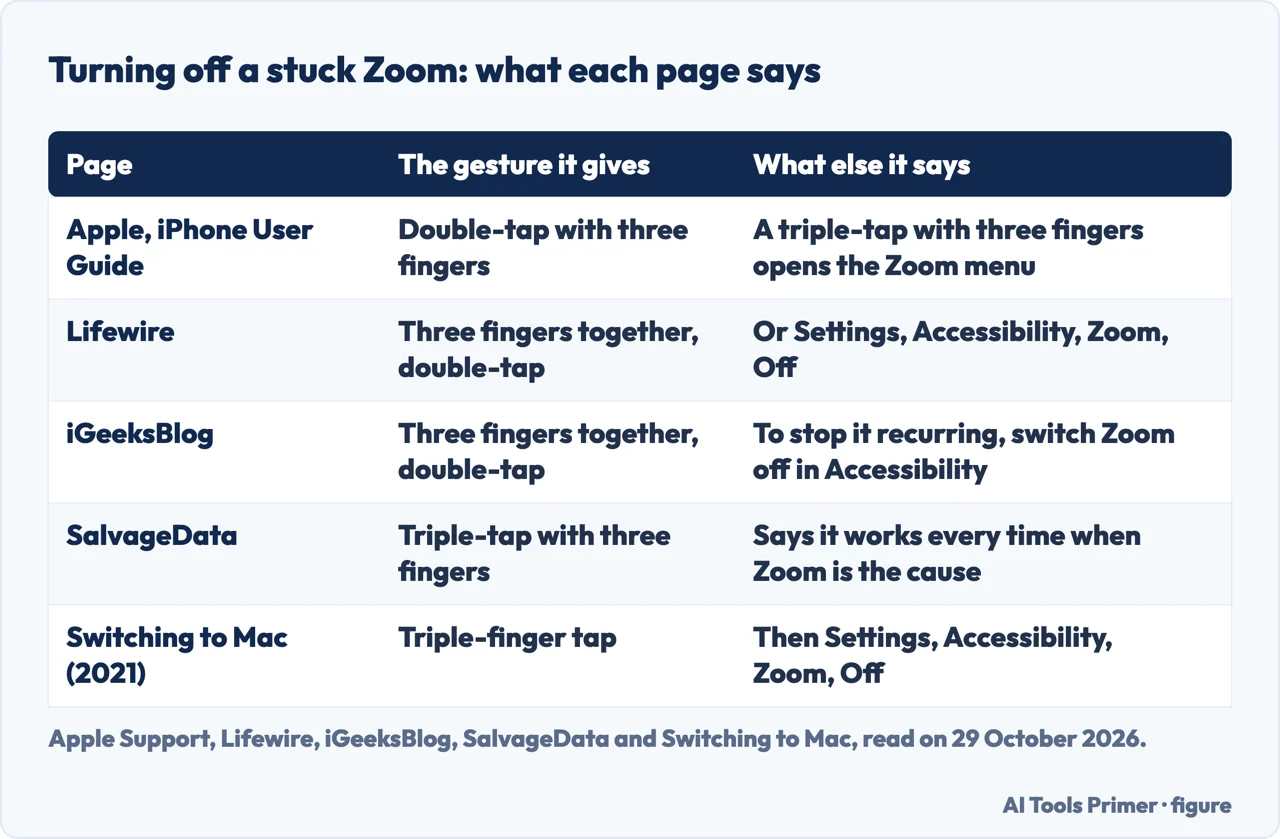
The pages differ on the gesture. Apple’s guide says to double-tap the screen with three fingers, or use the Accessibility Shortcut, to turn Zoom on, and the same to turn it off; a triple-tap with three fingers opens the Zoom menu instead. Lifewire and iGeeksBlog say to hold three fingers together and double-tap, which matches Apple. SalvageData says to triple-tap with three fingers, and Switching to Mac calls it a triple-finger tap. Where a page says triple, Apple’s guide gives the menu rather than the switch, so we go by Apple’s wording here. Once the screen is back to normal, Lifewire says to turn magnification off at Settings > Accessibility > Zoom, which is the path Apple’s guide gives for the Zoom settings.
SalvageData, which sells data recovery, gives a second signal for a screen that stays white after that. If the iPhone vibrates, plays a sound, buzzes with notifications or responds to the silent switch while the screen is white, it says the phone itself is working and the fault is limited to the display, with a low risk to the data. The Apple pages we read do not mention this test, and the pages we read do not say how long to wait with a white screen before acting.
What the pages give as causes
The Apple pages we read do not describe a white screen or what causes it, so the causes below come from the four guides, and they are the guides’ statements. Lifewire, published on 14 January 2026, names two common culprits: a failed software update or a failed jailbreak attempt, and a hardware fault in which the cable that connects the iPhone’s motherboard to its screen becomes loose or breaks, which it links to hardware failure over time or to frequent drops. It says the page was originally written with iOS 12 and applies to recent versions. iGeeksBlog, last updated on 29 September 2025, lists three: a bad iOS update, which it calls rare, hardware damage after a fall, through the same cable, and a jailbreaking attempt.
Switching to Mac, dated 8 February 2021, widens the list to a hard fall or water getting in, a failed app or operating system upgrade, a low battery, a failed jailbreak, and white horizontal or vertical lines on a phone that is old or heavily used. SalvageData sorts causes into four: a Zoom glitch, a failed software update, firmware corruption from an interrupted update or a jailbreak, and hardware, meaning a drop, water, or damage to the display or the board. It reports that iPhone 13 Pro Max owners saw a wave of white screens after iOS 16.3.1. That is the company’s statement, and the Apple pages we read do not mention it. SalvageData says most cases it sees are software, and the pages we read give no figure for how often a white screen is software and how often it is hardware. For avoiding the update-related causes, SalvageData advises installing iOS updates while the phone is plugged in, on Wi-Fi and with at least 50% battery, and says that early bugs in a major release occasionally trigger white screens on specific models, so it suggests avoiding the first 48 hours after a release when possible; that is the company’s advice and the Apple pages we read do not give it.
On the hardware side, SalvageData lists flickering, coloured lines mixed into the white, overheating, a swollen battery and no response to any reset. It says a single white line or small white dot on an otherwise working screen points to localized display damage, and that a half-white screen after a drop is almost always hardware rather than software. A single white dot is a different question, and our page on the white dot on an iPhone screen covers it; lines are covered on our page about white horizontal lines on a phone screen, and marks on the panel on our page about white spots on a phone screen.
The force restart, as Apple writes it
Apple’s page on an iPhone that won’t turn on or has a black screen, published on 14 October 2026, is the one Apple page we read for this step, and it does not use the word white. For an iPhone with Face ID it says to press and quickly release Volume Up, then Volume Down, then hold the side button until the Apple logo appears, which it says might take longer than 10 seconds. For the iPhone 7 and 7 Plus it says to hold the side button and Volume Down together until the logo appears. For the iPhone 6s and earlier it says to hold the Home button and the side or top button together, which takes around 10 seconds. If the phone doesn’t turn on, Apple says to charge it for one hour and try again; if it shows a low-charge battery, to check the iPhone hardware and charge for 30 minutes or until it starts.
iGeeksBlog gives the same Face ID sequence and says a force restart clears the iPhone’s RAM and temporary glitches. Lifewire says a hard reset clears more of the memory and loses no data, but writes the first sequence only as holding the volume and side buttons. Apple lists the combinations for each model, so we give Apple’s. SalvageData says to hold for about 10 to 20 seconds. The Apple page we read does not describe what a force restart clears. Our page on force restarting an iPhone goes through the sequences by generation, so this page does not repeat them in full. Apple closes its own page with one line: if the iPhone still won’t turn on, you might need service.
Recovery mode: Update before Restore
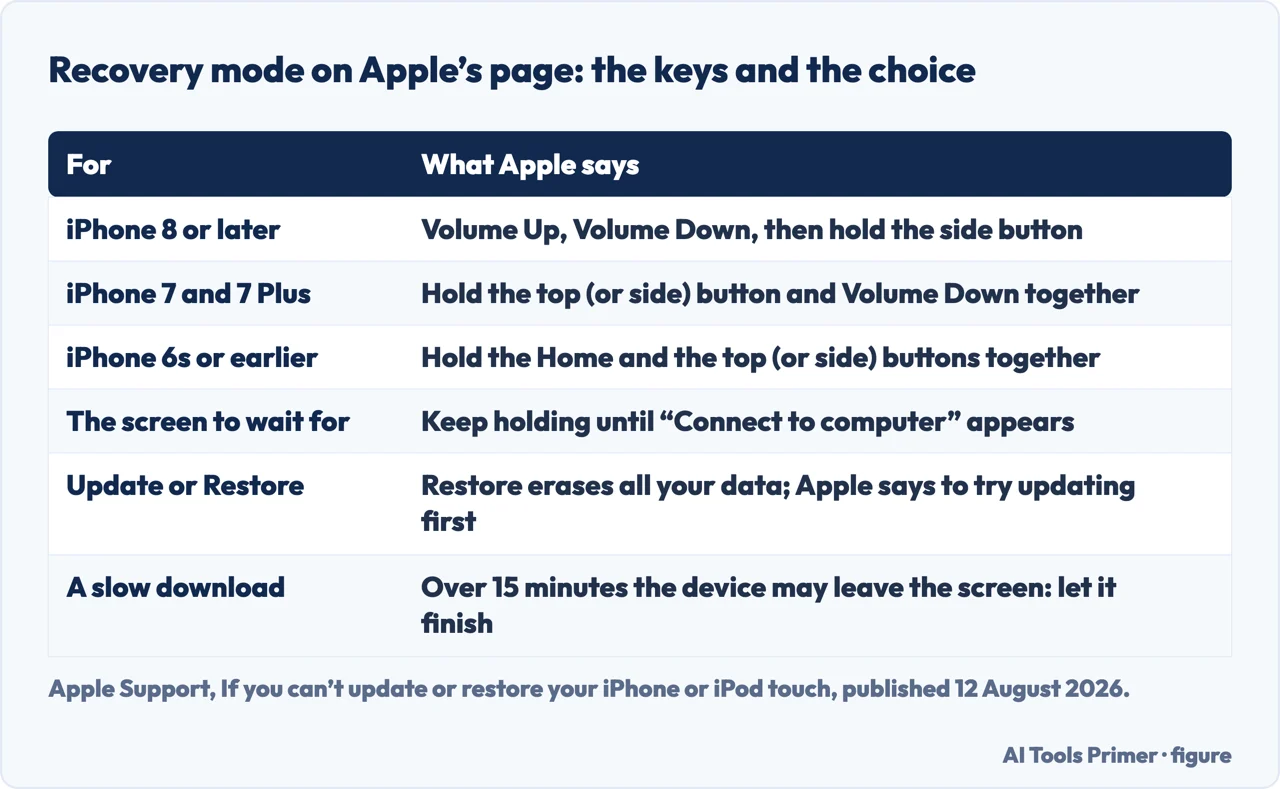
The next step in all four guides is recovery mode, and Apple has a page for it, published on 12 August 2026. Apple lists four situations for it: the Apple logo on screen for several minutes with no progress bar, a computer that does not recognise the device or says it is in recovery mode, the “Connect to computer” screen, and a device that keeps starting up to Recovery Assistant without recovering. A white screen is not on that list. The steps are to update the Mac, or on a PC get the Apple Devices app, connect the device with a USB cable, open the Finder or Apple Devices, keep the device connected and wait for the “Connect to computer” screen, using the key sequence for the model (see the table below).
Then comes the choice. When the Update or Restore options appear, Apple says that Restore reinstalls iOS and erases all your data, and that if you haven’t tried updating yet, you should try updating first. iGeeksBlog and SalvageData say the same: Update reinstalls iOS without erasing the data. SalvageData adds that if Update fails partway, you should disconnect, wait a few minutes and try it a second time before going to Restore. Apple’s page on an iPhone frozen on the Apple logo, published on 14 September 2026, also says to choose Update, and says that Restore will erase the iPhone. If the download takes more than 15 minutes, Apple says the device might leave the “Connect to computer” screen: let the download finish, then repeat the steps. A restore wipes the phone, so our page on backing up an iPhone is worth having open first.
The pages do not agree on the order. Apple’s recovery page connects the device first and opens the Finder, then gives the keys. Lifewire says to turn the iPhone off if possible, connect the cable and then use the keys, and says a screen that turns from white to black means you are in recovery mode; Apple names the “Connect to computer” screen as the sign to wait for. A third Apple page, published on 15 October 2026 and written for a forgotten passcode, says to turn the iPhone off, then connect the cable and quickly hold the side button, without releasing it until an image of a computer and a cable appears. It says the process can take up to 60 minutes and erases the data on the phone. Our page on erasing an iPhone without the passcode goes through that route in full, so this page only notes it.
Apple has also described a recovery that runs on the phone itself, on a page published on 24 September 2026. It says iOS Recovery is available on iOS 27, may start by itself if an update or restore did not complete or the phone detects a stability issue, and can be started by switching the phone off, unplugging it from power and holding the side button until “Continue holding for recovery” appears, then waiting for “Loading recovery options”. It lists five options: Recovery Assistant, which needs the passcode and Wi-Fi; Software Update, which needs the passcode and another iPhone or iPad; Diagnostics Mode, which needs Wi-Fi; Erase All Content and Settings, which needs the passcode, works without a computer and deletes all data except the Apple Account; and Recovery Mode, which needs a computer. The page does not say whether it applies to a white screen.
DFU mode, and the timings that do not match
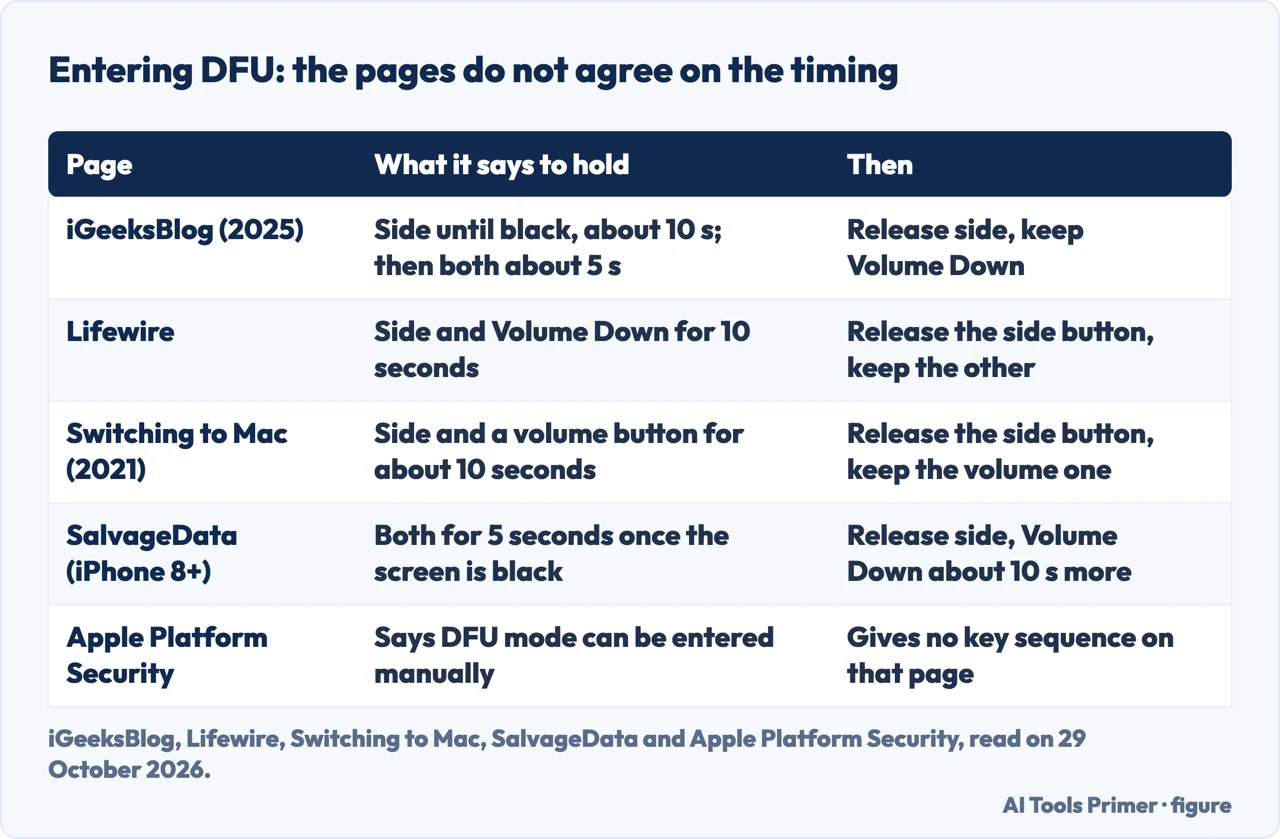
DFU stands for Device Firmware Update, and Lifewire and Switching to Mac describe it as more powerful than recovery mode, and iGeeksBlog calls it an advanced troubleshooting method and the last resort for fixing a white screen yourself. Apple’s Platform Security guide, published on 19 December 2024, says that restoring a device after it enters DFU mode returns it to a known good state with only unmodified Apple-signed code, and that DFU mode can be entered manually. It points to an Apple Support article on a forgotten passcode or a disabled iPhone for the steps. We did not read that article, and the Apple recovery pages we did read describe recovery mode and give no DFU keys.
The guides give the sequence, and their timings differ, as the table below shows. iGeeksBlog, last updated on 29 September 2025, says to connect the phone, press Volume Up, then Volume Down, hold the side button until the screen goes black, which it puts at around 10 seconds, then hold the side button and Volume Down for about 5 seconds, release the side button and keep holding Volume Down until a pop-up appears on the computer. SalvageData, for an iPhone 8 and later, also starts from a black screen: side button and Volume Down together for 5 seconds, then release the side button and hold Volume Down about 10 seconds more. Lifewire and Switching to Mac both say to hold the side button and a volume button for 10 seconds, release the side button and keep holding the other.
The pages agree on what to look for. SalvageData says the screen must stay completely black, and that an Apple logo or the “Connect to Computer” graphic means the timing was off and you start again. Lifewire and Switching to Mac say the Apple logo means the buttons were held too long, and an iTunes logo means to start again, while a black screen means you are in DFU mode. SalvageData also says there is no Update option in DFU, only a full firmware restore that erases all user data, and that DFU is the right option only when recovery mode has failed and the firmware is confirmed to be corrupt; if the fault is hardware, it says, DFU will not help.
Because Restore and DFU erase the phone, SalvageData asks for a tested backup first. It says iCloud storage and iCloud Backup are two different things, and that you can check the date and size of the last backup at Settings, your name, iCloud, iCloud Backup, or make a local backup with the Finder or the Apple Devices app. That is the company’s advice and Apple’s pages we read do not give it. Our page on restoring an iPhone from a backup covers the other end of the process.
When the pages say it is service
Apple names the cases itself. Its recovery page says you might need service if you can’t update or restore the device with recovery mode, or can’t use recovery mode because a button doesn’t work or sticks. The passcode page says that if the buttons don’t respond and you can’t get to the image of a computer and a cable, you might need service, and that without a computer you can go to an Apple Store or an Apple Authorized Service Provider. Lifewire says that if the problem persists after its steps, you likely have an issue that can’t be self-fixed and should make an appointment at an Apple Store. iGeeksBlog says to contact Apple Support or book a Genius Bar appointment.
SalvageData is more specific, and it speaks as a business that recovers data. It says to take the phone to a professional if the screen stayed white after a force restart and a recovery mode Update, if the phone was dropped or exposed to water before the screen turned white, if there is flickering or coloured lines, if the battery is swollen or if the phone is hot to the touch. It separates repair shops, which fix the display and the board, from recovery labs, which it says can pull data off even when the screen is dead, usually with the passcode. If a white screen keeps you from unlocking the phone to make a fresh backup, it advises stopping short of DFU. The pages we read give no repair prices, and Lifewire says the same steps apply to an iPad or an iPod touch.
Where to start
Four ways in.
- “Is it really white?”
- First check that the screen is really white — real
- “Why did it happen?”
- What the pages give as causes — causes
- “What do I press?”
- The force restart, as Apple writes it — restart
- “Recovery or DFU?”
- Recovery mode: Update before Restore — recovery
Starting over
Force restart, reset and restore.
White on other screens
A dot, spots and lines.
Questions people also ask
Why is my iPhone just showing a white screen?
The guides give a failed iOS update, a failed jailbreak attempt, and a loose or broken cable between the motherboard and the screen after drops. SalvageData adds firmware corruption, and a stuck Zoom can also look white. The Apple pages we read do not describe a white screen.
Why is my iPhone screen white?
Lifewire and iGeeksBlog say to check Zoom first with a double-tap of three fingers, which matches Apple’s guide for switching Zoom off; SalvageData says triple-tap. After that come a force restart and recovery mode. SalvageData says flickering or coloured lines point to hardware.
How can I get a white screen on my iPhone?
The pages we read do not describe turning the screen white on purpose. They describe how it happens: a failed update, a failed jailbreak, a drop or water, or Zoom magnifying a white area.
Why is my phone suddenly showing a white screen?
SalvageData says it can appear right after an iOS update, after a drop or water exposure, or with no obvious trigger. Lifewire and iGeeksBlog list a failed update or jailbreak and the screen cable.
Not covered here. We tested nothing on an iPhone. The statements come from five Apple Support pages, the Apple iPhone User Guide on Zoom, the Apple Platform Security guide, Lifewire, SalvageData, iGeeksBlog and Switching to Mac, all read on 29 October 2026.
We did not use two passages of the Switching to Mac page, a mention of a memory card and a hard reset line that does not match Apple’s page. We did not read the Apple article on a forgotten passcode that the Platform Security guide points to for DFU.
The search volume and difficulty behind this page come from a Semrush reading of 29 August 2026, older than the 60 days the site normally allows.
Sources
- Apple Support — If your iPhone won’t turn on or the screen is black — support.apple.com, read 29 October 2026.
- Apple Support — If you can’t update or restore your iPhone or iPod touch — support.apple.com, read 29 October 2026.
- Apple Support — How to start up from iOS Recovery — support.apple.com, read 29 October 2026.
- Apple Support — If your iPhone freezes on the Apple logo — support.apple.com, read 29 October 2026.
- Apple Support — Use a computer to reset your iPhone and your passcode — support.apple.com, read 29 October 2026.
- Apple iPhone User Guide — Zoom in on the iPhone screen — support.apple.com, read 29 October 2026.
- Apple Platform Security — Protecting keys in alternate boot modes — support.apple.com, read 29 October 2026.
- Lifewire — 6 Methods to Fix the iPhone White Screen of Death — www.lifewire.com, read 29 October 2026.
- SalvageData — How to Fix iPhone White Screen — www.salvagedata.com, read 29 October 2026.
- iGeeksBlog — How to Fix the White Screen of Death Issue on an iPhone — igeeksblog.com, read 29 October 2026.
- Switching to Mac — iPhone White Screen: What It Is and How to Fix It — www.switchingtomac.com, read 29 October 2026.
Written by Alberto Gulotta
Founder and editor of AI Tools Primer, writing from Palermo, Italy. Thirty-five years of taking computers apart, starting with a Commodore 64 — the long version is on the about page.
Something wrong on this page? Write to aitoolsprimer@gmail.com and it gets fixed.
Written on 29 October 2026.
Independence and limits
No affiliate links and no paid placements anywhere on this site. Nobody pays to appear here, and no company has seen this page before you did.
This is general information, not professional advice. Where a page touches money, health, safety or the law, it names its source and the date it was read — and your situation may still differ. See the privacy page and the cookie policy.