
Temp mail · guide
How to delete old accounts: what Apple and Microsoft say
By Alberto Gulotta · Updated · 15 min read
How to delete old accounts starts with finding them. The pages we read point to saved browser logins, the inbox and Sign in with Apple, then Microsoft's page shows what closing one involves, and California's Attorney General explains how a California resident can ask a business to delete the personal information it collected.
| Question | Answer | Where it comes from |
|---|---|---|
| Where is the list of my accounts? | In saved logins, in the inbox, and in the Sign in with Apple list | Consumer Reports, Bitdefender, Apple Support |
| Does stopping Sign in with Apple delete the account? | Apple describes stopping use, and signing in again reaches the same account | Apple Support |
| What does closing a Microsoft account need? | Being able to sign in; the reopen window is then a choice of 30 or 60 days | Microsoft Support |
| When does Microsoft delete the data? | Once the account is closed and the reopen window has passed | Microsoft Support |
| Does Have I Been Pwned hold every breach? | Its FAQ says it holds a small subset of the breaches that happened | Have I Been Pwned |
| What if there is no delete button? | California residents can ask a business to delete data; the privacy policy gives the method | California Attorney General |
Where the list of accounts already lives
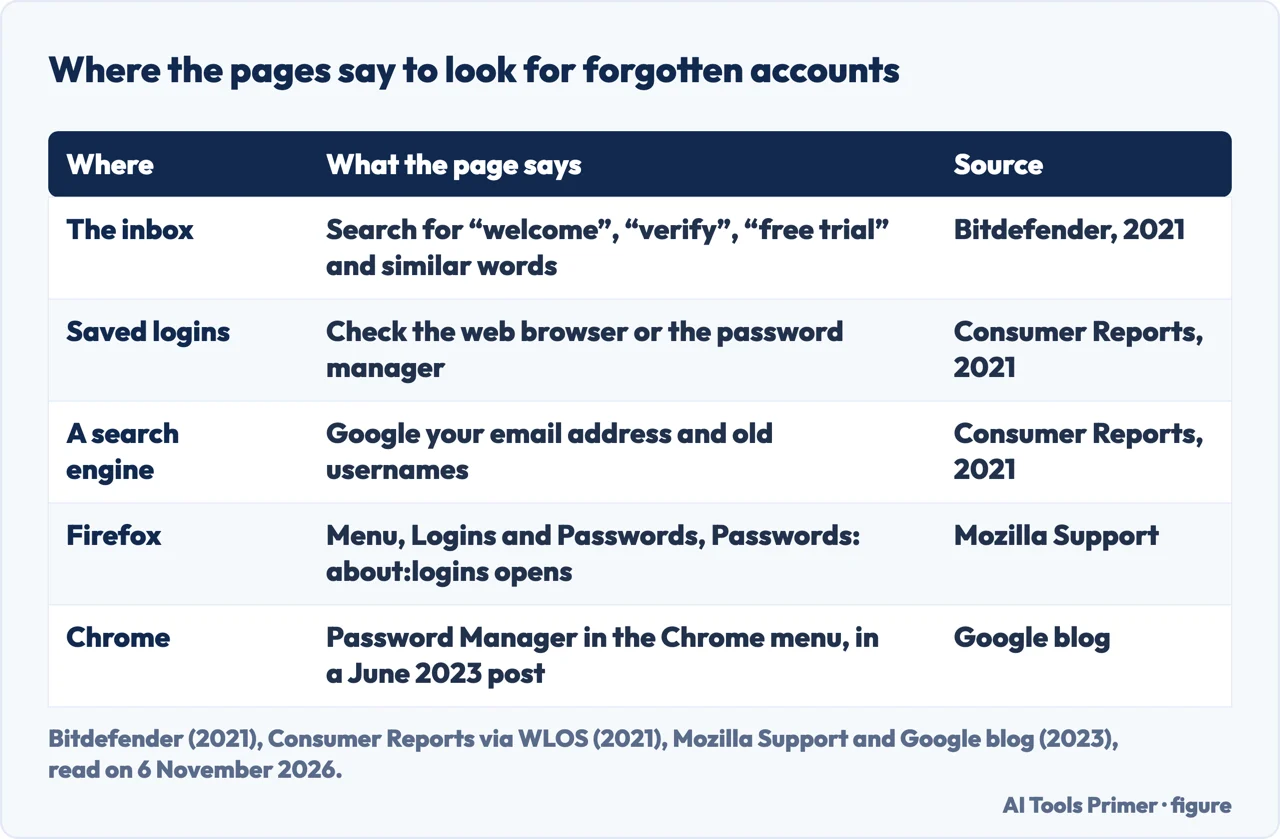
Two secondary sources, both from 2021, cover the search part of the job. Consumer Reports, in a news item that WLOS published on 23 September 2021, suggests three ways to find accounts you have forgotten: search Google for your email address and old usernames, check the saved logins in your web browser or password manager, and look in your inbox for old “welcome” messages. Bitdefender, in a post dated 4 October 2021, makes the inbox search more specific, with the words “welcome,” “verify,” “your account,” “free trial” and “thank you for signing up.” It adds that a password manager lists all the accounts you have opened.
Mozilla’s support page gives the Firefox route. Open the menu, choose Logins and Passwords, then Passwords, and the about:logins page opens in a new tab. From there you can view, copy, edit or remove your saved logins, and the Search Passwords box filters the list by site, username or password. On macOS and Windows the page notes that operating system authentication may be required to edit, copy or reveal a password, and says this is not your Mozilla account credentials. The page describes the Remove button as removing the login from Firefox, so closing the account at the site is a separate step.
For Chrome, the page we could read is Google’s blog post of 8 June 2023, which is more than three years old. It says Google Password Manager has a dedicated home in Chrome on desktop, reached by clicking Password Manager in the Chrome menu, or Manage passwords when Chrome offers to autofill a saved login, and that it is a place to review all your saved credentials. It also mentions, in a passage about iOS, that Password Checkup flags compromised passwords. We could not read Google’s current support pages, so today’s menus are not confirmed here. The post’s promise that Password Checkup on iOS would flag weak and reused passwords “in the coming months” is a 2023 statement, not a description of today.
If the address you signed up with was a hidden or plus-addressed one, the guides on Apple Hide My Email and plus addressing cover how those addresses work.
Sign in with Apple and the other logins
Many sites and apps let you sign in with another account, and Bitdefender names Apple ID, Facebook, Google, Instagram and Twitter. The Apple support article is the recent page here: it was published on 14 September 2026. Bitdefender gives a different Apple path from 2021, Settings, Password & Security, Apps Using Your Apple ID, and Apple’s page now says Settings, your name, Sign in with Apple, so we use Apple’s. We do not repeat Bitdefender’s paths for Facebook, Google, Instagram and Twitter: they date from 2021 and were not checked.
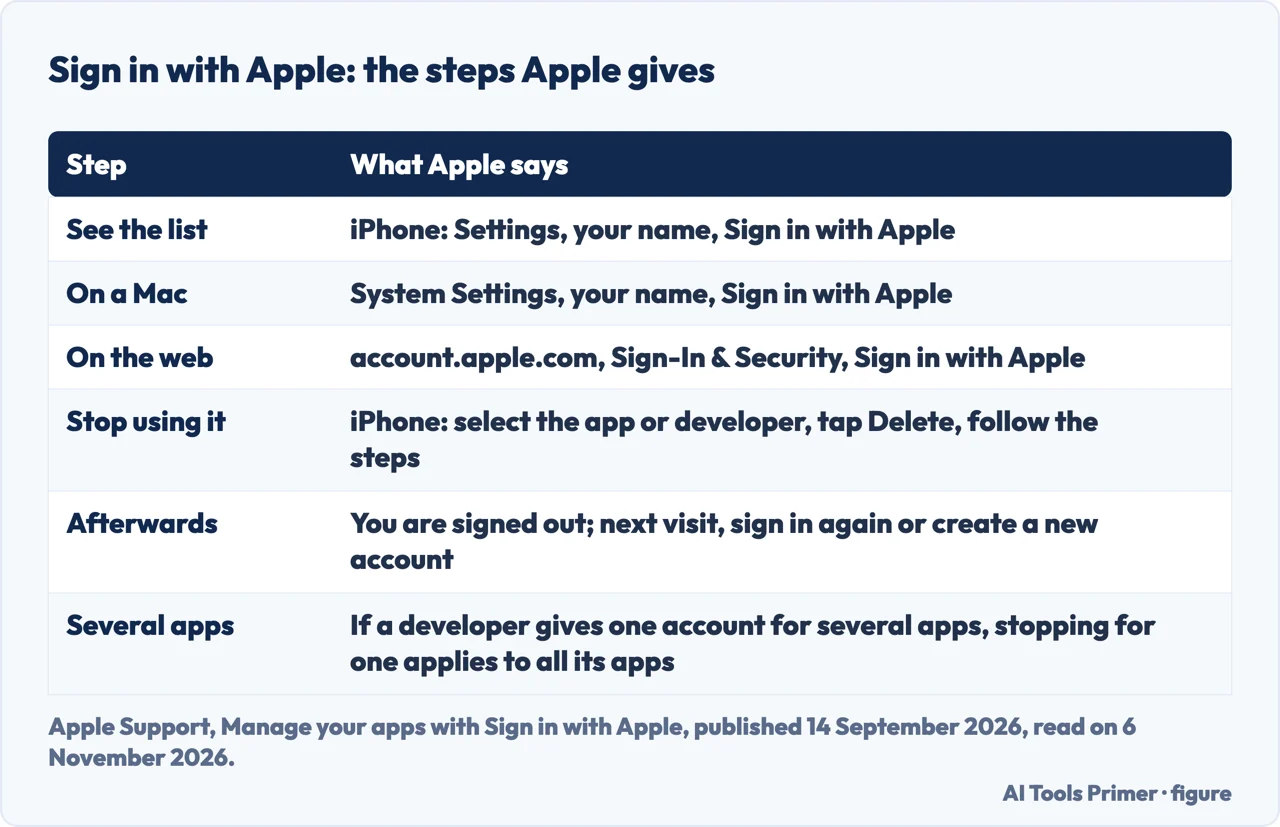
On an iPhone or iPad, open Settings, tap your name, then tap Sign in with Apple. On a Mac, choose Apple menu, System Settings, click your name, then Sign in with Apple. On the web, sign in at account.apple.com, go to Sign-In & Security and select Sign in with Apple. The list shows the apps you use with it, and selecting one shows the information you originally shared with that app.
What stopping does and does not do
To stop using Sign in with Apple with an app, Apple says to select the app or developer in that list on an iPhone, tap Delete and follow the onscreen steps to confirm. You are then signed out of the app on your device. On the next visit you can select Sign in with Apple to sign in again, which takes you to the same account as before, or create a new account. Some apps might let you create a new password for the existing account. Apple describes the step as stopping use of Sign in with Apple, and the page does not say the app deletes the account. Stopping is therefore not the same as closing the account at the app.
Apple adds that if you delete your account in an app where you use Sign in with Apple, you might receive an email from Apple saying the app has revoked your Sign in with Apple account. A developer with several apps may give you one account across them; in that case, turning off email forwarding or stopping use for one app applies to all apps from that developer. For an Apple Account managed at school or in the workplace, the page says to contact the system administrator.
If you chose to hide your email address from an app, the same Apple page covers turning off the forwarding for that app or developer, and the forwarding address can be changed; the steps are already set out in the guide to Apple Hide My Email, so they are not repeated here. Note that turning off Forward To only stops the emails: it does not delete the account at the app.
Breach notices as a memory jog
A breach result can bring back a service you signed up to years ago. Bitdefender, in its 2021 post, points to its Digital Identity Protection tool: you can check for free which leaks have included your email address, and the post says the results might remind you of some old accounts. That is a Bitdefender product, so it is the vendor’s own check and not a neutral one.
The Have I Been Pwned Notify Me page describes three steps: enter the email address you want to monitor, click the verification link sent to your inbox, and get notifications when the address appears in breaches. Its FAQ is clear about the limits. It says the service contains but a small subset of all the records that have been breached over the years, and that many breaches never result in the public release of data. A search there is therefore not a complete record.
The FAQ adds that breaches it classes as sensitive cannot be searched publicly. They can be searched only by the verified owner of the address, who signs in to the dashboard after verifying that email can be received at it. It also describes an opt-out feature for an address that should not appear publicly against a breach. That feature concerns what is shown about the address; it does not close any account.
The Have I Been Pwned pages we read describe a notification service and a search by address. They do not describe a list of the accounts you hold, which is why this page leans on Bitdefender for the idea that a breach result can recall one. After a notice, the guide to checking an email account for signs of a hack covers sign-in history, forwarding rules and connected apps.
Closing one properly: a Microsoft example
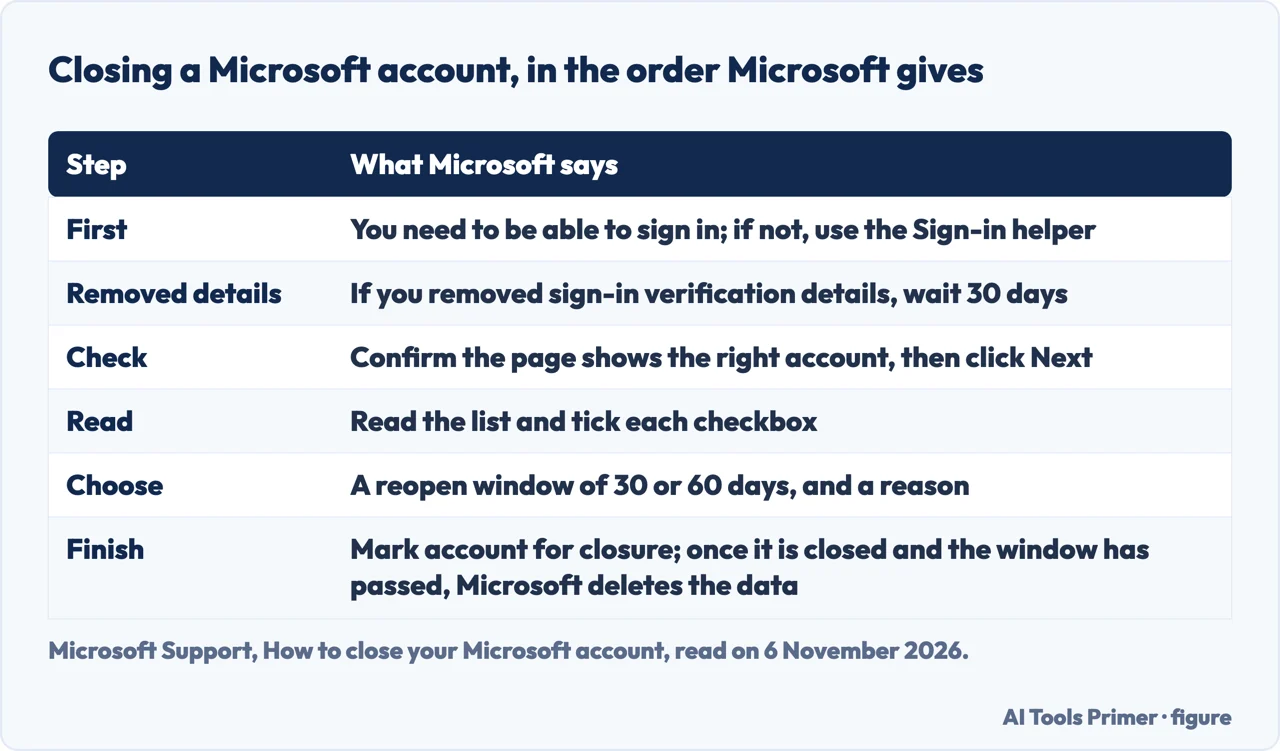
Microsoft’s support page gives a step-by-step closing procedure, so it works as an example of what a service may ask for. It says that when you close a Microsoft account, Microsoft wants to make sure of two things: that it is really you, and that you are not leaving anything important behind that you will need later.
The page starts with a condition. To close an account you need to be able to sign in, and if you cannot, it points to the Sign-in helper. If you have removed any sign-in verification details, you must wait 30 days before closing the account. The steps then run in order: sign in and verify if prompted; check that the page shows the correct account and click Next; read the list and click the checkbox for each item; choose a reopen window of 30 or 60 days; pick a reason from the drop-down list; and click Mark account for closure.
The last section is the one that matters for the data. Microsoft says that, as stated in the Microsoft Services Agreement, once the account has been closed and the reopen window has passed, it will delete your data and your content. The 30 days of the first condition and the 30 or 60 days of the choice are two different things: one is a wait before you can start, the other is the reopen window. The page does not say whether the deletion can be verified afterwards.
For something you paid for, the FTC consumer advice page on cancelling a service says to watch your bank or credit card statements for charges after you cancelled, and to file a dispute with the card if a company keeps charging. That page is about subscriptions rather than unused accounts, so it is used here for that one point.
Some closings have steps of their own: see deleting a Gmail account, deleting an Instagram account, deleting an account properly, with what Meta says about Facebook, and deleting a Facebook page.
When you cannot get in, or there is no button
Bitdefender says that after finding the accounts, the next step is to recover the passwords, from the password manager or otherwise from the browser, then sign in and delete the accounts one by one. It says this only works if you still have the email address, or in some cases the phone number, you used to sign up with. If you do not, it says you must contact the company directly and ask it to delete your account. The pages we read do not say how to find accounts opened with an email address you no longer check.
When the button is hard to find, Consumer Reports says to start by checking each account’s settings or account menu, then the help menu or the frequently asked questions. If that does not help, it says to try the company’s privacy policy and search for words like “account” and “delete,” or to Google how to delete an account from the company to see whether instructions have been posted online.
The California Attorney General’s page, updated on 28 August 2026, covers a deletion request. It says you may ask businesses to delete personal information they collected from you and to tell their service providers to do the same, with exceptions such as a legal duty to keep the information. To ask, you review the business’s privacy policy, which must include instructions. Businesses must designate at least two methods, and a business that operates only online needs only an email address. They cannot make you create an account just to submit a deletion request, though a business may require an existing account holder to use that account. The method has to be a designated one, which may differ from the normal customer service contact. If a designated method is not working, the page says to notify the business in writing and consider another designated method.
The same page says a business must respond within 45 calendar days, and may extend that by another 45 days, 90 in total, if it notifies you. Consumer Reports adds that companies do not have to honor the request if you are not a California resident, but some do anyway. For the wider idea, see the right to be forgotten.
What we did not use
Each statement on this page is traced to the sources listed below, and the quotations were matched word for word against them. The UK Information Commissioner’s page on deleting your data returned a security check instead of the page, so nothing here is drawn from it and the page does not describe rights outside California. Google’s password intro page returned only a short shell and Google’s current support pages were not read, which is why the Chrome part rests on the 2023 blog post. The FTC pages we read cover strong passwords, two-factor authentication and cancelling paid services; they do not cover closing unused accounts, so they are not a source for that topic. The pages listed under Sources are the ones we read for this page.
Where to start
Four ways in.
- “Where do I find my old accounts?”
- Where the list of accounts already lives — find
- “Does Sign in with Apple keep the account?”
- Sign in with Apple and the other logins — apple
- “How do I close one properly?”
- Closing one properly: a Microsoft example — close
- “What if I cannot sign in?”
- When you cannot get in, or there is no button — stuck
Addresses and what they leave behind
Hidden addresses, plus addressing and the checks after a breach.
Closing an account
Gmail, Instagram, and what Meta says about deleting.
Not covered here. This page does not cover rights outside California, the account menus of Facebook, Instagram or Twitter, or services that delete accounts for you; for the wider question see the right to be forgotten and deleting an account properly. The statements come from pages by Apple, Microsoft, Mozilla, Google, Have I Been Pwned, the California Attorney General and the FTC, and from 2021 posts by Bitdefender and Consumer Reports, all read on 6 November 2026.
The keyword reading behind this page comes from Ubersuggest, taken on 5 November 2026; Semrush was not read for this keyword.
Sources
- Apple Support — Manage your apps with Sign in with Apple (published 14 September 2026) — support.apple.com, read 6 November 2026.
- Microsoft Support — How to close your Microsoft account — support.microsoft.com, read 6 November 2026.
- Mozilla Support — Password Manager: remember, delete and edit logins and passwords in Firefox — support.mozilla.org, read 6 November 2026.
- Google blog — 5 new features to easily manage your passwords in Chrome (8 June 2023) — blog.google, read 6 November 2026.
- Have I Been Pwned — Get Free Breach Notifications — haveibeenpwned.com, read 6 November 2026.
- Have I Been Pwned — FAQs — haveibeenpwned.com, read 6 November 2026.
- California Attorney General — California Consumer Privacy Act (updated 28 August 2026) — oag.ca.gov, read 6 November 2026.
- Bitdefender — How to find and delete all your old, unused accounts (4 October 2021) — www.bitdefender.com, read 6 November 2026.
- WLOS — Consumer Reports: How to find and delete old online accounts (23 September 2021) — wlos.com, read 6 November 2026.
- FTC Consumer Advice — Tried to cancel a service but couldn’t? Learn steps to take — consumer.ftc.gov, read 6 November 2026.
Written by Alberto Gulotta
Founder and editor of AI Tools Primer, writing from Palermo, Italy. Thirty-five years of taking computers apart, starting with a Commodore 64 — the long version is on the about page.
Something wrong on this page? Write to aitoolsprimer@gmail.com and it gets fixed.
Written on 7 November 2026.
Independence and limits
No affiliate links and no paid placements anywhere on this site. Nobody pays to appear here, and no company has seen this page before you did.
This is general information, not professional advice. Where a page touches money, health, safety or the law, it names its source and the date it was read — and your situation may still differ. See the privacy page and the cookie policy.