
Video · guide
How to record a lecture, as a student or as the teacher
By Alberto Gulotta · Updated · 19 min read
How to record a lecture starts with permission, not a button. SDState wants the instructor’s written permission and everyone told, while Reed lets students with an accommodation record only inside one app. Once that is settled, Voice Memos on an iPhone, Zoom on a laptop or PowerPoint for the teacher are all documented.
| Question | Answer | Where it comes from |
|---|---|---|
| Can a student record the instructor? | SDState asks for the instructor’s written permission and for everyone to be told; Rev lists four forms of consent; Reed allows its accommodation to record only inside the Genio app | SDState, Rev, Reed |
| Which app on a phone? | Apple documents Voice Memos on iPhone and names classroom lectures among its uses | Apple Support |
| How does a teacher record? | PowerPoint records narration for one slide or all of them; Reed IT recommends Panopto for its higher-quality recordings that upload by themselves | Microsoft Support, Reed IT |
| How long should a recorded lecture be? | UCLA gives 8-10 minutes for each video; Reed IT says to keep them short and to break up long ones | UCLA, Reed IT |
| What happens to the file afterwards? | SDState says to destroy it right after the course; Reed says to delete it when it is no longer needed; Philips says to copy it to a computer and rename it | SDState, Reed, Philips Dictation |
Ask before you press record
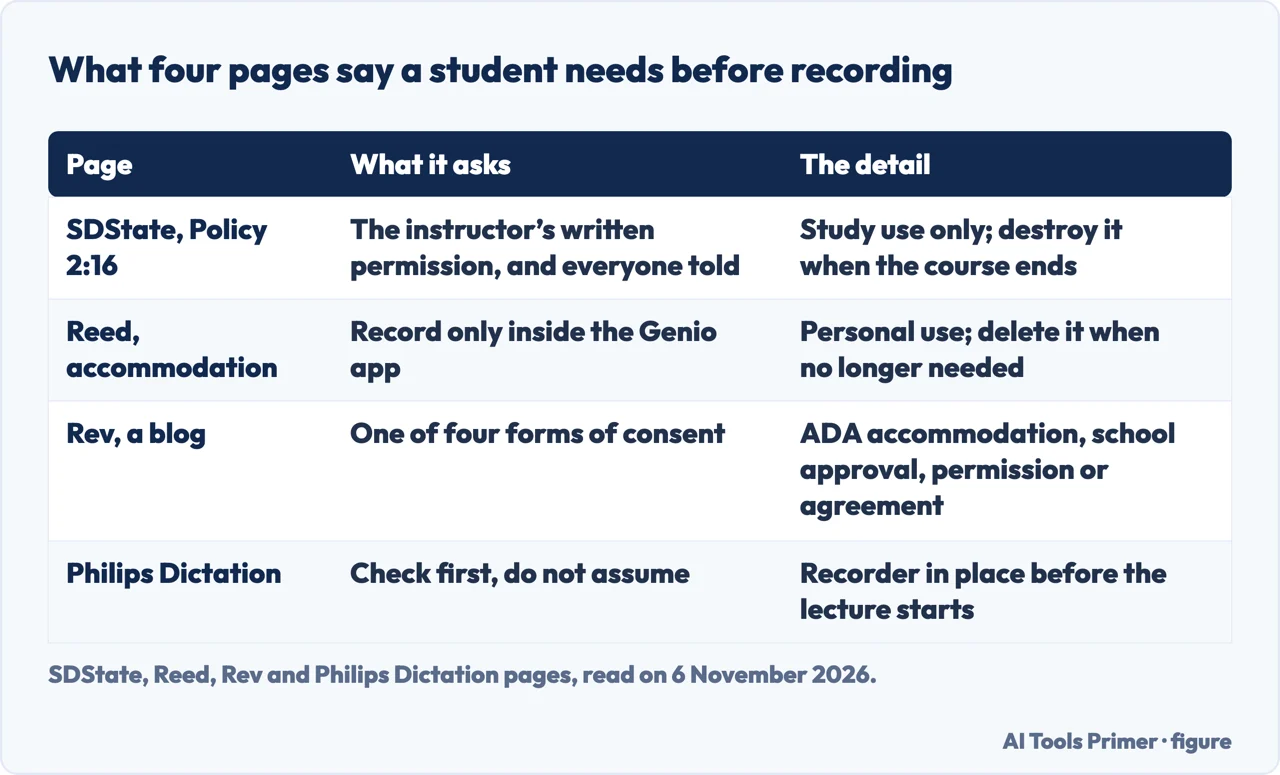
The pages we read speak to two readers: a student who wants to record someone else’s lecture, and a teacher who wants to record their own. This section is for the student, and the pages that address the question make permission a condition of recording. South Dakota State University’s Policy 2:16, revised on 7 October 2025, says the university prohibits students from recording and transmitting classroom lectures and discussions unless the class instructor has given written permission and all students in the class, as well as guest speakers, have been informed that audio or video recording may occur.
The same policy limits what an authorised recording is for. It may be made solely for individual or group study with other students enrolled in the same class. Permission is not a transfer of intellectual property rights, so the recording may not be reproduced or uploaded to a publicly accessible web location, and it may not be exchanged for commercial purposes or for compensation. Students whom the university has found entitled to educational accommodations may, under Section 504 of the Rehabilitation Act of 1973 and the Americans with Disabilities Act of 1990, make necessary recordings for personal study, although the same sharing restrictions still apply.
Rev, a transcription company, published a blog post on 21 February 2024 that lists four forms of consent and says a student generally needs at least one: an approved ADA accommodation, pre-approval from the school, permission from the professor, or a signed agreement between student and instructor. Rev says the list is not universal and points readers to the recording policy of their own college or university. Rev adds that professors generally own the copyright to their lectures and that recording one may infringe it, especially if the recording is shared beyond your own use. It also says an instructor cannot prohibit recording when the reason is an approved accessibility one, while adding that the student still has to go through the institution’s approval process. Philips Dictation, which sells recorders, says only that you should check whether recording is allowed and not assume it, and that arriving to record without asking can leave a poor impression.
If you expect to miss a class, Rev says a classmate may record for you only within the school’s policy and probably with approval from the professor and the university. It adds that in some cases a college will make the recording itself if asked well in advance, and that depending on the institution this might be the only option offered.
Reed College’s Disability and Accessibility Resources shows what an accommodation can look like. Reed is piloting an app called Genio for one year, and the FAQ says the audio recording accommodation does not permit other recording applications. The agreement a student signs each semester, as the FAQ prints it, says to record only inside Genio, to use recordings only for personal study, to delete them once they are no longer needed for academic work (typically on completing the course), not to share, post or sell them, not to publish or quote them without the speaker’s written consent, and to pause on request if other people are sharing personal information. The FAQ page is undated in the text we read.
The pages differ on who has to be told. SDState requires that all students and guest speakers be informed. Reed’s FAQ says Oregon law generally requires that all participants be informed if their conversations are recorded, but that this does not apply to regularly scheduled classes or similar educational activities in public or private institutions, as long as the recording device is not concealed, and then says Reed’s own guidelines still ask instructors to tell all participants that the class may be recorded, without naming the student who uses the accommodation. That is Reed describing Oregon; it is not a rule we can apply to your school. The pages we read do not give the rules of any one country or state as applying to you, so check your school’s policy and the course syllabus. This page is not legal advice.
Record with the phone you already carry
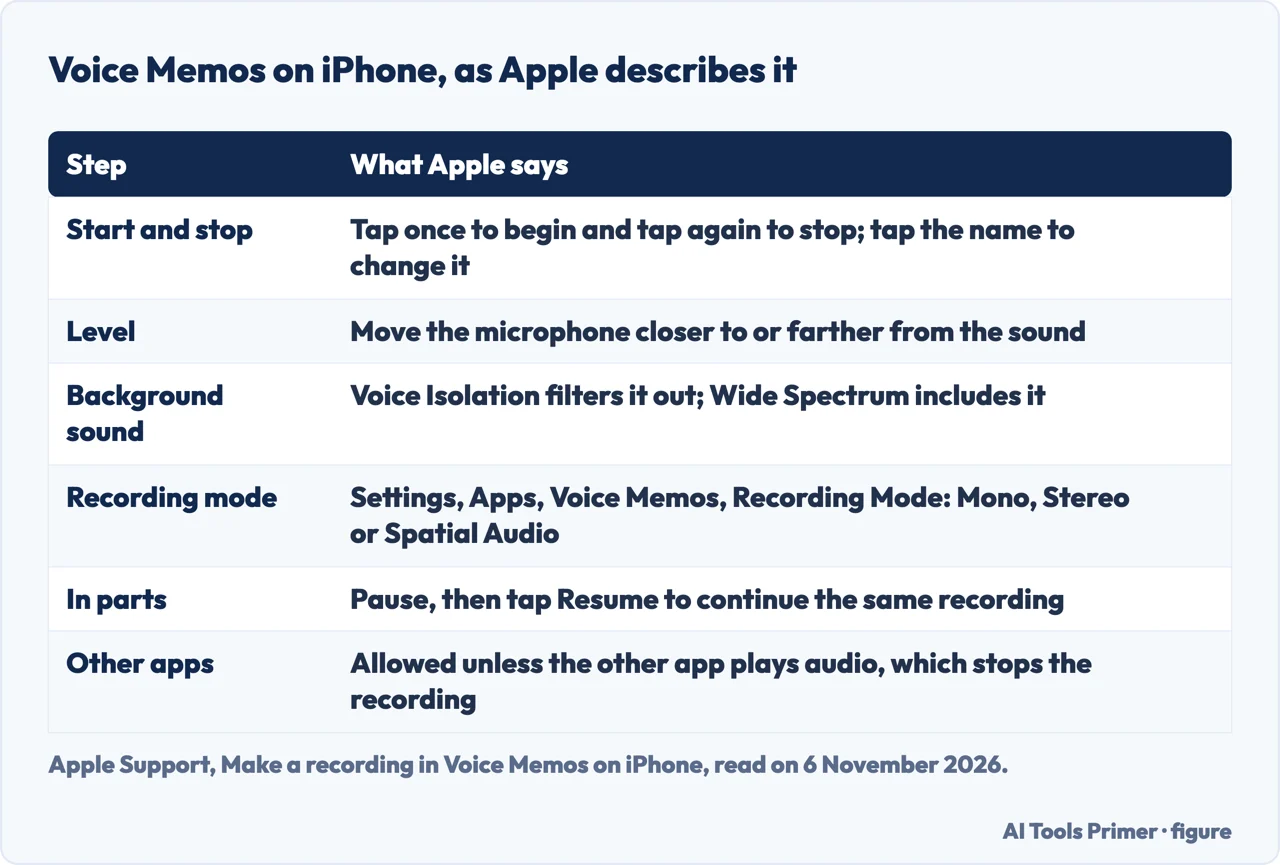
Apple’s iPhone User Guide says you can use iPhone as a portable recording device for personal notes, classroom lectures, musical ideas and more, with the built-in microphone, a supported headset or an external microphone. The page does not mention permission, so the section above still comes first. Open Voice Memos, which is in the Utilities folder unless you have moved it to the Home Screen, tap the record button to begin and tap it again to stop. To change the recording level, Apple says to move the microphone closer to or farther from what you are recording. The file is saved as “New Recording” or, when Location Services is on, under the name of your location, and tapping the name lets you change it. An orange dot shows that the microphone is in use. Our page on recording audio on iPhone goes through Voice Memos in more detail.
Apple documents three more settings. Open Control Center and tap Voice Memos at the top: Voice Isolation filters out background sounds, and Wide Spectrum includes them, though Wide Spectrum is not available on all iPhone models. Under Settings, Apps, Voice Memos, Recording Mode, you choose Mono, Stereo or Spatial Audio, and Spatial Audio is also not on every model; Apple says earlier models record in mono unless Stereo Recording is turned on. You can also record in parts by stopping and tapping Resume to continue.
Apple lets you use another app while recording as long as that app does not play audio on the iPhone. If the other app starts playing audio, Voice Memos stops recording. Silent mode mutes the start and stop tones. With Voice Memos turned on in iCloud settings, recordings appear on the iPhone, iPad and Mac signed in to the same Apple Account.
For the room itself, Rev and Philips Dictation, both companies that sell something related to recording, give preparation steps. Rev says to arrive with a full battery, because long recordings can drain it, and with free storage: for a phone, several gigabytes left and a portable charger if battery life is a worry; for a recorder, fresh batteries and a formatted SD card of at least 4GB. Rev says to sit toward the front, or, if the speaker uses a microphone and speakers, toward the left or right, close to the amplified sound. Philips says to test the sound beforehand at different distances and angles, ideally in the lecture room itself, and to stay as close to the speaker as possible, or in the front rows with the microphone pointed at the speaker. It also says to look for a lecture setting on a recorder, to put the recorder in place before the lecture starts, and to turn off noises and background lights.
Rev adds two cautions. Press record at the start but keep taking your own notes, and if you like, put a time next to each note so you can find the spot later. And do not let the recording replace attention or taking part in class.
Record on a laptop in a lecture room
The University of Oregon’s Teaching Support and Innovation page is written for the person teaching. It says to use Zoom connected to the room’s audio and projection system, which captures both the lecture and what is shown on the classroom screen, and that its steps focus on the projected content rather than on video of the speaker. If the room has no microphone, the page says to use the laptop’s; for better audio it suggests an external one and says the university lends USB microphones, with limited supplies. It also points to the university’s classroom recording policy. Our page on recording a Zoom meeting covers who can record and where the file goes in an ordinary meeting.
On arrival the page has you connect the laptop to the microphone, the camera and the HDMI cable, then open Zoom and any app you will project, such as PowerPoint. In Zoom, click the small arrow next to Mute, choose the classroom microphone under the microphone list (typically a Logitech MEETUP or a Shure MVi in its rooms) and the classroom system under the speaker list. To leave the instructor out, click Stop Video; to include the instructor, use the arrow next to Start Video to pick the room camera or the laptop camera. Then click Share Screen: Zoom shows a 1 or a 2 on the projection screen to say which screen to pick, and the page says it will most often be Desktop 2.
Recording can begin before or after screen sharing. The first time you click Record you choose between the computer and the cloud. The page says that recording to the cloud may delay access to the recording in Canvas, because it has to be downloaded and uploaded, and it recommends recording to the laptop. A note on the page adds that because the university’s cloud storage is limited, a recording made in the Zoom cloud should be downloaded, added to Panopto in Canvas and deleted from the cloud.
If you are the one teaching
Microsoft’s PowerPoint page covers recording a whole presentation or a single slide, with voice, ink gestures and video, and then either playing it as a slide show or saving it as a video. It describes a new experience, rolled out in early 2022 and reaching each business when its administrator distributes new features, in which every tool sits in the Record tab. Notes in the presentation turn into text at the top of the screen that works like a teleprompter, with automatic scrolling. You switch the camera and microphone on or off, choose Show Background or Blur Background, click Start recording and wait for the countdown, use the arrows to move between slides, and pause or stop when you are done. Delete re-records the current slide or all slides, and Export, Export Video makes the file. Microsoft says narration will not record during slide transitions, so let them finish before you speak. The classic experience asks you to turn on the Recording tab in Options, Customize Ribbon, press the red button or R, wait through a three-second countdown and press Alt and S to stop; PowerPoint records the time on each slide, and re-recording a slide erases the earlier narration on it.
Reed’s IT page, Teaching with Technology, calls a recorded lecture for asynchronous viewing a three-step process: record, edit, share. It lists Panopto, PowerPoint, Google Slides, QuickTime, Zoom and iMovie, and recommends Panopto, desktop app or browser, because either app creates higher-quality recordings that integrate with the Panopto system, and the recordings upload to it by themselves. PowerPoint records one slide at a time, so one slide can be re-recorded and slides can be reordered afterwards without losing their audio and video. Google Slides is recorded with Zoom or QuickTime. For editing it names Panopto, QuickTime, which trims the start and end, and iMovie, which also cuts middle sections and adds titles.
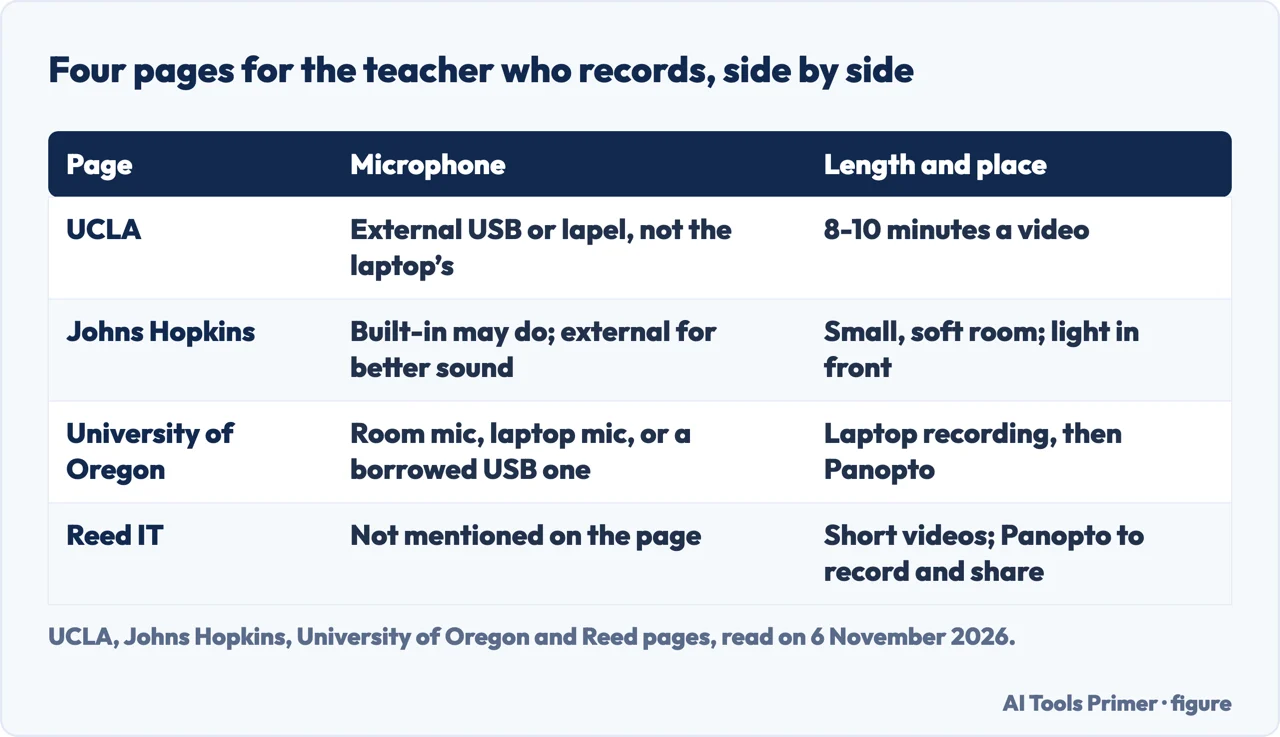
On length, the pages differ. UCLA’s Teaching and Learning Center says to cut a lecture into short segments and cites research in instructional design for 8-10 minutes as a good target for each video, to state the objectives and the outline at the start, and to stick to them. Reed IT says only to keep recordings short and to consider breaking longer lectures into segments. The Microsoft, Oregon and Johns Hopkins pages we read do not give a length.
On the microphone, they differ too. Johns Hopkins Engineering says a built-in microphone may be enough for basic lecture recordings and names three options for better sound: the Sennheiser SC 60 headset, the Blink500 B5 wireless microphone and the Logitech Blue Yeti. UCLA says to use an external USB or lapel microphone instead of the laptop’s built-in one. Oregon suggests an external one for better audio.
At home, the room matters as much as the gear. UCLA says soft materials such as rugs, curtains or bookshelves reduce echo, and to do a quick test recording to check volume and clarity. Johns Hopkins says to choose a quiet time, a smaller room with sound-absorbing materials and a carpeted, furnished space, and to avoid large rooms that echo and rooms with tile or wood flooring when a quieter one is available. For light, both say to face a window or lamp and not sit with a bright window behind you; Johns Hopkins adds that uncovered lights look harsh and that uneven light leaves part of the face in shadow. UCLA gives a 1080p or better webcam if the built-in one is poor, a frame where head and shoulders fill most of the screen with the eyes in the top third, a plain background, and closing other apps and muting notifications. Johns Hopkins suggests, for a computer without a built-in camera, an external webcam such as the Logitech C920 on a monitor, a stable stack of books or a small tripod, a phone or tablet on a stable support with the angle set beforehand, and a cable to the router when recording with Zoom, since it describes a wired connection as generally more stable than Wi-Fi.
After the lecture: name it, keep it, delete it
Philips Dictation says to copy the files to a computer every day as a backup, to listen to them from the computer so you do not overwrite or delete them by accident, and to rename them so you can find what you need. It adds that you can delete the files after you have transferred them to the computer, which saves on storage. Reed IT gives a naming pattern for a teacher’s videos: the date, the course number and the last name, as in “2010-05-16-Eng101-LastName”. Oregon says a recording made on the laptop is saved in a folder named by date and time, and describes uploading the .mp4 file to Panopto in Canvas with Create, then Upload media.
Sharing is where the student and the teacher part ways. For students, SDState says an authorised recording must be destroyed immediately after the course unless the instructor gives written permission to keep it for accommodation reasons, Reed says to delete it when it is no longer needed, typically at the end of the course, and Rev says not to share audio or transcripts with other students or anyone outside the university without the professor’s permission. For teachers, Oregon says it encourages making lecture recordings available to all students but that access can be limited to specific students, and for one to five students it says to send the video link by email. Reed IT says it does not recommend uploading video files to Moodle and points to Panopto for sharing.
Captions come up on the teacher’s side. Oregon says to turn on live transcription in Zoom every time you record, and, for documented ADA accommodation needs, points to the accessibility guidelines on the Accessible Education Center website. UCLA says to add captions for accessibility, and Microsoft’s page lists ways to add closed captions to a PowerPoint video.
What we did not use
We did not open the Reddit thread or the Clearly page that Google listed, and the Google AI box was not read. A Google help page for recorder apps on Android phones was behind checks that stopped our reader, so this page describes no Android app. Zoom is described only through the Oregon and Reed pages, not through Zoom’s own. Apple’s page links to a Voice Memos transcription page that we did not read. The Rev and Philips Dictation pages are written by companies that sell transcription and recorders, and we used them for preparation steps and for their lists of consent, each attributed to them, and not as a school’s policy. Only the SDState policy (revised 7 October 2025) and the Rev post (21 February 2024) carry a date in the text we read, so the remaining pages are given as read on 6 November 2026.
Where to start
Four ways in.
- “Can I record my professor?”
- Ask before you press record — permission
- “Can my iPhone do it?”
- Record with the phone you already carry — phone
- “I need it on Zoom.”
- Record on a laptop in a lecture room — room
- “I am the teacher.”
- If you are the one teaching — teacher
Recording a call or a meeting
Who can start it, who is told, and where the file goes.
Recording the screen and the sound
The screen, the recorder and the microphone.
Questions people also ask
How to record a video lecture using ZOOM?
Oregon’s page connects Zoom to the room’s audio and projection, picks the microphone, shares the screen and clicks Record, to the laptop or the cloud. Reed IT says Zoom records your screen while you share it, with voice only or with you in a corner.
Can I record my professor’s lecture?
SDState says not without the instructor’s written permission and everyone informed. Rev lists four forms of consent, and Reed allows recording by instructor permission or as a disability accommodation. Check your own school’s policy.
How can I record my video lectures?
Reed IT recommends Panopto and also lists PowerPoint, Zoom, QuickTime and iMovie. Microsoft describes PowerPoint’s Record tab, and UCLA gives 8-10 minutes for each video with an external microphone.
Can my iPhone record a lecture?
Apple names classroom lectures among the uses of Voice Memos on iPhone. Its page does not mention permission, which SDState, Reed and Rev treat as the first step.
Not covered here. The statements come from ten pages: SDState, Reed (two pages), Rev, Philips Dictation, Apple Support, Microsoft Support, UCLA, Johns Hopkins Engineering and the University of Oregon, all read on 6 November 2026.
The search volume and difficulty behind this page come from an Ubersuggest reading of 5 November 2026 (United States), which gives search volume and its own SEO difficulty score, not Semrush’s; a Semrush check is still to be made.
Sources
- South Dakota State University — Policy 2:16, Recording of Classroom Lectures and Distribution of Course Materials by Students — www.sdstate.edu, read 6 November 2026.
- Reed College Disability and Accessibility Resources — Frequently Asked Questions about Audio Recording of Class Sessions — www.reed.edu, read 6 November 2026.
- Reed College IT — Recording Lectures, Teaching with Technology — www.reed.edu, read 6 November 2026.
- Rev — Recording College Lectures: For Students + Professors — www.rev.com, read 6 November 2026.
- Philips Dictation — How to record lectures — www.dictation.philips.com, read 6 November 2026.
- Apple Support — Make a recording in Voice Memos on iPhone — support.apple.com, read 6 November 2026.
- Microsoft Support — Record a slide show with narration and slide timings — support.microsoft.com, read 6 November 2026.
- UCLA Teaching and Learning Center — Guidance for Recording Lecture Videos — teaching.ucla.edu, read 6 November 2026.
- Johns Hopkins Engineering — Recording Lectures at Home — support.cmts.jhu.edu, read 6 November 2026.
- University of Oregon — Classroom Lecture Recording with Zoom — teaching.uoregon.edu, read 6 November 2026.
Written by Alberto Gulotta
Founder and editor of AI Tools Primer, writing from Palermo, Italy. Thirty-five years of taking computers apart, starting with a Commodore 64 — the long version is on the about page.
Something wrong on this page? Write to aitoolsprimer@gmail.com and it gets fixed.
Written on 6 November 2026.
Independence and limits
No affiliate links and no paid placements anywhere on this site. Nobody pays to appear here, and no company has seen this page before you did.
This is general information, not professional advice. Where a page touches money, health, safety or the law, it names its source and the date it was read — and your situation may still differ. See the privacy page and the cookie policy.