
Devices · guide
iPhone privacy settings, sorted by who they stop
By Alberto Gulotta · Updated · 19 min read
iPhone privacy settings do different jobs, so this page sorts them by what each one stops: a thief who knows your passcode, apps and advertisers, Apple’s own cloud, and rare targeted spyware. Apple, EFF and Wired describe them. We tested nothing on an iPhone, and the sources date from 2025 and 2026.
| Question | Answer | Where it comes from |
|---|---|---|
| What stops a thief who knows the passcode? | Stolen Device Protection: Face ID or Touch ID with no passcode fallback, and an hour’s wait for account changes | Apple Support |
| Is it on by default? | Apple says it might be; Wired says it is turned off by default | Apple Support, Wired |
| What stops apps tracking across other companies’ apps? | Turn off Allow Apps to Request to Track under Privacy & Security, Tracking | EFF |
| Can Apple read what is in iCloud? | By default Apple holds the keys; Advanced Data Protection changes that, and Apple may not be able to help with recovery | Wired, EFF |
| Who is Lockdown Mode for? | Apple describes it as an extreme, optional protection for the very few people who might be personally targeted | Apple Support |
How the settings are sorted here
Wired’s article is a list of settings to change. EFF’s guide groups them into three levels, from everyday essentials to extra credit. Apple’s own guide to what you share has five blocks: data, location, camera and microphone, tracking and the App Privacy Report. Here the settings are sorted by the job each source describes for them, because that decides which ones matter for which worry.
There are four jobs. The first is a thief who has the iPhone and already knows the passcode. The second is apps and advertisers that collect information while the phone is in use. The third is what the company behind the phone can read in its cloud. The fourth is a small group of cases: spyware aimed at a person, and someone close who has been given access. Apple’s page on Lockdown Mode says “Most people are never targeted” by attacks of that kind, which is why that setting comes last.
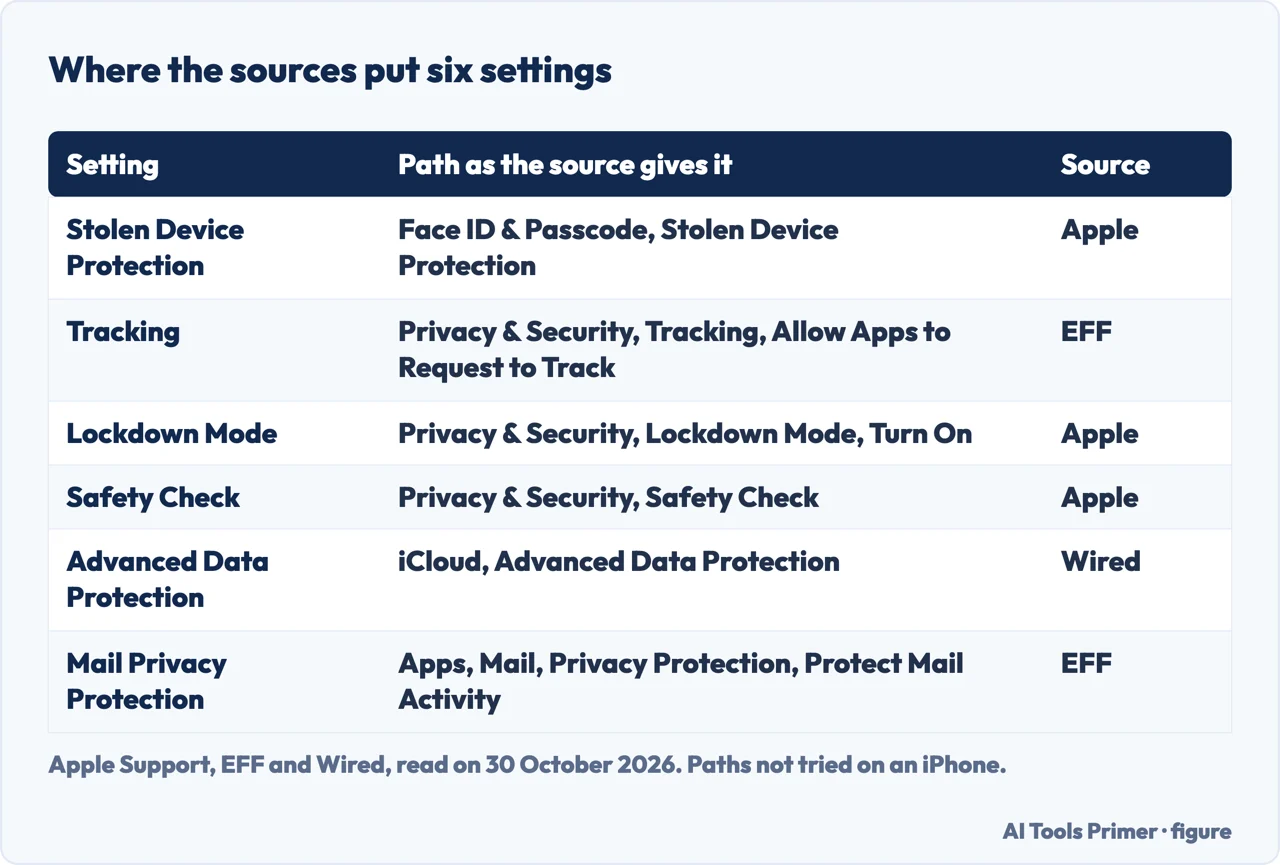
The pages we read give no figures for how many people use each setting or how much each one stops. The order is therefore by the job each setting is described as doing, and every cost named below is the one a source names. The paths in the menus are as the sources give them; we did not try them on an iPhone.
A thief who knows the passcode: Stolen Device Protection
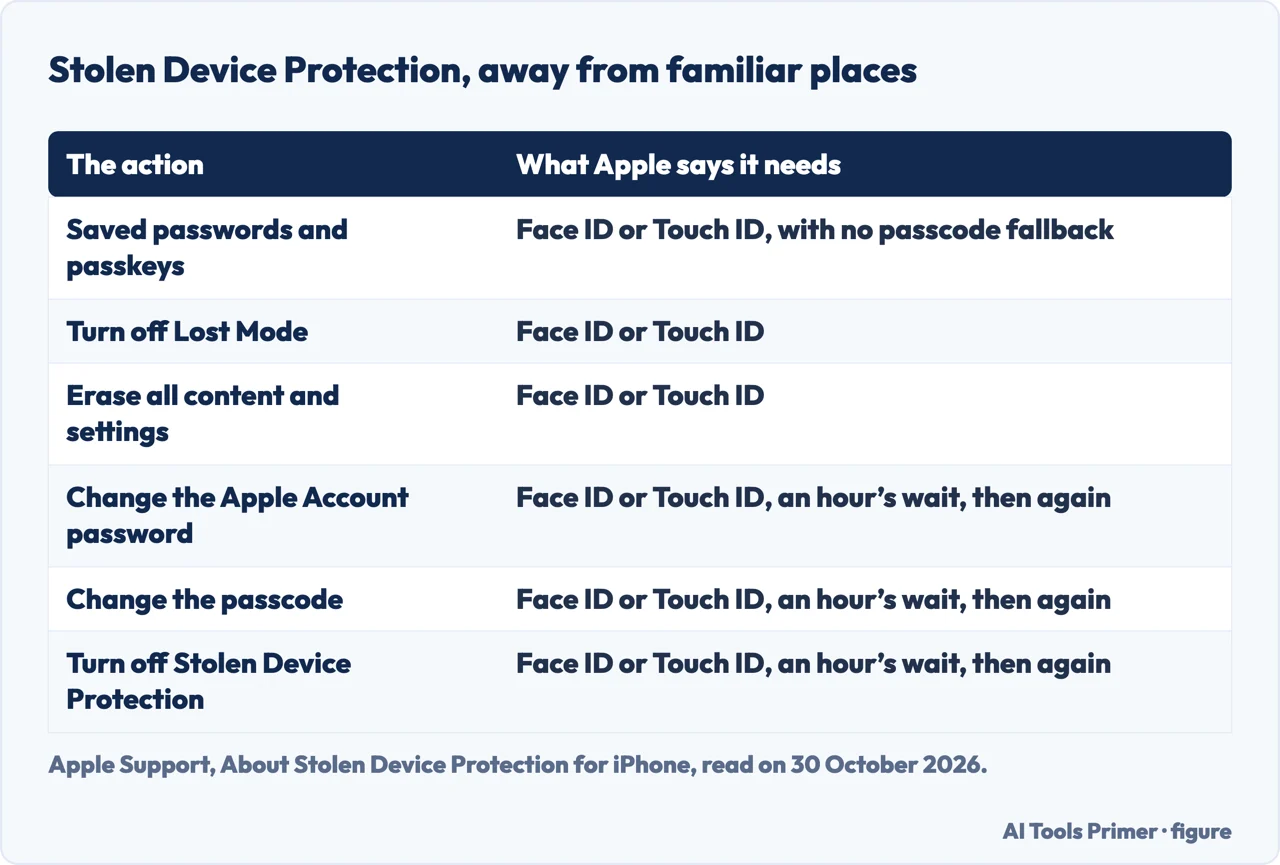
Apple’s support page says Stolen Device Protection adds a layer of security when the iPhone is away from familiar locations, such as home or work. Its requirements, Apple says, help prevent someone who has stolen the iPhone and knows the passcode from making critical changes to the account or the device. EFF describes the same target: it says the feature is designed for a thief who knows the passcode because it was shared, or because a person looked over a shoulder as it was typed. EFF adds that with the passcode a thief can change important passwords and the Apple ID, and can then turn off Find My and sign the owner out of other devices.
Apple gives the feature two parts. The first is Face ID or Touch ID with no passcode as a fallback, for actions such as using saved passwords and passkeys, using payment methods saved in Safari, turning off Lost Mode, opening a locked app, erasing all content and settings, setting up a new device with Quick Start, and setting up or transferring an eSIM. Apple says the passcode can still be used for purchases with Apple Pay. The second part is the Security Delay: for changes such as the Apple Account password, signing out of the Apple Account, trusted devices and recovery keys, adding or removing Face ID or Touch ID, changing the passcode, Reset All Settings and turning the protection off, the person must authenticate, wait an hour, and authenticate again. Apple adds that the delay may end early if the iPhone reaches a familiar location.
Apple lists what has to be in place first: iOS 17.3 or later, two-factor authentication, a passcode, Face ID or Touch ID, and Significant Locations, with Find My turned on and impossible to turn off while the protection is active. The page says the protection must be turned on before the device is lost or stolen. The path Apple gives is Settings, Face ID & Passcode, Stolen Device Protection, and choosing Always under Require Security Delay applies the extra steps at home and work as well. EFF notes that with Significant Locations turned off, the Away from Familiar Locations option will not work, which is a cost of turning that location setting off.
The sources disagree on the default. Apple’s page says Stolen Device Protection “might be turned on by default” and, if it is not, gives the path to switch it on. Wired says Apple includes the feature but that it is “turned off by default”. The two pages are dated differently, with Wired from November 2025 and Apple’s from October 2026, and Apple’s privacy page on control, a third text, says the protection is available on iOS 17.3 or later and must be enabled in Settings, which reads differently from Apple’s support page. We have not tried it on an iPhone, so the setting is the thing to check, in the menu path above.
Apple’s page for a stolen iPhone says the extra safeguards last only for a period of time and that the best way to protect the iPhone and the Apple Account is to mark the device as lost quickly, on iCloud.com/find, where no verification code is needed to sign in. It also says not to enter your contact information in Lost Mode when the device was stolen, because the thief might use it for social engineering, and not to remove the device from Find My, which removes Activation Lock. If Find My was not on before the theft, Apple says the device will not appear and cannot be marked as lost or erased, and to change the Apple Account password right away. Our pages on finding a lost iPhone and on passcodes go through those steps. Wired gives the Find My path as Settings, your account name, Find My, Find My iPhone, and says you can also turn on Send Last Location, which updates the position if the battery is about to die; Wired reports Apple saying that on iOS 17 and later Apple cannot see the location while the phone is offline. Wired and EFF also point to Sign-In & Security under your account name for two-factor authentication, which Apple lists as a requirement above. We did not try these menus.
One more choice sits in the same menu. EFF, writing about United States law, says a memorized passcode generally provides “a stronger legal footing” against a court order to unlock a device than a face or fingerprint does, and describes the law as still in flux. EFF recommends a passcode of 8 to 12 random characters. Wired adds that the data for Face ID and Touch ID is not sent to Apple and stays in the Secure Enclave on the device.
Apps and advertisers: permissions, tracking and analytics
Apple’s guide says apps ask for permission the first time they want something, and that the choices are in Settings, Privacy & Security. A green indicator appears whenever an app uses the camera, including when the camera and microphone are used together. Every app has to ask before it tracks you across websites or apps owned by other companies, and you can stop all apps from asking. The App Privacy Report shows how apps use the permissions you gave them and what their network activity is.
Tracking. EFF says the advertising identifier enables most third-party tracking on mobile devices, and that turning it off makes tracking by advertisers and data brokers substantially harder. Its path is Settings, Privacy & Security, Tracking, with Allow Apps to Request to Track switched off. Wired says that by default apps can ask to track. Consumer Reports, writing in April 2021 when iOS 14.5 arrived, described the prompt as a choice between Allow and Ask App Not To Track, and said apps are not allowed to track you until you say yes. The same menu has Apple Advertising: EFF and Wired both give Personalized Ads as the switch, and Wired says ads still appear but are generic.
Location. EFF lists the choices an app can be given: Never, Ask Next Time or When I Share, While Using the App and Always. Wired and EFF both describe a separate switch for Precise Location, set app by app, and Wired suggests turning it off for an app that does not need an exact position, such as a retailer. Under System Services, EFF says Significant Locations stores the places you go most often, and Wired says you can turn off Significant Locations & Routes and the Product Improvement settings. The cost, from the previous section, is that Apple lists Significant Locations among the requirements of Stolen Device Protection.
Photos and contacts. EFF gives four levels for photos: Full Access, Limited Access, Add Photos Only and Private Access, and offers Limited Access for contacts. It suggests deleting apps you do not need before reviewing permissions. Our page on app permissions on iPhone goes through those menus one by one.
Analytics. Wired says that under Privacy & Security, Analytics & Improvements, Share iPhone Analytics and Share With App Developers are turned on, and tells readers to turn them off. EFF’s later article on Siri in iOS 27 puts Improve Siri & Dictation in the same menu. It says Siri AI by default will not collect and use data from your interactions for training, but that setup offers a way to opt in which you may have tapped without thinking about it.
Mail and Safari. EFF says Mail Privacy Protection hides your IP address and stops senders from seeing whether you opened an email, and gives Settings, Apps, Mail, Privacy Protection, Protect Mail Activity. For Safari it lists Prevent Cross-Site Tracking, Hide IP Address and Advanced Tracking and Fingerprinting Protection set to All Browsing, and says they come at the cost of some websites not rendering correctly. EFF and Wired both add Settings, Notifications, Show Previews, set to When Unlocked or Never, so that messages do not show on a locked screen. EFF also describes requiring Face ID for an app, with Hide and Require Face ID to take it off the home screen, which keeps its previews off the lock screen and out of Spotlight, and says photos hidden in the Photos app are by default behind Face ID or the passcode. The rest of the menus are on our page about iPhone settings.
What Apple can read: iCloud and Advanced Data Protection
Wired says iCloud encrypts your data but not end to end by default: out of the box Apple manages the encryption keys, so it could technically decrypt what you store there, though Wired calls that unlikely. EFF says the same of the iCloud backup. It is encrypted, but Apple has the keys, which means Apple can provide the data to law enforcement if required to do so. EFF also says iCloud Backups are enabled by default on most iPhones.
Advanced Data Protection is the setting both articles give for changing that. EFF says it enables end-to-end encryption of nearly everything associated with the Apple account, including the iCloud backup, Messages in the backup, iCloud Drive, photos, notes and reminders, and that you then control the encryption keys. The cost, in EFF’s words, is that Apple may not be able to help you regain access, and Apple cannot help recover the data if you lose access to your account or the devices where the keys are stored. Wired gives the path Settings, iCloud, Advanced Data Protection, and says recovery options have to be set up first: without them, you cannot decrypt or recover your data.
The other routes are smaller. EFF says a backup made to your own computer can be encrypted with a passphrase, and that if you lose access to the computer you lose that backup. It also says a backup to iCloud can leave out individual apps. Wired suggests an On My iPhone account in Notes, which does not sync notes and keeps them on the device; it warns that those notes will not appear on another Apple device, and that if you lose the iPhone you may not be able to reach them without a recent backup. We did not read an Apple page on Advanced Data Protection, so this section rests on EFF and Wired.
Spyware aimed at a person, and people close to you
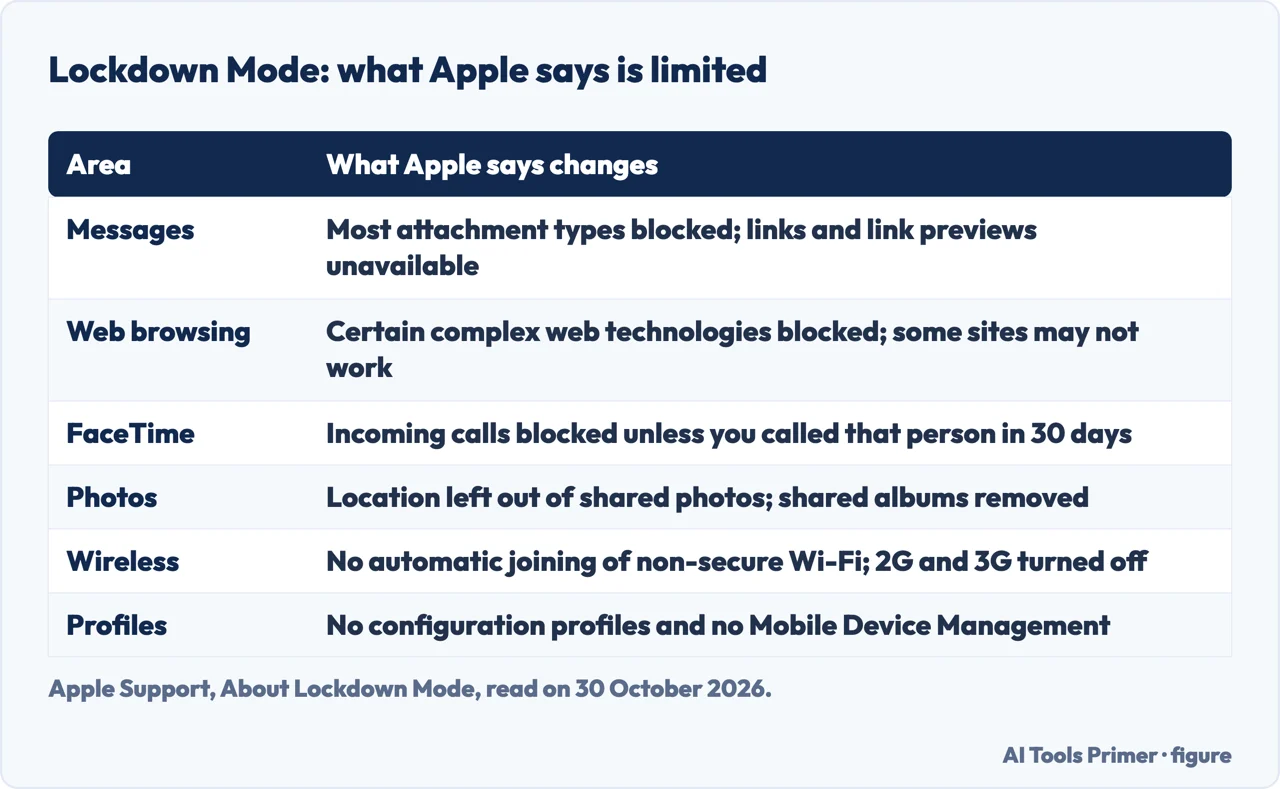
Lockdown Mode. Apple calls it an optional, extreme protection designed for the very few people who, because of who they are or what they do, might be personally targeted by some of the most sophisticated digital threats. Apple adds that when it is on, the device will not work as it normally does, and that some experiences might not be available at all. Apple’s list of what changes is long: message attachments mostly blocked, links and previews unavailable, certain complex web technologies blocked, incoming FaceTime calls blocked unless you called that person in the past 30 days, shared albums removed, accessories only when the phone is unlocked, no automatic joining of non-secure Wi-Fi, 2G and 3G turned off, and no configuration profiles or Mobile Device Management. Phone calls and plain text messages keep working, and emergency features such as SOS calls are not affected.
The path Apple gives is Settings, Privacy & Security, Lockdown Mode, Turn On Lockdown Mode, then Turn On & Restart with the passcode. It is turned on separately for iPhone, iPad and Mac, and turning it on for the iPhone turns it on for the paired Apple Watch. A website, an app or, in iOS 27, a contact can be excluded, but Apple says that reduces the protections and may increase the security risk. EFF says not everyone needs it, and that even someone who would benefit may not need it on all the time.
Safety Check. Apple says Safety Check is for periodically reviewing the information you share with people, apps and devices. EFF frames it for anyone whose personal safety is at risk, for someone who has separated from a partner they once shared Apple accounts with, and more broadly for anyone who wants one place to review who they have shared data with. Our page on stalkerware on a phone covers Safety Check from the angle of a person who suspects they are being watched. It can stop sharing your location with others in Find My, remove others’ access to shared content such as Photos, Notes and Calendar, reset system privacy permissions for apps, and restrict Messages and FaceTime to the device in your hand. The path is Settings, Privacy & Security, Safety Check, then Manage Sharing & Access; Emergency Reset, in the same place, is for resetting access quickly in an emergency.
Apple also names what Safety Check can’t review or change: accounts and passwords, social media sharing, and information shared from another device. EFF adds two cautions. A Quick Exit button in the top right sends you back to the home screen, and if you stop sharing information with someone, including your location, the person “may notice” the change. Apple’s page points to the Personal Safety User Guide for reducing what Safety Check cannot reach, a guide we did not read; the remaining pages we read do not say what to do about those items.
Versions, gaps and what we did not read
EFF’s guide was revised on 15 September 2025 and says it is accurate as of iOS 26, and Wired’s article is dated 3 November 2025. Apple’s pages are newer: the Stolen Device Protection page carries 22 October 2026 and the Lockdown Mode page 14 September 2026, and the Lockdown page mentions iOS 27 for excluding contacts. Menu names may therefore have moved since the 2025 articles, and EFF’s own 2026 article on Siri already writes some paths as Settings, Apps, followed by the app. We tried no menu on an iPhone, so every path above is as a source gives it.
Two things in the sources are in tension. Wired and Apple differ on the default for Stolen Device Protection, as set out above, and we report both. The other is a trade between settings: Significant Locations is a privacy setting EFF says you may want to consider disabling and Wired says you can turn off, and a requirement for the protection against a thief.
On reading: we could not read the McAfee article, because the site returned a wall instead of the text, and we did not open the Surfshark article, a Reddit thread or Apple’s privacy features page. We did not read an Apple page on Advanced Data Protection or on Mail Privacy Protection, and we left out Private Relay and Hide My Email.
Where to start
Four ways in.
- “What if someone has my phone and my passcode?”
- A thief who knows the passcode — thief
- “Who is tracking me through apps?”
- Apps and advertisers — apps
- “Can Apple read my backup?”
- What Apple can read in iCloud — cloud
- “Is Lockdown Mode for me?”
- Spyware aimed at a person, and people close to you — targeted
What the passcode and the lock guard
The thief, the permissions and the lost phone.
Other phones and other messages
Android, a hardened Pixel and iMessage.
Questions people also ask
Is there a privacy setting on an iPhone?
The sources put most of them under Settings, Privacy & Security: app permissions, Tracking, Analytics & Improvements, Lockdown Mode and Safety Check. Apple puts Stolen Device Protection under Face ID & Passcode (Wired says the Privacy & Security menu), and Wired puts Advanced Data Protection under iCloud.
What is the secret iPhone setting everyone should know?
The pages we read do not call any setting a secret. Apple, EFF and Wired all describe Stolen Device Protection, and Apple and Wired differ on whether it is on by default, so the menu is the place to check.
Can someone see what I’m doing on my iPhone?
The sources describe several routes: apps asking to track across other companies’ apps, people you have shared a location or photos with, and Apple holding the iCloud keys unless Advanced Data Protection is on. Safety Check reviews sharing, and Apple says it cannot review accounts and passwords.
Why should you turn on privacy settings?
Each source gives a reason per setting: EFF says turning off the advertising identifier makes tracking substantially harder, and Apple says Stolen Device Protection helps against a thief who knows the passcode. The pages give no figures on how often either happens.
Not covered here. We tested nothing on an iPhone. The statements come from three Apple Support pages, Apple’s privacy page on control, two Apple iPhone guides, EFF’s Surveillance Self-Defense guide and its article on Siri, Wired and Consumer Reports, all read on 30 October 2026.
The search volume and difficulty behind this page come from a Semrush reading of 29 August 2026, older than the 60 days the site normally allows.
Sources
- Apple Support — About Stolen Device Protection for iPhone — support.apple.com, read 30 October 2026.
- Apple Support — About Lockdown Mode — support.apple.com, read 30 October 2026.
- Apple Support — If your iPhone or iPad was stolen — support.apple.com, read 30 October 2026.
- Apple Privacy — Control — www.apple.com, read 30 October 2026.
- Apple iPhone User Guide — Control what you share on iPhone — support.apple.com, read 30 October 2026.
- Apple iPhone User Guide — Manage information sharing with Safety Check on iPhone — support.apple.com, read 30 October 2026.
- EFF Surveillance Self-Defense — How to Get to Know iPhone Privacy and Security Settings — ssd.eff.org, read 30 October 2026.
- EFF Deeplinks — How to Limit What Apple’s New Siri AI Can Access in iOS 27 — www.eff.org, read 30 October 2026.
- WIRED — These Are the Privacy and Security Settings to Change on Your iPhone — www.wired.com, read 30 October 2026.
- Consumer Reports — What the new iPhone tracking setting means — www.consumerreports.org, read 30 October 2026.
Written by Alberto Gulotta
Founder and editor of AI Tools Primer, writing from Palermo, Italy. Thirty-five years of taking computers apart, starting with a Commodore 64 — the long version is on the about page.
Something wrong on this page? Write to aitoolsprimer@gmail.com and it gets fixed.
Written on 3 November 2026.
Independence and limits
No affiliate links and no paid placements anywhere on this site. Nobody pays to appear here, and no company has seen this page before you did.
This is general information, not professional advice. Where a page touches money, health, safety or the law, it names its source and the date it was read — and your situation may still differ. See the privacy page and the cookie policy.