
Software · guide
Not enough memory to open this page: what it means, how to fix it
By Alberto Gulotta · Updated · 11 min read
Not enough memory to open this page means the browser has run short of memory. Google’s help says low memory can cause page crashes and loading errors, and its fix is to close unused tabs and stop unwanted tasks. Chrome and Edge both open a task manager with Shift + Esc, which shows which tab uses the most.
The help pages from Google that we read never use this exact sentence. This page therefore starts from what Google and Microsoft document about memory, and adds the one guide, How-To Geek, that names the message.
| You want to | Chrome | Edge |
|---|---|---|
| See which tab uses the memory | Shift + Esc, or More tools, Task manager | Shift + Esc, then sort by Memory |
| Stop the process | Select it and click End task (How-To Geek) | Select it and choose End process |
| Let idle tabs give memory back | Memory Saver, in Settings, Performance | Save resources with sleeping tabs |
| Test the extensions | Disable all, then enable them one at a time | Turn all off, then back on one at a time |
What the message means
How-To Geek puts it plainly: the message appears when you try to open a new page, and “It means the browser has used your computer’s available RAM (physical memory) and can’t open more pages.” Google’s own help does not use that sentence. Its list of page loading errors says that “Aw, Snap!” means Chrome is having problems loading the page, and its article on connection and loading errors says: “If your device doesn’t have enough available memory, it might have reduced performance and may lead to issues like page crashes and loading errors.”
It is not always a matter of how much RAM the computer has. In a Chrome community thread, a user with 16 GB of RAM saw an “Aw snap, not enough memory” message right after opening Chrome, with nothing else running. The one reply is a general list and does not say why. The sources we read do not explain it, so the steps below are the order in which Google and Microsoft document them, not a diagnosis.
Find the tab that is using the memory
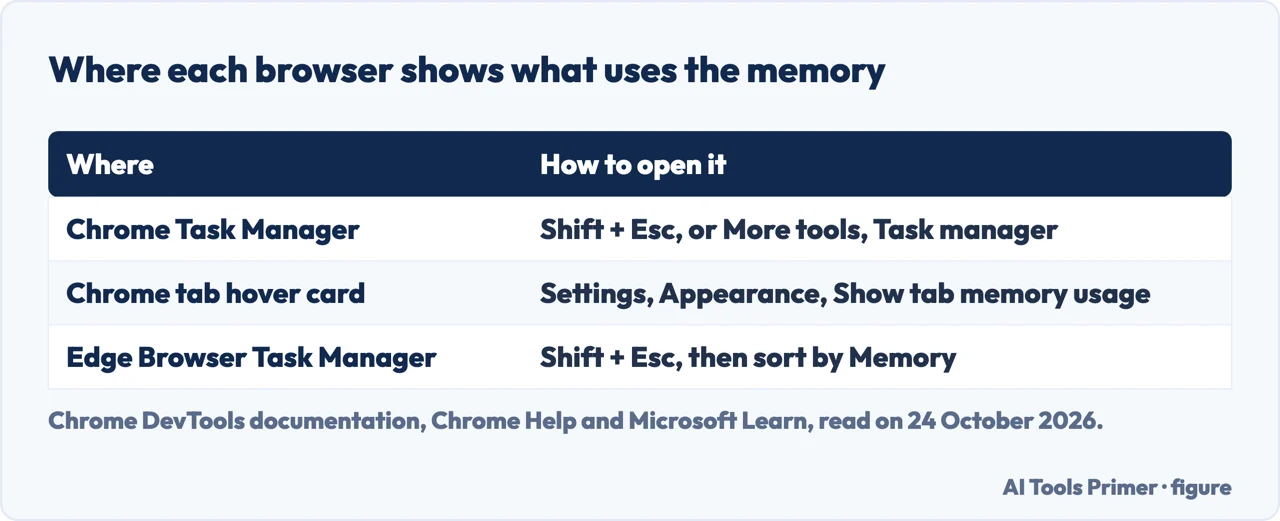
Chrome has a task manager. Google’s developer documentation says to press Shift + Esc, or to open the main menu and choose More tools, then Task manager. Its documentation describes the Memory footprint column in one line: “The Memory footprint column represents OS memory.” How-To Geek adds that you click that column until an arrow points down, so that the biggest users come first, then select a process and click End task, and warns that the list holds all of Chrome’s processes, not only tabs: tab entries carry a tab label at the start.
Chrome Help names a second place. Under Settings, Appearance, turning on Show tab memory usage (Show memory usage on tab hover preview card on a Mac) makes the preview card that appears when you point at a tab show how much memory that tab uses.
Edge works the same way. Microsoft’s article on high memory use in Edge says to press Shift + Esc to open the Browser Task Manager, sort by CPU or Memory to find the tab, extension, subframe or utility process responsible, select it and choose End process.
Let idle tabs give the memory back
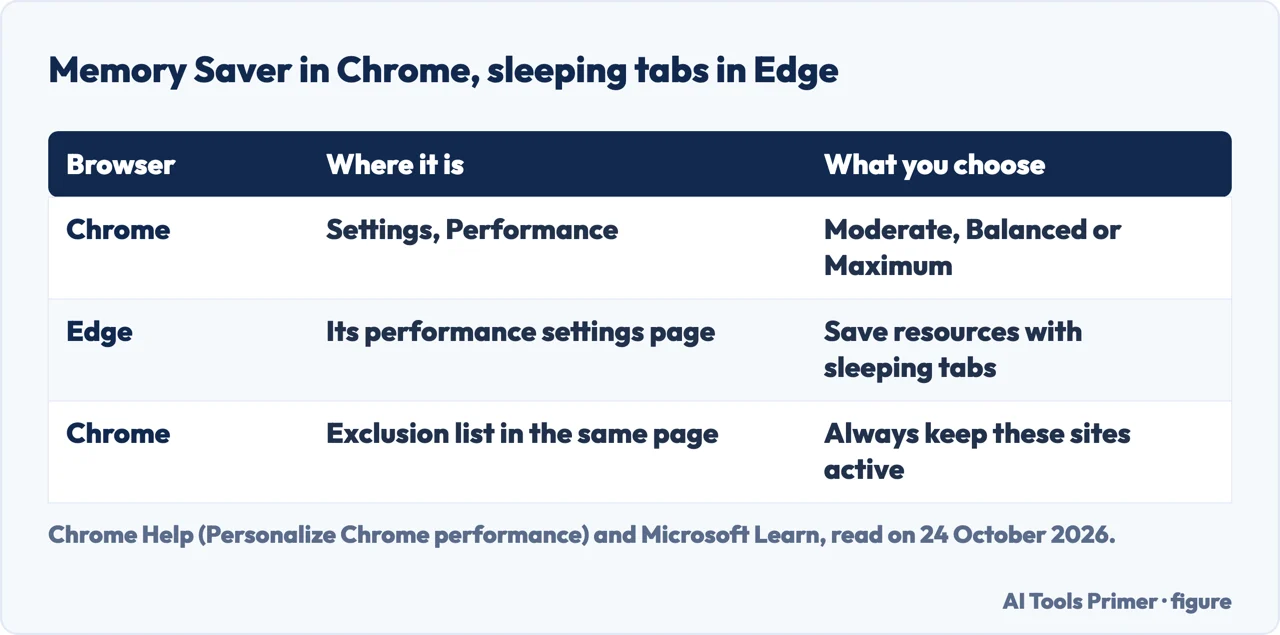
Chrome Help says that to save memory, “Chrome deactivates tabs that you aren’t currently using”, and that an inactive tab reloads when you open it again. The setting is Memory Saver, under Settings, then Performance. The deactivation level is Moderate, Balanced (recommended) or Maximum: the higher the level, the sooner tabs go inactive.
Some activity stops Chrome from deactivating a tab, according to the same page: audio or video playing, including calls, screen sharing, page notifications, active downloads, partially filled forms, pinned tabs, and connected USB or Bluetooth devices. If the tab that fills the memory is one of those, Memory Saver will not touch it, and the Task Manager above is the way to find out. Sites can also be added to an exclusion list, called Always keep these sites active.
In Edge the feature is called sleeping tabs. Microsoft says to go to edge://settings/system/managePerformance, turn on Save resources with sleeping tabs, and add to the exception list any sites that should never sleep.
The order Google gives, and where memory comes in
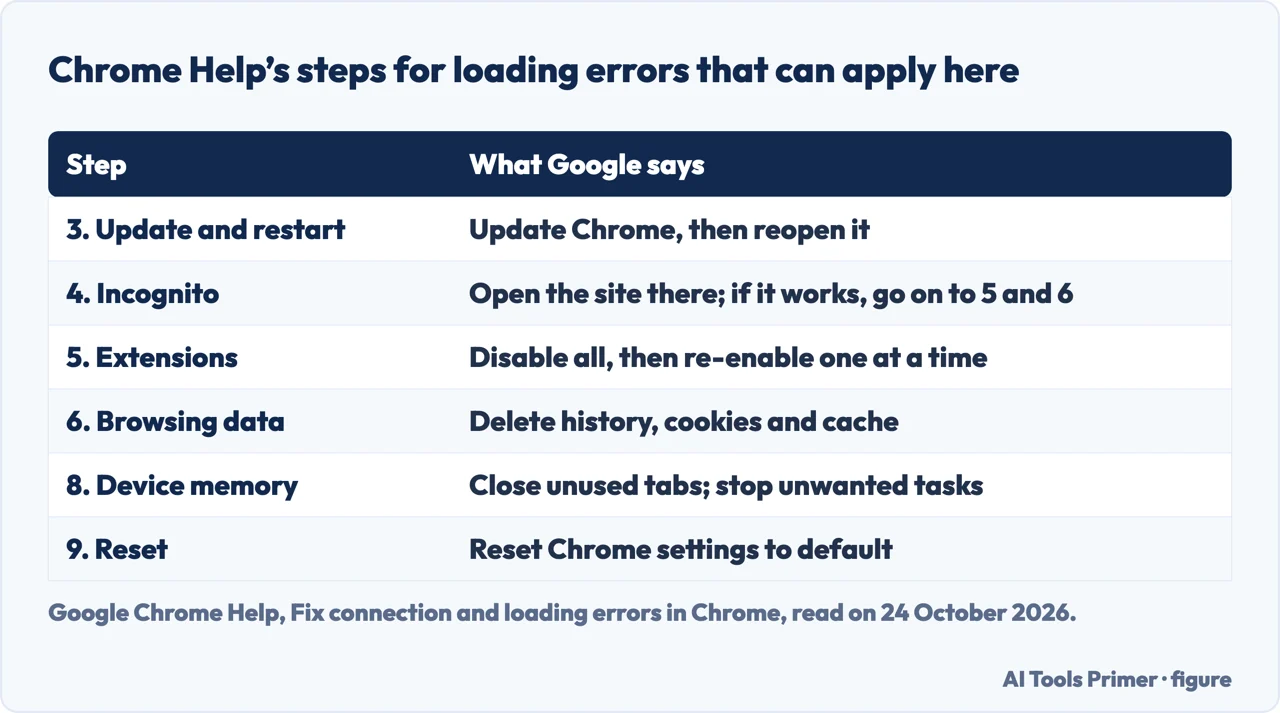
Google’s article on connection and loading errors has nine steps, and memory is the eighth. Those that can apply to this message are in the figure below. After updating and restarting Chrome, it suggests opening the site in Incognito and, if that fixes it, going on to extensions and browsing data. For extensions it is recommended to disable all of them, and if that solves the problem, to enable them again one at a time. Step 8 says to close unused tabs and turn off or stop unwanted tasks, and step 9 is to reset Chrome’s settings.
Microsoft’s Edge article has the same ingredients in its own order: the Browser Task Manager, then all extensions off and back on one at a time, then sleeping tabs, then background activity. It says to turn off Continue running background extensions and apps when Microsoft Edge is closed, to check that Use graphics acceleration when available is on, and, as a last step, to restore the settings to their default values, which keeps bookmarks, history and saved passwords. Chrome’s equivalent of the graphics switch has its own page.
How-To Geek also lists clearing the cache and cookies, on the idea that stored data can make Chrome use a lot of RAM. Google lists deleting browsing data among its steps for loading errors, but does not say it frees memory.
When the browser is not the cause
How-To Geek says that on Windows you can increase the virtual memory, the page file, so that the computer stores some of its working data on the drive, that a Mac offers no way to do this, and that on either system more physical memory helps, which it suggests if the computer has less than 8 GB of RAM. It also says not to rely on virtual memory, which can slow the machine and use up drive space. We did not find Microsoft’s own page on the page file, so the steps are not given here. For a laptop, the page on installing laptop memory says whether yours has a slot at all.
The reply in the Google community thread, to the user with 16 GB, also includes scanning for malware, turning off hardware acceleration, running the Chrome Cleanup tool and, last, a hardware fault such as faulty RAM. It comes from a forum, not from Google’s documentation.
Where to start
Four ways in.
- “What does the message mean?”
- Memory, not always RAM — meaning
- “Which tab is the problem?”
- The task manager — find
- “I keep dozens of tabs open.”
- Memory Saver — saver
- “I tried closing tabs.”
- The order Google gives — order
The browser
The pages next to this one: a graphics switch that has moved, cookies, and what extensions can see.
Memory and a slow computer
The task manager of the system, the causes of a slow machine, a freeze, RAM on a Mac, and memory for a laptop.
Questions people also ask
How to fix memory error on Chrome?
Google’s steps are to close unused tabs and stop unwanted tasks, disable extensions and re-enable them one at a time, and update and restart Chrome. Chrome’s Task Manager, opened with Shift + Esc, shows which tab uses the memory.
Why does Chrome say not enough memory when I have plenty of RAM?
A Chrome community thread describes it with 16 GB of RAM and nothing else open. The reply is a general list, and the sources we read do not explain the cause, so test the extensions and the settings in the order Google gives.
How do I see which tab is using the most memory?
Press Shift + Esc in Chrome or Edge to open the task manager and sort by memory. Chrome can also show each tab’s memory on its hover card, under Settings, Appearance.
Does the same message appear in Edge?
Video guides show it in Edge. Microsoft’s article on high memory use in Edge, which does not use the sentence, gives the Browser Task Manager, extensions, sleeping tabs and background apps as the places to look.
Not covered here. We did not test these steps in Chrome or Edge for this page. They come from Google’s Chrome Help pages (connection and loading errors, common error messages, and Personalize Chrome performance), Google’s Chrome DevTools documentation (last updated 6 November 2024) and Microsoft’s Learn article on high CPU or memory use in Edge (last updated 3 June 2026), read on 24 October 2026, and from How-To Geek (11 February 2024). The Google community thread is a user’s question and one reply.
The Google pages we read do not contain the sentence “Not enough memory to open this page”. Reddit and the videos in the results were not read or watched, and we did not find Microsoft’s own page on the page file. Firefox, Safari, phones and Macs’ Activity Monitor are not covered; for a Mac, see clearing RAM on a Mac.
The search volume and difficulty behind this page were read in Semrush on 29 August 2026.
Sources
- Google Chrome Help — Fix connection and loading errors in Chrome — support.google.com, read 24 October 2026.
- Google Chrome Help — Get help with common error messages in Chrome — support.google.com, read 24 October 2026.
- Google Chrome Help — Personalize Chrome performance (Memory Saver) — support.google.com, read 24 October 2026.
- Chrome for Developers — Fix memory problems, Chrome DevTools (last updated 6 November 2024) — developer.chrome.com, read 24 October 2026.
- Microsoft Learn — Fix high CPU or memory usage in Microsoft Edge (last updated 3 June 2026) — learn.microsoft.com, read 24 October 2026.
- How-To Geek — How to Fix “Not Enough Memory” in Google Chrome (11 February 2024) — www.howtogeek.com, read 24 October 2026.
- Google Chrome Community — Chrome shows “Aw snap, not enough memory” error without even opening any tabs (January 2024, a user’s question and one reply) — support.google.com, read 24 October 2026.
Written by Alberto Gulotta
Founder and editor of AI Tools Primer, writing from Palermo, Italy. Thirty-five years of taking computers apart, starting with a Commodore 64 — the long version is on the about page.
Something wrong on this page? Write to aitoolsprimer@gmail.com and it gets fixed.
Written on 24 October 2026.
Independence and limits
No affiliate links and no paid placements anywhere on this site. Nobody pays to appear here, and no company has seen this page before you did.
This is general information, not professional advice. Where a page touches money, health, safety or the law, it names its source and the date it was read — and your situation may still differ. See the privacy page and the cookie policy.