
Software · guide
How to install memory in laptop models, and when you can
By Alberto Gulotta · Updated · 15 min read
Knowing how to install memory in laptop computers is the easy part: the steps fit in five lines. The hard part comes first. Some laptops have no slot at all, because the memory is built into the board, and a new module has to match the model in form, generation and capacity.
So this page starts earlier: how to tell whether your laptop can take more memory, and which module it needs. Then the steps, as Kingston, Lenovo and Corsair describe them, what a long first start after the upgrade means, what to do if the laptop does not see the new memory, and what the upgrade does to the warranty.
| Question | Where the answer is | Who says so |
|---|---|---|
| Is the memory removable at all? | The documentation for your exact model | Dell, Lenovo |
| Is it a MacBook? | Apple’s list of models with removable memory | Apple |
| How many slots are in use? | Task Manager, Performance tab, Memory | Laptop Mag |
| Which generation and form? | Model documentation: SODIMM, and one DDR generation per board | Dell |
| How much can it take? | The minimum and maximum for the model | Dell, Lenovo |
| Can I fit it myself under warranty? | The maker’s list of customer-replaceable parts | Lenovo |
First: can this laptop take more memory?
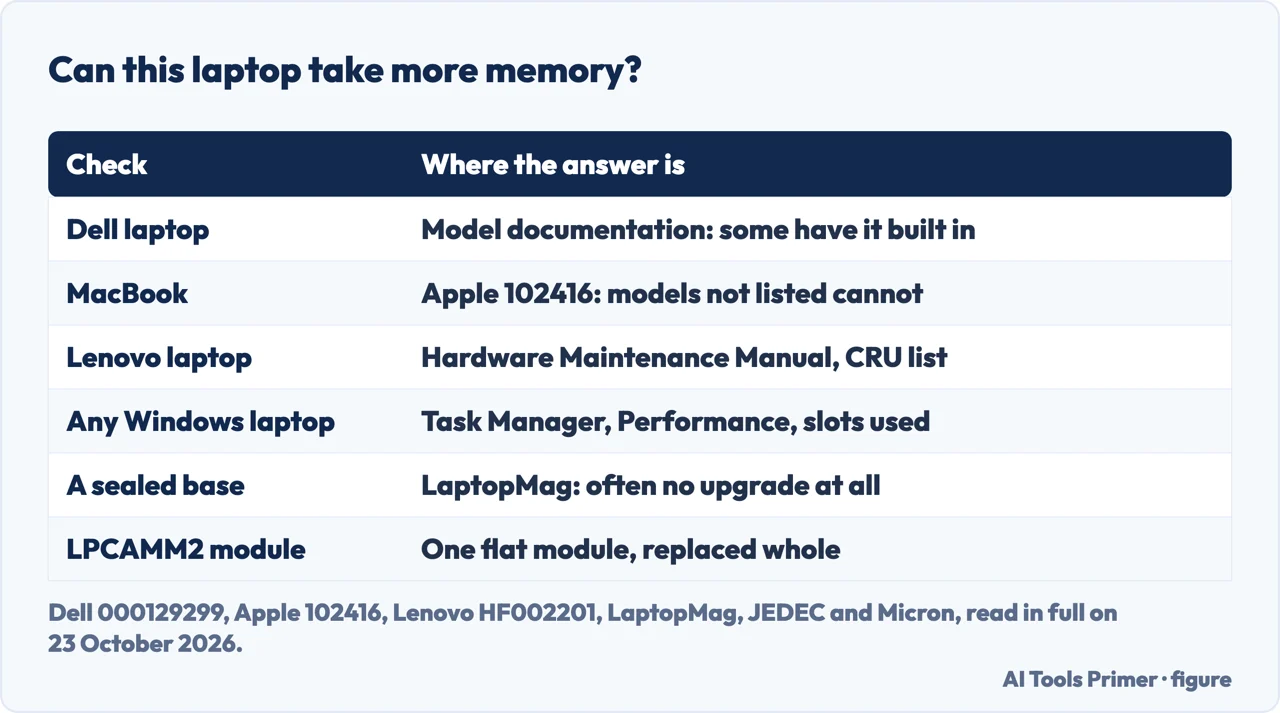
Most installation guides start with the screwdriver. The question that decides everything comes earlier, and Dell puts it in a note: on certain Dell laptops the system memory “cannot be upgraded” because it “is integrated into the system board”. Lenovo says the same in general terms: some laptops take small outline modules (SODIMM), “while other systems use soldered or non-user-replaceable memory”, so the documentation for the exact model comes before opening anything.
For Apple laptops the answer is a list. Apple’s support article on MacBook Pro memory gives instructions for the models with removable memory, the last of them from mid 2012, and adds: “Apple laptops not listed in this table have non-removable memory.” Laptop Mag makes the same point from the other side: many laptops have a sealed bottom or memory soldered to the motherboard, and both prevent an upgrade.
On a Windows laptop, Laptop Mag points to Task Manager: the Performance tab shows how much memory is in use and how many physical memory slots are in use, and therefore how many are free. A free slot is the easy case; no free slot means replacing a module; no slot at all means no upgrade.
There is now a third case. In December 2023 JEDEC, the body that writes memory standards, published JESD318, the standard for compression-attached memory modules (CAMM2), with a low-power version for notebooks. Micron describes its LPCAMM2 as memory for thin and light laptops that saves space over two SODIMMs and still lets users upgrade capacity. Corsair explains why it matters: laptop makers have often soldered memory to make slimmer designs, which is “problematic for upgrades”, and it expects boards to carry a single CAMM2 socket, so that you have to swap out the entire module to upgrade rather than add one.
Which module: what has to match
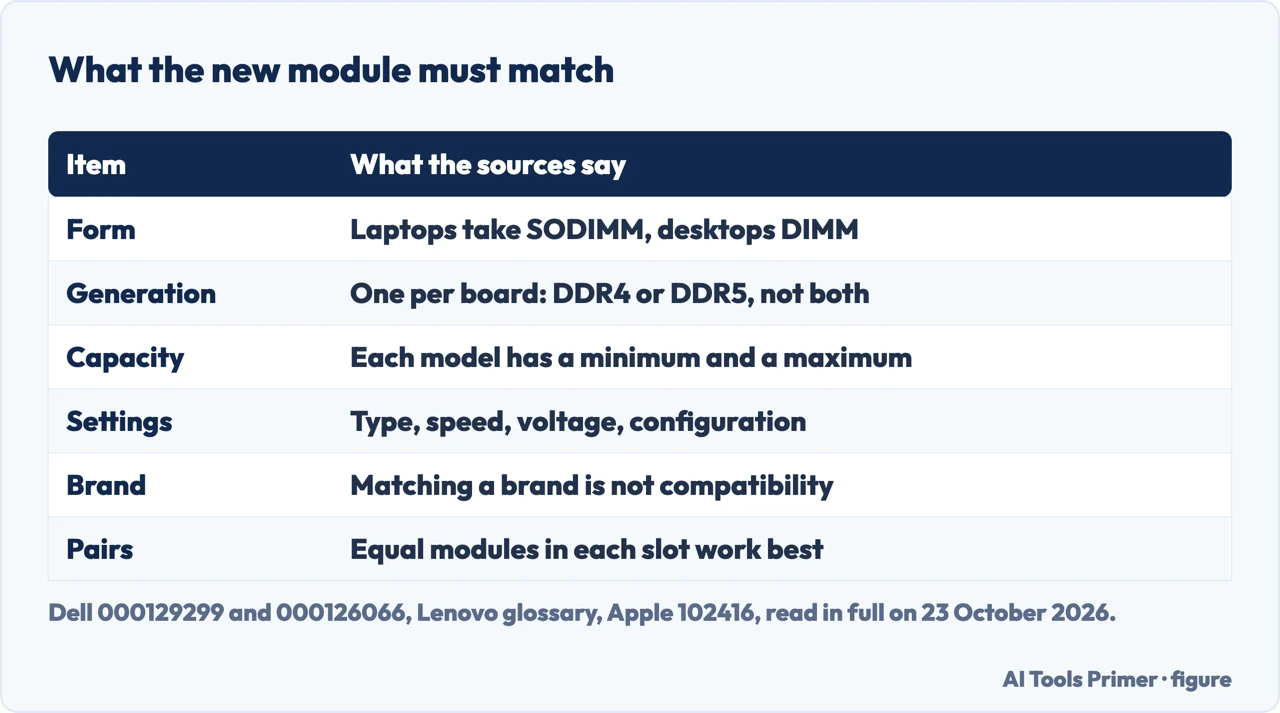
Dell lists the checks in order. Laptops take SODIMM modules, desktops the larger DIMM. The generation matters too, because system boards “are designed to support only one generation” of memory, DDR4 or DDR5 for example, and Dell warns that an incorrect or unsupported type “may cause physical damage to either the module or the slot on the system board.” Each model also has a minimum and a maximum capacity: Dell’s example is a laptop with two slots and a 16 GB maximum, which takes two 8 GB modules.
Lenovo adds the rest of the list: the supported memory type, form factor, capacity, data rate, voltage and configuration, with processor and motherboard limits on top, and a warning that “matching a brand alone does not establish compatibility.” Laptop Mag suggests Crucial’s advisor tool, where you enter the brand and model and see the maximum and the number of slots; Dell sends its own customers to the Parts and Accessories tab for their Service Tag.
Two smaller rules come from the same pages. Apple’s instructions for its old MacBook Pros say that for best performance you fill both slots with an equal module in each, and Dell’s troubleshooting article says most laptop memory is designed to work better in matched pairs. And Dell notes that a 32-bit version of Windows can only recognize 4 GB of memory, so adding more to such a laptop does not help.
What happens if you go over the maximum is where one maker gives two answers. Lenovo’s guide to installing RAM says memory above the supported capacity “may not be recognized or may prevent startup”. Lenovo’s glossary entry on upgrading says the extra memory is simply not recognized: “You won’t damage your computer”. Both point to the same step, which the first one spells out: confirm the supported maximum in the product documentation before buying.
The steps, from the makers who describe them
The same steps answer how to add RAM to a laptop and upgrade RAM on laptop: open the base, replace or add a module, close it. Kingston, which makes memory, gives the sequence for a laptop:
- Disconnect the power adapter and remove the battery.
- Before handling a module, touch an unpainted, earthed metal object or wear an earthed anti-static wrist strap.
- To remove an old module, pull the lock tabs on both sides away from it; it pops up at an angle.
- Line up the notch in the module with the key in the socket and insert it at an angle.
- Rotate it down until the tabs click into place, then replace the cover and reconnect power.
Lenovo’s version differs on the battery: where it is inside the laptop, follow the documented procedure for disabling or disconnecting it, and the specified precautions against static. Corsair, working on one of its own laptops, adds practical points: keep the screws somewhere safe, lift the panel with a thin plastic tool (“Do not use metal spacers”), and put the protective covers back over the modules. It also notes that the notch in a SODIMM sits slightly off centre, so the module fits only one way.
The guides do not agree on one number. Kingston says to “insert the memory at a 30 degree angle”; Laptop Mag says to insert modules “at a 45-degree angle”, gold edge down, and to hold them by the edges without touching the gold contacts. Apple, for one of its old MacBook Pros, says to lift the memory card to about 25 degrees to slide it out. Three numbers for the same movement: the module goes in the way the notch and the socket allow, then down until the clips hold it.
The first start can be slow, and that can be normal
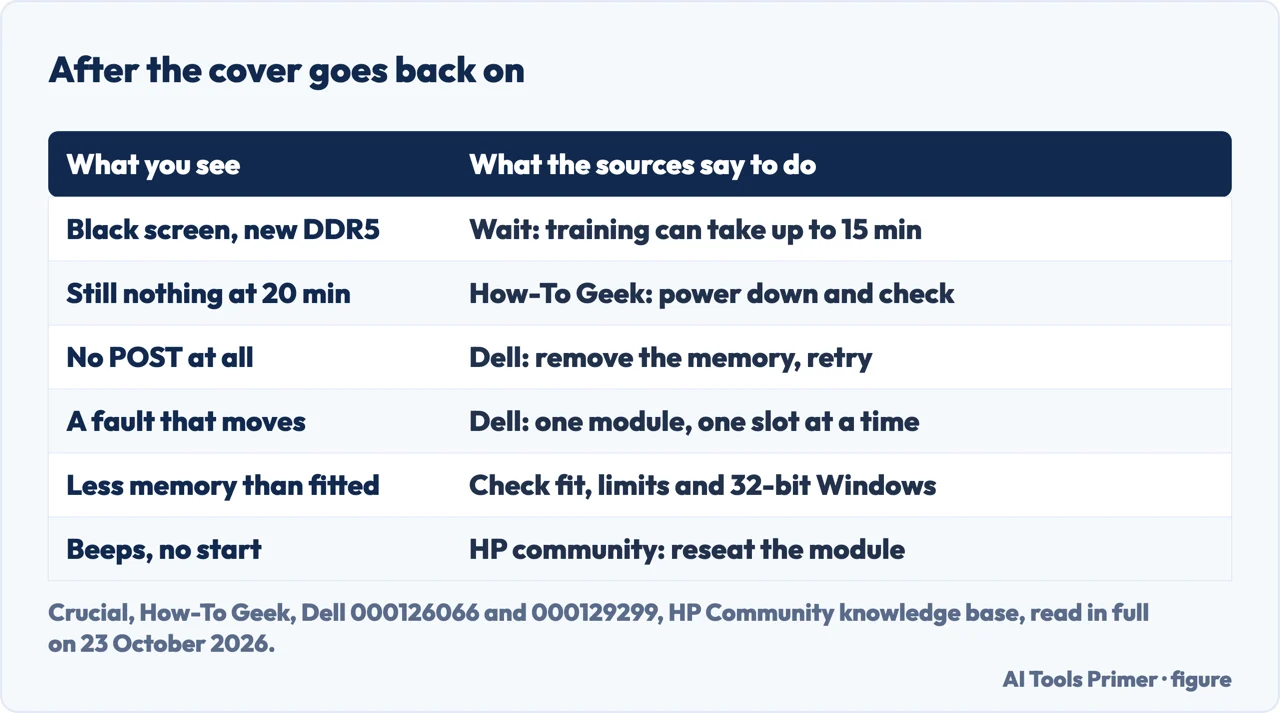
On a laptop with DDR5 memory the first start after an upgrade may not look like a start at all. Crucial says that a small number of DDR5 systems need a period of “training” for newly installed memory before they finish the power-on self-test. The screen may stay black or stop on the maker’s logo, and the lights may or may not show activity. Crucial’s advice is to leave the system powered, which in some instances has been seen to take up to 15 minutes; afterwards it starts normally, or needs one restart, and later starts are quick unless the hardware changes again.
How-To Geek, citing the same Crucial figure, draws the line at 20 minutes: if the computer still has not finished its self-test after that, power it down and look for the fault. Once Windows is up, Laptop Mag says to check that the new total shows in Task Manager or System Information.
If it does not start, or does not see the new memory
Dell’s article on memory faults in laptops is the most detailed of the sources. If the laptop does not complete the power-on self-test, “the first step is to remove the memory altogether from the laptop” and see whether the fault changes; if it does not, Dell sends you to its guide for laptops that do not start. Otherwise, test one module at a time in each socket: a fault that follows a module, or stays with a slot, has been found, and Dell says the laptop can run with reduced memory meanwhile. Dell’s built-in diagnostics start by holding the Fn key and the power button together, or by tapping F12 at startup; the memory tests that follow can take more than 30 minutes.
Lenovo’s advice for memory that is not recognized is to shut down first, check compatibility and seating against the product documentation, never reseat components with power connected, and update the BIOS only when that is recommended for the exact model. A knowledge-base post in HP’s support community, whose authors’ opinions are their own and not HP’s, covers the remaining symptoms: beeps and no start mean reseating the module; less memory than installed points to seating or to a 32-bit system; instability can come from modules of different makes or speeds.
The warranty question
Whether you may fit memory yourself depends on the maker and the part. Lenovo calls the parts a customer can replace Customer Replaceable Units, lists them for each product in its Hardware Maintenance Manual, and says that “Installation of self-service CRUs is your responsibility.”
In the United States there is also a federal rule. In April 2018 Federal Trade Commission staff warned six companies that statements requiring specified parts or service providers to keep a warranty intact “generally are prohibited by the Magnuson-Moss Warranty Act” unless the parts or service are free or the FTC has granted a waiver. In July 2024 staff wrote to eight more companies, three of them about “warranty void if removed” stickers placed where they hinder routine maintenance. These are warning letters from FTC staff, and the law they cite governs consumer warranties in the United States.
Where to start
Five ways in.
- “Can I even upgrade it?”
- Removable or not — can you
- “Which RAM do I buy?”
- What must match — which module
- “Show me the steps.”
- The steps — steps
- “The screen stays black.”
- The first start — first boot
- “It only shows the old amount.”
- Not detected — not detected
More on a slow machine
The pages next to this one: whether memory is the problem at all, and how to see it.
When the laptop misbehaves afterwards
A laptop that will not start, freezes or crashes after a hardware change.
Questions people also ask
How can I add memory to my laptop?
Only if it has a free slot or a replaceable module. Dell says some of its laptops have memory integrated into the system board, and Apple says its laptops not listed in its support article have non-removable memory. If there is a slot, match the module to the model’s documentation, then follow the steps above.
How to change 8GB to 16GB RAM in laptop?
Check the model’s maximum first: Dell gives the example of a laptop with two slots and a 16 GB maximum, which takes two 8 GB modules. If both slots are full, you replace modules rather than add one, and Dell says most laptop memory works better in matched pairs.
How to upgrade 16GB to 32GB RAM?
The same way, if the documented maximum is at least 32 GB. Lenovo says memory above the supported capacity may not be recognized or may prevent startup, so the maximum in the product documentation decides before you buy.
Can I add 16GB RAM to a 4GB laptop?
Only if the model supports that total and its type. Dell says each computer has a minimum and maximum capacity, and that a 32-bit version of Windows recognizes only 4 GB, so on such a laptop the extra memory would not be used.
Why does my laptop show a black screen after a RAM upgrade?
On a DDR5 laptop it can be memory training. Crucial says some DDR5 systems need time to configure new memory and that it has been seen to take up to 15 minutes; How-To Geek says to power down and check only if it still has not started after 20.
Not covered here. We did not open any laptop or install any memory for this page. The steps and the rules on compatibility are the makers’ own, from Dell, Lenovo, Apple, Kingston and Corsair; the note on memory training is Crucial’s, with How-To Geek’s 20-minute line; the warranty rules are the FTC’s. Everything was read on 23 October 2026.
Kingston, Corsair, Crucial and Micron sell memory. Laptop Mag’s guide still lists DDR2 to DDR4 and is used here only for what has not changed. The HP Support Community post is the opinion of its authors, not HP’s. HP’s own Tech Takes guide to installing RAM could not be read: its article body does not load. The videos and the Reddit thread in the results were not watched or read.
The search volume and difficulty behind this page were read in Semrush on 29 August 2026.
Sources
- Dell Support — How to Install or Upgrade RAM or System Memory in a Dell Computer (article 000129299, last modified 9 October 2026) — www.dell.com, read 23 October 2026.
- Dell Support — How to Diagnose and Resolve Common Memory Issues on a Dell Laptop (article 000126066, last modified 9 October 2026) — www.dell.com, read 23 October 2026.
- Apple Support — MacBook Pro: How to remove or install memory (article 102416, published 21 November 2023) — support.apple.com, read 23 October 2026.
- Lenovo — How to Install RAM: A Quick and Easy Guide — www.lenovo.com, read 23 October 2026.
- Lenovo — Can I Upgrade the RAM in my Computer? Does the Type of RAM Matter? — www.lenovo.com, read 23 October 2026.
- Lenovo Support — What is a Customer Replaceable Unit (CRU) service part? (HF002201) — support.lenovo.com, read 23 October 2026.
- Kingston Technology — How to install memory in a laptop PC (a memory maker) — www.kingston.com, read 23 October 2026.
- Corsair — How to Upgrade the RAM in Your Laptop (a memory maker) — www.corsair.com, read 23 October 2026.
- Corsair — What are CAMM2 and LPCAMM2? — www.corsair.com, read 23 October 2026.
- JEDEC — JEDEC Publishes New CAMM2 Memory Module Standard (5 December 2023) — www.jedec.org, read 23 October 2026.
- Micron — LPCAMM2 (a memory maker) — www.micron.com, read 23 October 2026.
- Crucial — DDR5 systems may require memory training (a memory maker) — www.crucial.com, read 23 October 2026.
- How-To Geek — What Is DDR5 Memory Training? (14 December 2024) — www.howtogeek.com, read 23 October 2026.
- Laptop Mag — How to Upgrade the RAM (Memory) on a Laptop — www.laptopmag.com, read 23 October 2026.
- Federal Trade Commission — FTC Staff Warns Companies that It Is Illegal to Condition Warranty Coverage on the Use of Specified Parts or Services (10 April 2018) — www.ftc.gov, read 23 October 2026.
- Federal Trade Commission — FTC Warns Companies to Stop Warranty Practices That Harm Consumers’ Right to Repair (3 July 2024) — www.ftc.gov, read 23 October 2026.
- HP Support Community — Upgrading RAM on HP Computers: Steps and Troubleshooting (a community knowledge-base post; the opinions of its authors, not HP’s) — h30434.www3.hp.com, read 23 October 2026.
Written by Alberto Gulotta
Founder and editor of AI Tools Primer, writing from Palermo, Italy. Thirty-five years of taking computers apart, starting with a Commodore 64 — the long version is on the about page.
Something wrong on this page? Write to aitoolsprimer@gmail.com and it gets fixed.
Written on 23 October 2026.
Independence and limits
No affiliate links and no paid placements anywhere on this site. Nobody pays to appear here, and no company has seen this page before you did.
This is general information, not professional advice. Where a page touches money, health, safety or the law, it names its source and the date it was read — and your situation may still differ. See the privacy page and the cookie policy.