
Software · guide
iPhone data recovery software, and the free routes to try first
By Alberto Gulotta · Updated · 19 min read
iPhone data recovery software (also called iPhone recovery software) cannot read the phone’s encrypted storage: the vendor pages read for this guide say it needs a working, unlocked, connected phone or an existing backup. The shorter route is often free — Apple’s own Recently Deleted, backup restore, or iCloud.com Data Recovery — and this page checks what each covers.
| Fact | Source |
|---|---|
| Deleted photos stay in Recently Deleted for 30 days | Apple Support, Delete photos on your iPhone or iPad |
| The iPhone User Guide says deleted Messages recover for up to 30 days | Apple Support (iPhone User Guide) |
| Apple’s article 102615 says the window is instead 30 to 40 days | Apple Support, article 102615 |
| Files deleted from the Files app are gone for good after 30 days | Apple Support, Files app |
| Only an encrypted computer backup carries saved passwords, Wi-Fi settings, history, Health data and call history | Apple Support, About encrypted backups |
| Even Cellebrite and GrayKey needed an undisclosed bootloader or secure-enclave exploit to get past a locked iPhone’s encryption | AIMS Press, 2020 peer-reviewed study |
What these tools say they need before they can recover anything
Before any iPhone data recovery software opens a single file, it needs one of two things to already be true, and the vendors say so themselves. CleverFiles, which sells Disk Drill, states that data recovery software like Disk Drill cannot recover information from a dead iPhone, because the device must be working and recognised by the operating system before it can be scanned. FoneLab’s own product page draws a similar line, and lists three recovery modes: one needs “The device is working normally and can be connected to a computer”, another needs “A previous backup exists on a computer” — from iTunes, Finder, or the Apple Devices app — and a third works from an iCloud backup instead, when neither of those is available. All three still come down to the same two things described above: a working, connected phone, or some kind of existing backup.
CleverFiles goes further and says “Recovering deleted files from an iPhone without a backup is nearly impossible” — a vendor stating the limits of its own product, not a competitor’s complaint. That lines up with how professional forensic tools work too: a 2020 peer-reviewed study of iOS forensics notes that analysing an existing iTunes backup file is itself one of the acquisition options, since most mobile forensic tools can open and read backup files directly, without ever touching the phone’s own storage. Put the three together and the shape of the problem is the same whichever side describes it: a working, unlocked, connected phone, or an existing backup. Nothing promises a route around both.
Why the phone’s own storage is off-limits
Apple’s own Platform Security Guide explains why a connected, powered iPhone is not the same as a readable one. Its Data Protection overview says the technology protects data stored in flash storage on every device built around an Apple SoC, including the iPhone, and that it “is controlled on a per-file basis by assigning each file to a class”: whether a given file can be read depends on whether that class’s keys have already been unlocked.
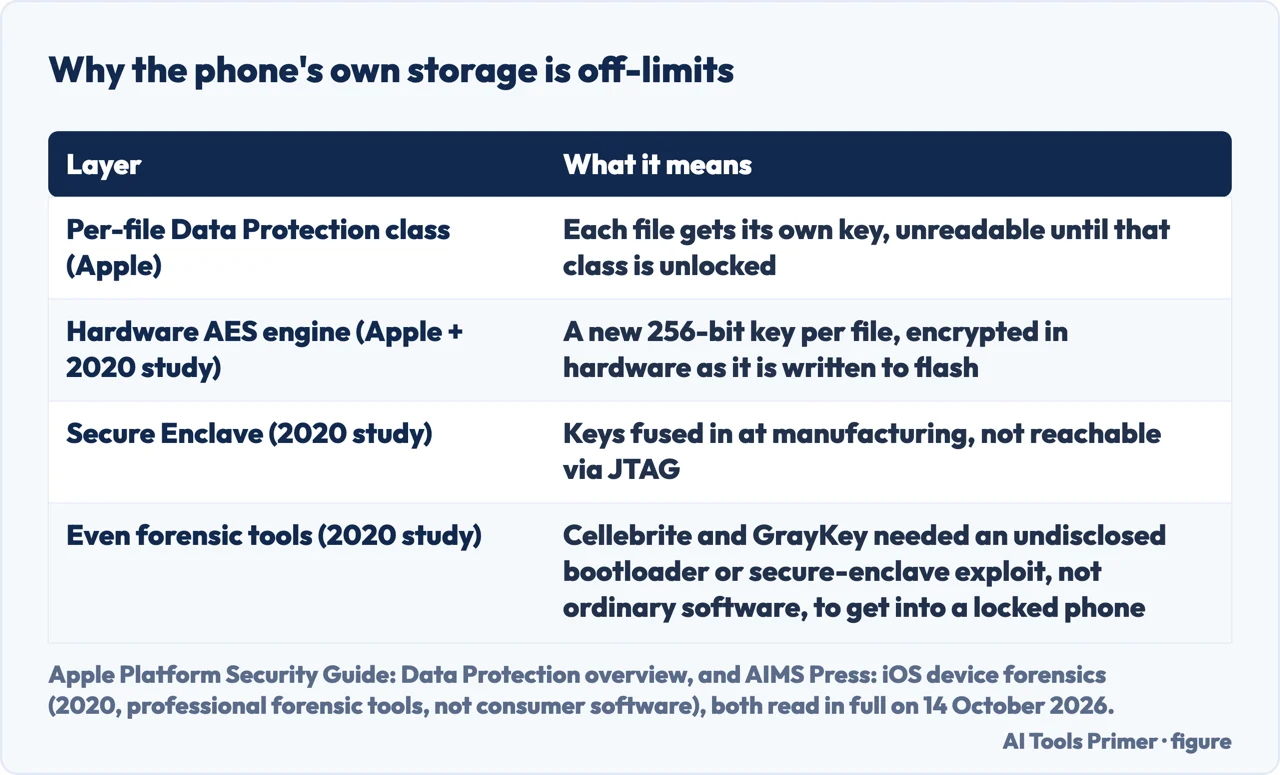
The mechanism behind that is hardware, not software. Apple says every time a file is created on the data volume, Data Protection generates a new 256-bit key for that one file and hands it to a hardware AES engine, which encrypts the file as it is written to flash storage. A 2020 peer-reviewed study of iOS device forensics, independent of Apple, describes the same hardware from the outside: a dedicated AES 256-bit crypto engine sitting between the flash storage and the system memory, with the keys themselves “fused into the secure enclave and encryption processor during manufacturing” — not loaded afterwards, not configurable, fused at the factory.
What it actually takes to force your way in
Not every byte a forensic investigation wants is sitting in a backup by design. The UK’s National Cyber Security Centre, writing guidance for app developers rather than for recovery software, tells them to mark sensitive data with the “do not back up” attribute specifically so those files are never included in an iTunes or iCloud backup — one reason a backup alone does not always have everything a phone holds, and why forcing a way into the device itself is sometimes the only route left. Apple’s own encryption is built to make that route hard: since iOS 8, the 2020 peer-reviewed study notes, the data partition has been encrypted with a key derived from the user’s passcode, and it stays encrypted “until the device passcode is entered”.
Forcing it anyway has, historically, needed something other than ordinary software. The same study recounts that the legal dispute between the FBI and Apple ended only after the FBI said it had got into a locked iPhone through a bootloader vulnerability discovered by the Israeli company Cellebrite — and that GrayKey, a separate tool from Grayshift, works by exploiting an undisclosed flaw in the secure enclave processor, the same chip that handles the iPhone’s encryption. Even then, the study says reaching deeper data on a modern iPhone will usually require jailbreaking it first, a process that changes the file system and can alter the evidence being recovered. None of it appears in what the consumer programs read for this guide describe.
What a backup actually contains — and what iCloud sync already removed from it
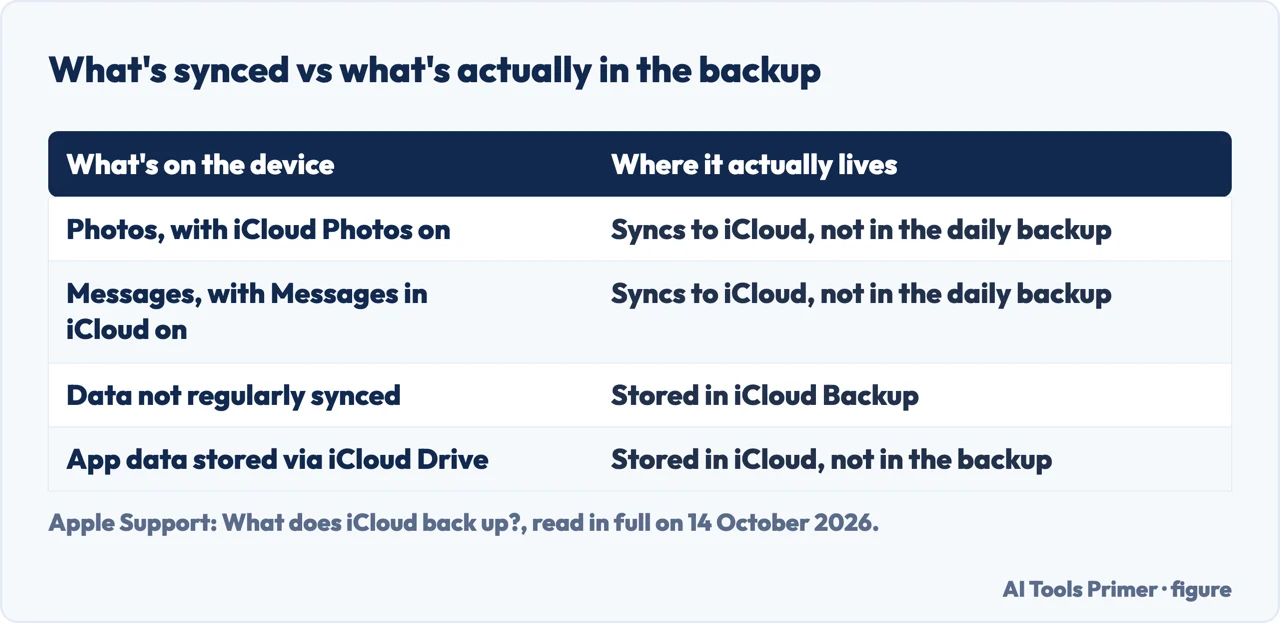
A backup and a sync are not the same thing, and Apple’s page on what iCloud backs up says so directly: “Any data on your device that isn’t regularly synced is stored in your iCloud Backup” — which means anything that already syncs continuously does not wait for the nightly backup to copy it. Messages is the clearest case: with Messages in iCloud turned on, Apple says messages “automatically sync to iCloud so they aren’t included in your daily backup”. Photos works the same way: with iCloud Photos on, photos, videos and face information sync to iCloud and, again, are left out of the daily backup. The same logic reaches further than Apple’s own apps — an app that stores its data through iCloud Drive keeps that data in iCloud instead of in the backup, and a paired Apple Watch’s backup rides along inside its iPhone’s backup rather than living in a separate file. How these two kinds of backup are set up in the first place is covered in full in backing up an iPhone.
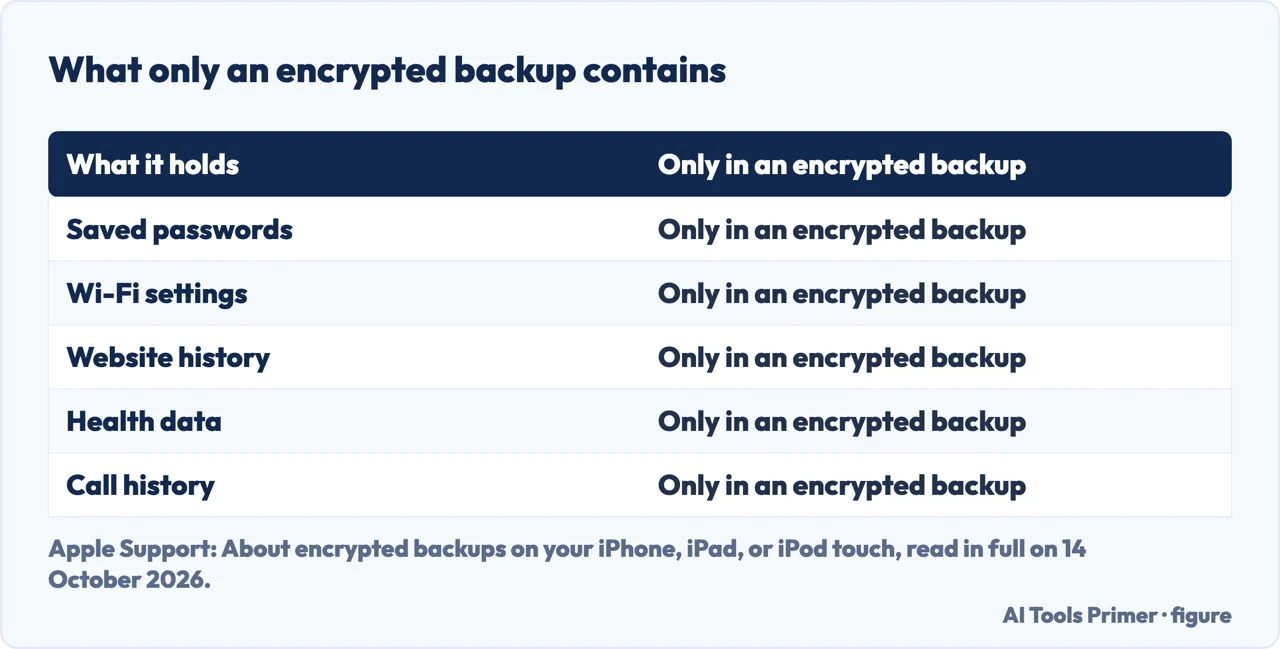
What actually sits inside a backup also depends on whether it is encrypted. Apple’s page on encrypted backups says a backup made in iCloud “encrypts your information” automatically, every time — but a backup made on a computer “isn’t encrypted by default”, and only becomes one once the password-protected Encrypt local backup option is switched on. The difference is not cosmetic: encrypted backups, Apple says, “can include information that unencrypted backups don’t” — saved passwords, Wi-Fi settings, website history, Health data and call history. An unencrypted computer backup, the default kind, simply does not carry any of it.
One more detail matters if iCloud Backup has ever been switched off on a device: Apple keeps whatever backups were already stored in iCloud for 180 days before deleting them, so turning the feature off is not the same as losing them immediately. The backup fundamentals that apply beyond the iPhone, on a computer, are a separate subject, covered in backups, properly.
How many days you actually have, and why Apple gives two different answers for Messages
For photos, notes and files, Apple is consistent across its own pages. Apple says that when you delete photos and videos, “they go to your Recently Deleted album for 30 days”, and after that they are permanently deleted; the iPhone User Guide says almost exactly the same thing — the full procedure, including where the album actually is, is in recovering deleted photos on an iPhone. Notes get an identical window: a deleted note sits in the Recently Deleted folder for 30 days before being permanently removed from the iPhone, iCloud, and any other device signed in to the same Apple Account. Files deleted from iCloud Drive or “On My [device]” in the Files app go into Recently Deleted too, and after 30 days they are gone — permanently and immediately, with no second safety net once that folder itself is emptied; the full set of options, including this one, is in recovering deleted files.
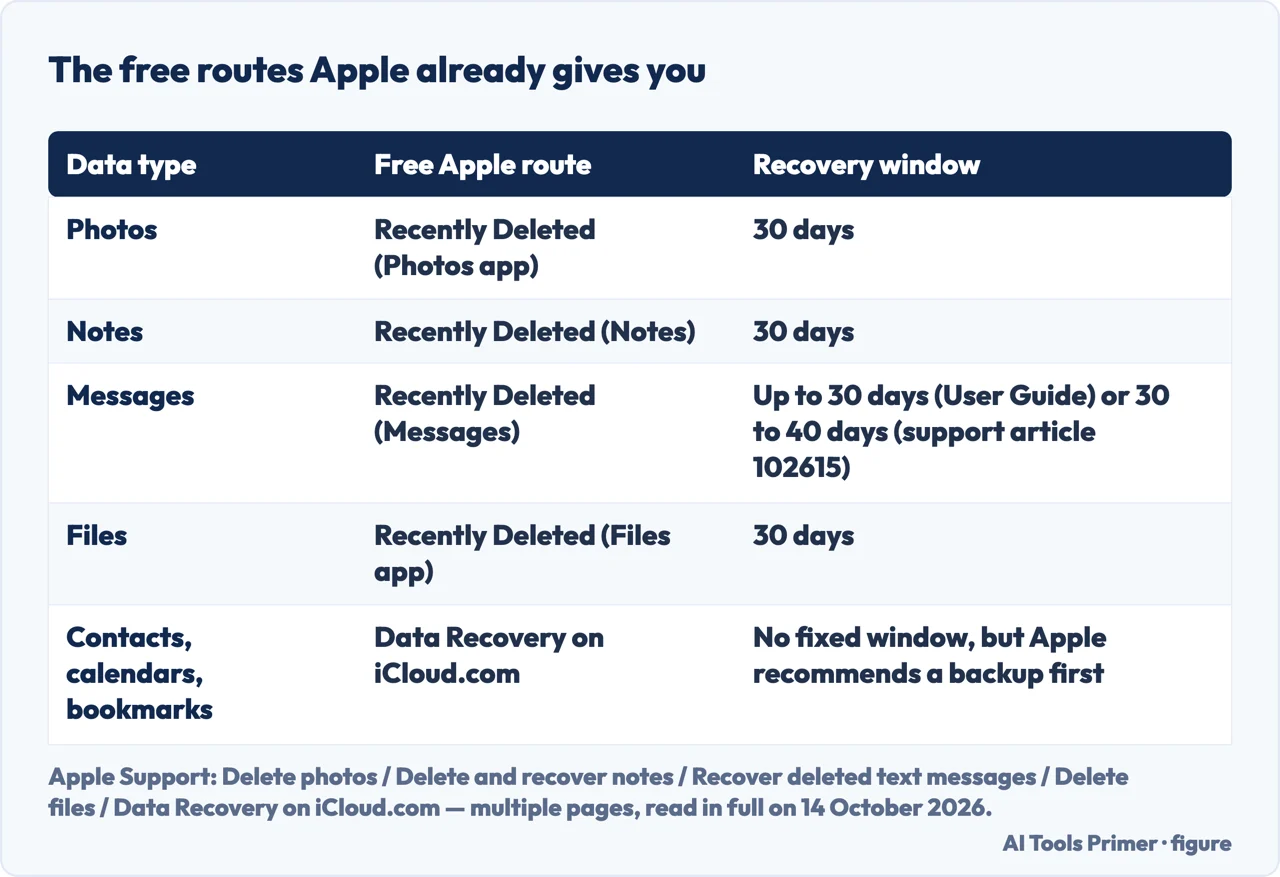
Messages is the one place where Apple’s own pages do not agree with each other. The iPhone User Guide states you can recover text messages you deleted on your iPhone “for up to 30 days”. Apple support article 102615 says instead that you can only recover messages and conversations “deleted within the last 30 to 40 days”. Both are live Apple pages; neither one is quietly wrong, and this page reports both rather than picking a winner — the procedure itself, and the three limits Apple states around it, are in recovering deleted messages on an iPhone. One more limit applies regardless of which number is right: if a message was deleted before the device updated to iOS 16 or later, Apple says it cannot be recovered at all, whichever window is used.
The free routes that work before you buy anything
The quickest recovery route for photos, notes, messages and files is Recently Deleted, already covered above, but Apple’s own pages add a few details worth knowing before relying on it. If a photo or video is missing from Recently Deleted, Apple says it may be sitting in the separate Recovered collection instead — not lost, just filed differently. A deleted shared note someone else owns will not show up in Recently Deleted at all, because deleting it only removes it from your own list, never the owner’s. In an iCloud Shared Photo Library, the same kind of rule applies: only the person who added a photo or video can permanently delete or recover it from Recently Deleted. And on iOS 18, the button that opens Recently Deleted messages is labelled Edit rather than Filters, which is why older step-by-step guides sometimes say the option is not there — it has just moved. Files recovered from Recently Deleted go back to exactly where they were before deletion.
Beyond Recently Deleted, restoring from a backup is the next free route. Apple’s current restore page walks through both versions: from iCloud, you review the date and size of each backup, choose the most recent one, and the device restores itself from it; from a computer, the same page points to the Finder on a Mac running macOS Catalina or later, or the Apple Devices app on a PC with Windows 10 or later, and if that backup is encrypted, restoring asks for its password. Apple is specific about the order of operations too: a device that has already been set up should be erased first, and setting a device up as new creates iCloud backups that replace whatever was saved before — a way to lose the very backup meant for restoring, if the steps run in the wrong order. The full walk-through, including when each option actually applies, is in restoring an iPhone from a backup.
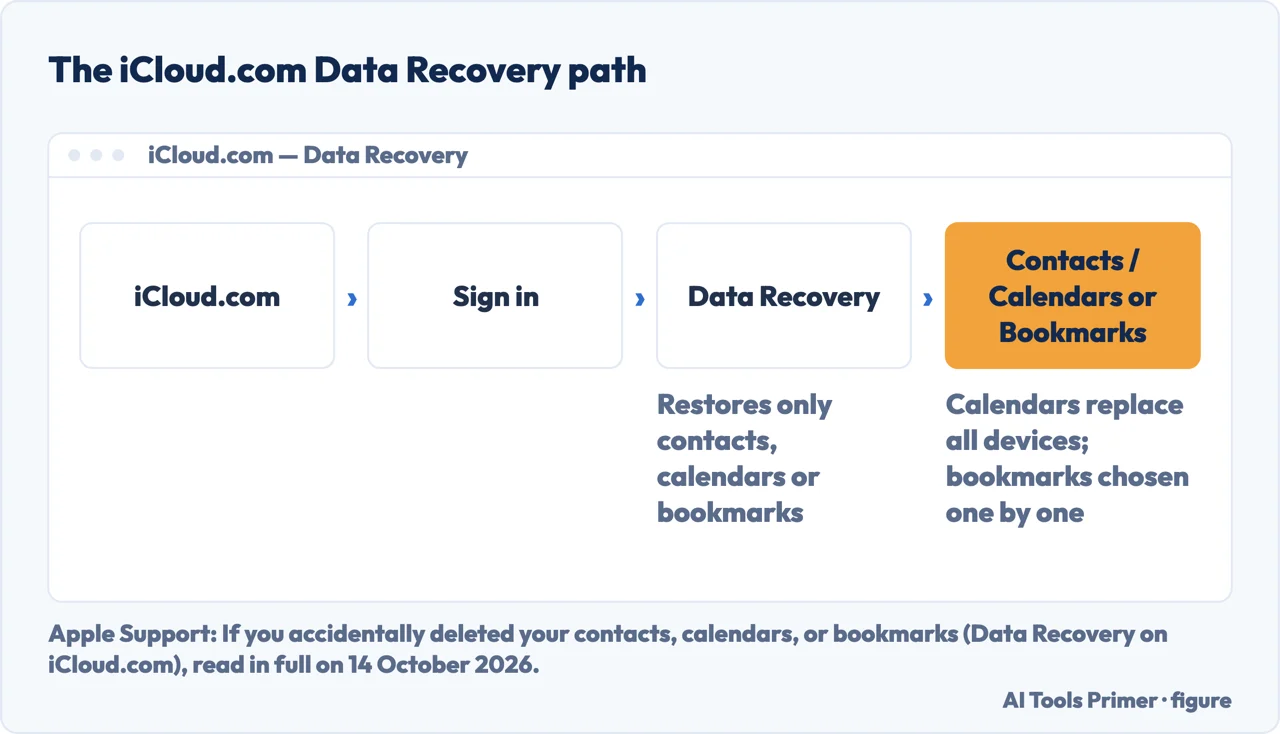
The third free route covers narrower ground: contacts, calendars and bookmarks, through Data Recovery on iCloud.com. Apple’s own page says the tool lets you restore missing contacts or calendars from an earlier version, or restore missing bookmarks, and warns that if you recently made changes you might lose some data, recommending a backup first. Restoring a calendar is all-or-nothing — the version picked replaces the existing calendars on every device signed in — while restoring bookmarks lets you choose which ones come back, one at a time.
Where to start
Six questions in.
- “What do these programs actually need to work?”
- What the vendors themselves require — what these tools say they need
- “Why can’t software just read my iPhone’s storage?”
- The hardware reason — storage off limits
- “What does it actually take to force it open?”
- What Cellebrite and GrayKey needed — what happens when you force it
- “What’s really inside my iPhone backup?”
- Sync versus backup, and encrypted versus plain — what a backup actually contains
- “How many days do I actually have?”
- The number for each data type, and the one Apple disputes — how many days you actually have
- “What can I try for free before buying anything?”
- Three Apple routes, in order — the free routes that work
On this iPhone
The backup and restore mechanics behind the free routes above, and the full procedures for two things this page only summarises.
Elsewhere
The same question on a different app, a different OS, or a computer instead of a phone.
Questions people also ask
Is there free iPhone data recovery software?
This page does not name a free third-party program. What is actually free is Apple’s own: Recently Deleted for Photos, Notes, Messages and Files (within a window Apple itself does not fully agree on for Messages), restoring from an iCloud or computer backup, and Data Recovery on iCloud.com for contacts, calendars and bookmarks.
Can iPhone data recovery software work without a backup?
The vendors read for this guide say it is nearly impossible, in CleverFiles’ own words: their pages list a working, recognised, connected phone as the precondition for device-direct recovery, and an existing backup for the other modes — before the phone’s own encryption even comes into it.
What is the best iPhone data recovery software?
This page does not rank products: none has been tested here, and the vendors’ own pages set the same starting conditions for all of them, a working unlocked phone or an existing backup. Before comparing programs, Apple’s free routes already cover photos, notes, messages, files, contacts, calendars and bookmarks.
Is there iPhone data recovery software for a PC?
Apple’s own route on a PC is the Apple Devices app on Windows 10 or later, which restores a computer backup and asks for the password if that backup is encrypted. Among the vendors read here, FoneLab lists Windows versions on its page, while CleverFiles says the Windows version of Disk Drill does not support iPhone recovery.
How many days do you actually have to recover something deleted on an iPhone?
It depends on the type: Photos, Notes and Files sit in Recently Deleted for 30 days. For Messages, Apple’s own pages disagree — the User Guide says up to 30 days, article 102615 says 30 to 40 days — and a message deleted before updating to iOS 16 cannot be recovered at all.
Not covered here. The full mechanics of the two kinds of iPhone backup are covered in backing up an iPhone, and the full restore procedure is covered in how to restore iPhone from backup.
The complete steps for recovering deleted photos, messages and files each have their own page: deleted photos, deleted messages on iPhone, and recovering deleted files. Email and Android have their own mechanics too, at deleted emails and deleted messages on Android, and backups beyond the iPhone are in backups, properly.
It does not rank, recommend or name any third-party recovery program as the best choice; the professional forensic tools named above are mentioned only to explain a limit, not as something to buy. What holds instead is simple: the free Apple routes above come first, and a third-party program is only ever as good as the backup or the unlocked phone it is given to work with.
Sources
- Apple Support — Delete photos on your iPhone or iPad: the 30-day Recently Deleted window for photos and videos. Applies to: iOS 16 / iPadOS 16.1 and later — support.apple.com, read 14 October 2026.
- Apple Support (iPhone User Guide) — Delete or hide photos and videos on iPhone: confirmation of the same 30-day window, and the separate Recovered collection — support.apple.com, read 14 October 2026.
- Apple Support (iPhone User Guide) — Delete and recover notes in Notes on iPhone: the 30-day window for notes, and the shared-note exception — support.apple.com, read 14 October 2026.
- Apple Support (iPhone User Guide) — Recover deleted messages in Messages on iPhone: the “up to 30 days” figure for Messages, and the iOS 18 Edit button — support.apple.com, read 14 October 2026.
- Apple Support — Recover deleted text messages on your iPhone or iPad (article 102615): the conflicting “30 to 40 days” figure, and the iOS 16 cutoff. Applies to: iOS 16 / iPadOS 16.1 and later — support.apple.com, read 14 October 2026.
- Apple Support — Delete files or recover deleted files in the Files app: the 30-day window for Files, and the irreversible second deletion — support.apple.com, read 14 October 2026.
- Apple Support — Restore your iPhone, iPad, or iPod touch from a backup (article 118105): the iCloud and computer restore procedures, the encrypted-backup password prompt, and the erase-first warning — support.apple.com, read 14 October 2026.
- Apple Support — What does iCloud back up? (article 108770): the sync-versus-backup distinction for Messages, Photos and app data, and the 180-day retention after turning iCloud Backup off — support.apple.com, read 14 October 2026.
- Apple Support — About encrypted backups on your iPhone, iPad, or iPod touch (article 108353): what only an encrypted computer backup contains, and why an iCloud backup is always encrypted — support.apple.com, read 14 October 2026.
- Apple Support (Apple Platform Security Guide) — Data Protection overview: the per-file encryption class and the hardware AES engine behind it. Applies to: devices with an Apple SoC — support.apple.com, read 14 October 2026.
- Apple Support — If you accidentally deleted your contacts, calendars, or bookmarks (Data Recovery on iCloud.com, article 102508): the scope of Data Recovery, and its calendar-replaces-all-devices and selectable-bookmarks behaviour — support.apple.com, read 14 October 2026.
- AIMS Electronics and Electrical Engineering (AIMS Press) — Security and privacy challenges in the field of iOS device forensics (2020): the Secure Enclave, the Cellebrite and GrayKey exploits, and the jailbreak needed for deeper acquisition. Applies to: a 2020 peer-reviewed study of professional forensic tools, not consumer recovery software — www.aimspress.com, read 14 October 2026.
- National Cyber Security Centre (NCSC, UK) — Secure iOS application development: the “do not back up” attribute developers use to keep sensitive files out of a backup. Applies to: guidance for app developers, not iPhone owners — www.ncsc.gov.uk, read 14 October 2026.
- CleverFiles, declared here as the seller of Disk Drill — its own page on iPhone data recovery: the preconditions it states for its device-direct and backup-based recovery modes — www.cleverfiles.com, read 14 October 2026.
- FoneLab, declared here as a vendor — its own iOS data recovery product page: the preconditions it lists for its three recovery modes — www.fonelab.com, read 14 October 2026.
Written by Alberto Gulotta
Founder and editor of AI Tools Primer, writing from Palermo, Italy. Thirty-five years of taking computers apart, starting with a Commodore 64 — the long version is on the about page.
Something wrong on this page? Write to aitoolsprimer@gmail.com and it gets fixed.
Written on 14 October 2026.
Independence and limits
No affiliate links and no paid placements anywhere on this site. Nobody pays to appear here, and no company has seen this page before you did.
This is general information, not professional advice. Where a page touches money, health, safety or the law, it names its source and the date it was read — and your situation may still differ. See the privacy page and the cookie policy.