
Software · guide
How to fix SIM card not working on phone: what five pages say
By Alberto Gulotta · Updated · 16 min read
How to fix SIM card not working on phone starts with the message: “No SIM Card detected” on a Samsung, “Invalid SIM” on an iPhone, “No SIM card” on Android. Most pages we read agree on a list: a restart, checking the SIM, a test in another phone or with another SIM, and the carrier. Apple adds the carrier lock.
| Question | Answer | Where it comes from |
|---|---|---|
| What does the message say? | “No SIM Card inserted” or “No SIM Card detected” on Samsung; “Invalid SIM” or “No SIM Card installed” on iPhone | Samsung Support (UK), Apple Support |
| How do I restart a Galaxy? | Hold Volume down and Power for at least 7 seconds, tap Restart, then Restart again | Samsung Support (UK) |
| Which way up does the SIM go? | Gold pins facing up, with the card matching the shape of the tray | Asurion |
| How do I test the SIM? | Put it in another phone; Apple instead tries another SIM in the same phone | Samsung, Android Authority, Asurion, Apple |
| Where is the network reset on a Galaxy? | Settings, General management, Reset, Reset mobile network settings | Samsung Support (UK) |
| When do I call the carrier? | For a damaged SIM, an account problem or a replacement card | Samsung, Android Authority, Asurion |
Start with the message, the kind of SIM and the phone
Samsung’s support page for the United Kingdom, updated on 21 October 2026, describes the fault as an error message that says “No SIM Card inserted” or “No SIM Card detected” although a SIM card is in place. Apple’s page, published on 17 December 2025, names two alerts for an iPhone or iPad, “Invalid SIM” and “No SIM Card installed”. Android Authority, in a guide dated 5 November 2025, calls it the “No SIM card” error, and Asurion’s guide opens with “No SIM Card Detected”.
Asurion, which says its experts fix issues like this one every day, explains that iPhone and Android phones rely on the tiny pins of a physical SIM card or an eSIM to connect to mobile networks, and that a phone which does not detect the pins cannot finalize the connection. It lists five reasons: the SIM placed incorrectly in the tray; a faulty SIM, with scratches, grime or moisture; an incompatible SIM of the wrong size or type; a damaged phone, including the SIM tray; and carrier issues, meaning the carrier’s network or your account. Android Authority gives a similar list and adds two items: an old SIM that is incompatible with a new phone, and the fact that some 5G phones require updated SIM cards. It also names software, in the form of a cache error or a problem with the network settings.
Apple puts one check before everything else: make sure you have an active plan with your wireless carrier. Its next check is whether the iPhone is locked to a carrier. The steps then split by the kind of SIM, since Apple says to contact the carrier if the device has an eSIM, and to take out and put back the card if it has a physical one. The rest of this page follows that split, and notes where the pages disagree.
The restart, the tray and a dry cloth
The restart comes first on the Samsung and Asurion pages, and after the carrier checks on Apple’s. Samsung gives two ways. Method 1 is to press and hold the Volume down and Power buttons together for at least 7 seconds, tap Restart and tap Restart again to confirm. Method 2 is to swipe down from the top of the screen with two fingers to open the Quick panel, tap the Power off icon, then tap Restart twice. Asurion’s Android guide says to hold the Power button until the Power off prompt appears on a Samsung phone, or the Options menu on other Android phones, and tap Restart. Its SIM guide adds an iPhone route: Settings, General, Shut Down, drag the slider, then press the side button to start the phone again. Android Authority says to press and hold the power button, then tap Shut down or Restart.
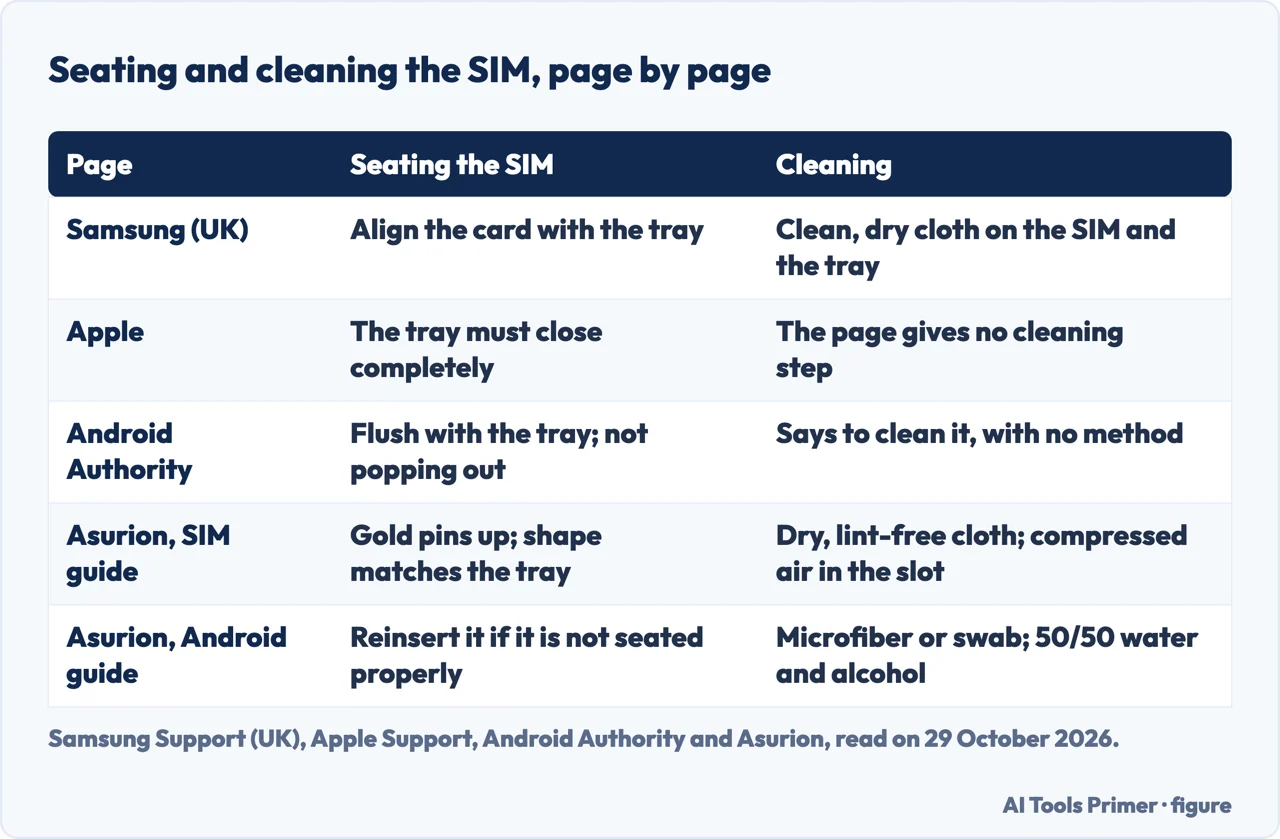
Every page also covers taking the card out. Samsung turns the phone off first, removes the SIM from the tray and looks for visible signs of damage such as scratches or stains. It says to clean the SIM and the tray with a clean, dry cloth, reinsert the card with the card properly aligned with the tray, and turn the phone on again. Samsung also warns to be careful not to break or deform the tray. Asurion tells you to press the end of a paperclip, or a similar small pointed object, into the round hole of the tray so that it pops out, then put the card back in the tray with the gold pins facing up and check that it aligns with the shape of the tray and fits snugly. Android Authority says the card should sit flush with the tray and not pop out easily. Apple says the tray must close completely and not be loose, and that a tray from a different model, or from another phone maker, might not fit properly.
The pages differ on cleaning, which the first figure sets side by side. Samsung and Asurion’s SIM guide say a dry cloth; Asurion specifies a lint-free one and adds a can of compressed air to blow dust out of the slot. Asurion’s Android guide allows a microfiber cloth or a cotton swab dipped in a mix of half water and half alcohol, and says to wait for it to dry before putting the card back. Android Authority only says to clean the SIM before inserting it. Apple’s page has no cleaning step.
The tray itself can be the fault. Android Authority says to check that it is not bent or damaged, and that a tray which does not release easily, or has to be forced back into the phone, might need replacing. Asurion’s Android guide says that a damaged tray means repairing the phone, and its SIM guide counts the tray among the parts of a damaged phone.
Trying the SIM in another phone, or another SIM in yours
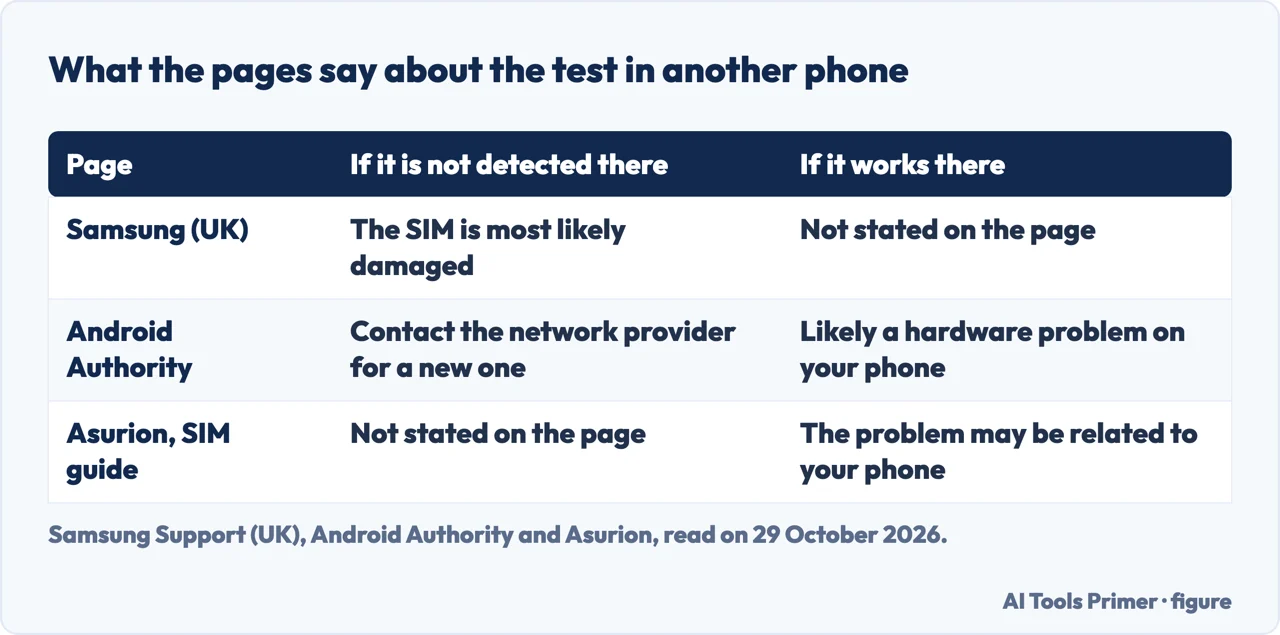
Three pages use the same test and read the result in different ways. Samsung says to insert the SIM into another phone and see whether it is detected; if the other device does not detect it, the card is most likely damaged, and it recommends contacting your service provider and replacing the SIM with a new one. Android Authority reads the opposite outcome: it says to check the SIM on another phone, and that if it works on other devices you likely have a hardware problem on your phone, in which case it says to contact an authorized service center to repair or replace the smartphone. Its quick answer adds that if the card does not work in the other phone, you will need to contact your network provider to get a new one.
Asurion’s SIM guide starts with the same test and says that if the card works in another device, the problem may be related to your phone. The next sentence of the same paragraph says there may be an issue with the SIM card, so the page contradicts itself, and we do not rely on that second sentence. Apple turns the test around. Once the tray has been checked, it says to try another SIM card; if you do not have one, go to your carrier’s retail store and ask them to test with another SIM card. Apple says you might need to replace your SIM card, and that if the alert remains you might need service, with a link to its service page.
The two tests answer the same question from different ends, one with your card in a second phone and the other with a second card in your phone. The second figure shows what each page says about the card.
Software: updates, Airplane mode, network settings and the reset
Android Authority groups the software steps after the restart. It says to toggle Airplane mode off and on to re-establish the phone’s network connections, from the notification dropdown or from Settings, Wi-Fi and network. It then says to check the network settings, especially after a data and settings transfer from a previous device: go to Settings, Wi-Fi and network, SIM and network, open Access point names, and compare with the information on your network carrier’s website. A manual connection is the next step: in SIM and network, tap Network operators, disable the automatic option and tap the name of your network provider. Asurion’s Android guide adds a software update before the SIM checks, and Apple adds a carrier settings update: open Settings, General, About, and if an update is available you will see a prompt to select OK or Update.
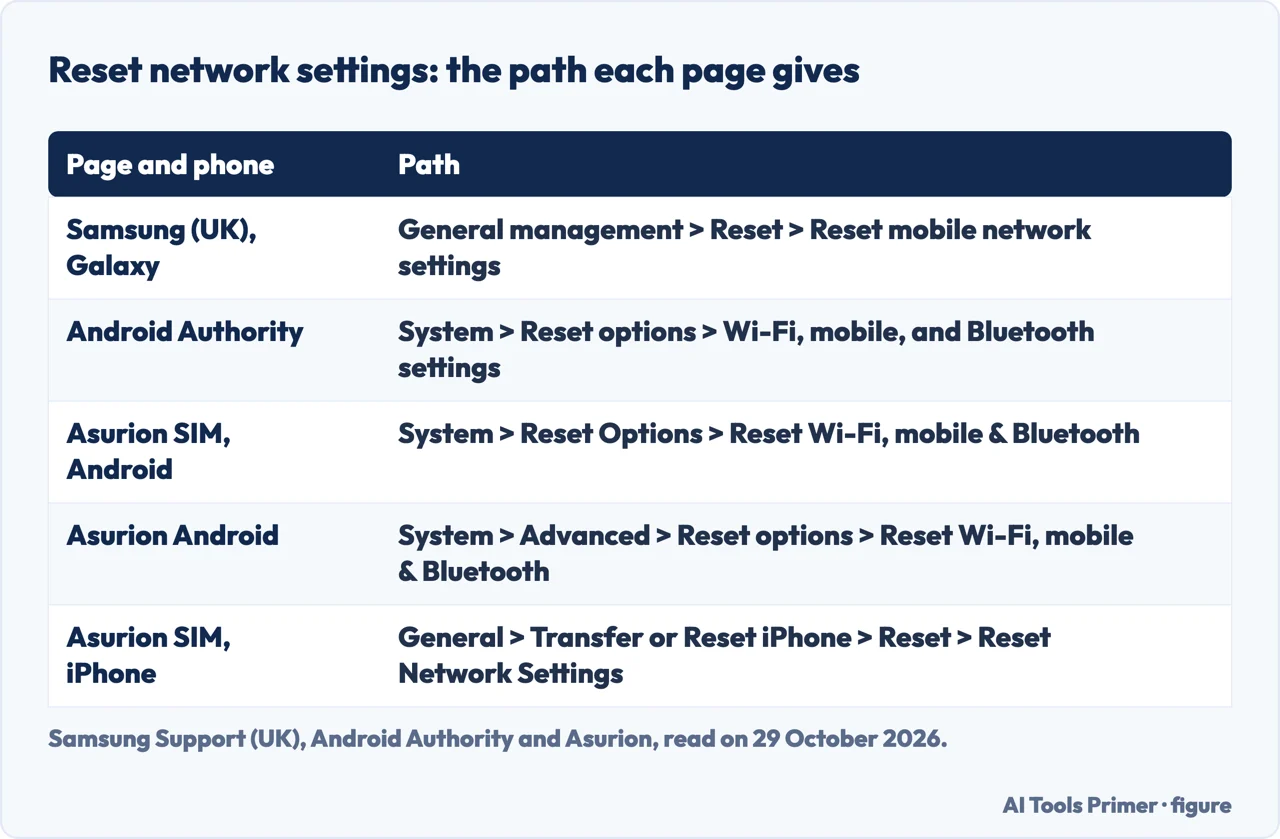
Samsung ties its network reset to one situation, saying you may need it after modifying phone settings or manually changing menu options. The steps are General management, Reset, Reset mobile network settings, Reset settings, and Reset again after reading the caution. Samsung warns that the reset covers all mobile network settings, that it cannot be undone, and that depending on your network’s setting requirements you might not be able to connect to your mobile network afterwards. Android Authority warns that its version also resets Wi-Fi and Bluetooth settings, and Asurion says that it clears Wi-Fi passwords and saved networks but does not delete apps, photos or contacts.
The menu path is where the pages part ways, as the third figure shows. Android Authority writes System, Reset options, then Wi-Fi, mobile, and Bluetooth settings. Asurion’s SIM guide writes System, Reset Options for Android phones other than a Samsung Galaxy, and General, Transfer or Reset iPhone, Reset, Reset Network Settings for an iPhone. Asurion’s Android guide puts an Advanced step in between: System, Advanced, Reset options. For a Samsung phone, Samsung’s page and both Asurion guides give General management, Reset. Apple’s page does not list a network reset.
Two last software items sit at opposite ends of the effort scale. Android Authority calls a faulty third-party app unlikely, and says to boot into Safe Mode; if the phone connects to a network there, it is an app problem, and you should uninstall any new or recently updated apps. Asurion’s Android guide ends with a factory reset, which it calls a last resort, and says to back up the data first because otherwise you may lose it.
On an iPhone: the carrier lock and the eSIM
Apple says that an iPhone locked to a carrier can be used only by that carrier. To check, open Settings, tap General, tap About, and look beside Carrier Lock: if the iPhone is unlocked, “No SIM restrictions” appears there. Apple links to a page on unlocking an iPhone for use with a different carrier. Of the pages we read, only Apple’s mentions the lock. We have a separate page on how to check whether an iPhone is unlocked.
The eSIM is the other iPhone-specific branch. Apple’s only instruction for a device with an eSIM is to contact your carrier. Asurion goes a step further and gives the setting to look at: on an iPhone, open Settings, tap Cellular, tap the eSIM and make sure Turn On This Line is enabled; on Android, open Settings, tap Connections, SIM card manager, tap the eSIM and turn the switch on. Asurion also says an iPhone or Android phone without a SIM card will have no internet service when it is not connected to Wi-Fi. The pages we read do not describe how to add an eSIM, and our page on setting up an eSIM on an iPhone covers that separately.
When it is the SIM, the phone or the account
Most of the pages end by sending you somewhere. For a damaged card Samsung and Android Authority both point to the carrier or provider for a new SIM; Asurion’s Android guide says to contact the carrier to check your service and possibly get a new SIM. Asurion’s SIM guide says that if problems continue you may have a damaged SIM card or an issue with your account, and to visit the provider’s local store or call the customer service line. Android Authority separates the cases by age: on a new phone, contact your network provider to see whether there is a network or settings issue, and on an older phone where the error appears suddenly, you likely need a new SIM. It adds that you can ask the phone maker’s customer service whether this is a known software problem. For the hardware branch Android Authority names an authorized service center, and Apple names its own service page.
The fourth question people ask, how to make a SIM card active again, is only partly covered. The pages we read do not describe a SIM that the carrier has switched off. The nearest instructions are Apple’s first check, an active plan with the carrier, and Asurion’s list of carrier and account issues, and both end with the carrier.
We tested nothing on a phone. The Samsung page we read is the one for the United Kingdom; Google listed the version for Saudi Arabia, which we did not open. The Apple and Android Authority pages were not among the first eight results we saw, and we took them from a separate list of sources. We did not open the Quora question, the Reddit thread, the Honor blog, the Blackview shop blog, the eSIM shop blog or the iFixit answer that Google showed, and Google’s AI box was read only in part and not used. The pages we read do not mention how long to wait after a network reset, how common each cause is, what a replacement SIM costs or dual-SIM phones.
Where to start
Four ways in.
- “What does the message mean?”
- Start with the message, the kind of SIM and the phone — first
- “Is it the tray?”
- The restart, the tray and a dry cloth — tray
- “Is it the SIM or the phone?”
- Trying the SIM in another phone, or another SIM in yours — other
- “Is it a setting?”
- Software: updates, Airplane mode, network settings and the reset — software
Other faults on the same phone
Charging, restarts and a speaker with no sound.
Network, eSIM and carrier
The settings that sit around the SIM.
Questions people also ask
Why is my SIM card in my phone but not working?
Asurion lists a SIM placed incorrectly, a faulty SIM, an incompatible SIM, a damaged phone or tray, and carrier or account issues. Android Authority adds an old SIM in a new phone, a 5G phone that needs an updated SIM, and software causes.
Why is my SIM suddenly not working?
Android Authority says an error that appears suddenly on an older phone likely means you need a new SIM. Samsung says a network reset may be needed after modifying phone settings, and Asurion lists carrier and account issues. None of the pages we read covers a number moved to another SIM without your knowledge; see our SIM swap page.
Why is my phone not detecting my SIM card?
Asurion says a phone that does not detect the pins of the SIM cannot finalize the connection. The pages give a SIM that is not seated, dirty or damaged, and a bent or loose tray, as places to look.
How to make a SIM card active again?
The pages we read do not describe a SIM the carrier has switched off. Apple says to make sure you have an active plan with your carrier, and Asurion lists carrier and account issues; both send you to the carrier.
Not covered here. We tested nothing on a phone. The statements come from Samsung Support (United Kingdom), Apple Support, Android Authority and two Asurion guides, all read on 29 October 2026.
The search volume and difficulty behind this page come from a Semrush reading of 29 August 2026, older than the 60 days the site normally allows.
Sources
- Samsung Support — Samsung Sim Card not working or detected (United Kingdom) — www.samsung.com, read 29 October 2026.
- Apple Support — If you see ‘invalid SIM’ or ‘no SIM’ on your iPhone or iPad — support.apple.com, read 29 October 2026.
- Android Authority — Is your Android phone showing a ‘No SIM card’ error? Here’s what to do — www.androidauthority.com, read 29 October 2026.
- Asurion — Why your SIM card isn’t working and how to fix it — www.asurion.com, read 29 October 2026.
- Asurion — What to do when your Android phone says ‘No SIM Card’ — www.asurion.com, read 29 October 2026.
Written by Alberto Gulotta
Founder and editor of AI Tools Primer, writing from Palermo, Italy. Thirty-five years of taking computers apart, starting with a Commodore 64 — the long version is on the about page.
Something wrong on this page? Write to aitoolsprimer@gmail.com and it gets fixed.
Written on 29 October 2026.
Independence and limits
No affiliate links and no paid placements anywhere on this site. Nobody pays to appear here, and no company has seen this page before you did.
This is general information, not professional advice. Where a page touches money, health, safety or the law, it names its source and the date it was read — and your situation may still differ. See the privacy page and the cookie policy.