
Software · guide
Kmode exception not handled: the stop code and what to do
By Alberto Gulotta · Updated · 11 min read
Kmode exception not handled is Windows stop code 0x1E: a kernel-mode program raised an exception that the error handler did not catch. Microsoft says a faulty device driver or system service might cause it, and that hardware problems such as BIOS incompatibilities and memory or IRQ conflicts can too. Start with any driver named on the screen.
Microsoft’s page on this code is for programmers and sends customers to a separate guide. This page joins the two, and adds Microsoft’s own figures on what causes stop errors.
| Step | What Microsoft says | Where |
|---|---|---|
| Read the screen | The stop code appears at the bottom, and the module name if there is one | Microsoft Support |
| Undo what changed | Remove new hardware; disable or remove recently added drivers and services | Support, Learn |
| A driver is named | Disable or remove it, or ask its maker for an update | Learn |
| It crashes at startup | Use safe mode to disable the driver in Device Manager | Learn |
| Look for more clues | System log in Event Viewer; the maker’s hardware diagnostics, memory scanner first | Learn |
| After a first restart in Setup | A BIOS incompatibility is a possible cause: update the BIOS | Learn |
What the stop code says
Microsoft’s documentation gives the bug check a value, 0x0000001E, and one sentence of meaning: it “indicates that a kernel-mode program generated an exception that the error handler didn’t catch”. The page is written for programmers, and says so: a customer whose computer shows a blue screen is sent to its separate guide on blue screen errors.
The bug check carries four parameters. The first is the exception code that was not handled, the second the address where the exception occurred, and the other two exception information. Microsoft lists three common exception codes, in the figure below, and says that for 0xC0000005, a memory access violation, the fourth parameter is the address the driver tried to reach. For a person without a debugger these numbers are mostly useful to someone else: Microsoft says the exception address, parameter 2, should identify the driver or function that caused the problem.
PC Gamer explains the error in other terms, as a case of “applications overwrite each other’s memory”. Microsoft’s page does not describe it that way. Its wording is an exception that was not caught, and only one of the three codes it lists is about memory access.
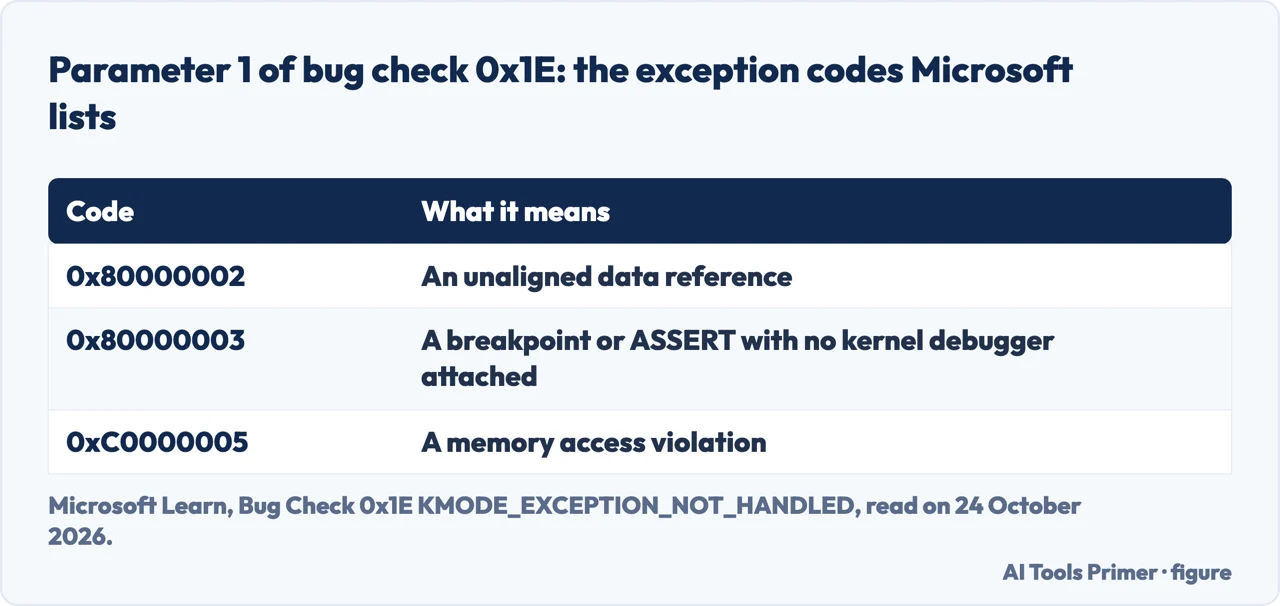
What usually causes it, in Microsoft’s numbers
For this code Microsoft says that a faulty device driver or system service might cause the error, and that hardware issues such as BIOS incompatibilities, memory conflicts and IRQ conflicts can also produce it. Another Microsoft article, on stop errors in general, puts numbers on where such crashes come from, shown in the figure below: “70% are caused by third-party driver code.” Hardware is 10%, Microsoft’s own code 5%, and 15% remain unknown because the memory is too corrupted to analyse. These shares are for stop errors as a group, not for this code alone.
The same article gives a second figure in its section on Driver Verifier: “We estimate that about 75 percent of all stop errors are caused by faulty drivers.” It is a different count from the first, and read together they suggest looking at the drivers before the RAM.
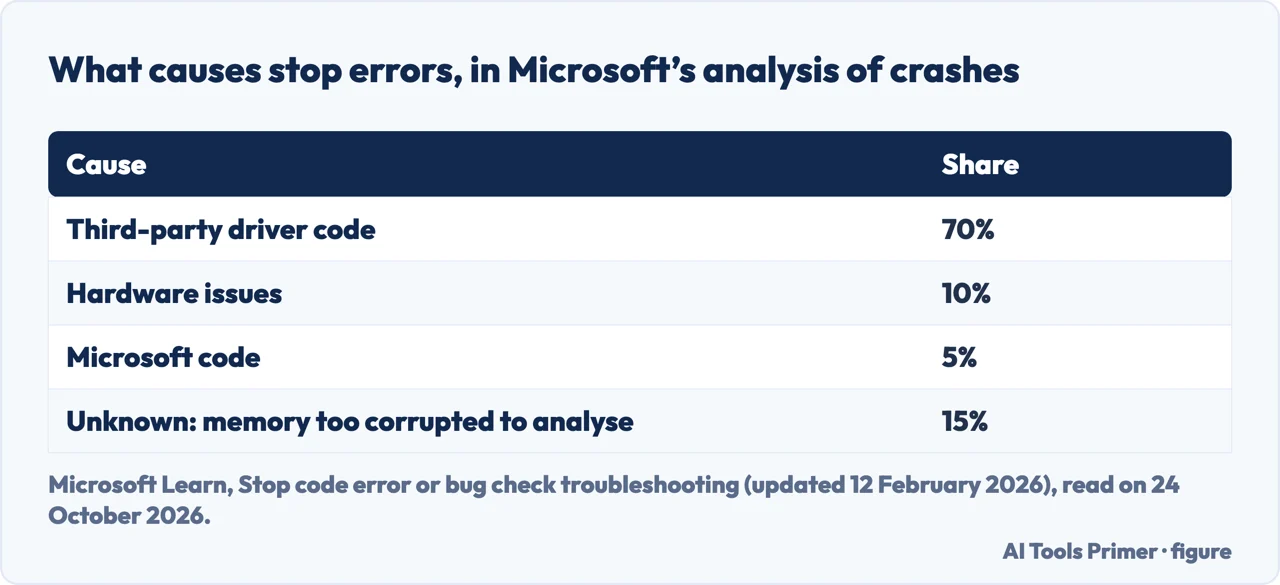
In Microsoft’s order
Microsoft’s support page says that in most cases of an unexpected restart “the problem is resolved by the restart and no further action is needed”, and that if the same stop code returns, you should remove new hardware, start in safe mode if the PC will not restart, check Device Manager for devices marked with an exclamation point, update their driver or disable or uninstall the device, keep 10% to 15% of the drive free, install the latest Windows updates and, last, restore Windows from a restore point or another recovery option.
For this code the Learn pages add the specific steps in the table above. To use safe mode when Windows restarts before you can do anything, Microsoft gives this route: Settings, Update & security, Recovery, and under Advanced startup choose Restart now; after the Choose an option screen, Troubleshoot, Advanced options, Startup Settings, Restart; then press 4 or F4 for safe mode, or 5 or F5 for safe mode with networking. Microsoft says the safe-mode route can disable the driver in Device Manager if the system partition uses NTFS.
Finding the driver: the dump file
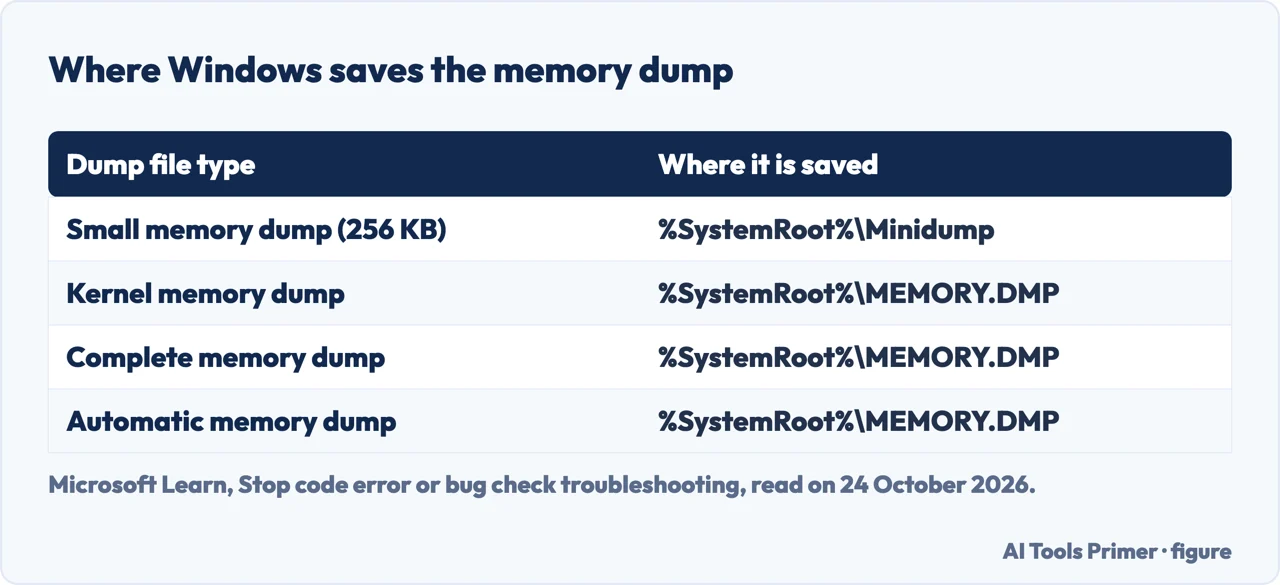
Windows can write a record of the crash. In Microsoft’s steps, type Advanced system settings in the taskbar search, open Settings under Startup and Recovery on the Advanced tab, choose Automatic memory dump under Write debugging information, select OK and restart. The small memory dump, 256 KB, is saved in %SystemRoot%\Minidump, and the larger ones in %SystemRoot%\MEMORY.DMP, as in the figure below. Microsoft also offers DumpChk to check that a dump file is not corrupted.
Reading a dump needs a debugger, and Microsoft’s page for programmers describes a procedure with commands such as kb, .trap and .cxr. A thread in Microsoft’s community shows what an analysis can find. A user sent the minidumps of repeated Kmode exception crashes, and the person who read them wrote that they mentioned no driver, only memory corruption. The user then planned to update the BIOS and to turn off AMD EXPO, the only overclocking on the machine. Those are users’ answers, not Microsoft’s documentation.
Driver Verifier, with care
When the drivers are the suspects and nothing names one, Microsoft’s stop-code article points to Driver Verifier. It warns that the tool uses a lot of CPU and can slow the computer down, can cause additional crashes and creates several dump files. Its rules are to test suspicious drivers, such as those just updated; “Don’t try to verify all the drivers at one time”; and to verify groups of 10 to 20 drivers if the crashes cannot be analysed. If the computer cannot reach the desktop because of the tool, Microsoft says to start in safe mode, where it cannot run.
What the guides add, and where they are weaker
Three of the guides we read name Fast Startup. PC Gamer says its recovery from hibernation can reload driver problems that were already there. Puget Systems says that Fast Startup is a hybrid between shutdown and hibernation and that loading drivers is one of its problems, and tells you to uncheck Turn on fast start-up; its guide is from 12 June 2019, with a note that some of it may be out of date. The third is a blog of IObit, the company that sells a driver updater, which names that product fourteen times. None of Microsoft’s pages that we read mentions Fast Startup in connection with this stop code, so treat it as a user’s remedy, not as Microsoft’s.
Puget Systems also suggests Windows Memory Diagnostic: search for Memory Diagnostic, choose to restart and check, and, if hard errors appear, reseat the RAM and replace the stick if that fails. Microsoft’s page for this code says the same in other words, to run the hardware diagnostics supplied by the maker, memory scanner first. The user in the Microsoft thread above ran the Windows Memory Diagnostic and saw no errors, and the reply that read the dumps still found memory corruption: one user’s case, not a rule.
Where to start
Five ways in.
- “What does the code mean?”
- Exception not caught — meaning
- “Is it the drivers or the RAM?”
- Microsoft’s numbers — causes
- “What do I do first?”
- The order — steps
- “Which driver is it?”
- The dump file — dump
- “I read about Fast Startup.”
- What the guides add — others
When Windows stops
The pages next to this one: the blue screen in general, a process that died, safe mode, a repair tool, and a PC that will not boot.
Drivers and memory
Which drivers need updating, and memory in a laptop.
Questions people also ask
What causes Kmode exception not handled?
Microsoft says a faulty device driver or system service might cause it, and that hardware issues such as BIOS incompatibilities, memory conflicts and IRQ conflicts can also produce it. For stop errors in general, Microsoft puts third-party driver code at 70% of the causes.
How do I fix Kmode exception not handled?
Microsoft’s steps: if a driver is named, disable or remove it; undo recent drivers, services and hardware; use safe mode to disable the driver in Device Manager if it crashes at startup; check the System log and run the maker’s memory scanner; update the BIOS if it began during Setup.
Is Kmode exception not handled caused by RAM?
It can be: Microsoft lists memory conflicts and tells you to run the maker’s memory scanner. But Microsoft’s analysis puts hardware at 10% of stop errors and third-party driver code at 70%, so the drivers come first.
Where is the Kmode exception dump file?
The small memory dump, 256 KB, is in %SystemRoot%\Minidump; kernel, complete and automatic dumps go to %SystemRoot%\MEMORY.DMP. Automatic memory dump is set under Startup and Recovery in Advanced system settings.
Not covered here. We did not test these steps on a computer for this page. They come from Microsoft Learn’s page on bug check 0x1E (last updated 20 December 2022) and its article on stop code troubleshooting (last updated 12 February 2026), from Microsoft Support’s page on unexpected restarts and stop code errors, and from the guides of Puget Systems (12 June 2019) and PC Gamer, read on 24 October 2026. The Microsoft Q&A thread is a user’s question and the replies; it shows no date in the text we read.
The shares of 70%, 10%, 5% and 15% are Microsoft’s for stop errors as a group, not for this code. Reddit, the HP and Tom’s Hardware threads and a code-signing vendor’s page in the results were not read, and the video that the search summary cites was not watched. Debugger commands are not given here; Microsoft’s page for programmers has them. For the stop screen in general see the blue screen error.
The search volume and difficulty behind this page were read in Semrush on 29 August 2026.
Sources
- Microsoft Learn — Bug Check 0x1E KMODE_EXCEPTION_NOT_HANDLED (last updated 20 December 2022) — learn.microsoft.com, read 24 October 2026.
- Microsoft Learn — Stop code error or bug check troubleshooting (last updated 12 February 2026) — learn.microsoft.com, read 24 October 2026.
- Microsoft Support — Troubleshooting Windows unexpected restarts and stop code errors — support.microsoft.com, read 24 October 2026.
- Puget Systems — How to Resolve KMODE Exception BSOD (12 June 2019, for Windows 10) — www.pugetsystems.com, read 24 October 2026.
- PC Gamer — What is Kmode Exception Not Handled, and how do I fix it? — www.pcgamer.com, read 24 October 2026.
- IObit — The “Kmode Exception Not Handled” Error Windows 11 (a blog of the company that sells a driver updater) — www.iobit.com, read 24 October 2026.
- Microsoft Q&A — BSOD Kmode Exception Not Handled (a user’s question and replies) — learn.microsoft.com, read 24 October 2026.
Written by Alberto Gulotta
Founder and editor of AI Tools Primer, writing from Palermo, Italy. Thirty-five years of taking computers apart, starting with a Commodore 64 — the long version is on the about page.
Something wrong on this page? Write to aitoolsprimer@gmail.com and it gets fixed.
Written on 24 October 2026.
Independence and limits
No affiliate links and no paid placements anywhere on this site. Nobody pays to appear here, and no company has seen this page before you did.
This is general information, not professional advice. Where a page touches money, health, safety or the law, it names its source and the date it was read — and your situation may still differ. See the privacy page and the cookie policy.