
Screens · guide
MacBook Pro screen flickering 2020: is it Intel or M1?
By Alberto Gulotta · Updated · 18 min read
MacBook Pro screen flickering 2020 is sorted first by the chip: Apple lists a 13-inch M1 model among its 2020 MacBook Pros, and some steps are for Intel-based Macs only. Apple’s pages cover cables, interference and refresh rate; sellers add True Tone, graphics, NVRAM and SMC steps whose timings differ.
| Question | Answer | Where it comes from |
|---|---|---|
| Which 2020 model is it? | Apple menu, About This Mac; Apple lists the 13-inch M1 as MacBookPro17,1 and the two other 13-inch 2020 models as 16,2 and 16,3 | Apple Support |
| What does Apple say about flicker? | Good cables and adapters, and interference from nearby electrical devices; the page is written around external displays | Apple Support |
| Is True Tone Apple’s cause? | Apple lists the setting without linking it to flicker; SlashGear, MacPaw and Asurion say it can sometimes be a cause | Apple Support, SlashGear, MacPaw, Asurion |
| Do NVRAM and graphics steps fit an M1? | Apple’s NVRAM keys sit in its list for Intel-based Macs; SlashGear says graphics switching is for Intel only | Apple Support, SlashGear |
| How do I tell software from hardware? | The sellers suggest a screenshot and an external display; Apple’s own test is Apple Diagnostics | Lappy Maker, MacPaw, Apple Support |
Which 2020 MacBook Pro it is, and how it flickers
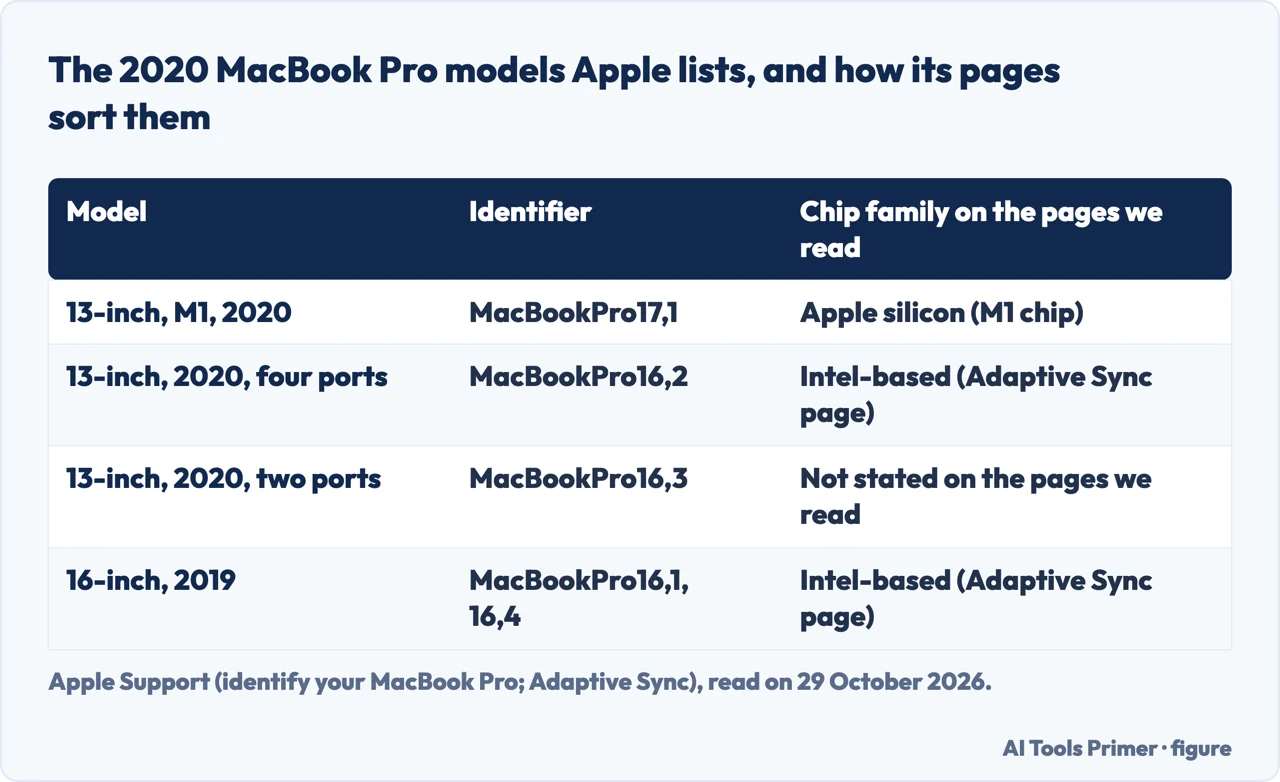
Apple’s page for identifying a MacBook Pro lists these models from 2019 and 2020: the 13-inch M1 of 2020 (MacBookPro17,1), the 13-inch of 2020 with two Thunderbolt 3 ports (MacBookPro16,3), the 13-inch of 2020 with four Thunderbolt 3 ports (MacBookPro16,2) and the 16-inch of 2019 (MacBookPro16,1 and 16,4). The easiest way to find yours, Apple says, is About This Mac in the Apple menu, and its page also points to ways to find the model name or serial number when the Mac does not start up all the way. The chip family matters because Apple’s Adaptive Sync page names the four-port 13-inch of 2020 and the 16-inch of 2019 among its Intel-based models and accepts any Mac with Apple silicon, and because Apple’s startup key page puts the NVRAM combination in its list for Intel-based Macs. Asurion says About This Mac shows a chip line, for example Chip Apple M1. The pages we read do not say whether the M1 model is less likely to flicker than the Intel ones.
Two questions decide which steps apply: whether the 2020 MacBook Pro is Intel or Apple silicon, and whether the flicker is constant or only with certain apps or an external display. The pages we read sort the flicker in different ways. Lappy Maker, a repair shop that quotes prices in Delhi, separates flicker only at a specific screen angle, which it ties to the flex cable; flicker during heavy tasks, which it ties to the GPU; flicker after a macOS update, which it calls a software or driver conflict; random full-screen flicker, which could be software or the display assembly; and an uneven strip of brightness at the bottom of the screen, which it calls stage lighting. MacPaw, the maker of CleanMyMac, says screen glitching lines appear on Retina and non-Retina screens, on older Intel-based Macs and on newer Apple silicon ones, and lists causes from graphics compatibility and malware to a worn ribbon cable. Those are sellers’ lists, not Apple’s.
Quick checks, and what Apple says about each
Apple’s Mac Help page “If your Mac display doesn’t look right” (the copy we read is for macOS 12) has one line on flicker. It says to make sure the Mac and display are connected with good quality cables and adapters, and that the cause may be interference from a nearby power line, a fluorescent light, a radio, a microwave oven, another computer or another electrical device, so you can try moving those or moving the Mac and the display. The page is written around external displays: it names the Thunderbolt Display and System Preferences, so it may not describe a built-in screen. Our page on monitor flickering covers the external-display side of the same symptom. For bright or dark spots on a flat-panel or Mac notebook screen it speaks of “pixel anomalies” and says that if you suspect an Apple display has a high number of them you should take it to an Apple Authorized Service Provider; if you cannot correct the problem on an Apple display, it says to contact one and not to repair the display yourself, because damage you cause is not covered by the warranty.
Apple’s Displays settings page describes the refresh rate: if the rate is too low the screen may appear to flicker, and if it is too high the screen may be black because the display does not support that rate; it says to check the documentation that came with your display. Apple’s Adaptive Sync page, published on 16 July 2026, is about external displays too. It says Adaptive Sync suits gaming and video playback, that in other applications it might produce a flickering or stuttering effect, and that if an external display flickers you can turn off the variable refresh rate by choosing a fixed rate in Displays and check with the display manufacturer. For best performance it says to use a Thunderbolt, USB-C or other DisplayPort cable and not an HDMI cable or adapter. MacPaw, on HDMI flicker, says to try another HDMI cable and to adjust the refresh rate in Displays.
The first steps in SlashGear, MacPaw and Lappy Maker are the plain ones. SlashGear says to restart, then to look for a macOS update (Apple menu, System Settings, General, Software Update) and, if the flicker is only in one app, to update apps from the App Store. MacPaw adds that a Mac hotter than usual should be shut down and left to cool. Lappy Maker says a flicker that starts after a macOS update often disappears with the next patch, which is a repair shop’s claim, not Apple’s.
True Tone comes next on every seller’s list. Apple’s Displays page lists True Tone as a setting that adjusts the colours to the ambient lighting and does not connect it to flicker. SlashGear says True Tone can sometimes make the screen flicker and gives the path: System Preferences, Displays before macOS Ventura, and System Settings, Displays, then the True Tone switch from Ventura on. It also suggests trying another colour profile. MacPaw says True Tone is for 2018 Macs and newer, that it can be switched off in Control Center under Display, and that Dark Mode can be a cause too, so set Appearance to Light; it then suggests changing the resolution in Displays. Asurion says True Tone and Dark Mode can occasionally lead to flicker, and Lappy Maker says on some models, suggesting both be turned off. MacPaw also repeats a forum claim that two identical Color LCD profiles can cause flicker: in Displays, open the Color profile pop-up, choose Customize, and delete one of the two with the minus button, though the option may be missing on some Macs. For graphics-heavy apps, MacPaw says to quit them from the Dock and to check Login Items, and for video in Chrome it says to try Safari or to turn off graphics acceleration in the browser’s system settings (our page on turning off hardware acceleration in Chrome shows where).
Intel-based steps: graphics switching, NVRAM and the SMC
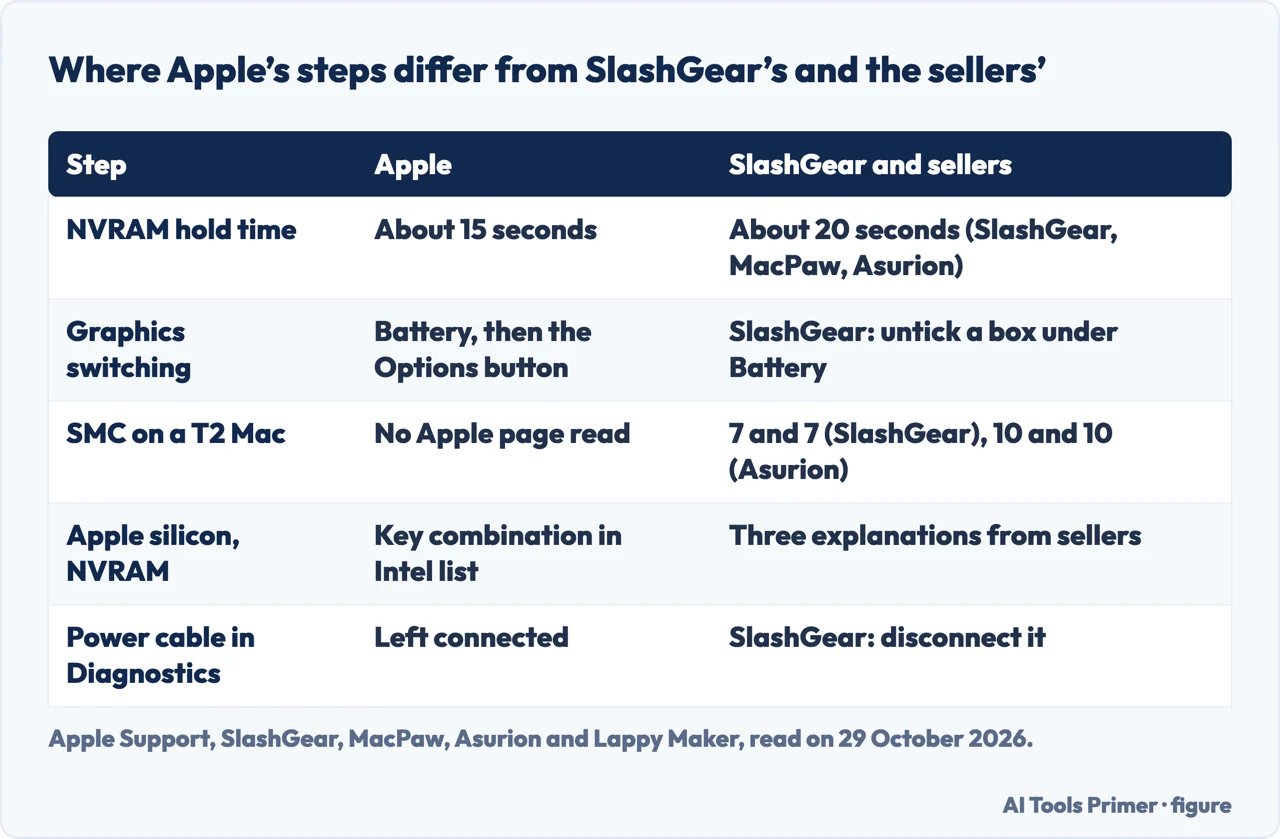
Graphics switching. Apple’s page on graphics performance, published on 15 May 2025, says many MacBook Pro models have an integrated and a discrete graphics processor, and that automatic graphics switching is on by default. To use the discrete one all the time in macOS Ventura or later, you go to Apple menu, System Settings, Battery, and click the Options button. In Monterey and Big Sur it is System Preferences, Battery, the Battery tab and a checkbox to deselect, and in Catalina and earlier it is in Energy Saver. Apple adds that with an external display connected the Mac uses the high-performance graphics processor until you disconnect it, and that if the option is missing the computer has one graphics system. Apple does not say this setting causes flicker. SlashGear, Asurion, MacPaw and Lappy Maker say it can: SlashGear says switching between the two GPUs can sometimes cause flicker and that Apple silicon Macs have no discrete GPU, so the step is for Intel models only. The path differs between pages: SlashGear says to untick a box under Battery, and Apple says to use the Options button on Ventura or later.
NVRAM. Apple’s Mac Help page (the copy we read is the 10.15 version) says to turn the Mac off, turn it on and immediately hold Option-Command-P-R before the black screen with the Apple logo appears, until the Mac restarts, about 15 seconds. It says the reset may change settings such as speaker volume, display resolution and startup disk, and presents it for a Mac that does not remember those. Apple does not say it cures flicker. SlashGear, MacPaw, Asurion and Lappy Maker say to hold the keys for about 20 seconds, and all four tie the reset to flicker; SlashGear, Asurion and Lappy Maker add that NVRAM stores display settings such as resolution. Apple’s startup key page lists the combination in the section for Intel-based Macs; for Apple silicon it shows the startup options screen reached by holding the power button. On why Apple silicon Macs need no keys, the sellers give three versions: SlashGear says they have no NVRAM, MacPaw says they reset the PRAM automatically, and Lappy Maker says the NVRAM clears on a clean shutdown. Our page on resetting PRAM on a Mac goes through the 15 and 20 second versions.
SMC. We did not find an Apple page for the SMC reset, so these steps come from sellers and they do not agree. For an Intel Mac with the T2 chip, which SlashGear says covers mainly Macs launched between 2018 and 2020, SlashGear says to shut down, hold left Control, left Option and right Shift for seven seconds, add the power button for seven more, release, and press power after a few seconds. Asurion says to hold Shift, Control and Option on the left side for 10 seconds, press power and count to 10 again, release and wait before turning on. Lappy Maker says Shift, Control, Option and the power button for 10 seconds. For a Mac without T2, SlashGear gives the three keys plus power for 10 seconds. To check for T2, Asurion says to hold Option, click System Information, choose Controller and look for Apple T2 Security Chip. For Apple silicon, Asurion and Lappy Maker say a restart does it. Check Apple’s own page before following any of them.
Apple Diagnostics and the safe-mode start
Apple Diagnostics is the test Apple documents. Its page, published on 19 December 2025, says to install the latest updates, shut the Mac down, disconnect everything except keyboard, mouse, display, Ethernet and power, and put the Mac on a hard, flat, ventilated surface. On Apple silicon you hold the power button (Touch ID on laptops) until Options appears, then hold Command-D until the Mac restarts. On an Intel-based Mac you turn it on and hold D, or Option-D if that does not work, and release at a progress bar or the language choice. Apple says you may be asked for Wi-Fi or Ethernet, that you may be offered Run Offline, and that from macOS Tahoe 26 you choose a specific test, such as the one for the built-in display, the keyboard or the trackpad; earlier versions run automatically. The results are reference codes, which Apple says to give to an Apple Authorized Service Provider, an Apple Store or an Independent Repair Provider. SlashGear says to disconnect the power cable too, which differs from Apple, which leaves it connected. Our page on lines on a MacBook Pro screen covers the screenshot check and Apple Diagnostics for a different symptom.
Safe mode is the other test. Apple’s startup key page says that on Apple silicon the options screen, reached by holding the power button, lets you start up in safe mode, and that on Intel-based Macs the Shift key does it. Asurion says safe mode shows whether software that loads at startup is causing the flicker; it warns the resolution may be low and the Mac slow, which it calls normal, and says that if the flicker stops you should turn the Mac off and on again as usual. Our page on a slow boot on a Mac covers the Shift-key start from a different angle.
When the sellers point to hardware, and what repair costs
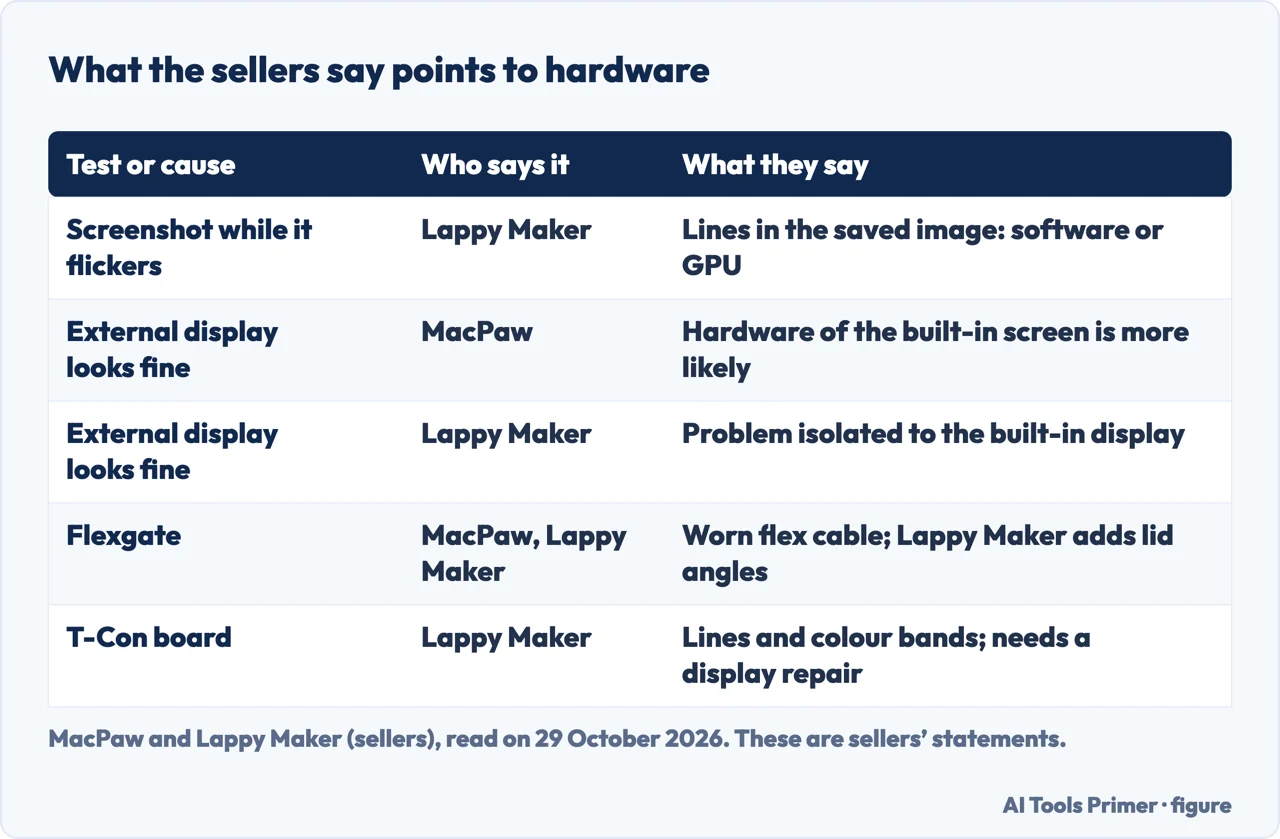
Two tests are offered to tell software from hardware, both by sellers. Lappy Maker says to press Command-Shift-3 while the screen flickers and open the saved image: if the flicker or lines are in the image, it says the cause is software or the GPU, and if the image is normal while the screen flickers, it says the problem is physical. MacPaw and Lappy Maker also say to connect an external display. MacPaw says that if it does not flicker the cause may be hardware, and that if it does the cause is most likely software; Lappy Maker says that if the external display looks normal the problem is isolated to the built-in display, not the GPU or logic board. The two readings are not identical. Apple’s graphics page says an external display makes the Mac use the high-performance graphics processor while it is connected, so the test may also change which graphics processor is in use; that is our reading of the two pages, not a statement from either.
On causes, MacPaw lists a faulty ribbon cable it calls Flexgate, mainly from wear. Lappy Maker describes the display flex cable as running from the screen through the hinge to the logic board and bending each time the lid moves, names Pro models from 2016 to 2020, and lists flicker or a dark screen at certain lid angles and uneven brightness at the bottom. Lappy Maker also names a failing T-Con board on MacBook Pro and MacBook Air models from 2018 to 2022, with horizontal lines, colour bands and flicker that gets worse and needs a display repair, and lists GPU flicker in heavy tasks, blocked fans and pressure on the lid. MacPaw adds a drained or faulty battery, loose cables and dust around the flex cable, and says to leave the cleaning to a repair centre. The Apple pages we read do not mention Flexgate.
On cost, MacPaw says users on forums report $200 to $600, usually about a third of the price of a MacBook, and puts AppleCare+ at $99 for a damaged screen and $299 for accidental damage; those are MacPaw’s figures, not Apple’s. Lappy Maker quotes from 5499 Indian rupees in Delhi, so it does not help a reader elsewhere. For prevention MacPaw says not to use a screen cover or leave anything between the screen and the keyboard when closing the lid, even a sheet of paper. Apple’s display page, again, says an Apple display that cannot be corrected goes to an Apple Authorized Service Provider and should not be repaired by yourself.
What we did not use
We left out forum threads, personal blog posts and a parts seller’s guide, which are not primary sources. The pages we read do not mention a Touch Bar that flickers. We did not find Apple’s page on resetting the SMC, so the SMC steps above are the sellers’ alone. Apple’s page on the display is the macOS 12 Mac Help copy, written for external displays, and its NVRAM page is the 10.15 version. We left out the claim by Lappy Maker about the length of the flex cable in later models, which we could not check. MacPaw, Asurion and Lappy Maker sell software or repairs, and we used their pages only for what they state.
Where to start
Four ways in.
- “Is mine Intel or M1?”
- Which 2020 MacBook Pro it is — model
- “What do I try first?”
- Quick checks, and what Apple says about each — quick
- “Should I reset NVRAM or the SMC?”
- Intel-based steps — intel
- “Is it the hardware?”
- When the sellers point to hardware — hardware
Screen checks on a MacBook Pro
Lines, tint and the Touch Bar.
Keys, restarts and startup
Restarts, the Shift key and PRAM.
Questions people also ask
Why is my MacBook Pro display flickering?
Apple’s display page names poor cables and nearby electrical interference, and its settings page a refresh rate that is too low. SlashGear, Asurion, MacPaw and Lappy Maker add True Tone, graphics switching and, for hardware, a worn flex cable.
How much to fix a MacBook flickering screen?
MacPaw says users on forums report $200 to $600, about a third of a MacBook’s price; Lappy Maker quotes from 5499 rupees in Delhi. The Apple pages we read give no price.
How to fix Apple screen flickering?
Apple’s pages give good cables, moving electrical devices, a fixed refresh rate or Adaptive Sync off for an external display, and Apple Diagnostics as a test, not a fix. The True Tone, NVRAM and SMC steps come from SlashGear, MacPaw, Asurion and Lappy Maker.
My MacBook Pro touch bar is flickering. How can I fix it?
The pages we read do not mention a Touch Bar that flickers. Our page on a glitching Touch Bar covers what Apple documents for it.
Not covered here. We tested nothing on a MacBook Pro. The statements come from eight Apple Support pages, SlashGear, MacPaw, Asurion and Lappy Maker, all read on 29 October 2026.
The search volume and difficulty behind this page come from a Semrush reading of 29 August 2026, older than the 60 days the site normally allows.
Sources
- Apple Support — If your Mac display doesn’t look right (Mac Help, macOS 12) — support.apple.com, read 29 October 2026.
- Apple Support — Displays settings on Mac — support.apple.com, read 29 October 2026.
- Apple Support — Use an Adaptive Sync external display with your Mac — support.apple.com, read 29 October 2026.
- Apple Support — Set graphics performance on MacBook Pro — support.apple.com, read 29 October 2026.
- Apple Support — Identify your MacBook Pro model — support.apple.com, read 29 October 2026.
- Apple Support — Reset NVRAM or PRAM on Mac (Mac Help, 10.15) — support.apple.com, read 29 October 2026.
- Apple Support — Mac startup key combinations — support.apple.com, read 29 October 2026.
- Apple Support — Use Apple Diagnostics to test your Mac — support.apple.com, read 29 October 2026.
- SlashGear — Why Your MacBook Screen Is Flickering, And How To Fix It — www.slashgear.com, read 29 October 2026.
- MacPaw — How to fix MacBook screen flickering in 10 steps — macpaw.com, read 29 October 2026.
- Asurion — MacBook Pro screen flickering? Here’s how to fix it — www.asurion.com, read 29 October 2026.
- Lappy Maker — MacBook Screen Flickering: Here is the Quick Fix & Cost — www.lappymaker.com, read 29 October 2026.
Written by Alberto Gulotta
Founder and editor of AI Tools Primer, writing from Palermo, Italy. Thirty-five years of taking computers apart, starting with a Commodore 64 — the long version is on the about page.
Something wrong on this page? Write to aitoolsprimer@gmail.com and it gets fixed.
Written on 29 October 2026.
Independence and limits
No affiliate links and no paid placements anywhere on this site. Nobody pays to appear here, and no company has seen this page before you did.
This is general information, not professional advice. Where a page touches money, health, safety or the law, it names its source and the date it was read — and your situation may still differ. See the privacy page and the cookie policy.