
Software · guide
SD card recovery software: the free tools and what limits them
By Alberto Gulotta · Updated · 12 min read
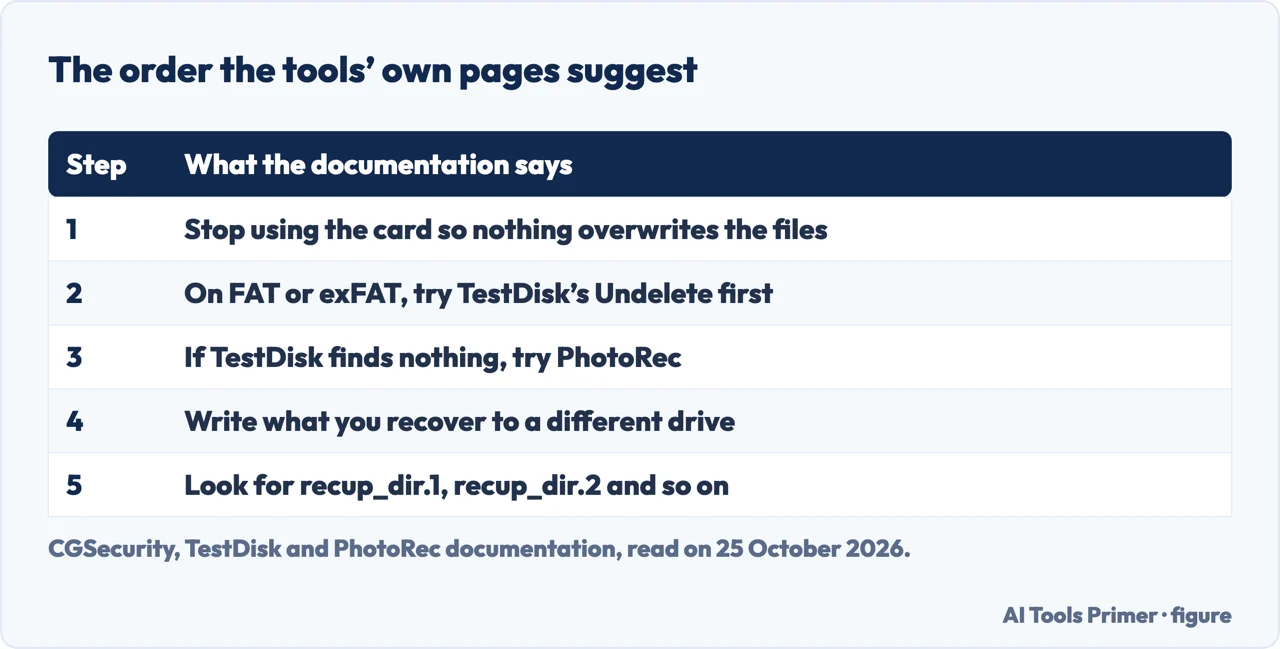
SD card recovery software that costs nothing exists, and its authors document it. Microsoft’s Windows File Recovery needs Extensive mode for a FAT or exFAT card; TestDisk’s Undelete comes first, and PhotoRec is the fallback. Stop using the card first, and write what you recover to another drive. Microsoft and CGSecurity do not promise a full recovery.
This page puts the steps in the order the tools’ own pages give them, explains why camera videos can come out unreadable, and shows what the sellers of paid programs promise.
| Question | Answer | Where it comes from |
|---|---|---|
| What do I do first? | Stop using the card, so that nothing is written over the deleted files | PhotoRec; Disk Drill’s page |
| Does Microsoft have a tool? | Windows File Recovery; for a FAT or exFAT card, Extensive mode in every case | Microsoft Support |
| Which free tool first? | TestDisk’s Undelete on FAT or exFAT; if it finds nothing, PhotoRec | TestDisk documentation |
| Where do recovered files go? | To a different drive from the card | Microsoft Support; PhotoRec |
| Is a full recovery promised? | Microsoft and CGSecurity write “can” and “if”; a seller reports 100% in its own tests | Microsoft; TestDisk; Remo |
Before any software: stop writing to the card
Deleting a file does not usually erase it. Microsoft says: “In the Windows file system, the space used by a deleted file is marked as free space, which means the file data can still exist and be recovered.” The TestDisk documentation says the same of the file systems on cards: FAT is “mainly used on memory cards from digital cameras and on USB keys”, exFAT is found on large memory cards, and when a file is deleted its data area is marked as free. “If the data area hasn’t been overwritten by a new file, the file is recoverable.”
The first rule recurs in the documentation. PhotoRec’s page says that as soon as a picture or file is deleted, you should not save any more pictures or files to that memory device, and Disk Drill’s page says to stop using the card as soon as you suspect data loss. Microsoft gives the equivalent for a computer: “If you want to increase your chances of recovering a file, minimize or avoid using your computer.” The second rule is where the recovered files go: a different drive from the card, which Microsoft makes a requirement and PhotoRec asks you to choose.
Windows File Recovery, Microsoft’s own tool
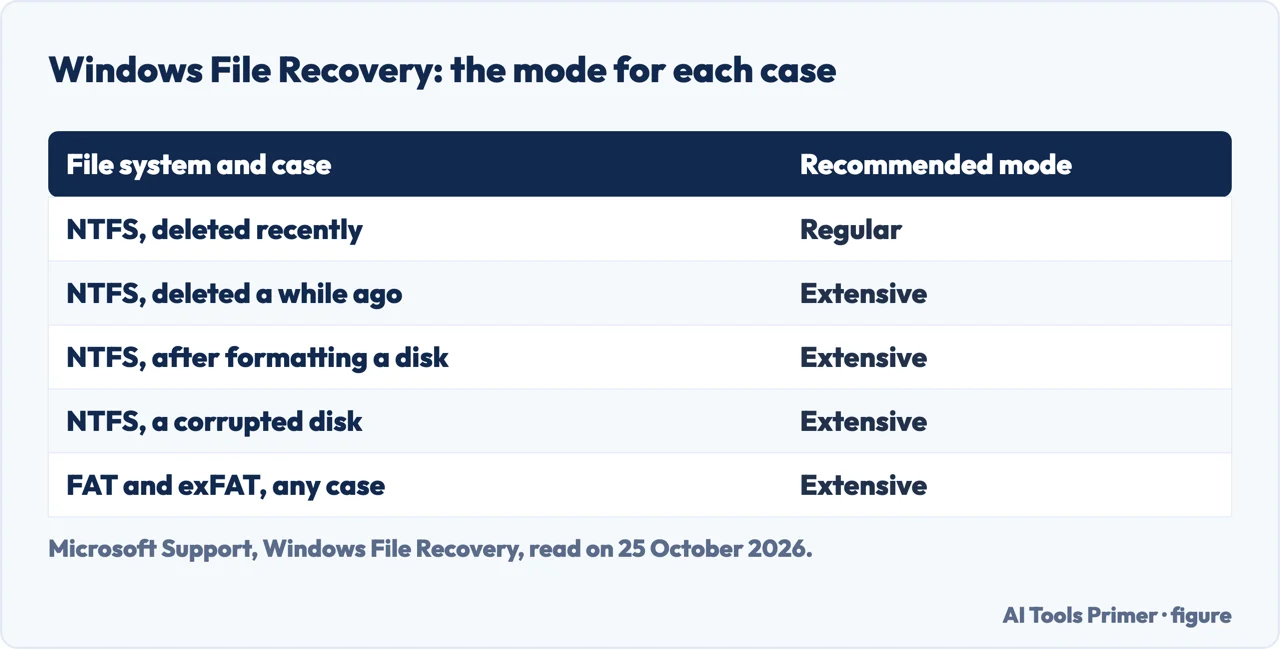
Microsoft’s page describes a command-line app, installed from the Microsoft Store, with a syntax of source drive, destination drive, a mode and optional switches. Its two basic modes are Regular and Extensive. For an SD card the choice is made for you: the page’s table gives, for FAT and exFAT in any circumstance, Extensive mode, and it says that “Recovering files from non-NTFS file systems is only supported by extensive mode.” Regular mode is for non-corrupted NTFS drives, and Extensive is the thorough option suitable for all file systems; Microsoft notes that it may take a while.
The source and destination drives must be different, and Microsoft creates a recovery folder on the destination for you, named with the date and time. If you have only one drive, it says to use a USB or external hard drive as the destination, and not to create a partition after losing data, “because this reduces the chance of a successful recovery.” You can narrow what is recovered with the /n switch, which takes a file name, a path, a file type or wildcards, and the page gives examples for photos in JPEG and PNG form. Press Ctrl+C to stop the operation.
TestDisk first, then PhotoRec
The two tools come from the same author, and the documentation puts them in order. For FAT and exFAT, TestDisk can read the deleted directory entry and find where the file began, so you select the partition, choose Undelete, select a file and press c to copy it. The same page ends: “If TestDisk has been unable to find your lost data, try PhotoRec instead.” It adds a limit: on ext3 and ext4 the location of the deleted data is no longer available, so TestDisk cannot recover files there.
PhotoRec’s own page calls itself free, open source and multi-platform, distributed under the GNU General Public License, and says it uses read-only access to the drive or memory card. It searches for known file headers, so it can recover a whole file when there is no fragmentation, and it recognises more than 480 file extensions, about 300 file families. You select the disk and partition, choose the file types if you want, choose the whole partition or only the unallocated space (only deleted files, available for FAT12, FAT16, FAT32, NTFS and ext2 to ext4), and choose the directory for the recovered files. They are written to recup_dir.1, recup_dir.2 and so on, and you can open them before the recovery finishes.
On Windows, PhotoRec has to be started from an account in the Administrator group. For Mac SD memory card recovery, which older guides call OS X SD card recovery, the page says to start PhotoRec with the photorec program, and that if you are not root it will restart itself using sudo after a confirmation, asking for your Mac user password. TestDisk’s documentation adds that on macOS the raw device, /dev/rdisk*, gives faster data transfer than /dev/disk* when it is available. We did not run either tool.
When the videos come out unreadable
A whole chapter of the documentation is about this. It says that videos from some digital cameras are fragmented on the card, and “Data recovery software, PhotoRec included, expect non fragmented files.” If every .mov or .mp4 that PhotoRec recovers is unreadable, you are probably in this case; the page says it does not concern copies or downloaded files, only files written by a camera. Sorted by name, the recovered files alternate between _ftyp.mov and _mdat.mov, and joining each pair, with the type command on Windows or cat on macOS and Linux, can rebuild a playable file. The chapter says plainly: “This solution works only for videos written in two fragments.” It names GoPro models whose videos are stored in more than two, which need special software.
What no tool can promise
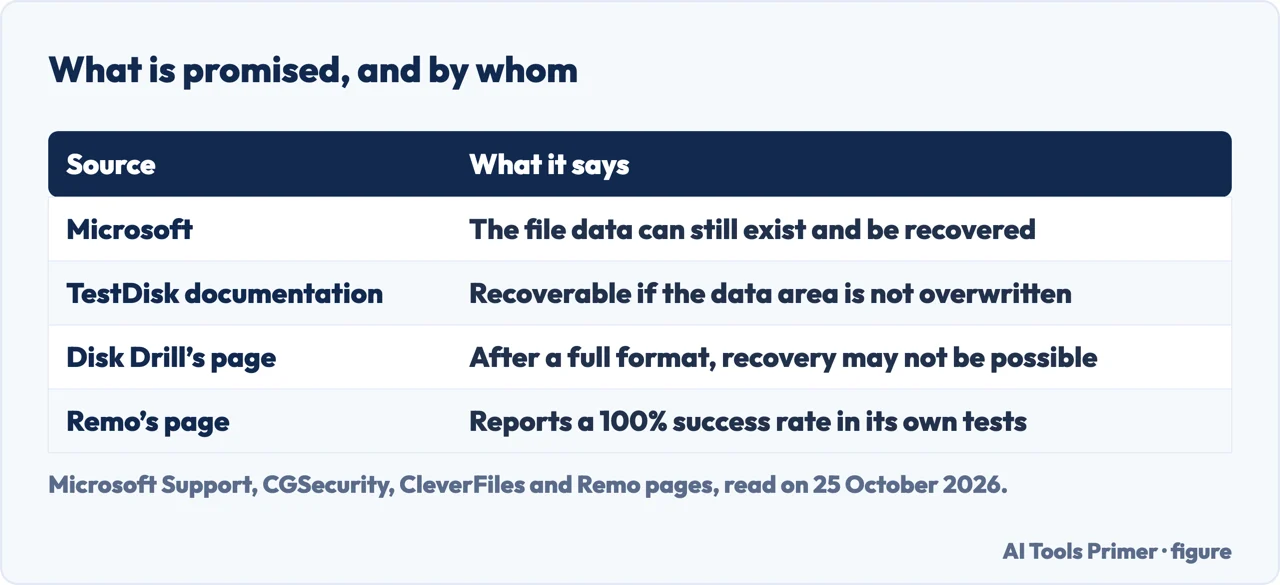
The tools’ authors write “can” and “if”: the data can still exist, the file is recoverable if the area has not been overwritten. Sellers write more. Remo’s page says its own program showed a “100% success rate even in the most complicated data loss scenarios”, including formatted cards. Disk Drill’s page is more careful on one point: “Recovery may not be possible if a full format is performed.” It adds that the same is true after a camera format that uses the SD_ERASE function, if the card’s controller supports certain commands: “the memory blocks would have been overwritten with zeros.” The pages we read from the tools’ authors do not rank the kinds of format by risk; the warning is about a full format and about SD_ERASE.
The paid and free-to-try programs
The search results are mostly about programs that sellers call SD card data recovery software or SD memory recovery software. Disk Drill’s page advertises free scans and file previews; EnosTech’s comparison table lists Disk Drill with a 100 MB free limit on Windows and a price of $89 a year or $149 for life, Wise Data Recovery with 2 GB free and $44.96 a year, and UFS Explorer with 256 KB per file free and $64.95. HandyRecovery, a site that ranks such programs, shows prices between $64.95 and $89. Recuva’s own page says it recovers files from a Windows computer, the recycle bin, a digital camera card or an MP3 player; it offers a free version, and the Professional version adds virtual hard drive support, automatic updates and priority support. We tested none of these, and Remo and CleverFiles sell the programs they describe.
Where to start
Five ways in.
- “What do I do right now?”
- Stop writing — first
- “I am on Windows.”
- Microsoft’s tool — windows
- “I want a free tool.”
- TestDisk, PhotoRec — photorec
- “My videos will not play.”
- Fragments — video
- “Will any of it work?”
- What is promised — limits
Getting files back
The other routes to a file that has disappeared: deleted files on a computer, data recovery software for an iPhone, photos, email.
So it does not happen again
Backups, drive health and deleting files for good.
Questions people also ask
Can an SD card be recovered?
Often, if nothing has been written to it since. Microsoft says the data of a deleted file can still exist, and TestDisk’s documentation says the file is recoverable if its data area has not been overwritten. Disk Drill’s page says recovery may not be possible after a full format.
What is the best free SD card recovery software?
We tested none. Two free tools are documented by their authors: Windows File Recovery from Microsoft, with Extensive mode for an SD card, and TestDisk with PhotoRec from CGSecurity.
Is Recuva 100% free?
Recuva’s page offers a free version and a Professional one, which adds virtual hard drive support, automatic updates and priority support.
What is the best open-source SD card recovery software?
PhotoRec’s page calls PhotoRec open source and says it is distributed under the GNU General Public License; TestDisk is the companion program from the same author. We did not compare them with other tools.
Not covered here. We did not recover files from a card for this page. The steps and the rules come from Microsoft Support (Windows File Recovery), the TestDisk and PhotoRec documentation of CGSecurity (PhotoRec, PhotoRec Step By Step, TestDisk 7.2 chapters 8 and 13) and the Recuva page of CCleaner, read on 25 October 2026. Menu and mode names follow those pages and may differ by version.
The pages of Remo, CleverFiles (Disk Drill), HandyRecovery and EnosTech belong to sellers or to sites that rank sellers’ programs; we use them only to say what they promise. Reddit, a shop page, a forum and a photography blog in the results were not read. Cards that are physically damaged, and cloning a card to an image first, are not covered.
The search volume and difficulty behind this page were read in Semrush on 29 August 2026.
Sources
- Microsoft Support — Windows File Recovery — support.microsoft.com, read 25 October 2026.
- CGSecurity — PhotoRec, Digital Picture and File Recovery — www.cgsecurity.org, read 25 October 2026.
- CGSecurity — PhotoRec Step By Step — www.cgsecurity.org, read 25 October 2026.
- CGSecurity — TestDisk 7.2 documentation: undelete file for FAT, exFAT, ext2 — www.cgsecurity.org, read 25 October 2026.
- CGSecurity — TestDisk 7.2 documentation: recovering lost videos from a memory card using PhotoRec — www.cgsecurity.org, read 25 October 2026.
- CCleaner — Recuva — www.ccleaner.com, read 25 October 2026.
- CleverFiles — Memory Card Data Recovery Software (Disk Drill) — www.cleverfiles.com, read 25 October 2026.
- Remo Software — Ultimate SD Card Recovery Tools for Windows and Mac — www.remosoftware.com, read 25 October 2026.
- EnosTech — 7 Best SD Card Recovery Software (Based On Real Test) — www.enostech.com, read 25 October 2026.
- HandyRecovery — What SD Card Recovery Software is Best in 2026? — www.handyrecovery.com, read 25 October 2026.
Written by Alberto Gulotta
Founder and editor of AI Tools Primer, writing from Palermo, Italy. Thirty-five years of taking computers apart, starting with a Commodore 64 — the long version is on the about page.
Something wrong on this page? Write to aitoolsprimer@gmail.com and it gets fixed.
Written on 25 October 2026.
Independence and limits
No affiliate links and no paid placements anywhere on this site. Nobody pays to appear here, and no company has seen this page before you did.
This is general information, not professional advice. Where a page touches money, health, safety or the law, it names its source and the date it was read — and your situation may still differ. See the privacy page and the cookie policy.