
Software · guide
How to uninstall Valorant, and what Vanguard does separately
By Alberto Gulotta · Updated · 9 min read
How to uninstall Valorant on Windows: close the Riot Client first, then open Installed apps, choose the game and select Uninstall, as Riot’s support page says. Riot Vanguard, its security software, has its own uninstall guide, with a manual route for when it will not go. Esports Insider says the manual commands remove Valorant; Riot describes them as removing Vanguard.
This page puts Riot’s pages in order, and separates the game from Vanguard and the clean-up folders from the commands.
| Question | Answer | Where it comes from |
|---|---|---|
| What has to be closed first? | Any game and the Riot Client; closing the Riot Client is required to uninstall Riot games | Riot Support |
| How do I uninstall the game? | Windows key, Installed apps, choose the game, Uninstall; you may need to restart | Riot Support |
| And Riot Vanguard? | It has its own guide: tray icon or Windows Settings, then a restart to check the tray | Riot Support, Vanguard guide |
| What if Vanguard will not go? | A manual route with two sc delete commands, a restart and deleting its folder | Riot Support, Vanguard guide |
| How do I get it back? | Open the Riot Client or a game that needs Vanguard; it reinstalls itself | Riot Support |
Close the Riot Client first
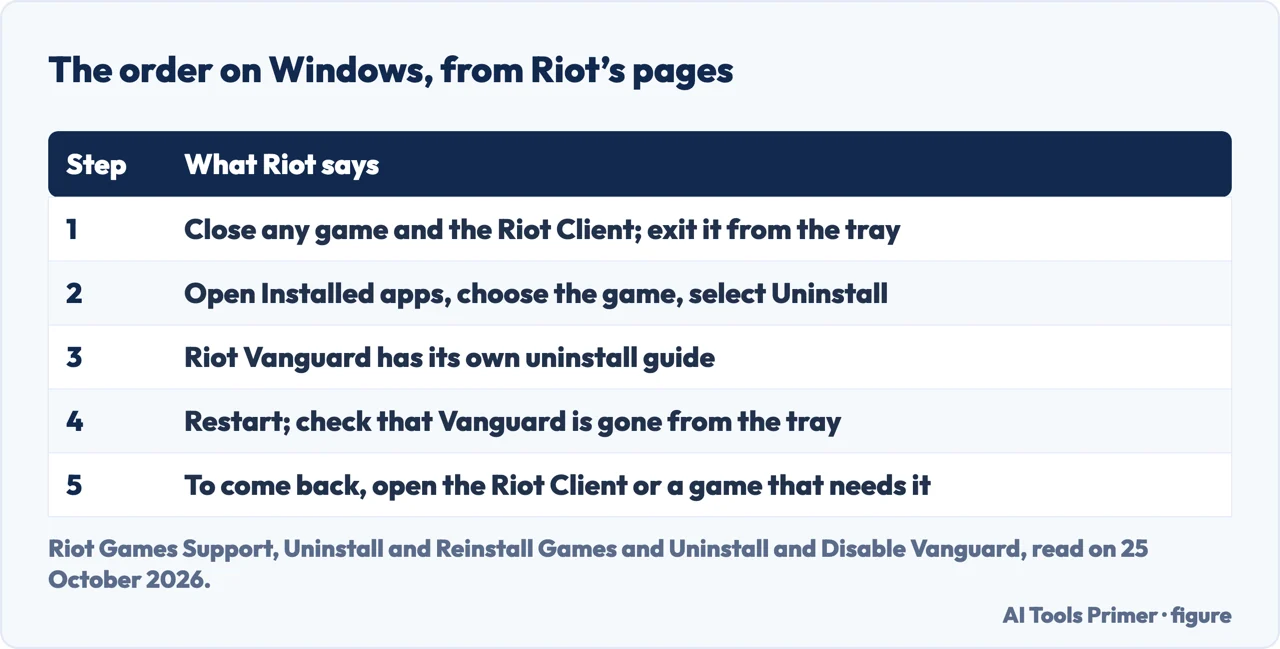
Riot’s page on uninstalling games has one condition: “Closing your Riot Client is required to uninstall Riot games”. Its Vanguard guide spells out how, for a Windows account with admin access: close any game that can be launched from the Riot Client, then close the Riot Client and make sure it no longer shows in the system tray at the bottom right of the screen; if it does, right-click it and select Exit. Riot also gives a Task Manager route: press Ctrl + Shift + Esc to open Task Manager, look for Riot Games software in the list, select it and click End task.
Uninstalling the game
Riot gives the Windows route in three lines. Press the Windows key to open the menu, type Installed apps and open it, then choose your game and select Uninstall. The page says you may need to restart your computer to perform this step. That is the whole of the standard uninstall on Riot’s page; it does not name Vanguard. The page on uninstalling programs properly covers what any removal leaves behind.
Riot Vanguard has its own guide
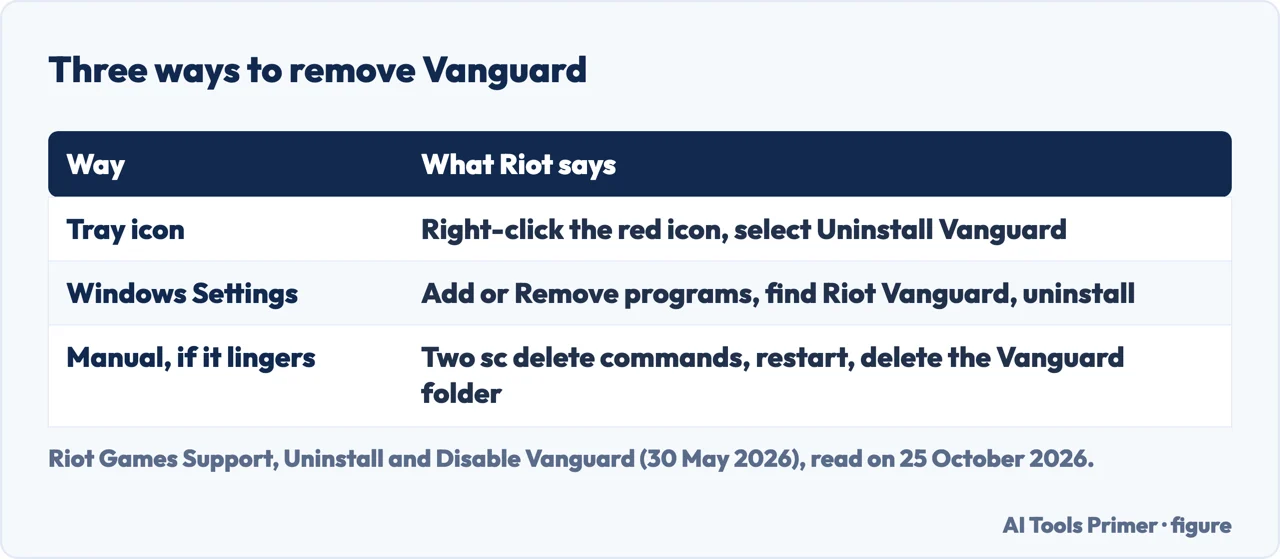
Riot describes Vanguard as its custom game security software: a client that runs while its games are active, along with a kernel mode driver. It says Vanguard has to stay active while you play most of its games, so that once you remove it you can no longer start most of them through the Riot Client. Its guide for uninstalling it gives two routes. From the system tray: right-click the Riot Vanguard icon and select Uninstall Vanguard, then follow the prompts. From Windows Settings: press the Windows key, type Add or Remove programs, find Riot Vanguard in the list and uninstall it. Riot’s test for success is simple: “You’ll know Vanguard has been fully uninstalled if it doesn’t show in your system tray after a computer restart.”
The same guide treats Vanguard as a troubleshooting tool too: knowing how to turn it off and uninstall it, it says, often helps with errors caused by corrupted Vanguard files. To turn it off without removing it, right-click the red Riot Vanguard icon and select Exit Vanguard; Riot says that is how to stop it. Vanguard is usually an on-boot application, so if you disable it and later want to play, you have to restart; Riot’s Pre-Check lets you run Vanguard on demand if your system meets its requirements.
When Vanguard will not uninstall
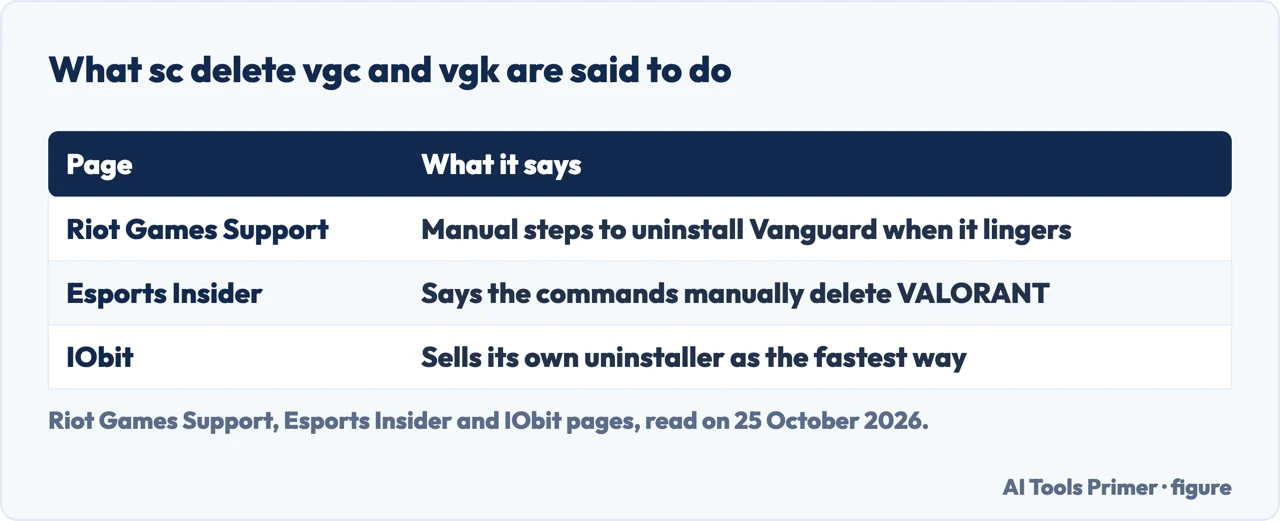
Riot’s guide has a section for the case where “Vanguard can be a bit stubborn and lingers on some computers.” With all Riot software closed, open Command Prompt as administrator, type sc delete vgc and press Enter, type sc delete vgk and press Enter, and restart the computer. After the restart, open File Explorer, go to the Program Files folder, right-click the Riot Vanguard folder and delete any remaining files. The page as we read it gives the path as “C:\Program File”, which we take to mean Program Files.
Esports Insider lists the same two commands as its third method, and its question-and-answer section says that they “will manually delete VALORANT from your computer.” Riot’s own wording is that they are steps to uninstall Vanguard. The commands name two services, vgc and vgk, and Riot does not describe them as removing the game. The Microsoft Q&A thread in the same results is a user who deleted the Riot Client and Valorant folders by hand after Windows would not uninstall them while the client ran; the answer there asks for crash logs and does not give a removal method.
A clean uninstall, for troubleshooting
Riot’s page also has a “Clean Uninstall for Game Troubleshooting”, which it says may be useful to resolve specific issues because it cleans up the cache for the game. For VALORANT it lists: go to your C:\Riot Games folder and delete the VALORANT and Riot Client folders; press Windows key + R, and in the AppData\Local folder delete the Riot Games folder and the VALORANT folder. Riot’s steps for other games add emptying the Recycle Bin and restarting the device. For League of Legends, Riot goes further and suggests Revo Uninstaller and CCleaner; it does not suggest them for VALORANT.
IObit, whose blog is among the results, ends its guide by recommending its own IObit Uninstaller as the fastest and easiest way to remove the game completely. That is a seller recommending its product, not a step in Riot’s guides.
Where to start
Five ways in.
- “It says the client is running.”
- Close it first — close
- “How do I remove the game?”
- Installed apps — game
- “What about Vanguard?”
- Its own guide — vanguard
- “Vanguard will not uninstall.”
- The manual route — stuck
- “I want nothing left.”
- The clean uninstall — clean
Removing software on Windows
What removal leaves behind, the task manager that ends a stuck process, and safe mode for stubborn software.
When a driver is the problem
Vanguard includes a kernel mode driver; these pages cover what Microsoft says about driver crashes and slow machines.
Questions people also ask
How do I uninstall Valorant completely?
Close the Riot Client, open Installed apps, choose the game and select Uninstall. Riot Vanguard is removed by its own guide: the tray icon or Add or Remove programs, then a restart. For troubleshooting, Riot also lists folders to delete.
Why will Valorant not uninstall?
Riot says closing the Riot Client is required to uninstall Riot games, and that you may need to restart. If it still runs, it suggests Exit from the tray or End task in Task Manager.
Do I have to uninstall Riot Vanguard too?
Riot gives Vanguard its own uninstall guide. The pages we read do not say what happens to Vanguard when the game is removed, so check the system tray after a restart.
How do I reinstall Valorant?
Riot says to head to RiotGames.com, select your game and download the client, which installs the game. Launching the Riot Client or a game that needs Vanguard reinstalls Vanguard automatically.
Not covered here. We did not uninstall anything for this page. The steps come from Riot Games Support (Uninstall and Reinstall Games; Uninstall and Disable Vanguard, dated 30 May 2026; What is Vanguard?), read on 25 October 2026. The Riot page on uninstalling games, as we read it, does not name Vanguard, and the Vanguard guide gives the Program Files path as “C:\Program File”. Menu names follow those pages and may differ on your version of Windows.
IObit is the maker of the uninstaller it recommends; Esports Insider is a news site; the Microsoft Q&A thread and the vlr.gg thread are users. Reddit and the Discord archive in the results were not read, and neither was the video the search results cite. Mac is not covered, and the commands above are Riot’s, not ours.
The search volume and difficulty behind this page were read in Semrush on 29 August 2026.
Sources
- Riot Games Support — Uninstall and Reinstall Games — support.riotgames.com, read 25 October 2026.
- Riot Games Support — Uninstall and Disable Vanguard (30 May 2026) — support.riotgames.com, read 25 October 2026.
- Riot Games Support — What is Vanguard? — support.riotgames.com, read 25 October 2026.
- Esports Insider — How to uninstall VALORANT in 2025: Every working method — esportsinsider.com, read 25 October 2026.
- IObit — (4 Methods) How to Uninstall Valorant on PC Completely — www.iobit.com, read 25 October 2026.
- Microsoft Q&A — How do I delete Riot Client and Valorant fully? (13 July 2024) — learn.microsoft.com, read 25 October 2026.
Written by Alberto Gulotta
Founder and editor of AI Tools Primer, writing from Palermo, Italy. Thirty-five years of taking computers apart, starting with a Commodore 64 — the long version is on the about page.
Something wrong on this page? Write to aitoolsprimer@gmail.com and it gets fixed.
Written on 25 October 2026.
Independence and limits
No affiliate links and no paid placements anywhere on this site. Nobody pays to appear here, and no company has seen this page before you did.
This is general information, not professional advice. Where a page touches money, health, safety or the law, it names its source and the date it was read — and your situation may still differ. See the privacy page and the cookie policy.