
Software · guide
USB WiFi adapter: what it does and how to get it connected
By Alberto Gulotta · Updated · 10 min read
A USB WiFi adapter is, in Anker's words, an external wireless network card that plugs into a USB port. This page sets out what Anker, Netgear and TP-Link say it does, the connection steps TP-Link publishes for Windows, the driver and power settings behind a dropping one, and what TP-Link counts as a normal speed.
| Question | Answer | Where it comes from |
|---|---|---|
| What is it? | An external wireless network card that plugs into a USB port | Anker |
| What does it do? | Lets a device connect to a wireless network without built-in WiFi | Netgear |
| Which port? | A USB 3.0 port, if the adapter supports it | Anker |
| Windows 11 driver? | For most TP-Link adapters, the Windows 10 x64 driver can be installed on Windows 11 | TP-Link FAQ 3419 |
| What speed is normal? | A speed test of 30 to 50% of the adapter’s link speed | TP-Link FAQ 2241 |
What the makers say it is
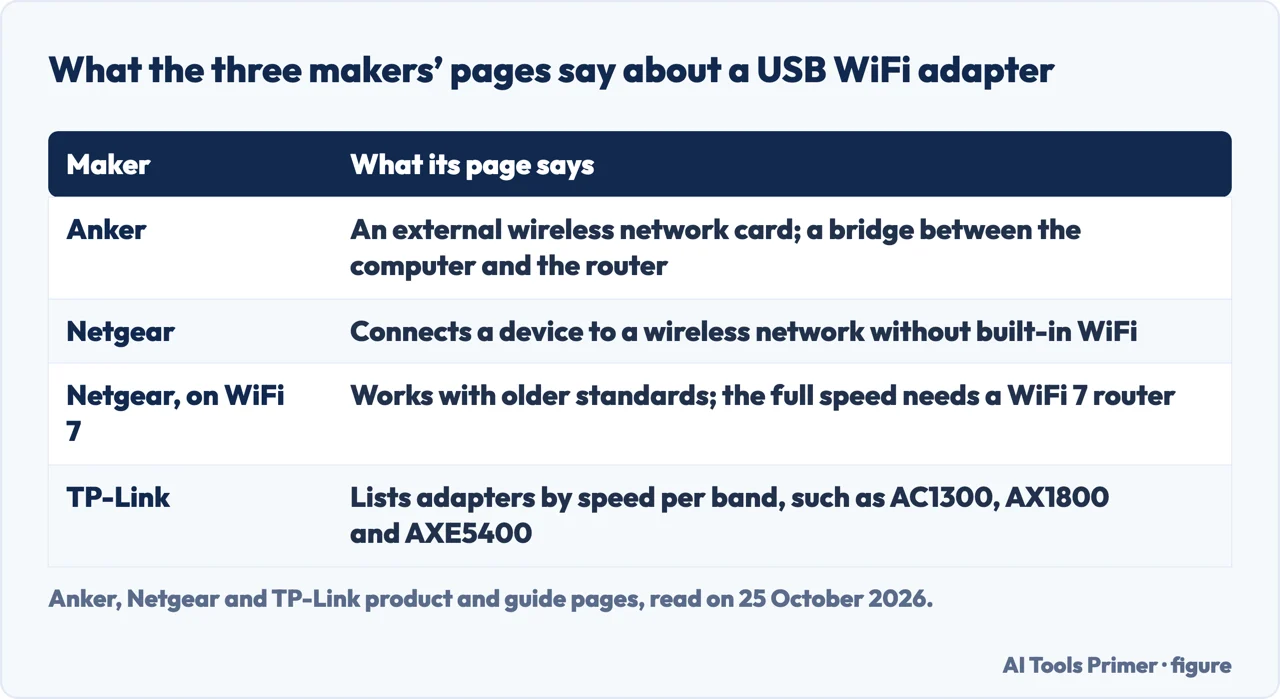
Anker’s guide, which carries no date that we could read, defines it as a device that plugs into a USB port so that the computer can connect to a wireless network, and says to think of it as an external wireless network card. It describes the adapter as a bridge between the computer and the router. The benefits it lists are easy installation, portability, a lower price than replacing an internal card or buying a new machine, and the chance to move to a newer standard such as WiFi 5 or WiFi 6 without opening the case. Its tips are to update the drivers, to place the adapter away from obstructions such as walls or large metal objects, to use a USB 3.0 port if the adapter supports it, and, because the adapter can sit on a USB extension cable, to move it to a better spot.
Netgear’s page says a USB WiFi adapter lets a device connect to a wireless network without built-in WiFi, and calls it ideal for upgrading older computers. To the question whether a WiFi 7 adapter is worth buying without a WiFi 7 router, it answers yes: the adapter can work with older WiFi standards, but you will not see the full speed and low-latency benefits until you pair it with a WiFi 7 router. Anker adds that an adapter should be backward compatible with older standards if your router is older, and suggests a dual-band model, for 2.4 GHz and 5 GHz, to avoid congestion. TP-Link’s category page lists its adapters by the speed it gives for each band, such as AC1300, AX1800 and AXE5400.
USB or an internal card
Anker compares the two. It says USB adapters are easy to install and highly portable but might offer slightly lower performance than PCI adapters, and that PCI adapters, which are internal cards in a slot on the motherboard, often provide better performance and more stable connections but require opening the computer case. We found no measurement behind either statement in the pages we read; it is the maker’s own comparison.
Plugging it in, and the driver
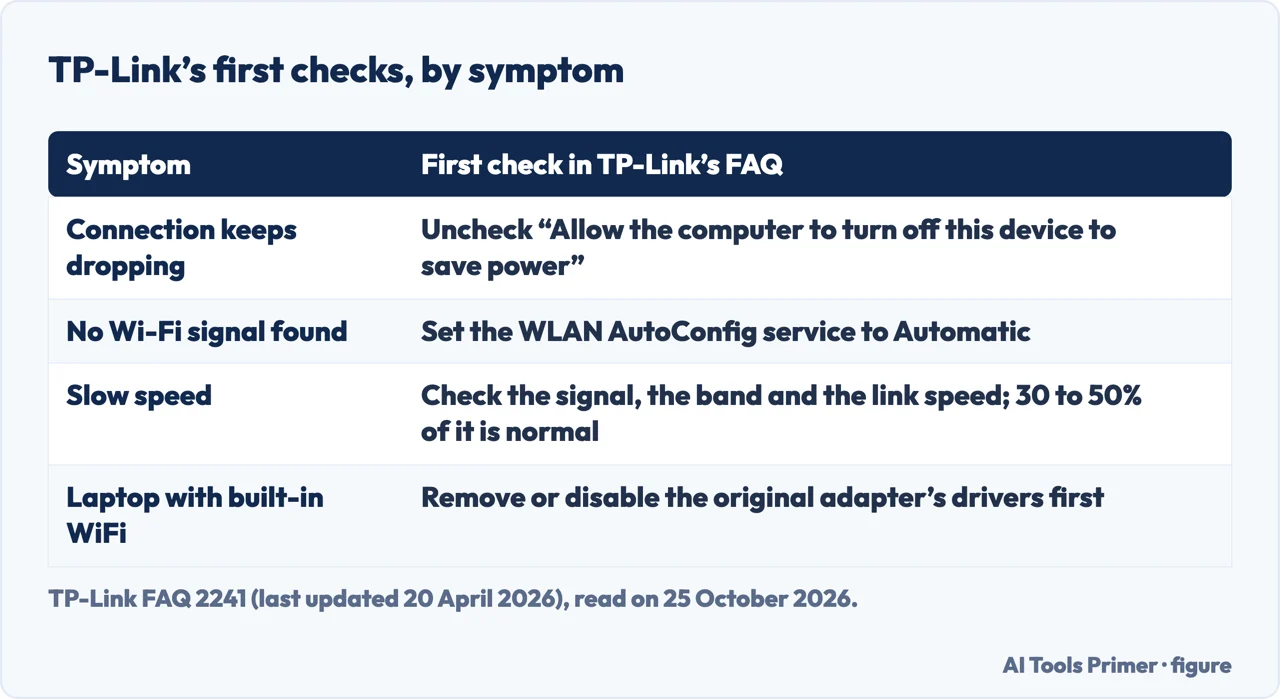
The steps below come from TP-Link’s support FAQs, which cover its own adapters on Windows. Plug the adapter in correctly; TP-Link’s install-problems FAQ says to check Device Manager, where an adapter the computer has detected shows as an unknown device. Then find the driver for the adapter. TP-Link says old or useless drivers can affect the installation of a new one and recommends removing the old driver first. The same FAQ says installation normally takes about 3 to 5 minutes, sometimes about 15, especially on an old computer, and that if it is stuck for more than 20 minutes you should contact TP-Link technical support. A note in another FAQ says that if a laptop has a built-in Wi-Fi adapter and you add a USB or PCIe one, you need to remove or disable the Windows drivers for the original adapter first.
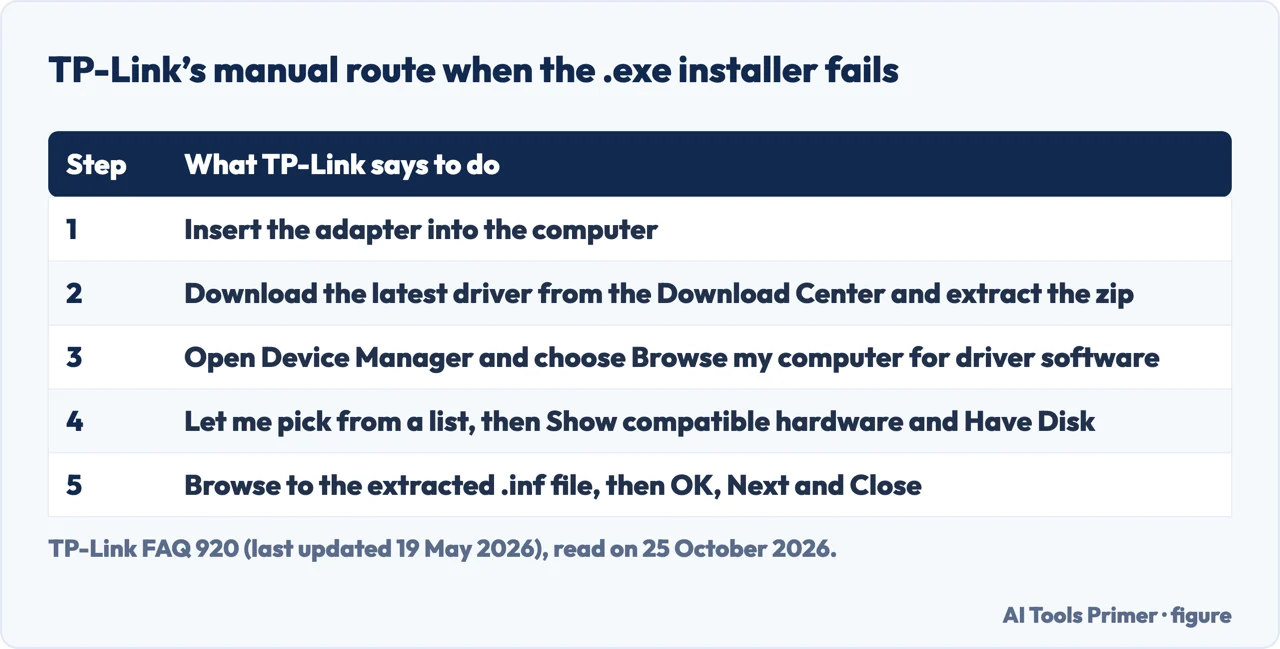
When the standard .exe installer fails, TP-Link’s FAQ 920, last updated on 19 May 2026, gives a manual route for Windows 10 and 11 that works if your adapter has an .inf driver file to download. Insert the adapter, download the latest driver from the TP-Link Download Center and extract the zip, open Device Manager by right-clicking the Start button, choose Browse my computer for driver software, then Let me pick from a list of device drivers on my computer, then Show compatible hardware and Have Disk. Browse to the extracted .inf file, click OK and Next, and Close when it says the adapter is installed. TP-Link says you may need to restart for the driver to take effect.
On Windows 11
TP-Link’s Windows 11 compatibility FAQ, last updated on 15 May 2026, says it has tested its wireless adapters and confirmed they are compatible. It recommends installing the Windows 10 x64 driver on a Windows 11 system. Three models are the exception: for the Archer T5E, Archer TX50E and Archer TX3000E, it says the driver should be downloaded from Intel’s website rather than from the TP-Link Download Center. Netgear’s page, for its part, labels its WiFi 7 models as adapters for a Windows 11 PC. Other makers’ drivers are not covered by the pages we read.
When it drops, finds nothing or runs slow
TP-Link’s troubleshooting FAQ 2241, last updated on 20 April 2026, sorts the checks by symptom. For an unstable connection, go to Device Manager, open the adapter’s Properties, then Power Management, and uncheck the setting that allows the computer to turn off the device to save power. If the adapter cannot find any Wi-Fi signal on Windows, TP-Link says to make sure the WLAN AutoConfig service is running, with its Startup type set to Automatic. For slow speed, check the signal strength and move closer to the router, about 10 to 15 feet if possible, check whether the problem is on the 2.4 GHz band, the 5 GHz band or both, ask your router’s support team to change the wireless channel and channel width, and update the adapter’s driver.
Then the figure TP-Link gives for speed. TP-Link says a speed test result of 30 to 50% of the link speed is normal, and that a result significantly lower calls for another test: run a speed test on the computer, then on a phone or tablet on the same Wi-Fi network from the same spot. If the phone is substantially faster, TP-Link says to contact its support. For the router-side settings see changing the Wi-Fi channel, and for signal and placement, improving the Wi-Fi signal.
What these pages leave to you
The Anker guide, the Netgear page and the TP-Link category page we read do not name Device Manager, the WLAN AutoConfig service, the power-saving setting or the 30 to 50% figure; those instructions sit in TP-Link’s support FAQs, which cover TP-Link adapters. We did not read the retail listings for the term, from Amazon, StarTech or Best Buy, or a community thread, and we did not test any adapter. For a connection that already works and keeps dropping, see why Wi-Fi keeps disconnecting.
Where to start
Four ways in.
- “What does it do?”
- What the makers say — what
- “How do I connect it?”
- The driver — connect
- “Does it work on Windows 11?”
- Windows 11 — windows11
- “It drops or is slow.”
- The checks — checks
Wi-Fi that misbehaves
The faults that come after the adapter is in.
The network around it
The router, the signal and the drivers.
Questions people also ask
What does a USB WiFi adapter do?
Netgear says it lets a device connect to a wireless network without built-in WiFi; Anker calls it an external wireless network card and a bridge between the computer and the router.
Is a USB WiFi adapter any good?
Anker lists easy installation, portability and a lower price, and says USB adapters might perform slightly below PCI cards. TP-Link says a speed test of 30 to 50% of the link speed is normal. We tested none.
How do I connect my USB WiFi adapter?
TP-Link: plug it in, install the driver, and if the .exe installer fails use Device Manager with the extracted .inf file. On a laptop with built-in WiFi, disable the original adapter first.
What is a wireless USB adapter used for?
Netgear calls it ideal for upgrading older computers; Anker lists a desktop without built-in WiFi and an older laptop.
Not covered here. We did not test any adapter. The statements come from Anker’s guide (no date read), Netgear’s adapter page and TP-Link’s category page and support FAQs 3419, 920, 2241 and 2252, all read on 25 October 2026; FAQ 2252 carries no date. TP-Link’s quick installation guide is a PDF that our reading tool could not decode, so it is not used.
The retail listings and the community thread in the results were not read. The search volume and difficulty behind this page were read in Semrush on 29 August 2026.
Sources
- Anker — A Complete Guide to What Is a USB WiFi Adapter (no date read) — www.anker.com, read 25 October 2026.
- Netgear — Wireless USB WiFi Adapters for PC and laptop — www.netgear.com, read 25 October 2026.
- TP-Link — USB WiFi Adapter — www.tp-link.com, read 25 October 2026.
- TP-Link — Network Adapter Windows 11 Compatibility and Driver Guide (FAQ 3419, last updated 15 May 2026) — www.tp-link.com, read 25 October 2026.
- TP-Link — Install Network Adapter Driver on Windows 10 and 11 (FAQ 920, last updated 19 May 2026) — www.tp-link.com, read 25 October 2026.
- TP-Link — Network Adapter Not Working? How to Fix It (FAQ 2241, last updated 20 April 2026) — www.tp-link.com, read 25 October 2026.
- TP-Link — Problems you may come across during the driver installation of the TP-Link wireless adapter (FAQ 2252, no date) — www.tp-link.com, read 25 October 2026.
Written by Alberto Gulotta
Founder and editor of AI Tools Primer, writing from Palermo, Italy. Thirty-five years of taking computers apart, starting with a Commodore 64 — the long version is on the about page.
Something wrong on this page? Write to aitoolsprimer@gmail.com and it gets fixed.
Written on 25 October 2026.
Independence and limits
No affiliate links and no paid placements anywhere on this site. Nobody pays to appear here, and no company has seen this page before you did.
This is general information, not professional advice. Where a page touches money, health, safety or the law, it names its source and the date it was read — and your situation may still differ. See the privacy page and the cookie policy.