
Software · guide
What does clearing cache do, and what happens to your logins?
By Alberto Gulotta · Updated · 11 min read
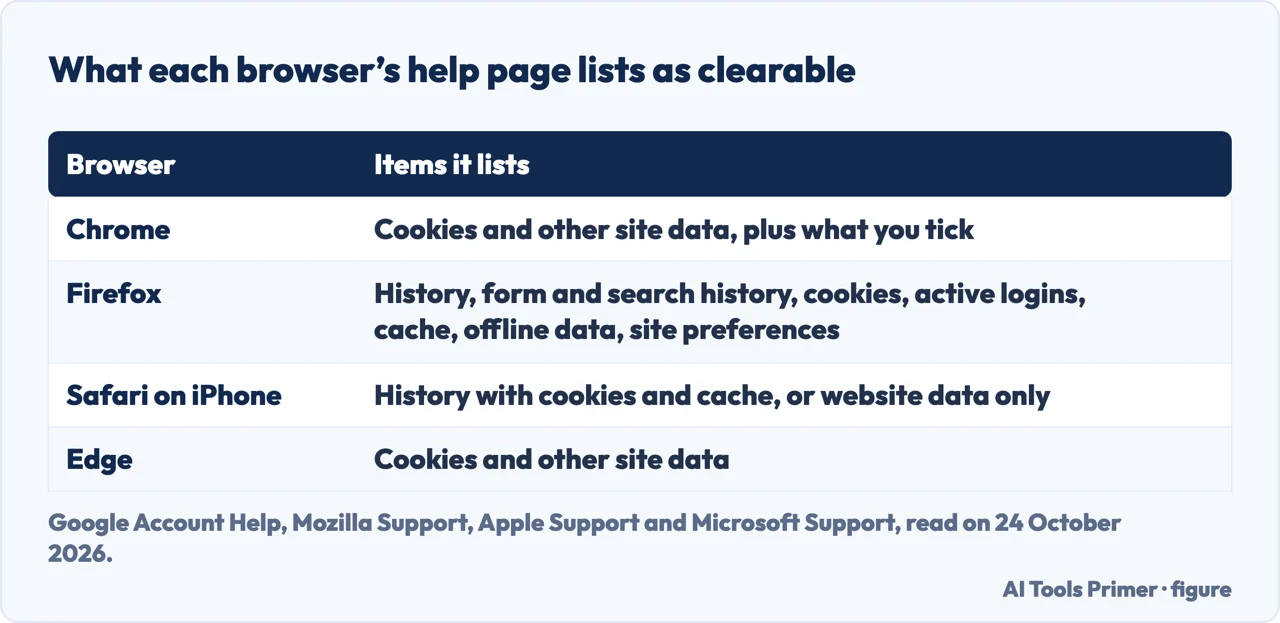
What does clearing cache do? It deletes the copies of images and other page parts that your browser kept to open sites faster, so some sites can seem slower at first. The signing-out comes from cookies, which are cleared separately: Google, Microsoft and Apple all say clearing them can sign you out of sites.
The browser makers’ own pages are precise about this, and this page puts their words side by side: what the cache and cookies are, what each browser lists as clearable, what happens afterwards, and how to get a fresh page without deleting anything.
| What | What it is, in the makers’ words | What you notice when it is gone |
|---|---|---|
| Cache | Parts of pages, like images, kept to open them faster (Google); temporary files such as pages and media (Mozilla) | Some sites can seem slower while content loads again (Google) |
| Cookies and site data | Files sites create to save browsing data (Google); login status, site preferences, a shopping cart (Mozilla) | Settings on sites are deleted and you sign in again (Google, Microsoft) |
| Browsing history | The sites you visited and the files you downloaded (Mozilla) | Cleared separately from the cache; Apple says on iPhone it does not change AutoFill |
| Active logins | Logins to sites that use HTTP basic authentication (Mozilla) | Not the same as being signed in by cookies (Mozilla) |
What the cache is, in the makers’ words
Google puts it in one line: “The cache remembers parts of pages, like images, to help them open faster during your next visit.” Mozilla says the same of Firefox: the cache stores temporary files, such as web pages and other online media that the browser downloaded, to speed up loading of pages and sites you have already seen. A cache is not only a browser matter: the MDN guide to HTTP caching says that a browser’s cache is a private cache, “a cache tied to a specific client”, because the stored responses are not shared with other clients.
MDN adds that stored responses are either fresh or stale. A fresh one can be reused as it is; a stale one has expired, and the browser can ask the server whether the stored copy is still good rather than download it again. A site that has changed can look old, which is the case the University of Iowa describes: files saved in the cache may conflict with what is actually on the site.
Cookies are a different thing, kept for a different reason. Google calls them files created by the sites you visit, which save browsing data, and Mozilla names what a site keeps in them: login status, site preferences, or a shopping cart.
What happens when you clear them
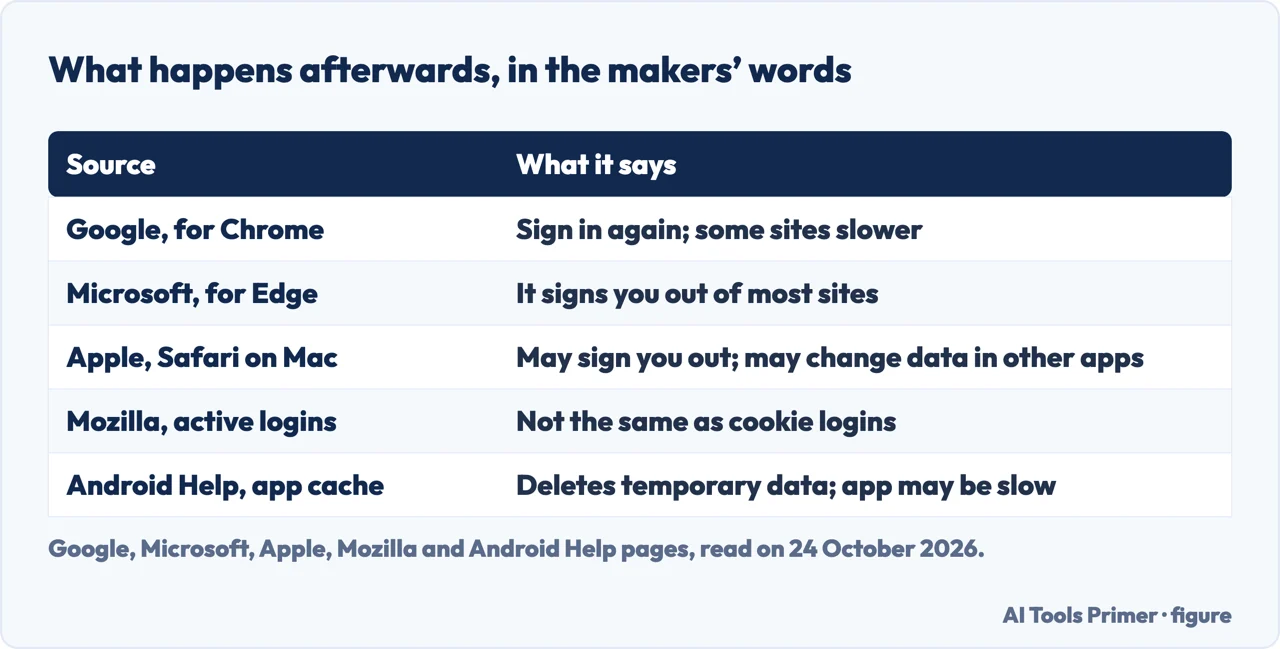
Google lists three effects after you clear the cache and cookies in Chrome. Some settings on sites get deleted, so that if you were signed in you will need to sign in again. If sync is on in Chrome, you stay signed into the Google Account you are syncing to, so that the deletion reaches your other devices. And “Some sites can seem slower because content, like images, needs to load again.” The choice of time range is yours: Google’s steps start with picking one, such as Last hour or All time.
Microsoft says of Edge that deleting all cookies and site data for the time range you chose “signs you out of most sites”. Apple is more guarded about Safari on a Mac: “Removing the data may reduce tracking, but may also sign you out of websites or change website behavior.” It adds a warning: “Removing cookies and website data in Safari may change or remove them in other apps.” On an iPhone, Apple says that Clear History and Website Data “doesn’t change your AutoFill information”.
Mozilla draws a line between two kinds of login. In Firefox, clearing Active Logins affects only logins to sites that use HTTP basic authentication, and “It will not log you out of websites that use cookies to store login status.” On Microsoft’s page, what signs you out of most sites is clearing cookies and site data.
Why people do it
Google gives three reasons: it can resolve website loading or formatting issues, it can give you the most up-to-date version of the website you are visiting, and it can free local storage space on your device. The University of Iowa calls it an important first step for almost any troubleshooting of internet browsing, and tells you to close and restart the browser after clearing. The pages we read give no schedule, so there is no figure for how often to do it; the three reasons are the occasions.
If the reason is a page that will not load, Google’s article on connection and loading errors lists deleting browsing data as step 6 of its nine, after the Incognito test and the extensions; the page on the memory error follows that order.
Less than everything
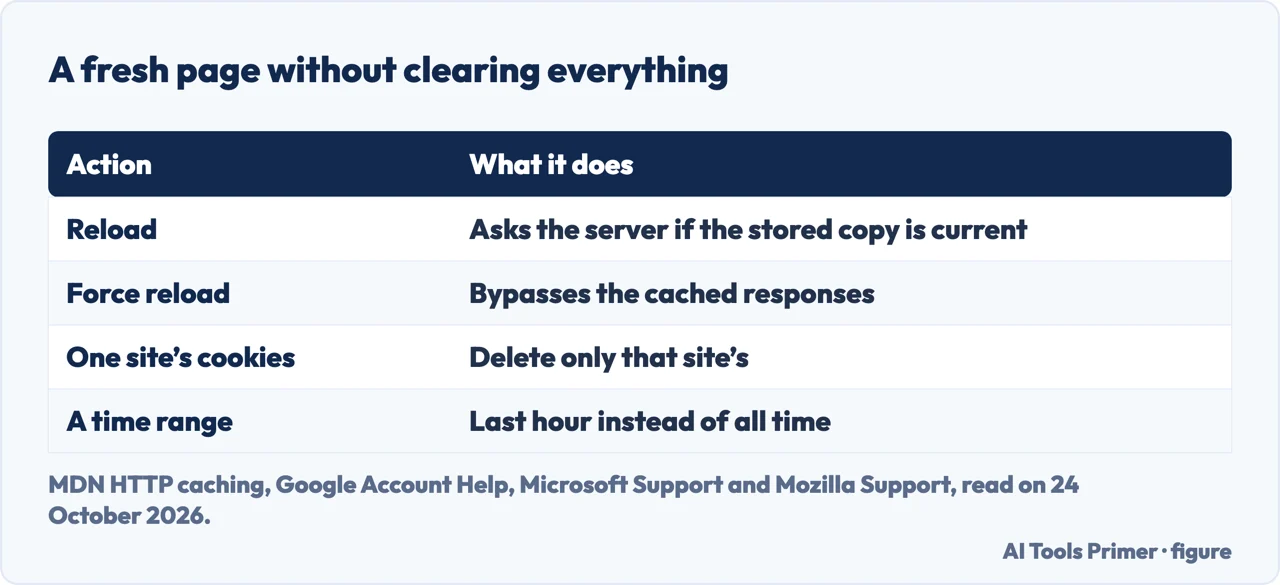
You do not have to clear everything. MDN describes two ways to get a current page without touching the cache of every site. A reload, in its words, is a validation: the browser asks the server whether its stored copy is still current. A force reload goes further: “force reload is an additional way to bypass cached responses”, and it makes sure of a 200 response from the origin server. Neither deletes anything.
When you do want to delete, the makers offer narrower choices. Chrome’s dialog starts with a time range, and Google points to a separate setting for deleting the cookies of a specific site. Edge has the same option, under Cookies, See all cookies and site data. Firefox clears the last hour, two hours, four hours, the current day or everything, and its Forget About This Site removes all history items for one site, including cookies, cache, active logins and passwords. Safari on a Mac lets you select one or more websites and remove them, and on an iPhone you can clear website data but keep your history.
The steps for Safari are on the pages for the iPhone and the Mac; Chrome’s cookie settings are on the page on cookies in Chrome.
On a phone, for an app
Android Help separates two buttons. “Clear cache: Deletes temporary data. Some apps may be slow the next time you open them.” And Clear storage “Permanently deletes all app data”, with the advice to try to delete the data within the app first. Google adds that the settings can vary by phone.
Apple’s guide to managing storage on an iPhone, as we read it, has no button for the cache of a single app. It offers offloading: when storage is low, iPhone can automatically remove unused apps while keeping their data, and the icon stays on the Home Screen with a cloud symbol to reinstall. Offload Unused Apps is under Settings, Apps, App Store.
Where to start
Five ways in.
- “What is the cache, exactly?”
- In the makers’ words — what
- “Will I lose my logins?”
- Cookies, not the cache — after
- “Why does everyone say to do it?”
- The three reasons — why
- “I want a fresh page only.”
- Reload, force reload — less
- “It is an app on my phone.”
- Android and iPhone — apps
Cache and cookies
The pages next to this one: the steps for Safari on an iPhone and on a Mac, cookies in Chrome, and the memory error.
When an app misbehaves
An Android app that crashes, and a video site that shows an error.
Questions people also ask
Will I lose anything if I clear the cache?
The cache itself holds temporary copies. What you lose by clearing cookies is the settings sites saved, and you usually have to sign in again, say Google, Microsoft and Apple. On an iPhone, Apple says Clear History and Website Data does not change AutoFill.
Is it safe to clear caches?
It is a documented step: Google lists it among its steps for loading errors and gives three reasons for it. For an Android app, Android Help separates Clear cache, which deletes temporary data, from Clear storage, which permanently deletes all app data.
What are the disadvantages of clearing the cache?
Google says some sites can seem slower because content such as images needs to load again, and Android Help says some apps may be slow the next time you open them. Cookies are a separate cost: you sign in again.
How often should I clear my cache on my phone?
None of the vendor pages we read gives a schedule. Google lists the occasions: loading or formatting problems, wanting the latest version of a site, and freeing local storage.
Not covered here. We did not test these steps in a browser or on a phone for this page. They come from the help pages of Google (Account Help, Android Help), Mozilla, Apple (Safari on Mac, Safari on iPhone, managing storage on iPhone) and Microsoft (managing cookies in Edge) and from the MDN guide to HTTP caching (last modified 14 August 2026), read on 24 October 2026, and from the University of Iowa. The menu names follow those pages and may differ on your version.
Reddit, a fibre provider’s blog and the videos in the results were not read or watched. Apps such as Facebook, Discord and WhatsApp are not covered: the makers’ pages that we read do not describe them. Other caches, such as DNS or a processor’s, are a different subject.
The search volume and difficulty behind this page were read in Semrush on 29 August 2026.
Sources
- Google Chrome Help — Fix connection and loading errors in Chrome — support.google.com, read 24 October 2026.
- Google Account Help — Clear cache & cookies (Chrome on a computer) — support.google.com, read 24 October 2026.
- Mozilla Support — Delete browsing, search and download history on Firefox — support.mozilla.org, read 24 October 2026.
- Apple Support — Clear your cache and cookies in Safari on Mac — support.apple.com, read 24 October 2026.
- Apple Support — Delete your Safari history, cache, and cookies on iPhone — support.apple.com, read 24 October 2026.
- Microsoft Support — Manage cookies in Microsoft Edge: View, allow, block, delete and use — support.microsoft.com, read 24 October 2026.
- MDN Web Docs — HTTP caching (last modified 14 August 2026) — developer.mozilla.org, read 24 October 2026.
- Android Help — Free up storage on your Android device — support.google.com, read 24 October 2026.
- Apple Support — Manage storage on iPhone — support.apple.com, read 24 October 2026.
- University of Iowa Information Technology Services — How to Clear the Cache and Cookies in Your Web Browser (28 January 2025) — its.uiowa.edu, read 24 October 2026.
Written by Alberto Gulotta
Founder and editor of AI Tools Primer, writing from Palermo, Italy. Thirty-five years of taking computers apart, starting with a Commodore 64 — the long version is on the about page.
Something wrong on this page? Write to aitoolsprimer@gmail.com and it gets fixed.
Written on 25 October 2026.
Independence and limits
No affiliate links and no paid placements anywhere on this site. Nobody pays to appear here, and no company has seen this page before you did.
This is general information, not professional advice. Where a page touches money, health, safety or the law, it names its source and the date it was read — and your situation may still differ. See the privacy page and the cookie policy.