
Video · guide
AI video editor: cuts, captions and cleanup on three pages
By Alberto Gulotta · Updated · 14 min read
An AI video editor, in CapCut’s guide, works on footage you already have; across CapCut, Adobe and Blackmagic Design the pages describe it as doing these jobs: cuts from beats, pauses, transcripts or scripts, captions from speech, and voice cleanup. The pages name these differently, and several features depend on the platform, the account or the edition.
| Question | Answer | Where it comes from |
|---|---|---|
| What does it start from? | Footage you already have, on a timeline, with AI assists on top | CapCut |
| How are the cuts made? | By beat, speech pause or script; from transcript text; or by comparing a script with transcribed audio | CapCut, Adobe, Blackmagic Design |
| Where do captions come from? | AI speech-to-text, then you edit the timing and the words | CapCut, Adobe |
| Can the AI clean up the voice? | Adobe describes Enhance Speech with a Mix Amount slider; Blackmagic’s Studio page lists AI voice isolation | Adobe, Blackmagic Design |
| Does the account or edition matter? | Yes: CapCut’s unlocks, Adobe’s subscription and Resolve’s Studio edition all come up | CapCut, Adobe, Blackmagic Design |
| How accurate are the cuts and captions? | The pages we read do not give a figure; CapCut says to review the result, and Adobe says its transcripts often need minimal manual adjustments | CapCut, Adobe |
What the pages mean by an AI video editor
CapCut’s guide, dated 3 November 2026, describes its AI video editor as a timeline that stays in place while AI assists help you cut, caption, clean up and export. It frames the job as footage in, timeline and assists, then export, and says you keep hand control after the AI draft. It draws a line between this editor, which starts from footage you already filmed, such as phone clips, interviews or demos, and CapCut’s AI video generator, which starts from a script, topic or idea. For a brief with no footage, the guide says to change products rather than force Auto Cut to invent clips. Our pages on text to video and image to video cover the generator side.
The three makers write about the idea in different ways. CapCut’s guide is a product guide with a table of assists. Adobe’s pages are Premiere help articles, each on one feature: Text-Based Editing, Speech to Text, translated captions and Enhance Speech. Blackmagic Design’s pages are the product pages for DaVinci Resolve and its Studio edition, with a What’s New list. CapCut’s guide warns that labels vary by platform and region, and tells the reader to treat the AI panel in their own build as live. Its table of assists says the same about names and gates: they can differ by surface and region.
Cuts: beats, pauses, transcripts and scripts
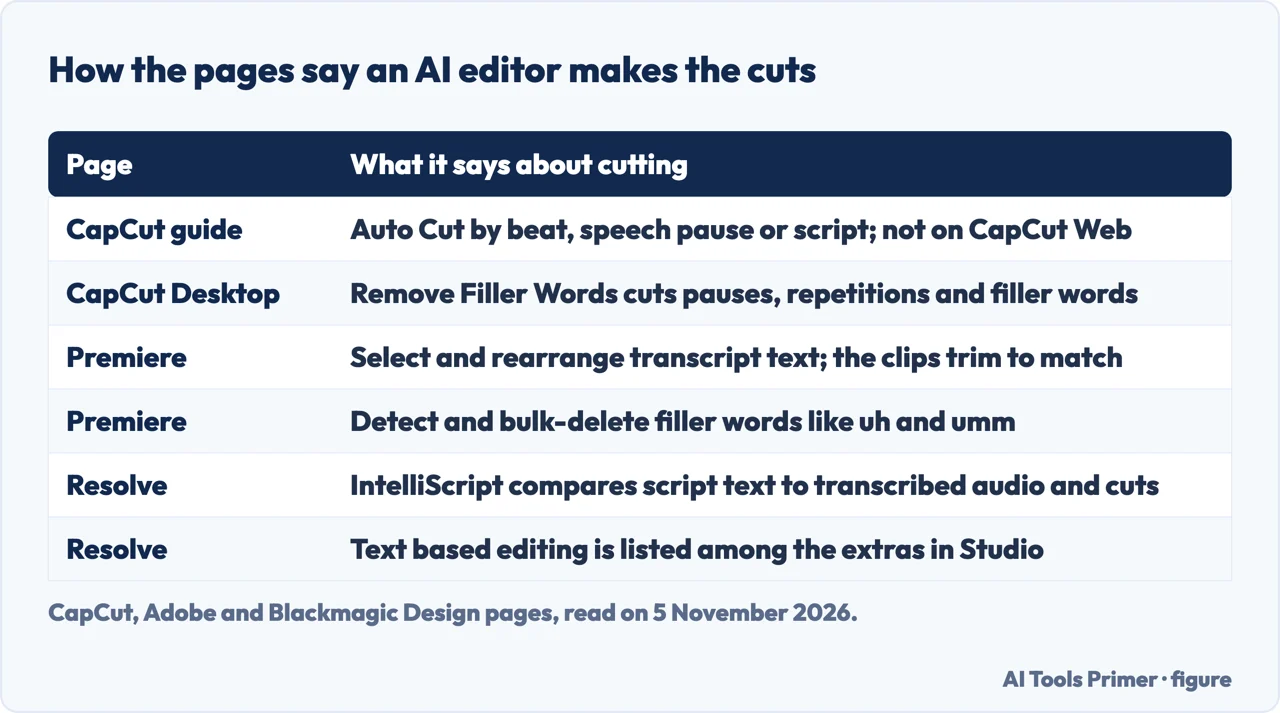
CapCut’s guide lists Auto Cut as beat sync, speech-pause or script-based trimming. It says Auto Cut appears on Mobile and Desktop where rolled out and is not on CapCut Web, citing CapCut’s help from early 2026. The page for CapCut Desktop adds Remove Filler Words, which it says lets AI auto cut pauses, repetitions and filler words, and Smart Search, which locates clips by objects, speech, people and environments. The guide also lists what goes wrong: a vague input gives random pacing, so it suggests setting a target length and sticking to one story, and a first AI pass left untouched can leave awkward cuts in, so it says to trim by hand after every Auto Cut run.
Adobe’s Text-Based Editing article, updated on 7 January 2026, works from words. You select and rearrange text in a transcript, and the matching clips are trimmed and placed on the timeline; the transcript carries timecode metadata. The page says only videos with spoken dialogue can be transcribed, and that filler words like uh and umm can be detected and bulk-deleted, or one speaker’s dialogue filtered and deleted from the video. Cuts can then be refined on the timeline, and the page mentions three-point edits. It names clear dialogue with minimal background noise as the best input, and says the transcription uses Adobe Sensei’s AI.
Blackmagic Design’s What’s New page describes a third route. IntelliScript takes a Final Draft or plain-text screenplay and, on import, compares the script text to the original transcribed audio and creates a cut of the scene, which you can fine tune with standard editing tools. The same page describes IntelliSearch, which finds objects or key words in dialog and shows the results as clips in the Media Pool. The Studio page lists scene cut detection among the Neural Engine tools, and the home page lists text based editing among the additions in Studio. The Blackmagic pages we read do not describe removing pauses or filler words. For vertical output, CapCut’s Desktop page lists Auto Reframe, and the What’s New page says Resolve’s square and vertical project resolutions can be combined with Smart Reframe.
Captions from speech, and where the pages stop
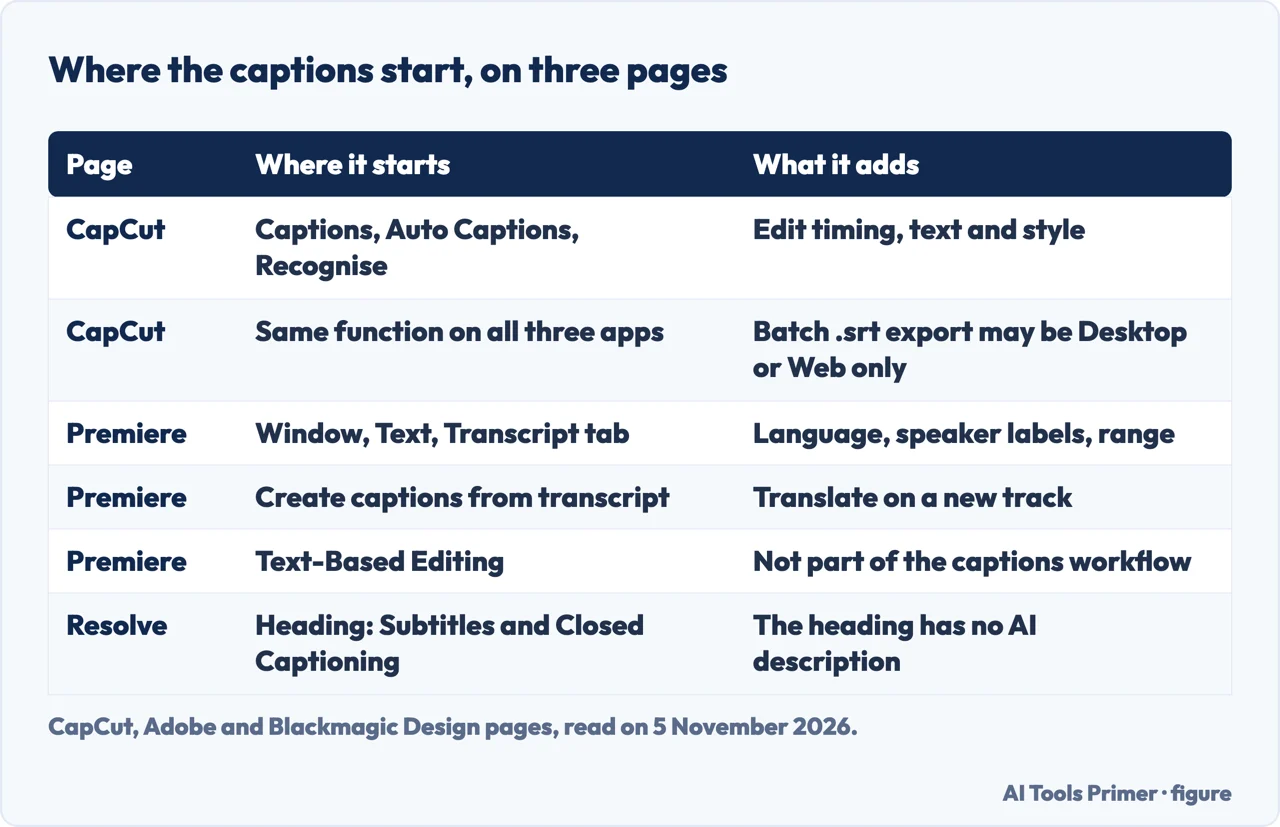
CapCut’s help page, dated 30 January 2026, says Auto Caption, also called Recognise Subtitles, uses AI speech-to-text to generate subtitles from spoken audio. On the web editor the steps are Captions, Auto Captions, Recognise, choose a language, Generate, then edit timing, text or style. On Desktop you pick the audio source and the language; on Mobile you go to Captions and then Auto Captions. The page says the core function is on all three as of January 2026, while speaker differentiation, punctuation refinement and batch .srt export may only be available on Desktop or Web, depending on region and app version. It closes by saying to review auto-generated subtitles. The guide adds a fix for captions that come out as gibberish: the cause is the wrong language or noisy audio, so set the spoken language, mute the music, run Auto Captions again and edit the lines.
Adobe splits the work across articles. The Speech to Text article, updated on 25 May 2026, starts at Window, Text, then the Transcript tab and Generate static transcript. Its settings cover the language, with a language pack to download if needed, speaker labeling, whether to analyse clips tagged as Dialogue or one audio track, transcribing only from an In point to an Out point, and merging with an existing transcription. The Translate captions article, updated on 2 June 2026, says captions made from the transcript are translated with a cloud service and third-party translation models, naming Google Translate and Microsoft Translator, onto a new track. It tells you to customise translations to ensure accuracy and clarity, and says you can also drag an SRT file onto the timeline. Our pages on subtitles in Premiere Pro and SRT files go further on those formats.
One limit matters for the order of work. The Text-Based Editing article says it does not support the captions workflow and tells you to generate captions from the final edited sequence. On Blackmagic Design’s DaVinci Resolve page, Subtitles and Closed Captioning appears as a label under the Edit page, and the text we read does not describe AI captions.
Voice cleanup: one clear description and one list entry
Adobe’s Enhance Speech article, updated on 7 January 2026, gives the plainest steps. Select an audio clip with dialogue on the timeline, open the Essential Sound panel and select Enhance. A progress bar estimates the time, and the work happens in the background, so editing can go on. The page calls the feature AI-powered and says it helps reduce background noise and improve vocal quality, and a Mix Amount slider balances the enhanced audio against the original. The Text-Based Editing article gives a related warning from the other side: use dialogue recordings with clear audio and minimal background noise.
CapCut’s pages put the cleanup mostly in the edit. The guide lists background removal, filters, stabilization, filler-word removal and reframing as cleanup, with the caveat that names and availability vary by surface and region, and its publish checklist asks for clean audio levels. It also says to mute competing music before running captions. The Desktop page describes Remove Filler Words and a text-to-speech feature, but the text we read does not say how CapCut treats noise in a voice recording. Our page on removing background noise from audio covers a different Adobe tool, the Enhance Speech web page, which is not the Premiere panel described here.
Blackmagic Design’s Studio page lists DaVinci Neural Engine AI voice isolation, a music remixer and a dialogue separator among its audio tools, in one sentence without steps. The same page describes temporal and AI spatial noise reduction, and the What’s New page describes the noise reduction as restoring noisy digital footage, so those two are about the picture. The What’s New page also describes an AI Speech Generator that makes speech from written text, which is generation rather than cleanup.
What changes with the account or the edition
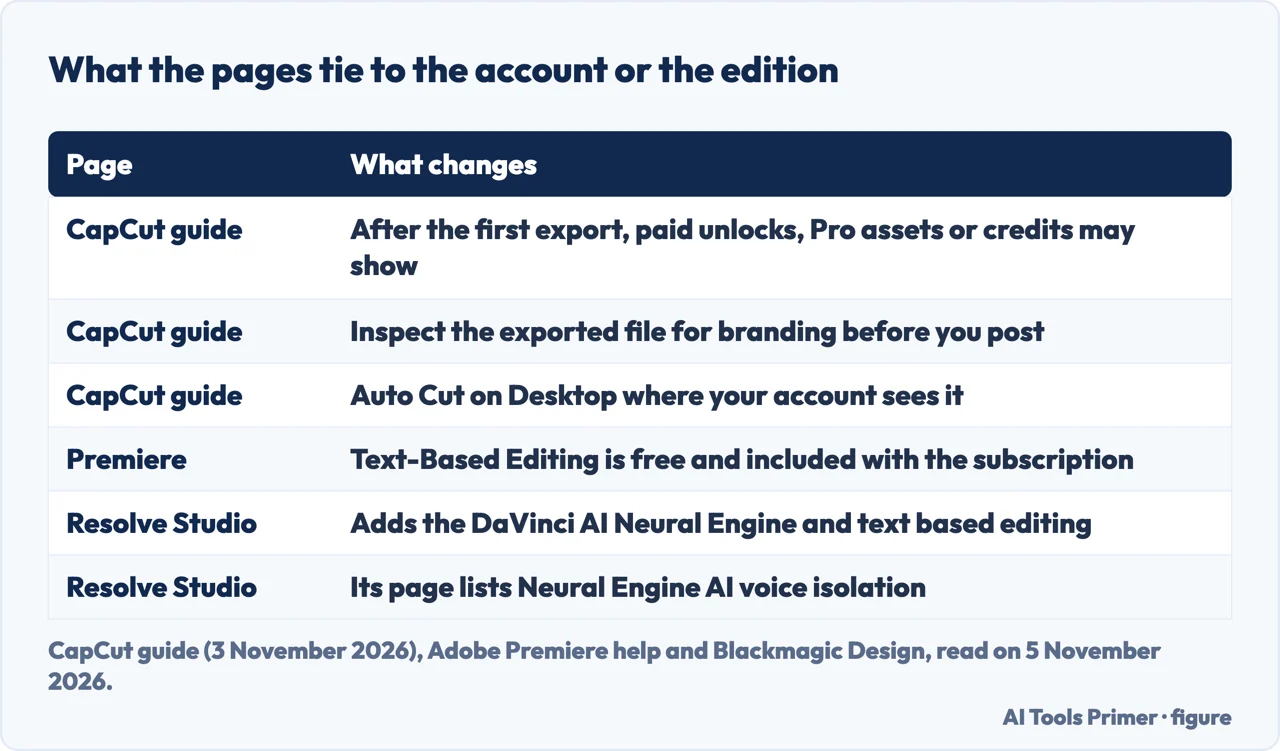
CapCut’s guide calls its AI editor a free-to-start path and says that is not an unlimited promise. After the first export, it says, paid unlocks, Pro-marked assets, credit windows or higher export ceilings follow what your account shows that day. It tells the reader not to treat the “no watermarks” wording on tool pages as unconditional, and to inspect the full exported file for branding. For Desktop it says deeper AI access includes Auto Cut where your account sees it. The page does not give a price list. Our page on whether CapCut is free reads CapCut’s own pages on that question.
Adobe’s Text-Based Editing article says the feature is free and included with your subscription. For what the subscription costs, see our page on the price of Premiere Pro. Blackmagic Design’s home page describes DaVinci Resolve Studio as including everything in the free version plus the DaVinci AI Neural Engine, additional Resolve FX, temporal and AI spatial noise reduction, text based editing and more. The Studio page says the Neural Engine powers many features that are exclusive to Studio. Our page on whether DaVinci Resolve is free covers the free version in more detail.
The three describe the dividing line in three different ways: an account state that can change after an export, a subscription, and a named edition.
What the pages do not say, and what we did not read
The pages we read give no accuracy figure for the cuts or the captions. CapCut asks for a manual trim after every AI pass and a review of auto-generated subtitles. Adobe’s Text-Based Editing article calls its transcripts accurate and says they often need minimal manual adjustments, without a figure or a test. The Adobe Speech to Text article we read does not list the languages it supports; a separate Adobe article on supported languages exists and we did not open it, and the language list on the Text-Based Editing page is for the interface. The Blackmagic pages we read do not describe automatic subtitles, or the removal of pauses and filler words.
We tested nothing in an editor. We did not open the product pages of other AI video editor makers, and Adobe’s Firefly page returned only a shell of text, so we used Premiere’s help articles instead.
Where to start
Four ways in.
- “How does it cut?”
- Cuts: beats, pauses, transcripts and scripts — cuts
- “How do the captions work?”
- Captions from speech, and where the pages stop — captions
- “Can it clean up my voice?”
- Voice cleanup: one clear description and one list entry — audio
- “Is it free?”
- What changes with the account or the edition — account
Video made from words and pictures, and caption files
The generator side of the split, and the caption file.
What each editor includes
Free plans, editions and subscriptions.
Questions people also ask
How does an AI video editor work?
CapCut’s guide puts AI assists on a footage timeline: Auto Cut trims by beat, speech pause or script, and Auto Captions turns speech into text. Adobe’s Text-Based Editing works from a transcript, so editing the text moves the clips. Blackmagic Design’s IntelliScript compares a script with transcribed audio and makes a cut. All three leave room to refine by hand.
What are the limitations of AI video editors?
CapCut’s guide says Auto Cut is not on CapCut Web, that labels vary by platform and region, that vague input gives random pacing and that wrong-language or noisy audio gives garbled captions. Adobe says Text-Based Editing needs spoken dialogue and does not support the captions workflow. The pages we read do not give an accuracy figure.
What are the different types of AI video editors?
The pages we read draw one split. CapCut separates an AI video editor, which starts from existing footage, from an AI video generator, which starts from a script, topic or idea. Within editing, CapCut groups the work by assist, Adobe by feature, such as Text-Based Editing and Enhance Speech, and Blackmagic Design by edition and Neural Engine tool.
What are the benefits of using an AI video editor?
The pages we read describe speed on repeated work rather than a measured gain. CapCut’s Desktop page offers one-click removal of pauses and filler words; its guide says AI drafts speed while people own the publish call. Adobe says Text-Based Editing is included with the subscription and its transcripts often need minimal manual adjustments.
Not covered here. We tested nothing in an editor. The statements come from CapCut’s AI video editor guide, its Desktop page and its help page on subtitles, four Adobe Premiere help articles, and the DaVinci Resolve home, Studio and What’s New pages from Blackmagic Design, all read on 5 November 2026.
The search volume and difficulty behind this page come from an Ubersuggest reading of 5 November 2026 (United States), which gives search volume and its own SEO difficulty score, not Semrush’s.
Sources
- CapCut — AI Video Editor: Timeline Plus AI Assists in CapCut (guide, 3 November 2026) — www.capcut.com, read 5 November 2026.
- CapCut — CapCut Desktop, AI-powered Video Editor — www.capcut.com, read 5 November 2026.
- CapCut — How Do I Recognise Subtitles? (help, 30 January 2026) — www.capcut.com, read 5 November 2026.
- Adobe — Overview of Text-Based editing (Premiere, updated 7 January 2026) — helpx.adobe.com, read 5 November 2026.
- Adobe — Auto transcribe video using Speech to Text (Premiere, updated 25 May 2026) — helpx.adobe.com, read 5 November 2026.
- Adobe — Translate captions (Premiere, updated 2 June 2026) — helpx.adobe.com, read 5 November 2026.
- Adobe — Apply Enhance Speech (Premiere, updated 7 January 2026) — helpx.adobe.com, read 5 November 2026.
- Blackmagic Design — DaVinci Resolve — www.blackmagicdesign.com, read 5 November 2026.
- Blackmagic Design — DaVinci Resolve Studio — www.blackmagicdesign.com, read 5 November 2026.
- Blackmagic Design — DaVinci Resolve, What’s New — www.blackmagicdesign.com, read 5 November 2026.
Written by Alberto Gulotta
Founder and editor of AI Tools Primer, writing from Palermo, Italy. Thirty-five years of taking computers apart, starting with a Commodore 64 — the long version is on the about page.
Something wrong on this page? Write to aitoolsprimer@gmail.com and it gets fixed.
Written on 5 November 2026.
Independence and limits
No affiliate links and no paid placements anywhere on this site. Nobody pays to appear here, and no company has seen this page before you did.
This is general information, not professional advice. Where a page touches money, health, safety or the law, it names its source and the date it was read — and your situation may still differ. See the privacy page and the cookie policy.