
Video · guide
How to make gif from a video, and the limits each tool states
By Alberto Gulotta · Updated · 15 min read
How to make gif from a video: upload the clip, trim it, choose a size and download the result. Adobe Express, Canva, ezgif and GIPHY each state a different limit on what you can upload, and, according to ezgif, three settings drive how large the GIF turns out: length, frame rate and width.
| Question | Answer | Where it comes from |
|---|---|---|
| What do I do first? | Upload the video, trim it, choose a size, then download the GIF | Adobe Express, ezgif |
| How long or large can the video be? | Adobe Express says 1 minute, Canva 1 GB, ezgif 200 MB, GIPHY 100MB and 15 seconds | The four tools’ own pages |
| What makes a GIF large? | Length, frame rate and width: ezgif says GIFs compress poorly compared with MP4 or WebM | ezgif |
| What if the GIF is too big? | Crop, trim, lower the frame rate, then try lossy compression; ezgif lists seven items, the last one a different format | ezgif |
| Can I do it on a phone? | Adobe Express and Canva both say yes; Atlassian gives Shortcuts on iPhone and the GIPHY app on Android | Adobe Express, Canva, Atlassian |
Four tools, four different limits
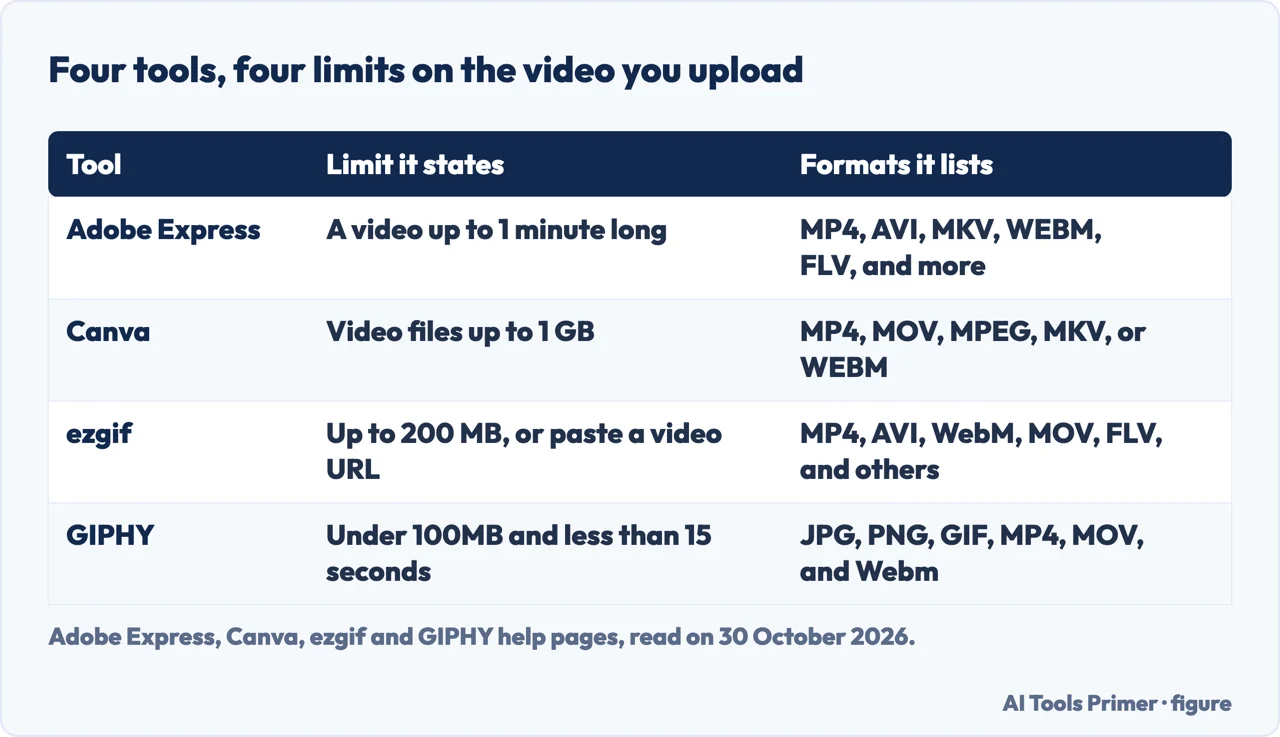
Adobe Express says on its page that file length can be up to 1 minute, and its steps repeat it: upload a video from your device, choosing any video up to 1 minute long. The second step is to choose a file size and an aspect ratio based on where you plan to share the GIF, and the third is to download the new GIF or keep editing in Adobe Express. It offers three sizes: large for a high-quality GIF, medium for GIFs you plan to share on social media platforms, and small for GIFs that are easy to share anywhere. The aspect ratio can be square, landscape or portrait, and you drag the GIF to fit the new format if needed. Trimming is done with handlebars that set the moment you want to capture. The page lists MP4, AVI, MKV, WEBM and FLV “and more”, and its questions add MOV and WMV. It says the tool is free to use, with no credit card required, and works the same on desktop and mobile.
Canva says that video files up to 1 GB are supported and names MP4, MOV, MPEG, MKV and WEBM. After you upload, the converter turns the clip into a GIF and, according to the page, shows a preview playing on the page before you save it. You can then download the GIF, share it to social accounts, send it to other Canva users or copy a link, or choose Edit to open it in the Canva editor, where the page mentions trimming, cropping, filters, transition styles, playback speeds and captions.
ezgif gives its numbers in a help guide updated on 23 March 2026: upload your video file, up to 200 MB, or paste a video URL. It accepts MP4, AVI, WebM, MOV, FLV and other formats. You set the start and end time, the width and the frame rate, choose a conversion method and click “Convert to GIF!”. The converter page itself was not readable for us, so every ezgif limit on this page comes from the guide.
GIPHY states its limits in two help articles. The desktop guide says you need to be signed into your GIPHY account, and that videos must be under 100MB and less than 15 seconds long, in JPG, PNG, GIF, MP4, MOV or Webm; you can also enter a URL. The tool then offers captions and stickers, a crop with Original, Portrait, Landscape and Custom, tags, and a choice between a public and a private GIF. The best-practices article says uploads are limited to 15 seconds, although it recommends no more than 6, and to 100MB, although it recommends 8MB or less.
Side by side, the four limits do not use the same unit: a minute for Adobe Express, a gigabyte for Canva, megabytes for ezgif, and seconds plus megabytes for GIPHY. The pages we read do not say which of them to follow when the GIF is meant for a particular chat or social platform.
Why a GIF is larger than the video it came from
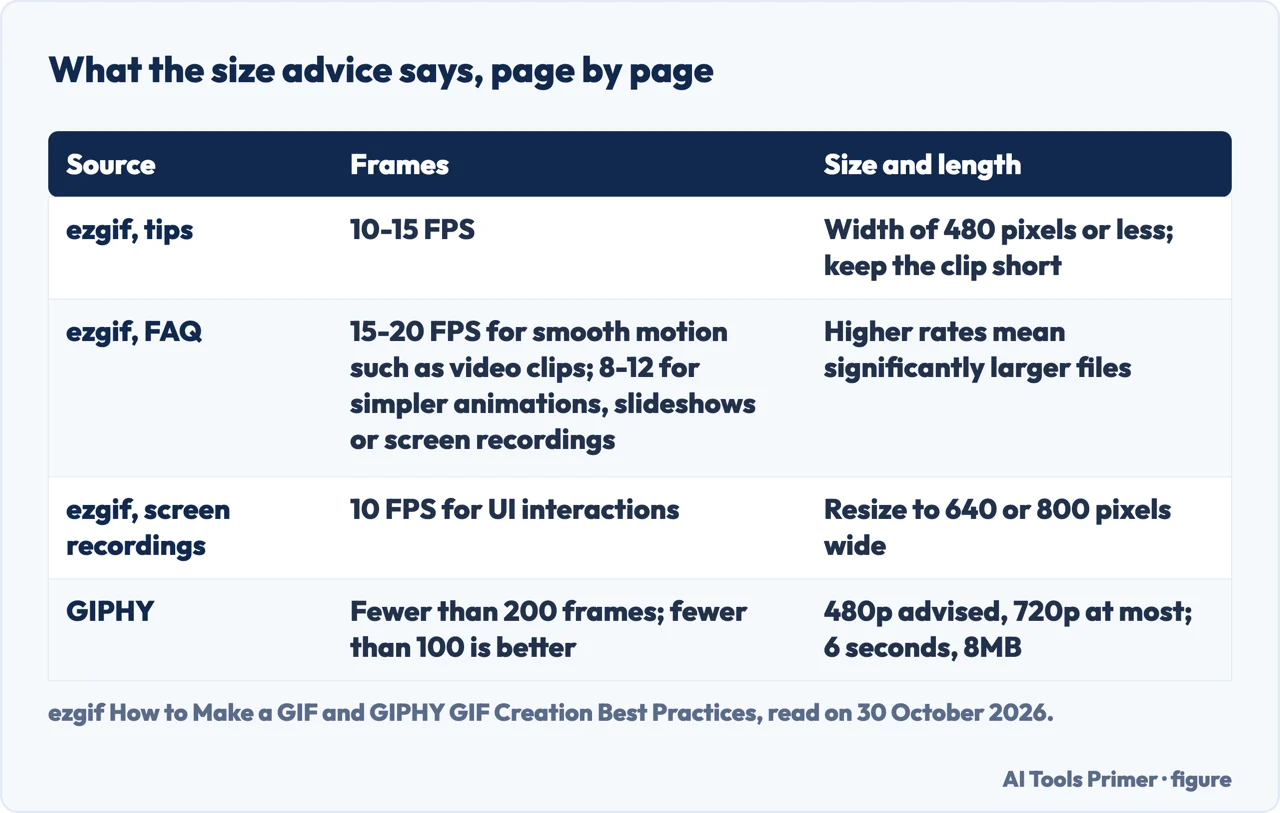
ezgif explains the cause in its tips for making a GIF from a video. GIF files can become very large with longer durations, it says, because every frame is stored as a full image, and GIFs compress poorly compared with video formats like MP4 or WebM. Its FAQ adds that the format is “limited to 256 colors per frame” and that a GIF does not support sound, so a video format is needed for that.
Three settings follow from this, and the sources give different numbers for them. On frame rate, the ezgif tips say to reduce it to 10-15 FPS to keep file sizes manageable, while its FAQ says that for smooth motion such as video clips 15-20 FPS is a good balance between smoothness and file size, and that 8-12 FPS is often sufficient for simpler animations, slideshows or screen recordings. The first is framed around keeping the file small and the second around smooth motion, and the guide does not say which to choose for a given clip. Higher frame rates, it says, produce smoother animation but significantly larger files. GIPHY does not give a frame rate. It counts frames instead: fewer than 200 works well, and fewer than 100 works even better. Our own arithmetic, not a figure from either site, puts 100 frames at about 6.7 seconds when the rate is 15 per second.
On size, ezgif says to keep the width at 480 pixels or less. GIPHY says source video resolution should be 720p at most and recommends 480p, noting that media appears mostly on small screens or smaller messaging windows. The two use different measures, a width in one case and a video resolution in the other, but both land on 480. On length, ezgif says to keep the clip short, and GIPHY recommends no more than 6 seconds and 8MB or less. GIPHY also says its mobile applications optimize content for size, which sometimes results in subtle changes to the GIF’s size and speed.
The sources do not agree on what a GIF is for. Universal Music for Creators, in a guide dated 5 March 2024, says a GIF plays multiple images in a loop without having to upload or send a large video file. ezgif, as above, says GIFs compress poorly compared with MP4 and WebM, and its optimizing guide says AVIF, WebP and APNG can reduce file sizes by 50–90% compared to GIF. Read together, one describes the format as a way around a large video file and the other as a format that compresses poorly. ezgif does give one reason to keep GIF anyway: its FAQ says GIF is supported virtually everywhere, on every browser, messaging app, social media platform and image viewer.
When the GIF comes out too big
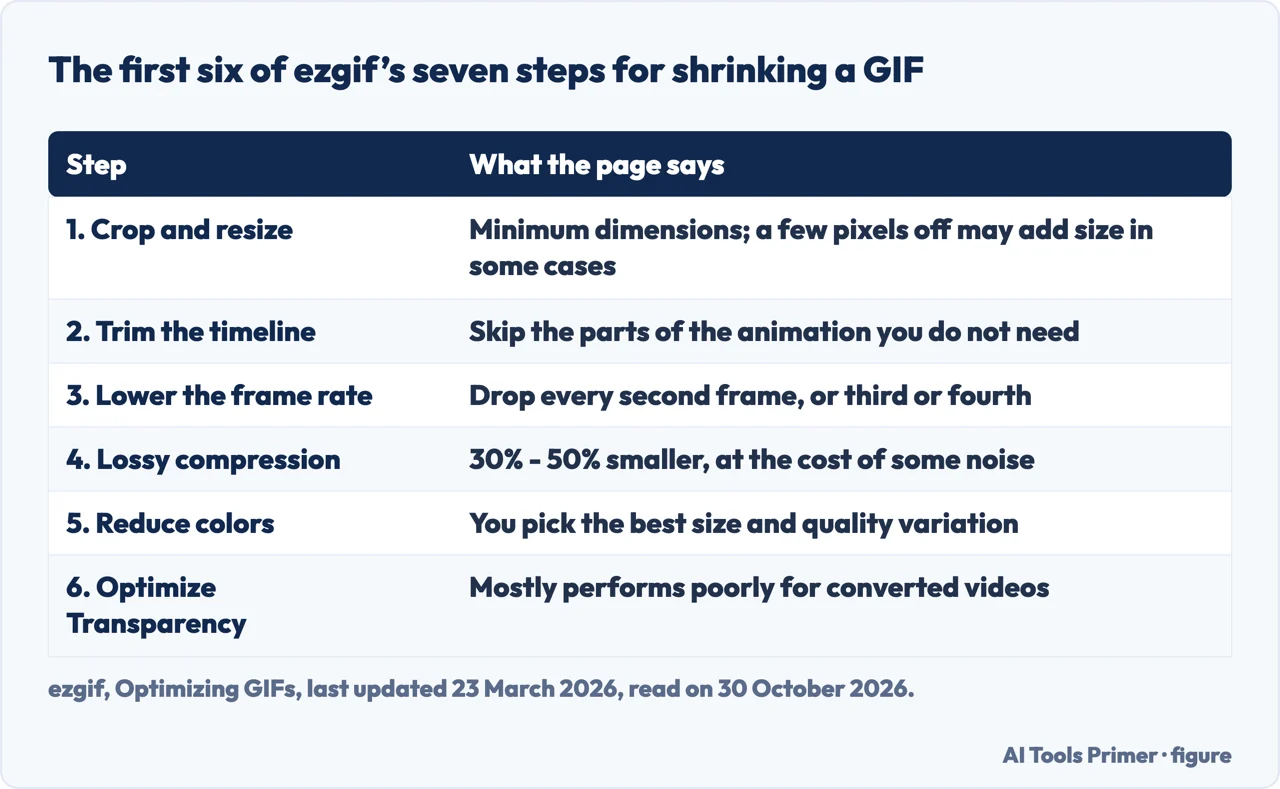
ezgif’s guide to optimizing GIFs, updated on 23 March 2026, lists seven things to try, in numbered order. It starts with cropping and resizing to the minimum dimensions you need before anything more sophisticated. It warns that this has exceptions: shrinking the dimensions by just a few pixels may in some cases increase the file size. Second is removing parts of the animation timeline you do not need. Third is reducing the frame rate by dropping every second, third or fourth frame, using a “Remove every 2nd frame” option in its optimizer.
The fourth step is lossy compression, which the guide calls “usually the preferred method” in ezgif and says can reduce animated GIF file sizes by 30% to 50% at the cost of a little dithering and noise. The fifth is color reduction, which makes several variations so you can choose the best balance of size and quality. The sixth is Optimize Transparency, which makes identical or very similar parts of consecutive frames transparent and saves the color information only in the first frame. If you use it together with lossy compression, the guide says to run Optimize Transparency first, because lossy compression may add noise and make it less effective.
The sixth step is where the guide speaks about converted video. It says the method may give very good results for large static areas, such as screen recordings of applications, but that it “will mostly perform poorly” for converted videos and other images saturated with colors and movement.
The seventh item is to leave GIF. If none of the steps produces a small enough file, ezgif says to consider AVIF, WebP or APNG, which it says offer significantly better compression, reduce file sizes by 50–90% compared to GIF and support millions of colors. Its help guide makes the same suggestion when GIF’s 256 colors are not enough. The pages we read do not say which apps or sites accept those formats. If the video itself is what needs to shrink, our page on compressing video covers that instead.
On a phone, and from a screen recording
Adobe Express says its tool works the same on desktop and mobile: launch it, choose a video to upload and download the GIF. Canva’s page says to download its app on an iPhone, upload a video from the gallery, let the converter make the GIF, then download or share it, or edit it further. For iPhone steps that need no web tool, we have one source, an Atlassian blog post on Loom dated 2 August 2024. It says to open the Shortcuts app, search the Gallery for “Video to GIF”, tap “Add Shortcut”, pick the video and trim it if needed; the new GIF is saved in Photos, or you can save it to the Files folder. The same post says Android does not have a built-in app for turning a video into a GIF and points Android users to the GIPHY app, with steps similar to the iPhone ones. We did not find an Apple page on this, so the iPhone steps rest on that blog post alone.
For a screen recording, ezgif gives a separate method in its guide. It says most operating systems have a recorder built in, and lists the Snipping Tool, Xbox Game Bar, OBS or ShareX on Windows and Command-Shift-5 or QuickTime Player on a Mac, then to save the recording as MP4 or WebM and run it through the video converter. Screen recordings often have dimensions of 1920×1080 or higher, it says, which results in huge GIF files, so it advises resizing to a reasonable width such as 640 or 800 pixels. It also says 10 FPS “is usually sufficient” for recordings of interface interactions, and that Optimize Transparency can significantly reduce file size for this kind of content because toolbars and backgrounds do not change between frames. Our page on OBS covers one of the recorders it names, and our pages on screen recording on Windows and screen recording on iPhone cover the built-in options.
Atlassian also describes a use of the format inside Loom: turning on the “Animated Thumbnail” setting makes a GIF preview from the first few seconds of a recording. Atlassian describes a GIF as silent, bite-size and looping endlessly without sound.
What the pages do not say, and what we did not use
The Adobe Express and Canva pages we read give no figure for how large the finished GIF will be, and Canva’s does not give a length limit for the video. Adobe Express says the tool is free to use, and the pages we read do not mention a watermark. The pages we read do not state how many megabytes a clip of a given length and width will produce, so we have not put such a figure here. They also do not give the size limit of a chat, email or social platform that a GIF might be sent to. The question of whether ChatGPT can make a GIF is one of the four that Google showed with the results, and the pages we read do not mention ChatGPT.
We made no GIF with any of these tools. We did not read the ezgif converter page, which reached us in a form we could not read, the Photoshop video and the Google Play app listing that Google also showed, or any page from Apple. The Atlassian post and the Universal Music for Creators guide date from 2024, so their tool descriptions may have changed; Universal Music for Creators also names Giphy, Canva and Adobe as free tools and gives five general steps that name aspect ratio, size, quality and looping as settings but give no upload limits. The Google AI box was not read in this lookup.
Where to start
Four ways in.
- “How big a video can I upload?”
- Four tools, four different limits — tools
- “Why is the GIF so large?”
- Why a GIF is larger than the video it came from — weight
- “How do I make it smaller?”
- When the GIF comes out too big — shrink
- “I only have my phone.”
- On a phone, and from a screen recording — phone
A smaller file
Shrinking the video, or sending the file another way.
Formats, clips and recordings
Converting a file, building a clip or recording the screen.
Questions people also ask
How do I convert a video to a GIF on my iPhone?
Atlassian’s 2024 post says to open the Shortcuts app, search the Gallery for “Video to GIF”, add the shortcut, pick the video, trim it, and find the GIF in Photos or Files. Canva says to download its app and upload the video from your gallery.
How can I convert an MP4 video to a GIF for free?
Adobe Express says its tool is free to use with no credit card required, and Canva’s page is titled as a free converter. Atlassian names Ezgif and GIPHY as free browser tools. Upload limits differ: 1 minute, 1 GB, 200 MB, and 100MB with 15 seconds.
Can ChatGPT make a GIF?
The pages we read do not mention ChatGPT. Each tool above works from a video you upload, and ezgif and GIPHY also take a video URL.
How do I make a GIF from a video in my camera roll?
On an iPhone, Atlassian says the Video to GIF shortcut turns any video in your camera roll into a GIF. Canva says to upload from the gallery in its app, and Atlassian points to the GIPHY app on Android.
Not covered here. We made no GIF with any of these tools. The statements come from the help and product pages of Adobe Express, Canva, ezgif and GIPHY, and from a 2024 Atlassian post and a 2024 Universal Music for Creators guide, all read on 30 October 2026.
The search volume and difficulty behind this page come from a reading of 29 August 2026, older than the 60 days the site normally allows.
Sources
- Adobe Express — Free Video to GIF Converter — www.adobe.com, read 30 October 2026.
- Canva — Free MP4 to GIF Converter — www.canva.com, read 30 October 2026.
- ezgif — How to Make a GIF: A Complete Guide (updated 23 March 2026) — ezgif.com, read 30 October 2026.
- ezgif — Optimizing GIFs (updated 23 March 2026) — ezgif.com, read 30 October 2026.
- GIPHY Help Center — GIF Creation Best Practices — support.giphy.com, read 30 October 2026.
- GIPHY Help Center — How To Make A GIF on Desktop — support.giphy.com, read 30 October 2026.
- Atlassian — How to Create a GIF From a Video on Any Device (2 August 2024) — www.atlassian.com, read 30 October 2026.
- Universal Music for Creators — Turning your video into a GIF: a step-by-step guide (5 March 2024) — www.universalmusicforcreators.com, read 30 October 2026.
Written by Alberto Gulotta
Founder and editor of AI Tools Primer, writing from Palermo, Italy. Thirty-five years of taking computers apart, starting with a Commodore 64 — the long version is on the about page.
Something wrong on this page? Write to aitoolsprimer@gmail.com and it gets fixed.
Written on 30 October 2026.
Independence and limits
No affiliate links and no paid placements anywhere on this site. Nobody pays to appear here, and no company has seen this page before you did.
This is general information, not professional advice. Where a page touches money, health, safety or the law, it names its source and the date it was read — and your situation may still differ. See the privacy page and the cookie policy.