
iPhone · guide
iPhone camera not working, and where three guides differ
By Alberto Gulotta · Updated · 14 min read
An iPhone camera that is not working starts, on Apple's page, with taking off any case or accessory that blocks it, cleaning the lenses if photos are blurry, restarting and updating iOS. A black screen gets a diagnostic, and Apple and Guiding Tech start it in different ways. Asurion adds storage and permissions.
| Question | Answer | Where it comes from |
|---|---|---|
| What does Apple try first? | Take off a case, film or accessory that blocks the camera or flash, clean the lenses if photos are blurry, restart | Apple Support |
| Which update? | The latest version of iOS | Apple Support, Asurion, Guiding Tech |
| How do I test it? | Take a photo, and switch between the front and back cameras | Apple Support, Asurion |
| What if the screen is black? | Run the iPhone’s diagnostic; Apple and Guiding Tech start it in different ways | Apple Support, Guiding Tech |
| When is it service? | Apple says when the camera or flash still does not work after the steps; Guiding Tech adds a fall or other hardware damage | Apple Support, Guiding Tech |
What can be in the way, and what Apple tries first
Apple’s support page for a camera or flash that is not working is dated 22 October 2026. It lists four problems it helps with: photos that are blurry, have visual artifacts or lens flare, or show poor quality; a variable aperture on the iPhone 18 Pro or iPhone 18 Pro Max that will not change; a black camera screen; and a flash that keeps blinking or has other issues. We used only the steps written on that page.
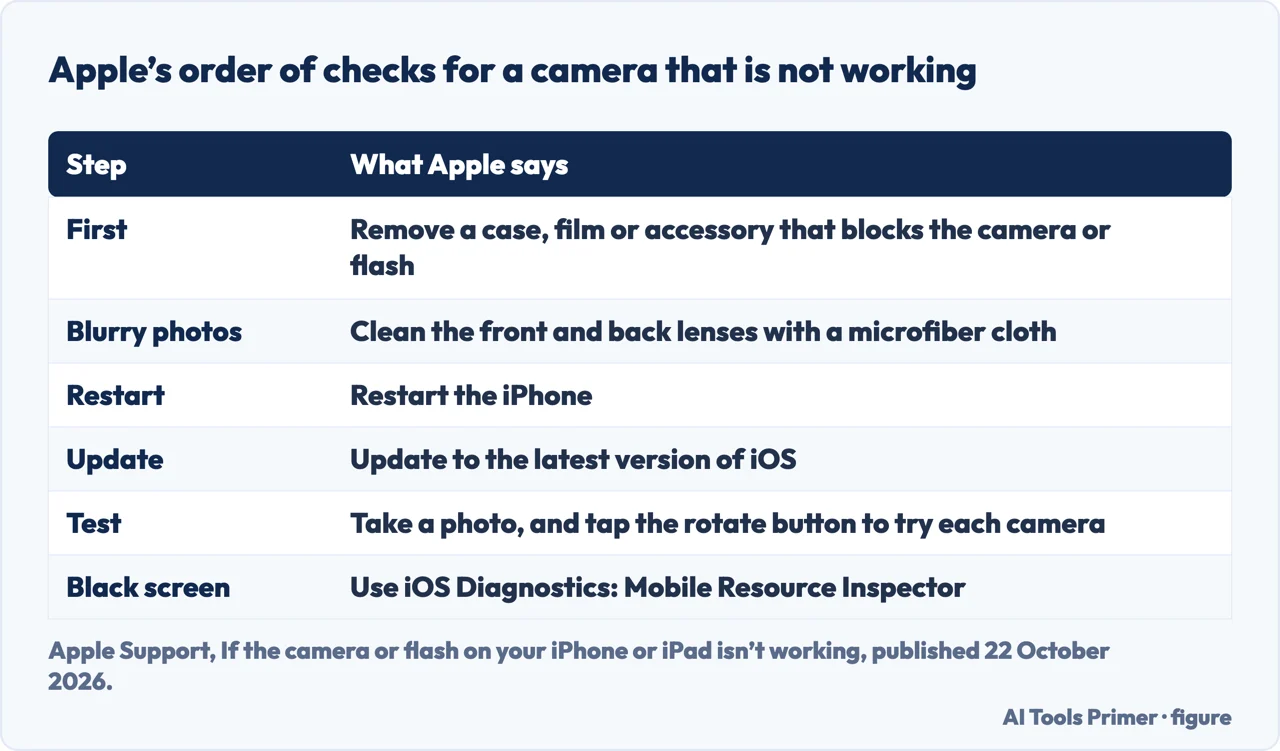
Under the heading for the first steps, Apple gives three. Remove any case, film or accessory that might block the camera or flash, or that places a magnet near the camera; it names a polarizer, an extender and a magnifier as examples. If photos are blurry, clean the front and back camera lenses with a microfiber cloth. Restart the iPhone. Under the heading for troubleshooting the camera it then says to update to the latest version of iOS. Further down it returns to accessories for one case: if you see motion blur in low light and you use a lens converter, a metallic case or a magnetic lens mount, try removing the accessory.
Asurion’s page, which carries no date, starts from causes rather than steps. It lists six likely ones: a lens or flash that is blocked or dirty, a temporary software glitch that has frozen the Camera app, iOS that is out of date, storage that is nearly full, an app without camera permission, and hardware damaged by a drop or by water. Its first fixes match Apple’s, with one difference in wording: Asurion says to clean the lens gently with a soft, dry cloth where Apple says a microfiber cloth. Asurion sells repairs and ends by pointing to its own uBreakiFix stores, so we take its list of steps and leave its advice on where to go.
Which camera, which app, and the flash
After the update, Apple says to test the camera by trying to take a photo. If the iPhone has a front and a rear camera, it says to check whether one or both are not working, and gives the rotate button as the way to switch. Asurion has the same check, worded as switching between the front and back cameras to see if one works. Guiding Tech gives a reason for doing it: the camera may be stuck between the front and back modes, or between lenses, which it says can lead to a black screen.
Guiding Tech and Asurion also give the Camera app its own step. Guiding Tech calls closing and reopening the Camera app the easiest way to fix a black camera screen, and puts a force restart of the iPhone next if that does not work. Asurion lists a restart to clear temporary glitches, then closing and reopening the Camera app. Our page on how to force restart an iPhone has the button sequences.
Asurion adds a test in another app, such as FaceTime. Its answer to a front camera that does not work on FaceTime is to check that FaceTime has permission to use the camera in Settings, Privacy & Security, Camera. In its answer on a black screen it says this can happen if the Camera app freezes, if another app is using the camera, or if the lens is blocked.
The flash has its own steps on Apple’s page. Try the flashlight in Control Center: on an iPhone X or later, swipe down from the upper-right corner of the screen; on an iPhone 8 or earlier, swipe up from the bottom edge of any screen; then tap the Flashlight button. If the flash works only sometimes, Apple says the camera might be set to Flash Auto, and to choose a different setting from the flash button in the Camera app. Guiding Tech uses the flashlight differently: it lists turning the flashlight on and off among its basic steps for a black camera screen. Apple’s page also lists a flash that keeps blinking as a separate problem; we did not read a page for it.
Settings and conditions that can stop the camera
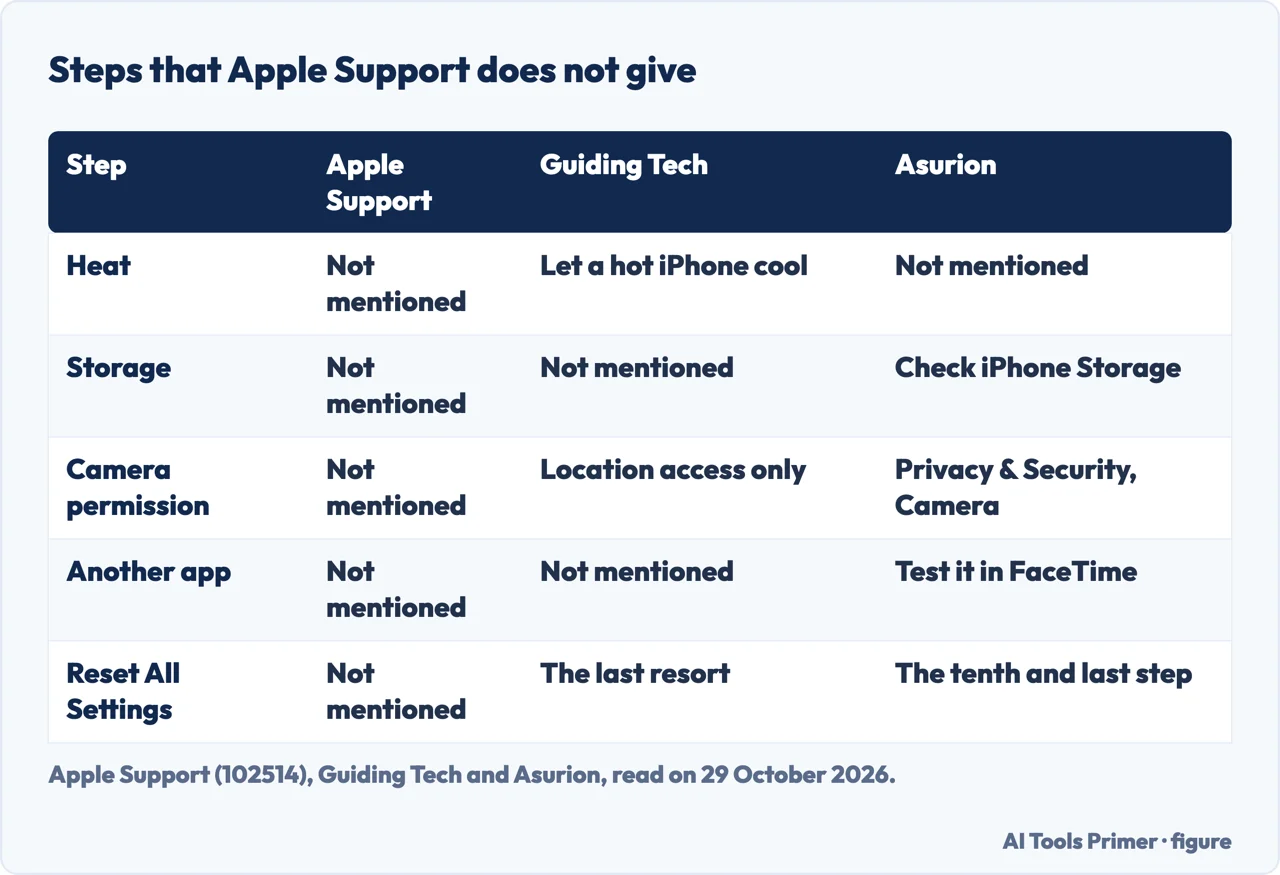
Apple’s page for the camera does not name permissions, storage, Live Photo, VoiceOver or Reset All Settings. Those come from Asurion, Guiding Tech and Apple’s iPhone User Guide. Asurion says to check storage in Settings, General, iPhone Storage, and says that if storage is full the iPhone may not be able to take or save new photos or videos. Our page on freeing up space on an iPhone covers that side. Asurion also says to update iOS under Settings, General, Software Update.
On permissions, Apple’s guide to hardware features says apps are required to ask for permission before they use the camera or microphone. Under Settings, Privacy & Security, Camera, the list shows the apps that asked, and you can turn access on or off for any app on it. Asurion points to the same screen. Apple adds that a green indicator appears whenever an app uses the camera; our page on the orange dot on iPhone covers the indicators, and app permissions has the screen in more detail.
Apple’s guide to Screen Time says that under Settings, Screen Time, Content & Privacy Restrictions, Other Features, you can allow or block built-in apps and features such as AirDrop and Camera. That page does not say that blocking Camera produces a black screen; it says only that Camera is one of the features that can be blocked. We did not try it on an iPhone. If a limit is set on the phone, turning off Screen Time has the steps and the separate passcode.
Guiding Tech lists three settings to change. The first is Live Photo: tap the Live Photo icon at the top right of the Camera app, and when it is off the icon has a slash through it. The second is location access for the camera: under Settings, Privacy, Location Services, Camera, choose Never or Ask Next Time. The third is VoiceOver, which it describes as an accessibility feature that gives spoken feedback; the page says some users have mentioned that it can cause problems for the Camera app, and it suggests turning it off for a test. It does not present that as a proven cause.
Two conditions come from Guiding Tech alone. It says excessive heat can affect the camera and lead to a temporary black screen, and to try again after the iPhone cools down. It says a battery that is too low, or Low Power Mode, can turn the camera screen black, and to turn Low Power Mode off. The pages we read do not give a temperature or a battery level.
A black screen, and the diagnostic
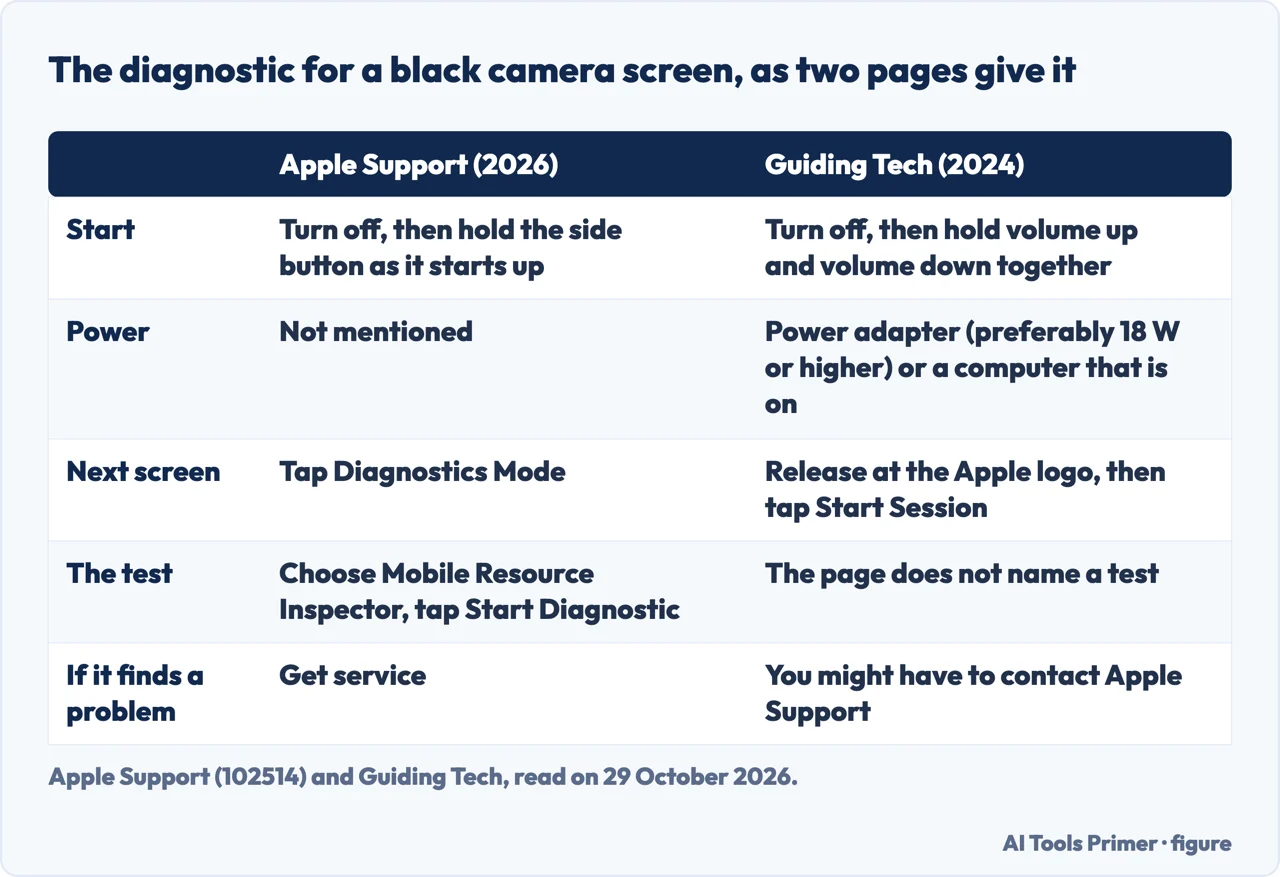
For a black camera screen, Apple says to use iOS Diagnostics to test the camera. Its steps: turn off the device, then press and hold the side button when the device starts up, which starts Recovery Assistant. Tap Diagnostics Mode and follow the on-screen instructions. When asked to choose a diagnostic, tap Mobile Resource Inspector, then tap Start Diagnostic. If Mobile Resource Inspector finds an issue, Apple says to get service.
Guiding Tech has a diagnostic step too, under a different heading and with a different procedure. Turn off the iPhone and press and hold both the volume up and volume down buttons. While holding them, plug the iPhone into a power adapter, preferably 18 W or higher, or connect it to a computer that is on and connected to power. When the Apple logo appears, release the buttons; a message about the diagnostic mode appears, and you tap Start Session. The page labels its screenshots as coming from Apple.
The two procedures are not the same: one holds the side button, the other holds two volume buttons while the phone is connected to power. Apple’s page is dated 22 October 2026 and Guiding Tech’s was updated on 5 July 2024. The pages we read do not say which iPhone models either procedure is for, or whether the method changed between those dates. Guiding Tech calls it a typical step and says to skip it if you are not comfortable. It adds that depending on the result, hardware or software, the course of action might change, and that in either case you might have to contact Apple Support.
Guiding Tech opens with the question of whether the problem is hardware or software, and treats the diagnostic as the way to find out. Apple’s page puts it differently: it names the test and says what to do if the test finds an issue. Either way, the pages we read do not say which of their steps fixes a black screen most often.
The last software step, and when to stop
Guiding Tech calls Reset All Settings a stern step and the last resort if nothing else is working. The path it gives is Settings, General, Transfer or Reset iPhone, Reset, Reset All Settings, then the passcode. Asurion has the same path as the tenth and last of its steps. Apple’s page for the camera does not mention it. Our page on resetting an iPhone to factory settings covers the larger reset.
On service, Apple says that if the camera or flash still is not working properly you might need service. Guiding Tech’s answers go further. If the black screen comes from a fall or other hardware damage, it says to have the iPhone checked by an authorized technician, and it lists a cracked camera lens or internal component damage as physical damage that can cause the black screen. On warranty, it says that for an internal hardware issue on an iPhone under warranty, Apple might replace the camera or resolve the issue for free, and that accidental damage is not covered by the standard warranty. It also suggests telling Apple which troubleshooting steps you have already taken, so that you save time.
Asurion treats a drop or water as one of its six causes, and for a blurry or black back camera it says that if the iPhone still does not respond after cleaning the lens, removing the case and updating iOS, it may need repair. For the front camera it says the camera could need service if the problem continues after switching cameras, checking permissions and testing in another app. The pages we read do not say what service costs. If the camera you mean is on a computer, see our page on a laptop camera that is not working.
What we did not use
We tested nothing on an iPhone. We did not read forum threads, repair-shop blogs or other how-to pages. Apple’s page lists four problems; we used only the steps written on that page, not any page it may point to for blurry photos, the variable aperture or the blinking flash. Guiding Tech’s page is dated 5 July 2024, and Asurion’s page has no date.
Where to start
Four ways in.
- “What do I try first?”
- What can be in the way, and what Apple tries first — blocked
- “Is it the front or the back?”
- Which camera, which app, and the flash — which
- “Could a setting stop it?”
- Settings and conditions that can stop the camera — settings
- “The screen is black.”
- A black screen, and the diagnostic — black
When the iPhone does not answer
Restarts, white screens and liquid.
Settings that can get in the way
Permissions, storage and limits.
Questions people also ask
Why is my iPhone camera showing a black screen?
Asurion says this can happen if the Camera app freezes, another app is using the camera, or the lens is blocked. Guiding Tech adds heat, a low battery or Low Power Mode, and Apple points to its iOS Diagnostics test.
How do I reset my iPhone camera?
The pages we read do not describe a reset of the camera alone. The nearest steps are closing and reopening the Camera app, a restart, and, as a last resort, Reset All Settings under Settings, General, Transfer or Reset iPhone.
How to reset an unresponsive camera?
Guiding Tech says to close and reopen the Camera app, then force restart the iPhone. Asurion says to restart and then close and reopen the Camera app. Apple says to restart and update iOS.
Why is my camera suddenly not working?
Asurion lists six likely causes: a blocked or dirty lens or flash, a frozen Camera app, out-of-date iOS, nearly full storage, an app without camera permission, and drop or water damage. Apple starts with a case or accessory in the way.
Not covered here. We tested nothing on an iPhone. The statements come from an Apple Support page dated 22 October 2026, two Apple iPhone User Guide pages, Guiding Tech (updated 5 July 2024) and Asurion, all read on 29 October 2026.
The search volume and difficulty behind this page come from a Semrush reading of 29 August 2026, older than the 60 days the site normally allows.
Sources
- Apple Support — If the camera or flash on your iPhone or iPad isn’t working — support.apple.com, read 29 October 2026.
- Apple iPhone User Guide — Control access to hardware features on iPhone — support.apple.com, read 29 October 2026.
- Apple iPhone User Guide — Block features or content with Screen Time on iPhone — support.apple.com, read 29 October 2026.
- Guiding Tech — 6 Fixes for iPhone Camera Black Screen — www.guidingtech.com, read 29 October 2026.
- Asurion — iPhone camera not working? How to fix it — www.asurion.com, read 29 October 2026.
Written by Alberto Gulotta
Founder and editor of AI Tools Primer, writing from Palermo, Italy. Thirty-five years of taking computers apart, starting with a Commodore 64 — the long version is on the about page.
Something wrong on this page? Write to aitoolsprimer@gmail.com and it gets fixed.
Written on 29 October 2026.
Independence and limits
No affiliate links and no paid placements anywhere on this site. Nobody pays to appear here, and no company has seen this page before you did.
This is general information, not professional advice. Where a page touches money, health, safety or the law, it names its source and the date it was read — and your situation may still differ. See the privacy page and the cookie policy.